How to fix
Microsoft Family Safety Location not working
on Windows
Resolve Microsoft Family Safety location issues on Windows 10/11 quickly and efficiently. Get back on track with expert-tested solutions.

What causes How to fix Microsoft Family Safety Location not working?
- App not updated
- Device not updated
- Location services disabled
- Antivirus software blocking the app
Repairs Windows system files, removes malware, and restores a clean OS state — without reinstalling.
Hello. The Microsoft Family Safety app has stopped updating location information. How can I fix this?
The Microsoft Family Safety app is intended to assist parents in monitoring and managing their children's online and screen time. Location tracking is one of the app's features, which allows parents to see their children's current location in real-time. However, some users have reported that the location tracking feature is not functioning properly.
When the Microsoft Family Safety location tracking feature fails, it can be difficult for parents to track their children's whereabouts. This is especially concerning if parents need to know where their children are for safety reasons or are concerned about their children's safety.
There are several potential solutions to this problem, including updating the app, checking for available device updates, enabling location services, and disabling any antivirus software that may be blocking the app. The specific solution, however, may be determined by the underlying cause of the problem.
In conclusion, the location tracking feature of the Microsoft Family Safety app is critical for parents who want to keep track of their children's whereabouts. However, when the feature fails to function, it can be cause for concern. It is worth noting that Microsoft is aware of the problem and is working to resolve it.
In this guide, you will find 6 steps that should help you fix Microsoft Family Safety Location not working. For Windows, you can also try using a maintenance tool like [d1] that can fix most system errors, BSODs,[ref en-1] corrupted files, and registry[ref en-2] issues. Otherwise, follow the step-by-step instructions below.
Method 1. Restart your Device
Rebooting your device may appear to be a straightforward solution, but it can be incredibly effective in resolving Microsoft Family Safety Location malfunctions. Simply restart the device and see if the issue is resolved.
Method 2. Update the App
Windows computer:
- Open the Microsoft Store.
- Search for the Microsoft Family Safety app.
- Check if there are any available updates for the app.
- If an update is available, click on the Update button to download and install the latest version of the app.
Android or iOS device:
- Open the App Store (for iOS) or Google Play Store (for Android).
- Search for the Microsoft Family Safety app.
- Check if there are any available updates for the app.
- If an update is available, click on the Update button to download and install the latest version of the app.
Method 3. Install Windows Updates
- Press the Windows key + R to open the Run box
- Type ms-settings:windowsupdate in the text box and press Enter
- Click the Check for updates button
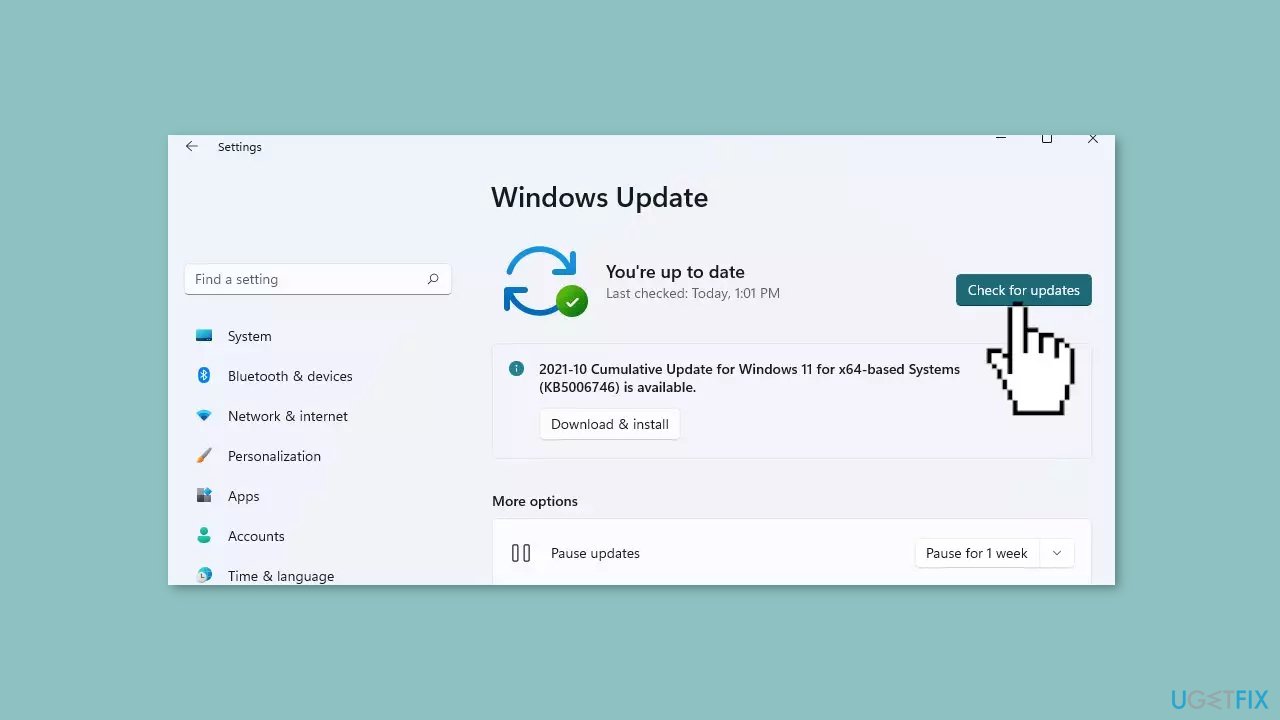
- If a new update is available, click the Download & Install all button.
- Restart your computer after the process is finished and check to see if the problem is fixed
Method 4. Disable Third-Party Antivirus Software
It is possible that your antivirus software is preventing the Family Safety app from loading or functioning on your device due to compatibility issues. If you disable the antivirus software and the app works properly, it may be time to look into a new or alternative security tool.
Method 5. Sign out and Sign In to your Microsoft Account
Like other Windows services, the Family Safety app is linked to your Microsoft account. If the app isn't working properly on your Windows PC, we recommend that you sign out of your Microsoft account and then log back in after entering your credentials. This action not only verifies your account information but also allows the app to reload on your device.
Method 6. Enable Optional Diagnostic Data
- Press the Windows key + I to launch the Settings app.
- Click on Privacy.
- Click on Diagnostics & Feedback.
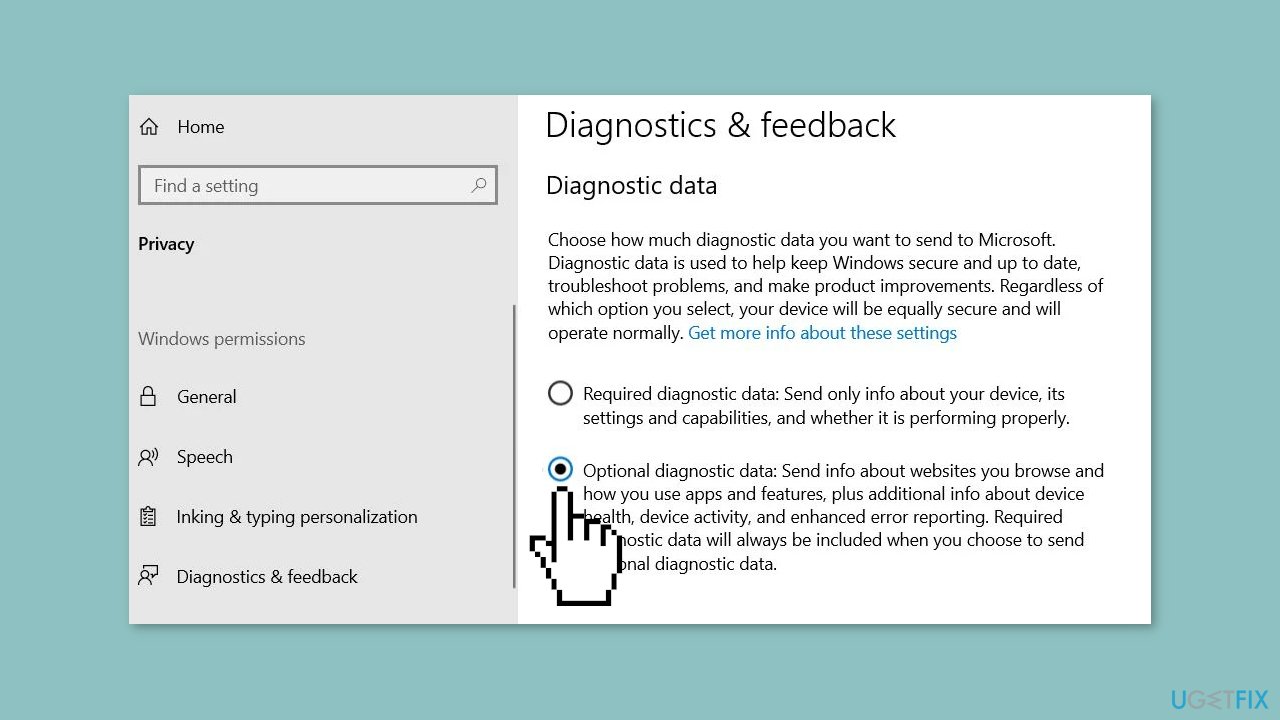
- Set the diagnostic data level to Optional diagnostic data.
- Check to see if the issue is fixed.
Bottom line
The location tracking feature of the Microsoft Family Safety app can be fixed by restarting your device, updating the app, checking for device updates, enabling location services, and disabling any antivirus software that may interfere. If none of these solutions work, consider using a maintenance tool to address potential system errors.
Frequently asked questions
Ensure that location services are enabled in your Windows 10 settings and that the Family Safety app has permission to access your location.
You can reset the app by going to Settings > Apps > Apps & features, locating Microsoft Family Safety, and selecting 'Advanced options' to reset it.
Check if the family member's device has the latest version of the Family Safety app and verify that both devices are signed in with the same Microsoft account.




Report an issue
What's wrong with this guide? We review every report and update or remove content.
Report received — thank you. We'll review and fix it.
You need a free account to submit a report.
Be the first to comment