How to fix
“Microsoft has blocked macros from running” error in Excel
on Windows
Resolve the "Microsoft has blocked macros from running" error in Excel on Windows 10 or 11 effortlessly. Expert-tested solutions await you!


What causes How to fix “Microsoft has blocked macros from running” error in Excel?
- Malicious macros in documents
- Phishing emails with infected attachments
- Security measures implemented by Microsoft
- Protected view settings in Excel
- Windows updates blocking macros
Repairs Windows system files, removes malware, and restores a clean OS state — without reinstalling.
Hello. I work from home, so I often rely on emails that include Microsoft Excel spreadsheets sent to me via email, and sometimes I download them from dedicated websites online. Recently, I noticed that I can no longer run macros in these documents due to the "Microsoft has blocked macros from running" security error shown at the top. Any tips on how to resolve this?
As a part of the Microsoft Office suite, Microsoft Excel is a spreadsheet software that allows users to organize, format, and calculate data with formulas using a grid of cells arranged in rows and columns. With Excel, users can create and edit spreadsheets, use built-in functions and formulas, and analyze and visualize data with pivot tables and charts.
It is a powerful tool that is widely used in businesses, schools, and homes around the world. Excel has a range of features including the ability to create and edit spreadsheets, use built-in functions and formulas, and analyze and visualize data with pivot tables and charts.
Unfortunately, this useful data tool is often abused by cybercriminals to spread malware with the help of malicious macros. Typically, crooks create fake emails (also known as phishing emails), which they attach malicious documents to and, once targets open them, they are prompted to allow macros to run, which some people agree to.
As a result, thousands of users get daily infected with dangerous malware, such as ransomware, and end up with their valuable files encrypted or sensitive data stolen.
Microsoft pays a great deal of attention to security, that's why there's been the "protected view" implemented within the Excel spreadsheets for a while. Unfortunately, people simply don't read the warning and allow the malicious document to run macros on their computers, ultimately spreading malicious code.
"Microsoft has blocked macros from running" is yet another attempt by the tech giant to prevent users from being infected with malware, and has rolled out with one of the Windows updates in the summer of 2022. However, some people noticed that the error prevents them from working with perfectly legitimate documents as well, as there is no option to allow content in the first place.
Below we provide several solutions for those who want to fix the "Microsoft has blocked macros from running because the source of this file is an untrusted" error. Note that you should not apply these fixes for documents that indeed come from suspicious sources.
If you are experiencing errors, Blue Screen of Death crashes, or registry/DLL errors, we recommend using a one-of-a-kind solution [d1], which is capable of repairing Windows systems automatically.
Fix 1. Unblock via file properties
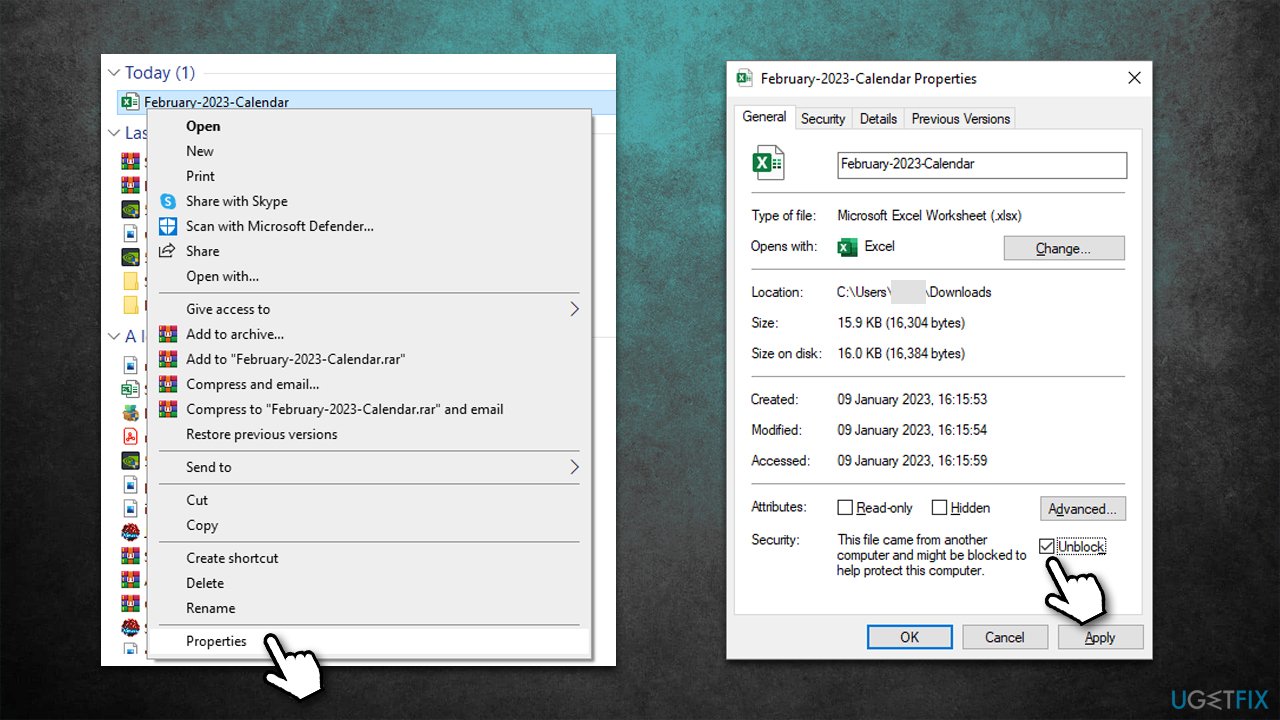
You can unblock the contents by accessing file properties:
- Download the file and save it in the preferred location
- Right-click on the Excel spreadsheet and select Properties
- In the General tab, find the Security section at the bottom
- Tick the Unblock button
- Click Apply and OK
- Try using macros in the document now.
Fix 2. Add trusted locations
While the above solution works well, it is not particularly practical if you have to do this every time you download a document from the internet and have to deal with the "Microsoft has blocked macros from running" error in Excel again. Instead, you can add trusted locations so that the error wouldn't bother you anymore:
- Open an Excel document
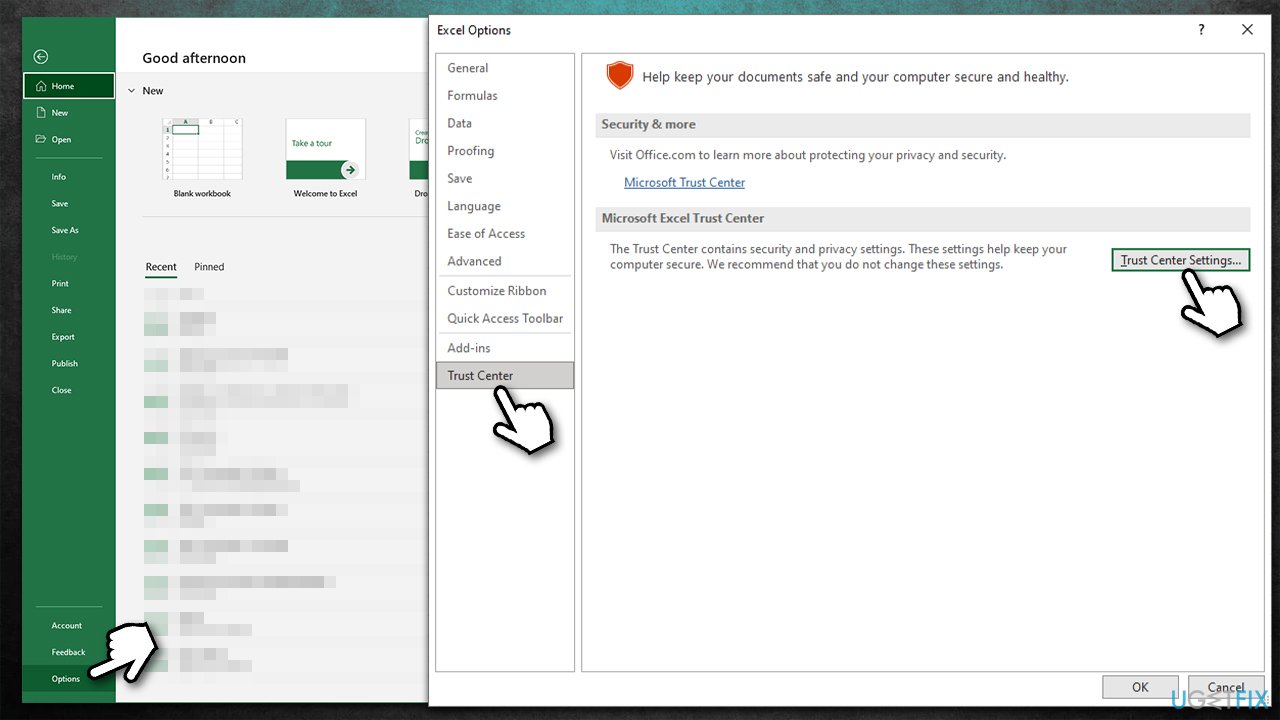
- Select File > Options
- Pick Trust Center at the bottom
- Click on Trust Center Settings
- Select Trusted Locations on the left
- Click Add new location
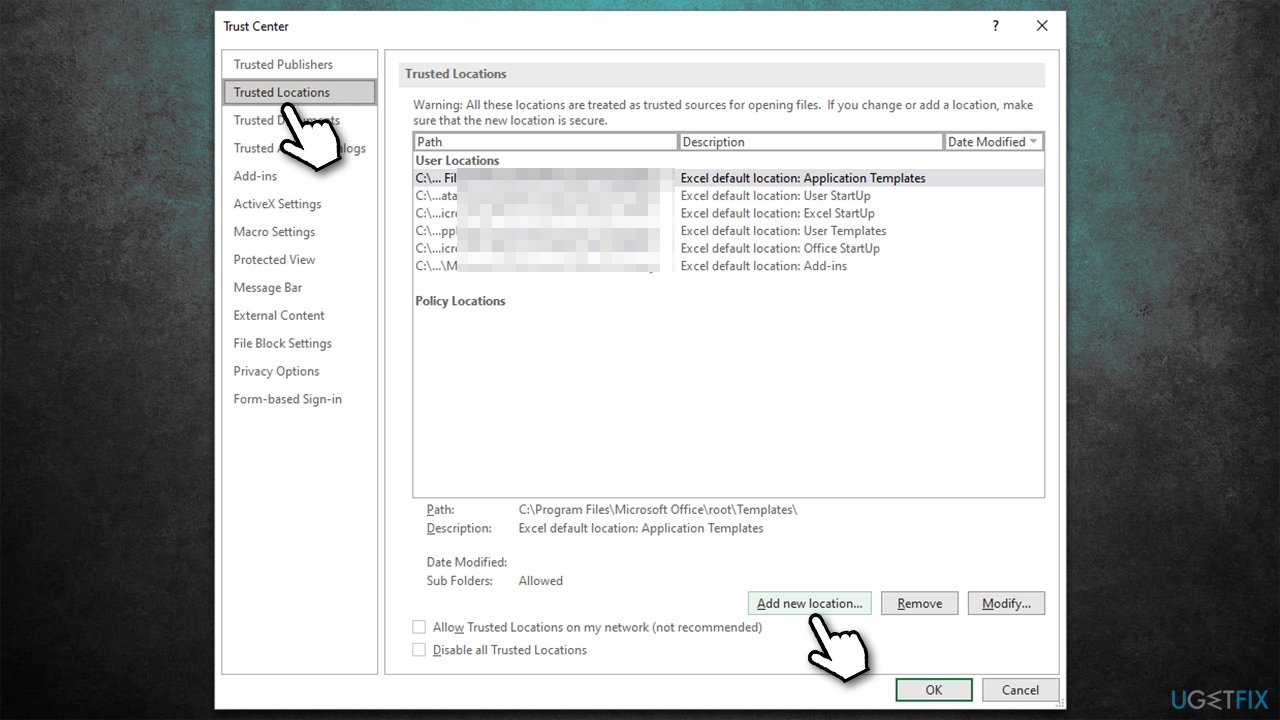
- Select Browse
- Now, select the location your files are always downloaded to, for example, C:\Users\USERNAME\Downloads, and click OK
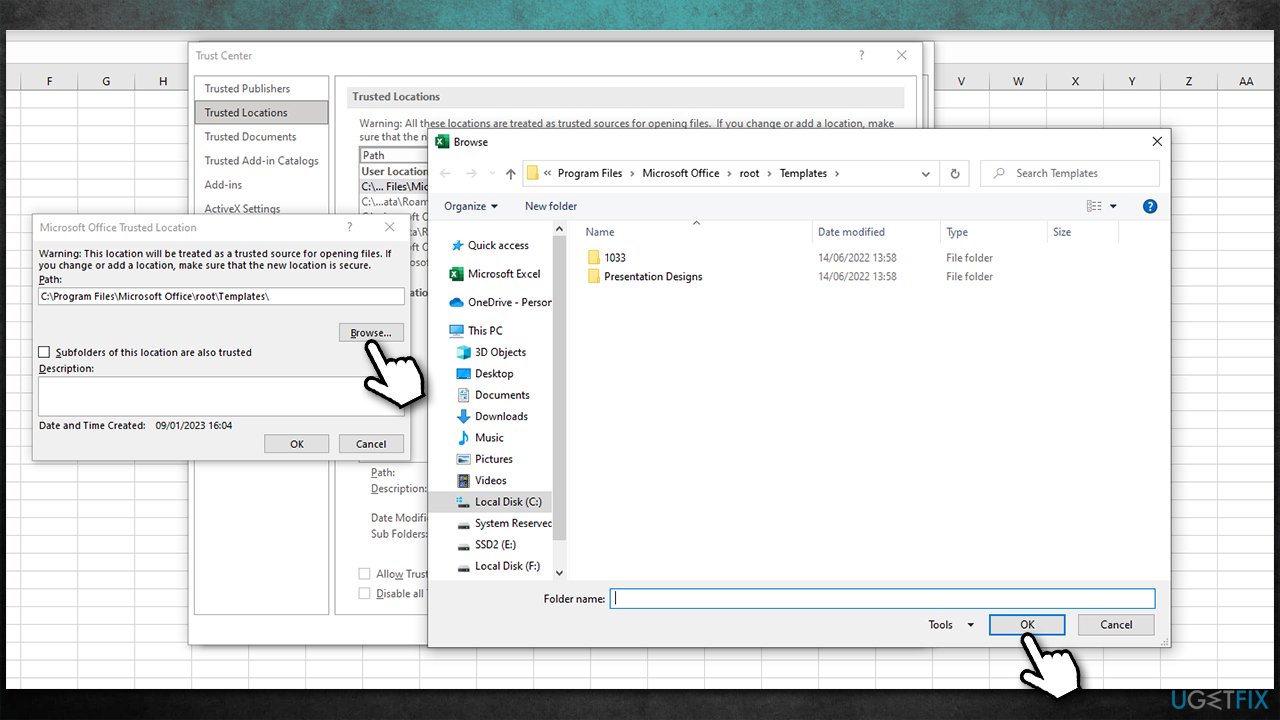
- If you want, mark the Subfolders of this location are also trusted option
- Click OK, then OK again, and close down Excel.
Important note: if you are on the network, make sure you remap the drive to the file saver name and only then add the mapped directory to trusted locations.
Bottom line
To resolve the 'Microsoft has blocked macros from running' error, users can adjust their macro settings, enable content for specific documents, or trust the document's source. If these solutions do not work, consider seeking further assistance or checking for additional updates.
Frequently asked questions
This error occurs when your Excel settings are configured to disable macros for security reasons. You can enable macros by adjusting the Trust Center settings in Excel.
To enable macros in Excel on Windows 11, go to File > Options > Trust Center > Trust Center Settings > Macro Settings, and select 'Enable all macros' or 'Disable all macros with notification'.
If enabling macros does not resolve the issue, check if your Excel file is downloaded from the internet and unblock it by right-clicking the file, selecting Properties, and checking 'Unblock' in the General tab.




Report an issue
What's wrong with this guide? We review every report and update or remove content.
Report received — thank you. We'll review and fix it.
You need a free account to submit a report.
Be the first to comment