How to fix
Microsoft Jigsaw not working
on Windows
Resolve Microsoft Jigsaw issues on Windows 10 or 11 effortlessly. Our expert-tested solutions will get you back to puzzling in no time, with screenshots!

What causes How to fix Microsoft Jigsaw not working on Windows?
- Corrupted Microsoft Store cache
- Bugs in the game
- Incomplete or faulty updates
- Corrupted system files
- Complex system issues
Repairs Windows system files, removes malware, and restores a clean OS state — without reinstalling.
I am having trouble with the Jigsaw game. I recently downloaded it from the Microsoft Store after being recommended by a friend, but I can't play it because Microsoft Jigsaw is simply not working. It loads for a very long time, and nothing happens. Any tips here?
Microsoft Jigsaw is a puzzle game available for download from the Microsoft Store for free for those who want to engage with it. Despite its popularity, some people might occasionally experience an issue where Microsoft Jigsaw is not working properly on Windows. This can manifest as a game failing to launch, unexpected crashes, performance problems, and more. Understanding the potential causes of these issues is important for figuring out how to address them.
Microsoft Jigsaw not working could be related to a corrupted Microsoft Store cache. Microsoft Store is used by users to download and update the game and relies on its cache to operate smoothly. If this cache becomes corrupted, it can affect the performance of any apps downloaded from the store, including Microsoft Jigsaw.
The game itself might also experience bugs, resulting in it failing to load correctly. This can happen due to incomplete or faulty updates, leading to glitches within the game.
Additionally, corrupted system files within the Windows operating system might also cause all sorts of issues. If they are damaged, it can negatively impact the performance and stability of applications running on Windows. Other complex system issues could be interfering with the proper game functioning as well.
Below you will find several troubleshooting solutions you should try - we provide a detailed guide you should follow. If you keep constantly having issues with the Windows system or apps, the problem might be rooted deeper, so using a robust PC repair tool such as [d1] could be a way to fix them.
Fix 1. Reset Microsoft Store cache
Resetting the Microsoft Store cache can resolve issues related to corrupted cache files, which might be causing Microsoft Jigsaw to malfunction. This process clears the cache without deleting your installed apps or altering your settings.
- In Windows search, type wsreset.exe and press Enter
- Wait till a black window shows up – do not close it
- Once it's gone, Microsoft Store should restart
- Try using the Store again.

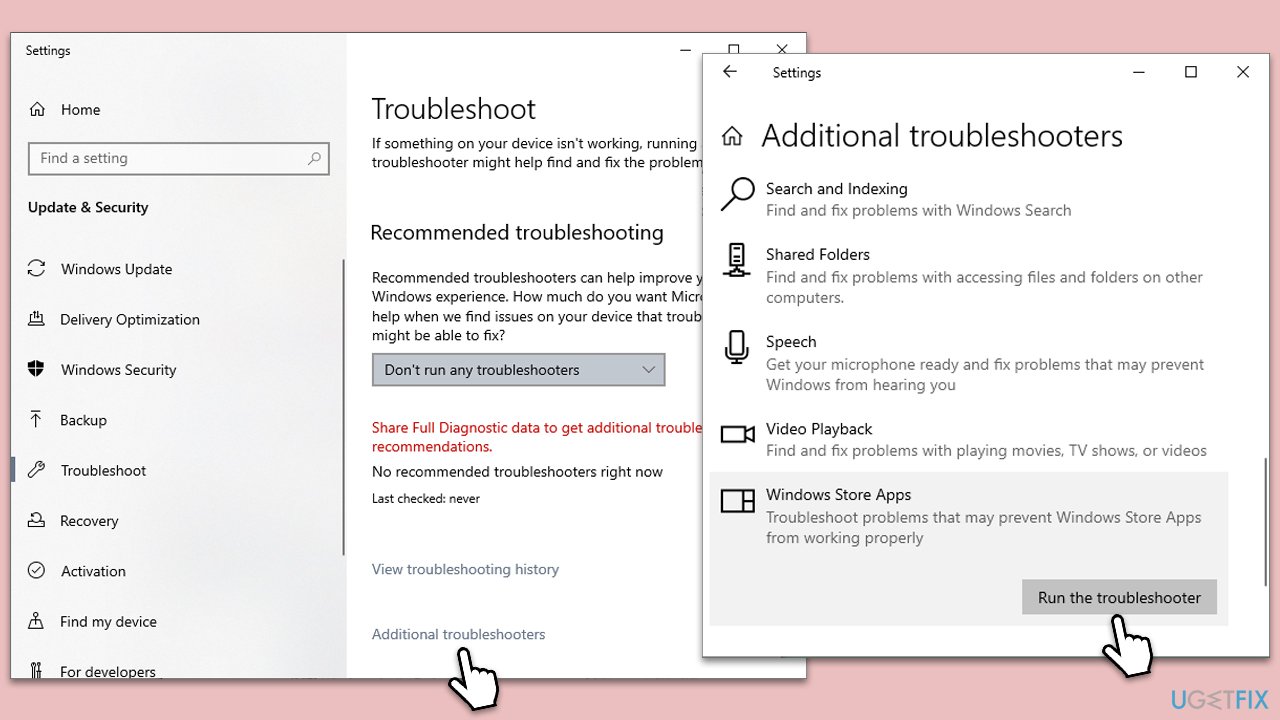
Fix 2. Run Windows Store Apps troubleshooter
Windows Store Apps troubleshooter can automatically detect and fix problems with apps downloaded from the Microsoft Store, including Microsoft Jigsaw.
- Type Troubleshoot in Windows search and press Enter.
- On the right side, click Additional troubleshooters/Other troubleshooters.
- Scroll down to find the Windows Store Apps entry.
- Select it and click Run the troubleshooter/Run.
- Wait till the scan finishes and apply the suggested fixes, then reboot your system.
Fix 3. Install all available Windows updates
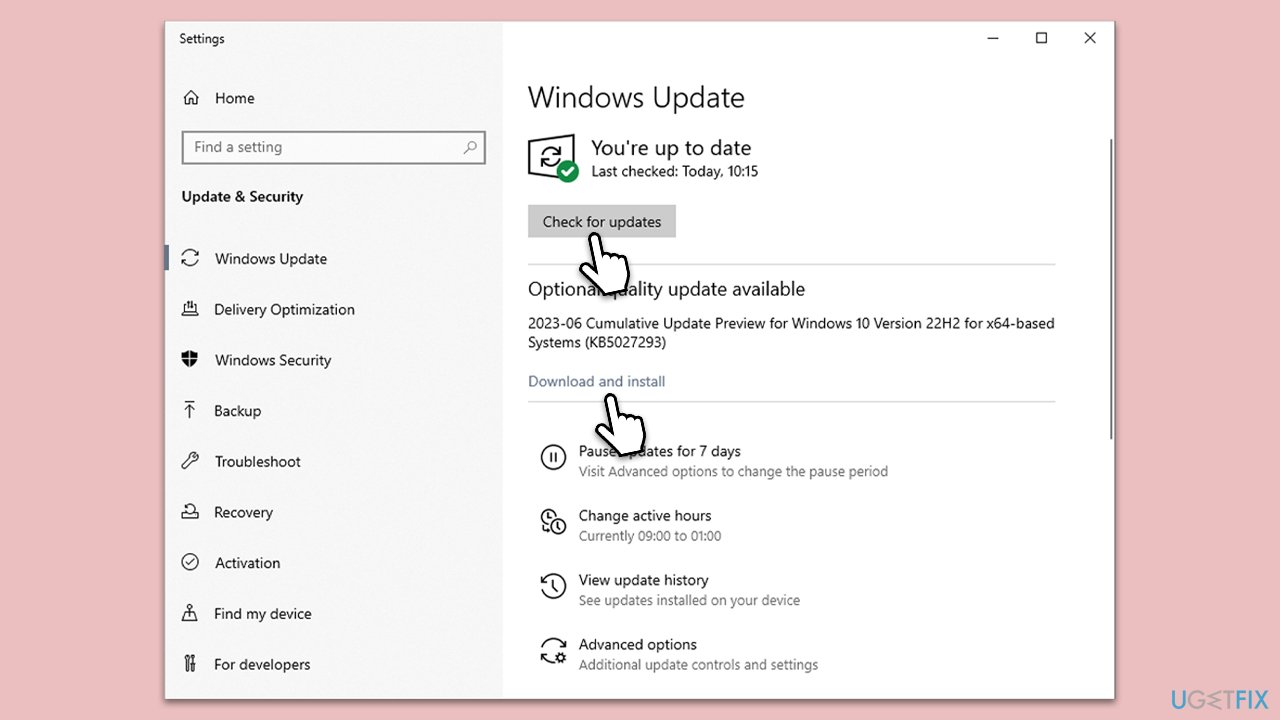
Installing the latest Windows updates can resolve compatibility issues and bugs that might be affecting Microsoft Jigsaw.
- Type Updates in the Windows search box and hit Enter.
- Click Check for Updates and wait till all the needed files are downloaded.
- If optional updates come up, install them too.
- When all is done, restart your system to implement the changes.
Fix 4. Repair corrupted system files
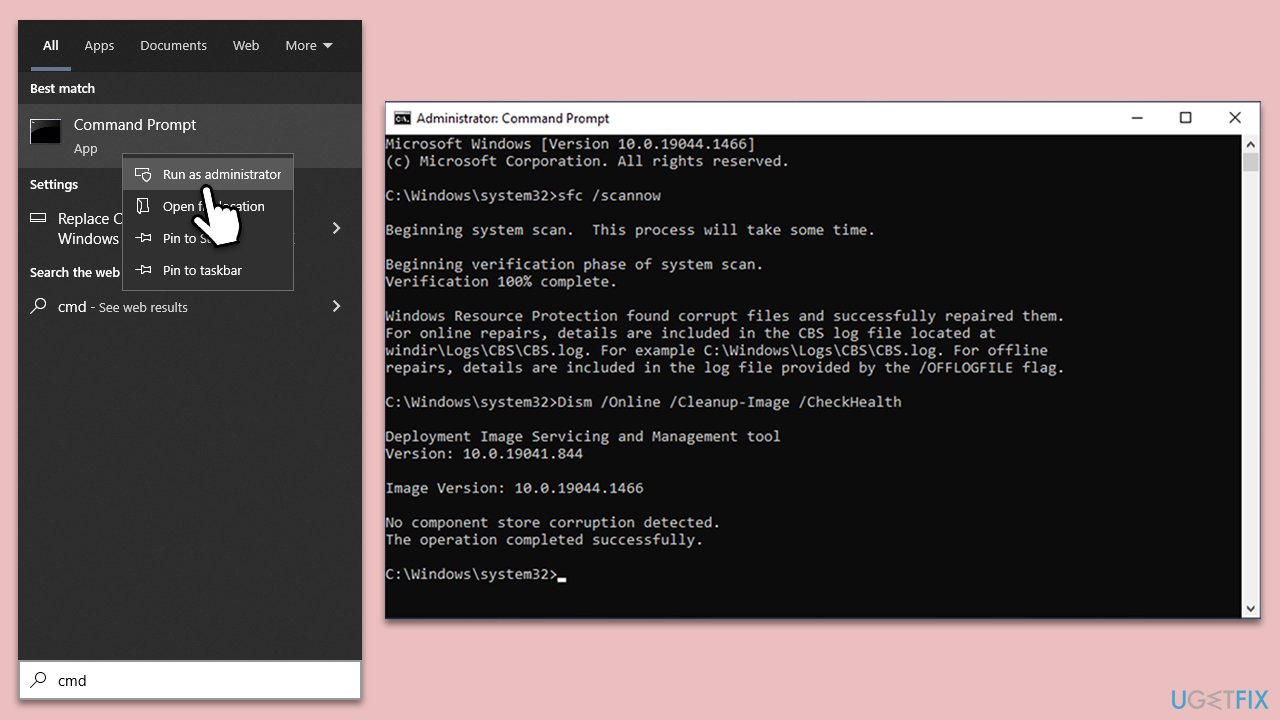
Repair damaged system files with SFC and DISM commands as follows:
- Type cmd in Windows search.
- Right-click on Command Prompt and select Run as administrator.
- User Account Control should pop up – click Yes.
- Type this command and press Enter:
sfc /scannow - Wait for the scan to finish.
- As soon as the scan finishes, Windows will report whether integrity violations were found and if they could be fixed. Regardless of the outcome, use these commands next, pressing Enter after each:
Dism /Online /Cleanup-Image /CheckHealth
Dism /Online /Cleanup-Image /ScanHealth
Dism /Online /Cleanup-Image /RestoreHealth - Close down the Command Prompt and restart your device.
Fix 5. Reset relevant apps
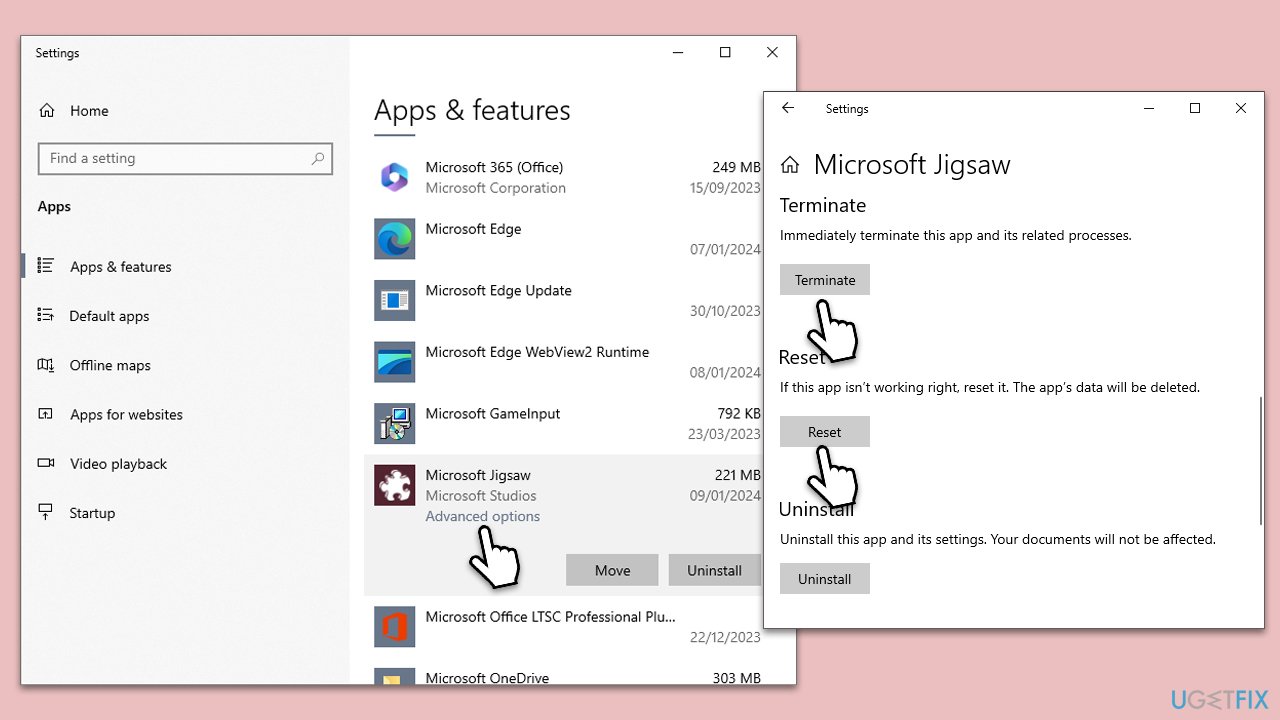
- Right-click on Start and select Apps & Features.
- Scroll down to find Microsoft Store and click Advanced options.
- Scroll down again, click Terminate and Repair, and then click Reset.
- Repeat the process with Microsoft Jigsaw.
Fix 6. Reinstall Microsoft Jigsaw
Reinstalling Microsoft Jigsaw can resolve issues caused by a faulty installation or corrupted game files.
- Open Settings.
- Go to Apps > Apps & features.
- Find Microsoft Jigsaw and click Uninstall.
- Restart your computer.
- Reinstall Microsoft Jigsaw from the Microsoft Store.

Bottom line
To fix Microsoft Jigsaw not working on Windows, you can try resetting the Microsoft Store cache, checking for updates, and repairing any corrupted system files. If these solutions do not resolve the issue, consider using a robust PC repair tool to address deeper problems.
Frequently asked questions
Try resetting the app by going to Settings > Apps > Apps & features, find Microsoft Jigsaw, click on Advanced options, and select Reset.
Ensure your Windows 11 is up to date, then uninstall and reinstall Microsoft Jigsaw from the Microsoft Store to resolve any potential corruption.
Check your Microsoft account settings and make sure you're logged in; also, try toggling the sync settings in Windows 10 or Windows 11.




Report an issue
What's wrong with this guide? We review every report and update or remove content.
Report received — thank you. We'll review and fix it.
You need a free account to submit a report.
Be the first to comment