How to fix
Microsoft Office error 0x80041015
on Windows
Resolve Microsoft Office error 0x80041015 on Windows 10 or 11 quickly and easily. Get expert-tested solutions for a hassle-free experience!

What causes How to fix Microsoft Office error 0x80041015 in Windows?
- Windows activation problem
- Problem with Microsoft Office's activation status
- Issues with the tokens.dat file
- Corrupted Office installation
- Outdated Windows version
Repairs Windows system files, removes malware, and restores a clean OS state — without reinstalling.
Hello. I can't use any Microsoft Office applications on my Windows PC because I receive the 0x80041015 error code. Is there a way to fix this?
Microsoft Office is a productivity application suite created by Microsoft. It includes well-known applications such as Word, Excel, PowerPoint, Outlook, and others. Microsoft Office is widely used in both personal and professional settings for tasks such as document creation, spreadsheet creation, presentation creation, email management, and data organization. It includes a number of features and tools that assist users in increasing their productivity and streamlining their work processes.
The 0x80041015 Microsoft Office error is a Windows activation problem that can occur when users attempt to open any Office application. This error typically indicates a problem with Microsoft Office's activation status, which prevents users from accessing and using the software's features. It can be aggravating for users who rely on Office applications on a daily basis.
One solution that some users have found useful is renaming the tokens.dat file. The tokens.dat file is a digitally signed file that stores information about Microsoft Office installation. By renaming this file, users may be able to resolve the activation issue and open Office applications without encountering the 0x80041015 error.
The severity of the 0x80041015 error varies according to the individual's reliance on Microsoft Office. This error can disrupt productivity and workflow for users who rely heavily on Office applications for work or school. They may be unable to access critical documents, finish assignments, or send/receive emails using Outlook.
Although renaming the tokens.dat file has worked for some users, it is important to note that this solution may not work for everyone. Other possible solutions for the 0x80041015 error include checking the Office activation status, running the Office Repair tool, checking for Windows updates, or contacting Microsoft Support.
In this guide, you will find 4 steps that should help you fix Microsoft Office error 0x80041015. Keep in mind, that you can also try a maintenance tool like [d1] that can fix most system errors, BSODs,[ref en-1] corrupted files, and registry[ref en-2] issues. Otherwise, follow the step-by-step instructions below.
Method 1. Update Microsoft Office Click-to-Run
- Open any Office application (Word, Excel, or PowerPoint).
- Click on the File tab located in the upper-left corner of the application window.
- From the dropdown menu, select Account.
- In the right pane of the Account window, locate and click on Update Options.
- Choose Update Now from the available options. This will initiate the process of checking for available updates.
- Wait for the installation of the update to complete.
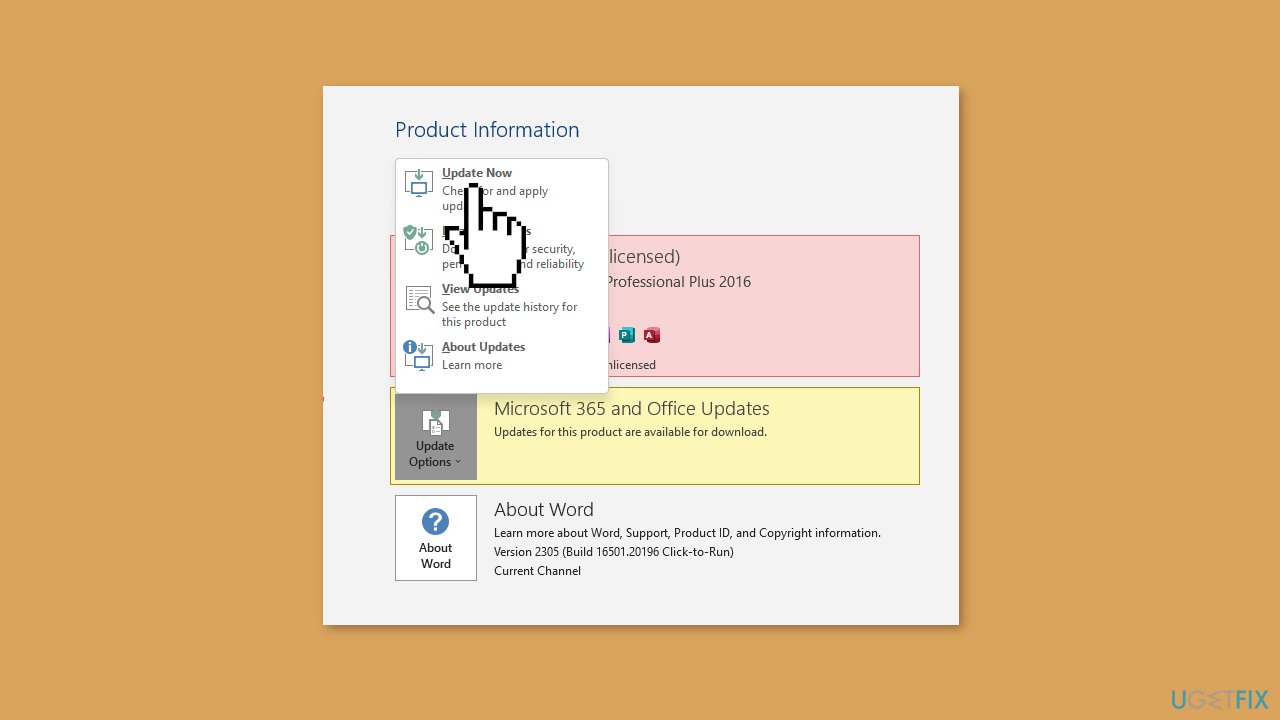
- Once the update installation is finished, a prompt will appear asking you to restart your Office applications.
- Close all Office applications.
- Reopen the Office application you initially opened.
Method 2. Uninstall Microsoft Office Duplicates
- Press the Windows key + R to open the Run dialog box.
- Type control panel in the dialog box and press Enter.
- The Control Panel window will open. Look for the Programs category and click on Uninstall a program.
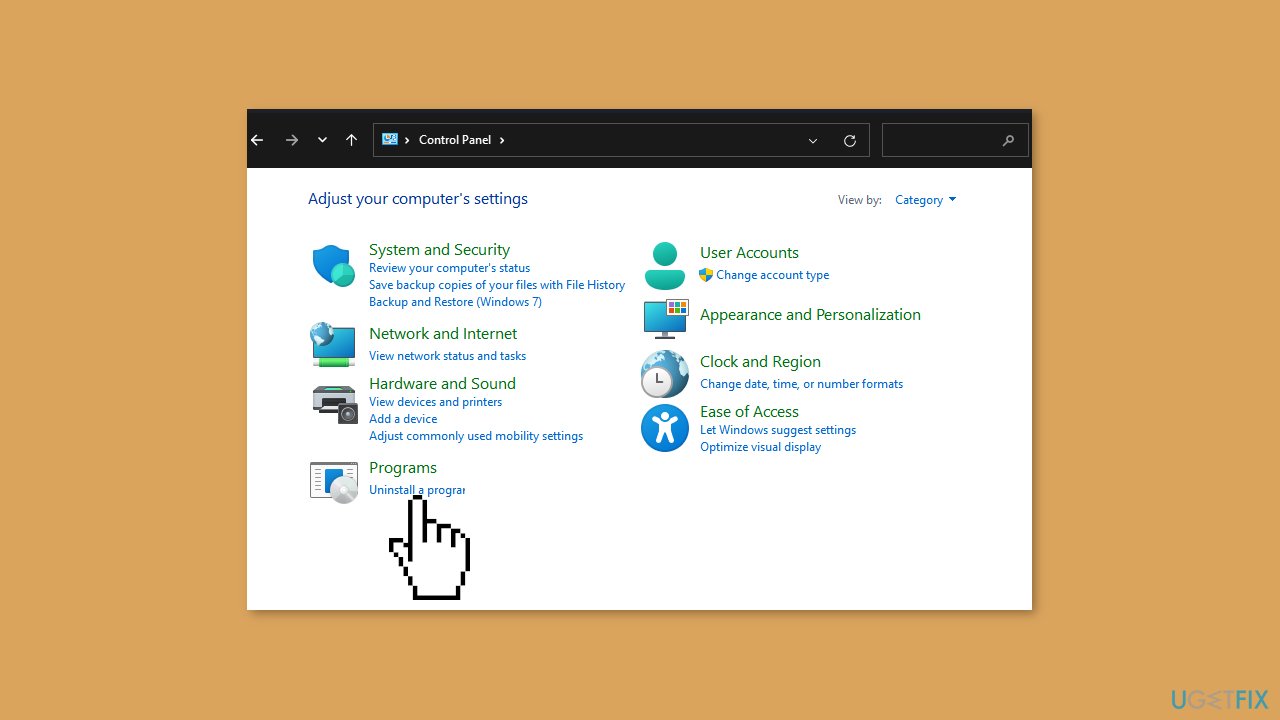
- A list of installed programs will appear. Scroll through the list to locate the Microsoft Office apps.
- Right-click on the versions of Microsoft Office that you want to uninstall.
- From the context menu that appears, click on Uninstall.
- Follow the prompts and instructions provided by the uninstallation wizard to complete the uninstallation process.
- Repeat the above steps for each copy of Microsoft Office that you want to remove.
- Once you have uninstalled all the desired versions, restart your PC to ensure that the changes take effect.
Method 3. Repair Microsoft Office
- Press the Windows key + R to open the Run dialog box.
- Type appwiz.cpl in the dialog box and press Enter.
- The Programs and Features window will open, displaying a list of installed applications.
- Scroll through the list and locate the Microsoft Office suite or the specific Microsoft application you want to repair.
- Right-click on the Microsoft Office suite or application and select Change from the context menu.
- The Microsoft Office installation wizard will open.
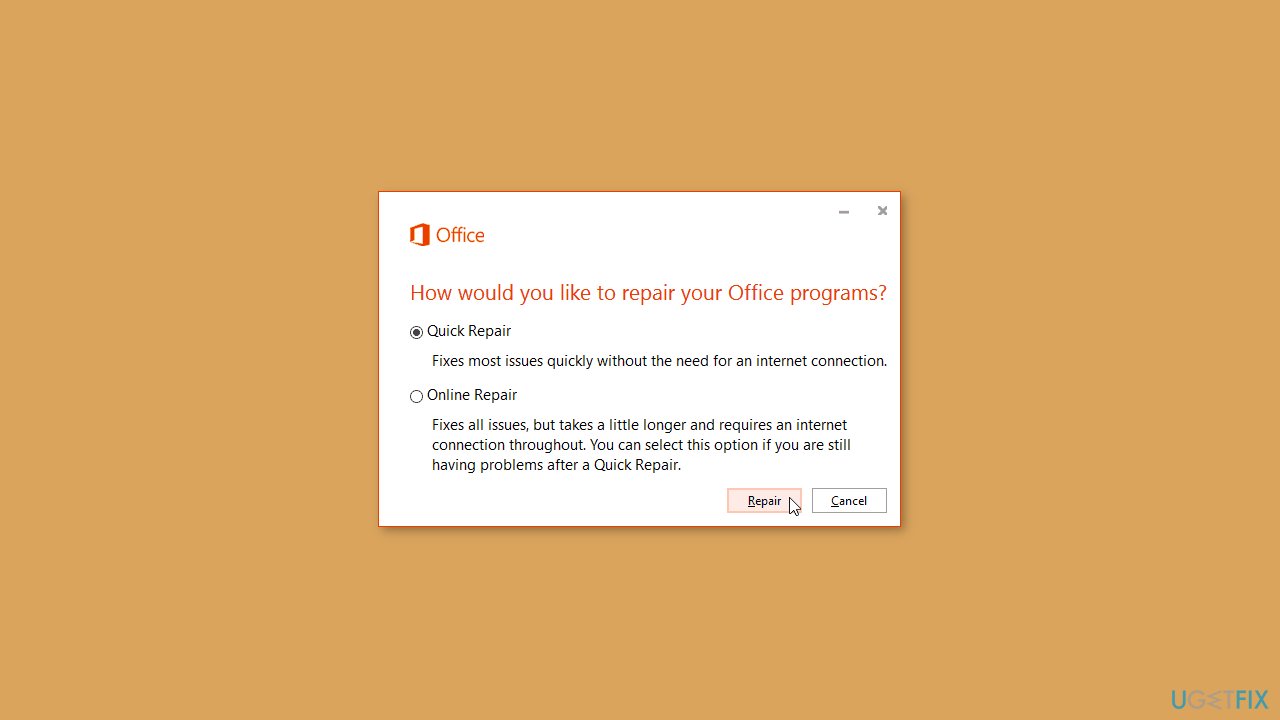
- In the installation wizard, look for options such as Online Repair or Quick Repair.
- Select either Online Repair or Quick Repair, depending on your preference.
- Click on the Repair button to initiate the repair process.
- Follow the on-screen instructions provided by the repair wizard to complete the repair process.
Method 4. Rename the tokens.dat File
Renaming the tokens.dat file, which is a digitally signed file that stores Windows or Office installation information, has been reported as a potential solution to resolve the 0x80041015 Microsoft Office error. Some users in the Microsoft forum have reported success with this method.
- Press the Windows key + E to open the File Explorer.
- In the File Explorer window, navigate to the directory where the tokens.dat file is located:
C:\Windows\System32\spp\store\2.0\
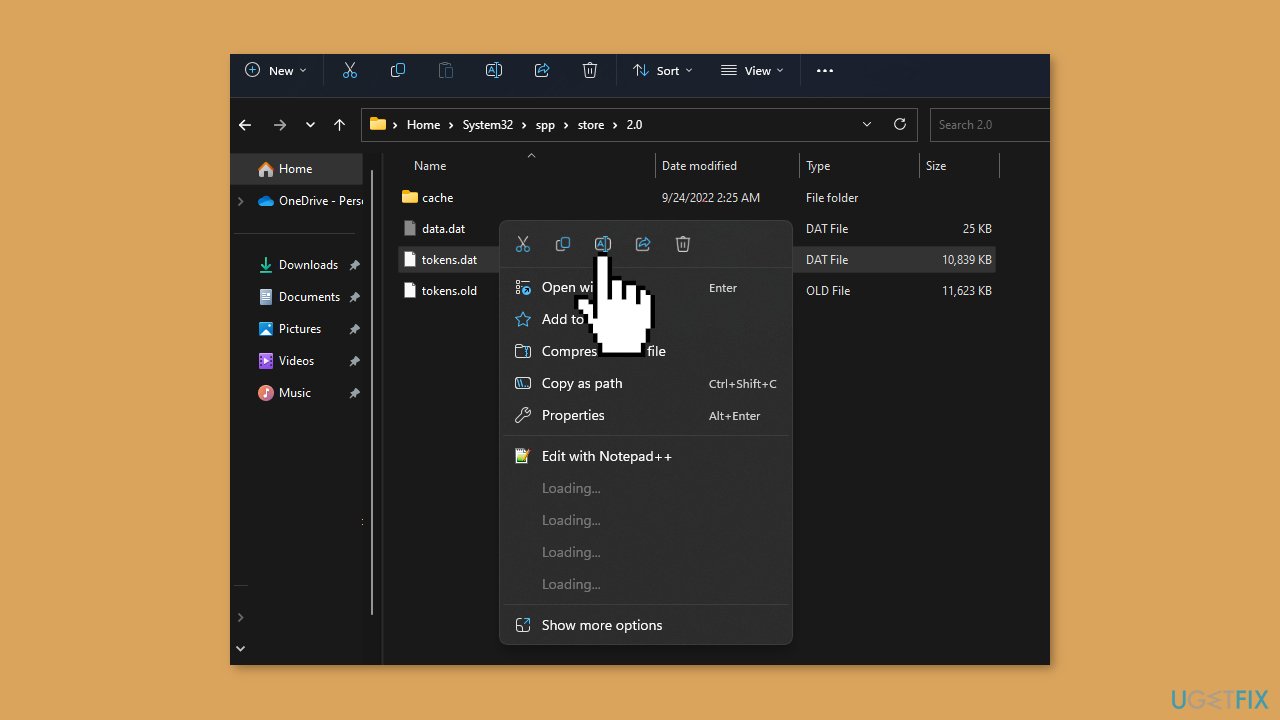
- Look for the tokens.dat file in the specified directory.
- Right-click on the tokens.dat file.
- From the context menu that appears, select Rename.
- The file name will become editable.
- Enter the new name you wish to assign to the file, making sure to include a file extension to keep it valid (e.g., ".bak").
- Press Enter or click outside the file name field to apply the new name.
Bottom line
To fix the Microsoft Office error 0x80041015, you can try renaming the tokens.dat file, checking the Office activation status, running the Office Repair tool, or checking for Windows updates. If these solutions do not resolve the issue, consider contacting Microsoft Support for further assistance.
Frequently asked questions
The error 0x80041015 typically indicates issues with Office installations or corrupted files. It can prevent you from accessing certain Office features or applications.
To repair Microsoft Office, go to Settings > Apps, find Microsoft Office in the list, select it, and click on 'Modify' to start the repair process.
Yes, ensure that your Windows 10 or Windows 11 is fully updated, as recent updates may fix compatibility issues that trigger the error 0x80041015.




Report an issue
What's wrong with this guide? We review every report and update or remove content.
Report received — thank you. We'll review and fix it.
You need a free account to submit a report.
Be the first to comment