
7q6ca error: how to fix Microsoft Office error 2147483661 (error tag 7q6ca) in Windows?

Prefer to fix it yourself? The manual steps follow.
- 9methods
- 5 to 40 minutes
- Intermediate
Applies to Microsoft 365 apps and Office for Windows (Word, Excel, PowerPoint, Outlook, OneDrive, Teams) on Windows 11 and Windows 10, mostly with personal Microsoft accounts
9 methods in this guide
- What the error means
- Decode the Code line
- Outlook, OneDrive, 7q6ch
- Causes, ranked
- Home or work PC
- The fixes
- 1. Password instead of PIN
- 2. Clean up stored accounts
- 3. Clear Office sign-in cache
- 4. Test another network
- 5. Repair account plug-ins
- 6. Check sign-in services
- 7. Rule out security software
- 8. Test a new Windows account
- 9. Repair Office and Windows
- Still there: get help
- Prevent it
- FAQ
I'm getting Microsoft Office error 2147483661 with Error tag 7Q6ca when I try to sign in to Word or Outlook on my Windows 11 PC, and it says Something went wrong. I've closed the apps and tried signing in again, but the error still won't let me into my documents and emails. What is this error, and how can I resolve it?
Something went wrong. [7q6ca] means that Word, Excel, Outlook or OneDrive on Windows asked Windows for your Microsoft account and got no usable answer. Your account usually still works in a browser, so the fault sits in the sign-in data on this PC. Lock the PC, sign back in to Windows with your password instead of the PIN, then sign in to Office again.
7q6ca is a failed Office sign-in on Windows, and the Code line under it, most often 2147483661, says why. Start by locking the PC and signing back in to Windows with your Microsoft account password instead of the PIN (Fix 1). Then remove stale accounts under Settings > Accounts > Email & accounts and add the right one (Fix 2). If it stays, clear the Office sign-in cache (Fix 3) and test another network (Fix 4).
| Error | Something went wrong. [7q6ca], with the lines Correlation Id, Timestamp, DPTI, Tag or Error Tag 7q6ca and a Code or Error Code such as 2147483661. Newer windows add the Message "An unexpected error occurred." |
|---|---|
| Where it appears | In the Microsoft sign-in window of Word, Excel, PowerPoint, Outlook, OneDrive and Teams on Windows: when you select Sign in, when Office asks to activate, or after you type your address. |
| Main cause | The Microsoft account data that Windows keeps for this PC no longer matches the account: a stale Windows Hello session, old or extra accounts, a damaged Office cache, or a blocked account plug-in. |
| Fastest fix | Lock the PC, sign in to Windows with the password instead of the PIN, then sign in to Office (Fix 1). Then clean up Email & accounts (Fix 2). |
| Also written as | 7q6ca error, error 7q6ca, error code 7q6ca, error tag 7q6ca, Tag: 7q6ca, [7q6ca], 7Q6CA, error 2147483661, "Se ha producido un error. [7q6ca]", "errore 7q6ca", "ошибка 7q6ca". |
| Affects | Microsoft 365 apps and Office on Windows 11 and Windows 10. Most reports come from personal and family accounts (Microsoft 365 Personal or Family), some from work and school accounts. |
| Microsoft's status | No Microsoft Learn or Microsoft Support article defines the tag (checked 14 October 2026). Microsoft documents the parts behind it: Web Account Manager, its account plug-ins and the sign-in services. |
| Time to fix | About 5 minutes for Fix 1 and Fix 2. Up to 40 minutes if the plug-ins, the network or an Office repair are involved. |
| Same account in a browser | Usually works. Users on Microsoft Q&A confirm that office.com and Outlook on the web open while every desktop app fails, which points to this PC. |
Facts checked on 14 October 2026. Steps written for Microsoft 365 apps and Office on Windows 11 (25H2 and 26H2) and Windows 10 22H2, read against Microsoft's documentation and the 7q6ca reports on Microsoft Q&A.
What error tag 7q6ca and error 2147483661 mean in Microsoft Office
You select Sign in in Word, Outlook or OneDrive, type your address and maybe your password, and a small Microsoft window answers with Error and Something went wrong. [7q6ca]. Under Troubleshooting details it lists a Correlation Id, a Timestamp, a long DPTI string, the tag and a code. In the most common report the code is 2147483661, which is why searches pair the two.
The five characters in brackets are a tag that marks where the sign-in gave up. Microsoft publishes no list of these tags and we found no Microsoft article that defines 7q6ca. The reports on Microsoft Q&A show the same tag with several different codes, so the code is the part that tells you why.
![Microsoft sign-in window with the heading Error, the red line Something went wrong [1001] and Troubleshooting details listing Error Tag 7q6ca and Error Code 2147483661](/pic/w828q75/uploads/wp/articles/askit/how-to-fix-microsoft-office-error-2147483661-error-tag-7q6ca-in-windows-copy_en.jpg.webp)
In older builds the red line read Something went wrong. [1001] and the tag 7q6ca stood only in the details, as in the picture above. Treat both as the same error when the details say 7q6ca. Microsoft's own page for [1001] covers the same sign-in layer, and Fix 5 uses its repair.
| Line in the window | What it is | What to do with it |
|---|---|---|
| Correlation Id | The identifier of this one sign-in attempt. | Copy it for support. An administrator of a work account can find the attempt with it. |
| Timestamp | The time of the attempt, in UTC. | Copy it together with the Correlation Id. |
| DPTI | A long string. Microsoft does not document it. | Keep it for support. Do not post it in public: Microsoft's forum moderators remove it as personal information. |
| Tag or Error Tag | 7q6ca: the point where sign-in stopped. | Use it to recognise the error, not to diagnose it. |
| Code or Error Code | A number such as 2147483661, 1067 or -2147023838. | Decode it with the next section. This is the useful line. |
Select Copy info to clipboard in the window before you close it, and paste the lines into a note. You need them in the code table below and, if nothing works, for Microsoft support.
Decode the Code line: 2147483661 and the other codes seen with 7q6ca
The Code is a Windows result code written as a decimal number. Converted to hexadecimal, the codes that users post with 7q6ca match entries in Microsoft's public error tables. The descriptions below are Microsoft's words. The column on the right is our reading of where each one points.
| Code in the window | Hexadecimal | Microsoft's description | Start with |
|---|---|---|---|
| 2147483661 | 0x8000000D | E_ILLEGAL_STATE_CHANGE: "An illegal state change was requested." | Fix 1, Fix 2, Fix 3 |
| 2147500034 | 0x80004002 | E_NOINTERFACE: "No such interface supported." | Fix 5, then Fix 9 |
| -2147023838 | 0x80070422 | ERROR_SERVICE_DISABLED (1058): "The service cannot be started, either because it is disabled or because it has no enabled devices associated with it." | Fix 6 |
| 1067 | 0x42B | ERROR_PROCESS_ABORTED: "The process terminated unexpectedly." | Fix 6, Fix 5, Fix 7 |
| 2147786899 | 0x8004A093 | Not in Microsoft's public tables. We could not confirm its meaning. It was reported with a personal account. | Fix 1, Fix 2, Fix 3 |
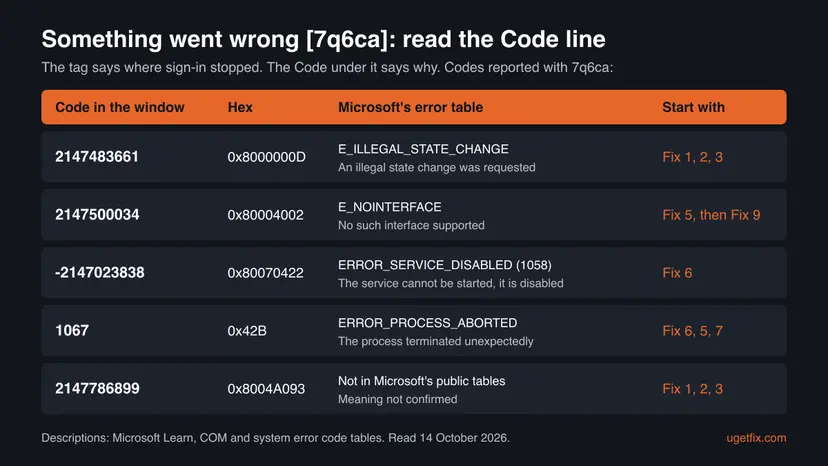
An illegal state change means that a component was asked to move into a state it cannot take from where it is. For sign-in that fits stale or conflicting account data, which is why Fix 1 to Fix 3 come first. Microsoft has not published what the Office sign-in was doing at that moment, so this is our reading, not Microsoft's statement.
7q6ca in Outlook, OneDrive and Teams, and how it differs from 7q6ch
Office for Windows does not keep its own sign-in. It asks Web Account Manager (WAM), a part of Windows, for a token. Microsoft names two Windows packages behind it: Microsoft.AAD.BrokerPlugin for work and school accounts and Microsoft.Windows.CloudExperienceHost (the Live ID package) for personal accounts such as outlook.com and hotmail.com. One fault there stops every app at once.
- Outlook: the tag appears when Outlook starts or asks for the password, and mail stops syncing until the sign-in succeeds.
- Word, Excel, PowerPoint: the tag appears in the activation window, so the apps cannot activate with your subscription.
- OneDrive: users report the same window, and in one thread OneDrive signed in after several tries while Word kept failing.
- Teams and Edge: Teams uses the same sign-in, and one user reported that Microsoft Edge also refused to sign in to its profile while the account page opened fine in a tab.
The neighbouring tag 7q6ch shows up mostly with work and school accounts and with device registration codes such as TPM errors. We cover it in Something went wrong error tag 7q6ch in Microsoft Office. The 7q6ca reports lean the other way: home subscriptions, a family member's account, an old second address, a PIN sign-in.
For the related [1001] error, Microsoft's workaround is Outlook on the web, the Office web apps or the mobile apps. The same works here: open office.com in a browser. If the browser also refuses your account, the problem is the account, its password or its subscription, not this PC.
What causes error 7q6ca, from the most common to the rare
Microsoft has not published a cause for this tag. The ranking comes from the codes and outcomes that users post on Microsoft Q&A, set against what Microsoft documents for sign-in failures in the same Windows layer. Treat the order as our reading of those reports, not as a statistic.
| How often | Cause | Typical sign | Fix |
|---|---|---|---|
| Most often | The Windows session of your Microsoft account is stale, for example after weeks of PIN or face sign-in or a password change | Code 2147483661. Office and Edge fail, the browser signs in. | Fix 1 |
| Often | Old, closed or extra Microsoft accounts stored in Windows, or a work account added to a home PC | Sign-in jumps to an authenticator prompt for another address, or you recently switched accounts. | Fix 2 |
| Often | A damaged Office identity cache | It began after an account change, and Fix 1 and Fix 2 changed nothing. | Fix 3 |
| Less often | The network blocks or bends the sign-in: VPN, proxy, hosts file, router filter | It works on a phone hotspot or at another place. | Fix 4 |
| Less often | Missing or broken account plug-ins | The window is blank, closes at once, or the code is 2147500034. | Fix 5 |
| Less often | A sign-in service is disabled or crashes | Code -2147023838 or 1067. The PC was cleaned up with a tuning tool. | Fix 6 |
| Rarely | Security software that blocks the account plug-in | It began after an antivirus or firewall was installed or updated. | Fix 7 |
| Rarely | A damaged Windows user profile or damaged Office files | Everything above failed, and a new Windows account signs in. | Fix 8, Fix 9 |
Several websites tie 7q6ca to one cause, such as a wrong clock, a locked account or a corrupted update cache. No Microsoft document supports a single cause, and none of the Q&A threads we read was solved by a clock change or by clearing the Office update folder.
Personal, work or managed PC: who may run which fix
Most 7q6ca readers use a home PC with a personal Microsoft account, and every fix below is theirs to run. A work or school account changes two things: some fixes remove the organisation's setup, and the cause may sit on the server. Check the address you sign in with before you start.
| Your case | What it means | What you may do |
|---|---|---|
| Personal account (outlook.com, hotmail.com, live.com, or any address you registered as a Microsoft account) | Office signs in through the Live ID package and Windows' own Microsoft account data. | All fixes, Fix 1 first. |
| Child account in a Microsoft family group | The same route, plus family settings. | Run the fixes while signed in as the child. The organiser of the family group decides on family settings. |
| Work or school account on your own PC | Office signs in through the work account plug-in. | All fixes. Start with Fix 3 and Fix 2. |
| A PC your employer or school set up | The organisation manages accounts and devices. | Sign out, restart and sign in once. Then send the troubleshooting details to IT. |
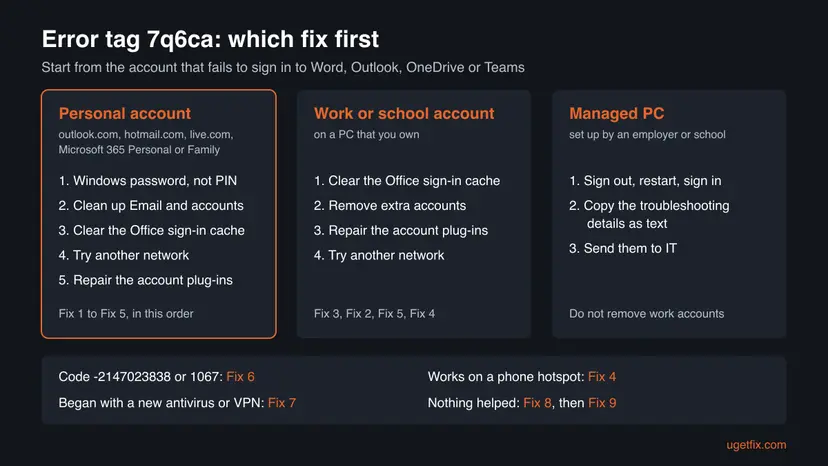
Do not disconnect work accounts under Access work or school and do not delete files under the account plug-ins. Microsoft notes that some sign-in fixes can only be run by a Microsoft 365 admin. Copy the Correlation Id, Timestamp, Tag and Code, and say whether office.com works in the browser.
How to fix error 7q6ca in Microsoft Office
The fixes are ordered by how often users report them to end the error and by how little they change. Fix 1 and Fix 2 are made for personal Microsoft accounts. After each fix open Word or Outlook and select Sign in: when the password box or the approval request appears where the tag was, you are done.
| Your case | Start with | Then |
|---|---|---|
| Home PC, personal account, code 2147483661 | Fix 1 | Fix 2, Fix 3 |
| You sign in to Windows with a PIN, face or fingerprint | Fix 1 | Fix 2 |
| Sign-in jumps to another address or an old account | Fix 2 | Fix 3 |
| Work or school account on your own PC | Fix 3 | Fix 2, Fix 5 |
| It works on a phone hotspot, or you use a VPN or proxy | Fix 4 | Fix 7 |
| Code -2147023838 or 1067 | Fix 6 | Fix 5, Fix 7 |
| Code 2147500034, or the window is blank or closes at once | Fix 5 | Fix 9 |
| Nothing above helped | Fix 8 | Fix 9 |
Fix 1. Sign in to Windows with your password instead of the PIN, then sign in to Office
5 minutesNo riskEveryone with a personal Microsoft account who signs in to Windows with a PIN, face or fingerprint. Safe on every PC.
Office asks Windows for your Microsoft account, so what Windows holds for this session matters. Microsoft's support staff on Q&A recommend a password sign-in to refresh cached Windows Hello credentials for 7q6ca, and two users there reported that it cleared the error.
- Save your work and close Word, Excel, Outlook and OneDrive.
- Press Ctrl + Alt + Del and select Lock.
- On the sign-in screen select Sign-in options, then the key icon for Password.
- Type the password of your Microsoft account, not the PIN, and sign in.
- Open Word, select Sign in at the top and use the address that holds your Microsoft 365 subscription.
- If the error stays, restart the PC and sign in to Windows with the password once more before you open Office.
If the sign-in screen shows no Password choice, your account is set to passwordless. Microsoft explains that with this setting on, the next sign-in offers only face, fingerprint or PIN. A Microsoft support specialist suggested switching it off for a 7q6ca case.
- Open Settings > Accounts > Sign-in options.
- Under Additional settings turn off For improved security, only allow Windows Hello sign-in for Microsoft accounts on this device. On Windows 10 the setting is Require Windows Hello sign-in for Microsoft accounts.
- Lock the PC and sign in with the password as in the steps above.
- Once Office signs in, you can turn the setting back on.

Many people have not typed their Microsoft account password for years. Reset it in a browser at account.microsoft.com first, then sign in to Windows with the new password. A password change also refreshes what Windows holds for the account.
It worked if: The Office window asks for your password or an approval, or signs you in at once, and your name appears at the top of Word.
If not: If the tag returns, or the window jumps to an address you do not use, clean up the accounts stored in Windows with Fix 2.
Fix 2. Remove old Microsoft accounts from Windows and add the right one
10 minutesLow riskA personal account, above all when sign-in jumps to another address, an old account, or a work account that should not be on this PC.
Windows lists accounts for apps under Email & accounts and Access work or school, and Office sees them all. A Microsoft support specialist told a 7q6ca user to delete the accounts not needed and unlink work accounts, and another user reported that adding the Microsoft account there fixed it.
- Close all Office apps, Teams and OneDrive.
- Open Settings > Accounts > Email & accounts.
- Under Accounts used by other apps look for addresses you no longer use, closed accounts or a second account you only tried once. Open each one and remove it.
- Open Settings > Accounts > Access work or school. If a work or school account is listed that you do not need on this home PC, select it and select Disconnect.
- Go back to Email & accounts and select Add a Microsoft account under Accounts used by other apps.
- Sign in with the address of your Microsoft 365 subscription and follow the prompts.
- Restart the PC, open Word and sign in with the same address.
The account at the top of Settings > Accounts is your Windows sign-in. Microsoft's support specialist notes that a Microsoft account tied to the Windows administrator account cannot be deleted from there. Remove only the extra accounts. On a work PC leave Access work or school to IT.
One reader with this error had a second, closed account that kept taking over the sign-in. If an address you deleted long ago still appears, remove it here. If Office asks for an authenticator code for an address you do not recognise, stop and check that account at account.microsoft.com.
It worked if: Word shows the normal Microsoft sign-in page for the right address and activates. The account you added appears under Accounts used by other apps.
If not: If no extra account was listed, or the tag returns after the restart, clear the Office sign-in cache with Fix 3.
Fix 3. Clear the Office sign-in cache: Credential Manager, OneAuth and IdentityCache
10 minutesLow riskFix 1 and Fix 2 did not help, or you changed your address, password or subscription. It is also the first step for a work account on your own PC.
Office keeps saved credentials and cached tokens outside the app. Microsoft's sign-in article removes the MicrosoftOffice16 credentials, and its OneDrive article removes the OneAuth and IdentityCache folders. A Microsoft support specialist gave the same folders and the Identity key for a 7q6ca case.
- Close all Office apps, Teams and OneDrive.
- Select Start, type
credential managerand open Credential Manager, then select Windows Credentials. - If there are entries named MicrosoftOffice16, select the arrow next to each one and select Remove.
- Press Win + R, paste this path and press Enter. Select everything inside with Ctrl + A and delete it:
%localappdata%\Microsoft\OneAuth - Do the same with the second folder:
%localappdata%\Microsoft\IdentityCache - Restart the PC, open Word and sign in.
If the tag is still there, the last copy of the old accounts is a registry key that belongs to your user only. Delete it after a backup.
A wrong deletion in the registry can break Office or Windows. Export the key first so you can put it back: Back up the registry before editing it. After the deletion Office has no saved accounts, and you sign in again.
- Press Win + R, type
regeditand press Enter. - Go to this key:
HKEY_CURRENT_USER\Software\Microsoft\Office\16.0\Common\Identity - Export it as a backup, then right-click Identity and select Delete.
- Restart the PC and sign in to Office.

It worked if: Office opens as if it had never been signed in, shows the normal Microsoft sign-in page and accepts your account.
If not: If the same tag returns after a clean cache, test the network with Fix 4 before you touch Windows components.
Fix 4. Test another network and remove what bends the sign-in: VPN, proxy, hosts file
15 minutesLow riskYou use a VPN, a proxy, a router with filters or a custom hosts file, or the error came with a new router or internet plan.
Microsoft's activation article says that antivirus, proxy, firewall or VPN software can block the account plug-in process. On the largest 7q6ca thread a user reported that only a phone hotspot worked, and more than ten readers marked that answer helpful.
- Turn on the mobile hotspot of your phone and connect the PC to it.
- Open Word and sign in. If it works, the PC is fine and your usual network is the cause.
- Disconnect any VPN and try the usual network again. Turn the VPN back on afterwards.
- Open Settings > Network & internet > Proxy. If Use a proxy server is on and you did not set it on purpose, turn it off.
- Open Notepad as administrator and open the hosts file:
C:\Windows\System32\drivers\etc\hosts - Look for lines without a leading
#that name Microsoft, Office, live.com or microsoftonline addresses. Put a#in front of each, save, and restart the PC. - Try the sign-in again on the usual network.
If none of these is the cause but the hotspot works, reset the network stack of Windows. The commands that a Microsoft support specialist listed for 7q6ca (flush DNS, reset Winsock, reset TCP/IP, renew the address) are in our procedure: Reset the network and flush DNS.

Some routers filter by DNS or block categories of sites. If the PC signs in on a hotspot and fails at home after a network reset, look at the router's parental control or DNS filter. Microsoft lists the sign-in addresses an administrator must allow, among them login.microsoftonline.com and login.microsoft.com.
It worked if: Office signs in on the usual network after the VPN, proxy or hosts entry is gone, or after the network reset.
If not: If the error is the same on every network, the cause is on the PC. Repair the account plug-ins with Fix 5.
Fix 5. Repair the Windows account plug-ins and clear their token files
15 minutesLow riskThe sign-in window is blank or closes at once, the code is 2147500034, or Fix 1 to Fix 4 changed nothing.
Microsoft explains that sign-in fails when package information about the work account plug-in or Live ID is missing, and gives commands that register both again. Its activation article also deletes the stored token files of both packages, which hold copies apart from the Office cache.
Microsoft's automatic route comes first. Its article Fix authentication issues in Microsoft 365 apps links the Microsoft 365 Sign-in troubleshooter, which diagnoses and fixes several common sign-in issues. Run it, then test. The manual steps below do the same repair by hand.
- Close all Office apps, Teams and OneDrive.
- Open File Explorer, put this location in the address bar, select all files with Ctrl + A and delete them:
%LOCALAPPDATA%\Packages\Microsoft.Windows.CloudExperienceHost_cw5n1h2txyewy\AC\TokenBroker\Accounts - Do the same in the folder of the work account plug-in:
%LOCALAPPDATA%\Packages\Microsoft.AAD.BrokerPlugin_cw5n1h2txyewy\AC\TokenBroker\Accounts - Right-click Start and select Terminal (Admin) on Windows 11 or Windows PowerShell (Admin) on Windows 10. Select Yes in the User Account Control window.
- For a personal account, check and register the Live ID package:
if (-not (Get-AppxPackage Microsoft.Windows.CloudExperienceHost)) { Add-AppxPackage -Register "$env:windir\SystemApps\Microsoft.Windows.CloudExperienceHost_cw5n1h2txyewy\Appxmanifest.xml" -DisableDevelopmentMode -ForceApplicationShutdown } Get-AppxPackage Microsoft.Windows.CloudExperienceHost - For a work or school account, do the same for the work account plug-in:
if (-not (Get-AppxPackage Microsoft.AAD.BrokerPlugin)) { Add-AppxPackage -Register "$env:windir\SystemApps\Microsoft.AAD.BrokerPlugin_cw5n1h2txyewy\Appxmanifest.xml" -DisableDevelopmentMode -ForceApplicationShutdown } Get-AppxPackage Microsoft.AAD.BrokerPlugin - Restart the PC and sign in to Office.
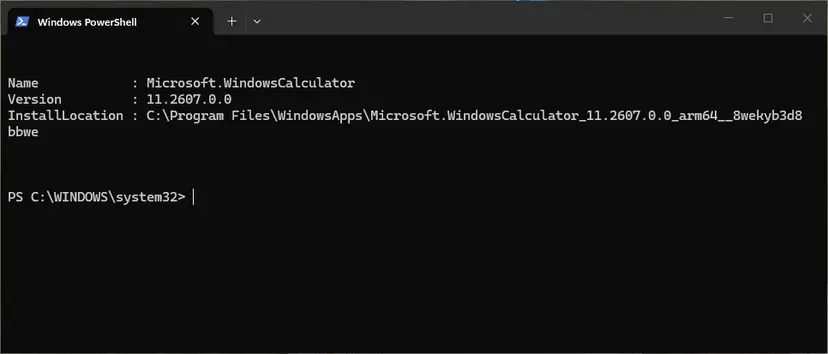
The plug-ins and their token files belong to each Windows user. Stay signed in as the person who sees 7q6ca. If that Windows account is not an administrator, do not elevate with another account's password: Microsoft's [1001] page runs the same register commands in a normal user PowerShell window.
It worked if: The commands end with the package details and no red error, and the Office sign-in window shows a password box where the tag was.
If not: If the code is -2147023838 or 1067, check the sign-in services with Fix 6. Otherwise test for security software with Fix 7.
Fix 6. Turn the sign-in services back on (codes -2147023838 and 1067)
5 minutesLow riskThe Code under the tag is -2147023838 or 1067, or the PC was trimmed with a tool that disables Windows services.
Code -2147023838 is a service that cannot start because it is disabled, and 1067 is a process that ended unexpectedly. Microsoft Account Sign-in Assistant enables sign-in through Microsoft account identity services, and Web Account Manager provides single sign-on to apps.
- Press Win + R, type
services.mscand press Enter. - Find Microsoft Account Sign-in Assistant and look at the Startup Type column.
- If it says Disabled, right-click it, select Properties, set Startup type to Manual and select Apply, then OK.
- Do the same for Web Account Manager.
- Right-click each of the two services and select Start. If it is already running, select Restart.
- Restart the PC and sign in to Office.
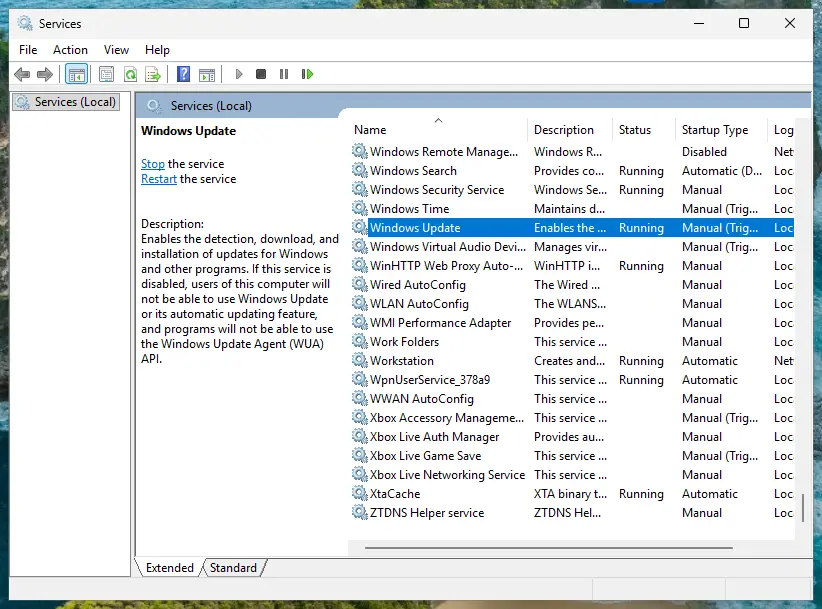
Microsoft's service reference gives Manual as the default startup type of both services, so Automatic is not needed. The service names are wlidsvc and TokenBroker. Every screen of the procedure: Check and restart Windows services.
Microsoft's tables explain the codes, not which service failed. We name these two because they are the Windows services that carry account sign-in. A Q&A user with code -2147023838 was advised to check Web Account Manager first. If 1067 returns with both services running, something stops the sign-in process: test with Fix 7.
It worked if: Both services show Manual and Running, and the code no longer appears. The sign-in window asks for your password.
If not: If a service will not start or stops again at once, security software or damaged system files may be the cause. Go to Fix 7, then Fix 9.
Fix 7. Rule out security software that blocks the sign-in
10 minutesLow riskThe error began after you installed or updated an antivirus, a firewall or an internet security suite, or the code is 1067.
Microsoft states that some antivirus, proxy and firewall software blocks the account plug-in process, and its [1001] page names security software that impacts the plug-in. A 7q6ca user on Q&A reported that the error ended after he removed his antivirus and recent programs and ran a repair install of Windows, and stayed gone after the antivirus returned.
- Open Microsoft Edge and go to
https://www.office.com. Sign in. If the browser works, the account is fine. - Pause your antivirus for this one test. For Microsoft Defender the steps are in Turn off Microsoft Defender protection for a moment. Third-party programs have their own pause command.
- Open Word and try the sign-in again while the protection is paused.
- Turn the protection back on straight after the test, whatever the result.
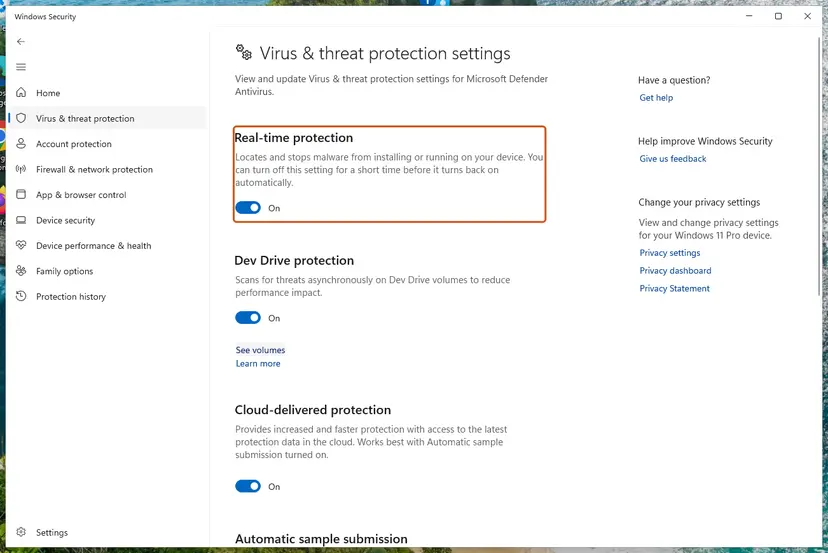
If Office signs in while the antivirus is paused, do not leave it off. Update the security program, then look in its settings for web or application control and allow the Microsoft sign-in components named in Microsoft's article: Microsoft.AAD.BrokerPlugin_cw5n1h2txyewy. If that is not possible, uninstall it with the vendor's removal tool, sign in to Office, and install the current version again.
It worked if: With the security software paused or reinstalled, Office signs in, and it keeps working after the protection is back on.
If not: If the sign-in fails the same way with protection paused, security software is not the cause. Test a new Windows account with Fix 8.
Fix 8. Test with a new Windows account
15 minutesLow riskFix 1 to Fix 7 did not help on your own PC.
The plug-ins, caches and tokens behind the sign-in belong to each Windows user. Microsoft's forum moderators suggested a new local profile for two 7q6ca cases. A new account tells you whether your profile holds the fault.
- Open Settings > Accounts > Other users and select Add account.
- Select I don't have this person's sign-in information, then Add a user without a Microsoft account, and give it a name and a password.
- Sign out, sign in to the new account and wait for the desktop.
- Open Word, select Sign in and use the address of your Microsoft 365 subscription.
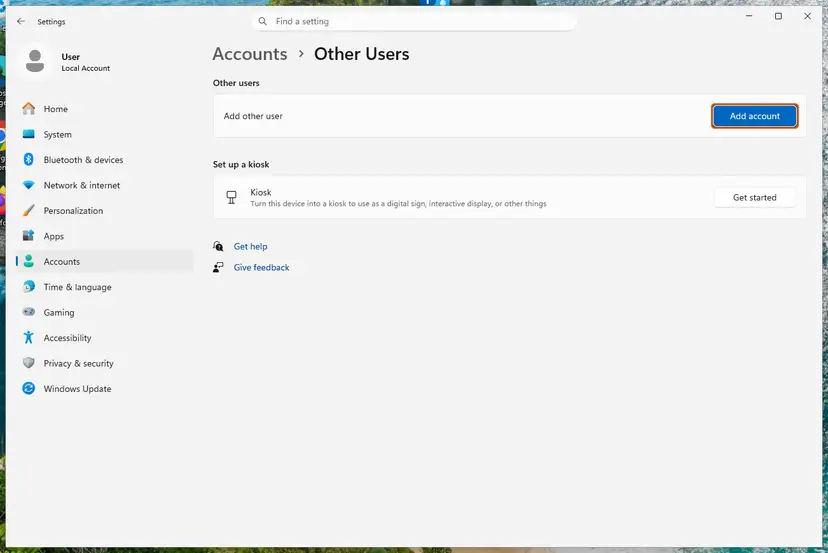
If Office signs in from the new account, your old profile holds the fault. You can keep the new account and move your files into it, or try Fix 9 in the old one. If Office fails in the new account too, the cause is Windows or Office for the whole PC. The full procedure: Create a new user account to test a problem.
It worked if: In the new Windows account the Office sign-in window asks for your password and the app activates.
If not: If the error appears in the new account too, update and repair Office, then repair Windows system files with Fix 9.
Fix 9. Update and repair Office, then repair Windows system files
20 to 40 minutesLow riskNothing above helped, or Office itself also crashes or misses features.
Microsoft shipped fixes for sign-in failures inside Office updates: its [1001] page names version 2310 of Current Channel. An Online Repair replaces program files, and a Microsoft support specialist recommended it for 7q6ca. Neither touches the account data in your profile, which is why this comes last.
- Open Word with a blank document and go to File > Account.
- Under Product Information select Update Options > Update Now. If you see Enable Updates, select that first.
- When the update is done, close Word and restart the PC.
- Right-click Start, select Installed apps, find Microsoft 365 or Microsoft Office, select the three dots and Modify.
- Select Online Repair, then Repair, and wait until it finishes.
- Restart the PC and try the sign-in.
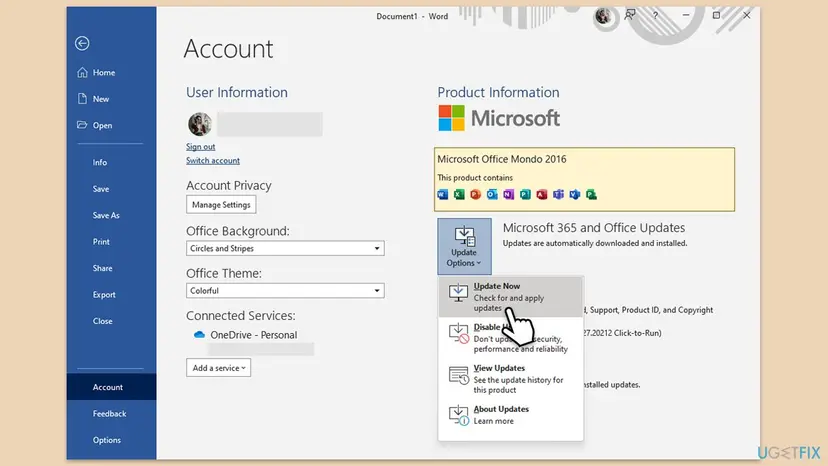
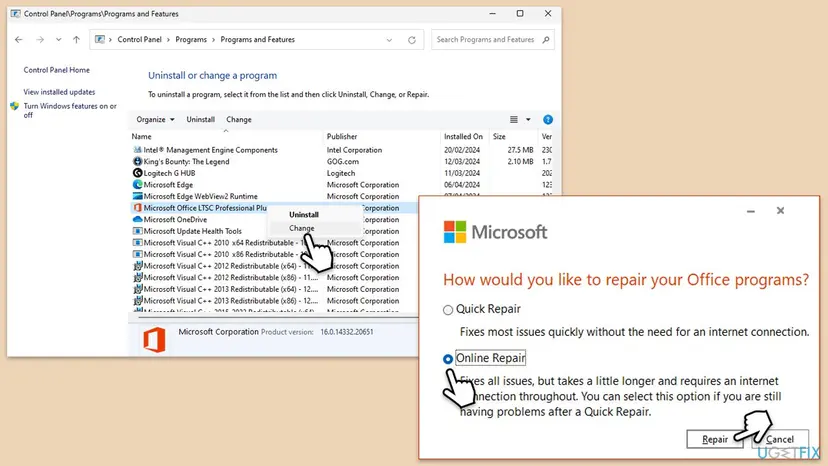
Quick Repair needs no internet and is faster, Online Repair replaces everything. Both, with every screen: How to repair Microsoft 365 or Office. Users also reported that a Windows system repair ended their 7q6ca case, and Microsoft's support staff list it. The scan is harmless: Run DISM and SFC to repair Windows system files.
It worked if: Office shows the latest version under About, the repair finishes without errors, and the sign-in window accepts your account.
If not: If 7q6ca is still there, collect the details described in the next section and contact Microsoft support, or IT for a work account.
If 7q6ca is still there: what to collect and who can help
When every fix has failed, stop changing things and collect evidence. The window hides the reason, but the lines in it and Microsoft's own log tool give support enough to work with. Send everything as text, not as a photo.
| What to collect | Where | Why |
|---|---|---|
| Correlation Id, Timestamp, Tag, Code | Copy info to clipboard in the error window | Support can match the attempt. Share the DPTI only with support, not in public. |
| Office version and channel | Word: File > Account > About Word | Microsoft fixes sign-in faults in Office builds. |
| Account type and test results | Your notes from Fix 1 to Fix 8 | Whether the browser, a hotspot and a new Windows account work narrows it down. |
| Sign-in logs | Microsoft's tool MSOAID, described in Use MSOAID for authentication issues | It records Office and Windows sign-in logs while you repeat the error. |
- Start Office the normal way. Microsoft states that Run as administrator, Run as different user and elevation tools interfere with the sign-in flow and are not supported in most cases.
- For a personal subscription, contact Microsoft support through support.microsoft.com while signed in with the account that pays for Microsoft 365.
- For a work or school account, send the lines to IT. Microsoft asks tenant admins to open the support ticket in the Microsoft 365 admin center and attach MSOAID logs.
Three cases cannot be fixed on the PC. The subscription has ended or does not include the desktop apps: check it at account.microsoft.com. The account is locked or needs verification: the browser will show that too. A school or employer closed the account. In all three, sign-in fails in the browser as well.
How to keep error 7q6ca from coming back
Most 7q6ca cases start with a change in the accounts on the PC, not with a broken Office. A few habits keep the account data that Windows holds in line with your real account.
- Use your password now and then. If you sign in to Windows only with a PIN or face, type your Microsoft account password at the Windows sign-in from time to time, and always after a password change.
- Keep one account per purpose. Do not add old or test accounts to Email & accounts, and remove addresses you close.
- Answer the device question with care. When a work or school account asks to be used for all apps on this device, a home PC is better off with the option for this app only.
- Keep Office and Windows updated. Leave Office updates on under File > Account > Update Options.
- Do not disable services with tuning tools. Microsoft Account Sign-in Assistant and Web Account Manager must be allowed to start.
- Check new security software. After you install or update an antivirus, open Word and confirm that the sign-in still works.
Old forum answers suggest registry values that disable Web Account Manager. Microsoft says that disabling ADAL or WAM is not supported as a fix for sign-in problems and can harm your setup, so repair it with Fix 5 instead.
Frequently asked questions
What does 7q6ca mean in Microsoft Office?
It means a Microsoft 365 app on Windows could not finish signing you in, and the tag marks where it stopped. Microsoft publishes no definition of 7q6ca. The reason is in the Code line under it. The most common code, 2147483661, is E_ILLEGAL_STATE_CHANGE in Microsoft's table, which fits stale account data on the PC. Start with a Windows sign-in by password instead of PIN (Fix 1) and the account cleanup in Fix 2.
What is Microsoft Office error 2147483661?
It is a Windows result code in decimal form. In hexadecimal it is 0x8000000D, which Microsoft's COM error table lists as E_ILLEGAL_STATE_CHANGE: "An illegal state change was requested." In Office it appears as the Error Code under Something went wrong [7q6ca]. On its own the code does not name a file or a service. In the reports it goes with stale or conflicting Microsoft account data, so Fix 1 to Fix 3 come first.
Why do I get 7q6ca in Outlook when my email works in the browser?
Because they sign in by different routes. Outlook for Windows asks Web Account Manager, a part of Windows, for a token, and that route depends on the accounts stored in Windows, the account plug-ins and two sign-in services. Outlook on the web signs in inside the browser and needs none of them. A mailbox that opens in the browser proves your password and subscription are fine and the fault is on this PC.
Why does signing in to Windows with a password instead of a PIN fix 7q6ca?
Microsoft has not explained it, but its support staff recommend it to refresh cached Windows Hello credentials, and users on Microsoft Q&A reported that it cleared the error. Office takes your Microsoft account from Windows, so a fresh Windows sign-in with the account password gives it fresh data to work with. If the Password choice is missing, the passwordless setting is on; Fix 1 shows how to switch it off.
Is 7q6ca the same error as 7q6ch or 1001?
Not quite. 7q6ch is a neighbouring tag from the same sign-in layer that shows up mostly with work and school accounts and device or TPM codes, and it has its own guide on uGetFix. The code 1001 belongs to an older headline: some 7q6ca windows show Something went wrong [1001] at the top and the tag 7q6ca only in the details. When the details say 7q6ca, use this page.
Does reinstalling Office fix error 7q6ca?
Usually not. The account data that causes the tag lives in your Windows profile and in Windows itself, not in the Office program files. Users on Microsoft Q&A describe full reinstalls, Quick and Online Repairs after which the error was still there. Update and repair Office once (Fix 9), but spend your time first on the password sign-in, the account cleanup and the cache in Fix 1 to Fix 3.
Should I run Word or Outlook as administrator to get past 7q6ca?
No. Some guides offer it as a first fix, but Microsoft states that Run as administrator, Run as different user and elevation tools interfere with the authentication flow of Microsoft 365 apps and are not supported in most scenarios. The only exception Microsoft names is when the signed-in user and the administrator account are the same. Start Office the normal way and use the fixes on this page.
My child gets 7q6ca on a family PC. Who is the administrator?
On a home PC with personal and child accounts there is no company administrator, even if the window says to contact one. That line is standard text. You, as the parent who manages the PC, are the person to run the fixes. Sign in to Windows as the child and run Fix 1 to Fix 3 in that Windows account. If a family setting blocks an app, the organiser of the family group can review it in Microsoft Family Safety.
Is "errore 7q6ca" or "Se ha producido un error. [7q6ca]" the same error?
Yes. Office translates the sentence and keeps the tag, so Italian, Spanish, Russian and other users see the same 7q6ca after their own wording. This page is in English, but the fixes are the same in every language. Only the names of menus and buttons differ, while paths, commands and codes stay identical. A Spanish report with code -2147023838 is the disabled service case of Fix 6.
I fixed 7q6ca once and it came back. Why?
Because the trigger came back. Users report it returning months later, often after a password change, a long stretch of PIN-only sign-ins, a new account on the PC or a security software update. Run Fix 1 again first, since it costs five minutes. If it keeps coming back, look at what changed on the PC each time, and keep the habits in the prevention section.
Sources
- Microsoft Learn: COM Error Codes (Generic), E_ILLEGAL_STATE_CHANGE 0x8000000D and E_NOINTERFACE 0x80004002 (learn.microsoft.com)
- MicrosoftDocs on GitHub: source of the COM error code table, E_ILLEGAL_STATE_CHANGE 0x8000000D (github.com)
- Microsoft Learn: System Error Codes (1000-1299), ERROR_SERVICE_DISABLED 1058 and ERROR_PROCESS_ABORTED 1067 (learn.microsoft.com)
Did this fix work?
One click, no account. It tells the next reader which guides are worth their time.
Questions and experiences: 7q6ca error: how to fix Microsoft Office error 2147483661 (error tag 7q6ca) in Windows
Still broken, or found a fix we did not cover? Ask here: members and our editors answer. Reading is open; writing needs a free account.
…