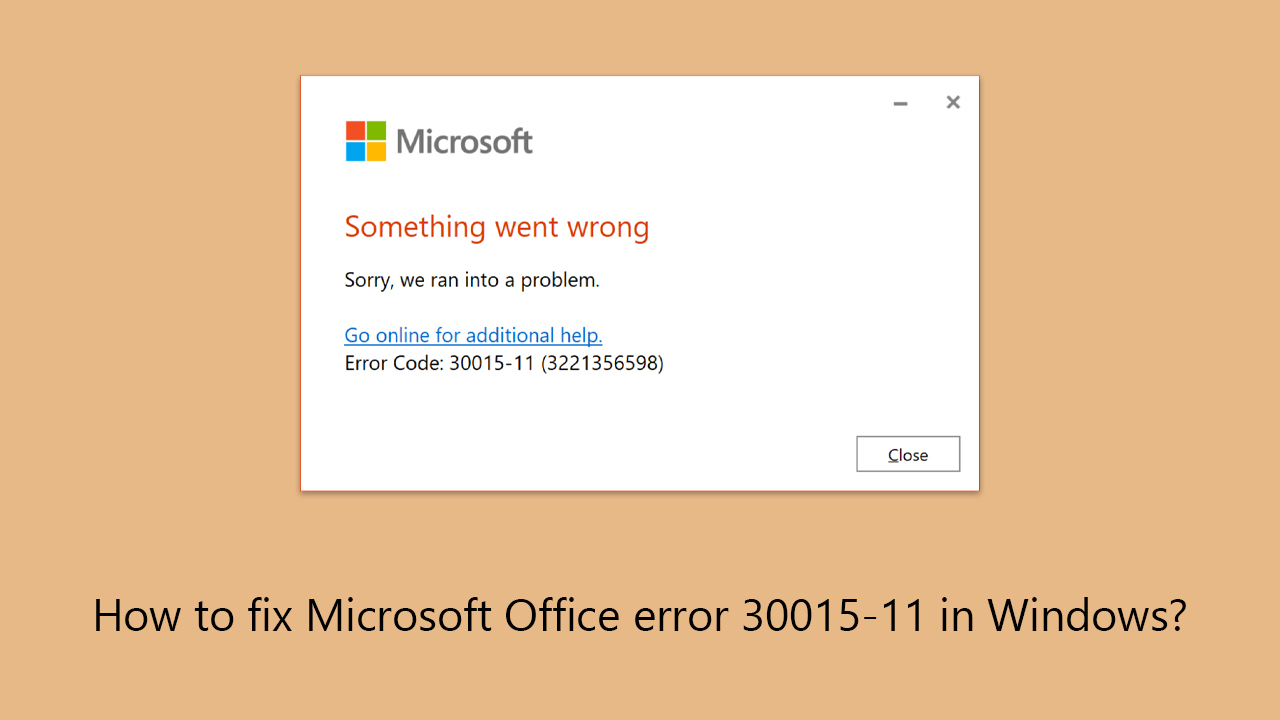
How to fix
Microsoft Office error 30015-11
on Windows
Resolve Microsoft Office error 30015-11 on Windows 10 and 11 effortlessly. Follow our expert-tested solutions for a seamless experience. Fixed in minutes!


What causes How to fix Microsoft Office error 30015-11 in Windows?
- Problems with pre-existing software or system components
- Incomplete installation files
- Faulty system registry
- Insufficient permissions
- Disruptions during the download or installation process
Repairs Windows system files, removes malware, and restores a clean OS state — without reinstalling.
Hi, I'm trying to reinstall Microsoft Office because I had some issues with Excel and now I can no longer install it because it produces an error code 30015-11 with the message "Something went wrong." How do I bypass this?
Microsoft Office is an extensive collection of productivity tools created by the company. Word for document processing, Excel for spreadsheets, PowerPoint for presentations, and Outlook for emails are just a few of the many applications available on it. Microsoft Office, known for its sophisticated features and ease of use, has become a necessary daily tool in many homes and enterprises across the globe.
While utilizing this critical tool, certain people could run into the following particular issue: Office 30015-11 error in Windows. This error occurs when attempts are made to install or update the Office suite. The way this problem presents itself may interfere with the seamless functioning and dependability that users have grown accustomed to from their software.
Error 30015-11 might have several underlying causes, such as problems with pre-existing software or system components or incomplete installation files. It may be caused by a faulty system registry, insufficient permissions, or disruptions during the download or installation process. This is why resolving the error might sometimes be difficult.
We've included a number of solutions below that should help you fix Microsoft Office problem 30015-11. Remember that you may need to give them a few tries before you find one that suits you well. We advise attempting to reach a resolution with the [d1] PC repair tool before moving forward to ensure that there are no underlying Windows issues.
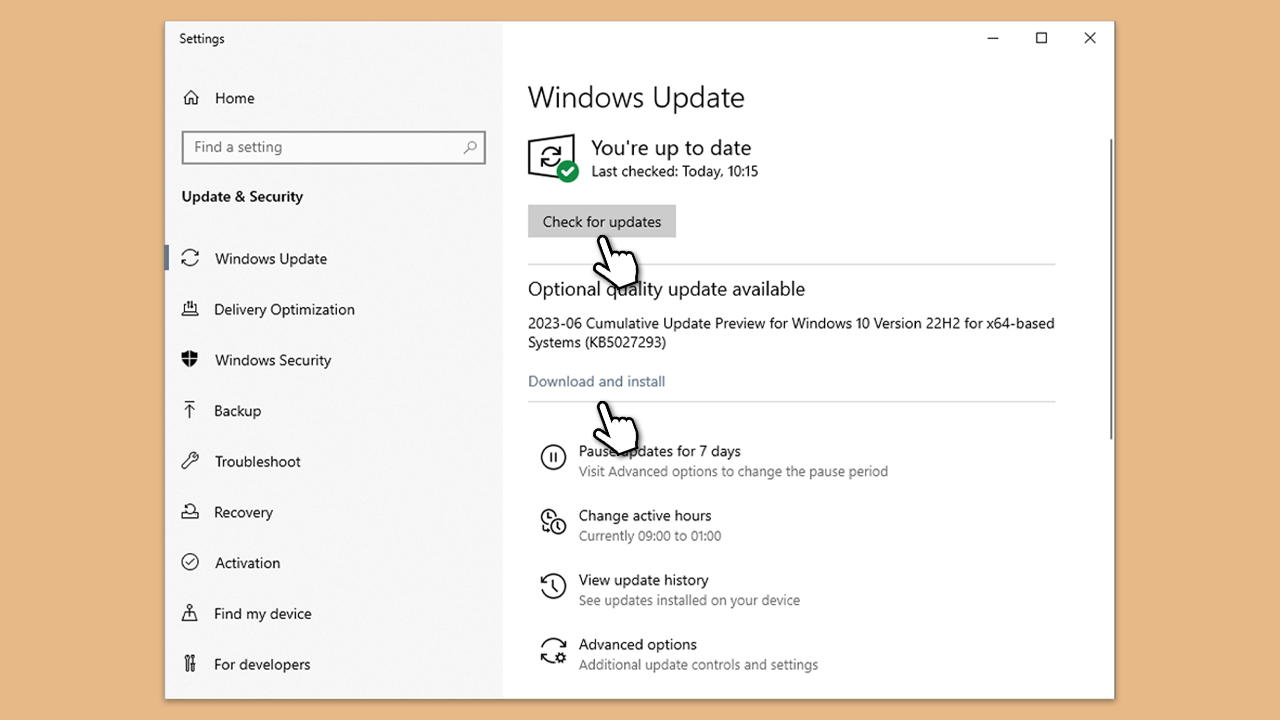
Fix 1. Update Windows
Ensuring your Windows is up to date is crucial for compatibility and security reasons. An updated system can provide a more stable environment for installing and running Microsoft Office.
- Type Updates in Windows search and press Enter.
- Here, click Check for updates.
- Wait till Windows downloads and installs all the files.
- If optional updates are available, install them as well.
- Reboot your computer.
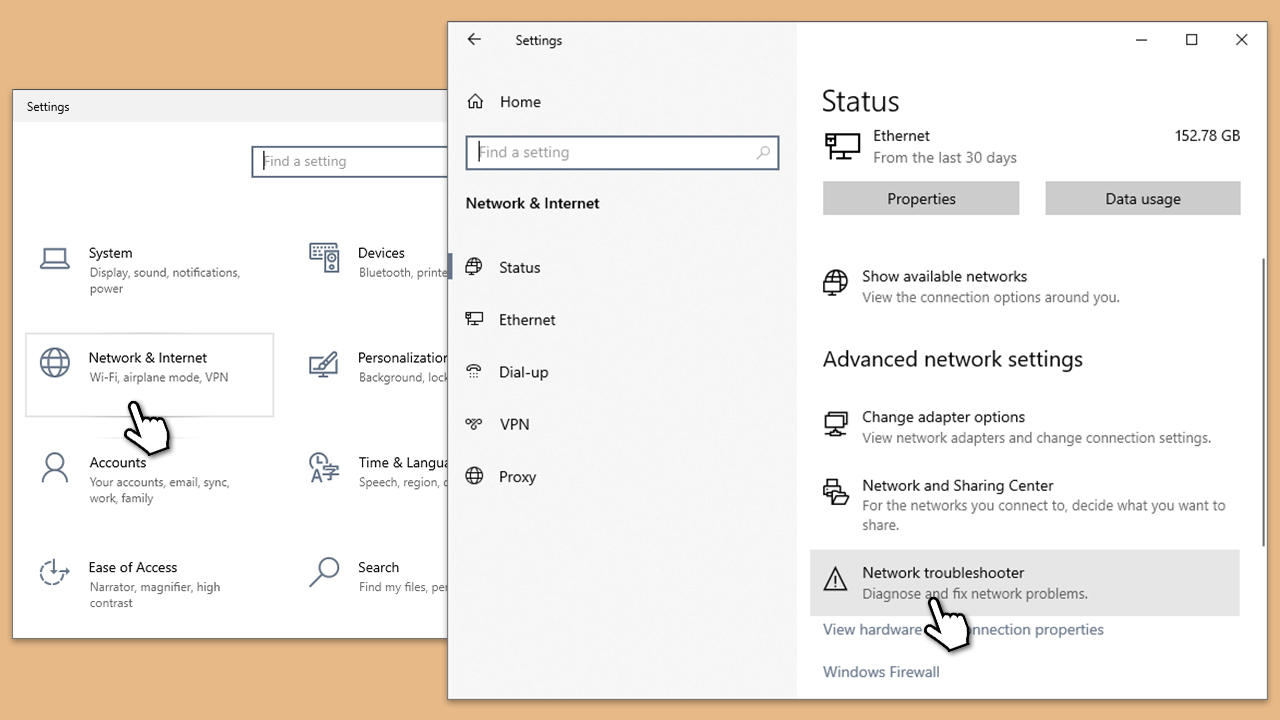
Fix 2. Check your internet connection
A stable internet connection is crucial for installing Office, especially if you are downloading it directly from Microsoft. An interrupted or slow connection can cause error 30015-11.
- Right-click on Start and pick Settings.
- Go to Network & Internet section.
- On the right side, find the Advanced network settings section.
- Click Network troubleshooter and wait.
- The fixes will be automatically applied.
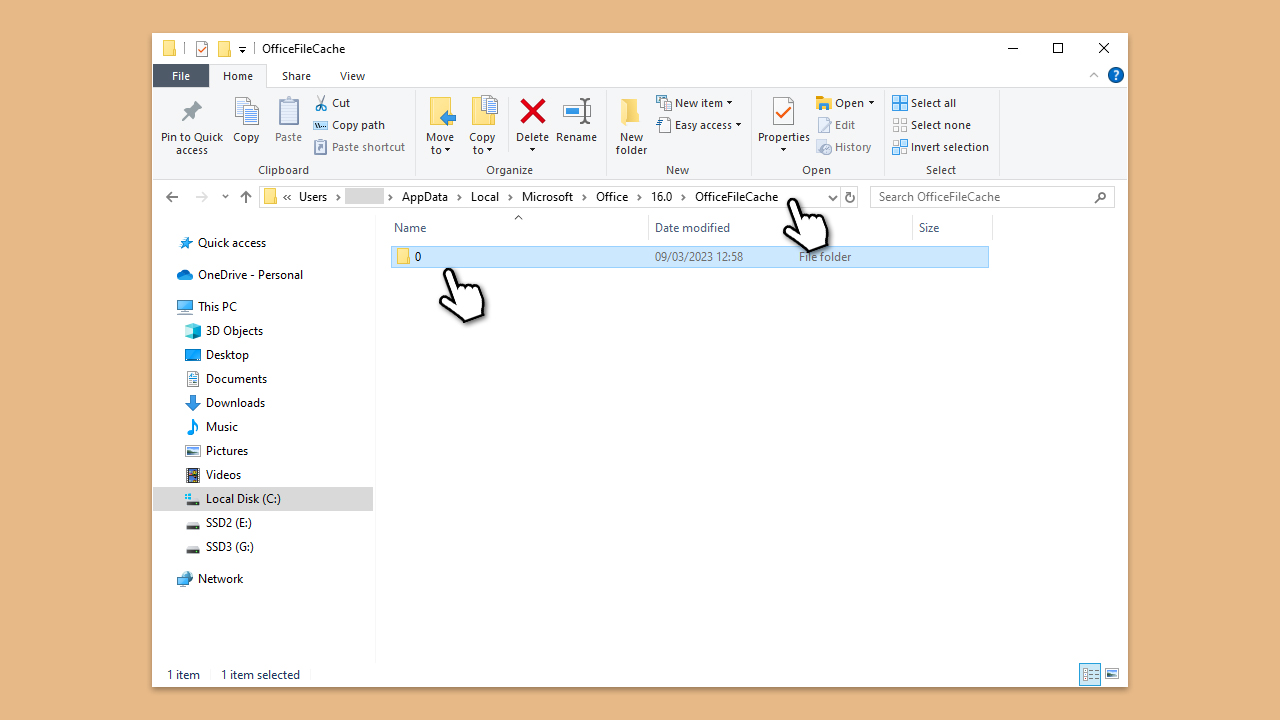
Fix 3. Clear the Office cache
Corrupted files in the Office cache can prevent the installation from completing successfully. Clearing the cache can remove these obstacles.
- In Windows search, type %localappdata%\Microsoft\Office\16.0\OfficeFileCache and press Enter to navigate to the OfficeFileCache folder.
- Delete all files within the OfficeFileCache folder - press Shift + Del for quick action.
- After clearing the cache, restart your computer and attempt the Office installation again.
Fix 4. Temporarily disable antivirus software
Antivirus software can sometimes mistakenly identify the Office installation process as a security threat, so temporarily disabling your antivirus may resolve this conflict.
- Locate the antivirus icon in your system tray, usually found in the bottom right corner of your screen.
- Right-click on the antivirus icon and look for an option to turn off protection temporarily. The exact option name may vary depending on your antivirus software.
- Try installing Microsoft Office again.
Fix 5. Properly uninstall the old version of Office
Some remnants of the previous Office installation might remain, preventing the installation of the new one. Follow these steps to remove them:
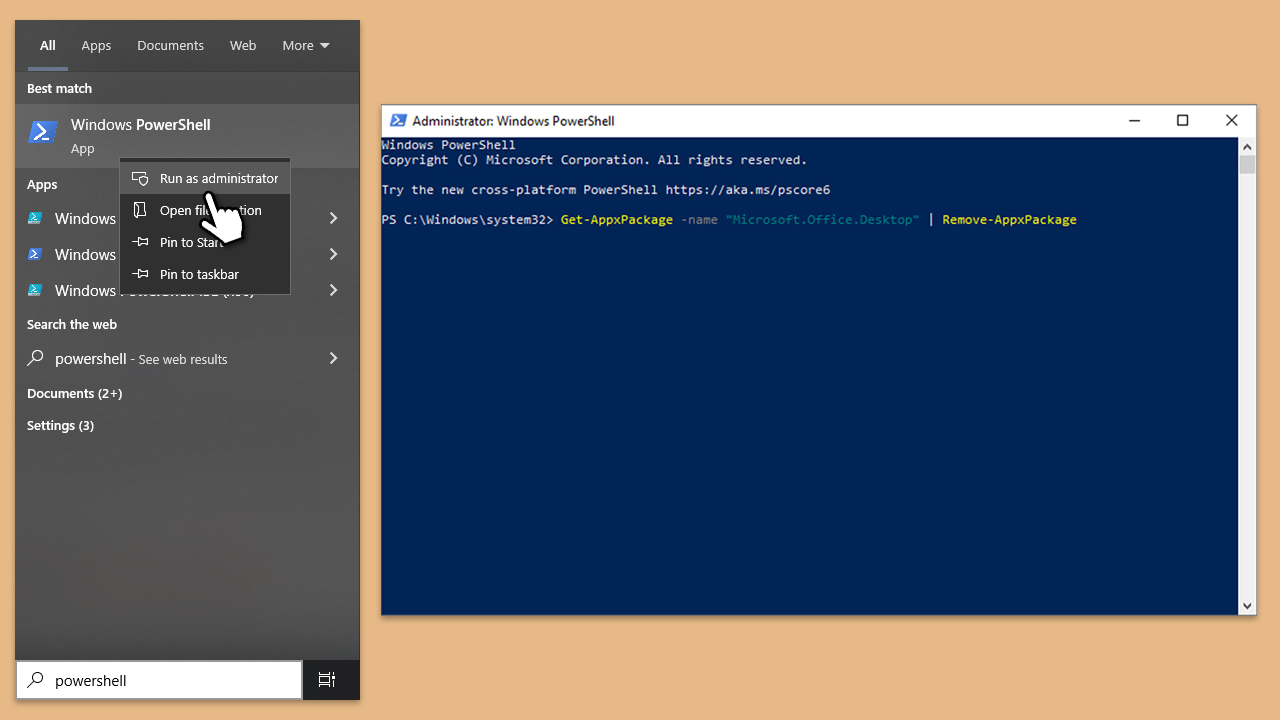
- Type PowerShell in Windows search.
- Right-click on the result and pick Run as administrator.
- When UAC shows up, click Yes.
- In the new window copy and paste the following command, pressing Enter after:
Get-AppxPackage -name “Microsoft.Office.Desktop” | Remove-AppxPackage - Restart your system.
- Go to Microsoft Store and download the newest version of MS Office.
You could also try to use the official tool by Microsoft [direct download link] to remove the app.
Fix 6. Run in Clean Boot state
Clean Boot can provide a clean environment without any third-party software interfering.
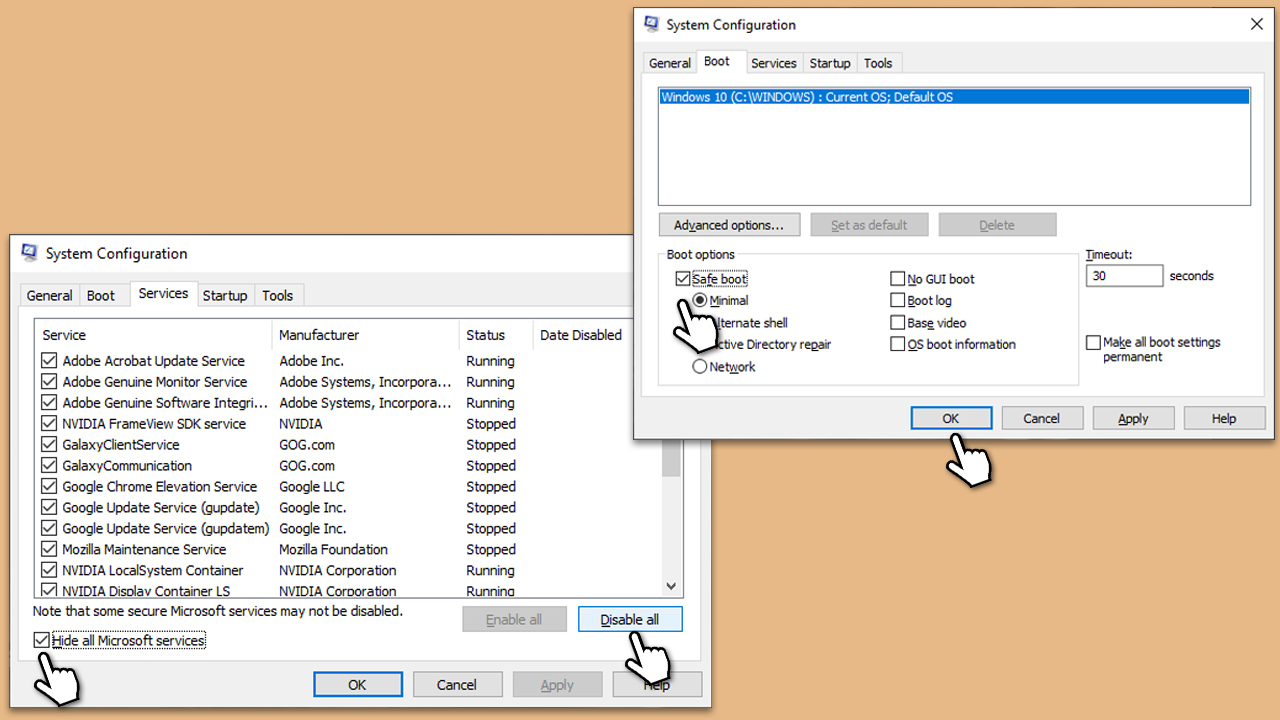
- Type msconfig in the Windows search box and press Enter.
- Pick the Services tab.
- Mark Hide all Microsoft services and select Disable all.
- Select the Startup tab and click Open Task Manager.
- In the Task Manager, right-click on each of the items and select Disable, then close the Task Manager.
- Go to the Boot tab, mark the Safe Boot option, then click Apply and OK.
- On the System Configuration window, click OK.
- Restart your computer and attempt to install/update Office.
Bottom line
To fix the Microsoft Office error 30015-11, you can try updating Windows to ensure compatibility and security. If the issue persists, consider using a PC repair tool to check for underlying Windows issues. If none of these solutions work, further troubleshooting may be necessary.
Frequently asked questions
Microsoft Office error 30015-11 typically occurs during installation or updates, indicating that the Office suite cannot complete the process due to various conflicts or issues with system files.
You can resolve this error by repairing the Office installation through the Control Panel, or by using the Microsoft Support and Recovery Assistant tool for a more comprehensive fix.
Yes, uninstalling and then reinstalling Microsoft Office can often resolve error 30015-11, especially if the initial installation was corrupted.




Report an issue
What's wrong with this guide? We review every report and update or remove content.
Report received — thank you. We'll review and fix it.
You need a free account to submit a report.
Be the first to comment