How to fix
Microsoft Office error 30029-27
on Windows
Resolve Microsoft Office error 30029-27 on Windows 10 or 11 swiftly. Expert-tested solutions to get your applications running smoothly again. Fixed in m…


What causes How to fix Microsoft Office error 30029-27 in Windows?
- Corrupted installation files
- Incomplete downloads
- Leftover files from previous Office installations
- Antivirus software or firewall configurations blocking updates
- Issues with the Windows Installer service
Repairs Windows system files, removes malware, and restores a clean OS state — without reinstalling.
Hello. For some reason, Office doesn't update, saying "Something went wrong. We're sorry, we ran into a problem while looking for updates. Please check your network connection and try again later. Error code 30029-27." My internet is working fine, so I'm not sure what's going on.
Microsoft Office error code 30029-27 is one of the frustrating errors that Windows users face while installing, uninstalling, or updating Office applications. This error, in most cases, doesn't allow the completion of these processes, thus leaving users unable to modify their Office programs as needed. The error is often accompanied by a generic message stating, "Something went wrong," offering little insight into the exact cause.
For some users, 30029-27 error arises when attempting to update Office, as noted by individuals who reported failed updates with this specific error code. This can disrupt routine tasks, especially if Office features are inaccessible or outdated due to incomplete updates.
The causes of error code 30029-27 can vary. Corrupted installation files, incomplete downloads, or leftover files from previous Office installations are common triggers. Antivirus software or firewall configurations may also block updates or installations. Furthermore, issues with the Windows Installer service or specific system configurations might interfere with the process, causing the 30029-27 error to appear.
Symptoms of this error include failed installations, updates that stop midway, or partial installations that leave Office programs unusable. Users may also see repeated prompts to retry the process, which can become increasingly frustrating.
The general solution for the 30029-27 error is finding the cause and resolving it. Sometimes, the simple resolution can be just clearing out the residual files or disabling the antivirus software temporarily. In severe scenarios, adjustments may be required with the system services, repairing system components, or even an entire Office reinstallation.
To address error code 30029-27 and restore full functionality to your Office suite, detailed instructions are provided below. Additionally, for those seeking a quick and automated solution, the [d1] repair app is highly recommended for resolving this and similar errors efficiently.

Fix 1. Update Windows and Office
- Type Updates in Windows search and hit Enter.
- If updates are available, click Install updates.
- Otherwise, click Check for updates.
- If optional updates are available, install them as well.
- When all the update processes are complete, restart your computer.

Update Office as follows:
- Open any Office app, such as Word.
- Click on the File tab in the top-left corner.
- Select Account from the menu.
- Under the Product Information section, click on Update Options.
- Choose Update Now to check for and install any available updates.
- Restart the Office application after the update is complete to see if the issue is resolved.

Fix 2. Run the troubleshooters
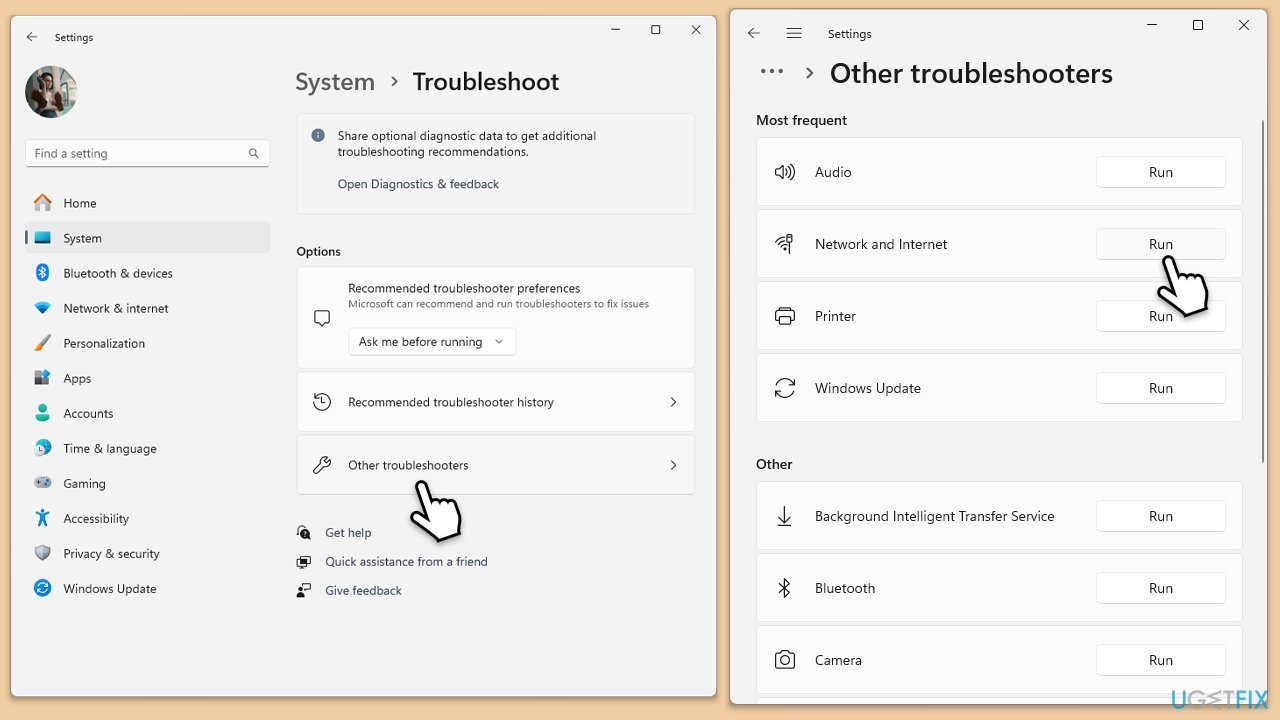
- Type troubleshoot in Windows search and press Enter.
- Click on Troubleshoot settings from the search results.
- Go to Additional troubleshooters/Other troubleshooters.
- Scroll down and click on Windows Store Apps.
- Click on Run the troubleshooter/Run and wait for the process to complete.
- Repeat with Network and Internet troubleshooter.
Run Network troubleshooter in Windows 10:
- Right-click on Start and pick Settings.
- Go to Network & Internet section.
- On the right side, find the Advanced network settings section.
- Click Network troubleshooter and wait.
- The fixes will be automatically applied.
Fix 3. Repair Office installation
- Type Control Panel in Windows search and press Enter.
- Select Programs > Programs and Features.
- Select Microsoft Office and click on Change.
- Choose the option for Online Repair and click Repair.
- Follow the prompts to finish the repair.

Fix 4. Disable conflicting software
- Open your antivirus or security software.
- Locate the option to disable the protection.
- Disable the software temporarily.
- Try running the Office update again.
- If the setup completes successfully, add Office to the exclusion list of your security software.
Fix 5. Clear cached files
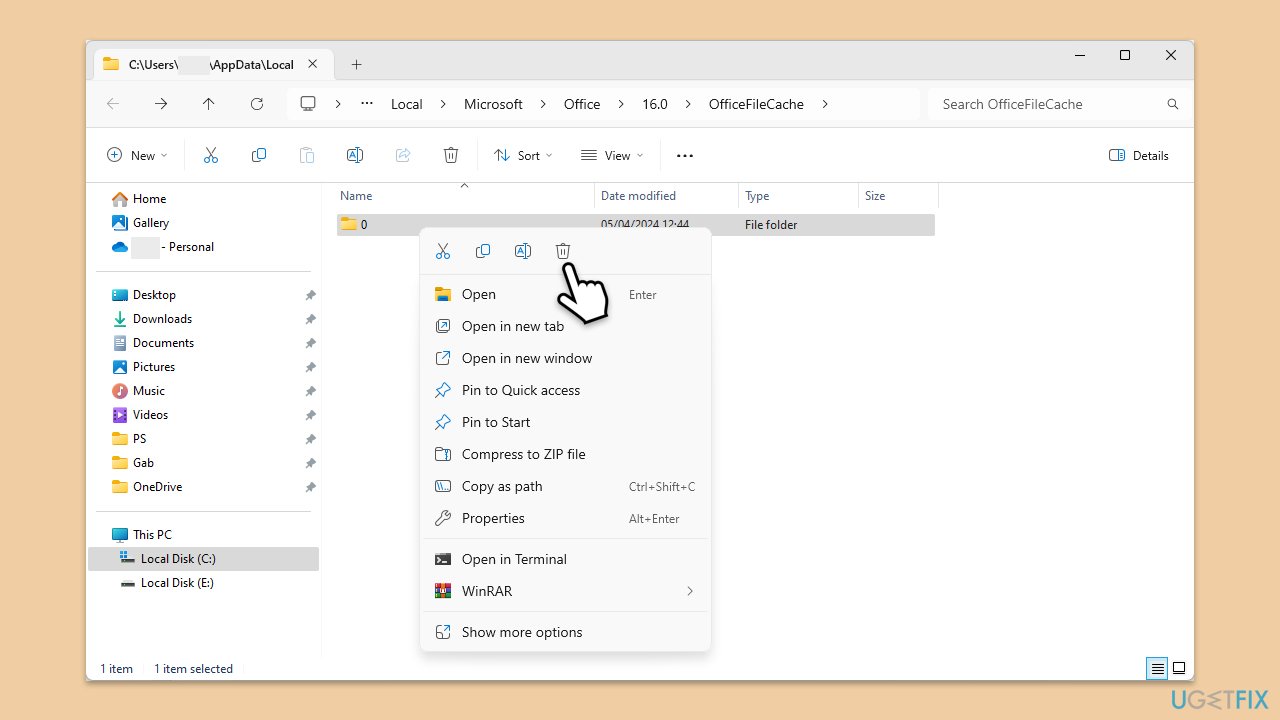
- Type %localappdata%\Microsoft\Office\16.0\OfficeFileCache in Windows search and press Enter to navigate to the OfficeFileCache folder.
- Delete all files within the OfficeFileCache folder - press Shift + Del for quick action.
- After clearing the cache, restart your computer and attempt the Office installation again.
Fix 6. Check services
- Type Services in Windows search and hit Enter.
- In the Services window, scroll down to find the Microsoft Office Click-to-Run service.
- Double-click on the service to open Properties.
- Under the Startup type, select Automatic from the drop-down menu.
- Click Start, Apply, and OK.
- Repeat the process with Windows Installer service.

Fix 7. Reinstall Office
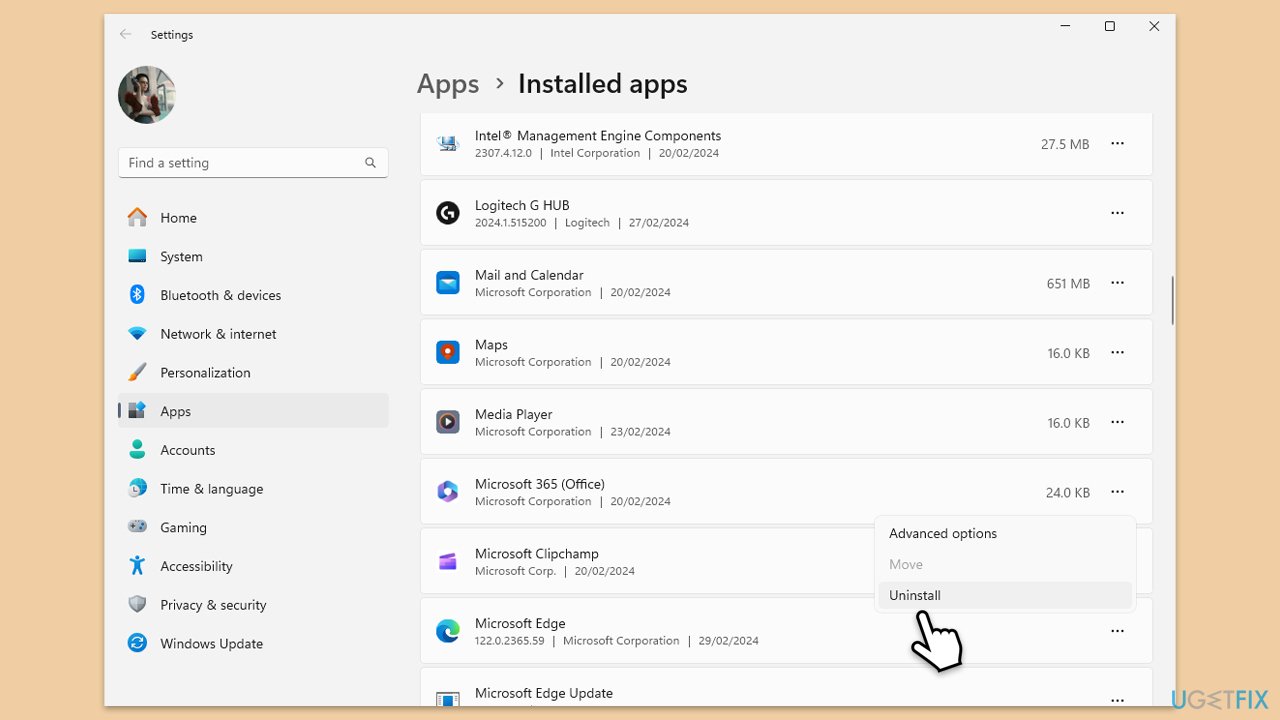
- Right-click on Start and pick Apps and Features/Installed apps.
- Scroll down to find the MS Office installation.
- Click Uninstall and confirm with Uninstall.
- Follow on-screen instructions to remove the app completely.
- Press Win + E to open File Explorer.
- Navigate to the following location and delete its contents:
C:\Program Files\Microsoft Office - Next, type regedit in Windows search and press Enter.
- Go to the following locations in the Registry Editor and delete these items:
Computer\HKEY_LOCAL_MACHINE\SOFTWARE\Microsoft\AppVISV
Computer\HKEY_LOCAL_MACHINE\SOFTWARE\Microsoft\Office\ClickToRun
Computer\HKEY_CURRENT_USER\Software\Microsoft\Office - Reboot the PC and then reinstall Microsoft Office.
Bottom line
To fix Microsoft Office error 30029-27, users can try clearing out residual files, temporarily disabling antivirus software, or repairing system components. If these solutions do not resolve the issue, a complete reinstallation of Office may be necessary.
Frequently asked questions
This error typically occurs due to incomplete installations, corrupted files, or issues with the Office update process in Windows 10 or Windows 11.
You can fix this error by repairing the Office installation through the Control Panel or using the Microsoft Support and Recovery Assistant for Office 365.
Yes, regularly updating Office and Windows 10, as well as ensuring a stable internet connection during installations, can help prevent this error.




Report an issue
What's wrong with this guide? We review every report and update or remove content.
Report received — thank you. We'll review and fix it.
You need a free account to submit a report.
Be the first to comment