
How to fix Microsoft Office error 30068-39 in Windows?

Prefer to fix it yourself? The manual steps follow.
- 7methods
- 5 to 45 minutes
- Intermediate
Applies to Microsoft 365, Office 2024, 2021, 2019 and 2016 installed with Click-to-Run on Windows 11 and Windows 10
7 methods in this guide
I keep getting Microsoft Office error 30068-39 when I try to install it. I am using the 2016 version. Can you help me?
Error code 30068-39 means Office setup could not get the Microsoft Office Click-to-Run Service to run, most often after an earlier Office was removed or half removed. Restart Windows normally and run setup again. If the code comes back, make sure the service is not disabled, then remove every Office with Microsoft's uninstall troubleshooter.
Restart Windows normally, not in Safe Mode, and run Office setup again (Fix 1). If error code 30068-39 returns, open services.msc and make sure Microsoft Office Click-to-Run Service is not set to Disabled (Fix 2). If the service is missing, broken or the code stays, remove every Office with Microsoft's uninstall troubleshooter, restart and install again (Fix 3).
| Error | Something went wrong with Error Code: 30068-39 and a number in brackets, such as (2), in the Office setup window. |
|---|---|
| Where it appears | While you install or reinstall Office, most often right after an earlier Office was uninstalled. Also when an administrator runs the Office Deployment Tool's setup.exe. |
| Main cause | Setup cannot start or reach Microsoft Office Click-to-Run Service, because the service is disabled, half removed or left behind by an old Office. |
| Fastest fix | A normal restart and setup again (Fix 1), then the service check in services.msc (Fix 2). These are Microsoft's first two solutions for 30068. |
| Also written as | 30068-39, 30068 39, error code 30068-39 (2), 30068-39 (3), код ошибки 30068 39. Same family: 30068-4, 30068-44, 30068-47. |
| Affects | Click-to-Run Office: Microsoft 365, Office 2024, 2021, 2019 and 2016, on Windows 11 and Windows 10. Office 2016 is out of support since 14 October 2025, like Windows 10. |
| Microsoft's status | Covered by Microsoft's page Error code 30068 when installing Office, which applies to any error that contains 30068 (checked 15 October 2026). It is not a bug fixed by an update; the cause is on the PC. |
| Not the cause | Your product key, a slow internet connection or Windows Update. No source we read ties 30068-39 to them. |
| Time to fix | 5 minutes when a restart or the service is enough. 20 to 45 minutes when Office has to be removed and installed again. |
Facts checked on 15 October 2026. Steps written for Click-to-Run versions of Microsoft 365, Office 2016 to 2024 on Windows 11 (25H2 and 26H2) and Windows 10 22H2, read against Microsoft's support page for error 30068.
What error code 30068-39 means in Microsoft Office
Every desktop Office from Office 2016 to Microsoft 365 is installed by Click-to-Run. The setup window you open hands the real work to a Windows service called Microsoft Office Click-to-Run Service. When setup cannot get that service to start or answer, it stops and shows a code that begins with 30068. The 39 after the dash is a step inside setup that Microsoft does not explain.
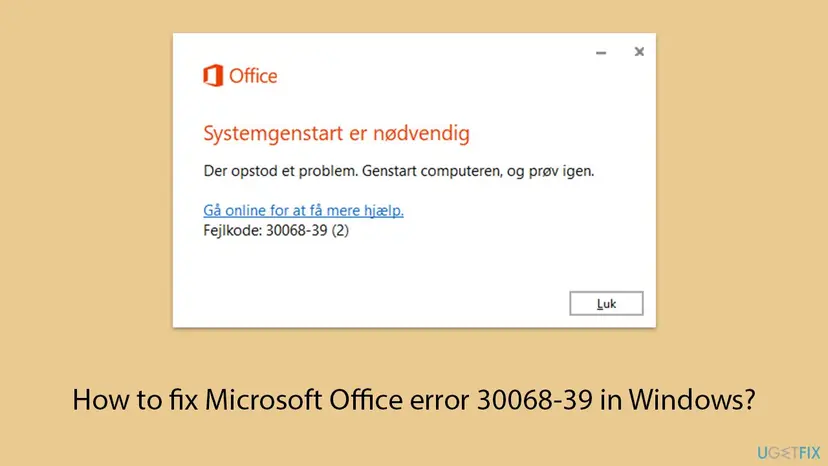
In English the window reads Something went wrong with Error Code: 30068-39 and a number in brackets. In the Danish example above the heading means a system restart is needed and the text says to restart the computer and try again. The code is never translated, so a Russian reader searching код ошибки 30068 39 sees the same digits.
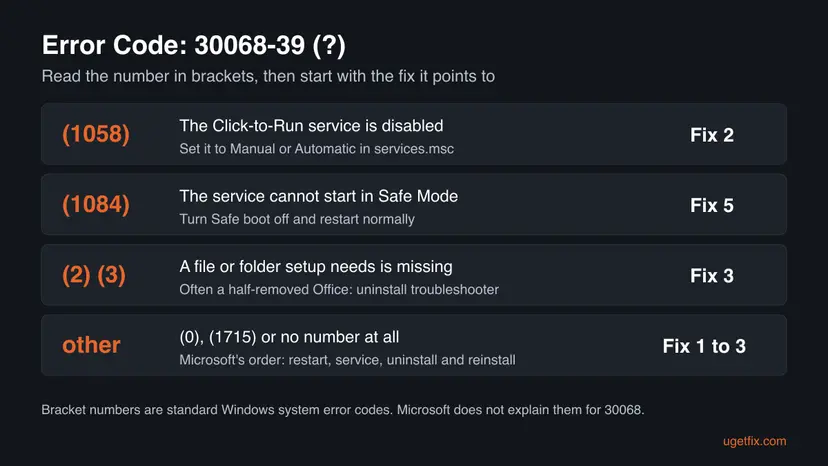
Microsoft's page for 30068 is tagged for 30068-39 with the bracket numbers (0), (3), (1058), (1084) and (1715), and readers report (2) as well. These look like standard Windows system error codes: 2 and 3 mean a file or folder was not found, 1058 a disabled service, 1084 a service that cannot start in Safe Mode. Microsoft does not confirm this reading for Office, so use it as a pointer, not a diagnosis.
| What the window shows | What it most likely means | Start with |
|---|---|---|
30068-39 (1058) | The Click-to-Run service is set to Disabled | Fix 2 |
30068-39 (1084) | Windows was started in Safe Mode or with Safe boot on | Fix 5 |
30068-39 (2) or (3) | Setup looks for a file or folder of an old Office that is no longer there | Fix 3, then Fix 4 |
30068-39 (0), (1715) or no number | No clear pointer | Fix 1 to Fix 3 in order |
What causes Office error 30068-39, from the most common to the rare
Microsoft lists its solutions for 30068 with the most common first: a restart, the service, then uninstall and reinstall. The ranking below follows that order and what users report in the 30068-39 threads on Microsoft Q&A. It is an order of likelihood, not a statistic.
| How often | Cause | Typical sign | Fix |
|---|---|---|---|
| Most often | A pending restart after an Office was removed or updated | The window asks for a restart, or you have not restarted since the uninstall | Fix 1 |
| Often | Microsoft Office Click-to-Run Service is disabled | Startup Type shows Disabled in services.msc, or the code ends in (1058) | Fix 2 |
| Often | An old Office is half removed and setup still finds its traces | You uninstalled Office just before, and the code ends in (2) or (3) | Fix 3, Fix 4 |
| Less often | The service itself is broken or was deleted by hand | Its properties cannot be read, or the service is not in the list at all | Fix 3, Fix 4 |
| Rarely | Windows still starts in Safe Mode after a clean boot test | Safe boot is ticked in System Configuration, or the code ends in (1084) | Fix 5 |
| Rarely | A third-party security app blocks the service | Setup works only while the app is paused | Fix 6 |
| Rarely | Damaged Windows system files | Other installers fail as well | Fix 7 |
How to fix error code 30068-39 when you install Office
Fix 1 to Fix 3 are Microsoft's own three solutions for 30068, in Microsoft's order. Fix 4 finishes a removal the troubleshooter could not complete. Fix 5 to Fix 7 are for the rarer causes, from the cheapest to the slowest.
| What you see or what your PC has | Start with |
|---|---|
| You have not restarted since Office was removed, or the window asks for a restart | Fix 1 |
| The code ends in (1058), or Office setup ran fine on this PC before | Fix 2 |
| You uninstalled an older Office just before, or the code ends in (2) or (3) | Fix 3 |
| The troubleshooter finished, yet setup still fails, or the Click-to-Run service is gone | Fix 4 |
| The code ends in (1084), or you followed a clean boot guide that ticked Safe boot | Fix 5 |
| You use a security app other than Microsoft Defender | Fix 6 |
| Other programs fail to install too | Fix 7 |
Fix 1. Restart Windows normally and run Office setup again
5 minutesLow riskEveryone first. Above all when you removed or updated Office and have not restarted since.
Microsoft lists a restart and a new installation as the most common solution for 30068. An uninstall can leave the old service waiting for a restart, and the setup window itself often asks for one.
- Select Close in the setup window.
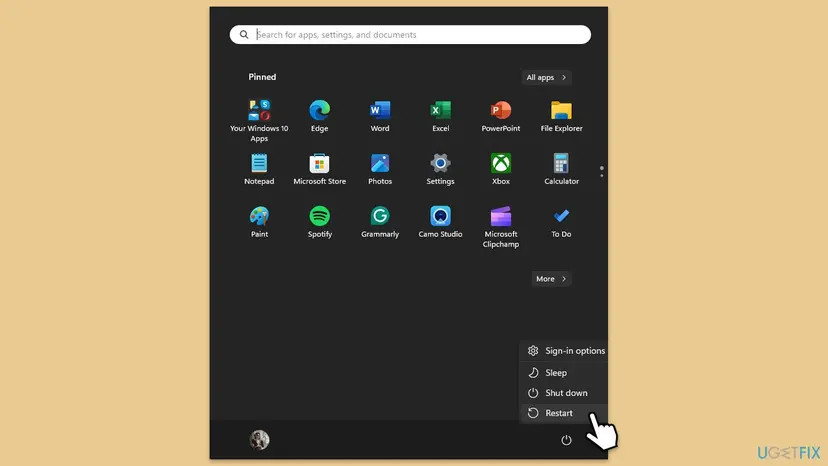
- Save your work and select Start > Power > Restart. Use Restart, not Shut down.
- Sign in to Windows with an administrator account.
- Sign in at
microsoft365.comwith the account that owns Office, or open Microsoft's page for Office 2021, 2019 or 2016 if you bought a one-time version. - Download a fresh installer from there and run it. Do not reuse an old installer file.
It worked if: Setup gets past the point where it stopped and ends with a message that Office is installed.
If not: If error code 30068-39 appears again, check the Click-to-Run service with Fix 2.
Fix 2. Check that Microsoft Office Click-to-Run Service is not disabled
5 minutesLow riskFix 1 did not help, the code ends in (1058), or someone tuned the services on this PC.
This is Microsoft's second solution for 30068. Setup cannot install anything while the service it hands the work to is set to Disabled. Turning it back to Manual or Automatic lets setup start it.
- Press Win + R, type
services.mscand select OK. - Scroll to Microsoft Office Click-to-Run Service.
- Look at the Startup Type column. If it says Disabled, right-click the service and select Properties.
- On the General tab, set Startup type to Manual or Automatic, then select Apply and OK.
- Run Office setup again as in Fix 1.
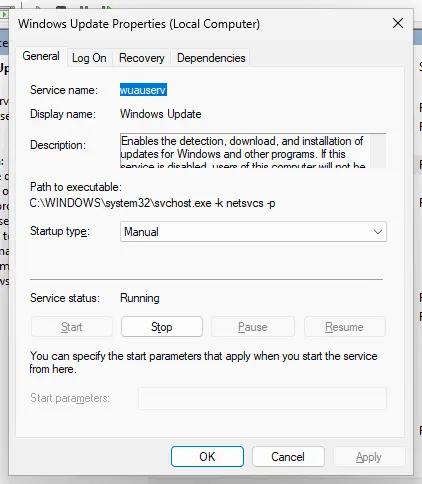
If the service is not in the list, or its window says the description could not be read, as one reader with 30068-39 (2) reported, the service itself is broken. Do not try to repair it by hand. Go straight to Fix 3, which removes it with the rest of Office, and the next installation puts a new one in.
All the screens of services.msc: Check and restart Windows services.
It worked if: Startup type shows Manual or Automatic, and Office setup runs to the end.
If not: If the service was not disabled, or setup still fails, remove Office with Fix 3.
Fix 3. Remove every Office with Microsoft's uninstall troubleshooter, then install again
20 to 45 minutesRead the warningFix 2 did not help, you removed an older Office before, or the code ends in (2) or (3).
Microsoft's third solution for 30068. When an Office is half removed, setup finds its traces and calls a service or a folder that no longer works. The troubleshooter clears every Click-to-Run version, so the next installation starts from nothing.
This removes every Microsoft 365 and Office product on the PC, not your documents. Check first that your Office shows at account.microsoft.com, or keep the product key of a one-time version at hand. Copy custom templates and any Outlook .pst file if you would miss them: Back up your files (Windows Backup, File History, Time Machine).
- Sign in to Windows with an administrator account.
- Open Microsoft's uninstall troubleshooter link.
- Select Open when the browser says This site is trying to open Get Help.
- Follow the prompts and restart the computer when you are asked.
- Install Office again from
microsoft365.com, or with Microsoft's steps for Office 2021, 2019 or 2016.
| Microsoft's note | What it means for you |
|---|---|
| The troubleshooter currently can't uninstall Office 2024 | Remove Office 2024 in Installed apps, then clean up with Fix 4. |
| You need Windows 10 or higher | It runs on Windows 11 and on Windows 10 22H2. |
| Run it on the PC with the Office you want to remove | It cannot clean another computer. |
| If it does not remove everything, uninstall Office manually | That is Fix 4. |
It worked if: Installed apps shows no Office, and the new installation finishes without error code 30068-39.
If not: If the troubleshooter finds nothing to remove but setup still fails, remove the leftovers with Fix 4.
Fix 4. Remove Office leftovers by hand when the troubleshooter misses them
30 to 45 minutesRead the warningThe troubleshooter found nothing or failed, you had Office 2024, or the Click-to-Run service is missing.
Microsoft's tip for a troubleshooter that does not remove everything is to uninstall Office by hand. One administrator with 30068-39 reported that the troubleshooter found no Office files, while setup still failed: what is left is in the folders, tasks and keys the manual steps cover.
A manual removal deletes Office settings, cached sign-ins and some registry keys. Your documents stay. Copy any Outlook .pst file and your templates first: Back up your files (Windows Backup, File History, Time Machine). Back up the registry before you remove a key: Back up the registry before editing it.
- Open Settings > Apps > Installed apps (Windows 10: Apps > Apps & features) and remove every entry that starts with Microsoft 365, Microsoft Office or Office, language packs too. All steps: Uninstall a program or app in Windows.
- Restart the PC.
- Open Microsoft's page Manually uninstall Office and choose the Click-to-Run steps.
- Follow them for the folders, scheduled tasks and registry keys in the order Microsoft gives. Do not delete the service on its own first.
- Restart the PC and install Office again as in Fix 1.

It worked if: No Office is left in Installed apps, and the new setup creates a fresh Click-to-Run service and finishes.
If not: If the code ends in (1084), go to Fix 5. If you use a third-party security app, test Fix 6.
Fix 5. Turn off Safe boot and return to a normal startup
5 minutesLow riskThe code ends in (1084), Windows shows Safe Mode in the corners, or you followed a clean boot guide that ticked Safe boot.
In Windows' list of error codes, 1084 means a service cannot be started in Safe Mode. Some older guides for this error, our own earlier version among them, told readers to tick Safe boot during a clean boot, which leaves Windows in Safe Mode where Click-to-Run cannot run.
- Press Win + R, type
msconfigand press Enter. - On the Boot tab, clear the Safe boot check box.
- On the General tab, select Normal startup. This also turns back on the services and startup items a clean boot switched off.
- Select Apply and OK, then Restart.
- Run Office setup again.
A proper clean boot only turns off third-party services and startup apps. Click-to-Run is a Microsoft service and stays on. If you want to test for a conflicting program, use How to perform a clean boot in Windows, which never ticks Safe boot.
It worked if: Windows starts without Safe Mode in the corners, and setup finishes.
If not: If Safe boot was already off, test a third-party security app with Fix 6.
Fix 6. Pause a third-party antivirus for one installation
10 minutesLow riskYou use a security app other than Microsoft Defender, and Fix 1 to Fix 5 did not help.
A security app that blocks a new service or its files can stop Click-to-Run before it starts. One paused run shows whether the app is the cause. Microsoft does not name antivirus on its 30068 page, so this comes late.
Do not leave protection off. Download the installer first, pause the app, run setup and turn protection back on as soon as setup ends, whether it worked or not.
- Download the Office installer while protection is still on.
- Pause the security app for the shortest time it offers: Turn off Microsoft Defender protection for a moment.
- Run the Office installer.
- Turn protection back on right after setup ends.
If setup works only while the app is paused, add the Office installer and Click-to-Run to its exceptions or ask its maker. The fix belongs in the security app, not in leaving it off.
It worked if: Setup finishes while the app is paused, which points to the app as the cause.
If not: If setup fails with protection paused too, the app is not the cause. Turn it back on and go to Fix 7.
Fix 7. Update Windows and repair system files, then install Office again
20 minutes to 1 hourLow riskEvery fix above failed, or other programs also fail to install.
Microsoft does not tie 30068-39 to Windows itself. When every Office-specific fix fails and other installers fail as well, damaged Windows files can stop a new service from registering, so the last step is to repair Windows.
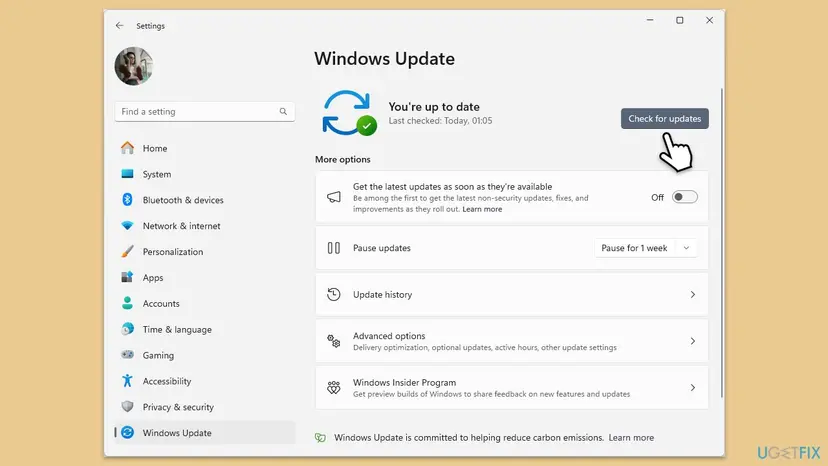
- Open Start > Settings > Windows Update, select Check for updates, install what is offered and restart.
- Run the system file check and DISM once: Run DISM and SFC to repair Windows system files.
- Restart the PC and run Office setup again.
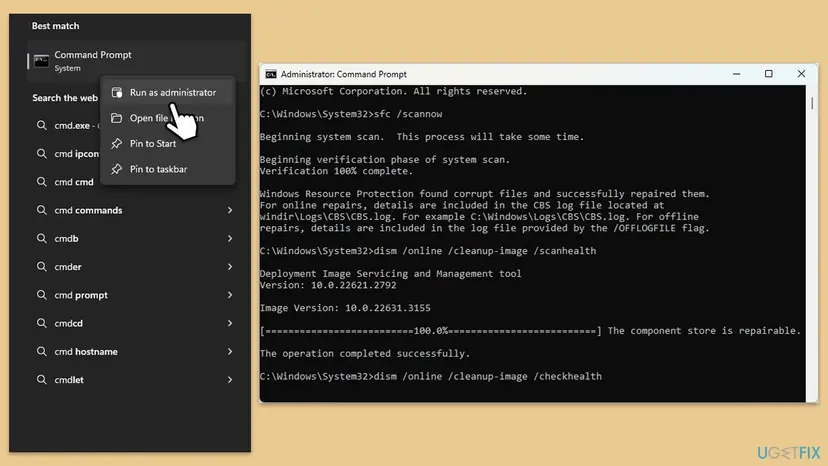
It worked if: SFC reports no problems or that it repaired them, and Office installs without error code 30068-39.
If not: Read the section below on what to check and what to send to Microsoft support.
If error 30068-39 is still there: what to check and what to send
The setup window shows only the code. Click-to-Run setup writes text logs to the %temp% folder of the user who ran it, and Windows records service failures in Event Viewer. We could not confirm from Microsoft which log line belongs to 30068-39, so read them as a hint.
- Run setup once more and note the time.
- Press Win + R, type
%temp%and press Enter. Sort by Date modified, newest first. - Open the newest
.logfiles and search with Ctrl + F for30068, then forerror. - Press Win + R, type
eventvwr.mscand look under Windows Logs > System for a service error about Click-to-Run at that time.
- Volume licence and the Office Deployment Tool. An administrator reported 30068-39, then error 0-2031, when installing Office 2019 with a volume licence. Microsoft's consumer support could not help, so a business or volume licence case goes to your organisation's admin or Microsoft's business support.
- A licence problem shows a different message. Activation errors and Unlicensed Product appear after Office opens, not during setup. Check that your Office shows at
account.microsoft.com. - What to send to Microsoft support: the full code with the number in brackets, the Office product and year, and the Startup type of the Click-to-Run service. Add what you removed before, the Windows version from Settings > System > About and the newest setup log.
How to avoid error 30068-39 the next time you install Office
Most 30068-39 cases start with an old Office removed halfway, a skipped restart or a service someone switched off. A few habits avoid nearly all of them.
- Restart after every Office uninstall, before the new setup.
- Remove an old Office with Microsoft's uninstall troubleshooter when you change versions.
- Download a fresh installer from your Microsoft account each time.
- Return to Normal startup as soon as a clean boot test is over.
- Disable Microsoft Office Click-to-Run Service with a tuning tool.
- Delete the Click-to-Run service or Office folders before the troubleshooter has run.
- Install Office in Safe Mode or with Safe boot ticked.
- Leave the antivirus off after a test.
Frequently asked questions
What does error code 30068-39 mean?
It means Office Click-to-Run setup could not get its Windows service, Microsoft Office Click-to-Run Service, to start or answer. The window says Something went wrong and shows Error Code: 30068-39 with a number in brackets. Microsoft has one support page for every error that contains 30068, and its fixes in order are a restart, the service check and a full uninstall and reinstall. Microsoft does not explain the 39 itself.
What does 30068-39 (2) mean?
The 2 in brackets looks like the Windows code for a file that cannot be found. Microsoft does not confirm this for Office. In the Microsoft Q&A thread on 30068-39 (2), the reader saw it after removing Office completely, and the Click-to-Run service could not even show its description. That points to a half-removed Office, so start with the uninstall troubleshooter (Fix 3) and the manual cleanup (Fix 4).
Why do I get error 30068-39 after I removed Office?
Because the removal was not complete or Windows has not restarted since. Setup finds traces of the old Office, such as its service, folders or registry keys, and tries to use them. Restart normally first (Fix 1). If that does not help, run Microsoft's uninstall troubleshooter, which clears every Click-to-Run version, then restart and install again (Fix 3). Use the manual steps (Fix 4) if the troubleshooter finds nothing.
Are 30068-47 and 30068-44 different from 30068-39?
They belong to the same 30068 family, and Microsoft's support page applies to every error that contains 30068. The second number changes and is not explained by Microsoft. The fixes on this page work for 30068-47 too. For 30068-44, the bracket number 1715 is common, and we cover it in our guide to Office error 30068-44.
Can I install Office in Safe Mode to avoid conflicts?
No. Office setup needs Microsoft Office Click-to-Run Service, and Windows does not start that service in Safe Mode. The bracket number 1084 means exactly that kind of refusal. If you want to rule out other programs, use a clean boot, which turns off only third-party services and startup apps. Then return to Normal startup in System Configuration as soon as the test is over (Fix 5).
Will fixing 30068-39 delete my documents or emails?
No. The error stops setup and touches no files, and uninstalling Office removes the apps, not the documents you made with them. The manual cleanup (Fix 4) removes Office settings and cached sign-ins, so copy any Outlook .pst file first. Mail in Microsoft 365, Outlook.com or Gmail stays on the server and comes back when you sign in again.
I have Office 2016. Can I still install it?
Yes, if you have its product key or it is linked to your Microsoft account, and the fixes on this page are the same. Office 2016 left support on 14 October 2025, so it gets no more security updates. Microsoft's uninstall troubleshooter still removes Office 2016, and its download page still lists it. If you have a Microsoft 365 subscription, install that instead.
Does the old Support and Recovery Assistant still fix 30068-39?
No. Older guides, our own earlier version among them, sent readers to the Microsoft Support and Recovery Assistant and the file SetupProd_OffScrub.exe. Today the uninstall link on Microsoft's 30068 page opens the Get Help app, which removes Microsoft 365, Office 2021, Office 2019 and Office 2016. It needs Windows 10 or higher and cannot remove Office 2024 yet.
What are ai30068, код ошибки 30068 39 and other spellings?
Код ошибки 30068 39 is Russian for error code 30068-39, the same Office setup error, and every fix here applies unchanged. We found no Microsoft code called ai30068. If you meant the Office setup code 30068, this page covers that family. A plain 30068 search also lands here, since Microsoft treats every 30068 code with the same three fixes. Microsoft's support pages are available in Russian if you prefer.
What causes error 30068-39 in the first place?
Most often a restart is pending after an Office was removed or updated. Next come a disabled Click-to-Run service and a half-removed old Office whose traces confuse setup. Rarer causes are Windows stuck in Safe boot after a clean boot test, a security app that blocks the service, and damaged Windows files. The table near the top ties each cause to its fix.
Sources
- Microsoft Support: Error code 30068 when installing Office (support.microsoft.com)
- Microsoft Q&A: Can't install: Error code 30068-39 (2), user report (learn.microsoft.com)
- Microsoft Q&A: I am unable to install Microsoft Office 2019 with a volume license (30068-39 with the Office Deployment Tool) (learn.microsoft.com)
Did this fix work?
One click, no account. It tells the next reader which guides are worth their time.
Questions and experiences: fix Microsoft Office error 30068-39 in Windows
Still broken, or found a fix we did not cover? Ask here: members and our editors answer. Reading is open; writing needs a free account.
…