How to fix
Microsoft Office error 30088-2056
on Windows
Quickly resolve Microsoft Office error 30088-2056 on Windows 10 or 11 with our expert-tested solutions. Fix it in minutes, zero traces left!


What causes How to fix Microsoft Office error 30088-2056 in Windows?
- Invalid or broken file
- Corrupt settings in the registry
- Conflicts with a running process
- Insufficient permissions
- Corrupted system files
- Interference from third-party antivirus programs
Repairs Windows system files, removes malware, and restores a clean OS state — without reinstalling.
When I'm trying to install Microsoft Office (2021), I keep getting an error code 30088-2056. This happens every time. Restarting the PC did not help and waiting did not work either. Could you advice on what to do?
Office error 30088-2056 is one of the common issues encountered while installing, updating, or even repairing Office software on Windows-based computers. This error typically shows up halfway through the process and displays that setup has not been successful. Since an actual error itself does not provide much knowledge, it usually occurs due to invalid/broken file and corrupt settings in the registry, or due to conflicts with a running process on the system's background.
This issue has been widely reported by users attempting to install or update Office applications like Word, Excel, or Outlook. In many cases, error 30088-2056 appears when older versions of Office are already installed on the system, causing compatibility conflicts. Another frequent cause is insufficient permissions or corrupted system files that interfere with the Office setup process.
Some users have noted that the error occurs specifically when their system’s Windows Update service is disabled or not functioning properly. Since Microsoft Office installations often rely on system updates, a disruption in this process can prevent the successful completion of tasks. Additionally, incomplete installations from previous attempts may leave residual files that lead to this error when retrying the process.
Another contributing factor can be interference from third-party antivirus programs or firewalls. These applications sometimes mistakenly flag Office installation files as potential threats, which interrupts the process. Moreover, a lack of available disk space or outdated system settings can further contribute to the problem.
For users facing error code 30088-2056, it’s essential to address the underlying causes systematically to restore proper functionality. Addressing registry issues, ensuring compatibility with other applications, and resolving potential software conflicts are often necessary steps.
To streamline troubleshooting and repair efforts, you can use the [d1] automatic repair and maintenance tool. This software is specifically designed to handle common Windows issues, such as file corruption, registry problems, and errors like 30088-2056, ensuring a smooth resolution process.
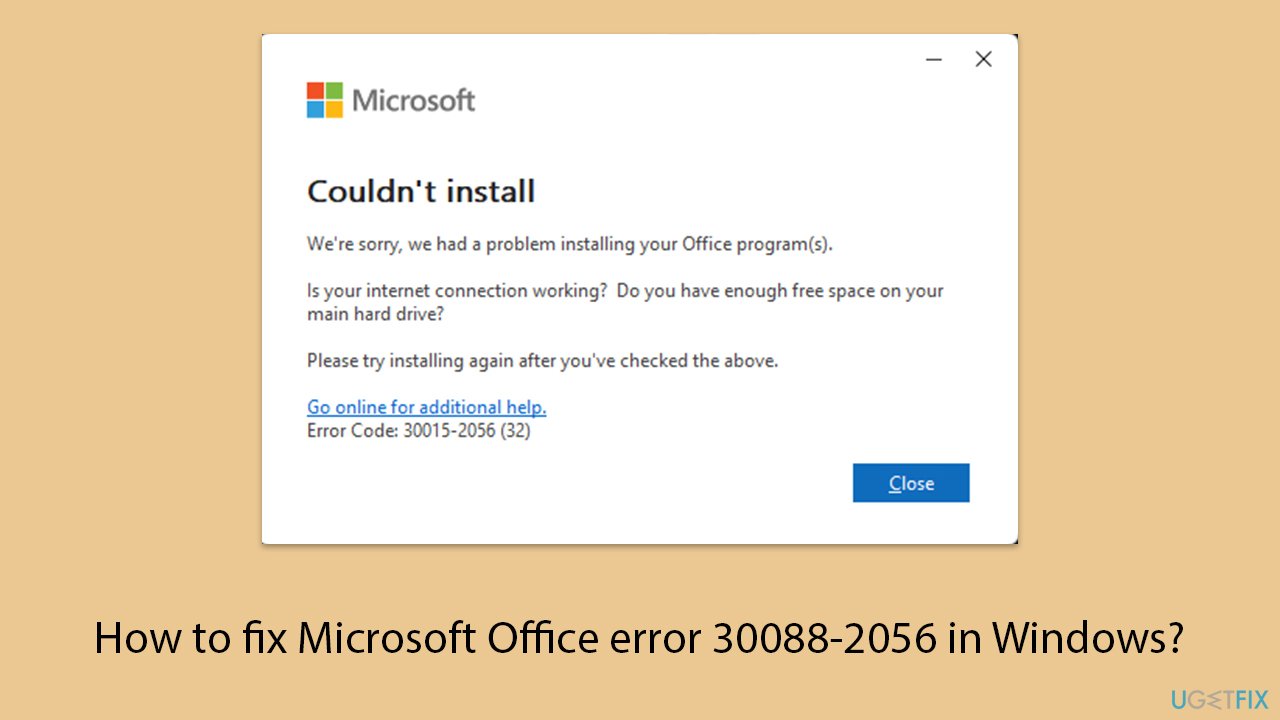
Fix 1. Restart your device
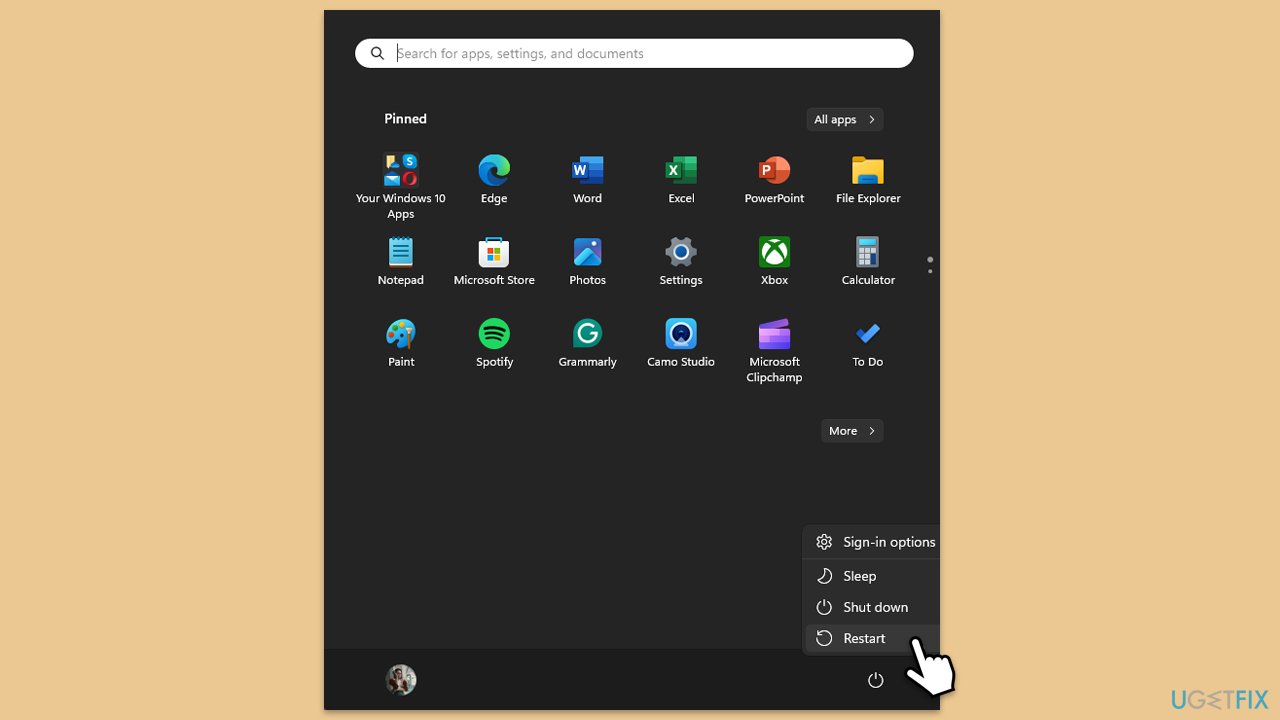
Sometimes, background processes or temporary system glitches can cause this error. Restarting your device can refresh system settings and clear temporary issues.
- Save your work and close all applications.
- Restart your computer.
- Retry the Office installation or update process.
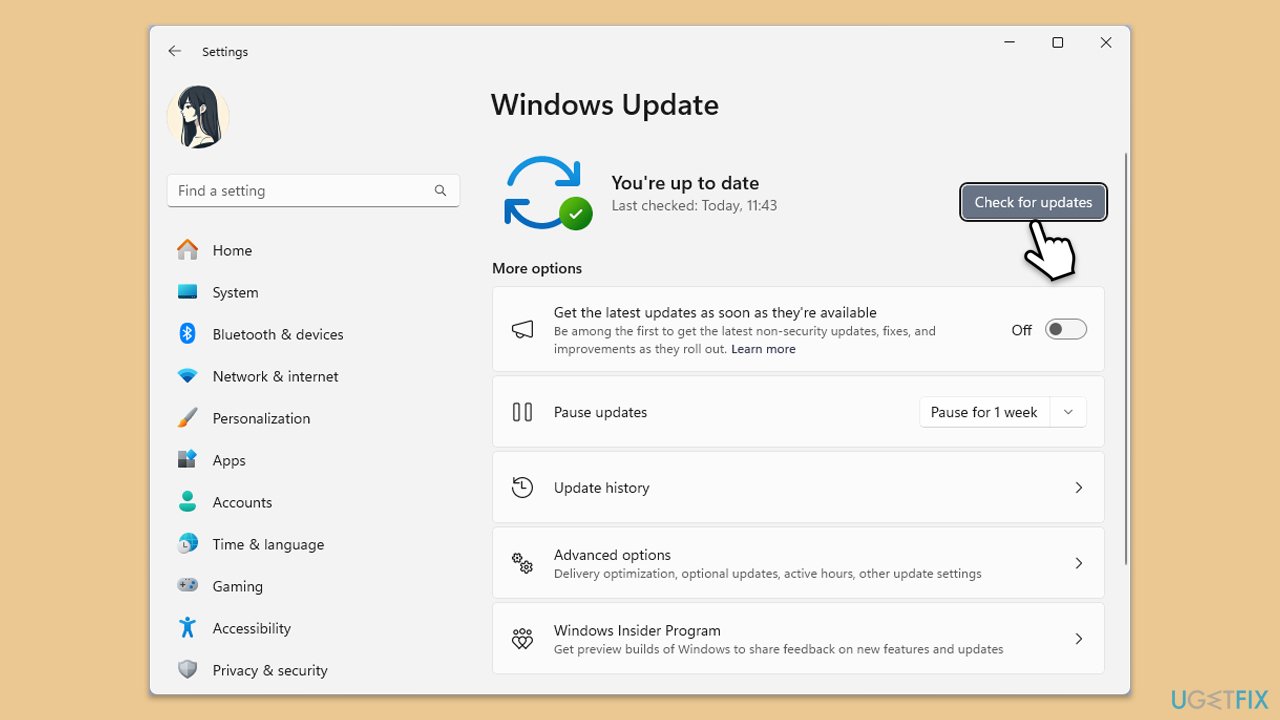
Fix 2. Check for pending Windows updates
An outdated Windows system can lead to compatibility issues with Microsoft Office. Updating Windows ensures that all required components are available.
- Type Updates in Windows search and press Enter.
- Here, click Install updates or Check for updates.
- Wait till Windows downloads and installs all the files.
- If optional updates are available, install them as well.
- Reboot your system.
Fix 3. Disable third-party antivirus or firewall temporarily
Antivirus programs or firewalls might block the installation process, mistaking Office files for threats.
- Open your antivirus program and disable real-time protection temporarily.
- If using a firewall, turn it off temporarily in Settings > Privacy & Security > Windows Security > Firewall & Network Protection.
- Retry the installation, and re-enable security settings after completing the process.
Fix 4. Repair Microsoft Office installation
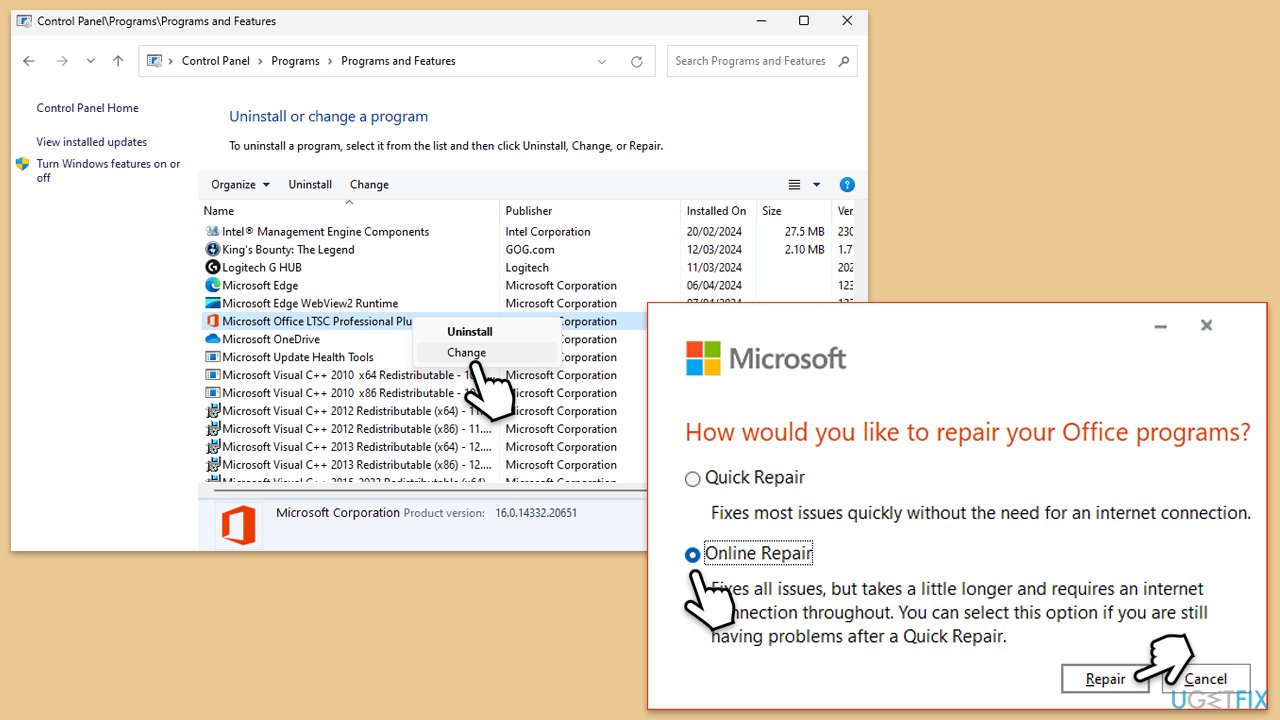
Issues with the Office installation files can cause the 30088-2056 error. Running a repair can fix corrupted or missing files.
- Type Control Panel in Windows search and press Enter.
- Select Programs > Programs and Features.
- Select Microsoft Office and click on Change.
- Choose the option for Online Repair and click Repair.
- Follow the prompts to finish the process.
Fix 5. Ensure sufficient disk space
Limited storage space on your hard drive can interrupt the installation or update process.
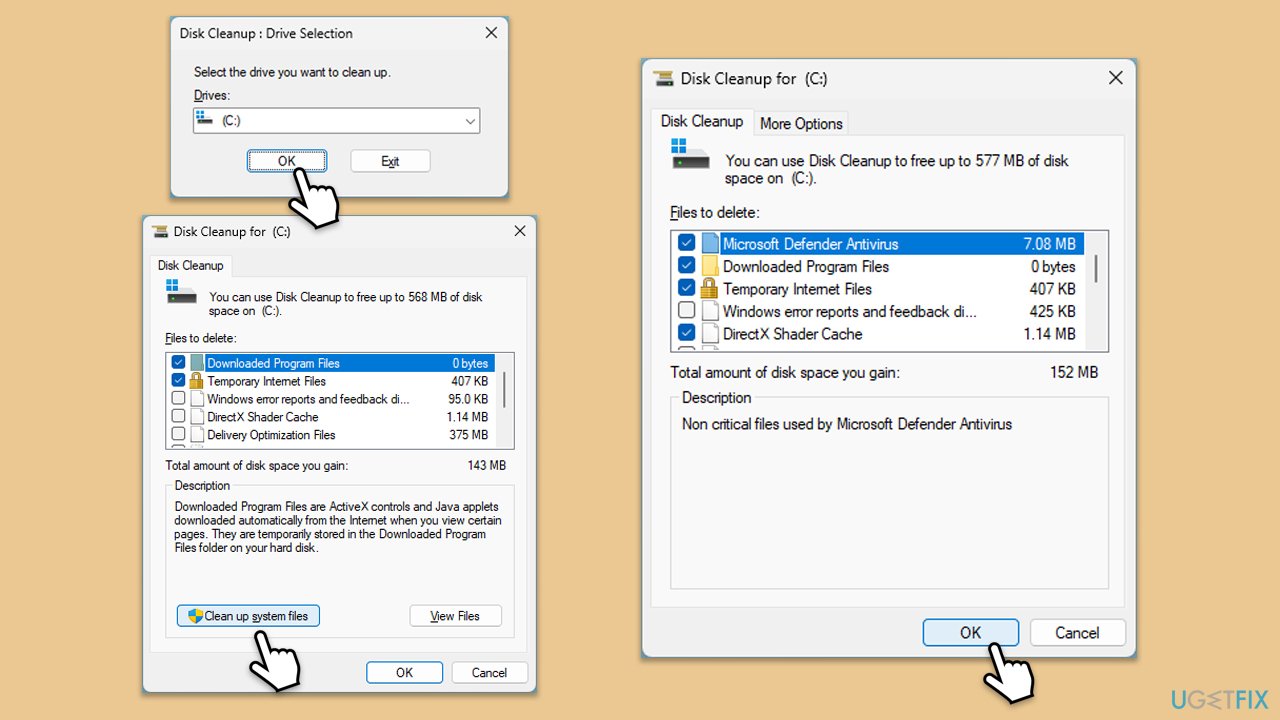
- Type Disk Cleanup in Windows search and hit Enter.
- If your Windows is installed on drive C, pick it from the list (should be by default) and press OK.
- Click Clean up system files.
- Select your main drive again and click OK.
- Here, select the largest portions of the data used - these typically include Temporary Internet Files, Windows Update, Temporary Files, Recycle Bin, Delivery Optimization Files, and others.
- Click OK - the process should be finished shortly.
Fix 6. Reset the Windows Installer service
The Windows Installer service manages installations and updates, and issues with it can block the Office setup.
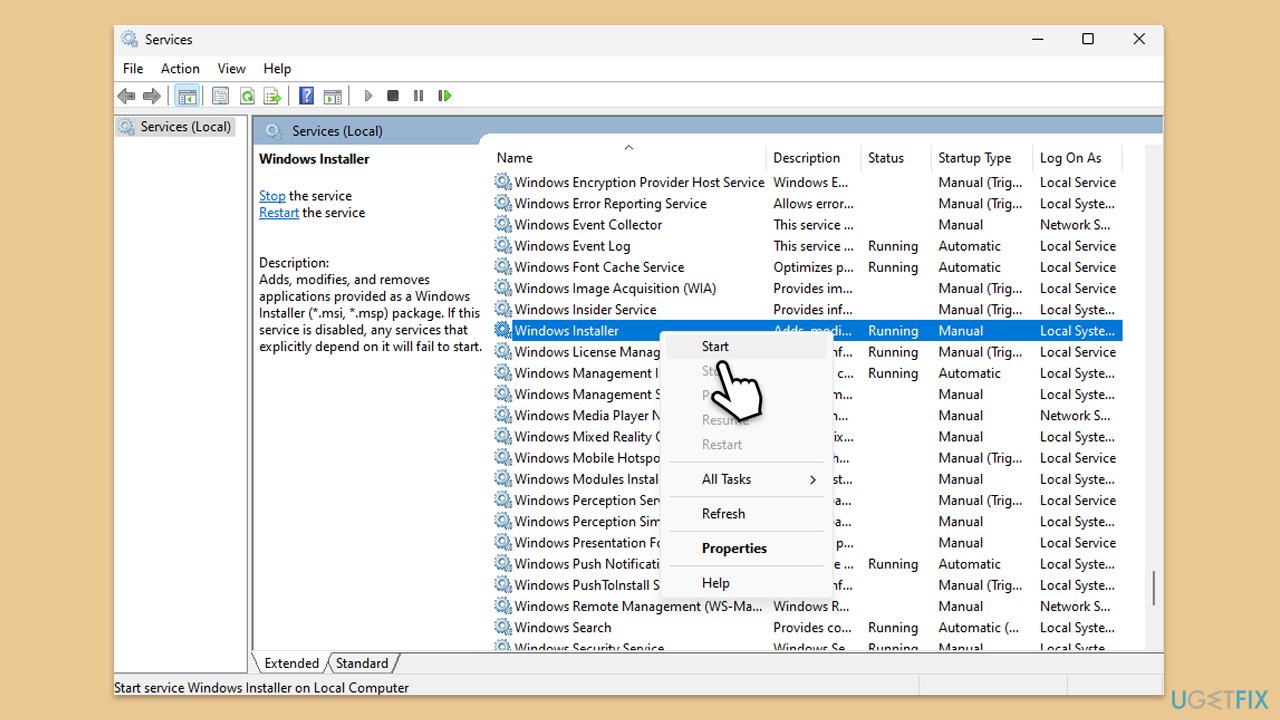
- Type Services in Windows search and hit Enter.
- Scroll down to find Windows Installer services.
- Right-click on it and select Restart.
- If it is grayed out, double-click the service to open its Properties.
- Under Startup type, select Automatic from the drop-down menu.
- Click Start, Apply, and OK.
Fix 7. Run the Microsoft Support and Recovery Assistant
Microsoft provides a dedicated troubleshooting tool to identify and fix issues with Office installations.
- Open your browser and go to the official Microsoft support website.
- Scroll down and click Download under Uninstall and reinstall Office.
- Once downloaded, double-click SetupProd_OffScrub.exe to launch it.
- When prompted, click Install.
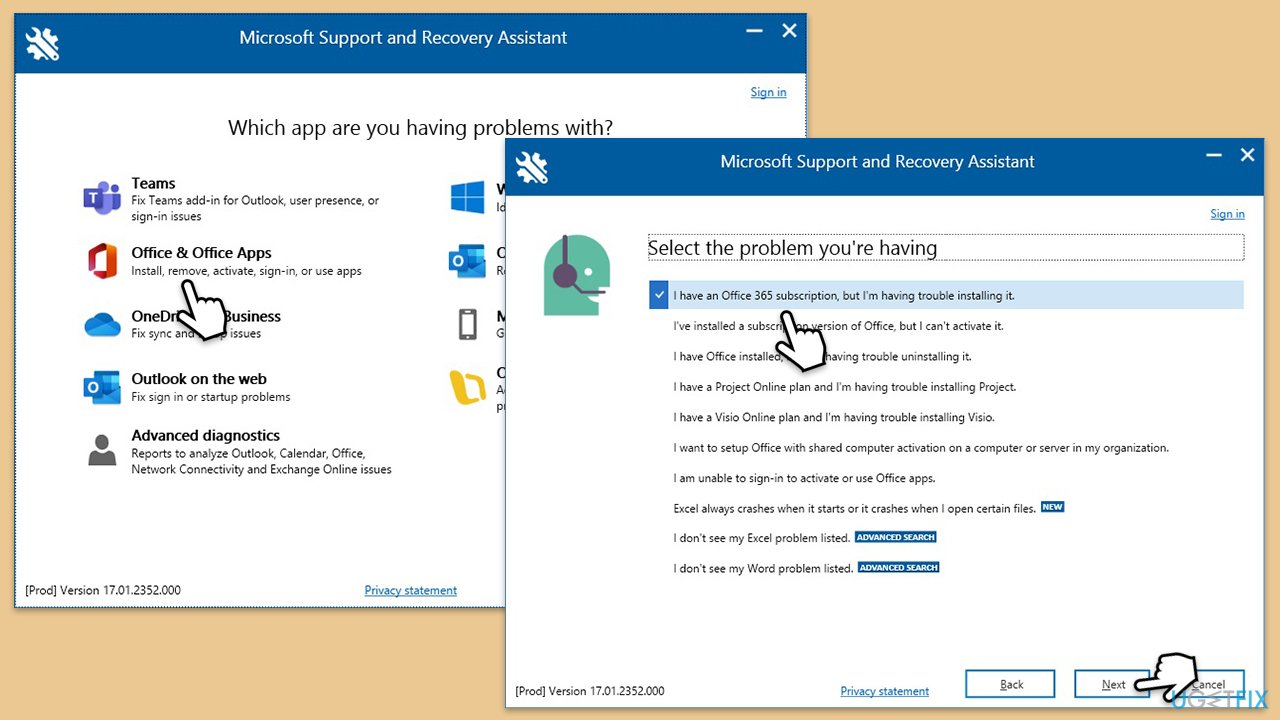
- Once installed, launch Microsoft Support and Recovery Assistant.
- Select Office & Office Apps and click Next.
- Next, choose I have Office 365 subscription, but I'm having trouble installing it option and click Next.
- Click Yes to begin a scan.
- Follow instructions after the scan is finished.
Fix 8. Check for conflicting software with Clean Boot
Conflicts with running applications or system processes may interfere with the installation.
- Type msconfig in the Windows search box and press Enter.
- Pick the Services tab.
- Mark Hide all Microsoft services and select Disable all.
- Select the Startup tab and click Open Task Manager.
- In the Task Manager, right-click on each of the items and select Disable, then close the Task Manager.
- Go to the Boot tab, mark the Safe Boot option, then click Apply and OK.
- On the System Configuration window, click OK.
- Attempt the Office installation and return to normal boot after installation completes.
Fix 9. Reinstall Microsoft Office
If all else fails, reinstalling Microsoft Office can resolve persistent issues.
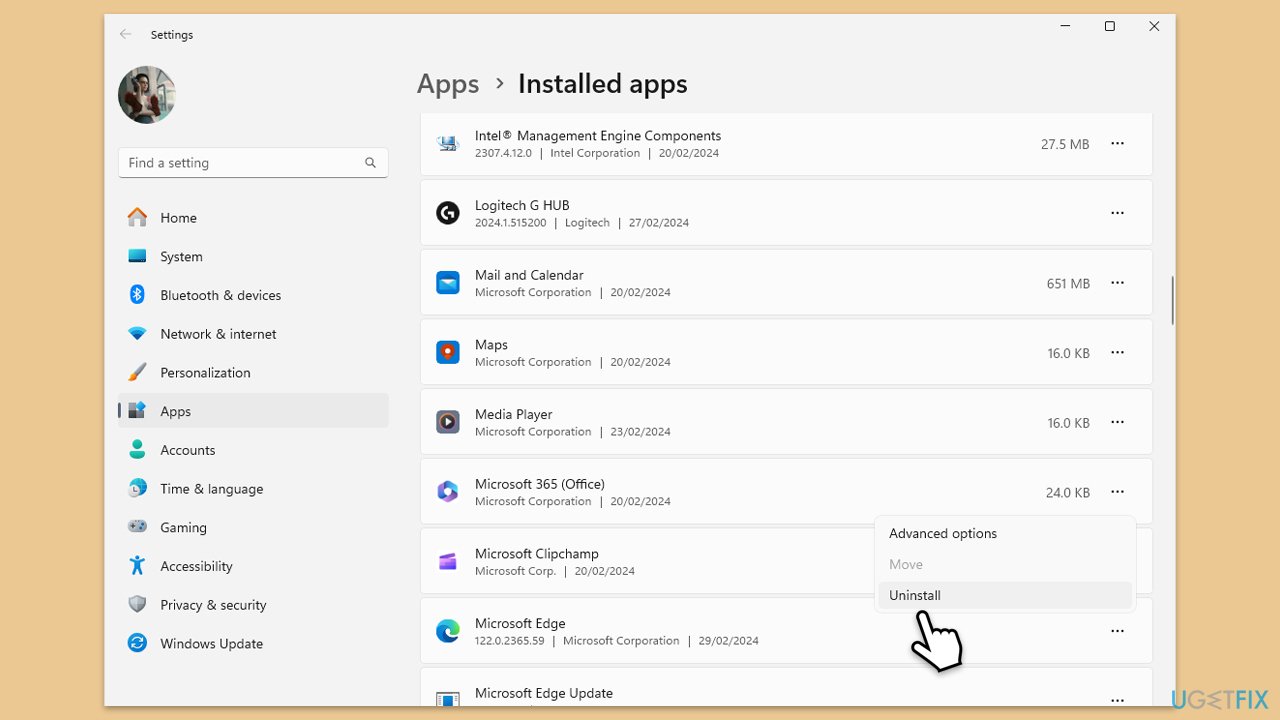
- Right-click on Start and pick Apps and Features/Installed apps.
- Scroll down to find the MS Office installation.
- Click Uninstall and confirm with Uninstall.
- Follow the on-screen instructions to delete the app.
- Press Win + E to open File Explorer.
- Navigate to the following location and delete its contents:
C:\Program Files\Microsoft Office - Next, type regedit in Windows search and press Enter.
- Go to the following locations in the Registry Editor and delete these items:
Computer\HKEY_LOCAL_MACHINE\SOFTWARE\Microsoft\AppVISV
Computer\HKEY_LOCAL_MACHINE\SOFTWARE\Microsoft\Office\ClickToRun
Computer\HKEY_CURRENT_USER\Software\Microsoft\Office - Restart your computer.
Bottom line
To fix error 30088-2056, users should address registry issues, ensure compatibility with other applications, and resolve potential software conflicts. Using the automatic repair and maintenance tool can also help handle common Windows issues. If these steps do not resolve the error, further investigation may be necessary.
Frequently asked questions
This error typically occurs due to incomplete installations, corrupted Office files, or conflicts with other software. Ensuring that your Office installation is up to date can also help prevent this issue.
You can fix this error by repairing the Office installation through the Control Panel or using the Microsoft Support and Recovery Assistant tool. Additionally, disabling any conflicting applications may also help.
To avoid this error in the future, make sure to run the Office installer as an administrator and temporarily disable antivirus software during the installation process on Windows 10 or Windows 11.




Report an issue
What's wrong with this guide? We review every report and update or remove content.
Report received — thank you. We'll review and fix it.
You need a free account to submit a report.
Be the first to comment