How to fix
Microsoft Office error 30088-27
on Windows
Resolve Microsoft Office error 30088-27 on Windows 10 and 11 effortlessly. Get expert-tested solutions that fix issues in minutes!


What causes How to fix Microsoft Office error 30088-27 in Windows?
- Problem with the internet connection
- Issues with Office installation files
- Insufficient system permissions
- Conflicts with other software
- Corrupted files in Microsoft Office
Repairs Windows system files, removes malware, and restores a clean OS state — without reinstalling.
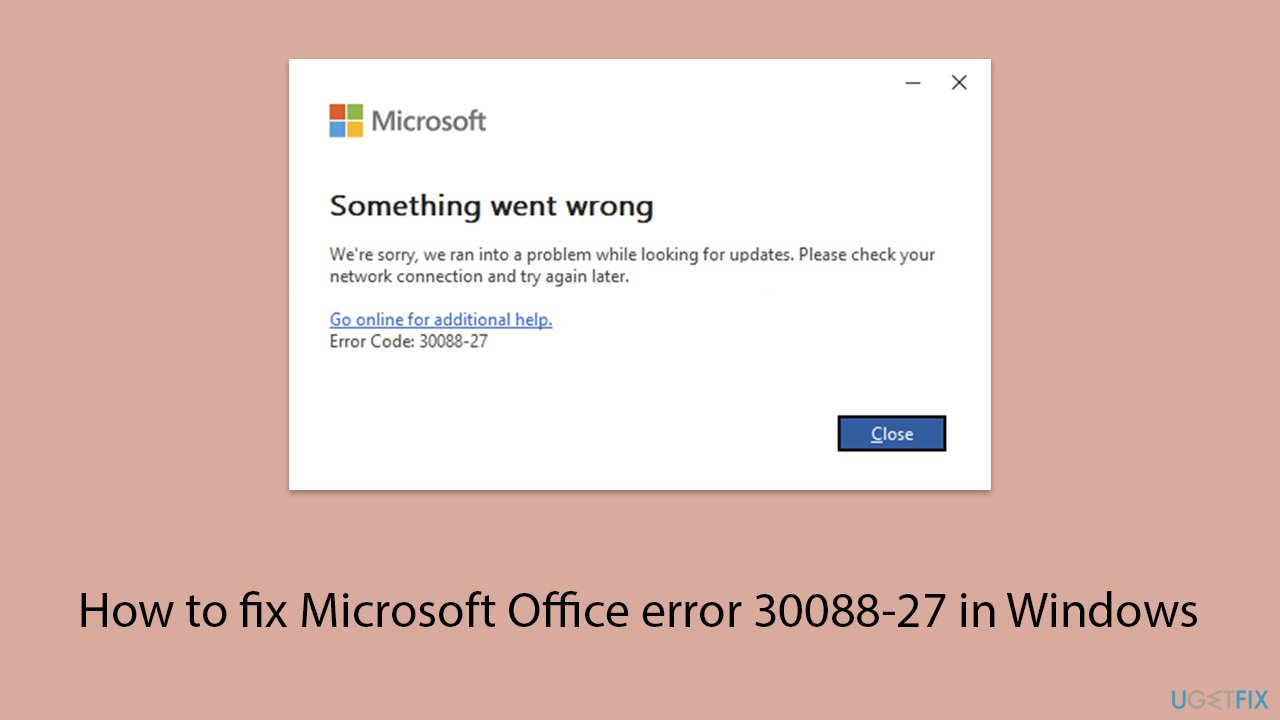
Can you please help me with the recurring error code 30088-27 when trying to update Microsoft Office?
Encountering errors while updating Microsoft Office can be a frustrating experience, particularly when an error code like 30088-27 shows up. This specific error code typically indicates an issue during update process, preventing the software from installing the latest updates. Understanding the causes and solutions for this error can help in resolving it efficiently.
As is usual with all Office errors, 30088-27 does not have just one reason for it to occur. For example, it may be caused by a problem with the internet connection during the update process, which can disrupt the download or installation of updates. Additionally, the cause can be issues with Office installation files, insufficient system permissions, or conflicts with other software.
Here are a few things you can try to fix error code 30088-27 (note that detailed instructions will be provided in the section below):
- Check your internet connection to ensure it is stable for downloading updates. Repairing Microsoft Office can fix corrupted files.
- Run the Microsoft Office Troubleshooter to diagnose and resolve common issues. Updating Windows can address compatibility problems.
- Disable conflicting software like antivirus programs or firewalls temporarily to avoid interference.
- Uninstall and reinstall Microsoft Office to fix installation issues. Clear the Office Document Cache to remove problematic temporary files.
- Ensure you have administrative privileges to avoid permission-related issues during the update process.
Using the [d1] maintenance and repair utility is useful for handling complex issues like broken registries or DLLs, corrupted system files, BSODs, and more.
Fix 1. Update Windows
Microsoft often fixes bugs related to various issues, and 30088-27 error is one of them. Make sure you update Windows to the latest version to ensure that all bug fixes are implemented.
- In Windows search, type Updates and hit Enter.
- In the new window, click Check for updates and wait till everything is installed.
- Make sure you also install any available optional updates.
- When done, restart your system to implement the changes.

Fix 2. Repair Office installation
- Type Control Panel in Windows search and press Enter.
- Select Programs > Programs and Features.
- Select Microsoft Office and click on Change.
- Choose the option for Online Repair and click Repair.
- Follow the prompts to finish the process.

Fix 3. Reinstall Office
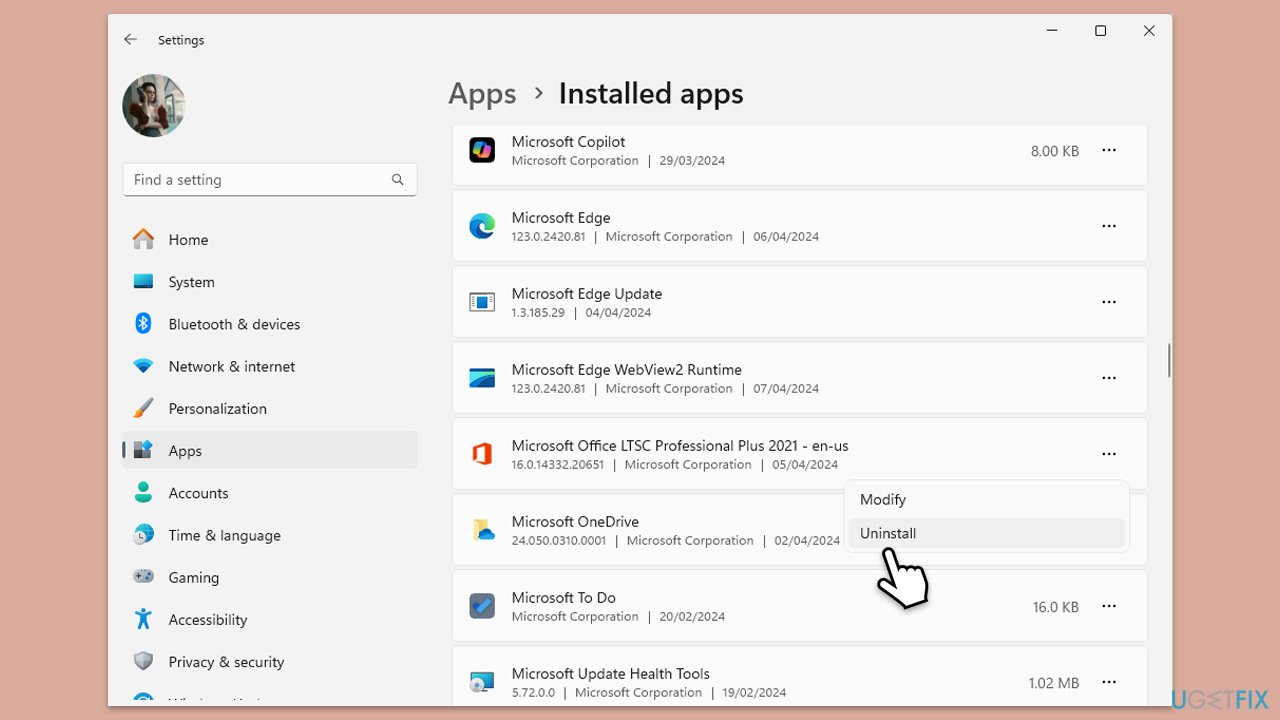
- Right-click on Start and pick Apps and Features/Installed apps.
- Scroll down to find the MS Office installation.
- Click Uninstall and confirm with Uninstall.
- Follow on-screen instructions to remove the app completely.
- Press Win + E to open File Explorer.
- Navigate to the following location and delete its contents:
C:\Program Files\Microsoft Office - Next, type regedit in Windows search and press Enter.
- Go to the following locations in the Registry Editor and delete these items:
Computer\HKEY_LOCAL_MACHINE\SOFTWARE\Microsoft\AppVISV
Computer\HKEY_LOCAL_MACHINE\SOFTWARE\Microsoft\Office\ClickToRun
Computer\HKEY_CURRENT_USER\Software\Microsoft\Office - Reboot the PC and then reinstall Microsoft Office.
Fix 4. Disable conflicting software
- Open your antivirus or security software.
- Locate the option to disable the protection.
- Disable the software temporarily.
- Try running the Office update again.
- If the setup completes successfully, add Office to the exclusion list of your security software.
Fix 5. Clear Office cache files
- In Windows search, type %localappdata%\Microsoft\Office\16.0\OfficeFileCache and press Enter to navigate to the OfficeFileCache folder.
- Delete all files within the OfficeFileCache folder - press Shift + Del for quick action.
- After clearing the cache, restart your computer and attempt the Office installation again.

Fix 6. Create new user account
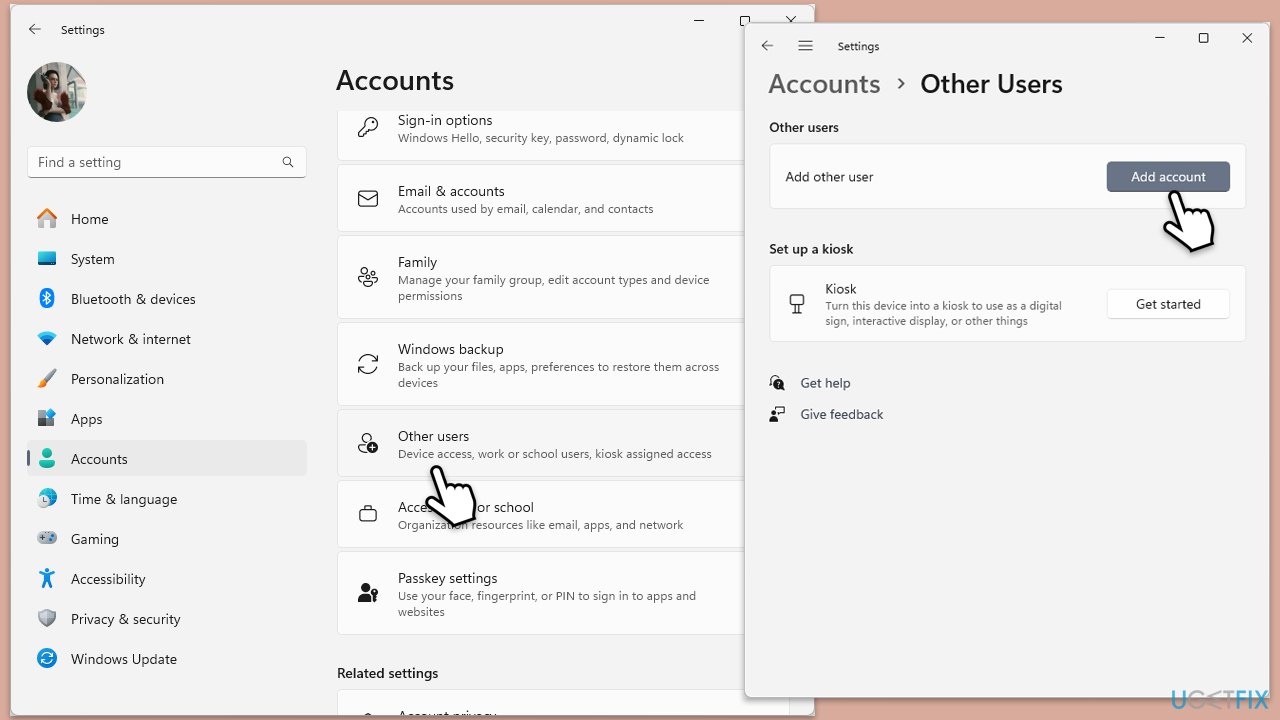
- Open Windows Settings.
- Go to Accounts then Family/Family & other users.
- Under Other users, click Add account/Add someone else to this PC.
- Follow the prompts to create a new user account. If you don't have Microsoft account details, you can choose I don't have this person's sign-in information followed by Add a user without a Microsoft account.
- Assign a username and password for the new account and complete the setup.
- Then go back to the Accounts section. Under Family/Family & other users, select the newly created account and click Change account type.
- Under Account type, pick Administrator and click OK.
Fix 7. Disable updates and roll back the Office version
If the 30088-27 error happened after the latest update, you should go to the previous version of Office and wait till Microsoft fixes the problem. To do that, follow these steps:
- Type cmd in the Windows search.
- Right-click the Command Prompt entry and click Run as administrator.
- Paste the following commands in the Command Prompt window and hit Enter after each:
cd %programfiles%\Common Files\Microsoft Shared\ClickToRun
officec2rclient.exe /update user updatetoversion=16.0.17628.20164 - After rolling back to the previous version, go into File > Account in any Office application.
- Select Disable update under Update Options.

Bottom line
To fix error code 30088-27, you can try checking your internet connection, repairing Microsoft Office, running the Microsoft Office Troubleshooter, updating Windows, disabling conflicting software, uninstalling and reinstalling Microsoft Office, and clearing the Office Document Cache. If none of these solutions work, consider using the maintenance and repair utility for more complex issues.
Frequently asked questions
The Microsoft Office error 30088-27 typically occurs during installation or updates, indicating that the process has been interrupted or corrupted. This error can prevent Office applications from functioning properly.
To troubleshoot error 30088-27, you can try repairing your Office installation through the Control Panel or the Settings app in Windows 10 and Windows 11. Additionally, ensure that Windows is fully updated and that there are no conflicting applications.
Yes, you can fix error 30088-27 without reinstalling Office by running the Office Repair tool, which is available in the Programs and Features section of the Control Panel in Windows 10 and Windows 11.




Report an issue
What's wrong with this guide? We review every report and update or remove content.
Report received — thank you. We'll review and fix it.
You need a free account to submit a report.
Be the first to comment