
How to fix Microsoft Office error 30180-4 in Windows?

Prefer to fix it yourself? The manual steps follow.
- 6methods
- 10 to 40 minutes
- Easy
Applies to Microsoft 365 for home and business, Office 2024, 2021, 2019 and 2016 installed with the online Click-to-Run installer on Windows 11 and Windows 10
6 methods in this guide
I tried reinstalling Office because I had to reset Windows, and it keeps failing with error code 30180-4. Can you help with this? Much appreciated.
Error code 30180-4 means Office setup could not finish downloading Office, because the connection, a proxy, a firewall or antivirus software got in the way. Microsoft's first fix is the Office offline installer, which downloads the whole package as one file. If that fails too, use a cable or another network and turn off the proxy and VPN for one installation.
Error 30180-4 is a download error. Microsoft lists its fixes in order, so start with the Office offline installer (Fix 1): it downloads Office as one image file and installs from it. If that also fails, connect with a cable (Fix 2), try another network (Fix 3) and turn the proxy and VPN off (Fix 4). After a Windows reset, remove any preinstalled Office first (Fix 5).
| Error | Something went wrong. We're sorry, we couldn't install Office. Please make sure you're connected to the internet, then retry your installation. Error Code: 30180-4. |
|---|---|
| Where it appears | In the small Office setup window, while the online installer downloads Office. Users also report it when an old Office is being removed. |
| Main cause | Microsoft names four: antivirus software, a firewall, proxy settings or the connection itself stops the download. |
| Fastest fix | Install with the Office offline installer (Fix 1). It is Microsoft's own first solution for this code. |
| Also written as | 30180-4, 30180 4, error code 30180-4, error 30180-4 office, 30180 4 office 2016. Searches for 30180 alone usually mean the same error. |
| Affects | Office 2016 and Microsoft 365 for home and small business on Microsoft's page, and in practice any Click-to-Run Office installed online on Windows 11 or Windows 10. |
| Microsoft's status | Microsoft has its own page for error code 30180-4 when installing Office, updated in 2026 (read 15 October 2026). It is not a bug waiting for a patch: the fix is on the PC or network side. |
| Office 2016 and Windows 10 | Both left support on 14 October 2025. Office 2016 still installs, but gets no more security updates. |
| Time to fix | 10 to 30 minutes for the offline installer, depending on your connection. 30 to 40 minutes if old Office has to be removed first. |
Facts checked on 15 October 2026. Steps written for Click-to-Run setup of Microsoft 365 and Office 2016 to 2024 on Windows 11 (25H2 and 26H2) and Windows 10 22H2, read against Microsoft's support pages.
What error code 30180-4 means when installing Office
The normal Office installer is small. It does not hold Office itself: it downloads the apps from Microsoft while it installs them, a method Microsoft calls Click-to-Run. Error 30180-4 is what setup shows when that download breaks off or never starts.
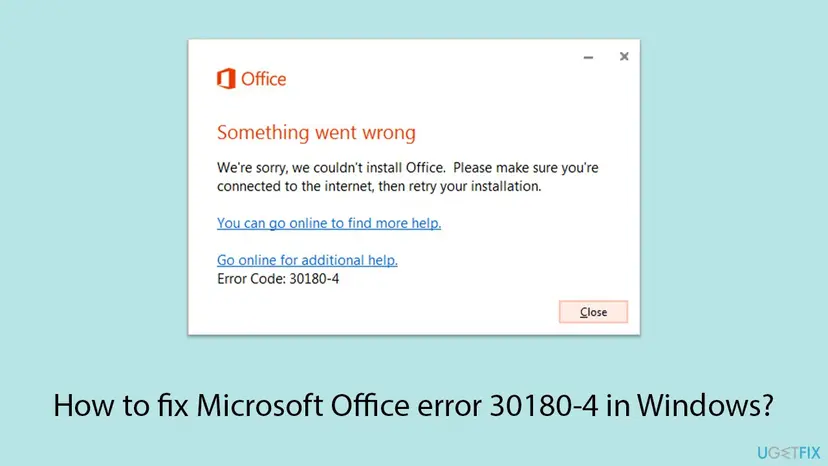
Something went wrong. We're sorry, we couldn't install Office. Please make sure you're connected to the internet, then retry your installation. You can go online to find more help. Go online for additional help. Error Code: 30180-4
- 30180 is the first part of the code. Microsoft's page for it lists only network and security causes, nothing about the licence or the account.
- 4 is the second part. Users report other codes that end in -4, such as 30174-4 or 30125-4, with the same message about the internet connection.
- Your internet can look fine. Web pages may load while setup still fails, because a proxy, a firewall or a security app can block only the Office download servers.
Microsoft's page for this code says you might see it if your antivirus software, firewall, proxy settings or connection prevent you from installing Office. It lists the most common solution first, the offline installer, and this guide follows that order.
Why Office setup stops with error 30180-4
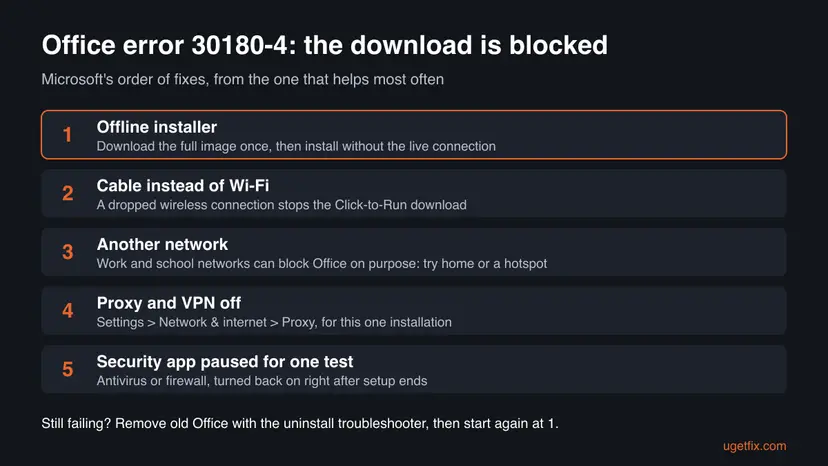
The causes below come from Microsoft's page for 30180-4, ranked by Microsoft's own order of solutions. The last row is the case of the reader above: a Windows reset can bring back an Office that the PC maker installed.
| Cause | How often | Fix |
|---|---|---|
| The download breaks off on a slow or unstable connection, often on Wi-Fi | Most often | Fix 1, Fix 2 |
| A work, school or hotel network limits what can be downloaded | Often | Fix 3 |
| A proxy setting or a VPN app sends setup to a server that refuses it | Often | Fix 4 |
| An older or preinstalled Office is still on the PC, for example after a Windows reset | Sometimes | Fix 5 |
| A third-party antivirus or firewall blocks the Office download | Sometimes | Fix 6 |
Error 30180-4 is not a licence or account error. If the download works but Office later says it is not activated, that is a different problem with its own codes.
How to fix error code 30180-4 when installing Office
Fix 1 is Microsoft's first solution and works on most connections. Fix 2 to Fix 4 remove what blocks the download. Fix 5 is for a PC that was reset or still holds an old Office. Fix 6, a short pause of the security app, comes last.
| What you see or what your PC has | Start with |
|---|---|
| Home PC, error on the first try or every try | Fix 1 |
| You are on Wi-Fi, or the download bar stops halfway | Fix 1, then Fix 2 |
| You install at work, at school or on a public network | Fix 3 |
| You use a VPN, or the PC was set up by an employer | Fix 4 |
| You reset Windows, or the PC came with Office preinstalled | Fix 5 |
| The offline installer also stops with 30180-4 | Fix 4, then Fix 6 |
Fix 1. Install Office with the Office offline installer
15 to 30 minutesLow riskEveryone with error 30180-4 on a home PC. It is the first solution on Microsoft's own page for this code.
The online installer streams Office while it installs, so every short drop in the connection can end in 30180-4. The offline installer downloads the whole package first as one image file, and setup then runs from that file without the live download.
- Close the setup window with Close.
- Open Microsoft's page Use the Office offline installer and select the Office for home tab. Select Download and sign in with the Microsoft account that owns Office.
- In the Install window, choose Offline installer from the Choose a version drop-down, pick your language and select Install.
- When the download ends, open the Downloads folder and double-click the image file, for example
O365HomePremRetail.img. Windows opens it as a new drive, such as (D:) or (E:). - Open the Office folder on that drive and double-click Setup64.exe for 64-bit Office or Setup32.exe for 32-bit.
- Wait for You're all set, then open Word or Excel while online and select Accept to activate.
- Select File > Account > Update Options > Update Now to get the latest updates.
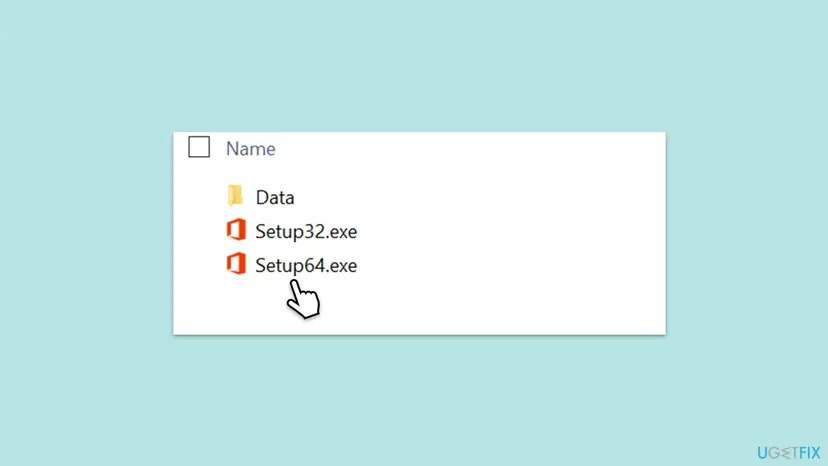
Microsoft says not to use the home steps if you signed in with a work or school account. Use the Office for business tab on the same page, which uses the Office Deployment Tool in C:\ODT with setup.exe /download and then setup.exe /configure, or ask your IT department.
It worked if: Setup shows a progress bar and then You're all set. Word, Excel and the other apps appear in the Start menu.
If not: If the offline download itself stops, the connection is the problem: go to Fix 2. If setup from the image stops with 30180-4, go to Fix 4.
Fix 2. Connect with a network cable instead of Wi-Fi and check the connection
5 minutesLow riskYou are on Wi-Fi, the signal is weak, or the download bar stops at a different point every time.
Microsoft lists a wired connection as its second fix for 30180-4. A cable removes the short drops that Wi-Fi can have, and even the offline installer needs a stable connection while the image file downloads.
- Plug a network cable from the router into the PC. Many laptops need a USB network adapter for this.
- Turn Wi-Fi off for the time of the installation, so Windows uses the cable.
- Select Start > Settings > Network & internet and check that Ethernet shows Connected.
- Pause large downloads, game updates and video streams on other devices of the same network.
- Run the Office installer again, or the offline installer from Fix 1.

If the connection drops on the cable too, check it once in order, from Windows to the router: How to check your internet connection in Windows.
It worked if: The download runs to the end without stopping, and setup moves on to installing the apps.
If not: If 30180-4 returns on a cable, the limit is in the network, not the signal. Go to Fix 3.
Fix 3. Install Office from another network, such as home or a phone hotspot
10 to 30 minutesLow riskYou install at work, at school, in a hotel or on any network that someone else manages.
Microsoft says a work or school network may be limited in a way that does not allow Office to install. On another network the same installer reaches the Office download servers without that limit.
- Take the PC home or to another place with an internet connection you control.
- If that is not possible, turn on the mobile hotspot of your phone and connect the PC to it. The Office download is large, so check your mobile data plan first.
- Run the Office installer on that network and keep the PC awake until You're all set appears.
- Go back to your usual network. Office then works there as normal, because the block only affects the download.
If you must install Office at work, your IT department can open the Office addresses that Microsoft publishes for administrators in the list Microsoft 365 URLs and IP address ranges. Do not change company network settings yourself.
It worked if: Setup runs to the end on the other network, and Office opens on the usual network afterwards.
If not: If it fails on every network, the block is on the PC itself. Go to Fix 4.
Fix 4. Turn off the proxy server and the VPN for one installation
5 minutesLow riskYou use a VPN app, the PC was used at work, or a proxy was set up for another program.
Microsoft names proxy settings as one of the four causes of 30180-4. A proxy or VPN sends the Office download through another server, and if that server refuses or slows it, setup stops with this code.
- Close or disconnect the VPN app until Office is installed.
- Select Start > Settings > Network & internet > Proxy.
- Under Automatic proxy setup, note how Automatically detect settings and Use setup script are set. Turn Use setup script off for the test.
- Under Manual proxy setup, select Set up or Edit next to Use a proxy server, turn it Off and select Save.
- Run the Office installer again.
- When Office is installed, put the proxy and VPN back the way they were if you need them.
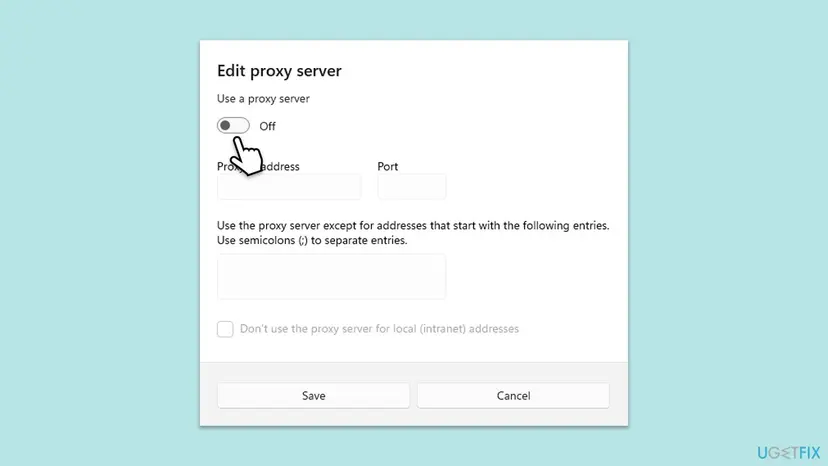
Windows 10 has the same switches under Start > Settings > Network & Internet > Proxy. Microsoft adds that some networks have more proxy settings than these; on a work PC that is a question for IT.
It worked if: Setup gets past the download and installs the apps.
If not: If you had no proxy or VPN, or nothing changed, go to Fix 5 when the PC was reset or had Office before, otherwise Fix 6.
Fix 5. Remove the old or preinstalled Office, then install again
20 to 40 minutesRead the warningYou reset Windows, the PC came with Office, an earlier Office installation or removal stopped halfway, or you see 30180-4 while removing Office.
A reset that restores the PC maker's image can bring back a preinstalled Office or a Microsoft Store version of it. Setup then works around a half-present product, and a clean start removes that extra variable before the download runs again.
Microsoft says uninstalling only removes the Office apps, not the files, documents or workbooks you made with them. Check that you can sign in to the Microsoft account that owns Office, or keep the product key at hand. Copy custom templates and Outlook signatures first: Back up your files (Windows Backup, File History, Time Machine).
- Right-click Start and select Installed apps (Windows 10: Apps and Features). Search for
officeandmicrosoft 365. - Uninstall each entry you do not want to keep with the three dots and Uninstall. Restart the PC.
- If an entry will not go, open Microsoft's uninstall troubleshooter, select Open when the browser says This site is trying to open Get Help, follow the prompts and restart.
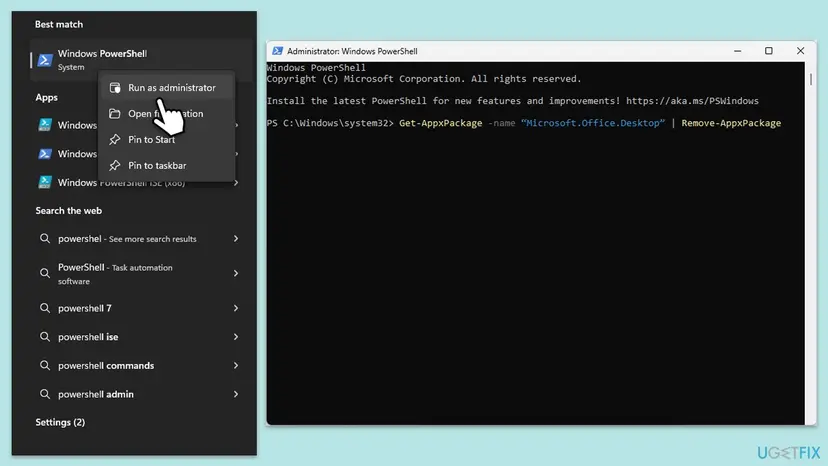
- Right-click Start and open Terminal (Admin) (Windows 10: Windows PowerShell (Admin)).
- Check for the Microsoft Store version of Office:
Get-AppxPackage -Name "Microsoft.Office.Desktop*" | Select-Object Name, Version - Only if packages are listed, remove them:
Get-AppxPackage -Name "Microsoft.Office.Desktop*" | Remove-AppxPackage - Restart the PC and install Office with the offline installer from Fix 1.
Microsoft notes that the uninstall troubleshooter needs Windows 10 or later and cannot remove Office 2024; remove that one in Installed apps. Step by step with screenshots: Uninstall a program or app in Windows.
It worked if: Installed apps lists no Office, the PowerShell check lists nothing, and setup runs on a clean PC.
If not: If the new installation still stops with 30180-4, go to Fix 6.
Fix 6. Pause a third-party antivirus or firewall for one installation
10 minutesRead the warningFix 1 to Fix 5 did not help and you use antivirus or firewall software other than the one built into Windows.
Microsoft names antivirus software and firewalls as causes of 30180-4. Some security apps inspect or block large downloads from new programs, and setup reports that as a failed connection.
Do not leave protection off. Download the Office installer while protection is still on, pause it, run setup, and turn protection back on as soon as setup ends, whether it worked or not. Do not browse or open other files while it is paused.
- Find the name of your security app: open Control Panel > System and Security > Security and Maintenance and expand Security. It is listed under Virus protection.
- Pause it for the shortest time it offers: Turn off Microsoft Defender protection for a moment.
- Run the Office installer or the offline installer from Fix 1.
- Turn protection back on right after setup ends.
If Office installs only while the app is paused, add the Office installer to that app's exceptions or ask its maker for help. Microsoft also says uninstalling the security app may help; if you do that, install it again straight after Office.
It worked if: Setup finishes with You're all set, and your security app is on again.
If not: Read the setup log as described under If error 30180-4 is still there.
If error 30180-4 is still there: read the setup log
The setup window gives one line. Click-to-Run writes more detail to log files in the temporary folder of the account that ran setup, with the name of the PC and a date in the file name.
- Run setup once more and note the time it fails.
- Press Win + R, type
%temp%and press Enter. - Sort by Date modified, newest first, and open the newest
.logfile that starts with the name of your PC. - Press Ctrl + F and search for
30180, then read the lines just before it. - Look for a server address, a proxy name or a timeout. That shows where the download was stopped.
- What to send to Microsoft support or your IT department: the full code 30180-4, the Office product and version, whether you used the online or offline installer, the network type, the Windows version and the newest log.
- When it is not your PC: a network that someone else manages may block Office on purpose. Only its administrator can change that.
- When the offline image also fails to download: the problem is the connection or the provider. Try another network before you change anything on the PC.
How to avoid error 30180-4 the next time you install Office
Error 30180-4 is a download problem, so most of the prevention is about how you install. Keeping the offline image also saves time after the next Windows reset.
- Keep a copy of the offline installer image on a USB drive, as Microsoft suggests, for the next reinstall.
- Install Office on a cable or a home network you trust.
- Remove preinstalled Office and trials right after a Windows reset, before you install your own.
- Install Office before you install a VPN or a third-party security app on a new PC.
- Leave your antivirus or firewall off after the test.
- Change proxy settings on a work PC without asking IT.
- Download Office images from sites other than Microsoft.
- Use activation tools or unofficial copies; they bring their own errors and risks.
Frequently asked questions
What does error code 30180-4 mean?
It means the Office installer could not download Office from Microsoft. The window says Something went wrong and asks you to check that you're connected to the internet. Microsoft says the error can come from antivirus software, a firewall, proxy settings or the connection itself. Your internet can look fine in the browser while setup still fails, because only the Office download is blocked. The quickest way around it is the Office offline installer (Fix 1), which downloads Office as one file first.
How do I fix error code 30180-4 when installing Office 2016?
The same way as for Microsoft 365. Microsoft's page for 30180-4 lists Office 2016 among the products it applies to, and its offline installer page covers Office 2016 too. Download the offline installer while signed in with the Microsoft account linked to Office 2016, open the image file and run Setup64.exe or Setup32.exe. Keep in mind that Office 2016 left support on 14 October 2025: it still installs and runs, but gets no more security updates.
Does error 30180-4 depend on Windows 11 or Windows 10?
No. The code comes from the Office installer, not from Windows, and the fixes are the same on Windows 11 and Windows 10. Only a few menu names differ: Installed apps in Windows 11 is Apps and Features in Windows 10, and Terminal (Admin) is Windows PowerShell (Admin). Windows 10 itself left support on 14 October 2025, so a PC on Windows 10 22H2 gets no more security updates, but Office setup still runs on it.
Why does Office say I am not connected when my internet works?
Because setup needs to reach Microsoft's Office download servers, and those can be blocked while other websites load. A proxy, a VPN, a company or school network, a firewall or a security app can each stop only that download. Setup then shows the same message about the internet connection. Turn off the proxy and VPN (Fix 4), try another network (Fix 3), or use the offline installer (Fix 1), which avoids the long live download during installation.
I reset Windows and now Office will not install with 30180-4. What should I do?
Start with the offline installer (Fix 1), since the code itself is a download error. A reset that restores the factory image can also bring back a preinstalled Office or a Microsoft Store version of it. Open Installed apps, search for office and remove what you do not use, then run the PowerShell check from Fix 5. Restart and install your own Office from the Microsoft account that owns it. Your documents are not affected by any of these steps.
I get error 30180-4 when I try to uninstall Office. What now?
Users report the same code while removing Office, often after an earlier installation stopped halfway. Microsoft's uninstall page offers its uninstall troubleshooter in the Get Help app for Microsoft 365, Office 2021, 2019 and 2016; it needs Windows 10 or later and cannot remove Office 2024. If Office came from the Microsoft Store, the PowerShell command in Fix 5 removes it. If neither works, Microsoft has a separate page for removing Office manually.
Is error code 30174-4 the same as 30180-4?
They are close relatives. Both end in -4 and are reported with the same message asking you to check the internet connection, and the same fixes apply: the offline installer, a cable or another network, and the proxy, VPN and security app checks on this page. We read Microsoft's page for 30180-4 only, so we cannot confirm that Microsoft treats 30174-4 exactly the same way. If the steps here do not help, read the setup log as described above.
Do I have to turn off my antivirus to fix 30180-4?
Usually not. Microsoft lists antivirus software as one possible cause, but it puts the offline installer, a cable, another network and the proxy settings first. Try those before you touch your protection. If nothing else works, pause a third-party security app for one installation only and turn it back on right after setup ends, as in Fix 6. Do not leave it off, and do not browse or open other files while it is paused.
Where do I find the offline installer, and is it safe?
It comes from Microsoft. Microsoft's page Use the Office offline installer has a Download button for home plans; you sign in with the account that owns Office, choose Offline installer in the Choose a version list and save an image file such as O365HomePremRetail.img. Work and school plans use the Office Deployment Tool instead. Do not use Office images from other websites: they may be altered, and you gain nothing over the official file.
I searched for this error in another language. Is this the right page?
Yes, if you saw Error Code: 30180-4 in the Office setup window on Windows. Readers who searched in Spanish, Czech, Chinese or other languages asking what it is or how to fix it are in the right place: start with the short answer at the top. Readers who cannot uninstall Office, which some searched for in Spanish, will find the steps in Fix 5. If you searched for the aka.ms/office_setup address, that is a Microsoft link, not an error; this page is about the setup error.
Sources
- Microsoft Support: Error code 30180-4 when installing Office (support.microsoft.com)
- Microsoft Support: Use the Office offline installer (support.microsoft.com)
- Microsoft Support: Uninstall Microsoft 365 or Office from a PC (support.microsoft.com)
Did this fix work?
One click, no account. It tells the next reader which guides are worth their time.
Questions and experiences: fix Microsoft Office error 30180-4 in Windows
Still broken, or found a fix we did not cover? Ask here: members and our editors answer. Reading is open; writing needs a free account.
…