How to fix
Microsoft Office error 80284002
on Windows
Resolve Microsoft Office error 80284002 in Windows 10 or 11 quickly and efficiently. Follow our expert-tested guide to fix it in minutes!

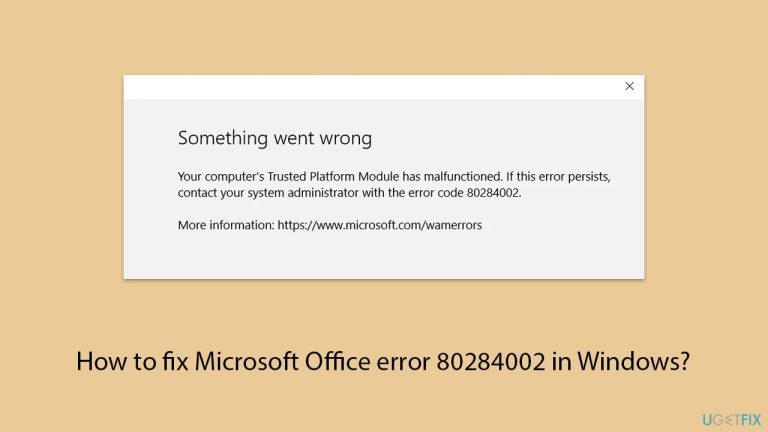
What causes How to fix Microsoft Office error 80284002 in Windows?
- Corrupted installation files
- Interrupted downloads
- Antivirus software conflicts
- Firewall settings blocking installation
- Corrupted system files
- Out-of-date drivers
Repairs Windows system files, removes malware, and restores a clean OS state — without reinstalling.
When I try to sign in to the Office app it gives me the error 80284002. I need some help with it, please.
Microsoft Office error code 80284002 is one of the issues users face in Windows when trying to install or update an Office application. An error code indicates that the installation of Office cannot be completed, which means one cannot access the latest features or security enhancements. This error message may appear during an Office update or while installing it for the first time, making it a tedious process.
Various causes of Office error 80284002 may be as follows:
- The installation files may corrupt-as most of the installation problems usually do - and are usually associated with interrupted downloads or corrupted installation media.
- During updates, crippled network connectivity might abolish the correct downloading of files that are needed.
- Antivirus software conflicts or firewall settings may block the installation process by incorrectly flagging Office files as potential threats.
- Several deep system flaws, which may be in the form of corrupted system files or registry errors, and even out-of-date drivers might also conflict with the process of installation or update.
The solutions to the 80284002 error involve repairing the Office installation from the Control Panel to rectify corrupted files. Compatibility issues can be resolved if one updates Windows along with all the drivers. Antivirus software may be disabled temporarily, or the settings in the firewall are changed to avoid conflict during installation.
Running system utilities such as SFC /Scannow or Deployment Image Servicing and Management/ DISM can fix corrupt system files that may be causing the error. For more details, please check the lower section of this article.
The maintenance and repair utility [d1] can come into play for broken registries or DLLs, corrupted system files, BSODs, and so on, where finding the culprit is usually difficult.
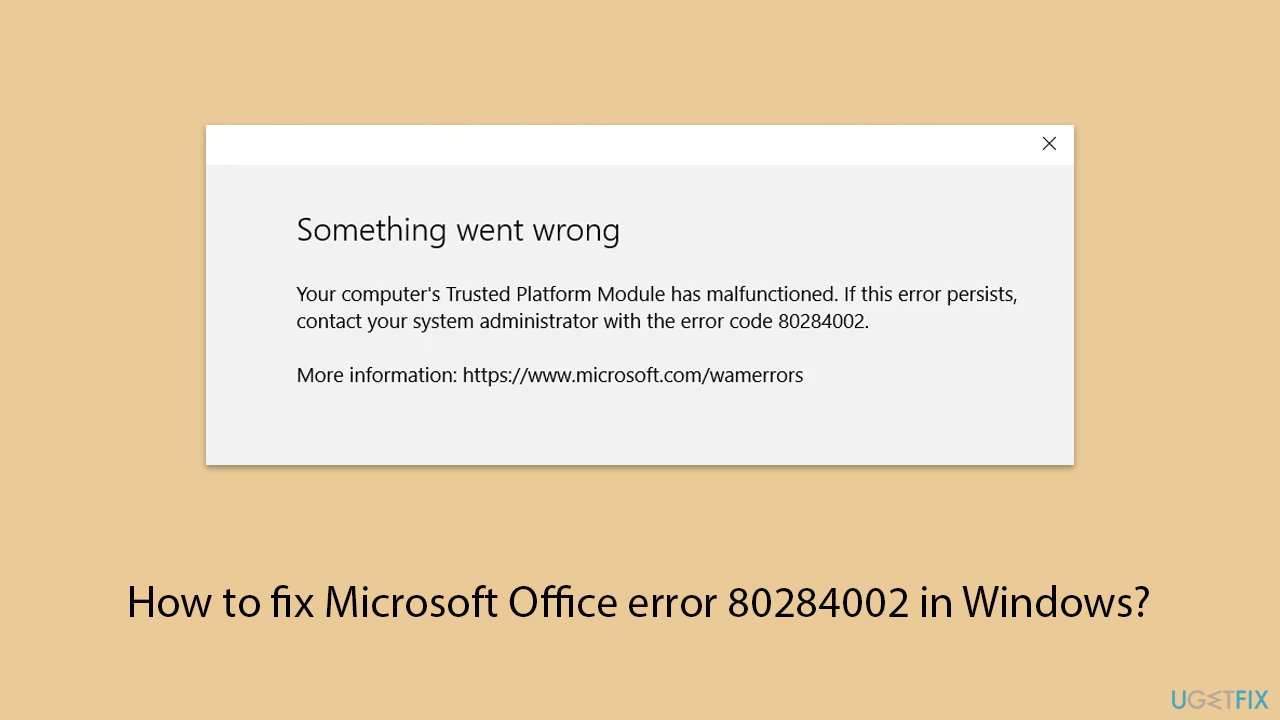
Fix 1. Repair the Office installation
Repairing the Office installation can resolve issues caused by corrupted or missing files.
- Type Control Panel in Windows search and press Enter.
- Select Programs > Programs and Features.
- Select Microsoft Office and click on Change.
- Choose the option for Online Repair and click Repair.
- Follow the prompts to finish the process.
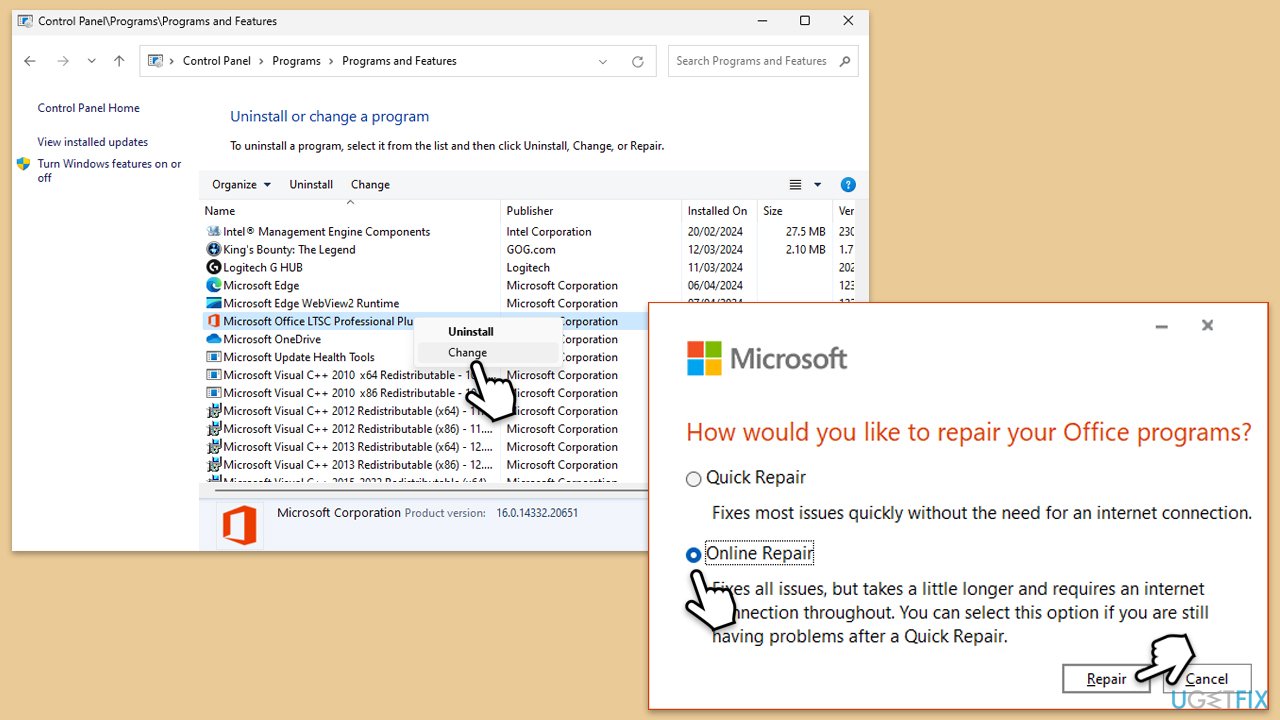
Fix 2. Update Windows
Keeping Windows up to date can fix compatibility problems that might trigger the error.
- In Windows search, type Updates and hit Enter.
- In the new window, click Check for updates and wait till everything is installed.
- Make sure you also install any available optional updates.
- When done, restart your system to implement the changes.
Fix 3. Disable third-party software that affects network connectivity
- Temporarily disable any VPN connections.
- Temporarily disable your antivirus software.
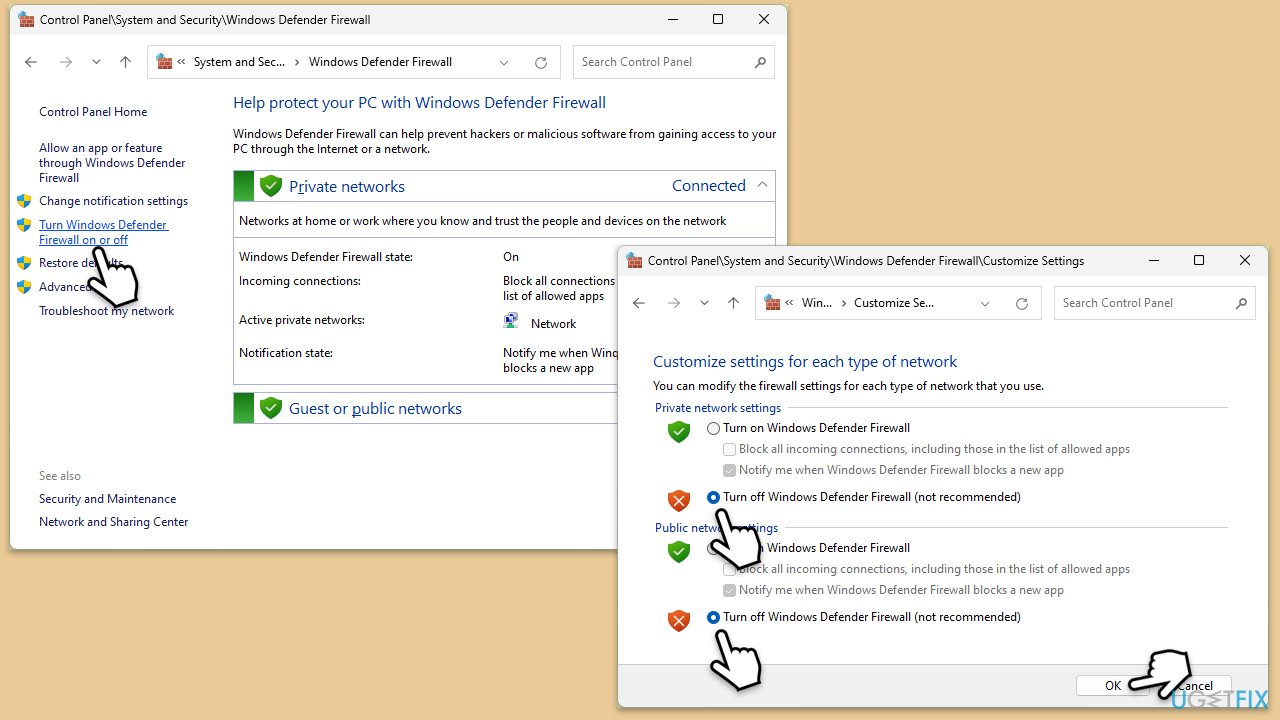
- Turn off your firewall through the Control Panel under System and Security > Windows Defender Firewall > Turn Windows Defender Firewall on or off.
- Try connecting to a different network if possible.
Fix 4. Modify the Registry
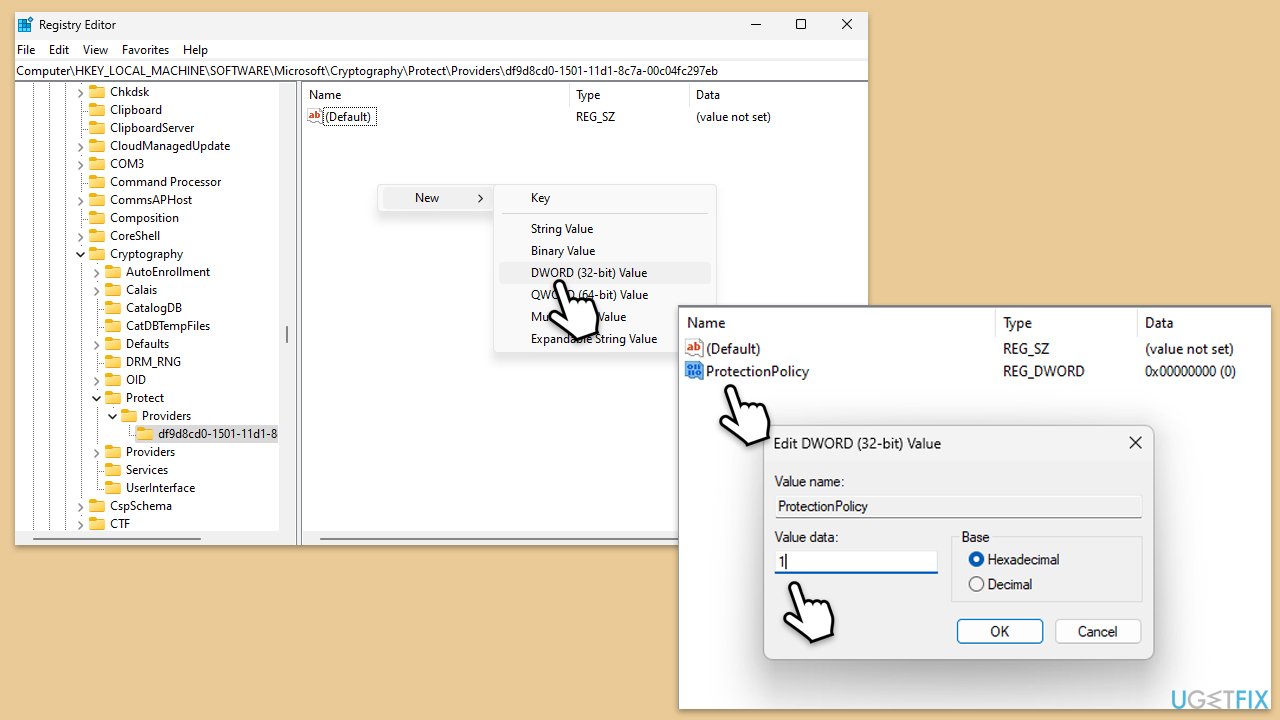
- In Windows search, type regedit and press Enter to open the Registry Editor.
- Navigate to the following path:
- Computer\HKEY_LOCAL_MACHINE\SOFTWARE\Microsoft\Cryptography\Protect\Providers\df9d8cd0-1501-11d1-8c7a-00c04fc297eb
- Right-click on the df9d8cd0-1501-11d1-8c7a-00c04fc297eb key.
- Select New > DWORD (32-bit) Value.
- Name the new value ProtectionPolicy.
- Double-click on ProtectionPolicy and set the Value data to 1.
- Click OK to save the changes.
- Close the Registry Editor.
Fix 5. Run SFC and DISM
Repair corrupted files as follows:
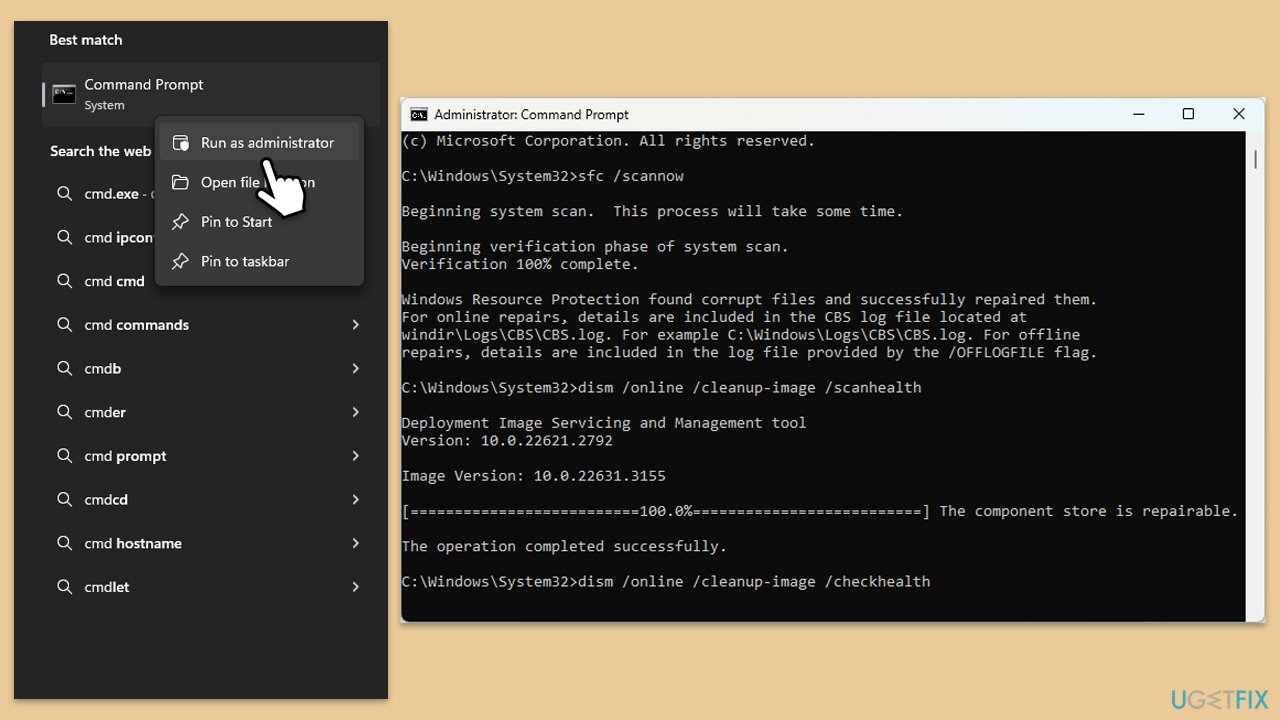
- Type cmd in Windows search.
- Right-click on Command Prompt and select Run as administrator.
- When User Account Control window shows up, click Yes.
- Paste the following command into the new window:
sfc /scannow - Press Enter and wait till the scan is executed.
- As soon as the scan finishes, Windows will report whether integrity violations were found and if they could be fixed. Regardless of the outcome, use these commands next, pressing Enter after each:
DISM /Online /Cleanup-Image /CheckHealth
DISM /Online /Cleanup-Image /ScanHealth
DISM /Online /Cleanup-Image /RestoreHealth - (Note: if you get an error executing this last command, add /Source:C:\RepairSource\Windows /LimitAccess to it and try again).
- Close down the Command Prompt and restart your computer.
Fix 6. Clear Office cache
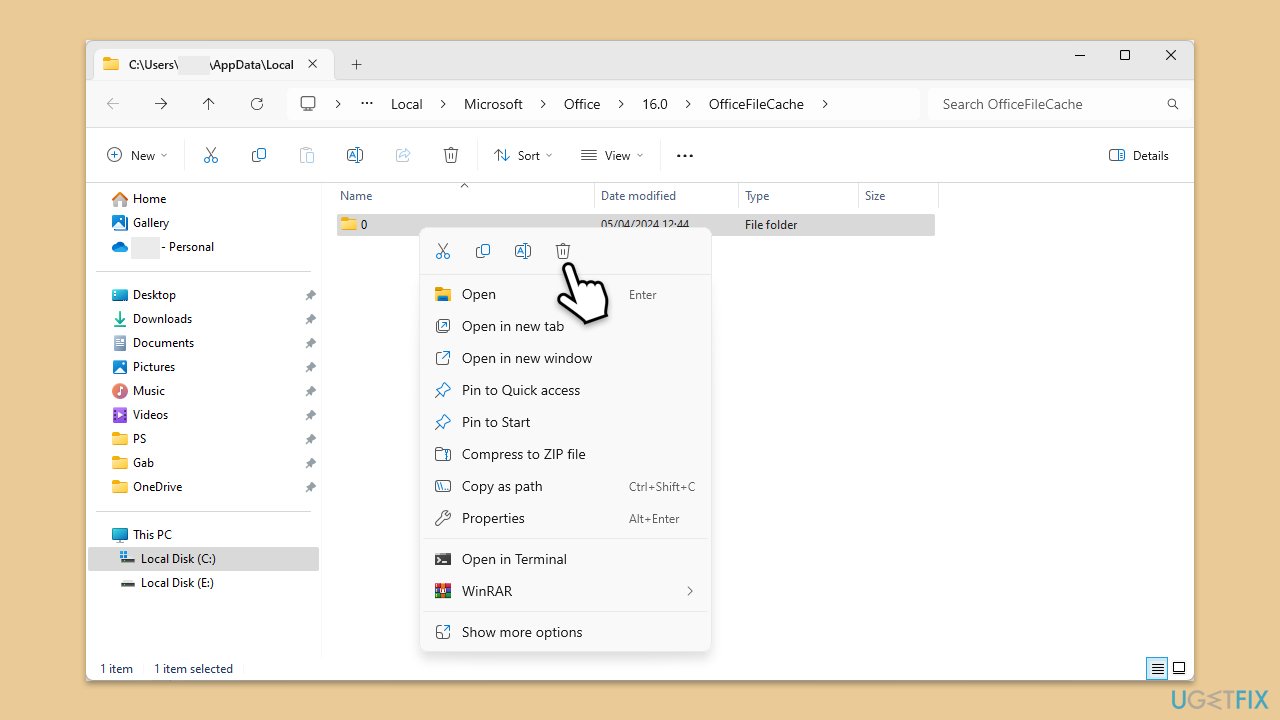
- In Windows search, type %localappdata%\Microsoft\Office\16.0\OfficeFileCache and press Enter to navigate to the OfficeFileCache folder.
- Delete all files within the OfficeFileCache folder - press Shift + Del for quick action.
- After clearing the cache, restart your computer and attempt to remediate the issue.
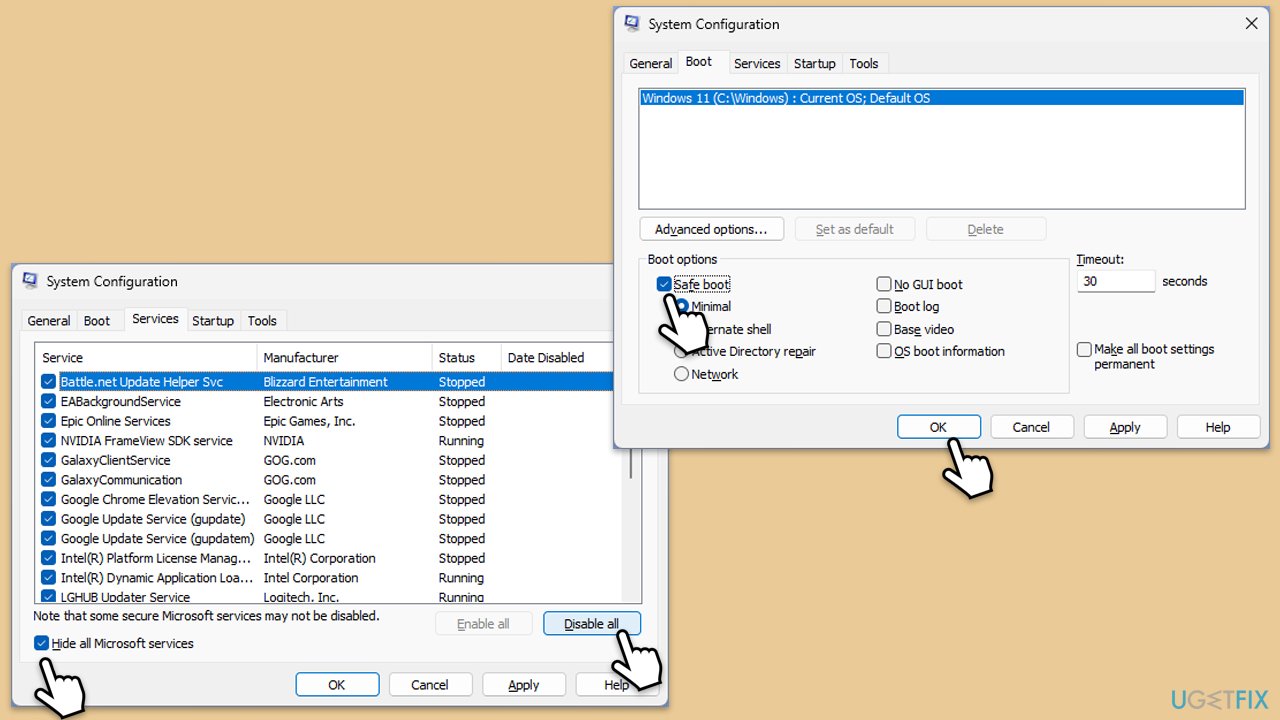
Fix 7. Perform a Clean boot
A clean boot starts Windows with minimal drivers and startup programs, eliminating software conflicts.
- Type msconfig in the Windows search box and press Enter.
- Pick the Services tab.
- Mark Hide all Microsoft services and select Disable all.
- Select the Startup tab and click Open Task Manager.
- In the Task Manager, right-click on each of the items and select Disable, then close the Task Manager.
- Go to the Boot tab, mark the Safe Boot option, then click Apply and OK.
- On the System Configuration window, click OK.
- Restart your computer.
Fix 8. Check your internet connection
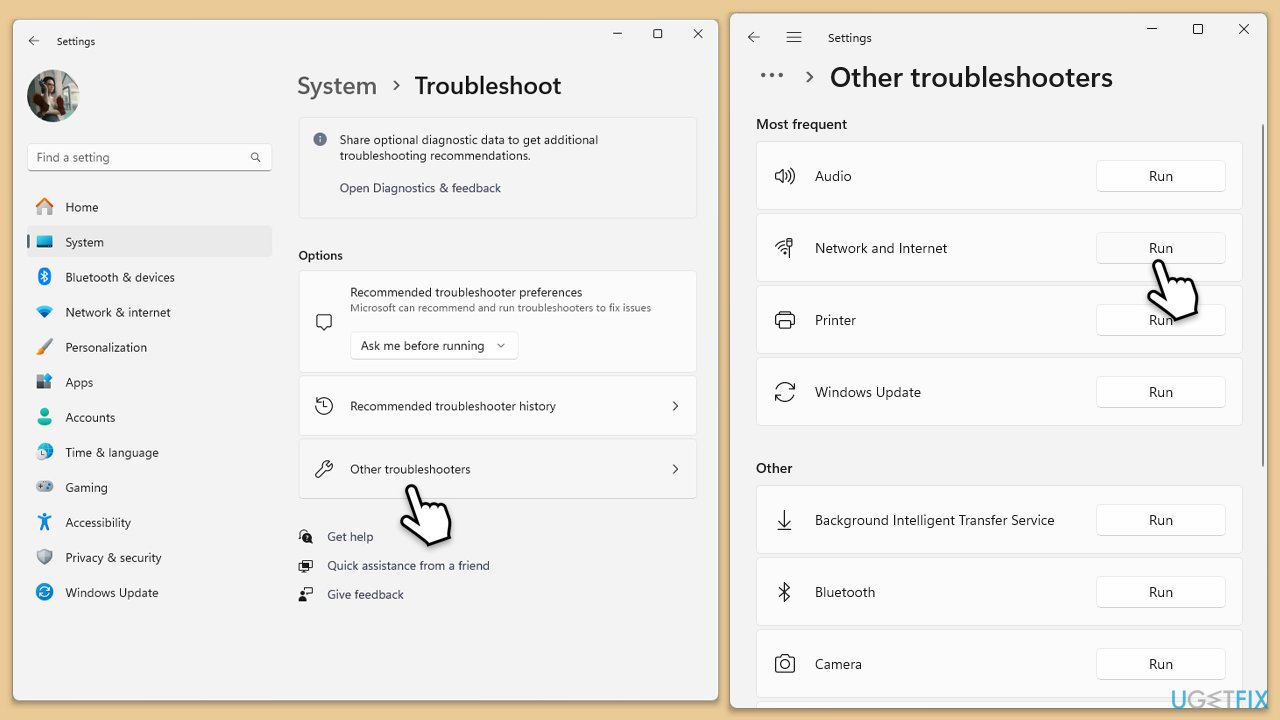
- Click on Start and pick Settings.
- Go to the System section and select Troubleshoot.
- Pick Other troubleshooters.
- Find Network & Internet and click Run.
- Apply all the recommended actions.
On Windows 10, follow these steps:
- Right-click on Start and pick Settings.
- Go to the Network & Internet section.
- On the right side, find the Advanced network settings section.
- Click Network troubleshooter and wait.
- The fixes will be automatically applied.
Bottom line
To fix Microsoft Office error 80284002, you can repair the Office installation, update Windows and drivers, temporarily disable antivirus software, or change firewall settings. Additionally, running system utilities like SFC /Scannow or DISM may help resolve underlying system issues. If none of these solutions work, further investigation may be needed.
Frequently asked questions
This error typically occurs due to issues with Windows Update or problems with the Microsoft Office installation. It can also be triggered by network connectivity problems.
To fix this error, you can try running the Windows Update Troubleshooter and ensure that your Office installation is updated through the Microsoft Store or Office website.
Yes, you can attempt to repair the Office installation via the Control Panel by selecting 'Change' under Programs and Features, then choosing the 'Repair' option.




Report an issue
What's wrong with this guide? We review every report and update or remove content.
Report received — thank you. We'll review and fix it.
You need a free account to submit a report.
Be the first to comment