
How to fix Microsoft Office error code 5fcl8 in Windows?

Prefer to fix it yourself? The manual steps follow.
- 9methods
- 5 to 40 minutes
- Intermediate
Applies to Microsoft 365 Apps and Office 2021/2024 for Windows (Word, Excel, Outlook, PowerPoint) on Windows 11, Windows 10 and Remote Desktop session hosts
9 methods in this guide
- What 5fcl8 means
- Tag, code and details
- 5fcl8 in Outlook
- Causes, ranked
- PC or server
- The fixes
- 1. Clear the sign-in cache
- 2. Repair the account plug-in
- 3. Repair WebView2
- 4. Clean the Notifications key
- 5. Firewall rule pile-up
- 6. Check the licence
- 7. Reset activation data
- 8. Try a new profile
- 9. Update and repair Office
- Still broken
- Prevent it
- FAQ
When I try to use Microsoft Office programs like Word and Excel on my Windows 11 computer, I keep getting an error code 5fcl8 along with the message "Something went wrong." Even though I'm signed in, the apps refuse to let me edit documents and display "Unlicensed Product." This problem started recently, and I have an E5 plan with Microsoft 365. Signing out and back in hasn't helped. How can I resolve this error and what's causing it?
Something went wrong. [5fcl8] means the Microsoft sign-in window of Word, Excel or Outlook closed before you could finish signing in; the details usually add Code: 1067, a process that ended unexpectedly. On your own PC, clear the Office sign-in cache and repair the account plug-in. On a Remote Desktop server, check the server first.
5fcl8 is a failed Office sign-in: the Web Account Manager window that asks for your password ends unexpectedly (Code 1067). On a home or work PC, sign out of Office, delete the OneAuth and IdentityCache folders, restart and sign in (Fix 1), then repair the account plug-in (Fix 2). On a Remote Desktop or Citrix server where the Start menu is also dead, an administrator must clean the full Notifications registry key (Fix 4).
| Error | Something went wrong. [5fcl8], with Message: An unexpected error occurred, Tag: 5fcl8 and Code: 1067 in the troubleshooting details |
|---|---|
| Where it appears | The Microsoft sign-in window of Word, Excel, Outlook or PowerPoint, at File > Account > Sign in, at activation, or when Outlook sets up a new mailbox |
| Main cause | The sign-in window (Web Account Manager and its account plug-in) cannot start or crashes. On shared servers this is most often a full registry key that stops system apps from installing for new users |
| Fastest fix | Own PC: sign out, delete the OneAuth and IdentityCache folders, restart (Fix 1). Server: empty the Notifications key (Fix 4) |
| Also written as | 5fcl8 error, error 5fcl8, [5fcl8], Error Tag: 5fcl8 Error Code: 1067, and the misspelling 5fc18 (with the digit one) |
| Code 1067 | Windows system error ERROR_PROCESS_ABORTED: "The process terminated unexpectedly" |
| Affects | Microsoft 365 Apps (E3, E5, Business plans) and Office 2021/2024 on Windows 11 and 10, and very often Windows Server 2016, 2019 and 2022 Remote Desktop hosts |
| Vendor status | Microsoft has not published a page that explains tag 5fcl8. Its documents cover the parts that fail: the account plug-in, shared computer activation and the registry bloat on servers |
| Time to fix | 5 to 10 minutes on a PC; 20 to 40 minutes for an administrator on a server |
Facts checked on 14 October 2026. Steps written for Microsoft 365 Apps on Windows 11 (25H2 and 26H2), Windows 10 22H2 and Windows Server 2019 and 2022 Remote Desktop hosts, read against Microsoft's documentation.
What "Something went wrong. [5fcl8]" means in Microsoft 365 and Office
The error comes from the Microsoft sign-in window that Office opens inside Windows, not from Word or Excel themselves. You type your email address, the window starts to load the password page, and then it either disappears or turns into a red line: Something went wrong. [5fcl8]. The code in brackets is an internal tag that Microsoft's sign-in components attach to the failure, so support can find it in their logs.
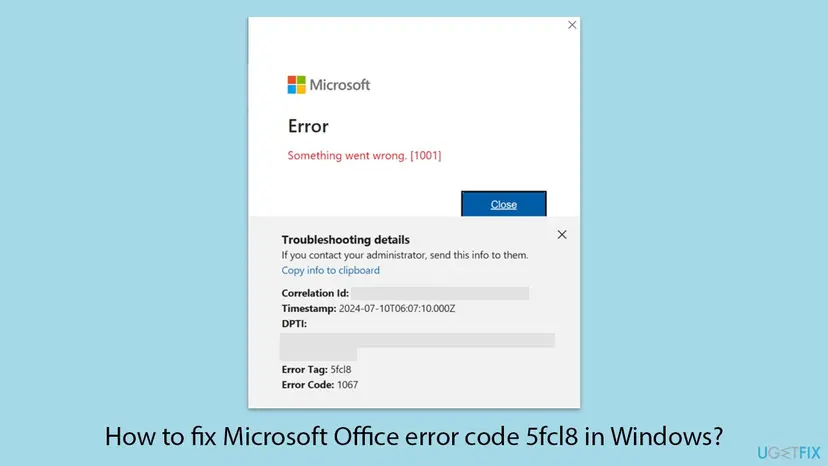
Some readers never see the red line at all. On Microsoft Q&A a user describes the typical form: the sign-in pop-up closes the moment the email address is entered, before the password box appears. That fits the code that comes with the tag. 1067 is the Windows system error ERROR_PROCESS_ABORTED, which Microsoft's error table describes as The process terminated unexpectedly. The window did not refuse your password; it ended before it could ask for it.
- Something went wrong. [5fcl8]: the visible headline in most reports.
- Something went wrong [1001] with Error Tag: 5fcl8 in the details: the same failure under a general headline.
- Message: An unexpected error occurred. Tag: 5fcl8. Code: 1067: the detail lines, as they appear in Outlook and in the newer sign-in window.
- Unlicensed Product in the title bar, or a yellow bar that says most features are turned off: the effect. Office cannot get a licence without a sign-in, so documents open read-only.
- 5fc18: the same tag typed with the digit one in place of the letter l. The real tag is five, f, c, lowercase L, eight.
- Se ha producido un error. [5fcl8] and other languages: the same error in a localized Office.
Microsoft does not document the meaning of tag 5fcl8 itself. What this page says about it comes from the code that comes with it, Microsoft's documents about the parts involved, and the cases where administrators found and confirmed the cause.
Read the troubleshooting details: Tag 5fcl8, Code 1067 and the Correlation Id
Under the error, select More details or the arrow next to it. The window then lists the lines your administrator or Microsoft support will ask for. Select Copy info to clipboard and paste them into a text file before you try any fix, because the window gives a new Correlation Id on every attempt.
| Line | What it tells you | What to do with it |
|---|---|---|
| Error Tag: 5fcl8 | Which internal check failed. Always the same for this error | Search with it, as you did, and keep it for support |
| Error Code: 1067 | Windows error ERROR_PROCESS_ABORTED: the sign-in process ended unexpectedly | Points to the sign-in window itself, not to your password |
| Correlation Id | A unique id of this one attempt in Microsoft's sign-in logs | Your admin can look it up in the Microsoft Entra sign-in logs |
| Timestamp | The time of the attempt in UTC | Tells the admin where to look in the logs |
| DPTI | A device token id used by Microsoft's sign-in service | Send it with the rest; it is not something you can change |
| Any other code, such as 657rx | A second tag from the same chain | Mention it too: admins report 657rx and 5fcl8 together on RDS hosts |
If your account works at office.com and in Outlook on the web, and the error appears only in the desktop apps, the problem sits on this PC or this server. That is the usual case. If the web sign-in fails as well, the cause is the account or the licence, and the steps on this page will not change it.
5fcl8 in Outlook: new mailbox, terminal server and Unlicensed Product
Outlook shows the tag in two situations. The first is the same as in Word: classic Outlook or new Outlook asks you to sign in, the window closes, and the details say Tag 5fcl8, Code 1067. The second is account setup. An administrator on Spiceworks described Outlook on a Windows Server 2019 terminal server that searched for the account and waited a few seconds. It then returned Error Tag: 5fcl8 Error Code: 1067 for every user who had no mail profile on that server yet.
- Only new users on a shared server fail, while users with an existing Outlook profile keep working: look at the server first, Fix 4 and Fix 5.
- Outlook works on your laptop, phone and the web but not on the server: check that the licence allows shared computer activation, Fix 6. In that Spiceworks case the cause was a Business Standard licence on a terminal server; it worked once the users had E3.
- Outlook on your own PC asks for the password again and again before 5fcl8 appears: Fix 1 and Fix 2 are for you.
- Outlook 2016 or 2019 connecting to Microsoft 365: these versions are past their support for Microsoft 365 connections, and an expert in the same thread pointed to that. Move to Microsoft 365 Apps.
Word, Excel and PowerPoint share the same sign-in with Outlook. When one app fails with 5fcl8, the others usually show Unlicensed Product at the same time. Microsoft's page on shared computer activation explains why: without a licensing token, Office runs in reduced functionality mode, where you can view and print documents but cannot create or edit them.
What causes error 5fcl8, from the most common to the rare
The causes split by where Office runs. On a Remote Desktop Services (RDS), RemoteApp or Citrix host, one server problem breaks the sign-in for many users at once. On a single PC, the cause is almost always in your own Windows profile.
| How often | Cause | Sign that points to it | Fix |
|---|---|---|---|
| Most often on servers | The Notifications registry key is full, so Windows cannot install its built-in apps, including the account plug-in, for new profiles | Start menu, Settings or search do not open for the affected users; only users added recently fail | Fix 4 |
| Often on servers | Thousands of firewall rules for app containers pile up, one set per user per session | The server got slow over months; logons take long; Start menu breaks | Fix 5 |
| Often on servers | The licence does not allow shared computer activation | Business Standard or a Microsoft 365 Apps for business licence on RDS; works on the user's own PC | Fix 6 |
| Most often on a PC | Stale or damaged tokens in the Office sign-in cache | Started after a password change, a new account, or a tenant move | Fix 1, Fix 7 |
| Less often | The Microsoft Entra account plug-in (AAD.BrokerPlugin) is damaged or not registered for your profile | Every Microsoft 365 app fails sign-in, Teams and OneDrive too | Fix 2 |
| Less often, reported | Microsoft Edge WebView2 Runtime is missing or broken | The window closes right after the email address | Fix 3 |
| Rarely | The Windows profile itself is damaged | A new Windows account on the same PC signs in fine | Fix 8 |
| Rarely | Damaged Office program files | Other Office problems too: crashes, missing features | Fix 9 |
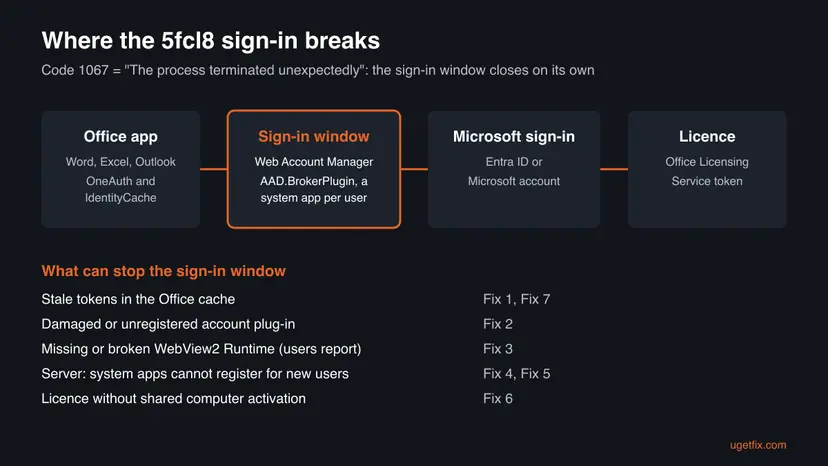
The server causes have one thing in common. The account plug-in is a Windows system app that is registered separately for every user profile. When Windows cannot register system apps for a new profile, that user gets no Start menu and no sign-in window, and Office reports the failed window as 5fcl8.
Your own PC or a shared server: who may run which fix
Fixes 1, 2, 3, 7 and 8 change only your own profile and are safe for anyone with a normal Windows account, except the admin PowerShell step in Fix 2. On a work PC run by an IT department, check first that you are allowed to run them.
- Home PC, personal or family plan: Fix 1, then Fix 2 with the personal account command, then Fix 3, 7 and 9.
- Work or school laptop, E3, E5 or Business plan: Fix 1, 2 and 3 are yours. Fix 7 is safe too. Tell IT if the device is managed by Intune.
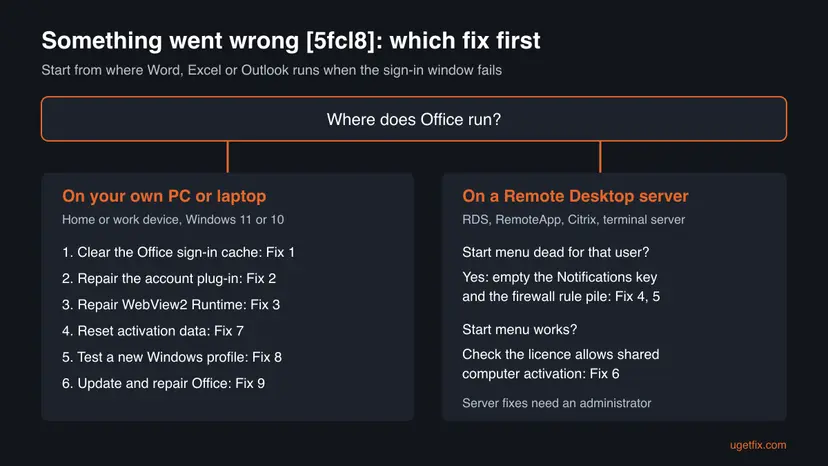
- You connect to a Remote Desktop, RemoteApp or Citrix server: you cannot fix the server yourself. Send your administrator the troubleshooting details and the link to Fix 4, 5 and 6. Ask whether your Start menu works on the server; it is the fastest clue.
- You are the administrator of the server: start with the chooser below and Fix 4. Work outside business hours, because Fix 4 and Fix 5 change machine-wide registry keys.
How to fix error 5fcl8 in Microsoft Office
Fixes 1 to 3 are for your own PC and take a few minutes each. Fixes 4 to 6 are for administrators of Remote Desktop and Citrix servers. Fixes 7 to 9 are deeper repairs for both. Copy the troubleshooting details first, and test the sign-in in Word at File > Account after each fix.
| What you see | Start with |
|---|---|
| Your own PC; sign-in window closes or shows 5fcl8 | Fix 1, then Fix 2 |
| Error started after a password change or a new account | Fix 1, then Fix 7 |
| The window closes right after you type your email address | Fix 2, then Fix 3 |
| Remote Desktop or Citrix server; Start menu does not open for the user | Fix 4, then Fix 5 |
| Server; Start menu works, Office says Unlicensed Product | Fix 6 |
| Only one Windows account on the PC fails | Fix 8 |
| Nothing above helped | Fix 9, then the section on what to send support |
Fix 1. Sign out of Office and clear the Office sign-in cache (OneAuth and IdentityCache)
5 minutesLow riskYour own PC, when 5fcl8 appears in Word, Excel or Outlook and the account works at office.com.
Office keeps cached accounts and tokens in two folders of your profile. A stale token there can send the sign-in window into a state it cannot recover from. Microsoft's own steps for sign-in failures caused by cached identities are to sign out and remove the folders in these two locations.
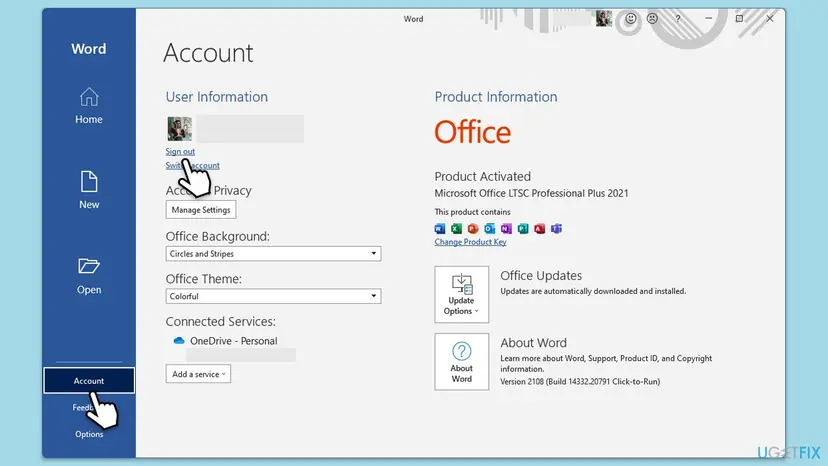
- Open Word, select File > Account and select Sign out under User Information. Confirm.
- Close Word, Excel, Outlook and Teams. Sign out of OneDrive from its icon in the taskbar and close it.
- Press Win + R, paste this path and press Enter:
%localappdata%\Microsoft\OneAuth - Select everything inside with Ctrl + A and press Delete.
- Press Win + R again, paste the second path and press Enter:
%localappdata%\Microsoft\IdentityCache - Delete everything inside this folder too, then restart Windows.
- Open Word, select File > Account > Sign in and sign in with the account that holds your licence.

Older guides send you to %appdata%\Microsoft. That is the Roaming folder; the OneAuth and IdentityCache folders Microsoft names are under %localappdata%\Microsoft, the Local folder.
It worked if: The sign-in window stays open, asks for your password and Word shows your name and Product Activated under File > Account.
If not: If the window still closes or shows 5fcl8, repair the account plug-in in Fix 2.
Fix 2. Repair the Windows account plug-in (AAD.BrokerPlugin) and its token data
10 minutesLow riskYour own PC, when Fix 1 did not help or Teams and OneDrive fail to sign in as well.
The sign-in window that crashes with Code 1067 is run by Web Account Manager through the Microsoft.AAD.BrokerPlugin system app. Microsoft's documented repair is to delete its stored token data and register the package again with PowerShell, which reinstalls the window without touching your files.
- Close all Office apps, Teams and OneDrive.
- Open File Explorer, paste this path into the address bar and press Enter. Select all files with Ctrl + A and delete them:
%LOCALAPPDATA%\Packages\Microsoft.AAD.BrokerPlugin_cw5n1h2txyewy\AC\TokenBroker\Accounts - Do the same in the second folder:
%LOCALAPPDATA%\Packages\Microsoft.Windows.CloudExperienceHost_cw5n1h2txyewy\AC\TokenBroker\Accounts - Right-click Start and select Terminal (Admin) on Windows 11 or Windows PowerShell (Admin) on Windows 10. Select Yes in the User Account Control prompt.
- For a work or school account, run Microsoft's command for the Entra plug-in:
if (-not (Get-AppxPackage Microsoft.AAD.BrokerPlugin)) { Add-AppxPackage -Register "$env:windir\SystemApps\Microsoft.AAD.BrokerPlugin_cw5n1h2txyewy\Appxmanifest.xml" -DisableDevelopmentMode -ForceApplicationShutdown } Get-AppxPackage Microsoft.AAD.BrokerPlugin - For a personal Microsoft account (outlook.com, hotmail.com), run the second command:
if (-not (Get-AppxPackage Microsoft.Windows.CloudExperienceHost)) { Add-AppxPackage -Register "$env:windir\SystemApps\Microsoft.Windows.CloudExperienceHost_cw5n1h2txyewy\Appxmanifest.xml" -DisableDevelopmentMode -ForceApplicationShutdown } Get-AppxPackage Microsoft.Windows.CloudExperienceHost - Restart Windows and sign in to Word again at File > Account.
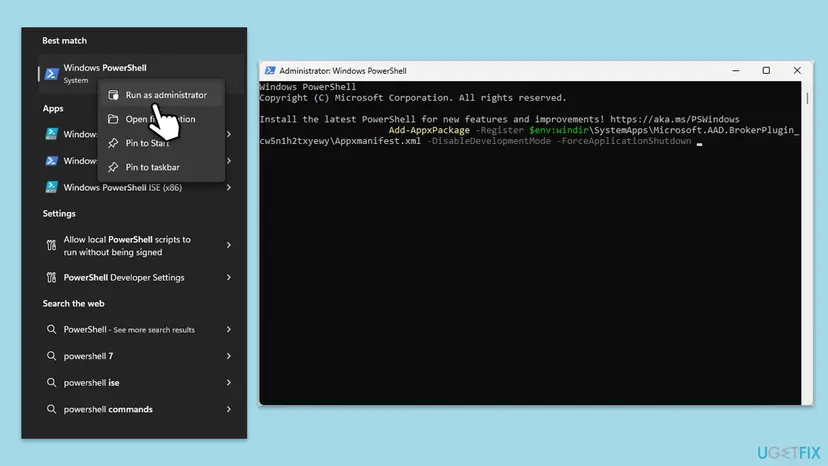
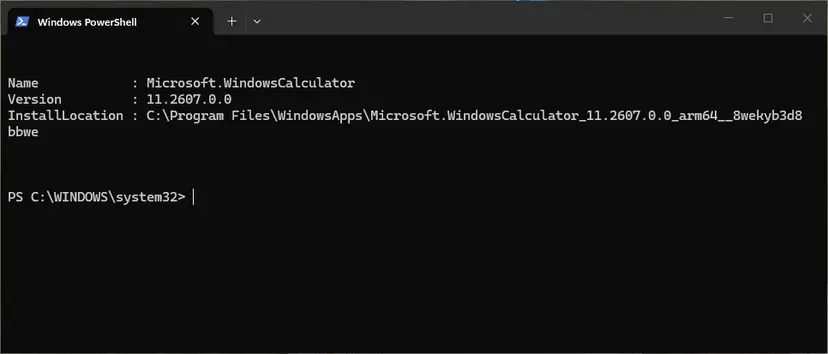
If PowerShell answers with a red error that contains 0x800705AA (insufficient system resources), the PC is not the problem. That error is the sign of the full Notifications key described in Fix 4, which an administrator on Windows Server found with Get-AppxLog. The general method behind these commands: How to re-register Microsoft Store apps with PowerShell.
It worked if: The command ends with the package details and no red text, and after the restart the sign-in window stays open until you have entered your password.
If not: Run Microsoft's sign-in troubleshooter at aka.ms/SaRA-OfficeSignIn-sarahome, then try Fix 3.
Fix 3. Repair or install Microsoft Edge WebView2 Runtime
5 minutesNo riskThe sign-in window disappears right after you type your email address, before any password box appears.
Microsoft 365 Apps relies on WebView2 Runtime to show web-based parts of Office inside the desktop app. An independent advisor on Microsoft Q&A names a broken or missing WebView2 Runtime as the most common reason for exactly this 5fcl8 behaviour. Microsoft itself does not say so; we list it because the repair is quick and harmless.
- Close every Office app.
- Open Settings > Apps > Installed apps on Windows 11, or Settings > Apps > Apps & features on Windows 10, and type
WebView2in the search box. - If Microsoft Edge WebView2 Runtime is listed, select the three dots next to it, then Modify, and select Repair. Wait until it finishes.
- If it is not listed, install it. In an administrator Terminal, this one command does it:
winget install Microsoft.EdgeWebView2Runtime - Restart Windows, open Word and sign in at File > Account.
You can also download the Evergreen Bootstrapper from Microsoft's WebView2 page at developer.microsoft.com/microsoft-edge/webview2, which is the installer Microsoft names for admins. WebView2 Runtime does not install the Edge browser and does not change your default browser.
Microsoft has installed WebView2 Runtime automatically on Windows PCs with Microsoft 365 Apps Version 2101 or later since April 2021. A PC where an admin blocked that installation in the Microsoft 365 Apps admin center will not have it.
It worked if: Microsoft Edge WebView2 Runtime is in the list of installed apps and the password page now stays open after the email address.
If not: Go to Fix 7 to reset the activation data, or Fix 8 to test a new Windows profile.
Fix 4. On a Remote Desktop or Citrix server: empty the full Notifications registry key
20 minutesRead the warningAdministrators of an RDS, RemoteApp or Citrix host where affected users also have no working Start menu.
Windows stores notification state names under one machine-wide key, and on busy session hosts those registrations leak until the key cannot take more. Microsoft documents this registry bloat and error 0x800705AA in KB3063843. New profiles then cannot register their system apps, including the Office sign-in plug-in, which Office reports as 5fcl8.
This deletes every value in a machine-wide key. Export it first, so you can import it back if something else breaks: Back up the registry before editing it. Run it in a maintenance window: running sessions can lose notification settings, and a restart is planned at the end.
- Sign in to the session host as an administrator, open an administrator PowerShell and count the values in the key:
(Get-Item 'HKLM:\SOFTWARE\Microsoft\Windows NT\CurrentVersion\Notifications').ValueCount - A count in the hundreds of thousands means the key is bloated. Admins report about 261,000 values when it stops accepting new ones. A few hundred is normal; then this fix is not for you.
- Export the key to a backup file:
reg export "HKEY_LOCAL_MACHINE\SOFTWARE\Microsoft\Windows NT\CurrentVersion\Notifications" C:\Temp\notifications-backup.reg - Delete all values in the key, but keep the key itself:
reg delete "HKEY_LOCAL_MACHINE\SOFTWARE\Microsoft\Windows NT\CurrentVersion\Notifications" /va /f - Wait until the command returns. With hundreds of thousands of values it can take several minutes.
- Restart the server, or at least sign the affected user out completely and back in. Test the Start menu, then File > Account > Sign in in Word.

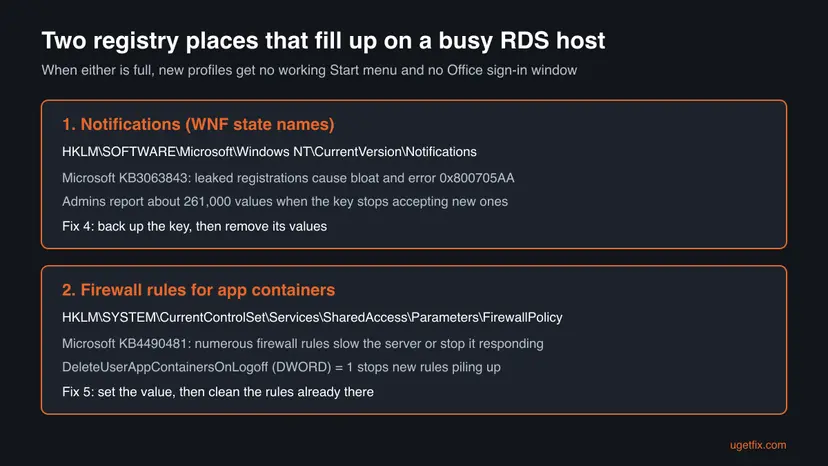
The command above is the one a cloud desktop provider gives for exactly this pair of symptoms, a dead Start menu and 5fcl8. Microsoft's own cleanup tool for the leak, wnfcleanup, was released only for Windows 8.1 and Windows Server 2012 R2. We could not find a Microsoft tool or statement for Windows Server 2016, 2019 or 2022.
It worked if: The value count drops to a few hundred, the Start menu opens for the affected user and the Office sign-in window asks for the password.
If not: If the Start menu works but sign-in still fails, users created while the key was full may lack the plug-in: run Fix 2 for them, then Fix 5.
Fix 5. On a shared server: stop app container firewall rules from piling up
15 minutesRead the warningAdministrators of Windows Server RDS hosts that became slow over time and where Fix 4 did not change the Start menu.
Each user session on a session host creates firewall rules for its app containers, and they are not removed at logoff. Microsoft's update KB4490481 for Windows Server 2019 added a switch, DeleteUserAppContainersOnLogoff, against the slowdowns and hangs that numerous firewall rules cause. Admins report the same pile-up behind broken Start menus and Office sign-in windows.
You change the machine-wide firewall policy. Export the FirewallPolicy key first with Back up the registry before editing it. Deleting existing rules in step 4 removes rules for app containers of all users; they are created again at the next logon, but plan it for a maintenance window.
- In an administrator Command Prompt, export the key:
reg export "HKEY_LOCAL_MACHINE\SYSTEM\CurrentControlSet\Services\SharedAccess\Parameters\FirewallPolicy" C:\Temp\firewallpolicy-backup.reg - Turn on the cleanup at logoff that Microsoft documents in KB4490481:
reg add "HKEY_LOCAL_MACHINE\SYSTEM\CurrentControlSet\Services\SharedAccess\Parameters\FirewallPolicy" /v DeleteUserAppContainersOnLogoff /t REG_DWORD /d 1 /f - Make sure the server has the cumulative updates for its build. Microsoft lists the switch for Windows Server 2019 from build 17763.402.
- Optional, for rules that are already there: an administrator on Microsoft Q&A reports clearing this key; with thousands of rules it takes a long time:
reg delete "HKEY_LOCAL_MACHINE\SYSTEM\CurrentControlSet\Services\SharedAccess\Parameters\FirewallPolicy\RestrictedServices\AppIso\FirewallRules" /va /f - Restart the server and test the Start menu and the Office sign-in with an affected user.
The switch prevents new rules from piling up; it does not remove the old ones. That is why step 4 exists. Microsoft does not document step 4, so treat it as a reported fix and keep the backup until users have worked for a few days.
It worked if: Logons are faster, the Start menu opens and the sign-in window of Word or Outlook accepts the account without 5fcl8.
If not: If the Start menu works and Office still says Unlicensed Product, check the licence in Fix 6.
Fix 6. Check that the licence allows shared computer activation
10 minutesNo riskOffice runs on an RDS, Citrix or other shared server and the user's account works everywhere else.
On a shared server, Microsoft 365 Apps must use shared computer activation, and only some plans include it. Microsoft names any plan with Microsoft 365 Apps for enterprise (such as Office 365 E3 or Microsoft 365 E5), the desktop Project and Visio plans, and Microsoft 365 Business Premium. Business Standard does not include it.
- On the server, open Word and select File > Account > About Word. The second line under the version should say Shared Computer Activation instead of a Product ID.
- Or check the registry. This value should be 1:
HKEY_LOCAL_MACHINE\SOFTWARE\Microsoft\Office\ClickToRun\Configuration > SharedComputerLicensing - In the Microsoft 365 admin center, open Users > Active users, select the user and open Licenses and apps.
- Confirm that the assigned licence is one of the plans above and that Microsoft 365 Apps is turned on in it.
- If the licence was wrong, assign the right one, wait a few minutes, then let the user sign out of Office, run Fix 7 and sign in again.
| Plan | Shared computer activation |
|---|---|
| Microsoft 365 E3, E5, Office 365 E3, E5 (Microsoft 365 Apps for enterprise) | Yes |
| Microsoft 365 Business Premium | Yes, the only business plan |
| Microsoft 365 Business Standard and Business Basic | No |
| Project Plan 3 or 5, Visio Plan 2 (desktop apps) | Yes, for those apps |
Microsoft's licence token on a shared computer is stored in the user's profile and is valid for 30 days. Office renews it while the user works; a user away for longer simply signs in again.
It worked if: About Word shows Shared Computer Activation, and after signing in the title bar no longer says Unlicensed Product.
If not: If the licence is right and sign-in still fails with 5fcl8, go back to Fix 4 and Fix 5; licence errors look different and name the licence.
Fix 7. Reset the Office activation and identity data
15 minutesRead the warningOffice shows Unlicensed Product, or you moved to another account, plan or organisation, and Fix 1 did not help.
Office keeps licences, cached identities and stored credentials in four places, and one stale entry can keep sending the sign-in to the broken path. Microsoft's article on resetting the activation state lists these places and provides scripts that clear them, so Office starts as a fresh install would.
You delete Office licence files and two registry keys of your own account. Your documents are not touched, but you must sign in again and Office may ask you to accept its settings. Export the keys first: Back up the registry before editing it.
- Close all Office apps. Microsoft offers two scripts that do the work: OLicenseCleanup.vbs and signoutofwamaccounts.ps1, linked from its article Reset activation state for Microsoft 365 Apps. You can run them, or do the same by hand below.
- Delete the licence files in this folder:
%localappdata%\Microsoft\Office\Licenses - On a shared computer, also delete the files in:
%localappdata%\Microsoft\Office\16.0\Licensing - Press Win + R, type
regedit, export and then delete these two keys:HKEY_CURRENT_USER\Software\Microsoft\Office\16.0\Common\Licensing HKEY_CURRENT_USER\Software\Microsoft\Office\16.0\Common\Identity - Open Credential Manager from Start, select Windows Credentials and Remove every entry that starts with MicrosoftOffice16.
- Open Settings > Accounts > Access work or school. If the account you use for Office is listed but is not the one you sign in to Windows with, select it and Disconnect.
- Restart Windows, open Word and sign in.
It worked if: Office asks you to sign in as on a new PC, accepts the account and shows Product Activated under File > Account.
If not: If the same 5fcl8 window appears, test whether the problem follows your Windows profile in Fix 8.
Fix 8. Test with a new Windows profile
15 minutesLow riskFixes 1 to 3 and 7 did not help on your own PC, or one user on a server fails while others work.
If the sign-in works in a fresh profile, the damage is in your old profile, for example a system app that never registered. Virginia Commonwealth University's IT knowledge base gives a new profile as its solution for 5fcl8, because it resolves the licence and identity issues behind this error.
- Open Settings > Accounts > Other users on Windows 11 (Family & other users on Windows 10) and select Add account.
- Select I don't have this person's sign-in information, then Add a user without a Microsoft account.
- Enter a user name and password and finish the wizard.
- Sign out, sign in to the new account and wait until the desktop is ready.
- Open Word, select File > Account > Sign in and sign in with your work, school or personal Microsoft account.
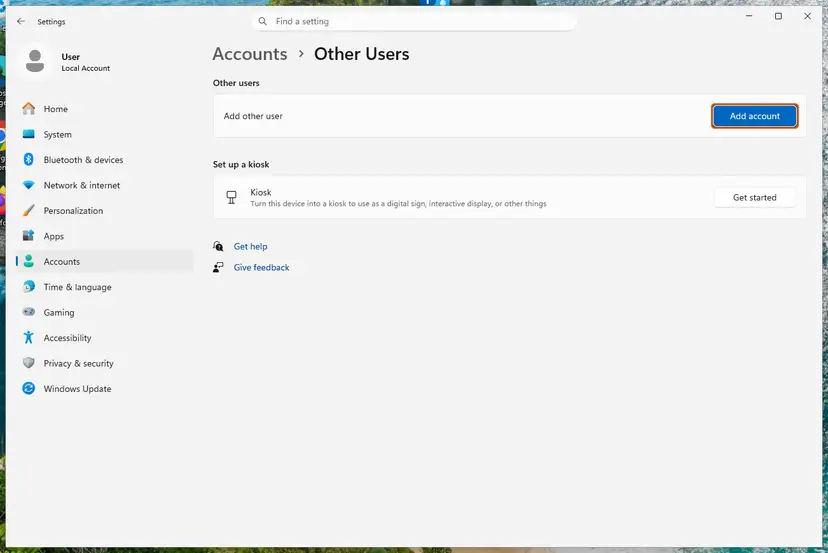
If Office signs in from the new profile, move your files there or ask IT to rebuild your old profile. If the new profile fails too, the problem is machine-wide: on a PC, go to Fix 9; on a server, Fix 4 and Fix 5. Step by step with all options: Create a new user account to test a problem.
It worked if: In the new profile the sign-in window stays open and Office activates, which shows the old profile is the cause.
If not: If the new profile fails as well, update and repair Office in Fix 9.
Fix 9. Update Office, then run an Online Repair
30 minutesLow riskEverything above failed on your own PC, or Office also crashes or misses features.
Office updates replace the sign-in libraries that open the Web Account Manager window, and Online Repair reinstalls all Office program files. This is the last step because 5fcl8 is rarely caused by Office files, but a damaged install can make the sign-in window fail the same way.
- Open Word, select File > Account > Update Options > Update Now and let it finish.
- If the update does not help, open Settings > Apps > Installed apps, select the three dots next to Microsoft 365 or your Office product and select Modify.
- Select Online Repair, then Repair, and follow the prompts. It needs an internet connection and downloads Office again.
- Restart Windows and sign in at File > Account.
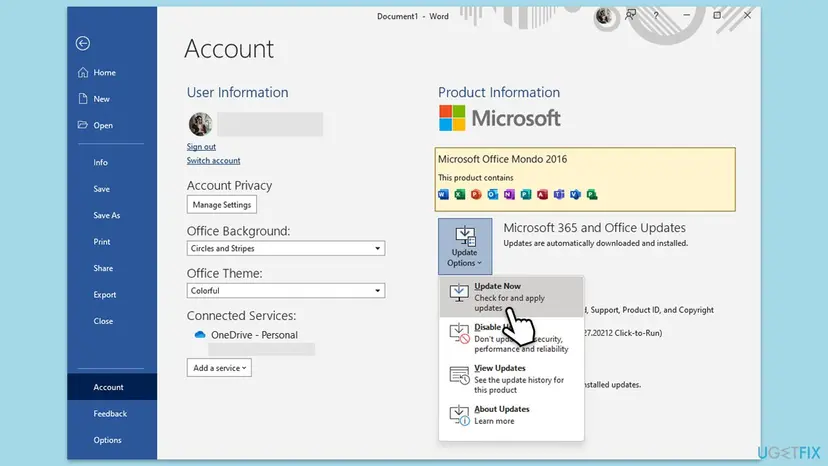
Quick Repair, Online Repair and their differences are explained here: How to repair Microsoft 365 or Office. A full uninstall is rarely needed for 5fcl8; Microsoft's uninstall troubleshooter at aka.ms/SaRA-officeUninstallFromPC is the clean way if it is.
It worked if: Word shows the newest version under About Word and signs in without the Something went wrong window.
If not: Collect the details listed in the next section and send them to your administrator or Microsoft support.
Still seeing 5fcl8: what to check and what to send support
When the error survives all fixes, the cause is usually outside the PC: the account, the licence, the tenant's sign-in policies or the network. These checks narrow it down.
- Try the web. Sign in at office.com in a private browser window. If that fails too, the account is the problem and only your administrator or Microsoft can fix it.
- Test without VPN, proxy and security software. Microsoft notes that some antivirus, proxy or firewall software can block the plug-in process Microsoft.AAD.BrokerPlugin_cw5n1h2txyewy. Pause protection for one test only and turn it back on: Turn off Microsoft Defender protection for a moment.
- Read the plug-in's log. Open Event Viewer and go to Applications and Services Logs > Microsoft > Windows > AAD > Operational. Errors at the time of the attempt show which part of the sign-in failed.
- On a server, read the AppX log. In PowerShell,
Get-AppxLogshows failed app registrations. Error 0x800705AA there means the full Notifications key of Fix 4. - Check the Correlation Id. An administrator can find it in the Microsoft Entra admin center under the sign-in logs and see whether a Conditional Access policy or a licence check stopped the sign-in.
Send support the full troubleshooting details (Correlation Id, Timestamp, DPTI, Tag, Code) and your Office version from File > Account > About Word. Add your Windows version, whether it is a PC or an RDS host, and which fixes on this page you already ran.
5fcl8 is not a hardware fault and not a sign of a damaged disk. On a business plan, Microsoft support is opened by the admin in the Microsoft 365 admin center under Support > New service request, as the Microsoft Q&A moderators advise in the RDS threads.
How to keep error 5fcl8 from coming back
On a single PC, 5fcl8 rarely comes back once the cache is clean. On Remote Desktop servers it returns unless the leak behind it is stopped, because every new session adds to the same keys.
- Set DeleteUserAppContainersOnLogoff to 1 on every session host and keep the hosts on current cumulative updates.
- Check the value count of the Notifications key once a month on busy hosts, and clean it long before it reaches the limit.
- Give RDS and Citrix users a plan with shared computer activation: E3, E5 or Business Premium.
- Sign out of Office before you change your password, your account or your organisation.
- Let Office install WebView2 Runtime and keep it updated.
- Do not turn off Web Account Manager or ADAL to get around sign-in errors. Microsoft states that disabling them is not recommended.
- Do not delete the BrokerPlugin package folders under SystemApps. Only the TokenBroker data in your profile is safe to clear.
- Do not clean the Notifications or firewall keys during working hours on a server in use.
- Do not keep using Outlook 2016 or 2019 to connect to Microsoft 365 on a terminal server.
Frequently asked questions
What does error code 5fcl8 mean in Microsoft Office?
It means the Microsoft sign-in window inside Office ended before you finished signing in. The details usually add Code 1067, the Windows error for a process that terminated unexpectedly. Microsoft does not publish a definition of the tag itself. In practice it appears when the Web Account Manager window that Word, Excel and Outlook use cannot start or crashes, most often because of a damaged sign-in cache on a PC or a bloated registry key on a Remote Desktop server. Without the sign-in, Office cannot get its licence and shows Unlicensed Product.
What is "Tag: 5fcl8 Code: 1067"?
They are two lines from the troubleshooting details of the same error. The tag 5fcl8 identifies which internal check failed in Microsoft's sign-in components. Code 1067 is a standard Windows system error, ERROR_PROCESS_ABORTED, with the text The process terminated unexpectedly. The full message in newer Office builds reads An unexpected error occurred. Tag: 5fcl8. Code: 1067. Together they say the sign-in window process stopped, not that your password was wrong. Copy them with the Correlation Id before you start fixing.
Why does Outlook show 5fcl8 only on our terminal server?
Because the server is a different environment with its own rules. Office on a terminal server needs a licence that includes shared computer activation, and Business Standard does not. Busy session hosts also accumulate notification registrations and firewall rules until Windows cannot set up system apps for new profiles. Then new users get no Start menu and no sign-in window. Check whether the Start menu works for the affected user: if not, use Fix 4 and Fix 5; if it does, check the licence in Fix 6.
I have an E5 licence and Office still says Unlicensed Product. Why?
E5 includes Microsoft 365 Apps and shared computer activation, so the licence itself is usually fine. Unlicensed Product appears because Office never completed the sign-in that fetches the licence token. Fix the sign-in first: clear the OneAuth and IdentityCache folders (Fix 1), repair the account plug-in (Fix 2) and reset the activation data (Fix 7). In the admin center, confirm the E5 is really assigned to the account you sign in with and that Microsoft 365 Apps is turned on in it.
Is error 5fcl8 a problem with my Microsoft account or password?
Usually not. The error comes from the sign-in window on your PC or server, which closes before the password is even sent. A quick test is to sign in at office.com in a private browser window. If that works, the account and password are fine and the fixes on this page apply. If the web sign-in fails too, the account is locked, unlicensed or blocked by a policy, and only your administrator or Microsoft support can change that.
Does reinstalling Office fix 5fcl8?
Seldom. The sign-in window that fails belongs to Windows and to your user profile, not to the Office program files, so a reinstall leaves the cause in place. Admins in the reported RDS cases had already reinstalled Office without effect. Try the cache, plug-in and activation fixes first. If those fail on a PC, an Online Repair in Fix 9 reinstalls Office files without removing your settings, which is all a reinstall would do for this error.
Can I turn off Web Account Manager to get past 5fcl8?
You should not. Some old forum posts suggest registry values that make Office skip Web Account Manager or ADAL. Microsoft has a support article titled Disabling ADAL or WAM not recommended for fixing Microsoft 365 sign-in or activation issues, and modern Microsoft 365 Apps rely on Web Account Manager for sign-in. Turning it off may hide the window and break single sign-on, Teams and OneDrive. Repair the plug-in in Fix 2 instead.
Is 5fc18 the same error as 5fcl8?
Yes. The real tag is five, f, c, a lowercase letter L and eight. Because the lowercase L looks like the digit one in many fonts, people often type 5fc18, and some sites even use that spelling in their address. Both searches describe the same Something went wrong window with Code 1067. If your window shows a different tag, such as 7q6ch or 4vt9f, it is a related but different sign-in error with its own causes.
Que significa "Se ha producido un error. [5fcl8]"?
This page is in English, but the error is the same in every language. Se ha producido un error. [5fcl8] is the Spanish headline of Something went wrong. [5fcl8]. The sign-in window of Office closed unexpectedly, usually with Code 1067 in the details. The fixes are identical: clear the OneAuth and IdentityCache folders under %localappdata%\Microsoft, repair the account plug-in with PowerShell, and on a Remote Desktop server let the administrator clean the Notifications registry key.
Sources
- Microsoft Learn: System Error Codes (1000-1299), ERROR_PROCESS_ABORTED 1067 (learn.microsoft.com)
- Microsoft Learn: Authentication automatically fails in Microsoft 365 services (re-register AAD.BrokerPlugin) (learn.microsoft.com)
- Microsoft Learn: Sign in issues when activating Microsoft 365 Apps (BrokerPlugin data, credentials) (learn.microsoft.com)
Did this fix work?
One click, no account. It tells the next reader which guides are worth their time.
Questions and experiences: fix Microsoft Office error code 5fcl8 in Windows
Still broken, or found a fix we did not cover? Ask here: members and our editors answer. Reading is open; writing needs a free account.
…