How to fix
Microsoft Office error code 80090034
on Windows
Resolve Microsoft Office error code 80090034 on Windows 10 and 11 effortlessly. Get expert-tested solutions to fix it in minutes, with screenshots.


What causes How to fix Microsoft Office error code 80090034 in Windows?
- Corrupted Office credentials
- Outdated Office credentials
- Malfunction of the Trusted Platform Module (TPM)
- Incorrect registry settings concerning cryptographic services
Repairs Windows system files, removes malware, and restores a clean OS state — without reinstalling.
When I'm trying to open Outlook, I get an error code 80090034, and this happens with other Office apps like Word. I need this to be fixed as soon as possible because I need these for my work.
Office error code 80090034 is annoying and might disrupt the work process, especially when one tries to activate or sign into the Office applications. Normally, the error displays a message to the effect that "Your computer's Trusted Platform Module has malfunctioned." TPM is a hardware-based technology designed for securing the hardware using integrated cryptographic keys. For some reason, if the TPM fails, it may deny these keys to Office applications, hence the inability to activate or sign in.
There are a number of reasons that could cause the 80090034 error. One common cause is corrupted or outdated Office credentials on the system that could interfere with the authentication process. Clearing these credentials and then signing in can often resolve the issue.
Other causes may include a malfunction of the TPM itself, which may need to be cleared or reinitialized to get it working correctly again. The error can also be caused by wrong settings in the system registry concerning cryptographic services. In some cases, the problem has been solved by editing particular registry entries.
You can try removing any Office credentials from within the Windows Credential Manager to solve the 80090034 error, as this method will remove any corrupted or invalid credentials that are causing conflicts. Clearing the TPM via system BIOS or UEFI settings is another approach; in this regard, clearing the TPM resets to its default state and probably cleans up malfunctioned states. Modifying the system's registry to adjust cryptographic provider settings has been reported as a solution by some users, but this should be approached with caution due to the sensitivity of registry configurations.
If these solutions do not resolve the 80090034 error, consider using the automatic Windows repair tool, [d1], designed to diagnose and fix common Windows and Office-related issues efficiently.

Fix 1. Remove saved Office credentials
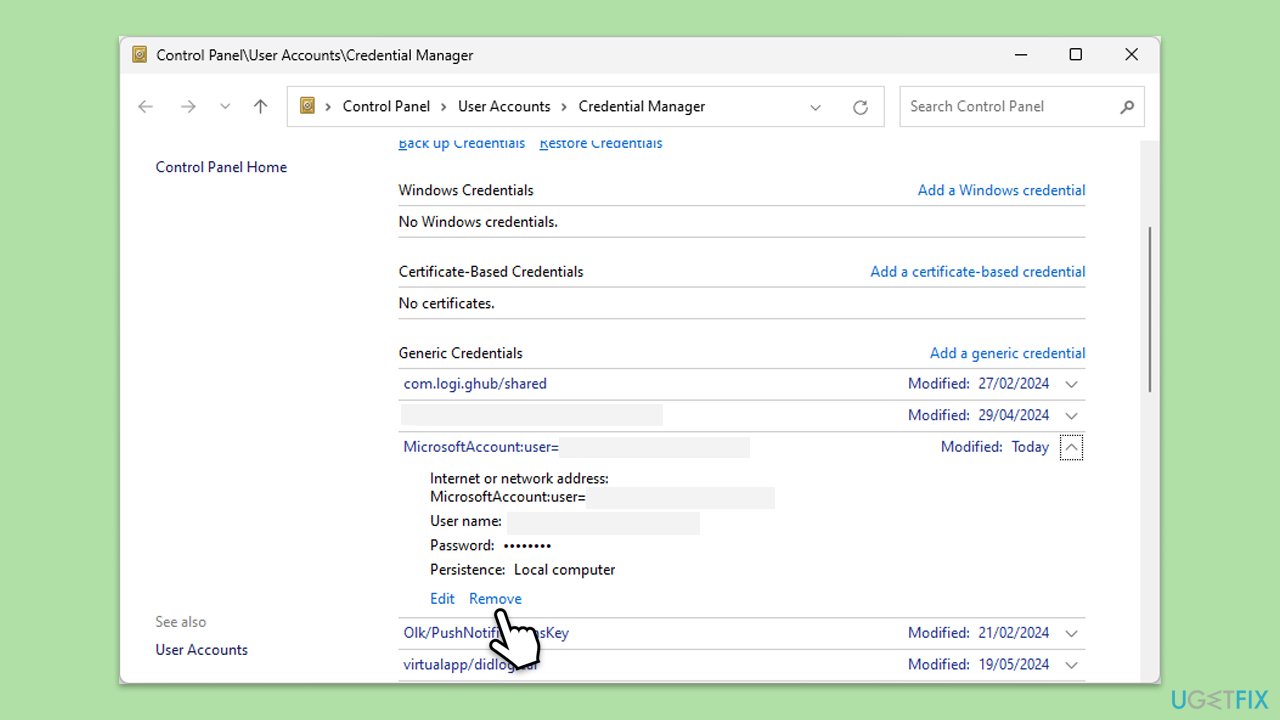
One of the main reasons for error code 80090034 is corrupted or outdated Office credentials stored in Windows Credential Manager. Removing these credentials can force Office to create new authentication data, resolving conflicts that may be causing the error.
- Type Credential Manager in Windows search and press Enter.
- Select Windows Credentials.
- Look for any Office-related credentials, such as MicrosoftOffice15, MicrosoftOffice16, or OneDrive, and remove them.
- Restart Office and sign in again.
Fix 2. Clear the Trusted Platform Module (TPM)
Since TPM plays a key role in storing encrypted data for authentication, any corruption in its configuration can cause activation problems with Office. Clearing TPM resets it to a default state and can resolve the error.
- Type tpm.msc in Windows search and press Enter.
- In the TPM Management window, check if TPM is ready for use.
- If it is available, select Clear TPM from the right panel.
- Restart the computer and follow on-screen instructions to complete the process.
- Try signing into Office again.

Fix 3. Modify the registry for cryptographic protection
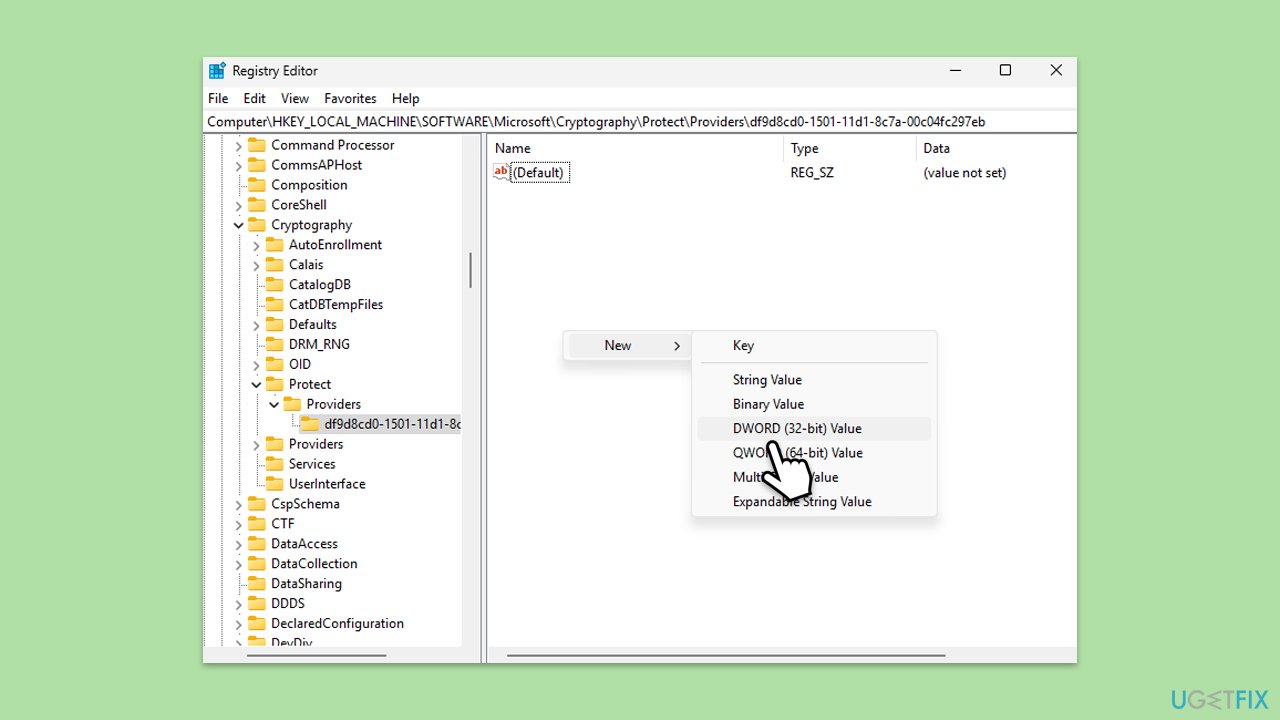
A missing or incorrectly configured registry key related to cryptographic providers can cause authentication problems in Microsoft Office, leading to error code 80090034. Adding the necessary key and setting the correct value can resolve the issue.
- Type regedit in Windows search and press Enter.
- Navigate to the following location:
Computer\HKEY_LOCAL_MACHINE\SOFTWARE\Microsoft\Cryptography\Protect\Providers\df9d8cd0-1501-11d1-8c7a-00c04fc297eb - If the ProtectionPolicy key is missing, right-click on an empty space in the right pane, select New, and choose DWORD (32-bit) Value.
- Name the new key ProtectionPolicy.
- Double-click on ProtectionPolicy, set its value to 1, and click OK.
- Close the Registry Editor and restart the computer.
Fix 4. Reinstall Microsoft Office
If the error persists, Office installation files may be damaged. A fresh installation can ensure that all components are properly configured.
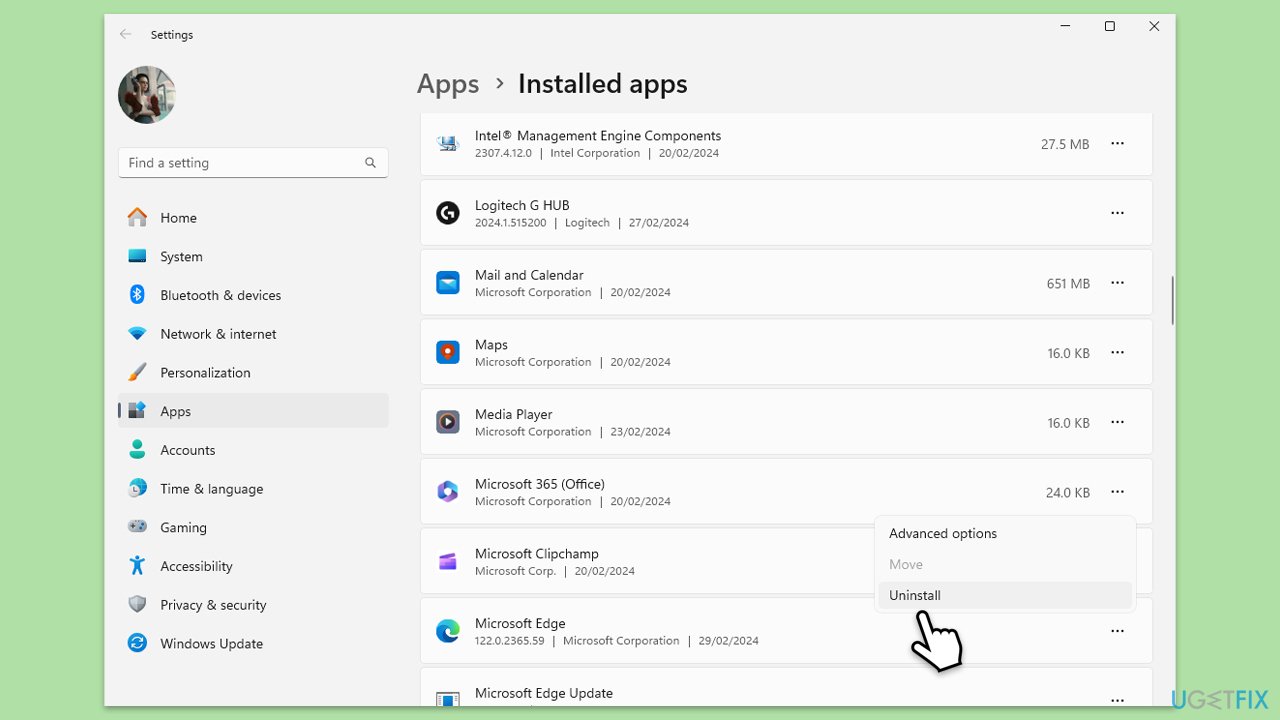
- Right-click on Start and pick Apps and Features/Installed apps.
- Scroll down to find the MS Office installation.
- Click Uninstall and confirm with Uninstall.
- Follow on-screen instructions to remove the app completely.
- Press Win + E to open File Explorer.
- Navigate to the following location and delete its contents:
C:\Program Files\Microsoft Office - Next, type regedit in Windows search and press Enter.
- Go to the following locations in the Registry Editor and delete these items:
Computer\HKEY_LOCAL_MACHINE\SOFTWARE\Microsoft\AppVISV
Computer\HKEY_LOCAL_MACHINE\SOFTWARE\Microsoft\Office\ClickToRun
Computer\HKEY_CURRENT_USER\Software\Microsoft\Office - Reboot the computer.
- Visit the Microsoft Office download page to download and reinstall Office.
Fix 5. Update Windows and device drivers
System updates often include security patches and bug fixes that address TPM-related issues. Keeping Windows and drivers up to date can prevent authentication errors in Office.
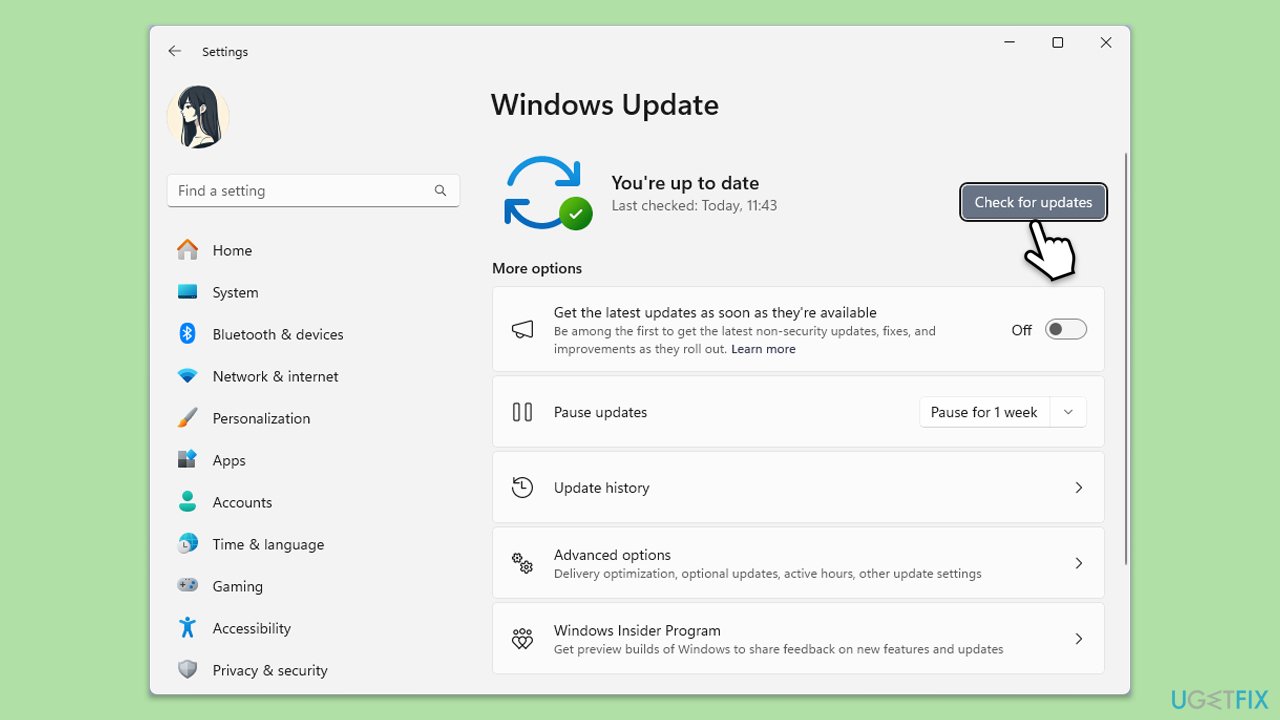
- Type Updates in Windows search and press Enter.
- Here, click Install updates or Check for updates.
- Wait till Windows downloads and installs all the files.
- If optional updates are available, install them as well.
- Reboot your device.
If you do not want to be bothered with manually updating drivers, you can always rely on powerful software such as [rev id="DriverFix"].
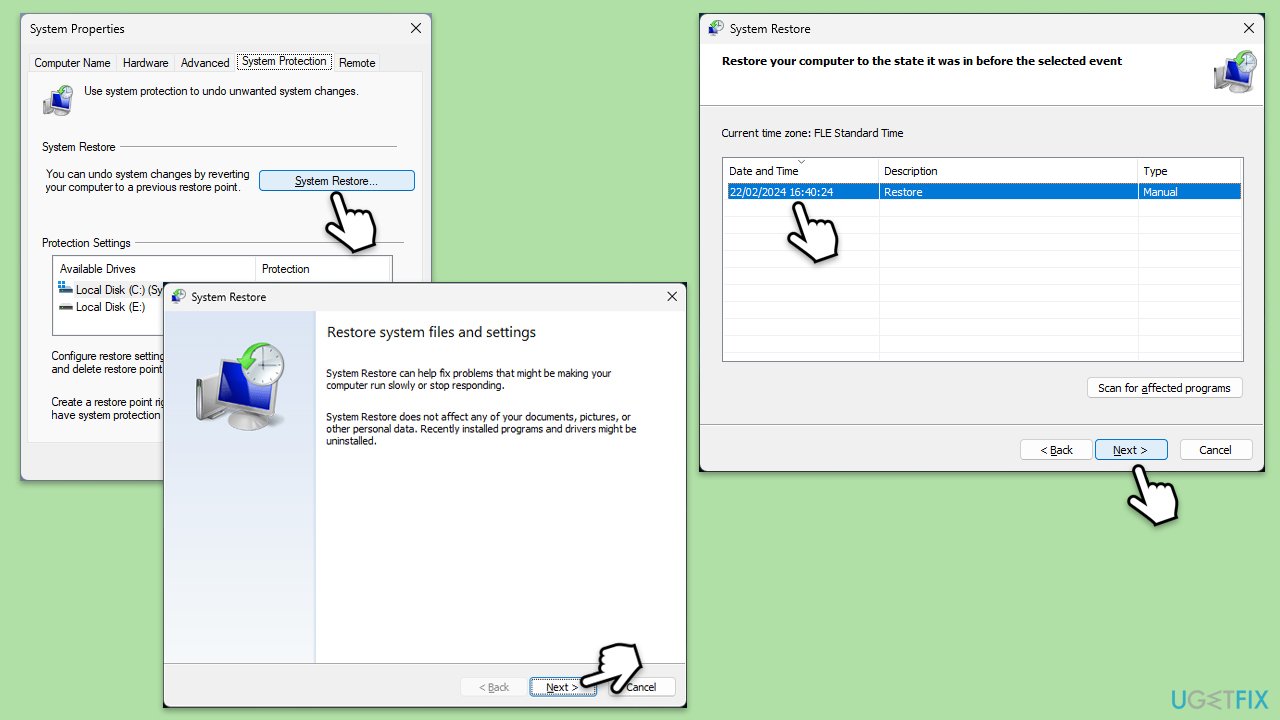
Fix 6. Perform a System Restore
If the 80090034 error started recently, rolling back the system to a previous state can help undo any recent changes that may have triggered the problem.
- Type in Create a restore point in Windows search and hit Enter.
- In the System Protection tab, pick System restore.
- Click Next.
- Click Show more restore points (if available).
- Pick the time before the problem occurred and click Next.
- Your computer will reboot.
Bottom line
To fix the Microsoft Office error code 80090034, you can remove saved Office credentials from the Windows Credential Manager, clear the TPM via system BIOS or UEFI settings, or modify the system's registry to adjust cryptographic provider settings. If these solutions do not resolve the issue, consider using the automatic Windows repair tool designed to diagnose and fix common Windows and Office-related issues.
Frequently asked questions
Error code 80090034 typically indicates a problem with the credentials or encryption settings in Microsoft Office, preventing the application from functioning correctly.
To fix the 80090034 error on Windows 11, try resetting your Microsoft account credentials and ensuring that your Office applications are updated to the latest version.
In Windows 10, you can resolve the 80090034 error by running the 'Office Repair' tool from the Control Panel and checking for any issues with your Windows security settings.




Report an issue
What's wrong with this guide? We review every report and update or remove content.
Report received — thank you. We'll review and fix it.
You need a free account to submit a report.
Be the first to comment