How to fix
“Microsoft Office has detected a problem with this file” error
on Windows
Resolve the "Microsoft Office has detected a problem with this file" error on Windows 10 and 11 quickly and efficiently. Expert-tested solutions included.


What causes How to fix “Microsoft Office has detected a problem with this file” error in Windows?
- File corruption due to sudden shutdowns or incomplete saves
- Incompatibility between different Office versions
- Overzealous antivirus software blocking file content
- Excessively stringent security settings within Office
- High macro security levels preventing necessary content from loading
Repairs Windows system files, removes malware, and restores a clean OS state — without reinstalling.
I get "Microsoft Office has detected a problem with this file" whenever I try to open an Excel file which contains a macro. Why is that? Other files work just fine. I'm on Windows 11.
"Microsoft Office has detected a problem with this file" error is a relatively uncommon error that happens to some users upon trying to open or edit files in Office applications such as Word, Excel, or PowerPoint. The error message typically suggests that Office has found corruption or incompatibility within the file, and therefore, it is unable to display content appropriately.
Apart from file corruption and incompatibility, security measures can also lead to the "Microsoft Office has detected a problem with this file" error. Overzealous antivirus software or over-restrictive Windows security levels will occasionally block a portion of a file or macros within, recognizing them as potential malware, thus preventing proper file opening.
File corruption can occur due to sudden shutdowns, incomplete saves, or even malware infections that impose damage on a file's structure. Moreover, incompatibility among different Office versions can lead to issues when a document created in a newer version is opened in an older version.
Aside from these common issues, excessively stringent security settings - such as high macro security levels - can contribute to the error by blocking necessary content within the file. In this way, users can receive the error message "Microsoft Office has detected a problem with this file" even when the document appears to be fine.
Users experiencing this error generally find that their documents will not open, or they will open partially with some data and formatting lost. Troubleshooting generally involves verifying the integrity of the file, verifying compatibility between Office versions, and verifying security settings within both Office and within any installed antivirus software.
For an automatic resolution to these root issues - whether file corruption, compatibility conflicts, or security permissions are the cause - the [d1] repair and maintenance program is a sound program that can restore normal Office functionality and improve overall system performance.

Fix 1. Adjust Office security settings
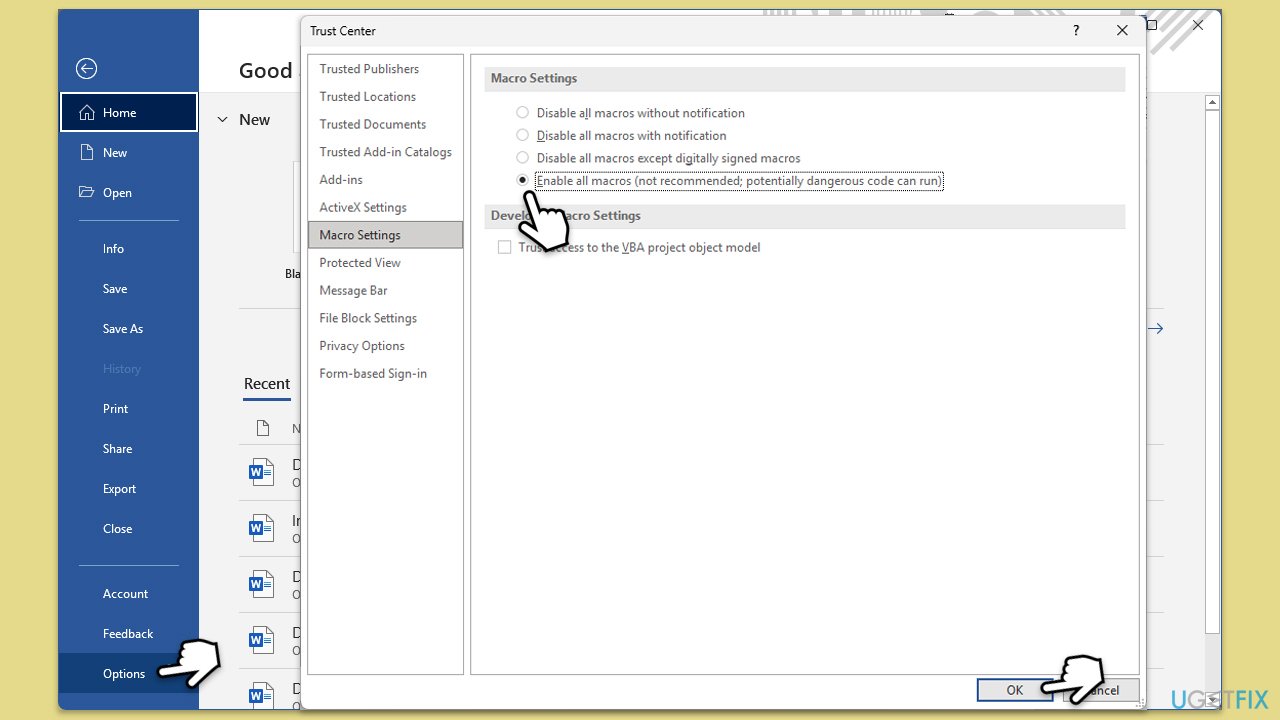
Modifying your Office security settings can help if aggressive security measures are blocking essential file components and triggering the error "Microsoft Office has detected a problem with this file."
- Open an Office application and go to File > Options > Trust Center.
- Click Trust Center Settings and review the Macro Settings.
- Set macros to Disable all macros with notification to prevent unnecessary blocking.
- Under Protected View, consider unchecking options for files originating from the internet if you trust the source.
- Save the changes and try opening the file again.
Fix 2. Temporarily disable antivirus software
Sometimes antivirus software mistakenly blocks parts of a file, causing "Microsoft Office has detected a problem with this file" error.
- Open your antivirus software and navigate to its settings.
- Temporarily disable real-time scanning.
- Open the problematic file to see if it loads correctly.
Fix 3. Open the file in Safe Mode
Running Office in Safe Mode can bypass add-ins and other non-essential components that might be causing the error.
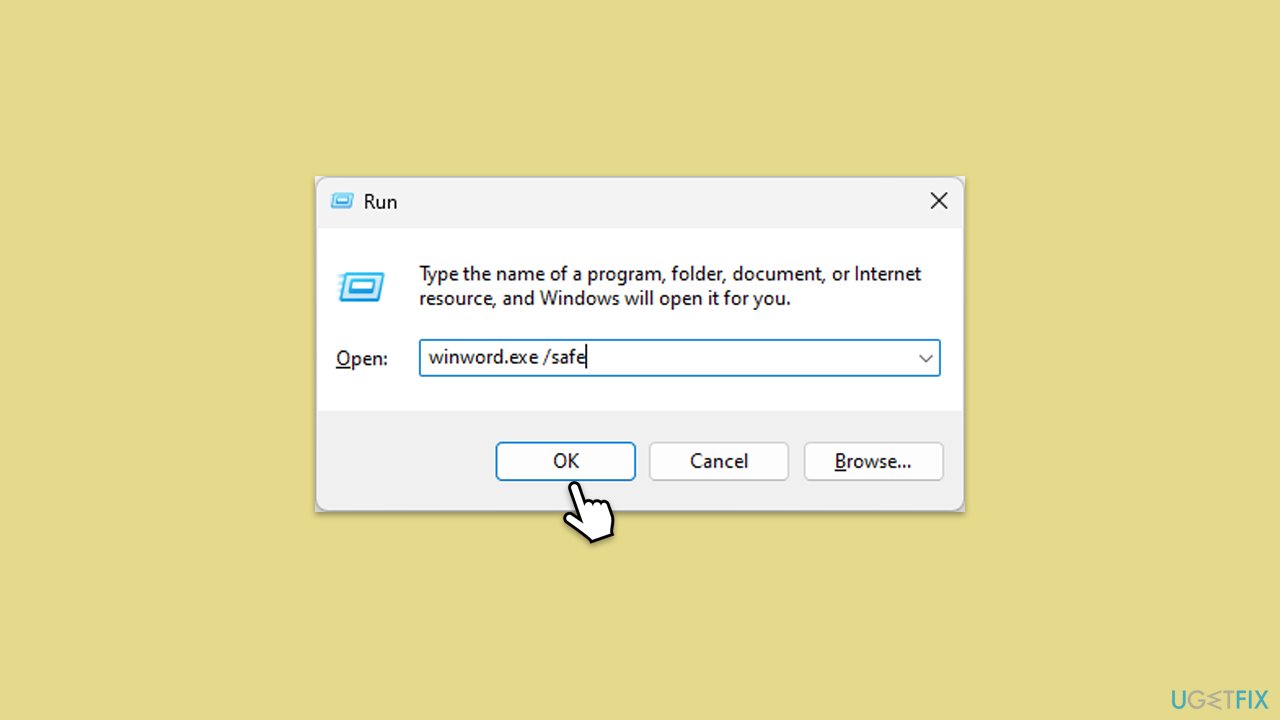
- Press Win + R to open the Run dialog, type winword /safe (or excel /safe, etc.), and press Enter.
- In Safe Mode, open the file to check if it loads without errors.
- If it does, you should disable Add-ins as follows:
- Go to File > Options > Add-ins, select COM Add-ins, and click Go. Disable all add-ins and restart Excel/Word normally.
Fix 4. Repair the Office installation
Repairing Office can fix corrupted installation files that may be causing the error.
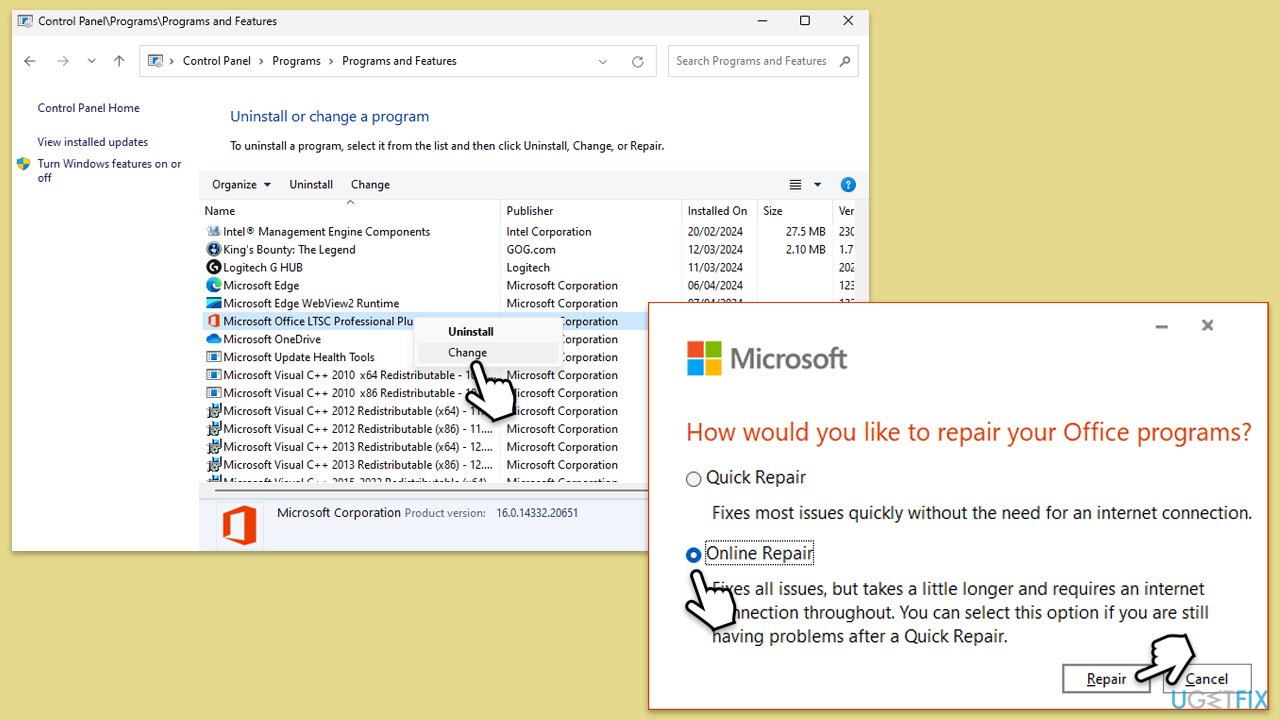
- Type Control Panel in Windows search and press Enter.
- Select Programs > Programs and Features.
- Select Microsoft Office and click on Change.
- Choose the option for Online Repair and click Repair.
- Follow the prompts to finish the process.
Fix 5. Open and repair the file
Using the built-in Open and Repair feature can recover files that might be partially corrupted.
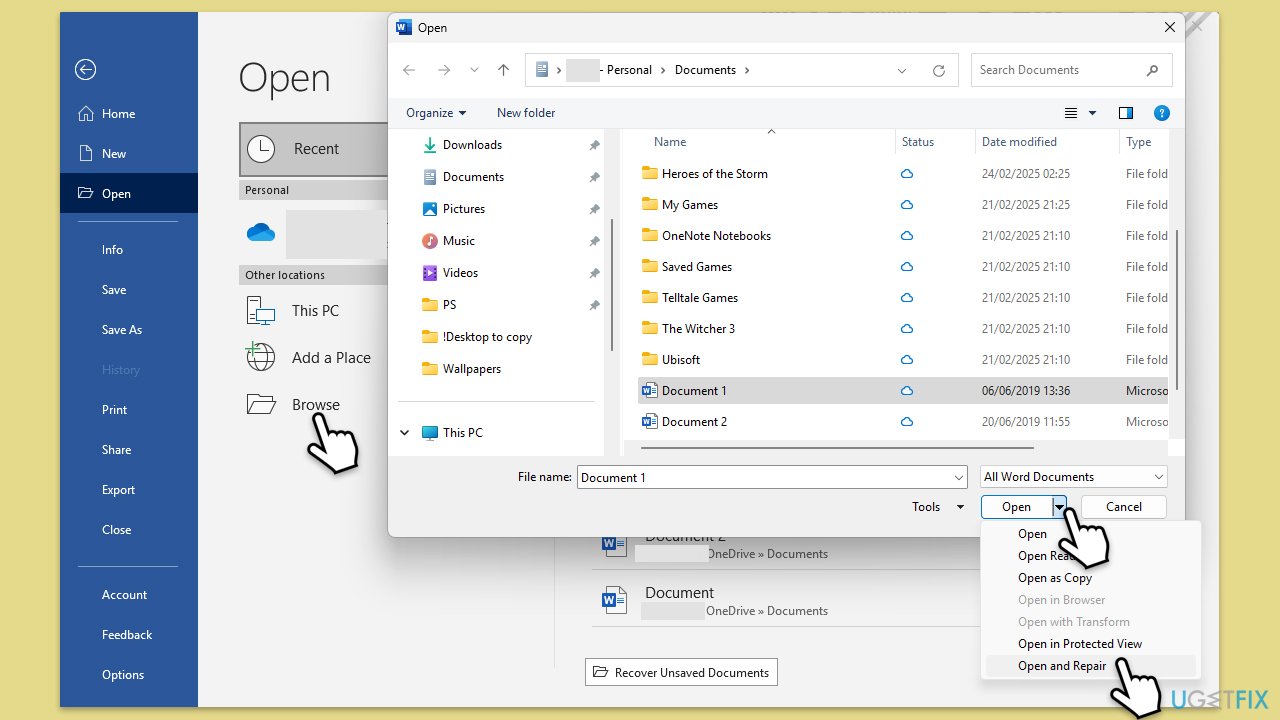
- Open your Office application and click File > Open.
- Select the problematic file, click the drop-down arrow next to Open, and choose Open and Repair.
- Save the file if it opens correctly.
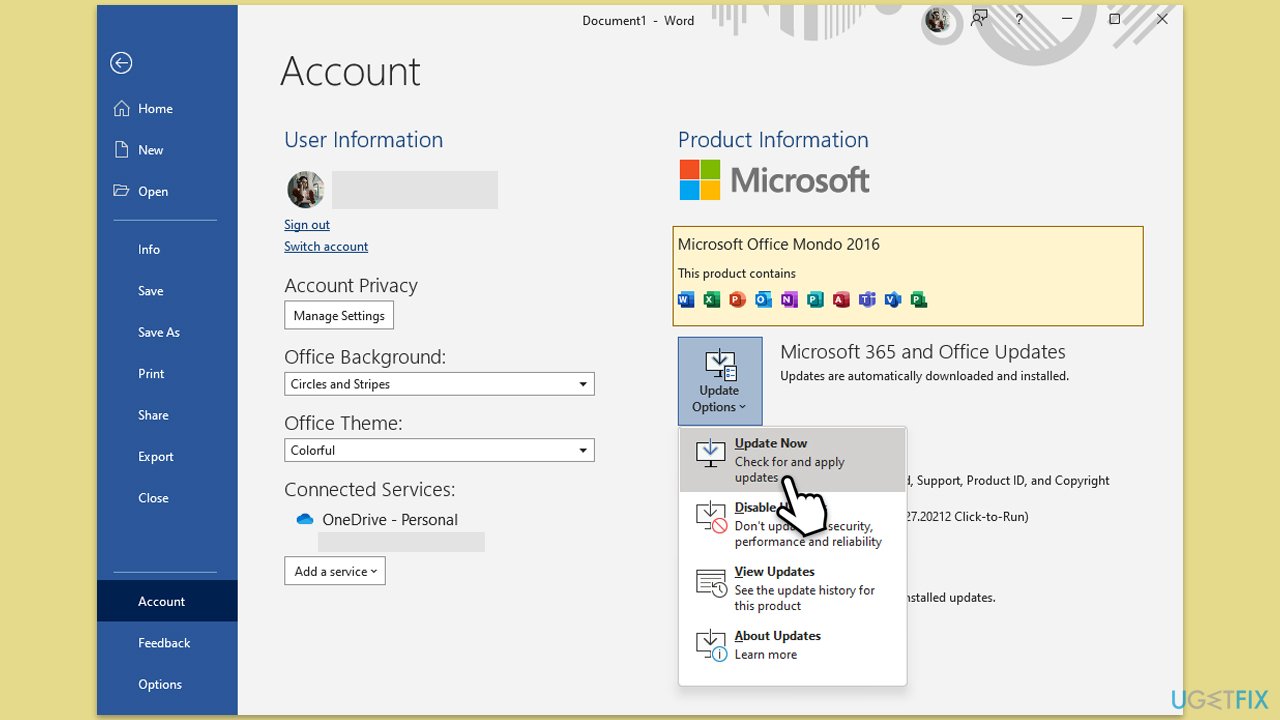
Fix 6. Update Office
Ensuring that your Office suite is fully updated can resolve compatibility issues that cause the error.
- Open any Office app, such as Word or Excel.
- Click on the File tab in the top-left corner.
- Select Account from the menu.
- Under the Product Information section, click on Update Options.
- Choose Update Now to check for and install any available updates.
- Restart the Office application after the update is complete to see if the issue is resolved.
Fix 7. Run SFC and DISM scans
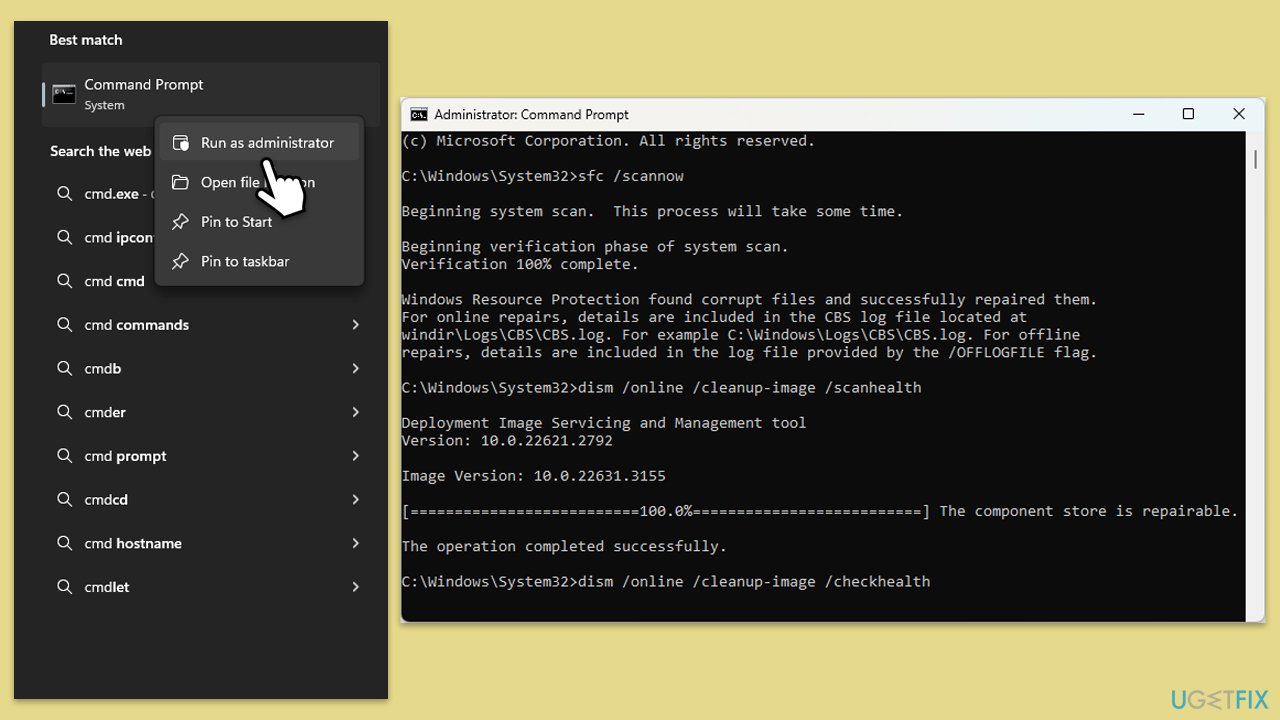
Corrupted system files can lead to "Microsoft Office has detected a problem with this file" error. Running system scans repairs these underlying issues.
- Type in cmd in Windows search.
- Right-click on Command Prompt and select Run as administrator.
- In the User Account Control window, click Yes.
- In the Command Prompt window, paste the following command and hit Enter:
sfc /scannow - Next, use the following commands, pressing Enter each time:
Dism /Online /Cleanup-Image /CheckHealth
Dism /Online /Cleanup-Image /ScanHealth
Dism /Online /Cleanup-Image /RestoreHealth
(Note: if you get an error executing this last command, add /Source:C:\RepairSource\Windows /LimitAccess to it and try again). - Reboot your system.
Fix 8. Use System Restore
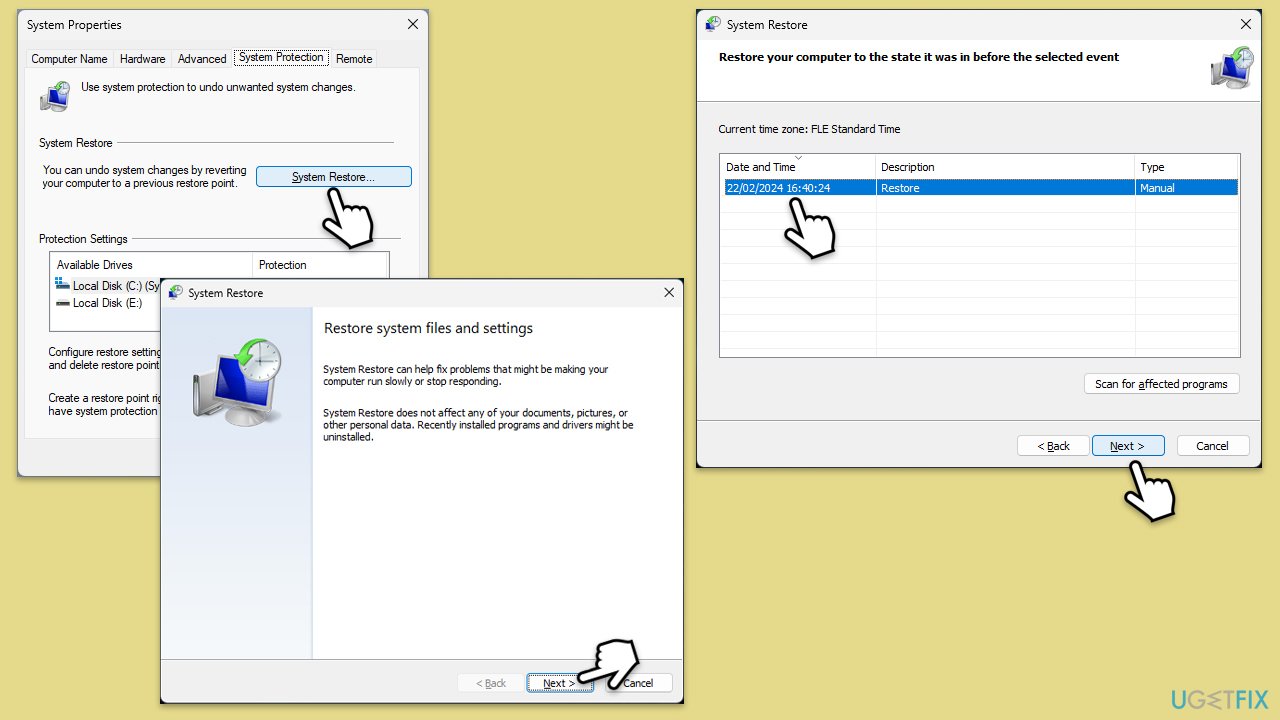
If the issue began recently, restoring your system to an earlier point may fix the error.
- Type in Create a restore point in Windows search and hit Enter.
- In the System Protection tab, pick System restore.
- Click Next.
- Click Show more restore points (if available).
- Pick the time before the problem occurred and click Next.
- Your computer will reboot.
Bottom line
To resolve the error, users should verify the integrity of the file, check compatibility between Office versions, and adjust security settings in both Office and antivirus software. If these steps do not resolve the issue, consider using a repair and maintenance program to restore normal Office functionality.
Frequently asked questions
You can try repairing the Office installation via the Control Panel, or check for updates to ensure you have the latest version installed. Additionally, consider opening the file in Safe Mode to bypass potential issues.
Yes, you can attempt to recover the file by using the 'Open and Repair' feature in Microsoft Office, which can often fix minor corruption. If that doesn't work, check if you have any previous versions of the file saved in your OneDrive or File History.
Absolutely, disabling problematic add-ins can prevent conflicts that lead to this error. You can manage your add-ins through the Options menu in any Office application.




Report an issue
What's wrong with this guide? We review every report and update or remove content.
Report received — thank you. We'll review and fix it.
You need a free account to submit a report.
Be the first to comment