How to fix
Microsoft Office installation error 0-1012
on Windows
Resolve Microsoft Office installation error 0-1012 on Windows 10 and 11 effortlessly. Get expert-tested solutions to fix it in minutes!

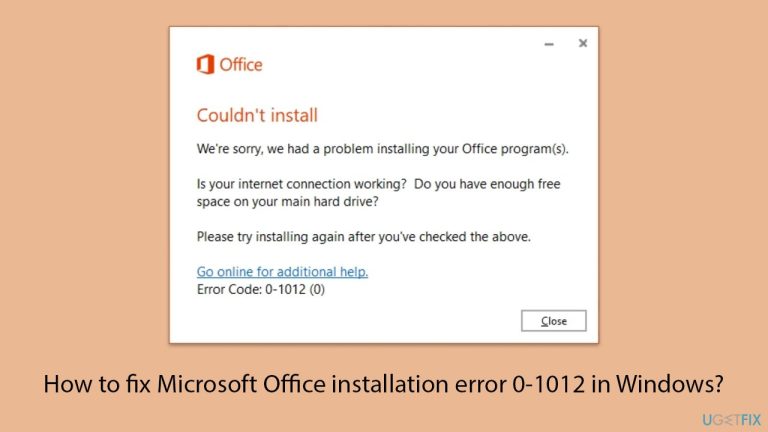
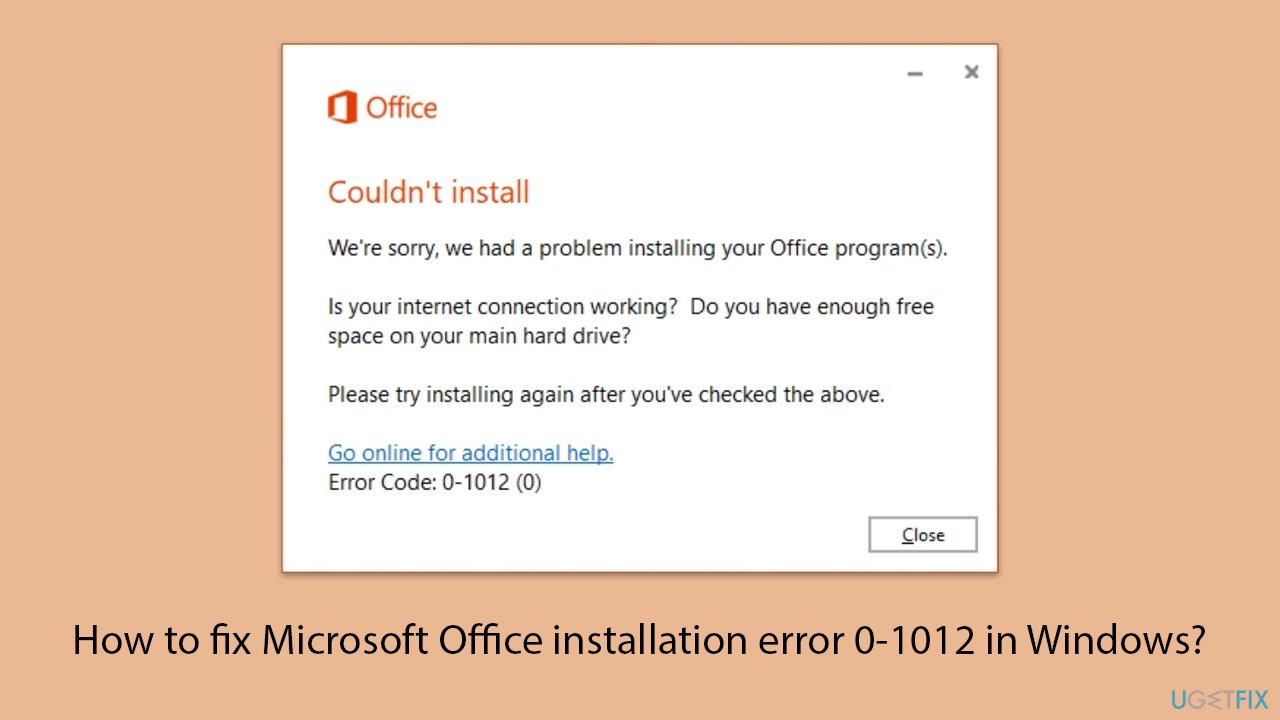
What causes How to fix Microsoft Office installation error 0-1012 in Windows?
- Conflicts with other installed Office versions
- Corruption in downloaded/installed setup files
- System configuration issues
- Residues from a previous Office setup
- Corrupt installation media
Repairs Windows system files, removes malware, and restores a clean OS state — without reinstalling.
Hey there. I have issues with installing Microsoft Office on Windows due to error code 0-1012. The message asks to check the internet connection and space on the drive but these aspects are fine for me. What can I do to fix it?
Error code 0-1012 is one of the errors that can occur during Microsoft Office installation on Windows computers, causing the entire installation process to fail. As a result, users are unable to use key programs like Word, Excel, and PowerPoint.
This type of error is frequently caused by conflicts with other installed Office versions, corruption in downloaded/installed setup files, or system configuration issues. Users have reported that lingering versions of Office or incomplete uninstallations can conflict with new installations, resulting in this same problem.
The major causes for the 0-1012 error include the residues from a previous Office setup that were not cleaned up. These could interfere with any new setup. It could also be due to corrupt installation media or incomplete downloads, which resulted in corrupted or incomplete installation files. System configuration errors, such as incorrect registry entries or permission of the user account, may stop the process from continuing accurately and pop up this error code.
To resolve error 0-1012, it is essential to ensure that all remnants of previous Office installations are thoroughly removed, which may involve using specialized tools or manual deletion of leftover files and registry entries. The next step is to check if the installation media is healthy. Download a fresh copy of the installer in order to eliminate corrupted areas.
This may involve adjusting configurations, such as running the installation as an administrator or editing registry keys, to successfully install your app. The following section will show in detail, step by step, how to implement these solutions.
For a more automatic approach to fixing Windows' deeper issues that might inhibit the installation process, try utilizing the [d1] PC repair tool, which should speed up the repair process, as well as provide the operating system with more stability.
Fix 1 Update Windows
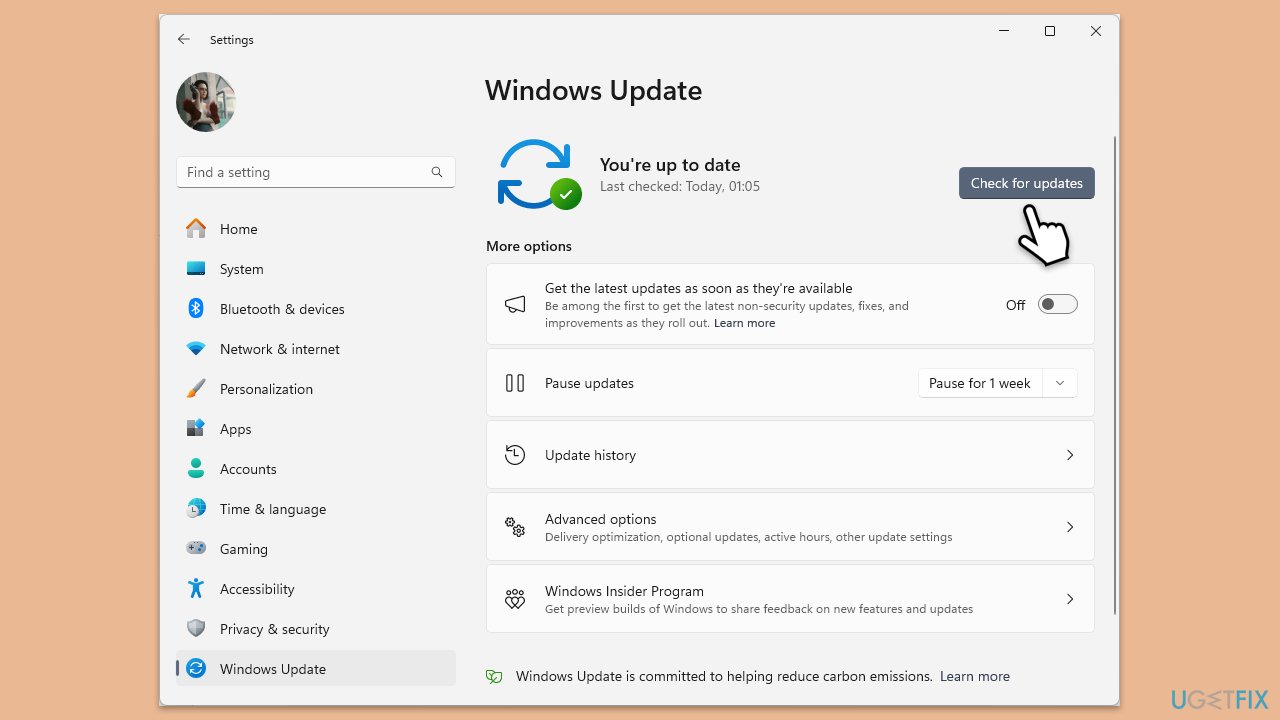
Start with making sure that your operating system is fully updated.
- Type Updates in Windows search and hit Enter.
- If updates are available, click Install updates.
- Otherwise, click Check for updates.
- If optional updates are available, install them as well.
- When all the update processes are complete, restart your computer.
Fix 2. Run the Office installer as an administrator
Running the installer with administrative privileges ensures it has the necessary permissions to make changes to your system.
- Locate the Microsoft Office installation file on your computer.
- Right-click the file and select Run as administrator.
- Follow the installation steps to check if the error is resolved.
Fix 3. Ensure a stable internet connection
An unstable connection can cause incomplete downloads or interruptions during the installation process.
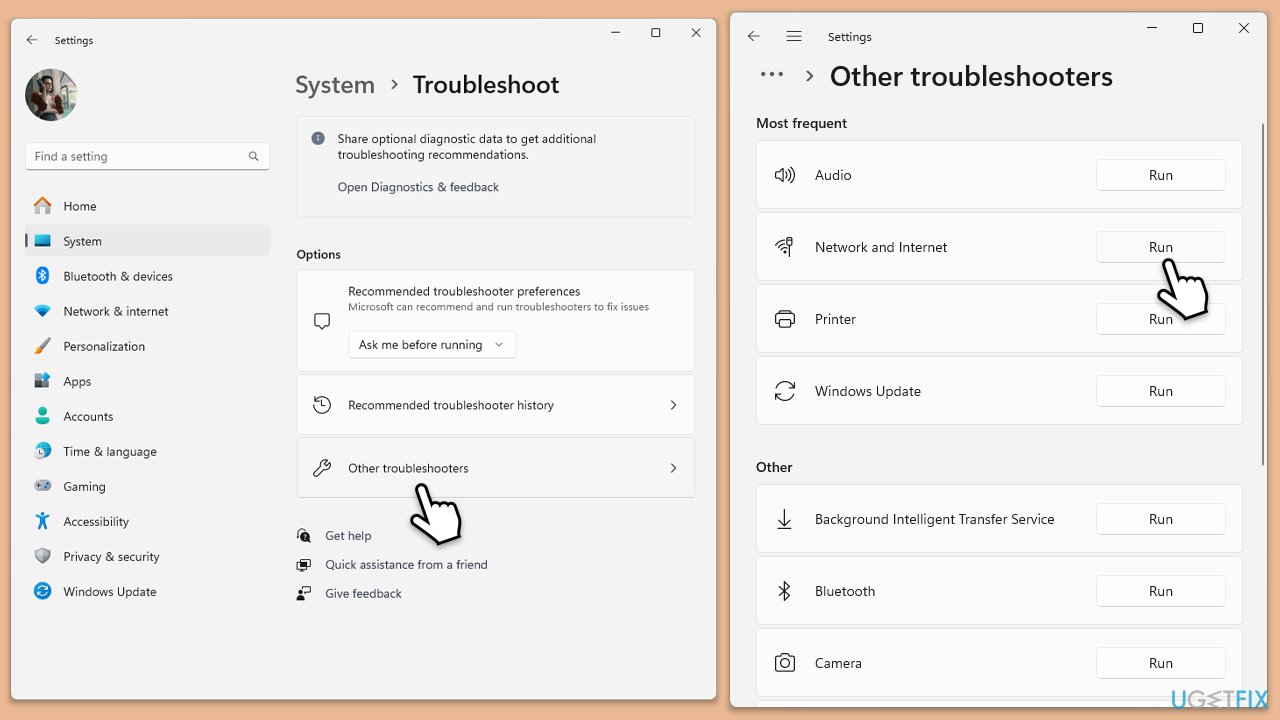
- Type troubleshoot in Windows search and press Enter.
- Click on Troubleshoot settings from the search results.
- Go to Additional troubleshooters/Other troubleshooters.
- Scroll down and click on Network and Internet troubleshooter.
- Click on Run the troubleshooter/Run and wait for the process to complete.
In Windows 10 run Network troubleshooter as follows:
- Right-click on Start and pick Settings.
- Go to the Network & Internet section.
- On the right side, find the Advanced network settings section.
- Click Network troubleshooter, specify the problem, and wait till the scan is finished.
- When done, apply all the recommendations.
Fix 4. Uninstall any previous Office versions
Leftover files from previous Office installations can interfere with the new installation process.
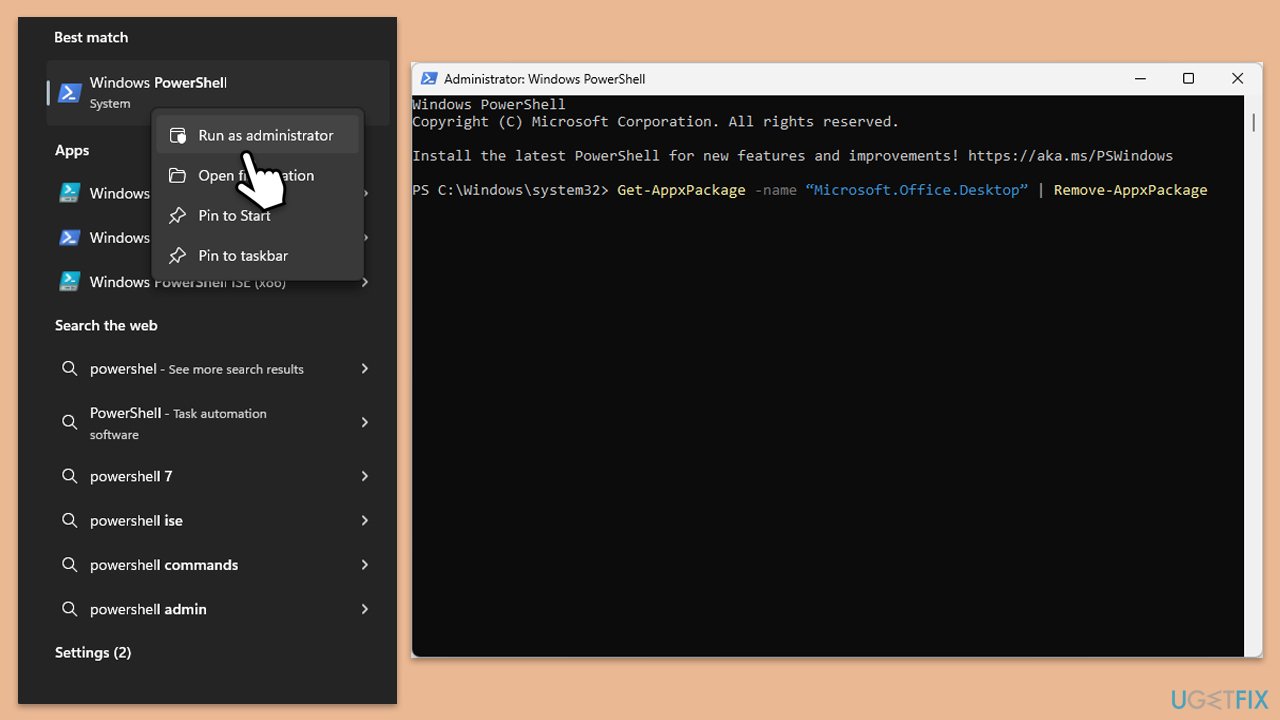
- Type PowerShell in Windows search.
- Right-click on the result and pick Run as administrator.
- When UAC shows up, click Yes.
- In the new window copy and paste the following command, pressing Enter after:
Get-AppxPackage -name “Microsoft.Office.Desktop” | Remove-AppxPackage - Restart your system.
- Go to Microsoft Store and download the newest version of MS Office.
Fix 5. Use the Microsoft Support and Recovery Assistant
This tool can automatically diagnose and resolve common issues with Microsoft Office installations.
- Open your browser and go to the official Microsoft support website.
- Scroll down and click Download under Uninstall and reinstall Office.
- Once downloaded, double-click SetupProd_OffScrub.exe to launch it.
- When prompted, click Install.
- Once installed, launch Microsoft Support and Recovery Assistant.
- Select Office & Office Apps and click Next.
- Next, choose I have Office 365 subscription, but I'm having trouble installing it option and click Next.
- Click Yes to begin a scan.
- Follow instructions after the scan is finished.

Fix 6. Delete temporary and cached files
Corrupt or incomplete temporary files can cause issues with the installation process.
- Type %localappdata%\Microsoft\Office\16.0\OfficeFileCache in Windows search and hit Enter to navigate to the OfficeFileCache folder.
- Delete all files within the OfficeFileCache folder - press Shift + Del for quick action.
- After clearing the cache, restart your computer and attempt to install Office again.
Fix 7. Use offline installer
Offline installer might be the trick that could help you fix the Microsoft Office installation error 0-1012.
- Go to office.com and sign in with your account (ensure it's the same account used for subscription purchases).
- Select Install Office, then choose Install Office again on the Installs page.
- In the Download and Install window, click on Other options.
- Check the box to download the offline installer and select your preferred language. Click Download.
- Save the installation file to a drive with sufficient storage space; it will create a virtual drive.
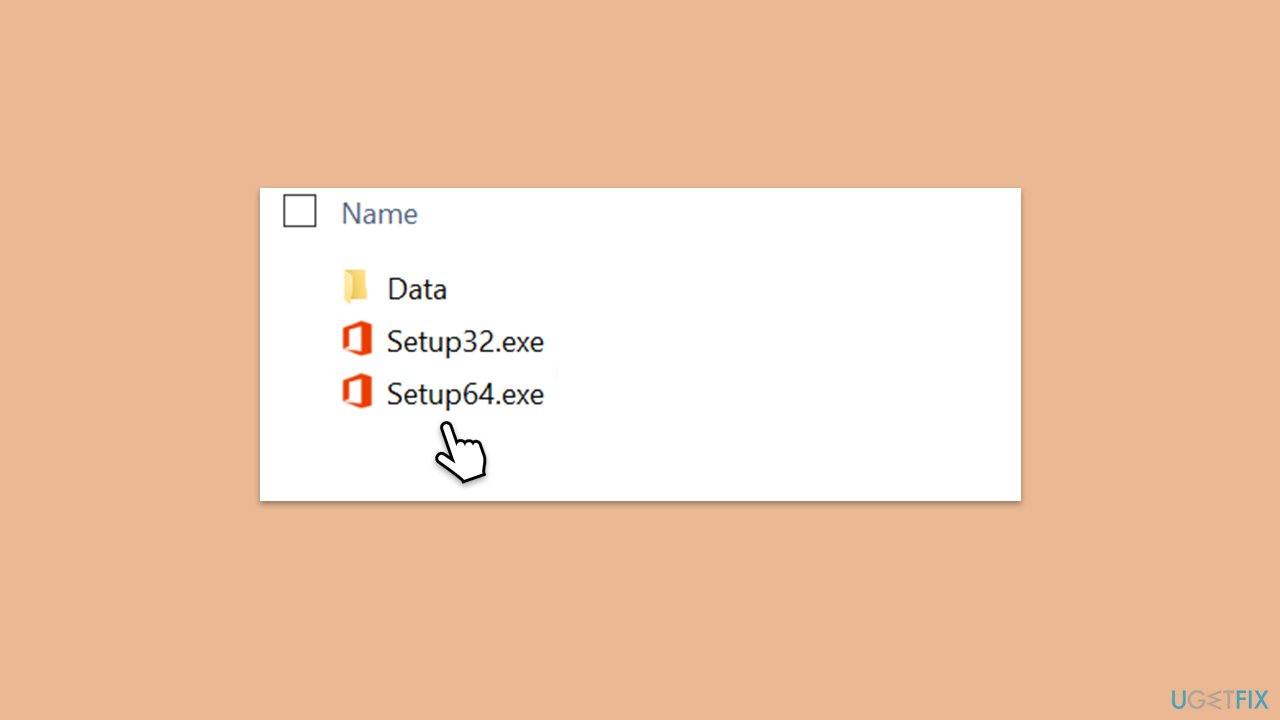
- Double-click the downloaded file, which will appear in File Explorer.
- Click on the virtual disk, then double-click either Setup32.exe or Setup64.exe to initiate the installation.
Bottom line
To resolve error 0-1012, ensure all remnants of previous Office installations are thoroughly removed and check if the installation media is healthy. Additionally, consider running the installation as an administrator or editing registry keys. If these solutions do not work, try utilizing a PC repair tool for deeper issues.
Frequently asked questions
The error 0-1012 typically occurs due to corrupted installation files, conflicts with antivirus software, or issues with the Windows registry. Ensuring a clean installation environment can help resolve this issue.
To repair Microsoft Office, go to Settings > Apps > Apps & features, find Microsoft Office, click on it, and select 'Modify.' Then choose the 'Quick Repair' or 'Online Repair' option to fix the installation.
Uninstalling Office is not necessary before attempting repairs; however, if repairs fail, a complete uninstallation and reinstallation might be required to resolve error 0-1012.




Report an issue
What's wrong with this guide? We review every report and update or remove content.
Report received — thank you. We'll review and fix it.
You need a free account to submit a report.
Be the first to comment