How to fix
Microsoft Office installation error 30094-1011
on Windows
Resolve Microsoft Office installation error 30094-1011 on Windows 10 and 11 effortlessly. Get expert-tested solutions for a smooth setup!

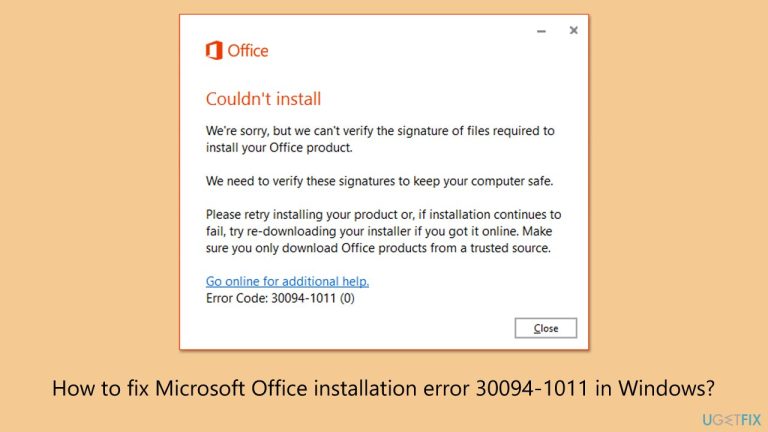
What causes How to fix Microsoft Office installation error 30094-1011 in Windows?
- Incomplete or damaged installation files
- Interference from security software
- Conflicts due to residual files or registry entries from previous installations
- Damaged or defective user profile
- Missing permissions in the user profile
Repairs Windows system files, removes malware, and restores a clean OS state — without reinstalling.
Hey, I have a problem with installing Microsoft Office 2021. I purchased the license and then download the installed from the official Microsoft website. However, it stops at some point and provides an error code: 30094-1011. How can I fix this?
The 30094-1011 error is one of the issues that occur during Microsoft Office installation, which stops the process and makes users unable to continue with the setup. This usually happens when installation files are not able to pass the verification criteria where digital signatures of the files are not verified.
Many users report encountering this Office error 30094-1011 after uninstalling a previous Office version or trying to install a new one on a brand new or freshly configured user profile.
Error 30094-1011 in Microsoft Office usually occurs due to incomplete or damaged installation files. This could be due to an interrupted download or a problem with the installer itself. Other common causes include interference from security software, such as antivirus programs or firewalls, which may block the installer from accessing the necessary files or completing verification.
Conflicts due to residual files or registry entries from previous Office installations will also impede the setup in its tracks. Sometimes, the problem might be attributed to a damaged or defective user profile - a profile missing certain permissions, or damaged, so the installation is not able to access all the necessary resources in your system.
To fix the 30094-1011 error, one should check that the installation files are complete. It might require re-downloading from the official Microsoft website to ensure that corruption is ruled out. In other cases, disabling third-party antivirus or similar software can help resolve the situation.
Removing all leftover files and registry entries from previous Office installations is another effective step to prevent conflicts. Additionally, creating a new user profile with administrator privileges may bypass issues related to permissions or profile corruption, facilitating a smooth installation process.
To effectively fix the root causes of Microsoft Office error 30094-1011, the [d1] PC repair tool provides an automated solution to troubleshoot and enhance system stability.

Fix 1. Run troubleshooters
- Type troubleshoot in Windows search and press Enter.
- Click on Troubleshoot settings from the search results.
- Go to Additional troubleshooters/Other troubleshooters.
- Scroll down and click on Windows Store Apps.
- Click on Run the troubleshooter/Run and wait for the process to complete.
- Repeat with Network and Internet troubleshooter.
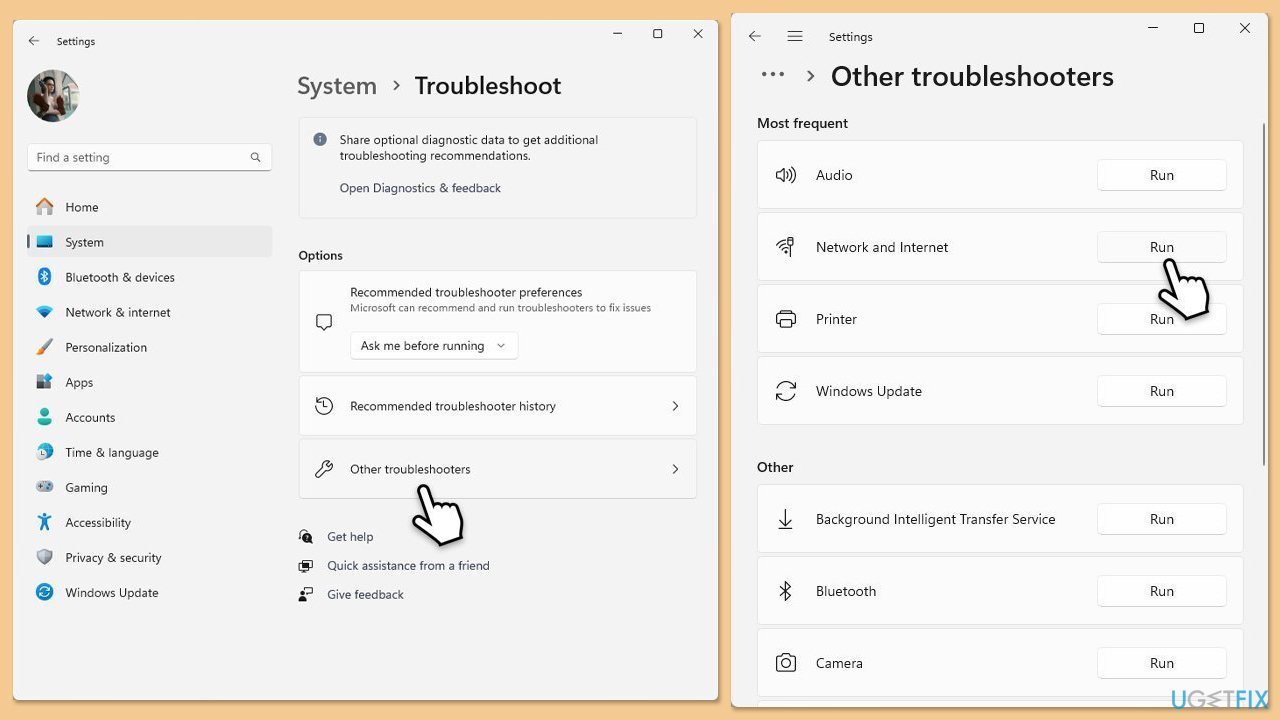
In Windows 10 use the following instructions:
- Right-click on Start and pick Settings.
- Go to the Network & Internet section.
- On the right side, find the Advanced network settings section.
- Click Network troubleshooter, specify the problem, and wait till the scan is finished.
- When done, apply all the recommendations.
Fix 2. Uninstall previous Office versions
If you had Office previously installed on your system, you should make sure that all the residual files are deleted.
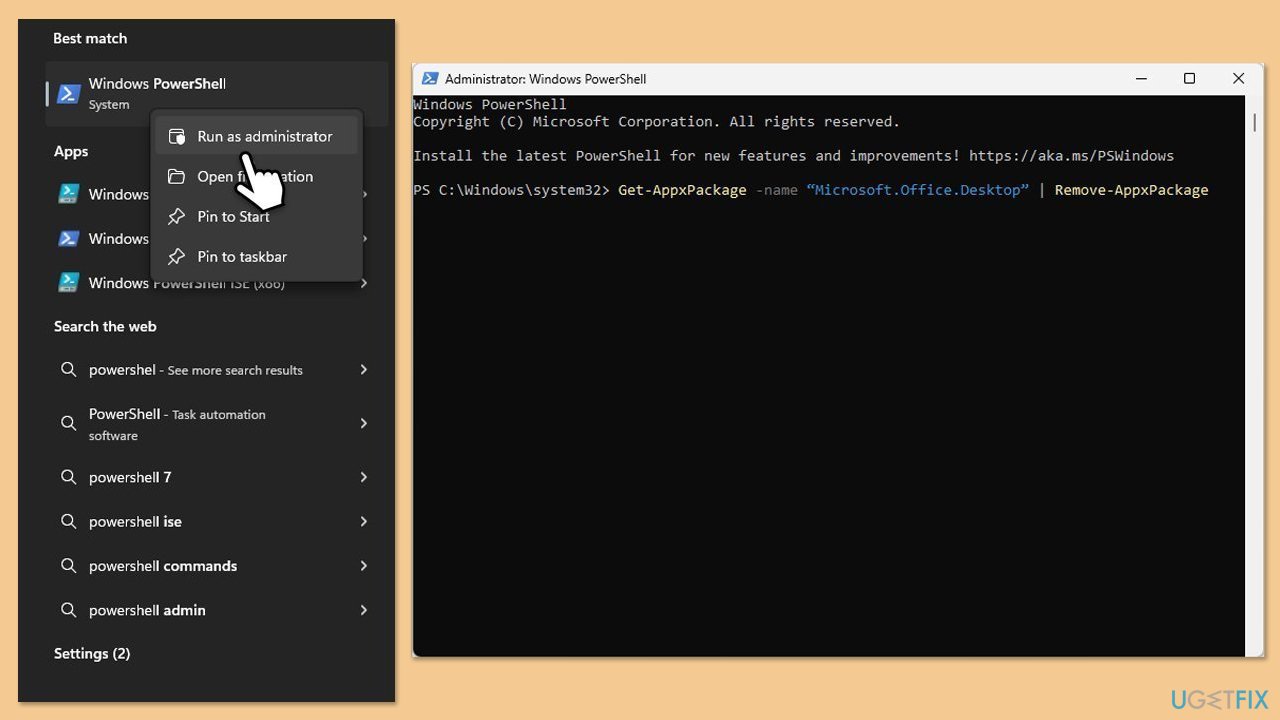
- Type PowerShell in Windows search.
- Right-click on the result and pick Run as administrator.
- When UAC shows up, click Yes.
- In the new window copy and paste the following command, pressing Enter after:
Get-AppxPackage -name “Microsoft.Office.Desktop” | Remove-AppxPackage - Restart your system.
- Download the adequate version of MS Office and install it.
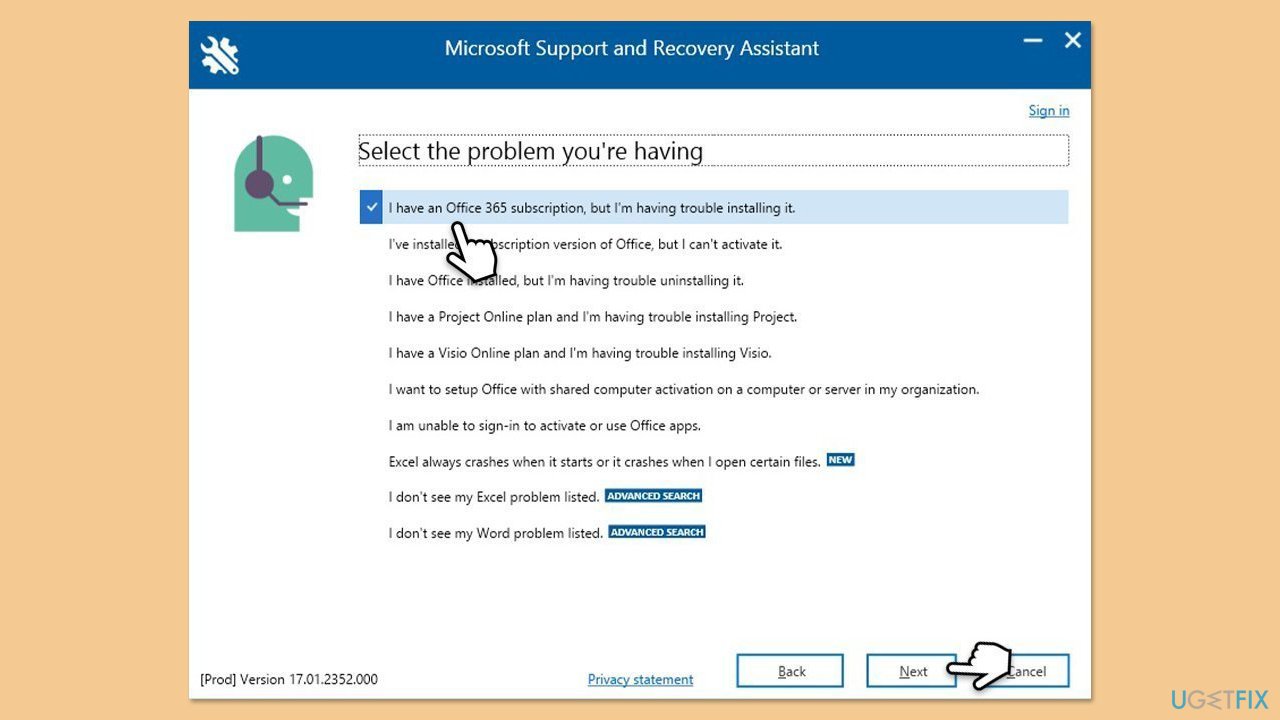
Fix 3. Use Microsoft Recovery and Support Assistant
If you never had Office installed on your system before or removing residual files did not help, try running the official tool from Microsoft.
- Open your browser and go to the official Microsoft support website.
- Scroll down and click Download under Uninstall and reinstall Office.
- Once downloaded, double-click SetupProd_OffScrub.exe to launch it.
- When prompted, click Install.
- Once installed, launch Microsoft Support and Recovery Assistant.
- Select Office & Office Apps and click Next.
- Next, choose I have Office 365 subscription, but I'm having trouble installing it option and click Next.
- Click Yes to begin a scan.
- Follow instructions after the scan is finished.
Fix 4. Run Clean Boot
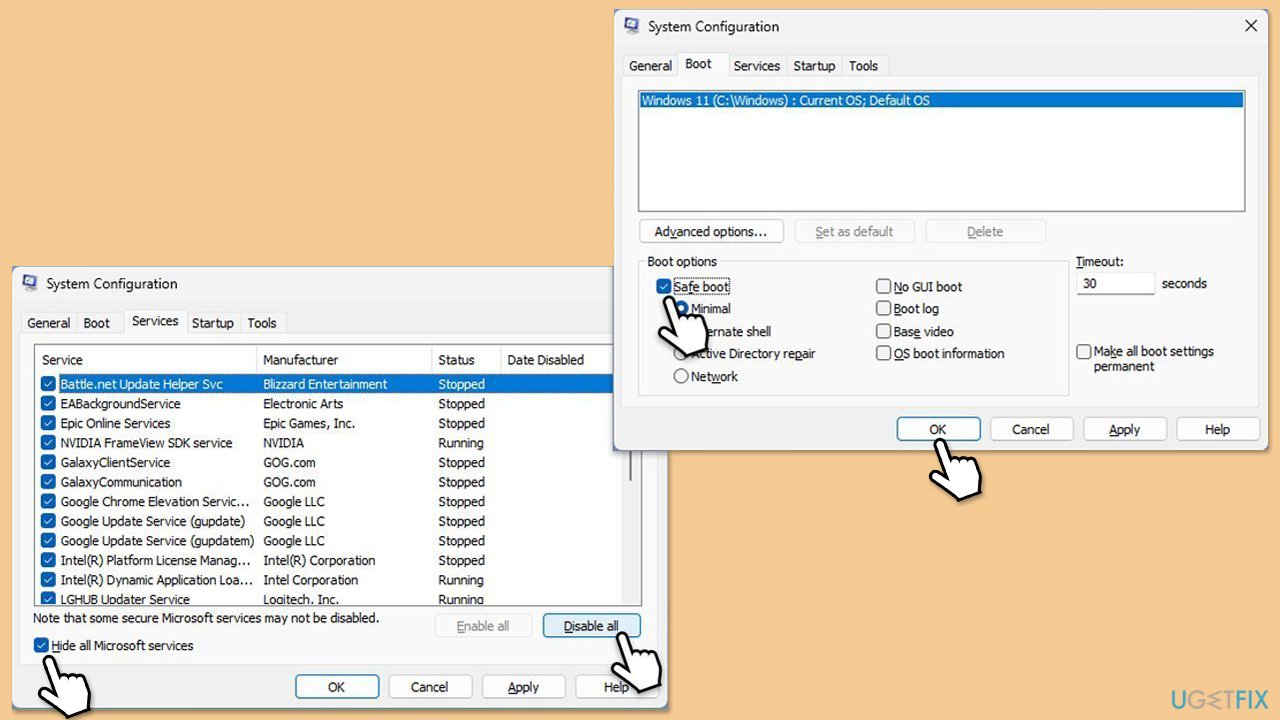
Clean boot launches the system with minimal amount of drivers and disables all unnecessary software, so you can try installing the app in this state.
- Type msconfig in the Windows search box and press Enter.
- Pick the Services tab.
- Mark Hide all Microsoft services and select Disable all.
- Select the Startup tab and click Open Task Manager.
- In the Task Manager, right-click on each of the items and select Disable, then close the Task Manager.
- Go to the Boot tab, mark the Safe Boot option, then click Apply and OK.
- On the System Configuration window, click OK.
- Attempt to install Office again.
Fix 5. Clear Office installation files
- Press Win + R to open the Run dialog.
- Type in %programfiles% and press Enter or click OK.
- Locate and delete any Microsoft Office folders.
- Empty the Recycle Bin to ensure the files are completely removed.
Fix 6. Create a new user profile
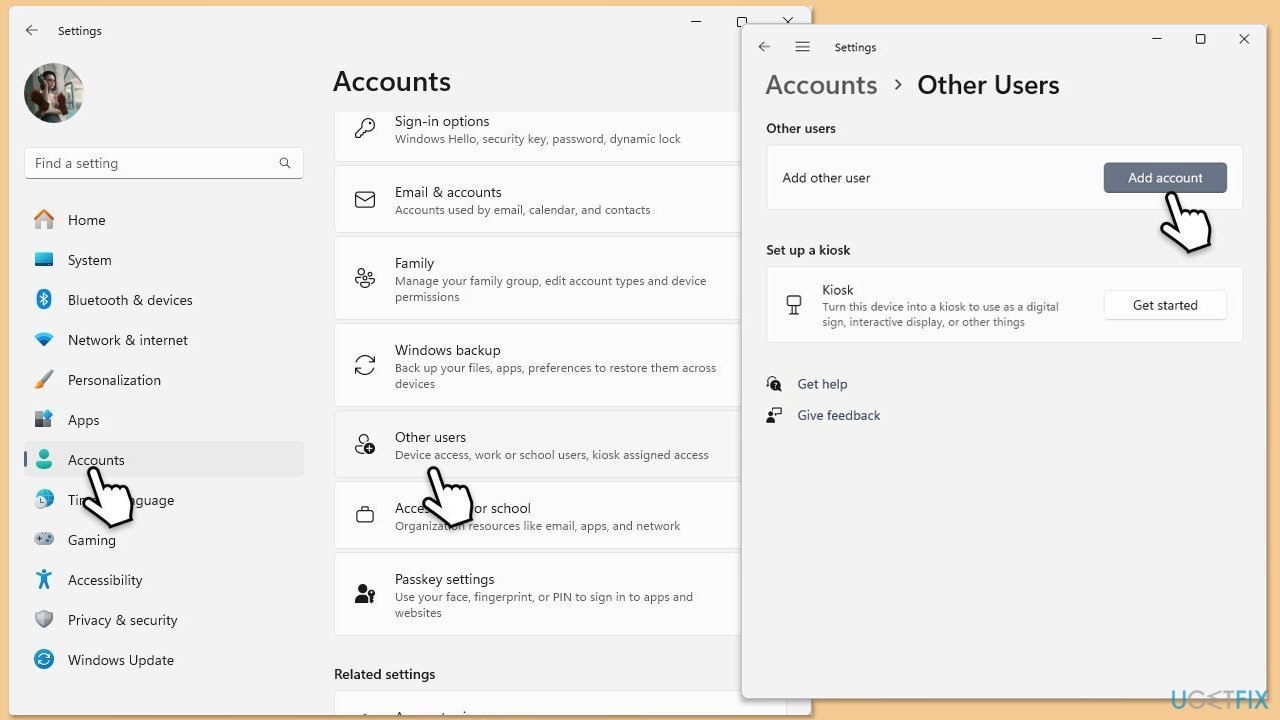
Office installation errors could occur due to corrupted user profile. Thus, try creating a new user account and using it to install the app.
- Open Windows Settings.
- Go to Accounts then Family/Family & other users.
- Under Other users, click Add account/Add someone else to this PC.
- Follow the prompts to create a new user account. If you don't have Microsoft account details, you can choose I don't have this person's sign-in information followed by Add a user without a Microsoft account.
- Assign a username and password for the new account and complete the setup.
- Log out of your current account and log into the new account.
- Try installing Microsoft Office again using the new user profile.
Bottom line
To fix the 30094-1011 error, ensure that the installation files are complete by re-downloading them from the official Microsoft website. Disabling third-party antivirus software, removing leftover files and registry entries, and creating a new user profile with administrator privileges can also help. If none of these solutions work, consider using a PC repair tool for automated troubleshooting.
Frequently asked questions
To fix the error 30094-1011 on Windows 10, you can try running the Office Repair tool from the Control Panel and then restart your computer.
Yes, you can use the Microsoft Support and Recovery Assistant to troubleshoot and fix the installation error without needing to uninstall Office on Windows 11.
You can check for Windows updates by going to Settings > Update & Security > Windows Update and clicking on 'Check for updates' to ensure that your system is fully up to date.




Report an issue
What's wrong with this guide? We review every report and update or remove content.
Report received — thank you. We'll review and fix it.
You need a free account to submit a report.
Be the first to comment