How to fix
Microsoft Office installation error 30094-2016
on Windows
Resolve the Microsoft Office installation error 30094-2016 on Windows 10 and 11 effortlessly. Quick solutions with expert-tested methods await you!


What causes How to fix Microsoft Office installation error 30094-2016 in Windows?
- Network restrictions such as firewalls or strict configurations
- Antivirus programs interfering with the installation
- Incomplete or corrupted installation files
- Insufficient permissions such as lack of administrative rights
Repairs Windows system files, removes malware, and restores a clean OS state — without reinstalling.
Hi. I tried to install Microsoft Office but received error code 30094-2016. I did have it installed before and then it somehow got corrupted (I couldn't open any of the apps) so I decided to reinstall it. I need Excel and Word especially for my school word so I hope I can deal with this soon.
Microsoft Office installation error 30094-2016 is a common issue that prevents the completion of the Office setup process. This error disrupts installation by blocking essential actions, leaving you unable to access Microsoft Office applications. While the exact reason behind the error may vary, it often indicates that the installer encountered problems verifying the integrity of required files or accessing necessary resources.
Several potential causes can lead to Microsoft Office installation error 30094-2016. In some cases, network restrictions, such as firewalls or strict configurations, can block the installer from connecting to Microsoft servers to download essential components. Antivirus programs are another frequent source of interference, as they may mistakenly flag the installer’s actions as suspicious, halting the installation process.
Incomplete or corrupted installation files, which can occur due to interrupted downloads, also play a significant role. Moreover, attempting to install Office without sufficient permissions, such as administrative rights, can result in the installer failing to perform critical actions.
You may notice that the installer freezes, displays the error message, or abruptly terminates the installation process. These symptoms highlight underlying issues that require immediate attention to allow the installation to proceed smoothly.
To resolve error 30094-2016, several approaches may help. Ensuring the integrity of the installation files by downloading them again from a trusted source is a good starting point. Temporarily disabling antivirus software and configuring firewalls to allow the installation may also clear any obstructions.
Running the installer with administrative privileges can address permission-related concerns. If these steps do not resolve the issue, consider leveraging the [d1] PC repair tool, which can automatically diagnose and fix underlying system problems, helping to ensure a seamless installation experience for Microsoft Office.

Fix 1. Run the installer as administrator
Running the Microsoft Office installer with administrative privileges ensures it has the necessary permissions to make changes to your system.
- Locate the Office installer you downloaded from the official Microsoft website.
- Right-click the file and select Run as administrator.
- Follow the on-screen instructions to see if the installation completes successfully.
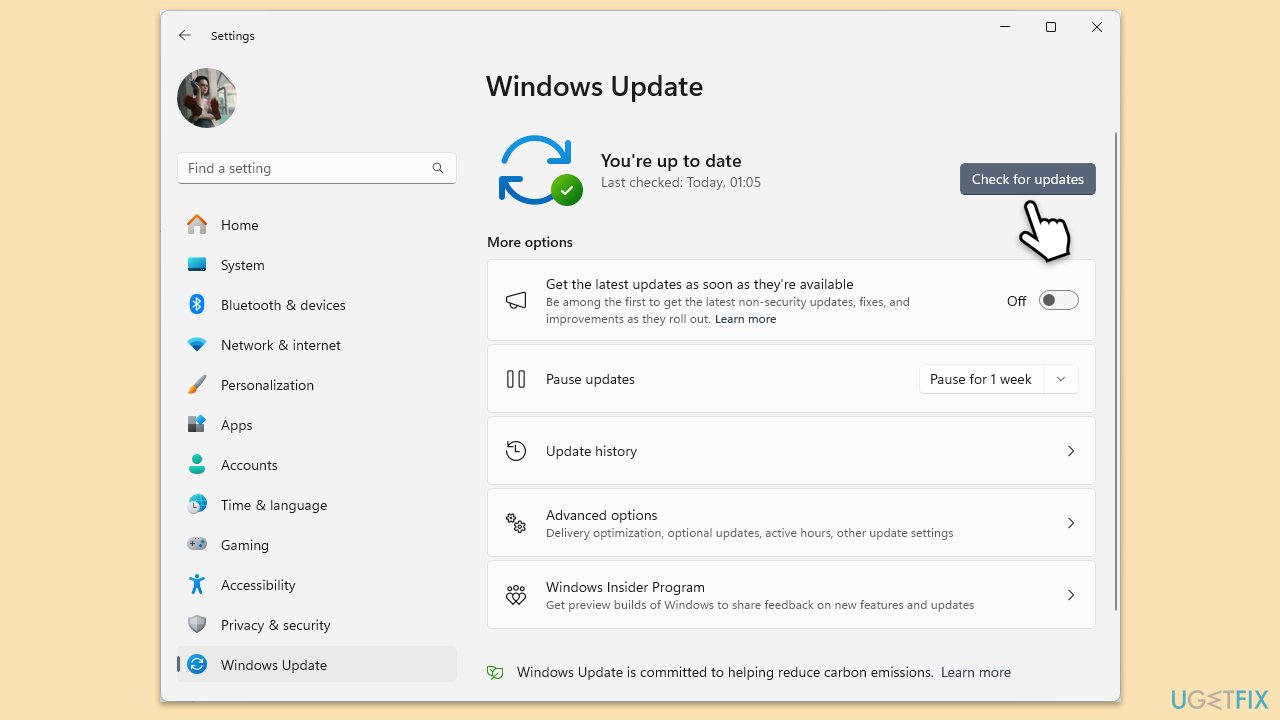
Fix 2. Install Windows updates
- Type Updates in Windows search and hit Enter.
- If updates are available, click Install updates.
- Otherwise, click Check for updates.
- If optional updates are available, install them as well.
- When all the update processes are complete, restart your computer.
Fix 3. Use Microsoft Support and Recovery Assistant
- Open your browser and go to the official Microsoft support website.
- Scroll down and click Download under Uninstall and reinstall Office.
- Once downloaded, double-click SetupProd_OffScrub.exe to launch it.
- When prompted, click Install.
- Once installed, launch Microsoft Support and Recovery Assistant.
- Select Office & Office Apps and click Next.
- Next, pick I have Office 365 subscription, but I'm having trouble installing it and click Next.
- Click Yes to begin a scan.
- Follow instructions after the scan is finished.

Fix 4. Disable antivirus and firewall
Firewalls and anti-malware tools may block the installer from accessing Microsoft servers, causing the installation to fail.
- Right-click your antivirus program in the taskbar and select Disable.
- Type Firewall & network protection in the search bar, then open the app.
- Turn off the firewall for Domain, Private, and Public networks.
- Attempt the Office installation and re-enable antivirus/firewall after completion.
Fix 5. Remove remnants of previous Office installations
Leftover files from older Office installations can cause conflicts with new installations.
- Type PowerShell in Windows search.
- Right-click on the result and pick Run as administrator.
- When UAC shows up, click Yes.
- In the new window copy and paste the following command, pressing Enter after:
Get-AppxPackage -name “Microsoft.Office.Desktop” | Remove-AppxPackage - Restart your system.
- Go to Microsoft Store and download the newest version of MS Office.

Option 2:
- Navigate to the official website for Office removal.
- Under Click-to-Run or MSI, expand Option 2 (or click this link)
- Click the Download button.
- Download the file and launch it.
- Select which version of Office you want to uninstall and proceed with on-screen instructions.
Fix 6. Repair corrupted system files
- Type cmd in Windows search.
- Right-click on Command Prompt and select Run as administrator.
- User Account Control will ask whether you want to make changes - click Yes.
- Paste the following command and press Enter:
sfc /scannow - Wait till the scan is finished
- Once that is done, use the following commands, pressing Enter each time:
dism /online /cleanup-image /scanhealth
dism /online /cleanup-image /checkhealth
dism /online /cleanup-image /restorehealth - Reboot your device.

Bottom line
To resolve error 30094-2016, ensure the integrity of the installation files by downloading them again, temporarily disable antivirus software, and run the installer with administrative privileges. If these steps do not resolve the issue, consider using a PC repair tool to diagnose and fix underlying system problems.
Frequently asked questions
This error often occurs due to corrupted installation files or issues with the Windows registry. Ensuring your system is updated and performing a clean installation of Office can help resolve the issue.
To fix this error on Windows 11, try using the Microsoft Support and Recovery Assistant tool, which can automatically diagnose and repair Office installation problems.
Yes, you can attempt to repair the Office installation via the Control Panel by selecting 'Repair' under the Office product, which can resolve the error without a complete reinstallation.




Report an issue
What's wrong with this guide? We review every report and update or remove content.
Report received — thank you. We'll review and fix it.
You need a free account to submit a report.
Be the first to comment