How to fix
Microsoft Office installation error 30183-1011
on Windows
Resolve the Microsoft Office installation error 30183-1011 on Windows 10 and 11 effortlessly. Get expert-tested solutions and fix it in minutes!

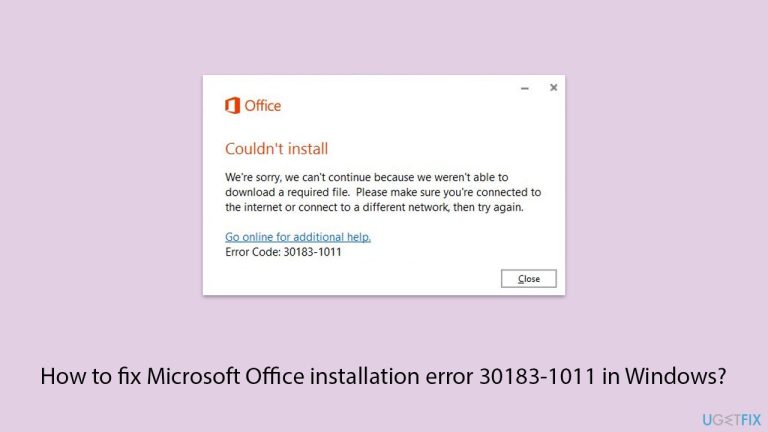
What causes How to fix Microsoft Office installation error 30183-1011 in Windows?
- Poor internet connection
- Too-restrictive firewall settings
- Older version of Windows
- Lack of user permissions to install Office
- Interference from antivirus software
Repairs Windows system files, removes malware, and restores a clean OS state — without reinstalling.
Hello, I can't install Microsoft Office 365 because of an error code 30183-1011. It says that the app couldn't be installed because it was unable to download some file. However, my PC has perfectly fine working internet, so I don't know what is going on or how to fix this.
Error code 30183-1011 is one of the common issues that most people face while installing Microsoft Office on a Windows computer. This error makes the installation process suddenly stall and pop-up a message showing the error code. This can be frustrating, especially if you need Office apps right away.
The various reasons for Office error 30183-1011 are as follows:
- Issues related to the network include a poor internet connection or too-restrictive firewall settings that may block downloading and installing of components of Office.
- System configuration issues include using an older version of Windows or not having permission as a user to install Office.
- Interference from antivirus software can also be one of the causes, whereby very aggressive security software may block legitimate installation activities.
Fixing Office error 30183-1011 involves mostly troubleshooting the problem step by step. First, make sure that your computer is meeting system requirements for Microsoft Office. It's also important to ensure a stable internet connection at the time of installation. Check the settings in the firewall and temporarily disable the antivirus software that might be causing the issue.
It is also important to update Windows on your computer to avoid any compatibility issues. If the installation has previously failed, you may need to run the Office uninstall tool to remove residual files before attempting again.
If the above steps seem daunting or complex, you can use the [d1] repair and maintenance utility. This utility will automatically scan and repair hidden problems in Windows, including tricky ones that may be preventing Office from installing correctly, such as 30183-1011.

Fix 1. Run Store apps and Network troubleshooters
Start with built-in troubleshooters - Store apps troubleshooter will ensure that there are no errors related to installation process and Network troubleshooter will check for connection issues.
- Type troubleshoot in Windows search and press Enter.
- Click on Troubleshoot settings from the search results.
- Go to Additional troubleshooters/Other troubleshooters.
- Scroll down and click on Windows Store Apps.
- Click on Run the troubleshooter/Run and wait for the process to complete.
- Repeat with Network and Internet troubleshooter.
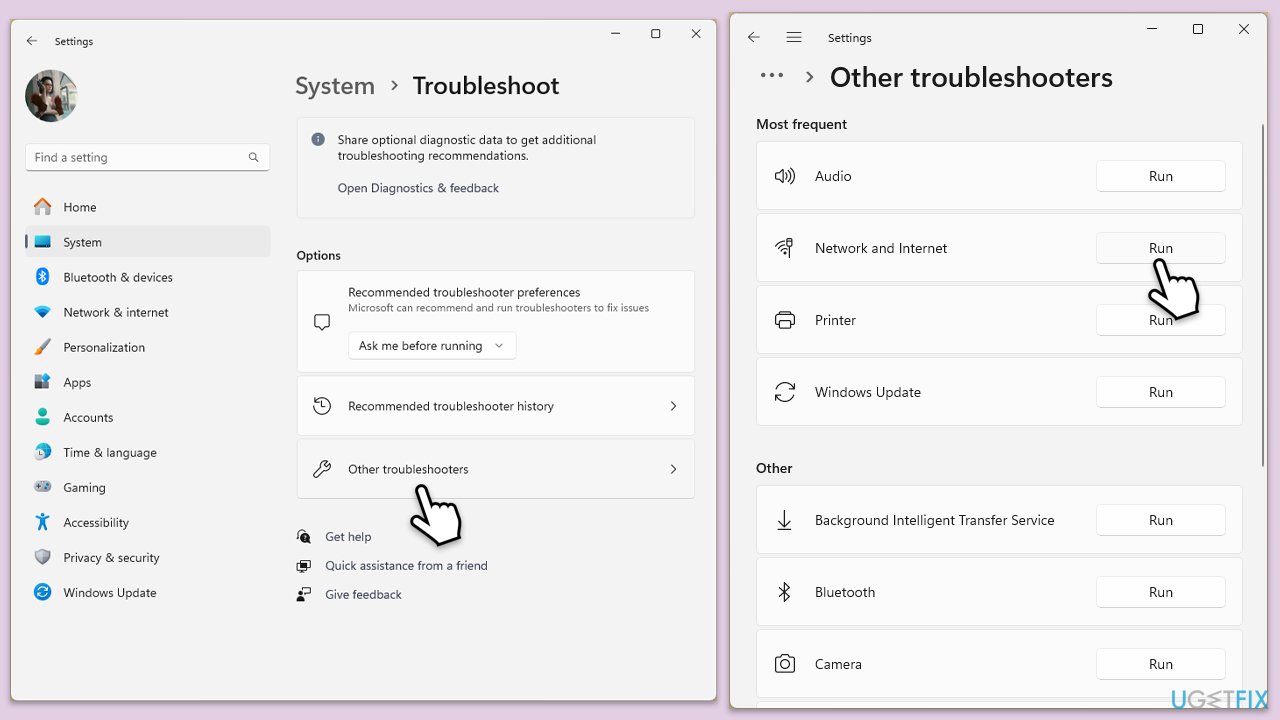
To run Network troubleshooter in Windows 10, follow these steps:
- Right-click on Start and pick Settings.
- Go to Network & Internet section.
- On the right side, find the Advanced network settings section.
- Click Network troubleshooter and wait.
- The fixes will be automatically applied.
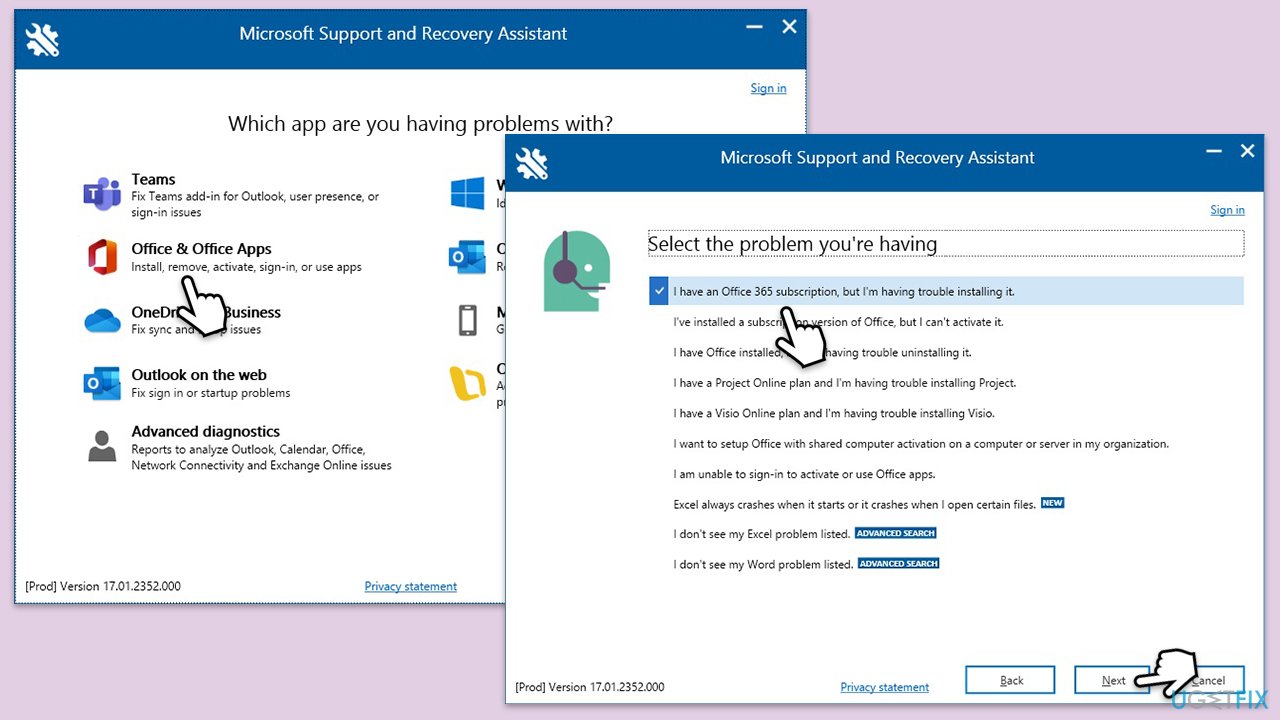
Fix 2. Use Microsoft Support and Recovery Assistant
The old setup files of the previous installations may still be in your system and prevent the new installation of Office. Remove all leftovers from the older versions by using the official Microsoft Uninstall Support Tool.
- Open your browser and go to the official Microsoft support website.
- Scroll down and click Download under Uninstall and reinstall Office.
- Once downloaded, double-click SetupProd_OffScrub.exe to launch it.
- When prompted, click Install.
- Once installed, launch Microsoft Support and Recovery Assistant.
- Select Office & Office Apps and click Next.
- Next, pick I have Office 365 subscription, but I'm having trouble installing it and click Next.
- Click Yes to begin a scan.
- Follow instructions after the scan is finished.
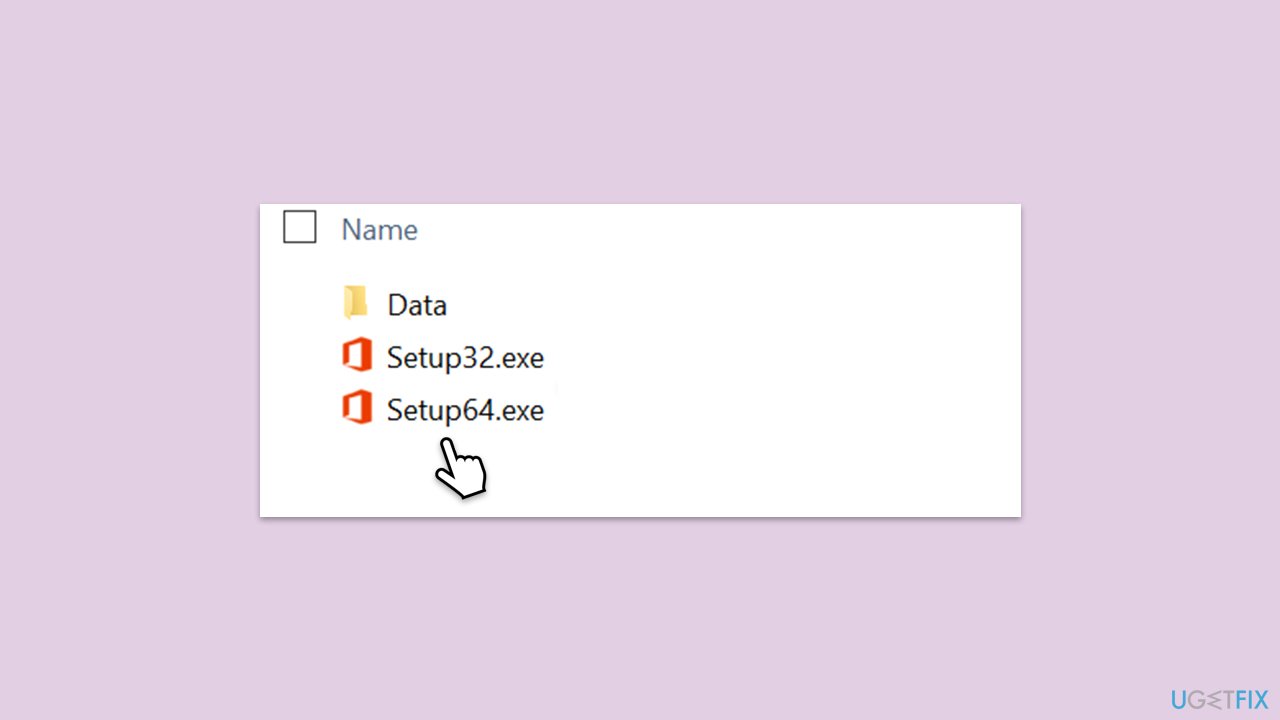
Fix 3. Use Offline installer
- Go to office.com and sign in with your account (ensure it's the same account used for subscription purchases).
- Select Install Office, then choose Install Office again on the Installs page.
- In the Download and Install window, click on Other options.
- Check the box to download the offline installer and select your preferred language. Click Download.
- Save the installation file to a drive with sufficient storage space; it will create a virtual drive.
- Double-click the downloaded file, which will appear in File Explorer.
- Click on the virtual disk, then double-click either Setup32.exe or Setup64.exe to initiate the installation.
Fix 4. Uninstall previous Office versions
If you are reinstalling Office, it could be that old files are left on your system and prevent the installation.
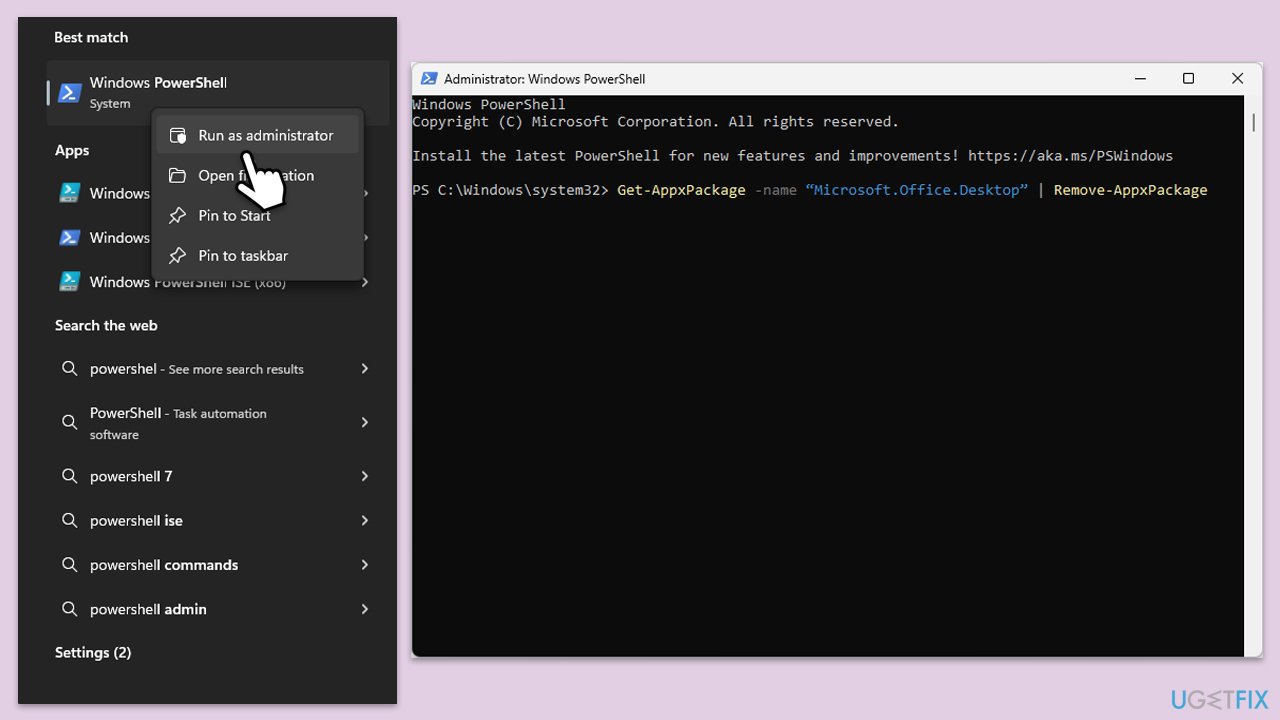
- Type PowerShell in Windows search.
- Right-click on the result and pick Run as administrator.
- When UAC shows up, click Yes.
- In the new window copy and paste the following command, pressing Enter after:
Get-AppxPackage -name “Microsoft.Office.Desktop” | Remove-AppxPackage - Restart your system.
- Download the adequate version of MS Office and install it.
Alternatively, you can check for installed Office versions in Control Panel\Programs\Programs and Features.
Fix 5. Try installing in Clean Boot state
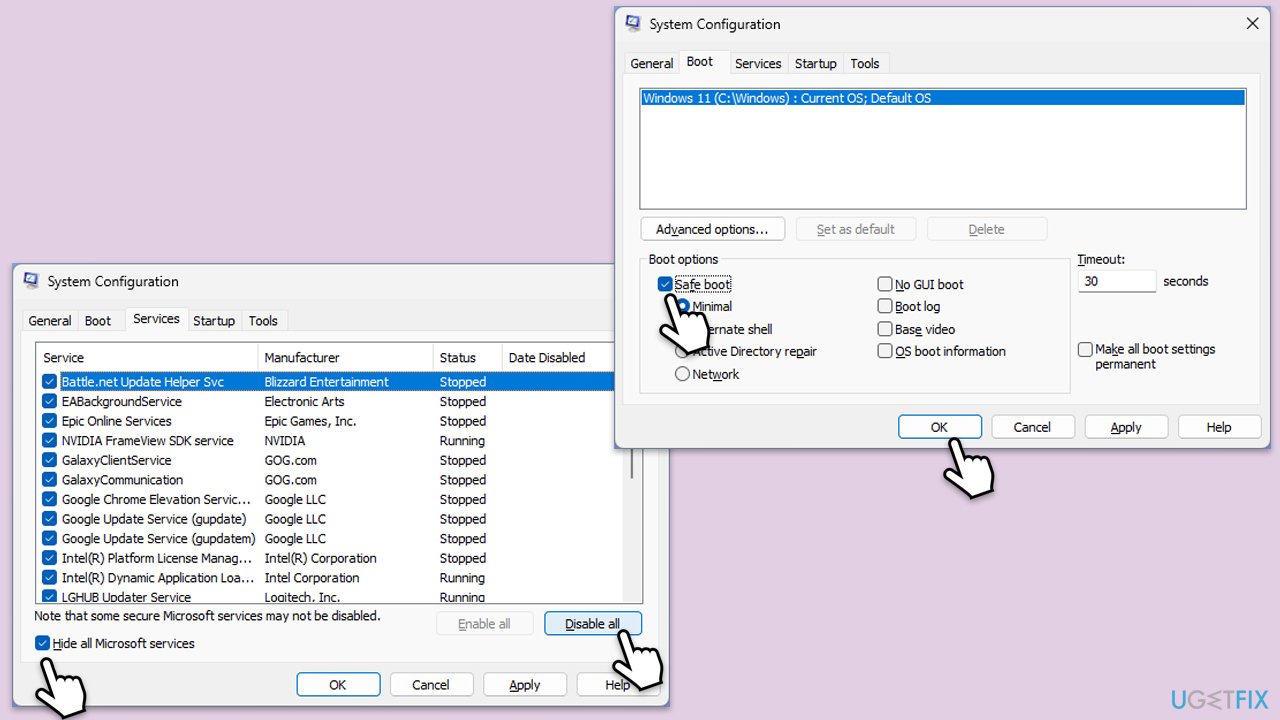
- Type msconfig in the Windows search box and press Enter.
- Pick the Services tab.
- Mark Hide all Microsoft services and select Disable all.
- Select the Startup tab and click Open Task Manager.
- In the Task Manager, right-click on each of the items and select Disable, then close the Task Manager.
- Go to the Boot tab, mark the Safe Boot option, then click Apply and OK.
- On the System Configuration window, click OK.
- Restart your computer and attempt to install/update Office.
Fix 6. Disable proxy or VPN
Make sure that proxy or VPN are not blocking the installation of the Office suite.
- Right-click on Start and pick Network connections.
- Navigate to the VPN section and disable it if it's connected.
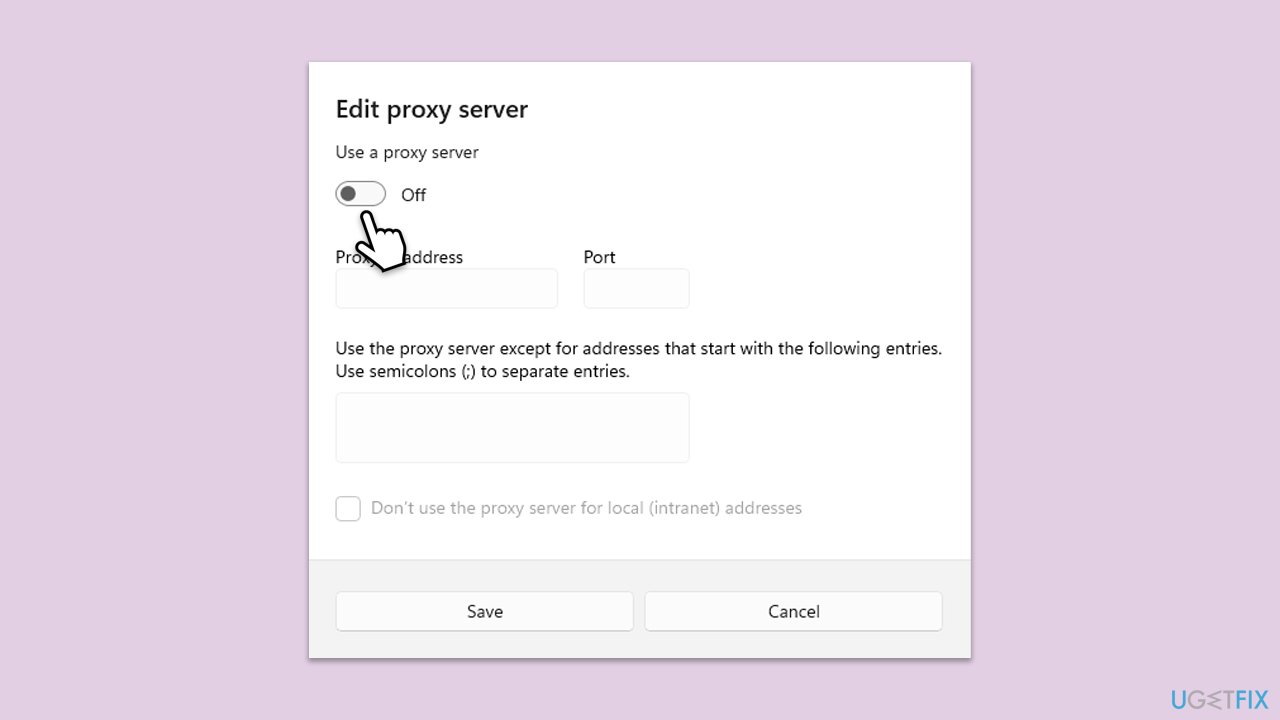
- Then select Proxy.
- Here, disable Proxy if it's enabled.
Fix 7. Clear cache files
- Press Win + R to open the Run dialog.
- Type in %programfiles% and press Enter or click OK.
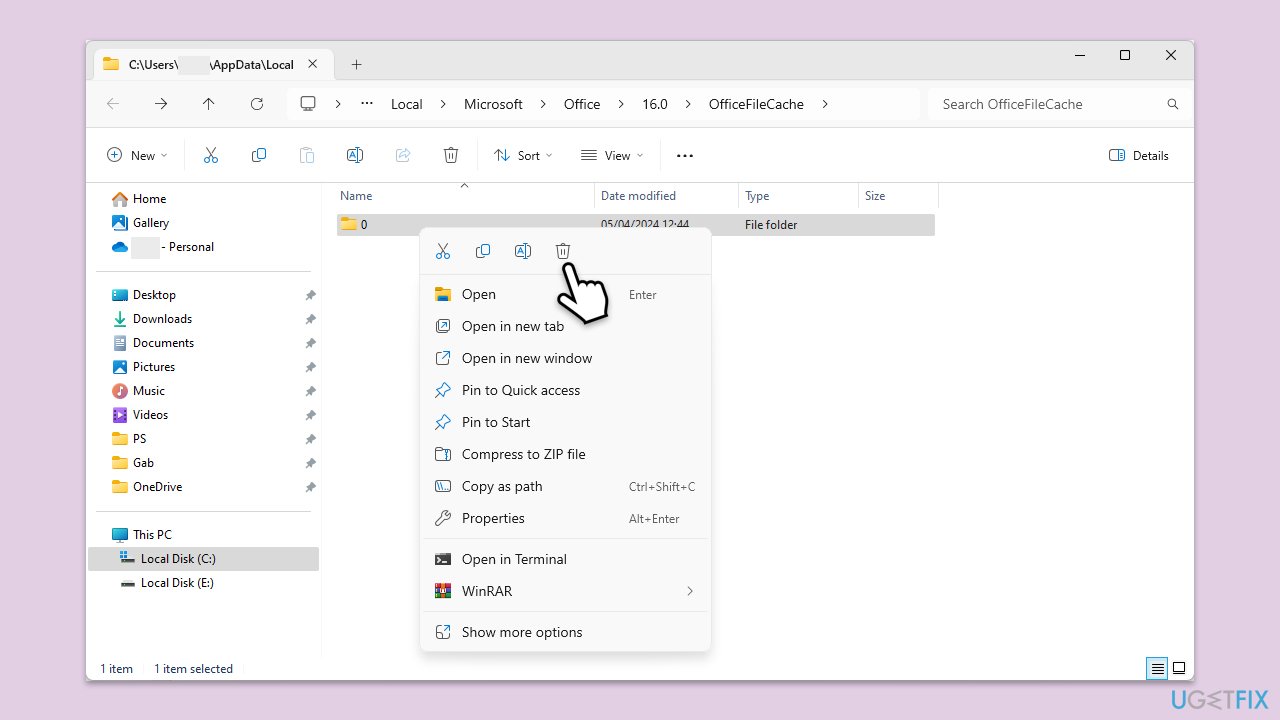
- Locate and delete any Microsoft Office folders.
- Empty the Recycle Bin to ensure the files are completely removed.
Bottom line
To fix the Microsoft Office installation error 30183-1011, ensure your computer meets system requirements, check your internet connection, adjust firewall settings, and temporarily disable antivirus software. Additionally, update Windows and consider using the Office uninstall tool to remove any residual files. If these steps do not resolve the issue, you may want to use the repair and maintenance utility.
Frequently asked questions
This error typically occurs due to a corrupted Office installation or issues with the Windows registry. It can also be triggered by insufficient permissions or conflicts with existing Office products.
You can resolve this error by running the Office Repair tool from the Control Panel or by using the Microsoft Support and Recovery Assistant. Additionally, ensure that your Windows 11 is up to date and try reinstalling Office.
Yes, you can use the command 'OfficeC2RClient.exe /update' in the Command Prompt to attempt an update and fix the installation error. Make sure to run the Command Prompt as an administrator.




Report an issue
What's wrong with this guide? We review every report and update or remove content.
Report received — thank you. We'll review and fix it.
You need a free account to submit a report.
Be the first to comment