How to fix
Microsoft Office installation error code 30016-13
on Windows
Resolve Microsoft Office installation error code 30016-13 on Windows 10 or 11 effortlessly. Expert-tested solutions for a smooth setup. Fixed in minutes!


What causes How to fix Microsoft Office installation error code 30016-13 in Windows?
- Incomplete installation files
- Problems with system components
- Conflicts with other installed software
- Faulty system registry
- Insufficient permissions
- Disruptions during the download or installation process
Repairs Windows system files, removes malware, and restores a clean OS state — without reinstalling.
Hello, I was not able to install Microsoft Office after I got my new laptop today. The error code is 30016-13 with the message "Something went wrong." Any idea how to bypass this error?
Millions of people and companies around the world use the Microsoft Office productivity suite for word processing, data management, email correspondence, and presentation creation, among other uses. These technologies provide a productive way to finish projects, produce papers that seem professional, and expedite work procedures. Owing to its many features and capabilities, users must always ensure that their Office program is up to date with the most recent versions in order to guarantee optimal performance and security.
Some users may run across a particular difficulty when utilizing this crucial tool: Microsoft Office 30016-13 error, which usually occurs when trying to install or update the Office suite. This problem has the potential to interfere with the reliable and seamless functioning that users have been accustomed to from their software purchases.
Error 30016-13 might have several underlying causes, such as incomplete installation files or problems with system components or other installed software. Such an error message may be caused by a faulty system registry, insufficient permissions, or disruptions during the download or installation process.
It is usually necessary to verify that your system is up to date and that there are no conflicts with installed software in order to resolve Microsoft Office error 30016-13. Additionally, seeing how well your internet connection and antivirus program are working could help determine whether outside influences are causing the issue.
For more information, please check the Microsoft Office error 30016-13 fix below; if you rather want to try an automatic approach a potent PC utility such as [d1] could do the job for you.
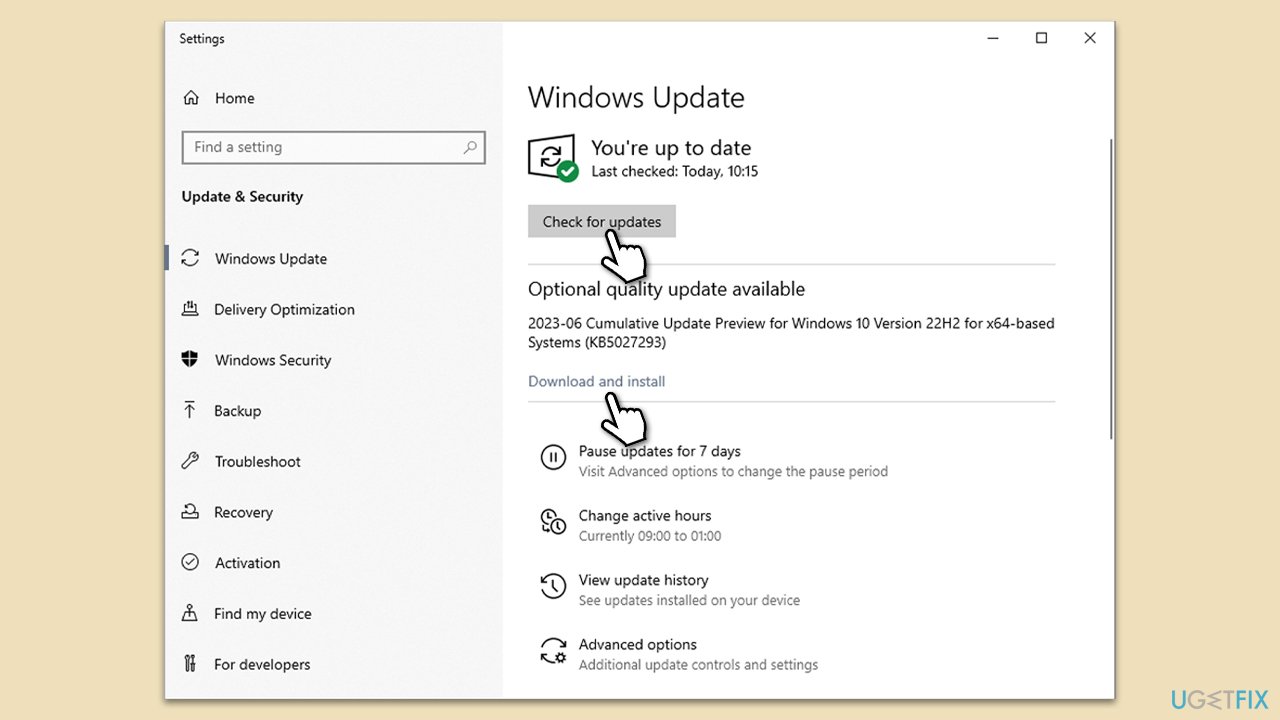
Fix 1. Install all Windows updates
Updating Windows ensures all system files are up to date, which can resolve compatibility issues with Office installation.
- Type Updates in Windows search and press Enter.
- Here, click Check for updates.
- Wait till Windows downloads and installs all the files.
- If optional updates are available, install them as well.
- Reboot your device.
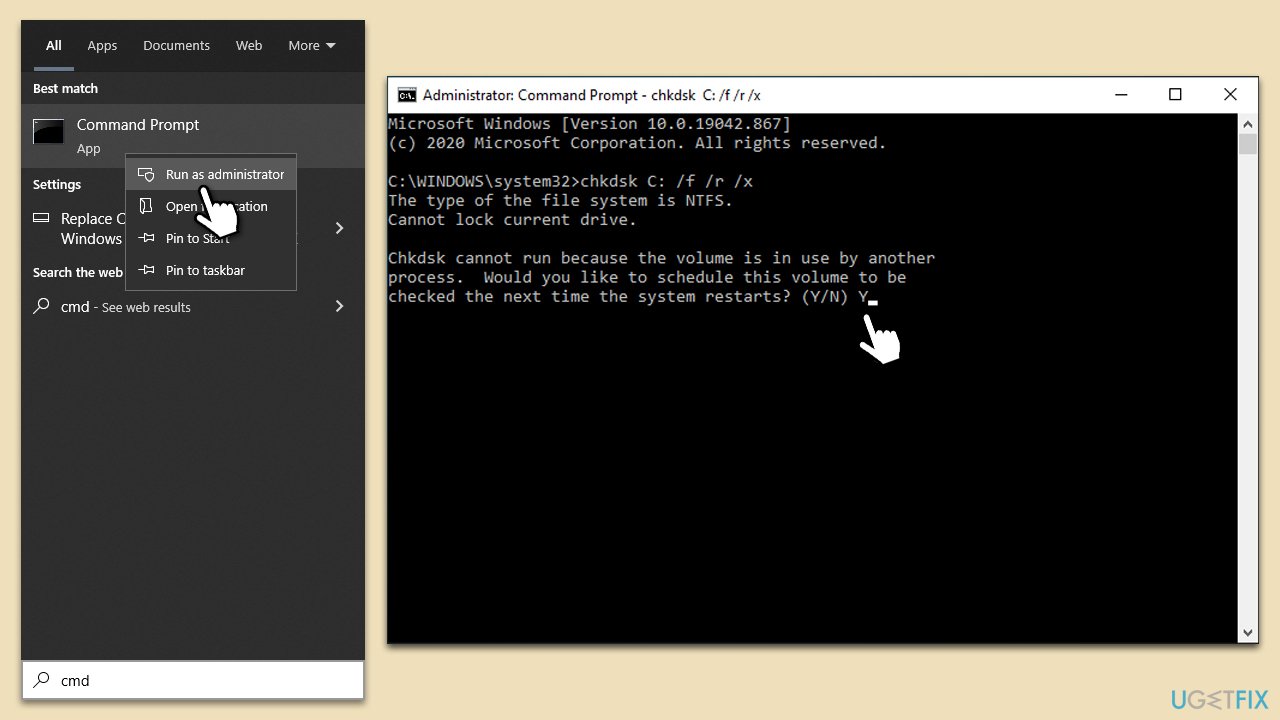
Fix 2. Run Check Disk
Running Check Disk can find and fix errors on your hard drive, which might be causing the Office installation issue.
- Open the Start menu and type cmd.
- Right-click on Command Prompt and select Run as administrator.
- When UAC shows up, click Yes.
- In the new window, type in the following command and press Enter after:
chkdsk c: /f
(Note: use chkdsk c: /f /r /x command if you are using SSD as your primary partition) - If you receive an error, type in Y, close down Command Prompt and restart your system.
- Wait until the scan is finished - you can find the results in the Event Viewer.
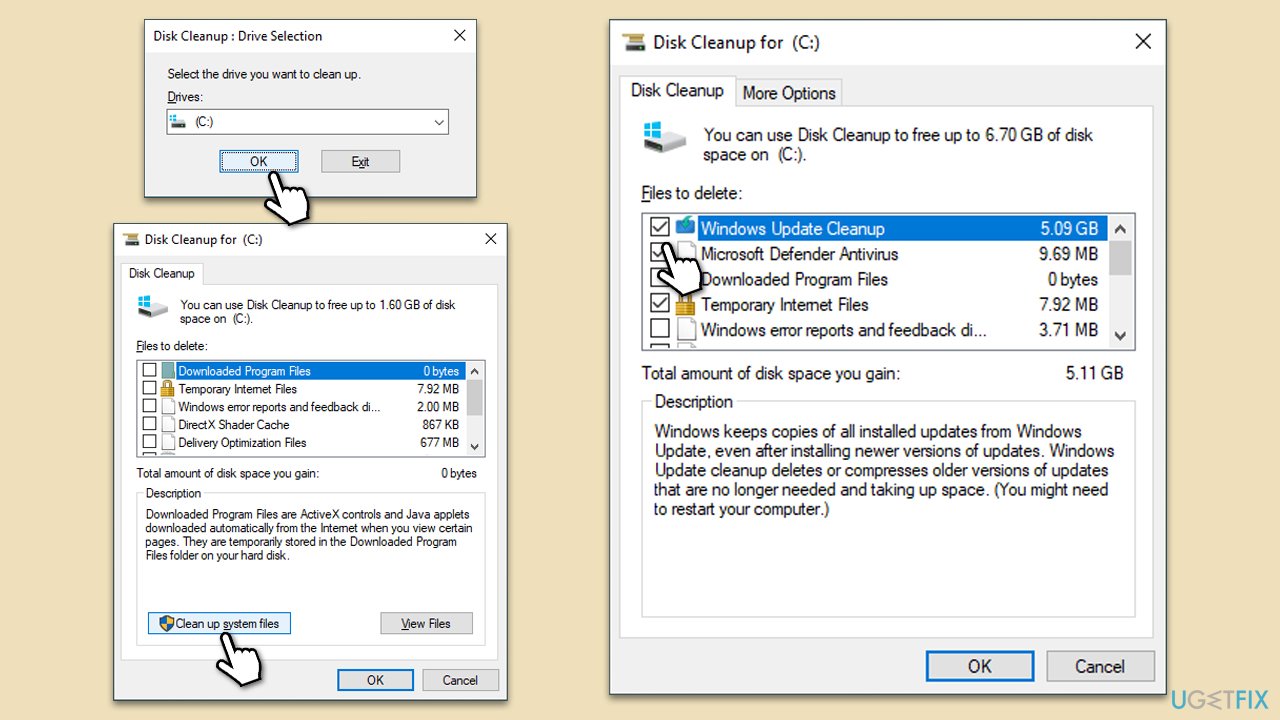
Fix 3. Perform Disk Cleanup
Disk Cleanup helps free up space on your hard drive and removes temporary files that could interfere with Office installation.
- Type Disk Cleanup in Windows search and hit Enter.
- If your Windows is installed on drive C, pick it from the list (it should be by default) and press OK.
- Click Clean up system files.
- Select your main disk again and click OK.
- Here, select the largest portions of the data used - these typically include Temporary Internet Files, Windows Update, Temporary Files, Recycle Bin, Delivery Optimization Files, and others.
- Click OK - the process should be finished shortly.
Fix 4. Uninstall the old version of Office via PowerShell
Uninstalling previous Office installations can prevent conflicts with the new installation.
- Type PowerShell in Windows search.
- Right-click on the result and pick Run as administrator.
- When UAC shows up, click Yes.
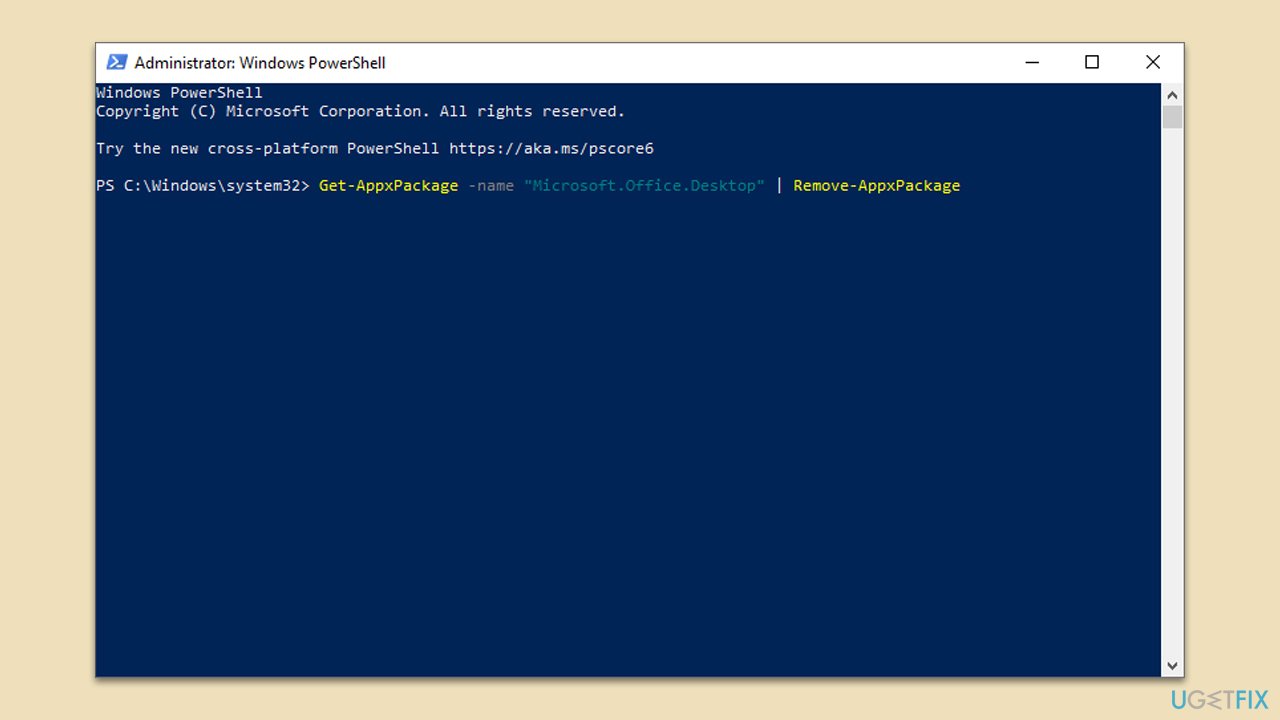
- In the new window copy and paste the following command, pressing Enter after:
Get-AppxPackage -name “Microsoft.Office.Desktop” | Remove-AppxPackage - Restart your system.
- Go to Microsoft Store and download the newest version of MS Office.
Fix 5. Use Clean Boot to install Office
Performing a clean boot starts Windows with a minimal set of drivers and startup programs, which can help resolve software conflicts
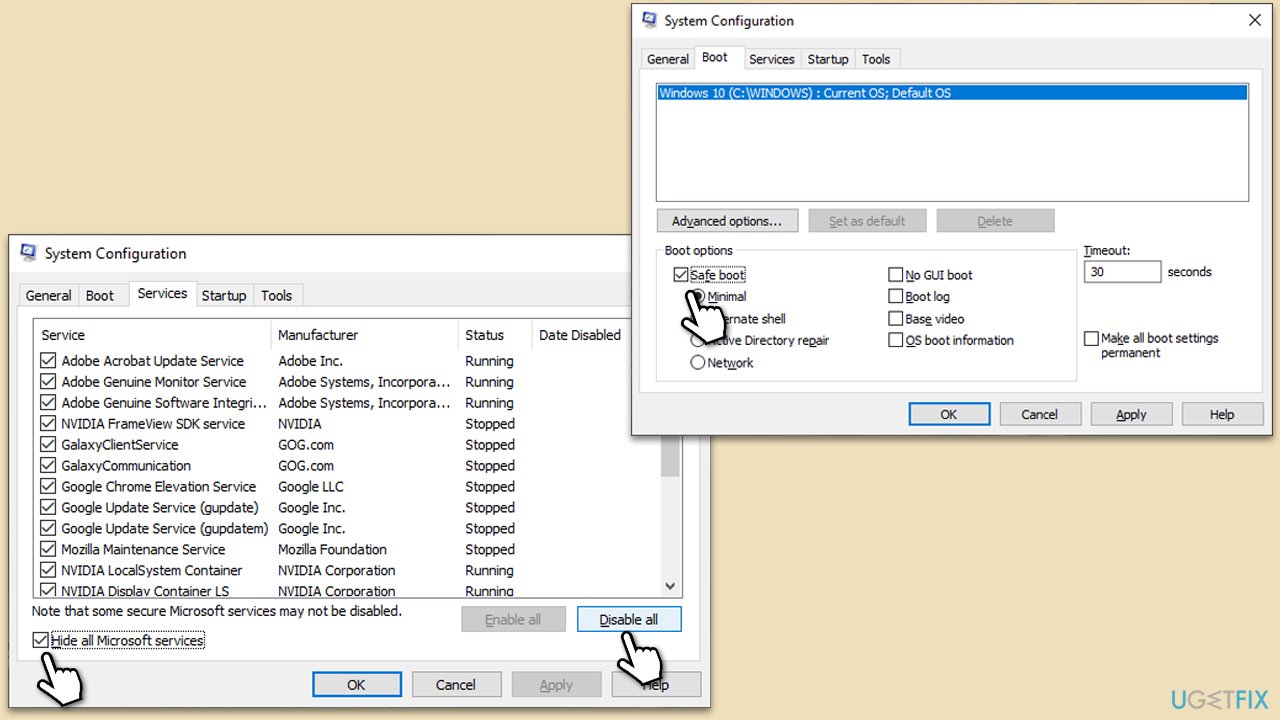
- Type msconfig in the Windows search box and press Enter.
- Pick the Services tab.
- Mark Hide all Microsoft services and select Disable all.
- Select the Startup tab and click Open Task Manager.
- In the Task Manager, right-click on each of the items and select Disable, then close the Task Manager.
- Go to the Boot tab, mark the Safe Boot option, then click Apply and OK.
- On the System Configuration window, click OK.
- Restart your computer and attempt to install/update Office.
Fix 6. Reset Windows
As a last resort, resetting Windows can resolve underlying issues affecting the Office installation.
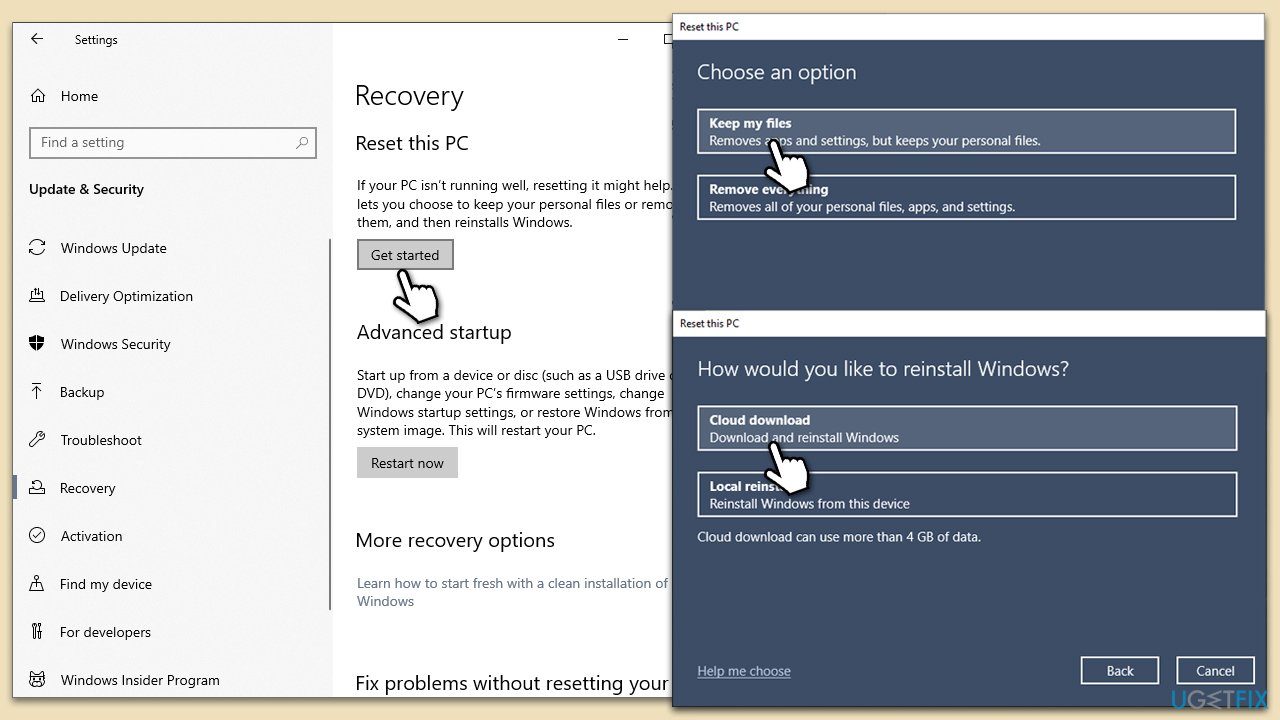
- Right-click on Start and then select Settings.
- Go to Update & Security and pick Recovery on the left side of the window.
- Find Reset this PC section and click Get Started.
- Select Keep my files and Cloud download.
- Next, pick whether you want to reinstall the apps.
- Click Reset.
- Your system will restart, and the process of Windows reset will begin.
Bottom line
To resolve the Microsoft Office installation error code 30016-13, ensure that your system is up to date by installing all Windows updates. If the issue persists, check your internet connection and antivirus settings for potential conflicts. If none of these solutions work, consider using a potent PC utility for further assistance.
Frequently asked questions
Error code 30016-13 typically indicates a problem with the Office installation process, often related to existing Office files or conflicts with other software on your system.
To fix this error, try running the Office uninstall tool to completely remove previous Office installations, then restart your computer and attempt the installation again.
Yes, you can use the Command Prompt to run a repair on the Office installation by typing 'sfc /scannow' to check for and repair corrupted files that might be causing the error.




Report an issue
What's wrong with this guide? We review every report and update or remove content.
Report received — thank you. We'll review and fix it.
You need a free account to submit a report.
Be the first to comment