How to fix
Microsoft Outlook Error 0x8004010F
on Windows
Resolve the Outlook error 0x8004010F on Windows 10 and 11 easily with our expert-tested solutions. Get your emails back in minutes!


What causes How to Fix Microsoft Outlook Error 0x8004010F?
- Profile corruption
- Corrupted system files
- Antivirus conflict
- Windows Firewall settings
- Issues during installation or update
Repairs Windows system files, removes malware, and restores a clean OS state — without reinstalling.
Hello there. I have been using Outlook for work for a very long time and never had problems with it. However, recently I cannot send or receive any messages via Outlook, and it comes up with the following error: “Reported error (0x8004010F) – Outlook data file cannot be accessed.” Is there any way of fixing this issue? I need my email to work for work! Please help.
Outlook is one of the most popular email service used by many high-profile organizations, corporations, governmental institutions,[ref en-1] as well as regular users. However, Outlook errors are common, and users often rush to find solutions on how to fix error 0x8004010F or similar.
Users encounter a 0x8004010F error while trying to send or receive emails using Outlook. The error can be seen as follows:
- 0x8004010F: Outlook data file cannot be accessed.
- 0x8004010F: The operation failed. An object could not be found.
0x8004010F is one of the Microsoft Outlook errors, which may occur due to some failure profile corruption when trying to transfer the Outlook. PST file.[ref en-2] Additionally, users might encounter the error due to corrupted system files, the conflict of antivirus with the software, or Windows Firewall settings.
A 0x8004010F error shows up when a PC owner attempts to install, update Outlook or perform tasks, such as send/receive email messages, configure it, and so on. The occurrence of a 0x8004010F error is not restricted to a single Windows version, so Windows 7, 8, 8.1, 10, XP, and Vista may encounter it one day. If you belong to the group of people who cannot use Outlook due to the 0x8004010F error, we are going to help you right now.
Fix 1. Copy your Outlook data file and create new account
- Go to Outlook and click on Account Settings
- Select the problematic account and click on Change Folder
- Enter the new name for the folder and click OK
- Now expand the newly created folder, select Inbox and then click OK
- In the account settings window, click Change Folder again
- Pick the correct data file this time and press OK
- Go to Data Files and remove the temporary folder
- Close down the Account Settings window and press Send/Receive
Fix 2. Disable your anti-virus software
Some of the experts claim that Outlook error 0x8004010F may be triggered by the antivirus installed on the system. That’s not surprising because anti-malware conflicts with other software, and Microsoft Office applications are not an exception. To disable your antivirus, you have to disable its process via Task Manager first. Follow these steps:
- Press Ctrl + Shift + Esc to open Task Manager
- In the process tab scroll down to find your anti-virus software running
- Right-click on it and select End task
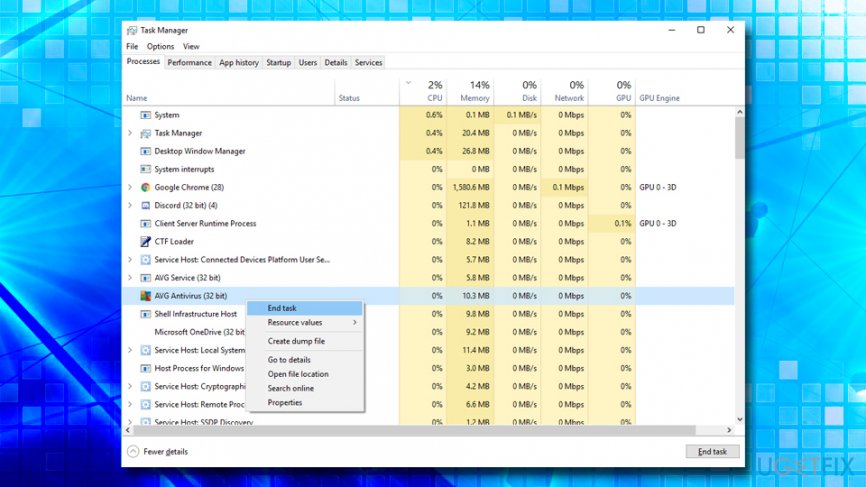
Microsoft outlook error 0x8004010f disable antivirus
Additionally, you can uninstall the security software you are using and replace it with another compatible program (note that rogue anti-malware software can harm your PC).
Fix 3. Temporary disable Firewall
The next thing that you can try to fix 0x8004010F error is to change the settings of Windows Firewall. For this purpose, do the following:
- Press Windows key + R and type in Firewall.cpl, and hit Enter
- On the left pane, click on Turn Windows Defender Firewall on or off
- Turn Firewall off for private and public network and click OK
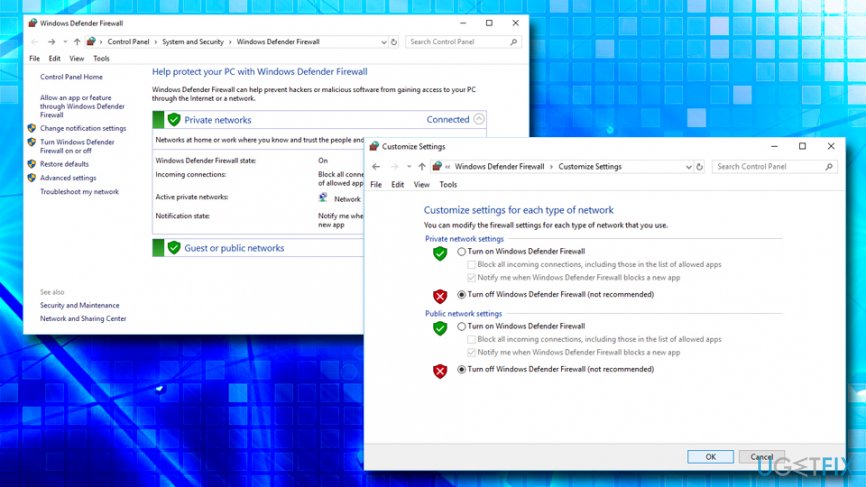
Microsoft outlook error 0x8004010f fix turn off firewall
Fix 4. Run System File Checker
System File Checker is an excellent tool to find corrupted system files and repair them automatically. Follow these steps to enter Command Prompt:[ref en-3]
- Click Win key + S, type cmd, and press Enter
- Right-click on the Command Prompt and select Run as Administrator
- Type sfc /scannow and press Enter
- Let the system perform the repair automatically.
- Reboot the system.
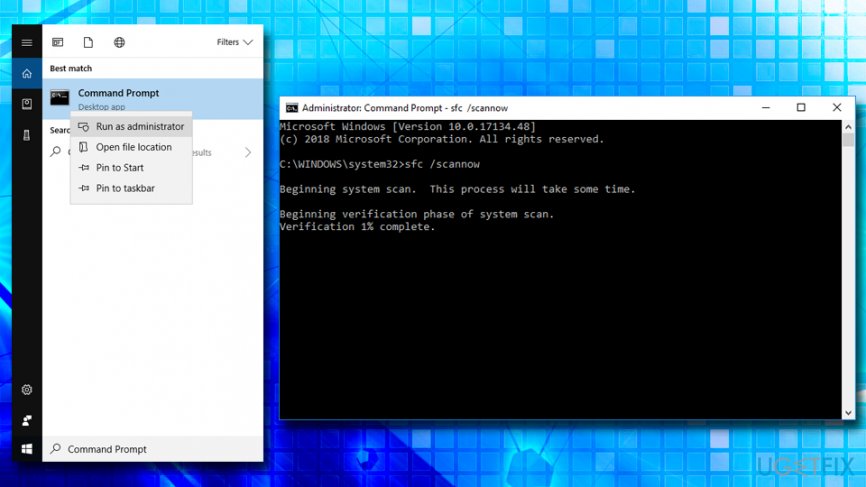
Microsoft outlook error 0x8004010f run system file checker
Fix 5. Update Windows
If the previous fixes did not help, it highly recommended to install Windows updates. That’s an easy task to do. Here are the steps:
- Right click on Start button and select Settings
- Go to Updates & Security
- Go to the Windows Updates and click Check for Updates option
- If there are some available updates, select Run the Updates
- Once done, reboot your PC.
Finally, if these steps did not help to fix 0x8004010F error, our last recommendation would be to reinstall Microsoft Office or try to troubleshoot the system with the help of PC optimization software, such as [d1].
Bottom line
To fix the 0x8004010F error, you can copy your Outlook data file and create a new account, ensuring you select the correct data file. If these solutions do not resolve the issue, consider seeking further technical support.
Frequently asked questions
The error 0x8004010F typically indicates that Outlook is having trouble accessing your mailbox or the data file is missing or corrupted.
You can repair the Outlook data file by using the built-in Inbox Repair Tool (scanpst.exe) available in Windows 10 and 11, which can help fix corrupted PST files.
Yes, creating a new Outlook profile can often resolve the error 0x8004010F, especially if the current profile is corrupt.




Report an issue
What's wrong with this guide? We review every report and update or remove content.
Report received — thank you. We'll review and fix it.
You need a free account to submit a report.
Be the first to comment