How to fix
Microsoft Outlook error 0x8004011D
on Windows
Resolve the Microsoft Outlook error 0x8004011D on Windows 10 or 11 effortlessly. Get expert-tested solutions to fix it in minutes!


What causes How to fix Microsoft Outlook error 0x8004011D in Windows?
- Server connection issues
- Corrupt Outlook data files
- Profile problems
- Firewall or antivirus interference
- Outdated software
Repairs Windows system files, removes malware, and restores a clean OS state — without reinstalling.
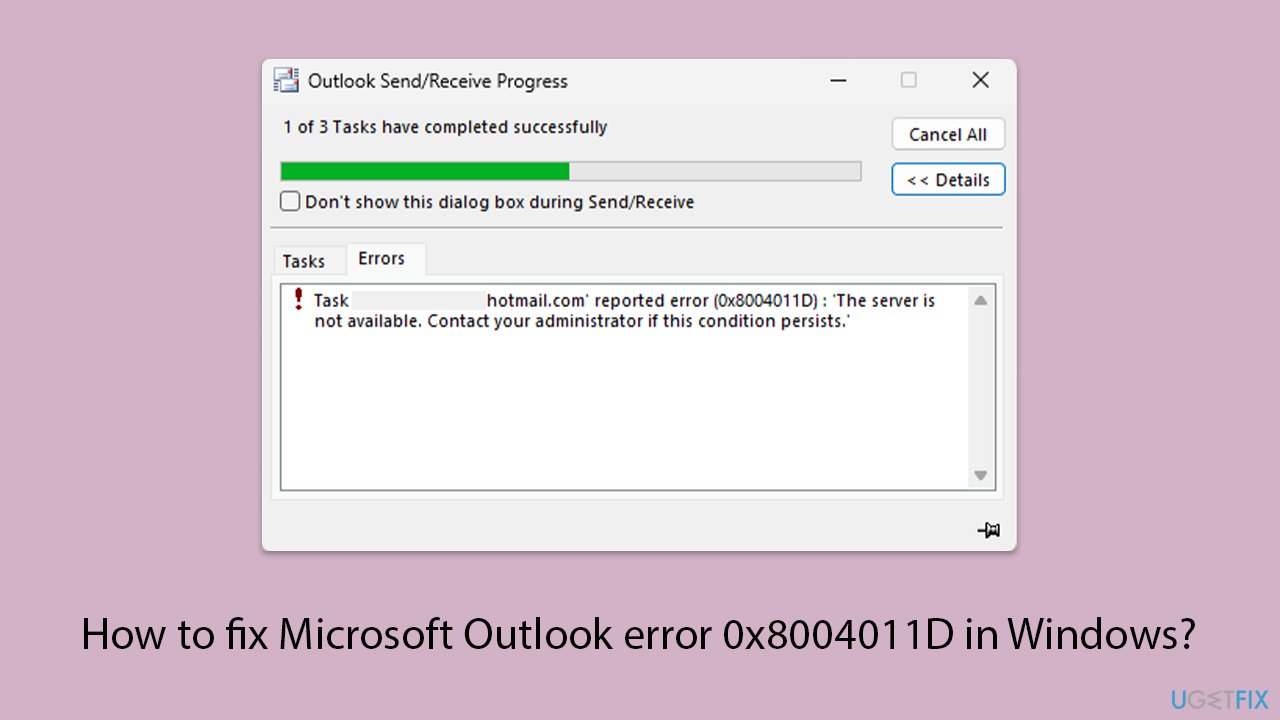
Hello there, I'm contacting you in the hopes that you can help. I don't know why, but Microsoft Outlook just stopped working. Every time I try to open it, I keep getting this error message: "Error 0x8004011D. The server is not available. Contact your administrator if this condition persists." How can I fix it?
One of the more frequent problems that stop users from connecting to their Outlook accounts is Microsoft Outlook error 0x8004011D, which usually amounts to an issue with Outlook and Exchange server synchronization. Due to this, they may experience difficulties sending or receiving emails, accessing their calendars, or using Outlook for other crucial functions.
What causes error 0x8004011D?
- Server connection issues. Incorrect server settings, server outages, or network problems could be the cause of the 0x8004011D error.
- Corrupt Outlook data files. Outlook data files such as OST or PST) are created in order to keep your emails synchronized, even if offline.
- Profile problems. If there are some issues with the profile itself, the identification might fail.
- Firewall or antivirus. Security software like firewalls and antivirus programs can sometimes block the connection between Outlook and the Exchange server, causing the error.
- Outdated software. Outdated version of the app can prevent connection to Outlook or Exchange Server.
Symptoms of 0x8004011D error
- Inability to connect to the Outlook account.
- Failure to send or receive emails.
- Issues accessing calendar and other Outlook features.
- Frequent synchronization errors or messages.
Potential solutions
The 0x8004011D error can be fixed in a few different ways. These include making sure the server connection is stable, updating Outlook and Exchange Server, and confirming the integrity of Outlook data files. In order to enable correct synchronization, users might also need to modify their firewall and antivirus settings or their Outlook profile.
To help with troubleshooting, we provide detailed instructions below, although if you would rather not waste your time with manual steps, you can always rely on PC repair software [d1] instead.
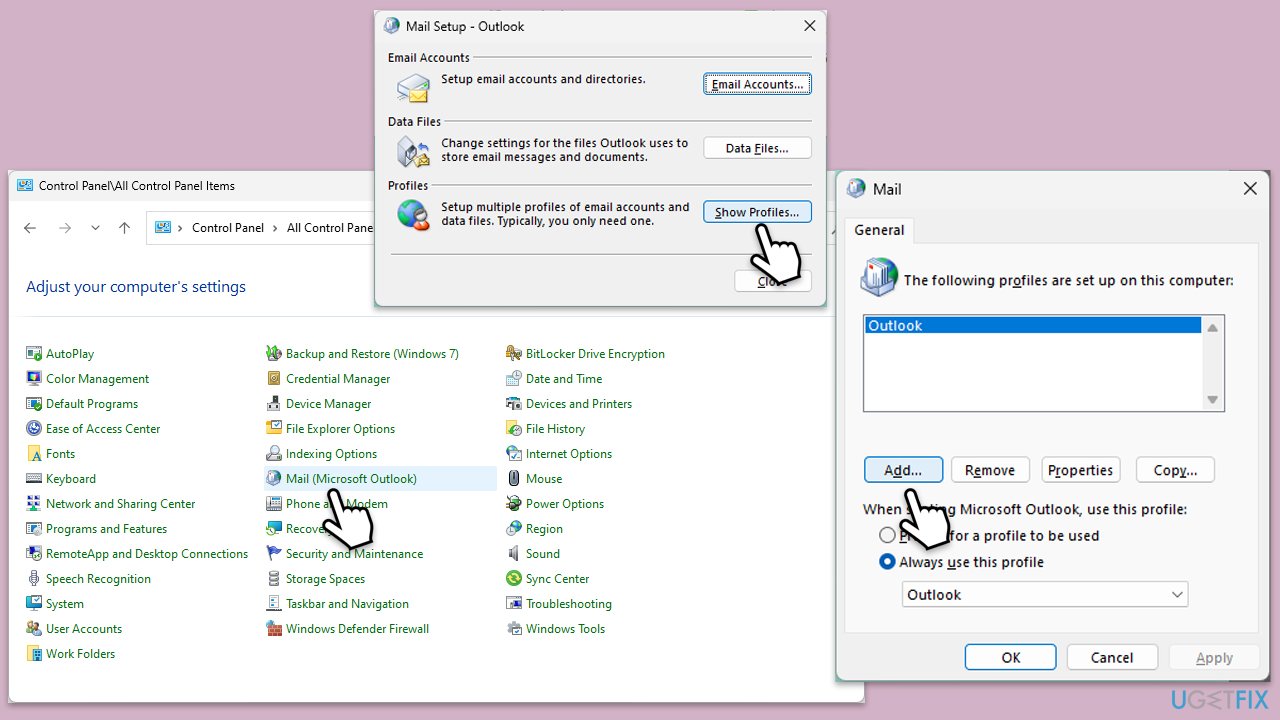
Fix 1. Create new Outlook profile
- Open Control Panel.
- Select Small icons view.
- Click Mail (Microsoft Outlook).
- Click on Show Profiles.
- Select Add and create a new profile.
- Set the new profile as the default and restart Outlook.
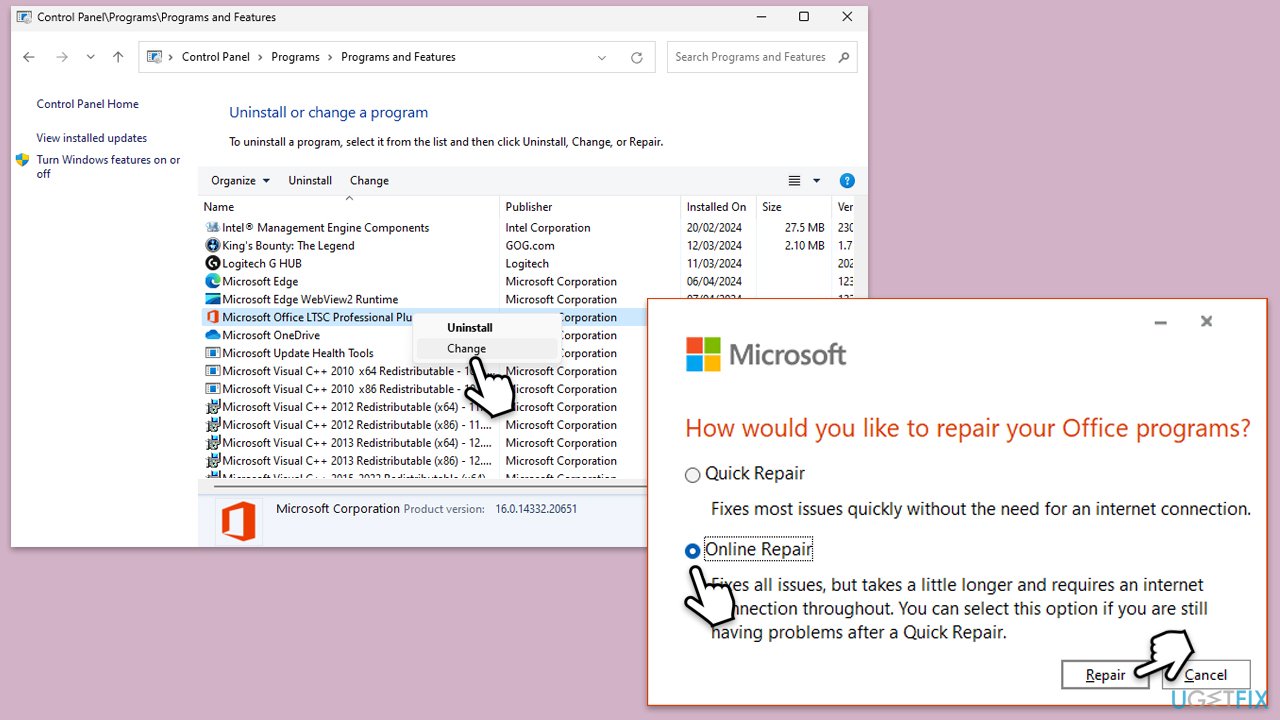
Fix 2. Repair Office apps
- Open the Control Panel again.
- Select Programs > Programs and Features.
- Select Microsoft Office and click on Change.
- Choose the option for Online Repair and click Repair.
- Follow the prompts to finish the process.
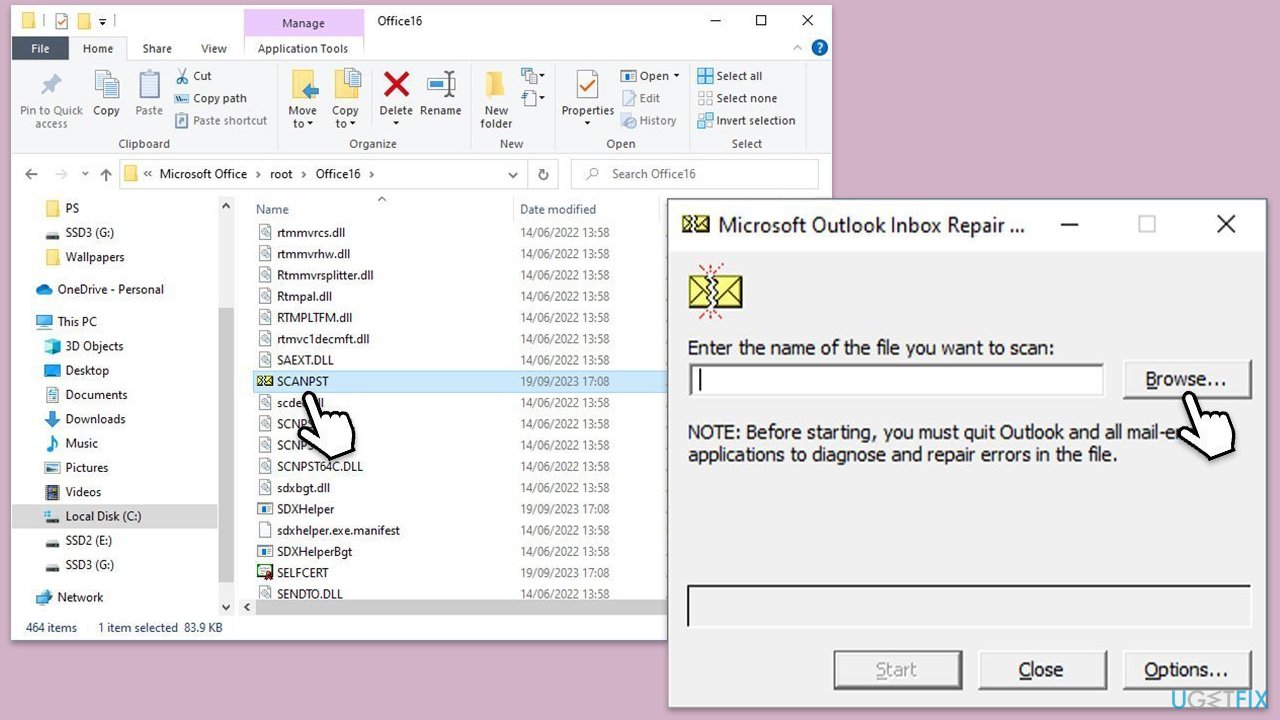
Fix 3. Repair OST and PST data files
- Close Outlook.
- Navigate to the search bar and type Control Panel, then open it.
- Under View by, select Small icons from the drop-down menu.
- Go to Mail and then click on Data Files.
- In the Account Settings window, you’ll see the Data Files tab; here, you will find the location of your PST files listed.
- Take note of the location.
- Press Win + E to open File Explorer.
- Navigate to one of these locations (depending on your Office version):
C:\Program Files\Microsoft Office\Office[version]\
C:\Program Files\Microsoft Office\root\Office16 - Open the Inbox Repair Tool (scanpst.exe)
- Click Browse and select the PST file/OST file.
- Click Start and follow the prompts to repair the file.
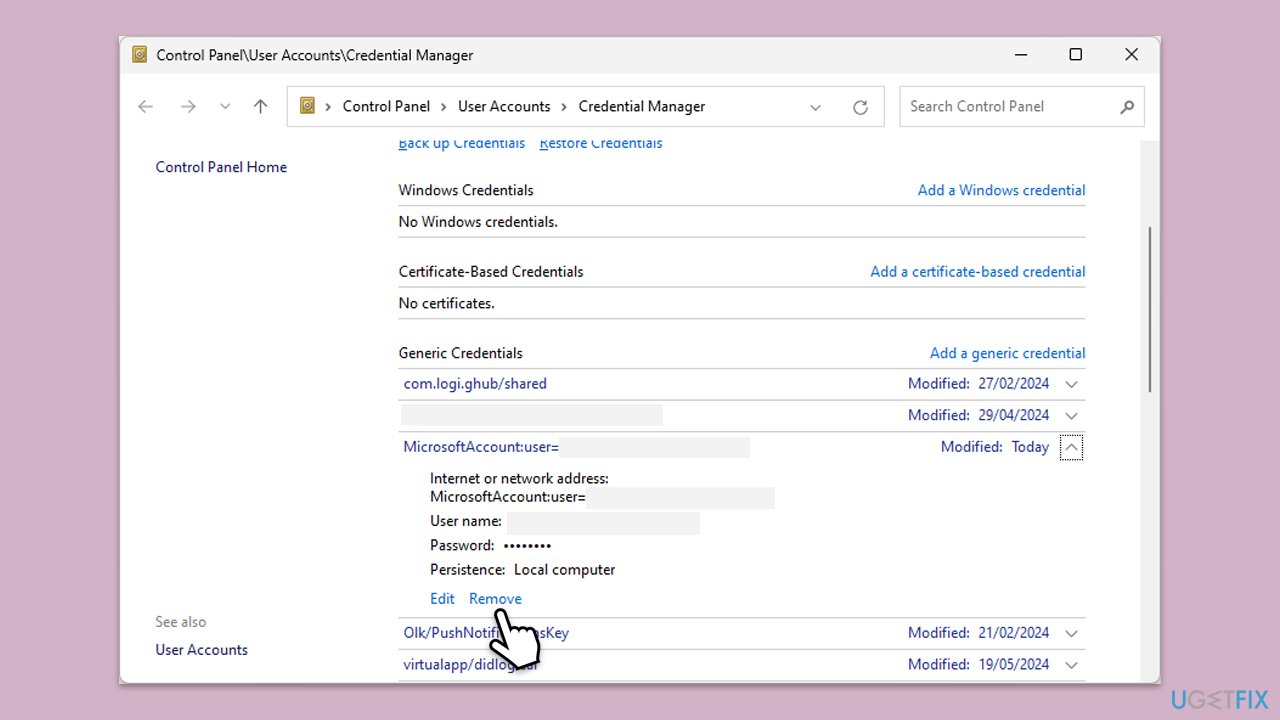
Fix 4. Clear credentials
- Type Credential Manager in Windows search and press Enter.
- Select Windows Credentials.
- Locate and remove any stored credentials related to Microsoft Outlook or Office 365.
- Restart your computer.
- Try to log in again.
Fix 5. Adjust firewall settings
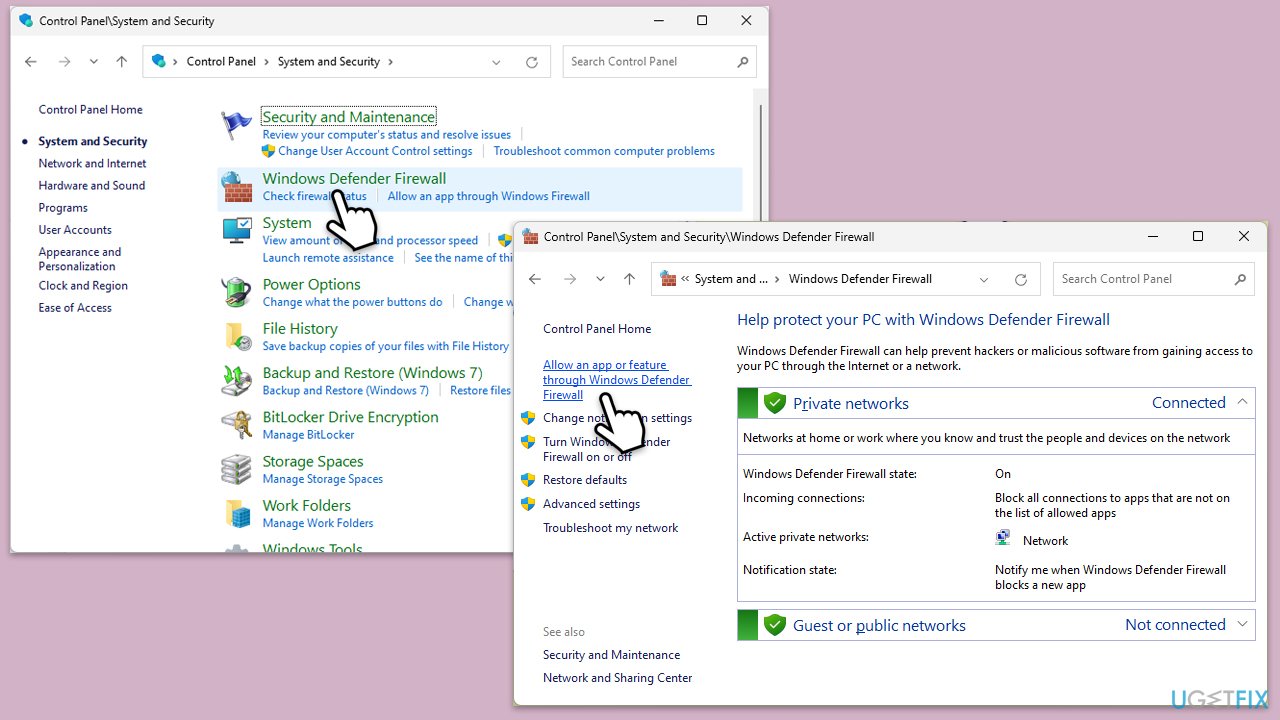
- Open the Control Panel and navigate to System and Security > Windows Defender Firewall.
- Select Allow an app or feature through Windows Defender Firewall.
- Click Change settings and enter your administrator password if prompted.
- Find Outlook in the list and check both the Private and Public boxes.
- Click OK to save your changes.
Fix 6. Run Outlook in Safe Mode and disable add-ins
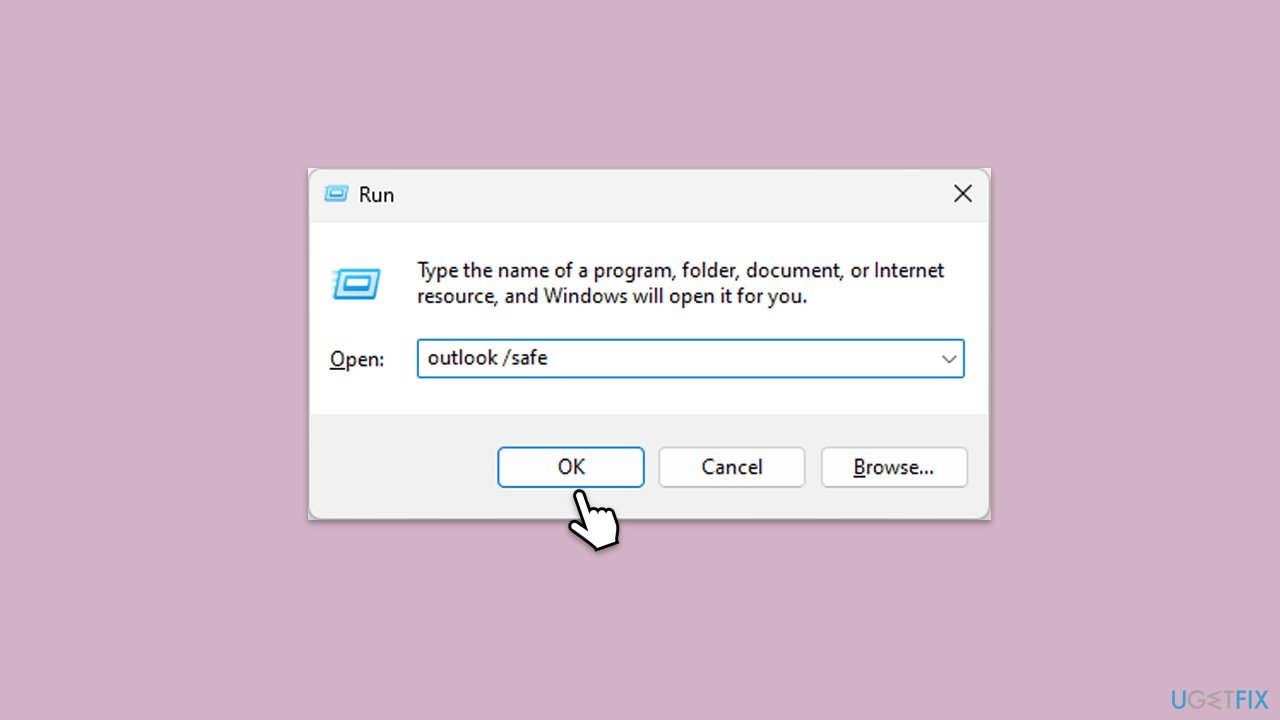
- Press Win + R to launch the Run dialog.
- Type outlook /safe and hit Enter.
- If Outlook sends the emails normally, add-ins may be causing the issue.
- Deactivate them by navigating to File > Options > Add-ins, selecting COM Add-ins, and clicking Go. Disable all add-ins and restart Outlook normally to see if the problem is resolved.
Fix 7. Use Microsoft Support and Recovery tool
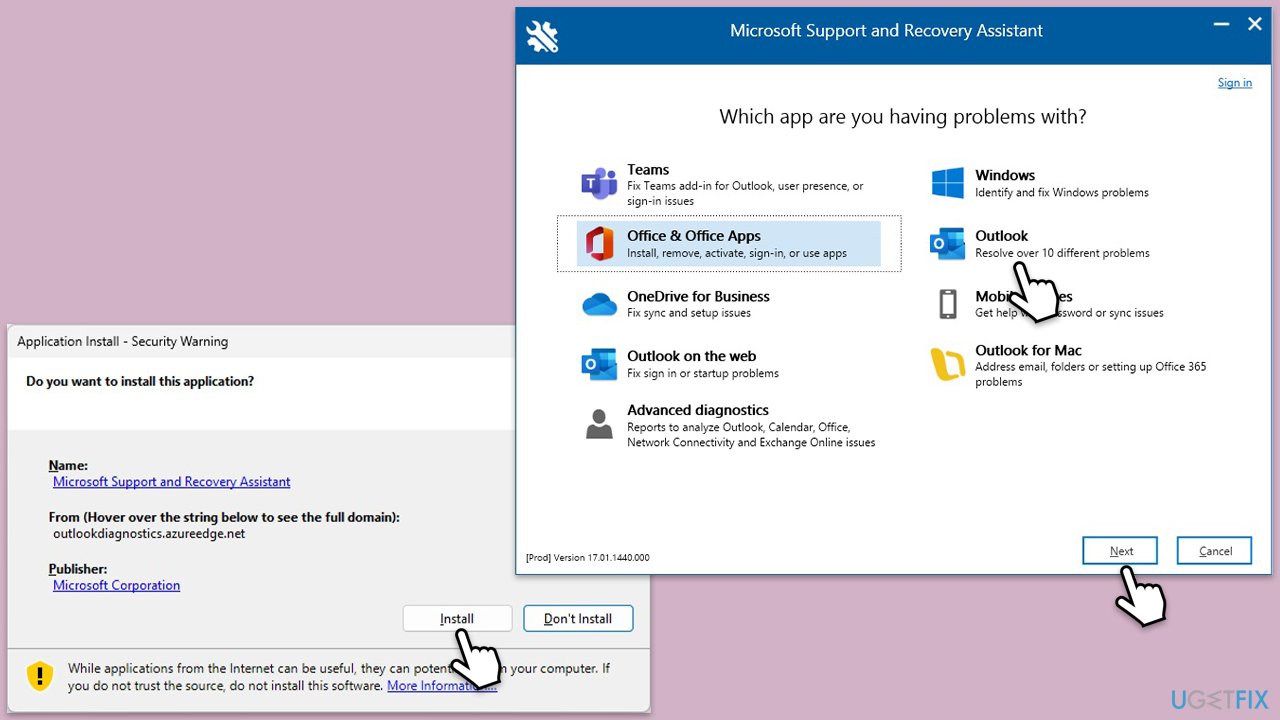
- Download Microsoft Support and Recovery Assistant [direct link].
- Double-click SataSetup.exe and install the app.
- Agree to the terms and click Next.
- Select Outlook from the list, and follow the instructions provided by the app.
Bottom line
To fix the 0x8004011D error, ensure a stable server connection, update Outlook and Exchange Server, and check the integrity of Outlook data files. Additionally, modifying firewall and antivirus settings or creating a new Outlook profile may help. If these solutions do not work, consider using PC repair software.
Frequently asked questions
The error 0x8004011D typically occurs due to issues with your Outlook profile, connectivity problems with the mail server, or corrupted PST files.
You can repair your Outlook profile by going to Control Panel > Mail > Show Profiles, selecting your profile, and then clicking on 'Repair' or by creating a new profile altogether.
Yes, ensure that your server settings are correct by going to Outlook Account Settings, verifying the server details, and testing the connection to see if the error persists.




Report an issue
What's wrong with this guide? We review every report and update or remove content.
Report received — thank you. We'll review and fix it.
You need a free account to submit a report.
Be the first to comment