How to fix
Microsoft Outlook Error 0x80042108
on Windows
Resolve Outlook error 0x80042108 quickly on Windows 10 or 11 with expert-tested solutions. Get back to emailing in minutes, no hassle!

What causes How to Fix Microsoft Outlook Error 0x80042108?
- Incomplete installation
- Improper update
- Invalid settings of the program
- Outdated programs
- Conflicts with antivirus or anti-malware programs
- Corrupted registry or PST files
Repairs Windows system files, removes malware, and restores a clean OS state — without reinstalling.
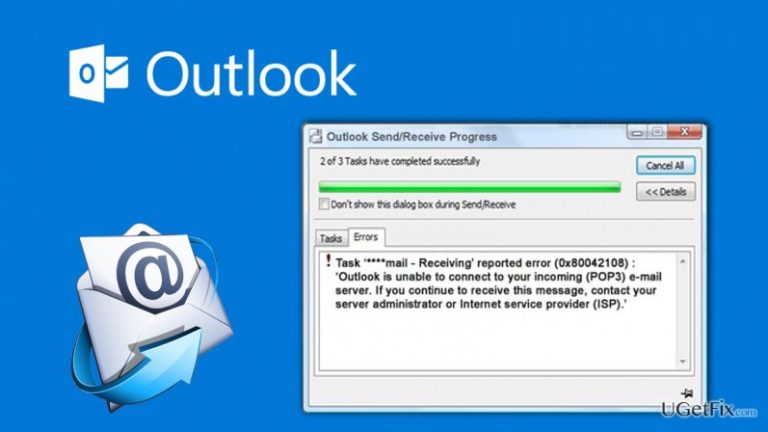
When I try to read an email, I receive a message “Reported error (0x80042108): Outlook is unable to connect to your incoming (POP3) email server.” I am not sure why this error shows up. Could you tell me how to fix it?
Microsoft Outlook Error 0x80042108 is quite common among Outlook users. Usually, it occurs when trying to read or send, reply or forward messages. However, sometimes this error message pops up when Outlook fails to start or launch, or when starting or shutting down the computer. What is more, this issue might be initiated because of the problems while storing or accessing data. Rarely, “Reported error (0x80042108): Outlook is unable to connect to your incoming (POP3) email server” error might show up when other program’s features (e.g. saving contacts) cannot perform properly. Other problems might follow this error too, for example, Outlook might crash and your computer freeze.
Error 0x80042108 on Outlook might appear because of incomplete installation, improper update or invalid settings of the program. However, other outdated programs might trigger this issue as well, so it’s important to make sure whether all programs are up-to-date. If you have installed antivirus, anti-malware or anti-spam programs on your PC, they might conflict with Outlook as well. In this case, you should look for other security tools. Corrupted registry or PST files and damaged system files might also be a reason why you see this error. Lastly, Outlook error 0x80042108 might be caused by virus or malware attack. In this case, you have to clean your computer. 
How to Fix Microsoft Outlook Error 0x80042108?
First of all, when you notice this error, make sure that your Internet connection is steady and strong. Then, check Outlook email settings because there might be some issues. If these minor problems were not responsible for Microsoft Outlook Error 0x80042108, follow these methods below.
Method 1. Install Updates
Make sure there are not pending updates for Outlook and other programs installed on your computer. Follow these steps to install them:
- Click Start and in the search box type Update and press Enter.
- You will see Windows Update dialogue box with uninstalled updates.
- Right-click on each update to install them.
- Restart the computer to activate updates.
Method 2. Update Computer Divers
Outdated drivers might be the reason why you receive error 0x80042108 message. Only updated computer drivers can assure that your PC operates smoothly.
- Right-click on My Computer and select Properties. When in Properties, select Device Manager.
- In the list of the devices look for devices with a yellow exclamation sign. If you find them, right-click and select Update Driver.
- Restart your computer and try to send/check an email to see if you succeed in fixing this error.
Method 3. Activate Windows Update Service
Check if Windows Update Service hasn’t stopped. Automate it if it’s necessary.
Windows 10:
- Open Cortana and search for Services.
- Enter the password and click Continue.
- In the Services windows search for “Windows Update Service.”
- Right-click/Double-click on the service to change its settings from disabled/manual to automatic.
- Click Start and reboot your PC.
Windows 8/8.1:
Follow these steps to check whether the services are running:
- Go to Control Panel.
- In the Search Control Panel box, type services.
- Select View local services. "Background Intelligent Transfer Service" and "Windows Update service" must be running.
If it’s not running follow these steps, to activate them:
- On the Start screen, type cmd.
- Select cmd in the search results.
- When it command prompt, type these commands, and click Enter after each of them:
- net start bits
- net start wuauserv
Windows 7 and earlier versions:
Follow these steps to check whether the services are running:
- Go to Control Panel from the Start menu and click Administrative Tools.
- When in Administrative Tools window, near the top you will see the toolbar. Click on the icon and expand viewing options list. Select Large Icons.
- Double-click Services. "Background Intelligent Transfer Service" and "Windows Update service" must be running.
If it’s not running follow these steps, to activate them:
- Click Start, and then click Run.
- When the Open box appears, type cmd, and click Enter.
- When it command prompt, type these commands, and click Enter after each of them:
- net start bits
- net start wuauserv
Method 4. Remove junk files, viruses or malware
Junk files with threats, various viruses and malware might cause not only error 0x80042108 but many other computer-related programs. Perform a full system scan with reputable antivirus or malware removal program that is capable of detecting and eliminating all cyber parasites staying on your PC. We recommend scanning the system with [d1].
Method 5. Fix Outlook
Corrupted Outlook files might be the reason why you see error 0x80042108. Hence, you have to use scanpst.exe repair tool to fix PST file:
- Click Start and in the search box type scanpst.exe. Then, press Enter.
- The repair process should start automatically. Wait while the tool finishes repairing process.
- Once the process is over, launch Outlook to see whether the error was fixed or not.
Method 6. Reinstall Outlook
If none of the methods helped to solve Microsoft Outlook Error 0x80042108, probably it occurred because of some problems during software installation or the installation wasn’t completed properly. Therefore, you have to uninstall and reinstall Outlook.
- Depending on what Windows version you use, access Programs and Features list from the Start Menu or Control Panel.
- In the list of programs find Microsoft Outlook.
- Double-click or right-click on the program and select Uninstall/Change.
- Follow the uninstall guide.
- When uninstallation is completed, restart your computer and then reinstall Outlook correctly.
Bottom line
To fix Microsoft Outlook Error 0x80042108, ensure your Internet connection is stable and check your Outlook email settings. If issues persist, install updates for Outlook and other programs, and consider checking for conflicts with security tools. If none of these solutions work, further investigation into system files or potential malware may be necessary.
Frequently asked questions
The error 0x80042108 typically occurs due to issues with the email server settings or connectivity problems with your internet connection on Windows 10.
To fix the error 0x80042108 in Windows 11, check your account settings in Outlook and ensure that the server details are correct, or try disabling any firewall that may be blocking the connection.
Yes, repairing Outlook can help resolve the error 0x80042108 by fixing any corrupted files or settings that may be causing the issue on Windows.




Report an issue
What's wrong with this guide? We review every report and update or remove content.
Report received — thank you. We'll review and fix it.
You need a free account to submit a report.
Be the first to comment