How to fix
Microsoft PC Manager fails to install
on Windows
Resolve Microsoft PC Manager installation issues effortlessly on Windows 10 and 11. Get expert-tested solutions and fix your problems in minutes.


What causes How to fix Microsoft PC Manager fails to install?
- Incomplete download of installation files
- Corrupted installation files
- Insufficient system resources
- Conflicting software or applications
- Issues with registry keys
Repairs Windows system files, removes malware, and restores a clean OS state — without reinstalling.
Hello, I can't install Microsoft PC Manager on my Windows 10 machine. The app installation process breaks sometime in the middle and fails to continue, leaving me with an error message which asks me to try again later. I did, but it brought no positive results. Any solutions on this would be great.
Whenever you use the internet, install new programs, or perform some other actions, new registry keys are created or altered, caches are formed, files are dropped on the device, and more. Various caches and other leftover files might be created over time, which may result in slower PC performance and even result in errors or system slowdowns.
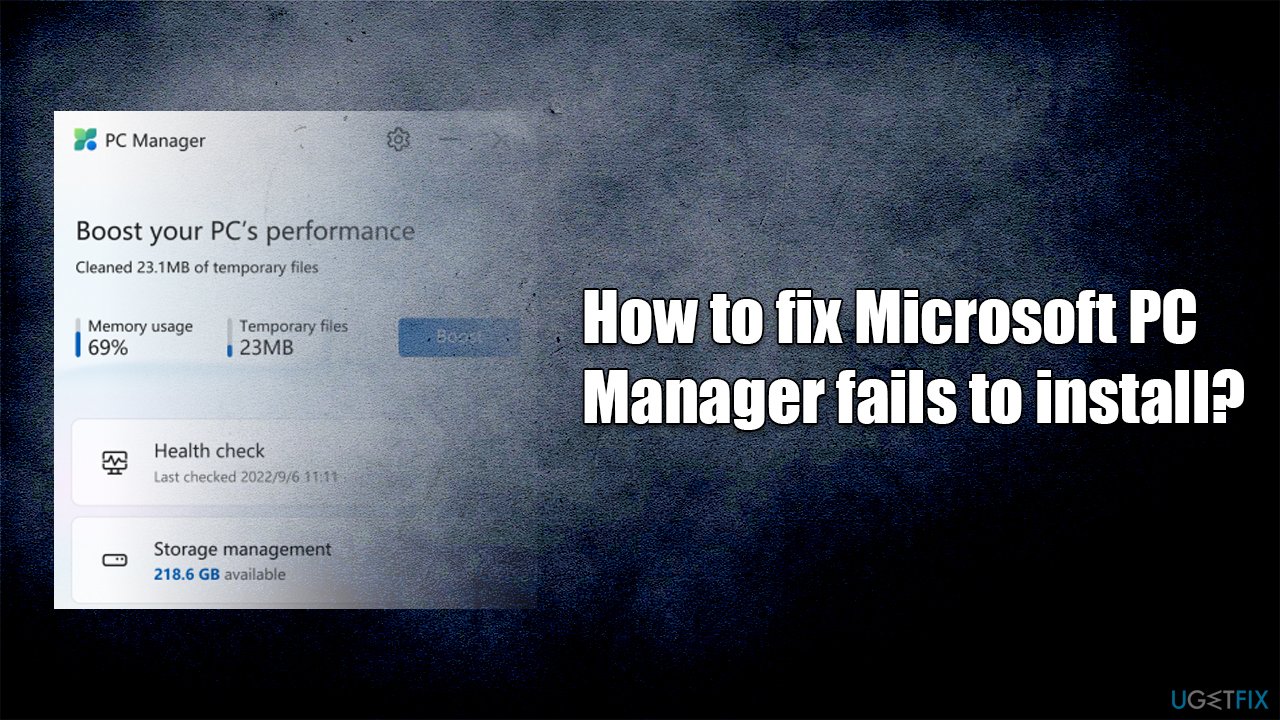
To battle these issues, Microsoft has recently released Microsoft PC Manager application that was initially available for the Chinese market, but soon many users from other regions were interested in the tool. Microsoft then released an official page where users can download the app and install it outside of China.
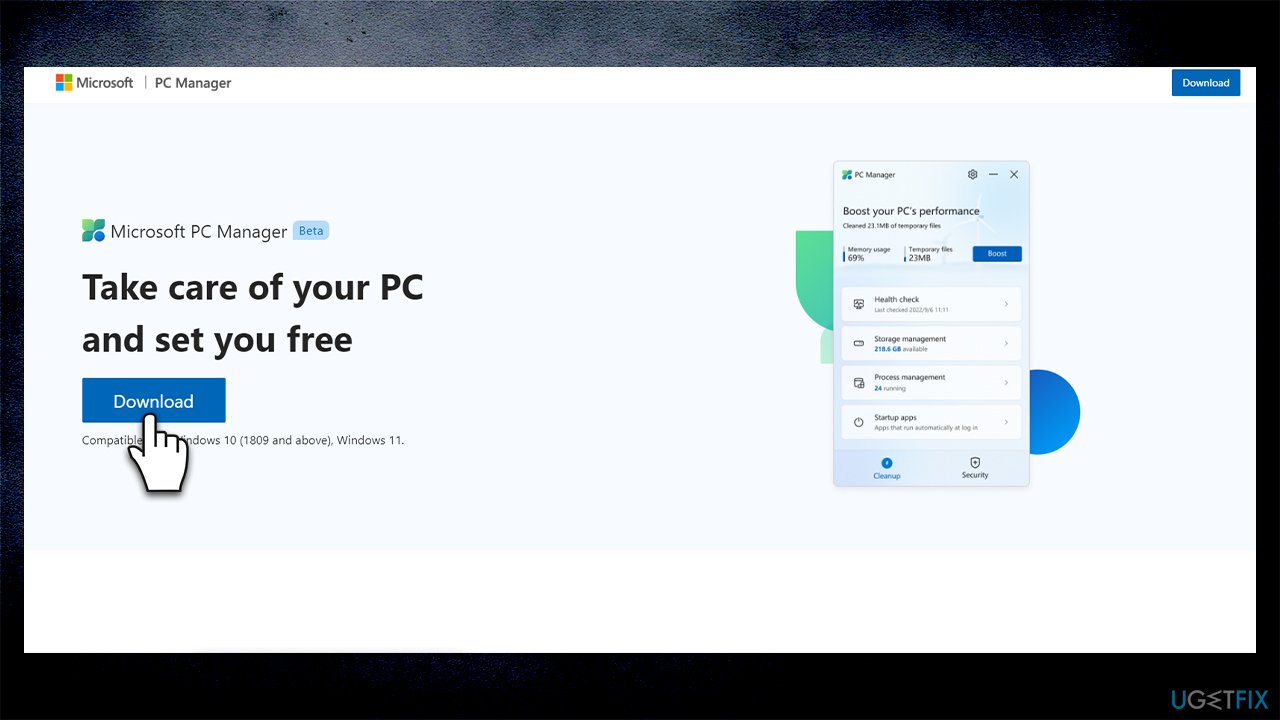
As for now, the app is still in the Beta stage, so it hasn't been fully released yet. It is compatible with newer versions of Windows, including Windows 10 and Windows 11.
The main objective of the application is to clean up the system and boost its performance, which might have been a rather difficult task for some computer users before. It also includes additional features, such as letting people control which apps are launched upon Windows boot or allowing them to shut down certain tasks easier instead of opening the Task Manager.
Unfortunately, for many users, the Microsoft PC Manager installation process stops at 32% for some reason, although this is not a rule. This is soon followed by an error message which reads:
Failed to download and unpack the installation files. Please try again later
While the installation error tells users to try again later, they usually don't get any positive results and still can't install Microsoft PC Manager on their devices.
Since the problem is not universal and many people have managed to install the app on their systems successfully, there are several troubleshooting steps that can be done in order to fix the installation failure. Below you will find several solutions provided by us, although please be aware that you might need to try several of them until one works for you.
Fix 1. Run the installer as an administrator
First off, you might not be able to install the app if not sufficient permissions are granted to it. Thus, try running the installer as an administrator:
- Visit the official website of Microsoft PC Manager
- Click Download button
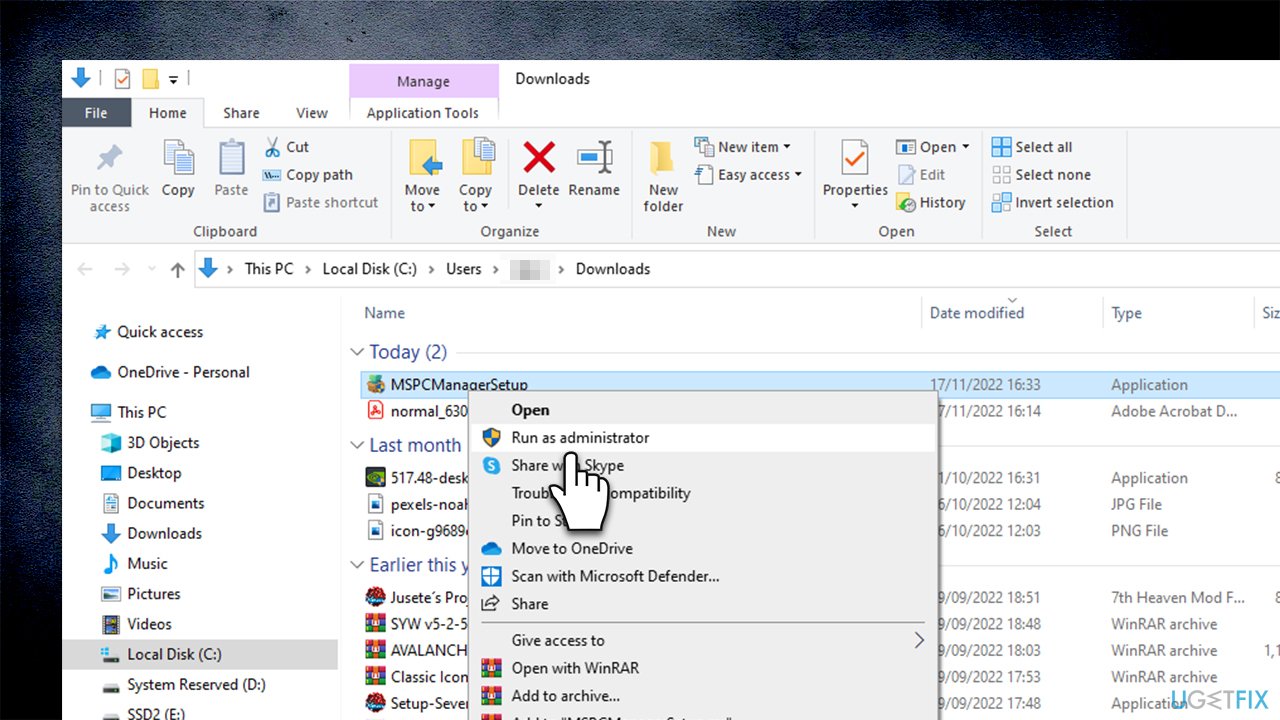
- Once the installer downloads, right-click on MSPCManagerSetup.exe and select Run as administrator
- When User Account Control shows up, click Yes
- Proceed with the installation instructions and see if that helps to resolve the issue.
Note: if the installation still fails, try to re-download the installer once again and see if that helps.
Fix 2. Clean related cache files
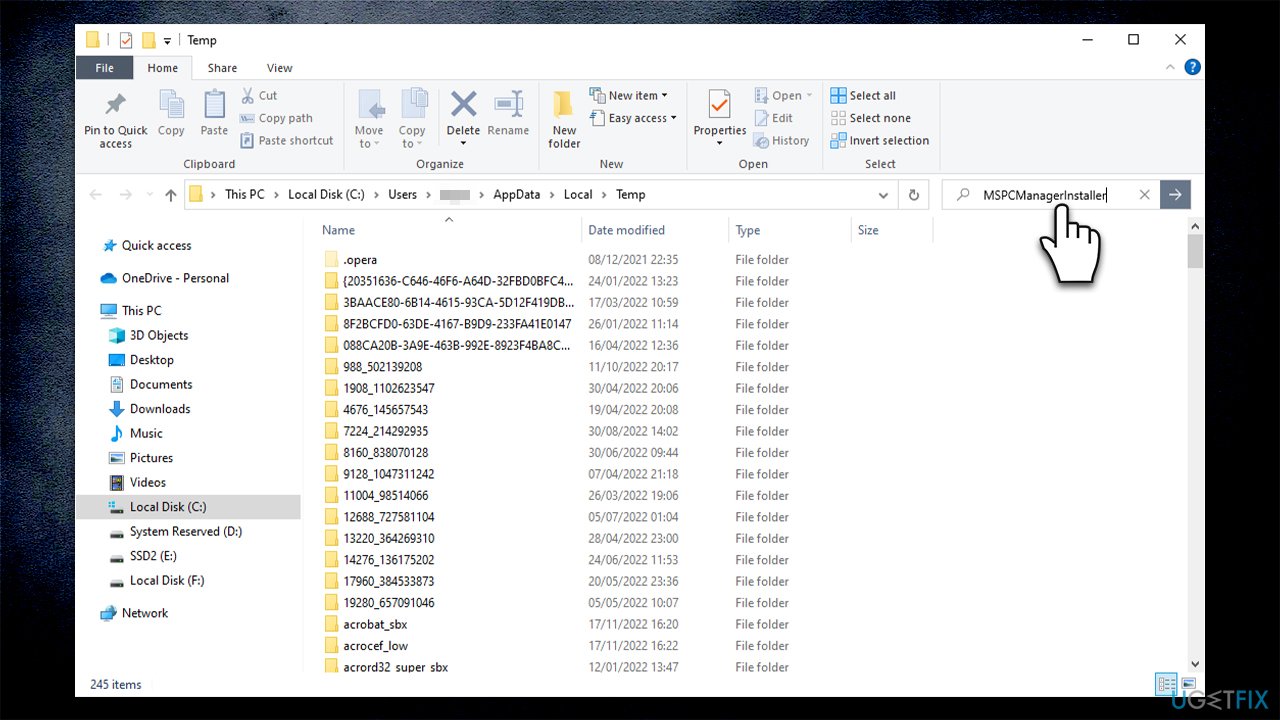
You could look for one of the log files that could be causing the app installation failures - it is located in the %Temp% folder. To find the one representing the app, follow these steps:
- Type in %Temp% into the Windows search not and hit Enter
- In the search box of Windows Explorer, type in MSPCManagerInstaller and press Enter
- Wait till it finds related files, and then delete them using the Shift + Del combination on your keyboard.
Fix 3. Try Disk Cleanup
If you haven't found any related files in the previous solution, we recommend performing Disk Cleanup.
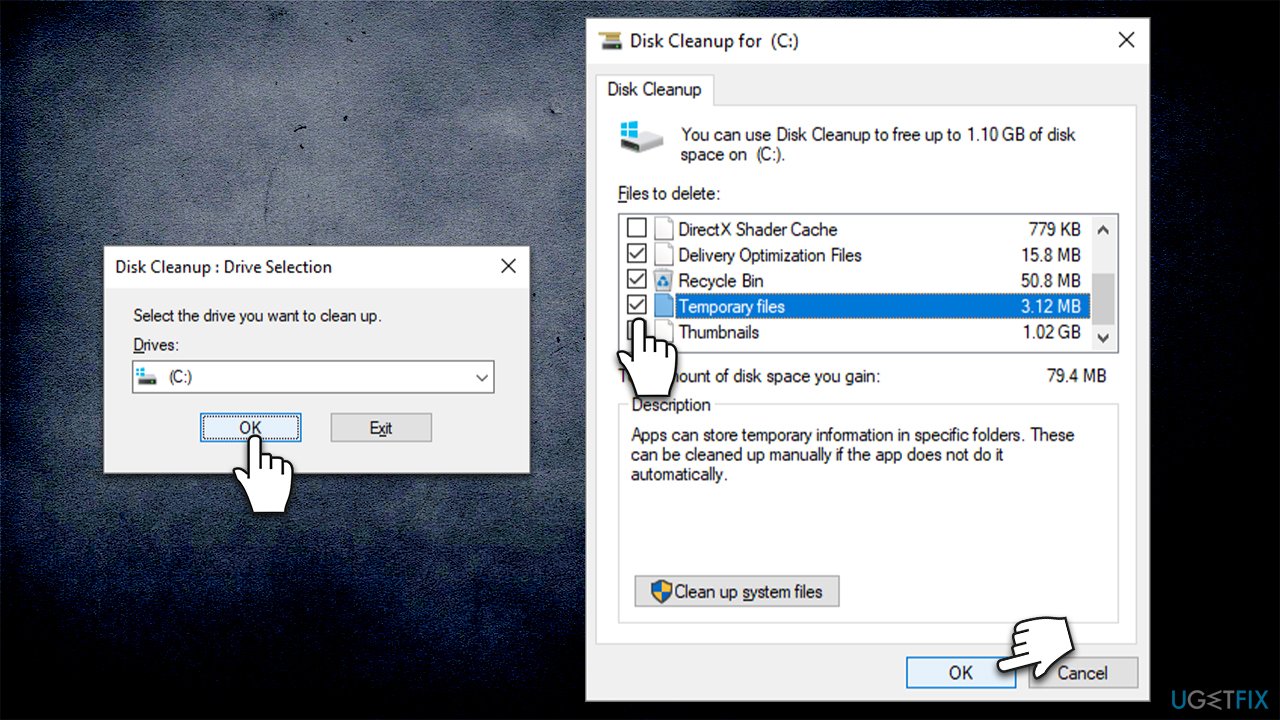
- Type Disk Cleanup in Windows search and press Enter
- Select your main drive (C: by default) and click OK
- Here, mark the following sections:
›Downloaded Program Files
›Temporary Internet Files
›Delivery Optimization Files
›Recycle Bin
›Temporary Files - Click OK
- Attempt to download the program once more.
Fix 4. Install all available updates
Microsoft PC Manager is a rather new addition that can be downloaded as a separate tool. All Windows 10 versions below 1809 would not support it, so make sure that all the available updates are applied first.
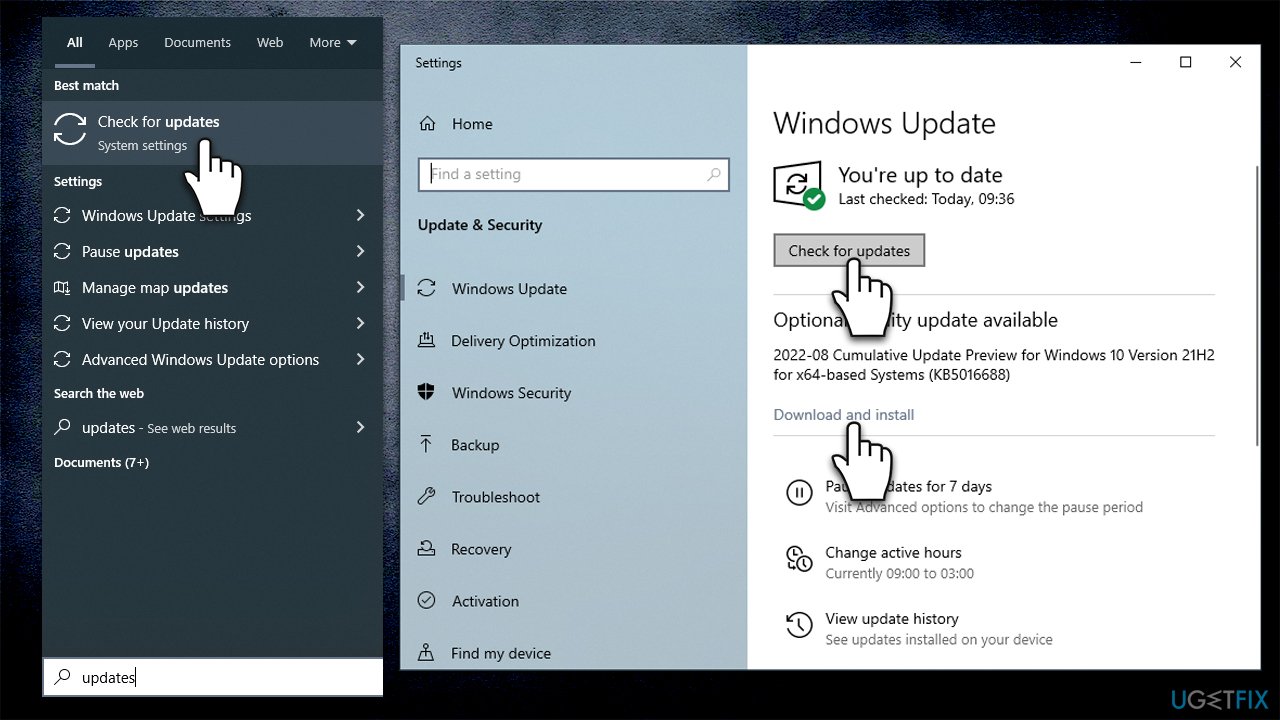
- Type Updates in Windows search and press Enter
- Click Check for updates on the right side of the window
- If any optional updates are available, install them too
- Wait till the process is finished and restart your system
- Try installing the program again.
Fix 5. Check your system for corruption
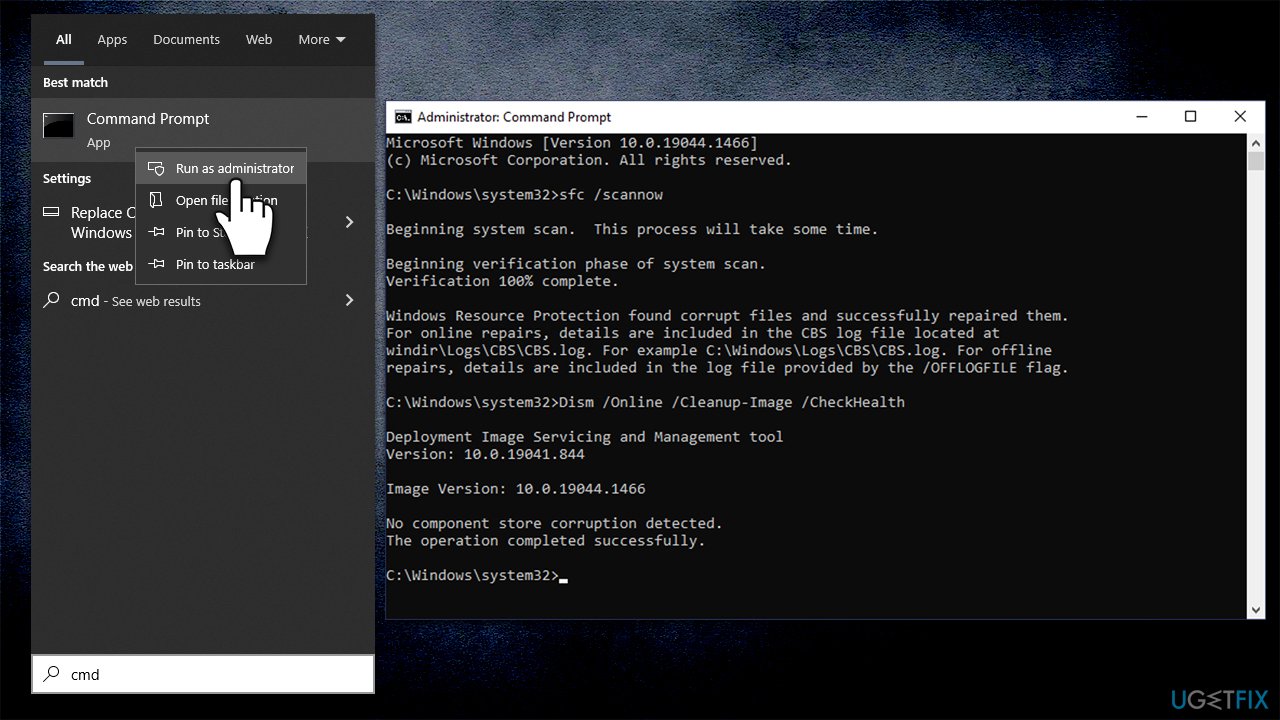
- Type cmd in Windows search
- Right-click on Command Prompt result and select Run as administrator
- Paste the following command into the new window:
sfc /scannow - Press Enter and wait till the scan is finished
- Once done, run this set of commands, pressing Enter after each:
DISM /Online /Cleanup-Image /CheckHealth
DISM /Online /Cleanup-Image /ScanHealth
DISM /Online /Cleanup-Image /RestoreHealth - Restart your PC.
Fix 6. Disable or uninstall third-party software
Various third-party software that may interfere with network connections might be causing Microsoft PC Manager to fail to install. This software can range from security applications to VPNs, as well as any third-party Firewall or similar. Therefore, if you haven't tried this yet, temporarily disable or uninstall this software and try installing the app again.
Bottom line
To fix the installation failure of Microsoft PC Manager, users can try clearing temporary files, ensuring a stable internet connection, and disabling conflicting software. If these solutions do not work, consider checking for system updates or reinstalling the application.
Frequently asked questions
First, ensure that your Windows 10 is updated to the latest version, then try running the installation as an administrator by right-clicking the installer and selecting 'Run as administrator.'
You can troubleshoot installation errors by disabling your antivirus temporarily and ensuring that there is enough disk space available on your Windows 11 device.
Yes, if you encounter an error code during installation, search for that specific code online for tailored solutions, as it can provide insight into the issue on your Windows operating system.




Report an issue
What's wrong with this guide? We review every report and update or remove content.
Report received — thank you. We'll review and fix it.
You need a free account to submit a report.
Be the first to comment