How to fix
Microsoft solitaire collection not working
on Windows
Fix the Microsoft Solitaire Collection on Windows 10 or 11 with expert tips and troubleshooting steps. Get back to gaming in minutes!

What causes How to fix Microsoft solitaire collection not working?
- Outdated Windows operating system
- Corrupted game files
- Insufficient system resources
- Conflicting software or applications
Repairs Windows system files, removes malware, and restores a clean OS state — without reinstalling.
Hi! I have been playing Microsoft Solitaire Collection for a long time and never had any trouble with the app. However, I am not able to launch it properly anymore and I cannot play the game! What can I do about this?
Microsoft Solitaire Collection[ref en-1] is a virtual game that is available on various Windows operating systems such as 10, 8, 8.1, and mobile phone devices also. In the past, older Windows versions used to have Solitaire, Spider Solitaire, and FreeCell which have been changed into Microsoft Solitaire Collection currently.
This card game is a good way to spend your time as a free-time activity or just while you are waiting for someone or something. Even though this game is really simple and does not look like it could cause any trouble, some Windows users have been looking up how to fix Microsoft solitaire collection not working.
People claim that Microsoft Solitaire Collection does not launch properly or starts crashing, freezing while playing. There might be multiple different reasons why such a problem has occurred. Below we have provided some tips that should help you to fix Microsoft solitaire collection not working on your Windows computer.
How to fix Microsoft solitaire collection not working?
Below we have provided multiple tips that might help you to fix Microsoft solitaire collection not working on your Windows computer. Try out all of the methods if you do not succeed with the first one. Additionally, you can try scanning your computer with [d1] and looking for corrupted components that might also be causing the problem.
Tip 1. Keep your Windows machine updated
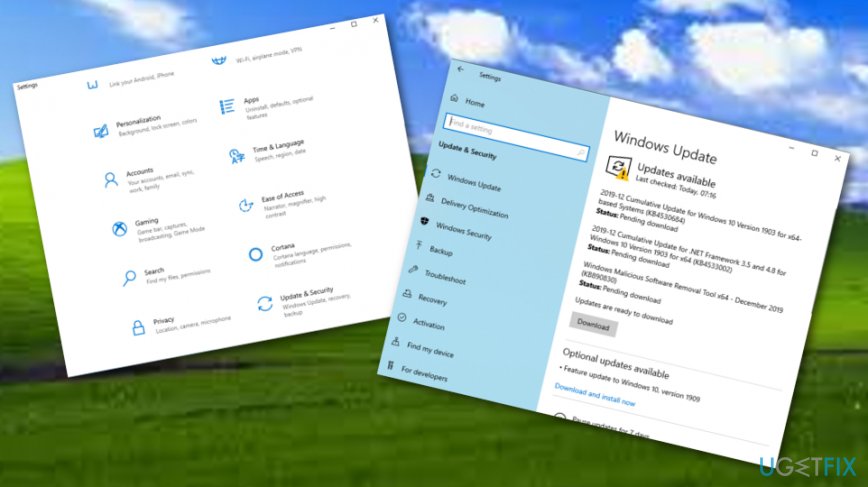
Your Windows machine might be lacking some updates and the Microsoft solitaire collection not working problem can be a result of it. What you should do is check for available upgrades by completing the following guiding steps:
- Go to Windows Search.
- Type "settings".
- Open the Settings section and choose Update & Security.
- On the right side, select the Check for updates option that will be provided under Windows Update.
Look for available updates - Wait for the process to finish and reboot your machine.
Tip 2. Restore cache in the Windows Store
Restoring cache in the Windows Store might also help you to solve your problems. Try to fix Microsoft solitaire collection not working by completing these guidelines:
- Hold the Win key and R button.
- When a small Run box appears, type wsreset.exe.
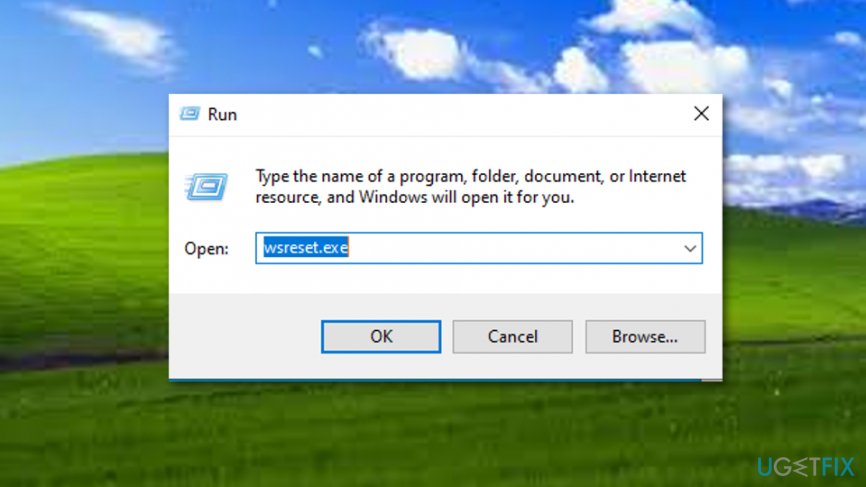
Reset store cache - Hit the Enter key.
- Wait for the command to proceed and restart your computer afterward.
Tip 3. Upgrade all Windows Store programs
Upgrading all Windows Store[ref en-2] programs might help you to fix Microsoft solitaire collection not working problem on your Windows computer is some of your software is left outdated. Achieve such goal by completing the following steps:
- Launch the Windows Store.
- Select your account on your upper right.
- Choose the Downloads option.
- Select Check for updates.
- Wait for the Windows Store to complete the process.
Tip 4. Uninstall and reinstall the Microsoft Solitaire Collection
Sometimes there might be some type of bug in the app that does not allow the application to run smoothly. Microsoft Solitaire Collection can also be facing this type of problem. You can try uninstalling and reinstalling the virtual game by using the following guiding lines:
- Go to Windows Search.
- Write "powershell".
- Choose the Windows PowerShell program and select Run as administrator.
- Type this command after the blinking cursor: Get-AppxPackage *solitairecollection* | Remove-AppxPackage.
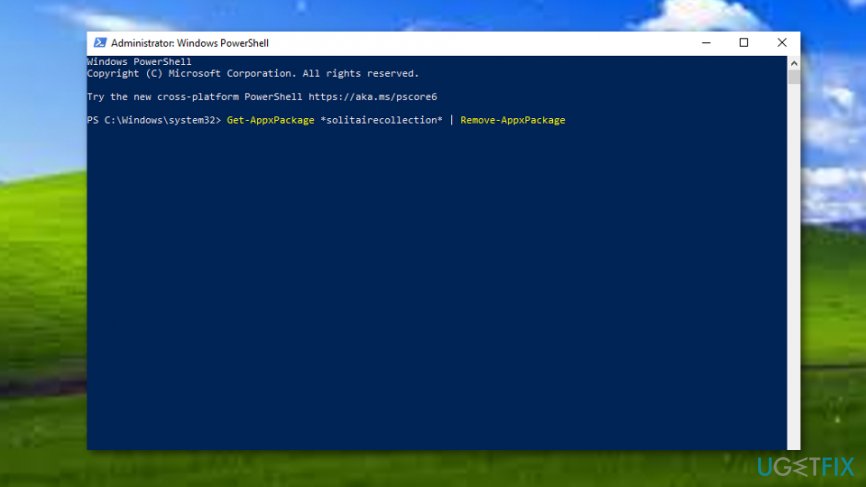
Uninstall and reinstall - Hit the Enter key.
- Afterward, restart your Windows computer.
- Then, go to Windows Store and install Microsoft Solitaire Collection again.
Tip 5. Restore the Microsoft Solitaire Collection on Windows
If none of the previous methods helped you to fix Microsoft solitaire collection not working on your Windows computer system, you can try this one as it might appear helpful after all:
- Enter the Windows Search section.
- Type "settings".
- Open the Settings option and continue with System.
- One your left side, you will see the Apps & features option. Click on it.
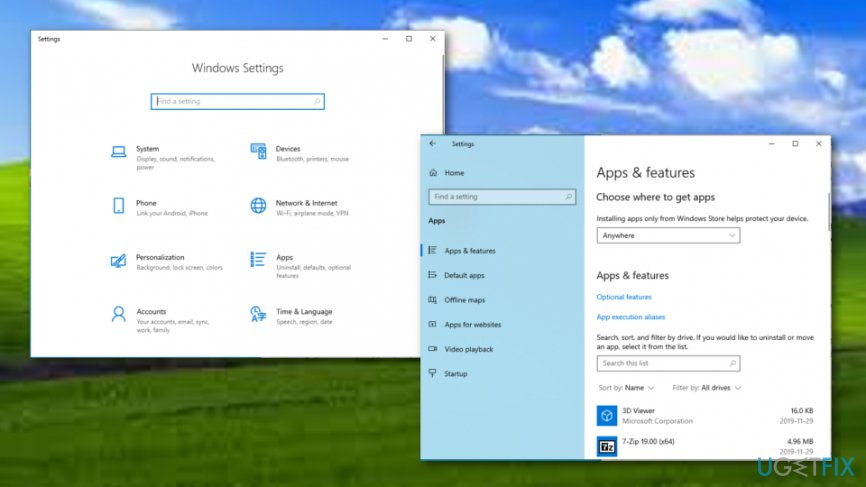
Restore the app - Then, select Microsoft Solitaire Collection from the drop-down menu.
- Choose Advanced.
- Then, opt for the Reset button.
- Choose the Reset key again.
- When the process is finished, reboot your Windows computer.
Once you have tried all the five methods, you should have received positive results. However, if there is some deeper problem, you might not be able to fix Microsoft solitaire collection not working manually. Regarding this fact, try employing reliable antimalware software[ref en-3] and completing a full computer checkup process.
Bottom line
To fix the Microsoft Solitaire Collection not working, ensure your Windows machine is updated, restore the cache, and scan for corrupted components. If these methods do not resolve the issue, consider trying additional troubleshooting steps or seeking further assistance.
Frequently asked questions
Try resetting the app by going to Settings > Apps > Apps & features, selecting Microsoft Solitaire Collection, and clicking on 'Advanced options' to find the reset option.
Ensure your Windows 11 is up to date by checking for updates in Settings > Update & Security, as updates often include bug fixes for apps.
Freezing issues can often be resolved by clearing the app's cache, which can be done through the app settings or by reinstalling the game.




Report an issue
What's wrong with this guide? We review every report and update or remove content.
Report received — thank you. We'll review and fix it.
You need a free account to submit a report.
Be the first to comment