How to fix
Microsoft Store and Xbox app error 0x80073D00
on Windows
Resolve the Microsoft Store and Xbox app error 0x80073D00 on Windows 10/11 effortlessly. Our expert-tested solutions get you back to gaming in minutes!

What causes How to fix Microsoft Store and Xbox app error 0x80073D00 in Windows?
- App is currently updating in the background
- Update process freezes or fails due to unstable connection
- App files get corrupted during the update process
- Windows updates create incompatibility issues
- Corrupted Microsoft Store cache
Repairs Windows system files, removes malware, and restores a clean OS state — without reinstalling.
When I try to buy anything on Microsoft Store or Xbox app, I receive an error 0x80073D00. I have no idea what's happening, so maybe you could help me?
Code 0x80073D00 is a common issue which can be encountered by Windows users while trying to open, install, or update an app from the Microsoft Store or the Xbox app. This error typically happens whenever the app is currently updating in the background and displays a conflict when the user tries to launch it.
The issue occurs in a number of precise scenarios. The most frequent is when an application is being upgraded, and the user tries to launch it in the middle of the process. As the app's files are in the process of being updated, the system prevents the start and shows the 0x80073D00 error.
At times the update process itself can freeze or fail due to an unstable connection or some system issues. If the application is still in such a hung state, a try to launch it might trigger the error. Similarly, if the app files get corrupted during the update process, the system fails to access the app as required, which will again show the same error code.
Windows updates can also be a reason for the 0x80073D00 error. After the system is updated, app updates might not be compatible with the newly updated components, and therefore, incompatibility problems can arise. Besides, a corrupted Microsoft Store cache can create problems with app installation and updating, which further increases the chances of encountering this error.
The 0x80073D00 error can be faced by Xbox users while trying to play a game or program that is currently being updated. In this scenario, the application cannot be accessed until the updating process is complete or the issue is resolved.
Although the error itself is typically transitory and disappears once the update is complete, it may on occasion linger, particularly if system files are involved. To repair typical Windows-related issues, it may be beneficial to employ an automatic PC repair program such as [d1]. These programs can identify and correct underlying system problems that could be causing the error.
Fix 1. Clear Microsoft Store cache
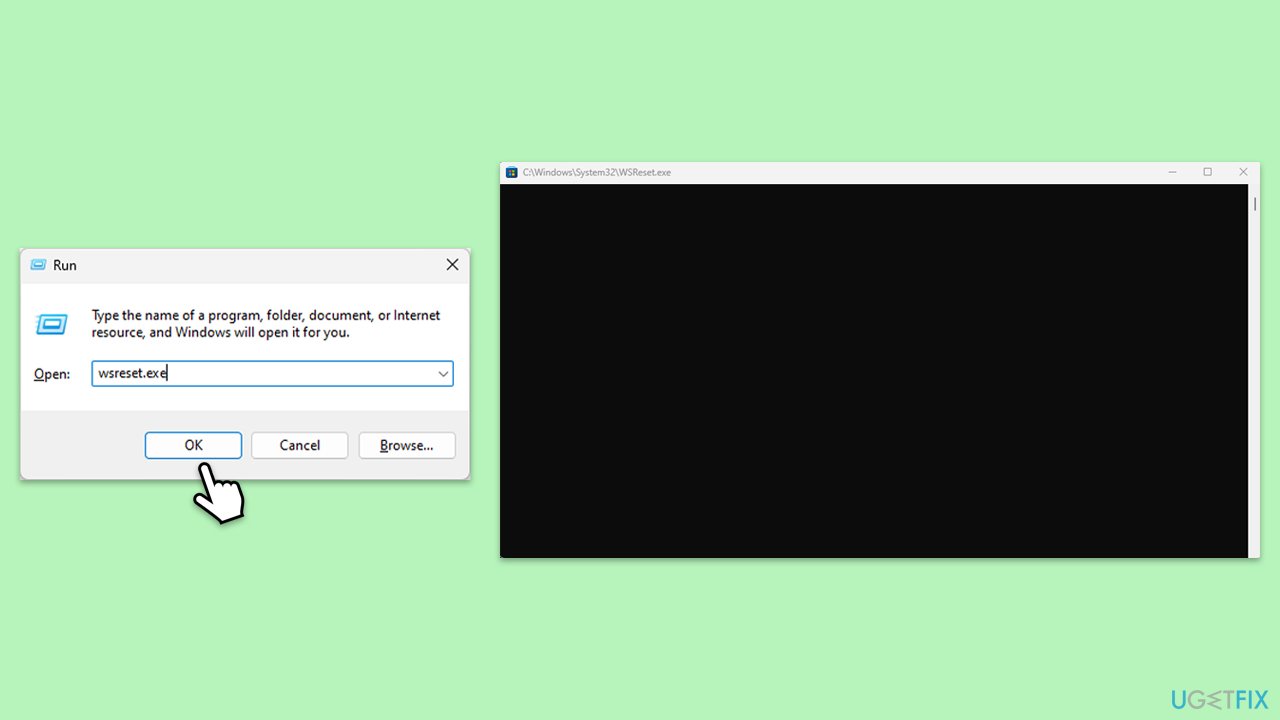
A corrupted cache in the Microsoft Store can prevent apps from updating properly, leading to error 0x80073D00. Clearing the cache forces the Store to rebuild its data, often resolving update conflicts.
- Press the Win + R to open the Run dialog.
- Type wsreset.exe and press Enter.
- A command prompt window will open and reset the Windows Store cache without any further input needed. Wait for it to close automatically.
- Once the reset is complete, restart your computer.
Fix 2. Repair or reset the app
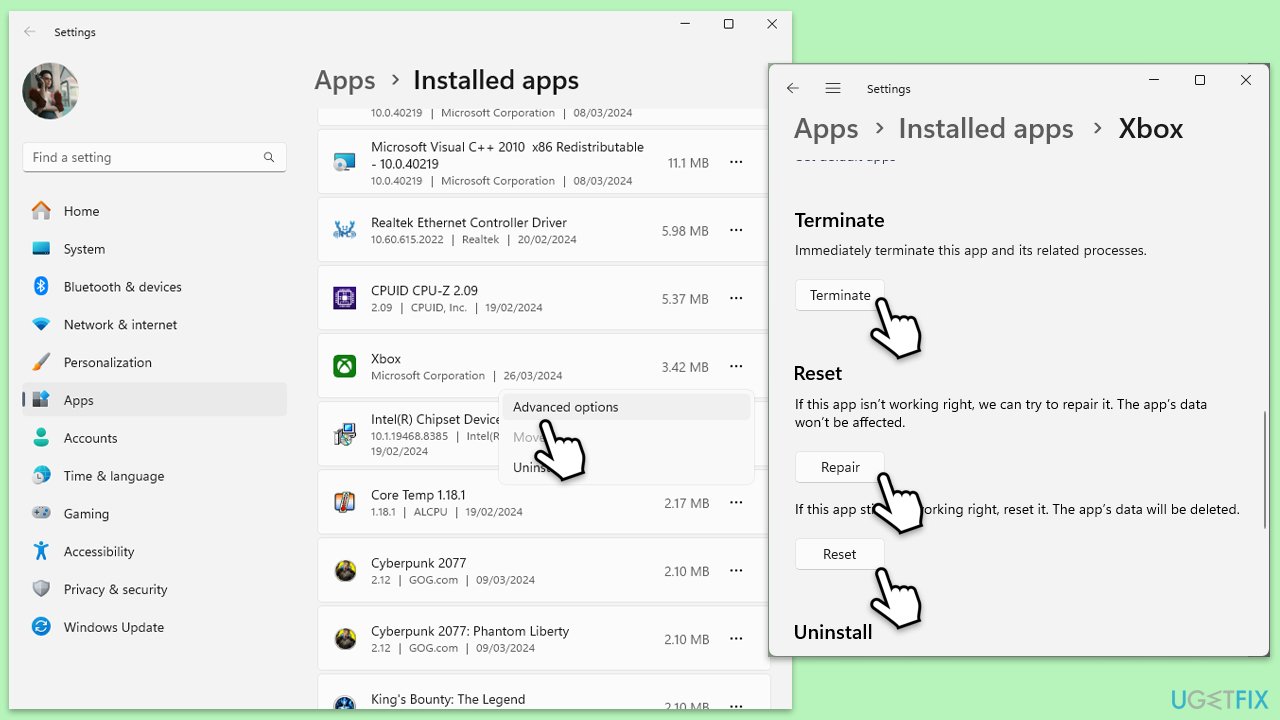
When an app is stuck in an update loop, repairing or resetting it can refresh its files without affecting user data. This method often clears minor corruption.
- Right-click on Start and pick Apps & Features/Installed apps.
- Scroll down to locate the Xbox app and click Advanced options.
- Click Terminate and Repair.
- If that does not help, try the Reset option instead.
- Repeat the same with the Microsoft Store.
Fix 3. Run Windows Store Apps troubleshooter
Windows includes a built-in troubleshooter for Microsoft Store apps. Running it can identify and fix problems that trigger the 0x80073D00 error.
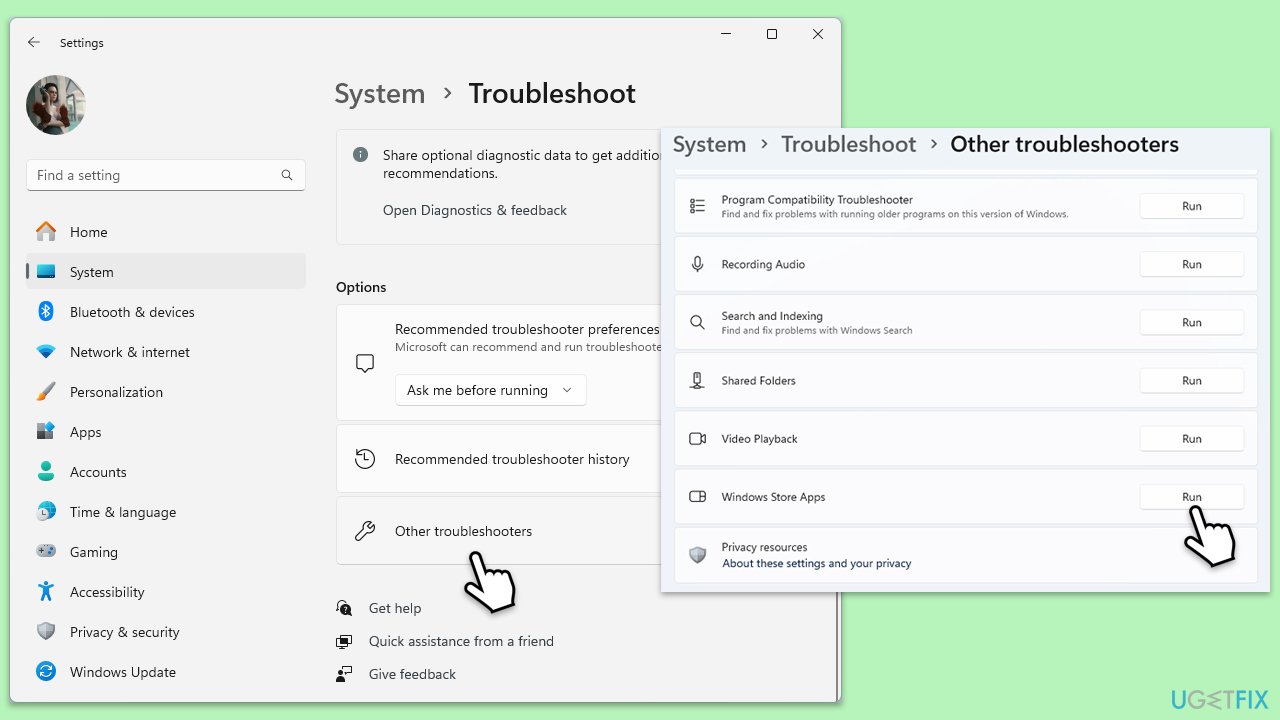
- Type troubleshoot in Windows search and press Enter.
- On the right, choose Additional troubleshooters/ Other troubleshooters.
- Find Windows Store Apps and click Run the troubleshooter/Run.
- Wait till the process is finished and apply the recommended changes.
Fix 4. Reinstall the problematic app
If the app files are severely corrupted, reinstalling the app ensures that you get a fresh, functional version without leftover issues.
Xbox app
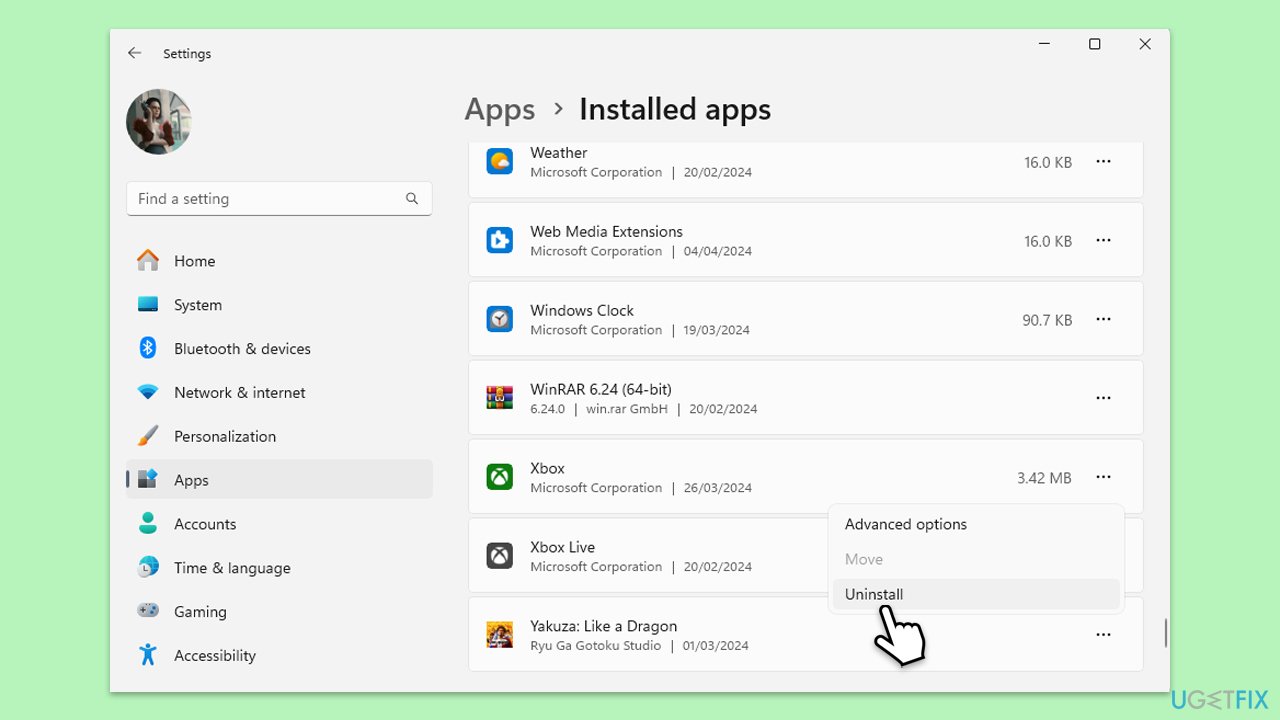
- Right-click on Start and pick Apps and Features/Installed apps.
- Scroll down to find the Xbox app installation.
- Click Uninstall and confirm with Uninstall. In Windows 11, click three dots > Uninstall.
- Follow the prompts to uninstall the app.
- Restart your computer and re-install the Xbox app from the official website.
Microsoft Store
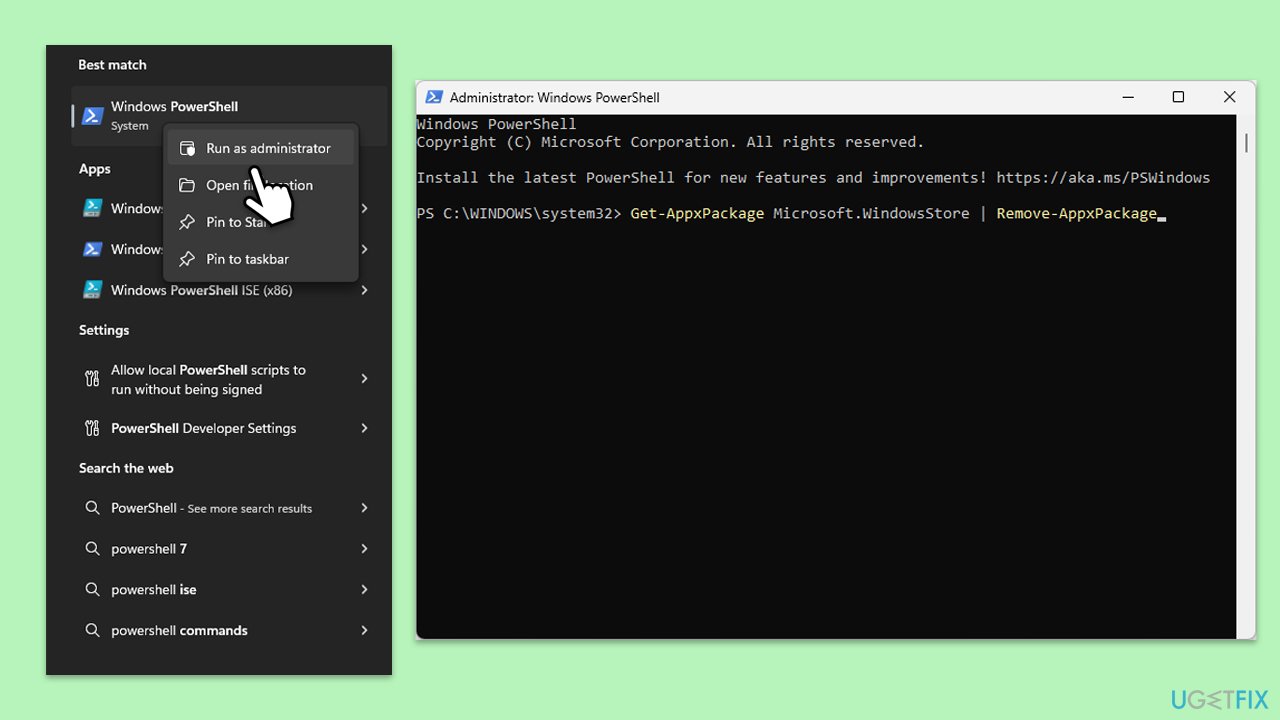
- Open PowerShell as administrator.
- In the new window, copy and paste the following command, pressing Enter after:
Get-AppxPackage Microsoft.WindowsStore | Remove-AppxPackage - With the next command, you will install the Store:
Add-AppxPackage -register "C:\Program Files\WindowsApps\Microsoft.WindowsStore*\AppxManifest.xml" -DisableDevelopmentMode - Press Enter and close PowerShell.
Fix 5. Check for Windows updates
System updates often include fixes for app compatibility and performance issues. Installing the latest updates can resolve underlying problems.
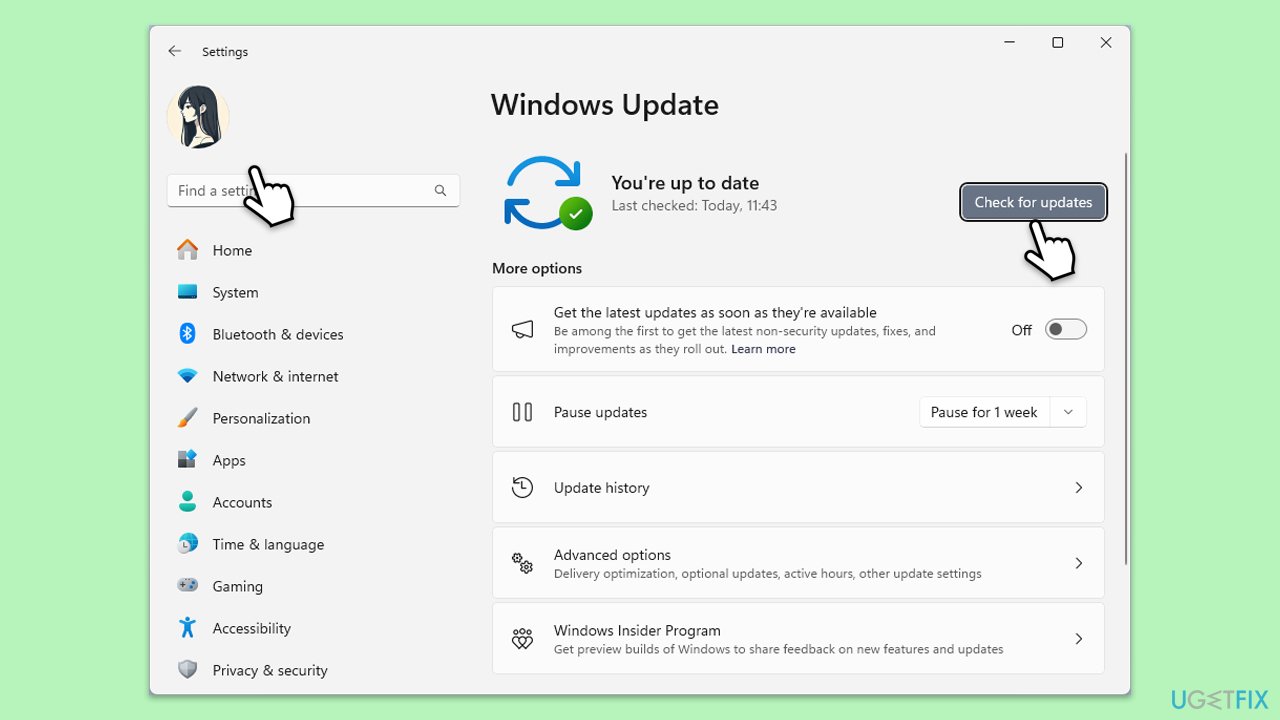
- Type Updates in Windows search and press Enter.
- Here, click Check for updates.
- Wait till Windows downloads and installs all the files.
- If optional updates are available, install them as well.
- Reboot your computer.
Fix 6. Re-register Microsoft Store
Re-registering the Microsoft Store can refresh its settings and fix issues related to app updates and installations.
- Type PowerShell in Windows search.
- Right-click on the result and select Run as administrator.
- When UAC shows up, click Yes.
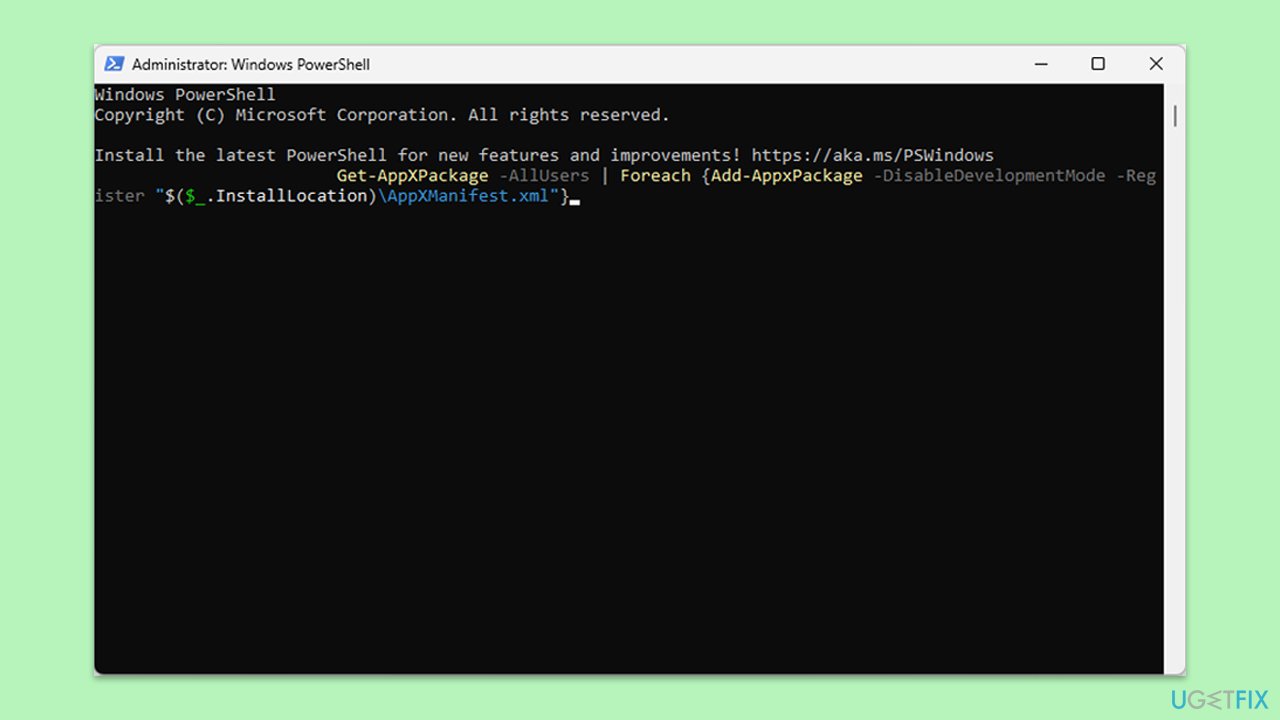
- Use the following command and press Enter:
Get-AppXPackage *WindowsStore* -AllUsers | Foreach {Add-AppxPackage -DisableDevelopmentMode -Register "$($_.InstallLocation)\AppXManifest.xml"} - When done, restart your machine.
Fix 7. Disable antivirus temporarily
Sometimes, antivirus programs can interfere with app updates, triggering the error. Temporarily disabling the antivirus can help identify if it's the cause.
- Open your antivirus program's settings.
- Look for real-time protection and turn it off temporarily.
- Try updating or opening the app again.
Fix 8. Perform a system file check
Corrupted system files can contribute to app errors. Running a system file check can identify and fix these problems.
- Type in cmd in Windows search.
- Right-click on Command Prompt and select Run as administrator.
- When User Account Control shows up, click Yes.
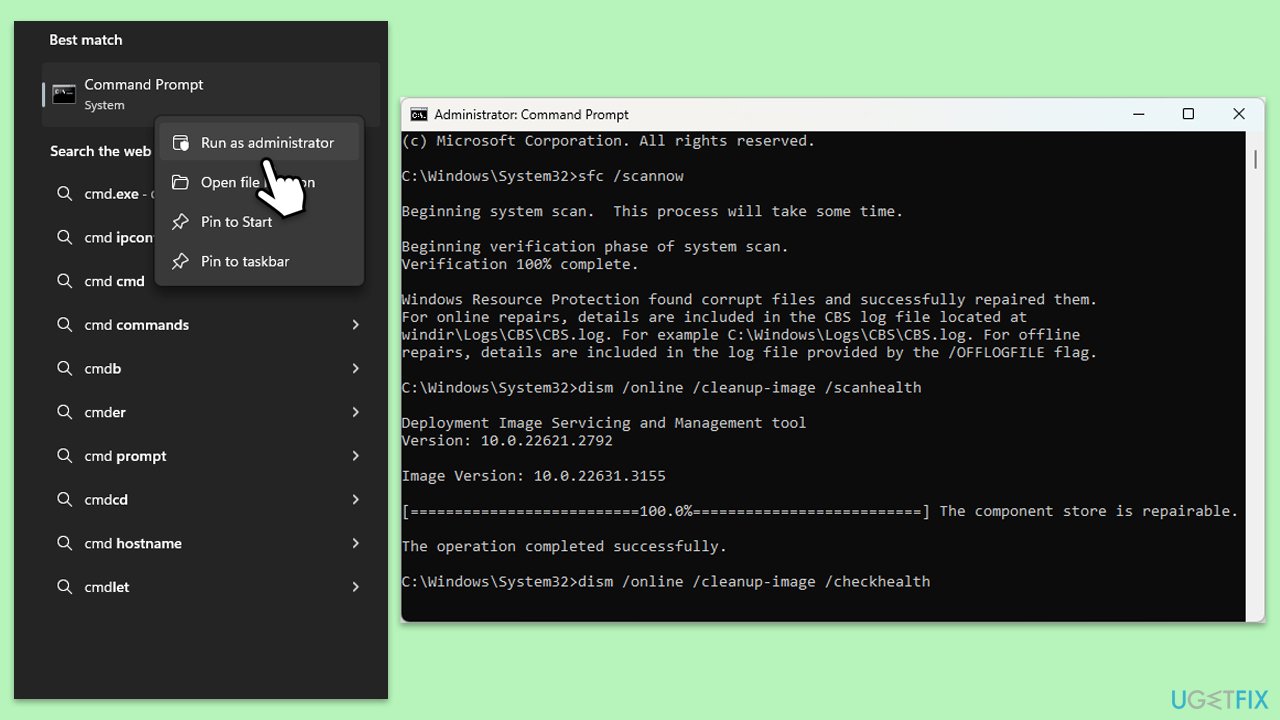
- In the Command Prompt window, paste the following command and hit Enter:
sfc /scannow - Next, use the following commands, pressing Enter each time:
Dism /Online /Cleanup-Image /CheckHealth
Dism /Online /Cleanup-Image /ScanHealth
Dism /Online /Cleanup-Image /RestoreHealth
(Note: if you get an error executing this last command, add /Source:C:\RepairSource\Windows /LimitAccess to it and try again). - Reboot your system.
Bottom line
To fix the error 0x80073D00, you can try ensuring the app is not updating, checking your internet connection, clearing the Microsoft Store cache, or using an automatic PC repair program. If none of these solutions work, consider reinstalling the affected app or seeking further technical support.
Frequently asked questions
The error code 0x80073D00 typically indicates a problem with the Microsoft Store or Xbox app, often related to corrupted files or issues with the app installation.
You can reset the Microsoft Store by opening the Settings app, navigating to Apps > Apps & features, selecting Microsoft Store, and clicking on 'Advanced options' to find the 'Reset' button.
Yes, reinstalling the Xbox app can help resolve error 0x80073D00; simply uninstall the app from the Apps & features section and then reinstall it from the Microsoft Store.




Report an issue
What's wrong with this guide? We review every report and update or remove content.
Report received — thank you. We'll review and fix it.
You need a free account to submit a report.
Be the first to comment