How to fix
Microsoft Store downloads stuck on pending
on Windows
Resolve Microsoft Store downloads stuck on pending in Windows 10/11 quickly and easily. Expert-tested solutions with screenshots, fixed in minutes!


What causes How to fix Microsoft Store downloads stuck on pending?
- Slow internet connection
- High CPU usage
- Insufficient account permissions
- Corrupted Microsoft Store cache
- Outdated Windows version
Repairs Windows system files, removes malware, and restores a clean OS state — without reinstalling.
Hello. I tried updating my Windows apps through the Microsoft Store but the downloads are shown as "pending" or "downloading." Why are they stuck? Any tips would be appreciated.
Microsoft Store is a built-in app in Windows that allows users to download and install a variety of applications such as games, productivity tools, and multimedia software. The Microsoft Store provides several advantages, such as a large selection of free and paid applications, a secure platform for app downloads, and automatic updates for installed apps.
Code signing, sandboxing, and vulnerability management are among the security features available in the Microsoft Store to ensure the safety of its users. Code signing ensures that the apps are signed by a reputable publisher, whereas sandboxing restricts apps' access to system resources, preventing them from causing harm to the operating system. Finally, vulnerability management ensures that the apps are regularly updated, addressing any discovered security flaws.
However, users may occasionally experience issues with the Microsoft Store, such as downloads becoming stuck on "pending." Users may be irritated by this issue because it prevents them from installing new apps or updates. It may also have an impact on system performance and cause other problems, such as a slow internet connection or high CPU[ref en-1] usage.
To resolve the problem, users can try resetting the Microsoft Store cache, checking their internet connection, and updating Windows. Users can also see if their account has the required permissions to download and install apps from the Microsoft Store.
In this guide, you will find 6 steps that should help you fix Microsoft Store downloads stuck on pending. However, if you think this may be caused by underlying OS issues, you can try using a maintenance tool like [d1] that can fix most system errors, BSODs,[ref en-2] corrupted files, and registry[ref en-3] issues. Otherwise, follow the step-by-step instructions below.

Method 1. Run Windows Store Apps Troubleshooter
- Press the Windows key + I to open Windows Settings
- Select the System section and scroll down until you see Troubleshoot and click on it
- Click on Other troubleshooters to see more troubleshooters available on your computer
- Scroll down at the bottom until you see Windows Store Apps
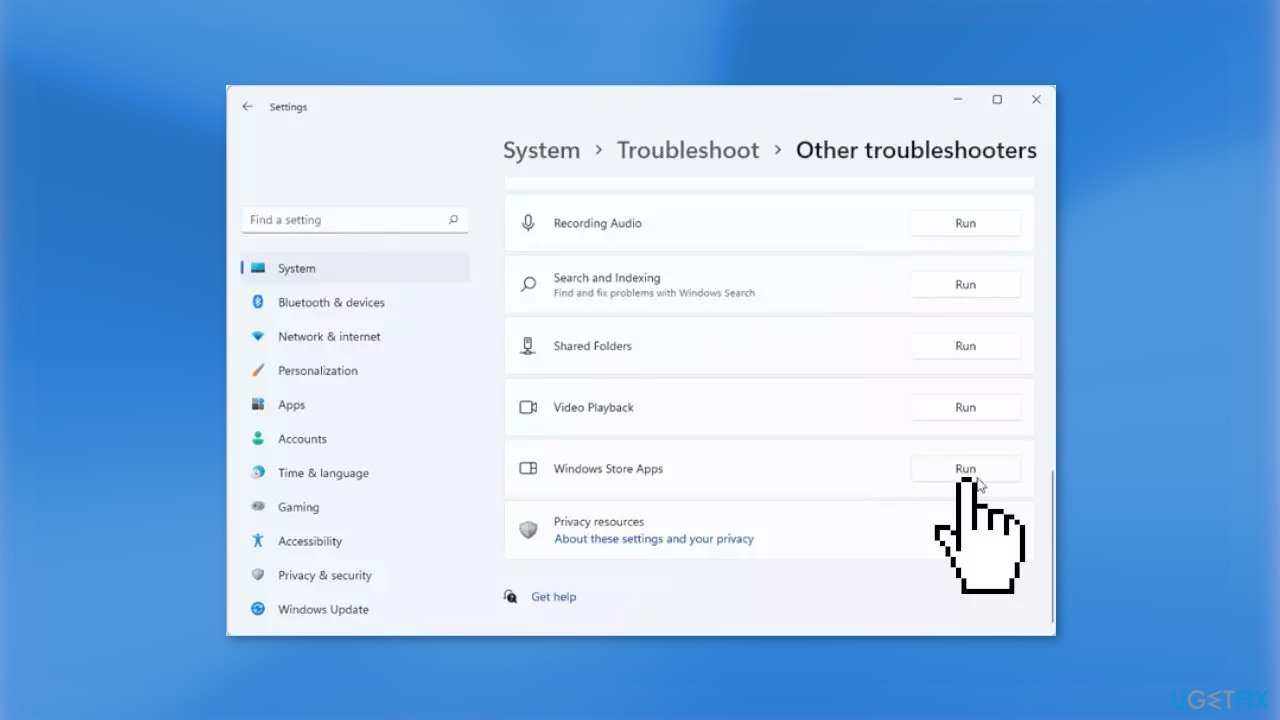
- Click on Run to start the troubleshooting process
- Wait until the process is complete
Method 2. Repair Corrupted System Files
Use Command Prompt commands to repair system file corruption:
- Open Command Prompt as administrator
- Use the following command and press Enter:
sfc /scannow
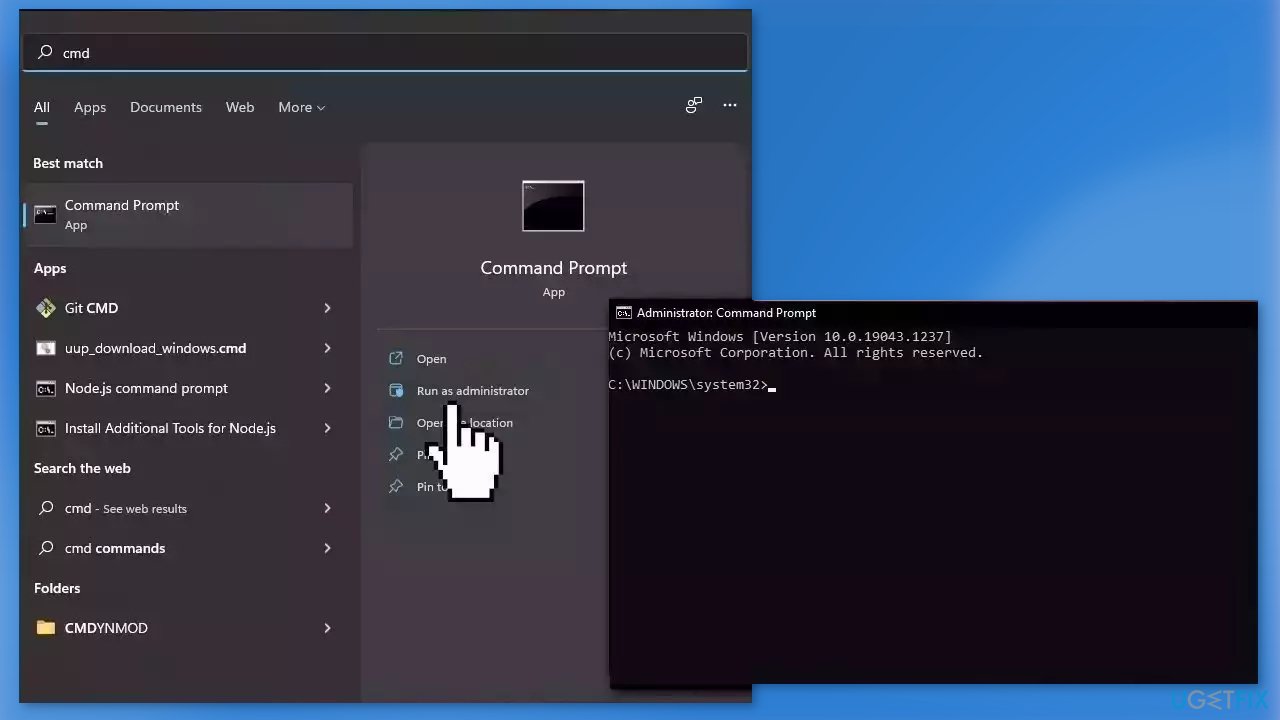
- Reboot your system
- If SFC returned an error, then use the following command lines, pressing Enter after each:
DISM /Online /Cleanup-Image /CheckHealth
DISM /Online /Cleanup-Image /ScanHealth
DISM /Online /Cleanup-Image /RestoreHealth
Method 3. Disable VPN and Proxy Server
- Press the Windows key + I buttons on your keyboard to open the Settings page
- Select the Network & internet option from the left side pane
- Choose the Proxy tab from the list of options on the right side
- Click the Set up button next to the Use a proxy server option under the Manual proxy setup section
- Toggle off the Use a proxy server option
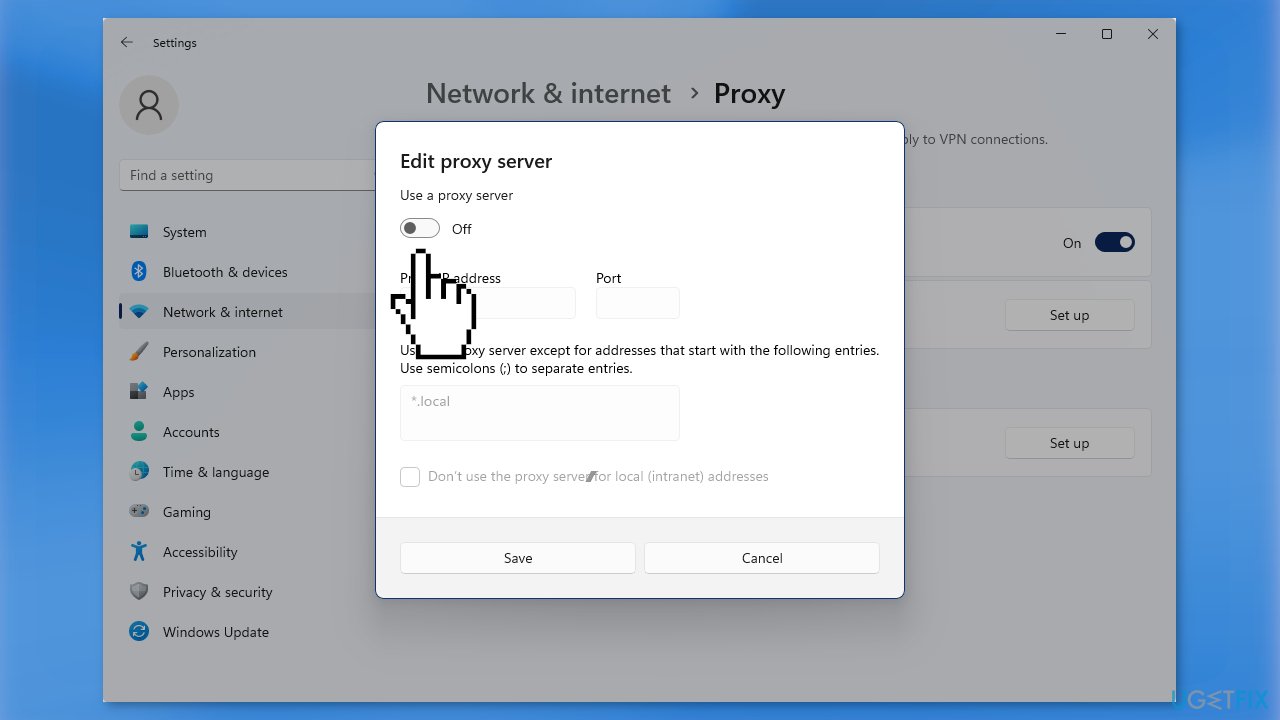
- Hit the Save button and exit
Method 4. Clear the SoftwareDistribution Folder
- Open File Explorer and navigate to This PC
- Open the Local Disk C Drive (C:)
- Double-click on the Windows folder
- Open the SoftwareDistribution folder
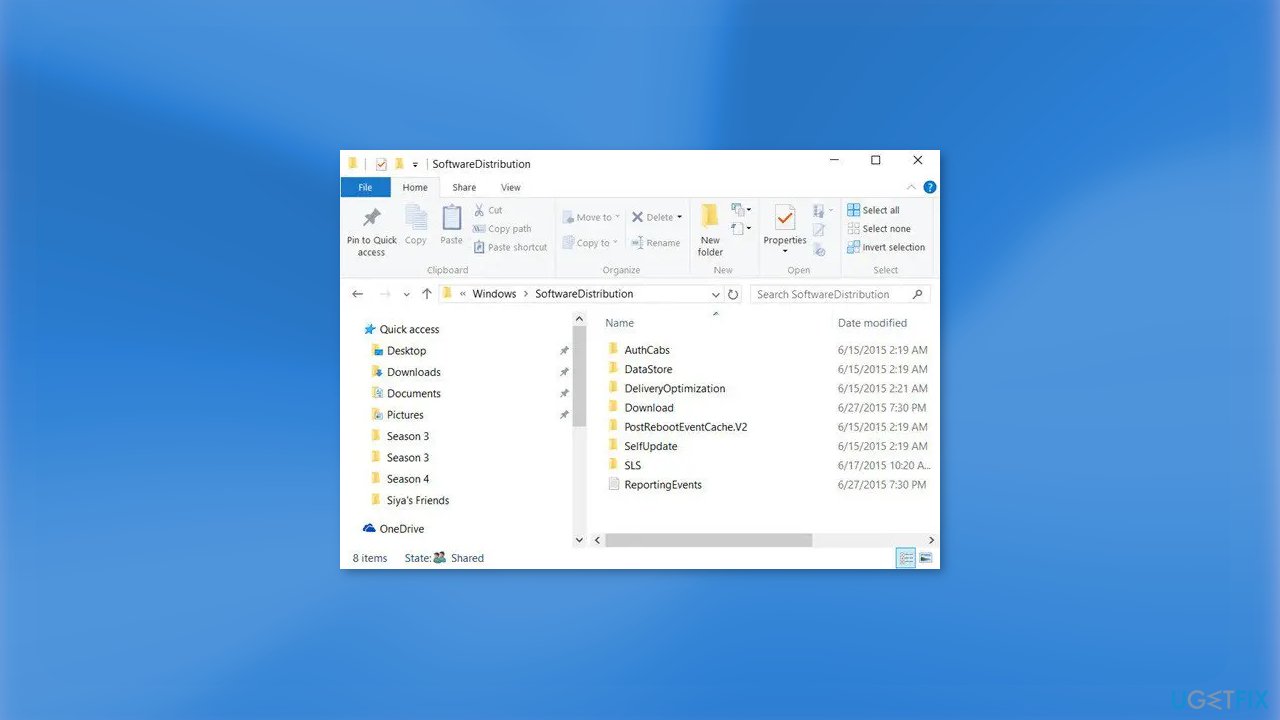
- Select all files in the folder
- Delete all selected files
Method 5. Check Date and Time Settings
- Press the Windows key + I buttons on your keyboard to open the Settings page
- Select Time and Language from the left-hand pane
- Select Date & Time from the options on the right side
- Make sure the Set time automatically and Set your time zone automatically options are turned on under the Date & Time menu
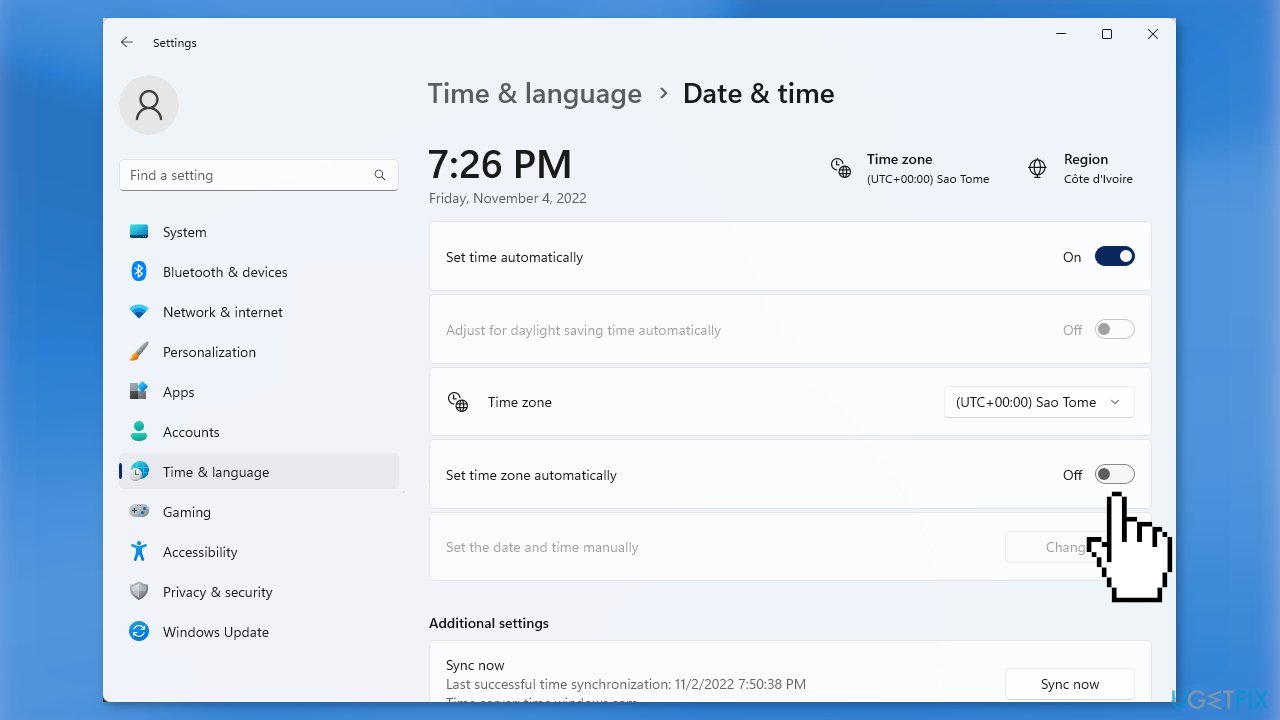
- Click on the Sync now button under the Additional settings section to sync your date and time with the Windows Time Server
Method 6. Repair or Reset the Microsoft Store
- Press the Windows key + I to open Windows Settings
- Select Apps and access the Apps & features section
- Search for Microsoft Store using the search bar
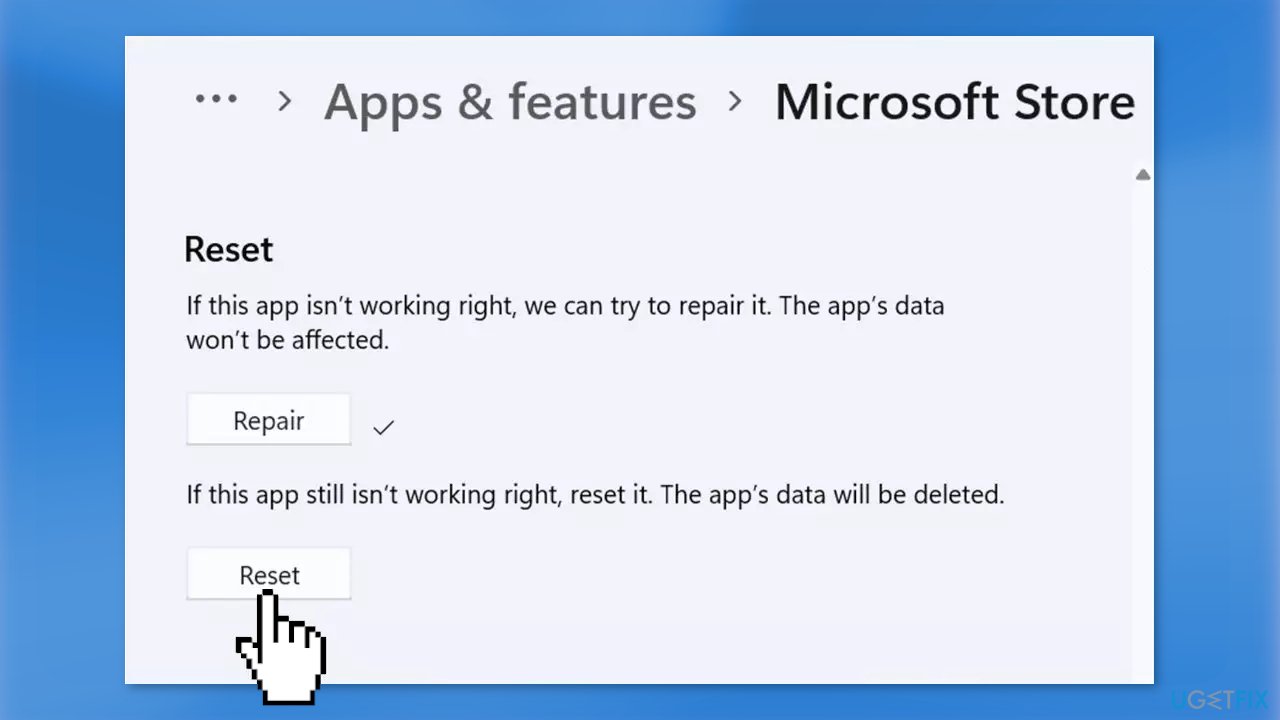
- Click on the three dots located on the right side of it and then click on Advanced options
- Click on the Repair option first, if that does not fix the issue, click on Reset
Bottom line
To fix Microsoft Store downloads stuck on pending, users can try resetting the Microsoft Store cache, checking their internet connection, and updating Windows. If the issue persists, consider using a maintenance tool to address underlying OS problems.
Frequently asked questions
This issue can occur due to network problems or corrupted cache files in the Microsoft Store. Try resetting the Store cache by running 'wsreset.exe' in the Run dialog.
Check if you have a stable internet connection and ensure that Windows Update is functioning properly, as it can affect the Store. You may also need to update the Microsoft Store app from the settings.
To clear the cache, open the Run dialog by pressing Windows + R, type 'wsreset.exe', and press Enter; this will reset the Microsoft Store cache.




Report an issue
What's wrong with this guide? We review every report and update or remove content.
Report received — thank you. We'll review and fix it.
You need a free account to submit a report.
Be the first to comment