How to fix
Microsoft Store error 0x00000000
on Windows
Resolve the Microsoft Store error 0x00000000 on Windows 10 or Windows 11 with expert-tested solutions. Get back to downloading apps fast! Fixed in minutes.

What causes How to fix Microsoft Store error 0x00000000?
- Network connectivity issues
- Corrupted Microsoft Store cache
- Outdated Windows version
- Conflicting third-party software
- Account-related problems
Repairs Windows system files, removes malware, and restores a clean OS state — without reinstalling.
Hi, I was trying to update all my apps via Microsoft Store just as I usually do, but I got a 0x00000000 error instead. It happens whenever I attempt to update them individually or all at once. I am using Windows 10. Any help would be appreciated.
Microsoft Store is a digital distribution platform built into the Windows operating system. It allows users to browse and download apps, games, music, movies, and TV shows. The store features a wide range of apps and games for Windows, including those developed by Microsoft and third-party developers. Users can also purchase and download e-books and rent or buy movies and TV shows from the store.
The Microsoft Store was first introduced with the release of Windows 8 in 2012 as a way to provide a centralized location for users to discover, download, and update apps for the Windows operating system. It has since been updated with new features and improvements, such as the introduction of a gaming section and the ability to purchase and download movies and TV shows. The store continues to be a key component of the Windows ecosystem, making it easy for users to find and use the apps they need.
Under certain circumstances, some users can't use the Store as intended due to errors such as 0x00000000. Users reported on multiple tech forums that they encounter the error whenever they attempt to update installed apps or even download new ones. While for some, this happens only with certain apps, the problem is more universal for others.
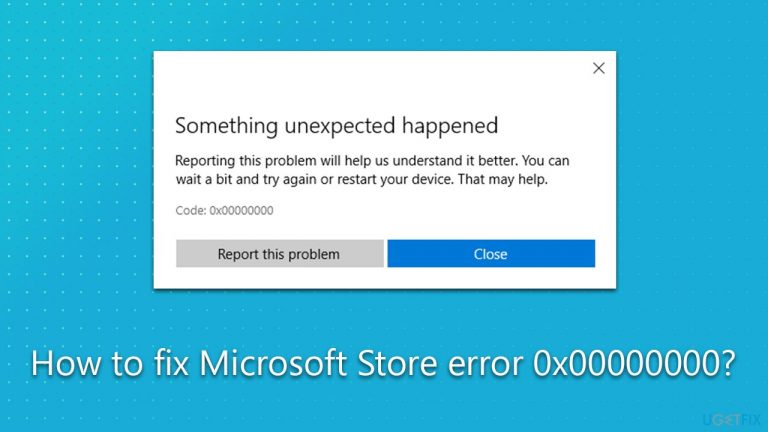
The 0x00000000 error reads as follows (although the message may vary):
Something unexpected happened
Reporting this problem will help us understand it better. You can wait a bit and try again or restart your device. That may help.
Code: 0x00000000
Tips within the message are very generic, and many users tried to wait and reboot their devices. Unfortunately, that did not help to deal with the situation, and they were still unable to use the Microsoft Store app as intended.
After investigating the issue related to the 0x00000000 Microsoft Store error, we compiled a set of solutions that should help users to deal with it. If you want an even quicker solution, we recommend trying PC repair software [d1].
Solution 1. Start with the troubleshooter
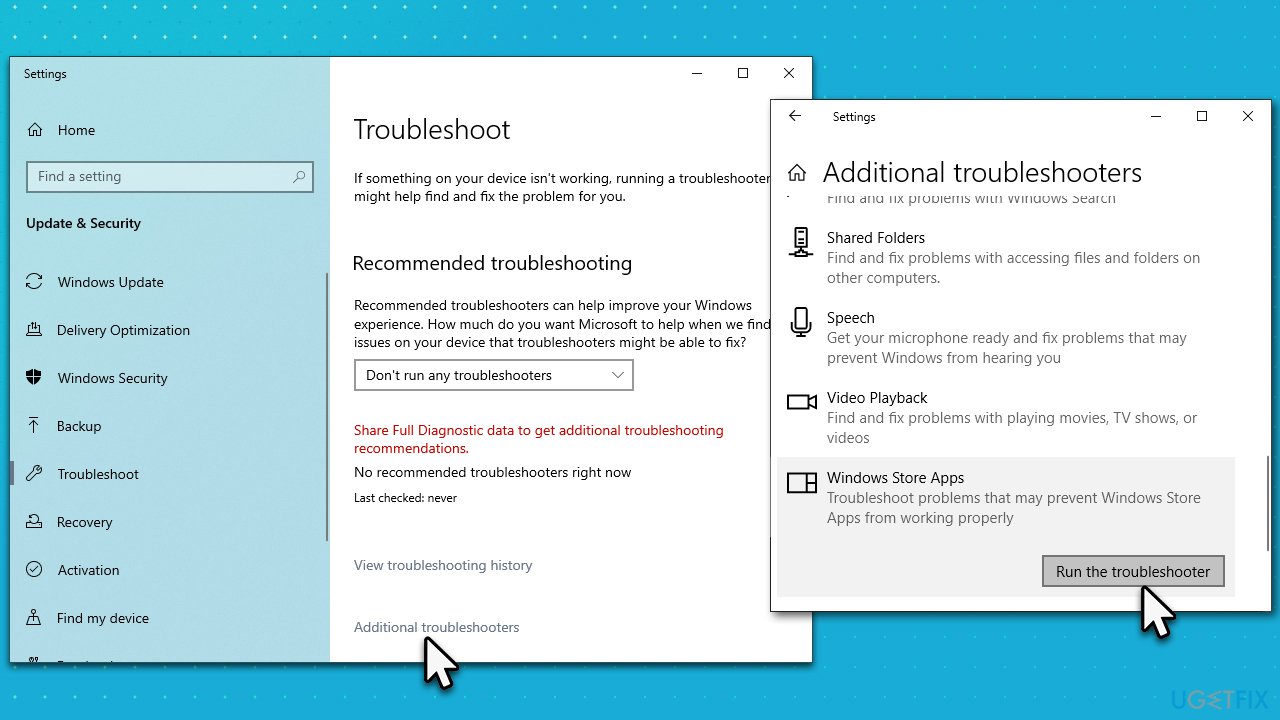
The best way to resolve Microsoft Store errors is by running Windows Store Apps troubleshooter, although it might not help for everyone.
- Type Troubleshoot in Windows search and press Enter.
- On the right side, click Additional troubleshooters/Other troubleshooters.
- Scroll down to find the Windows Store Apps entry.
- Select it and click Run the troubleshooter/Run.
- Wait till the scan finishes and apply the suggested fixes, then reboot your system.
Solution 2. Relog into the Store app
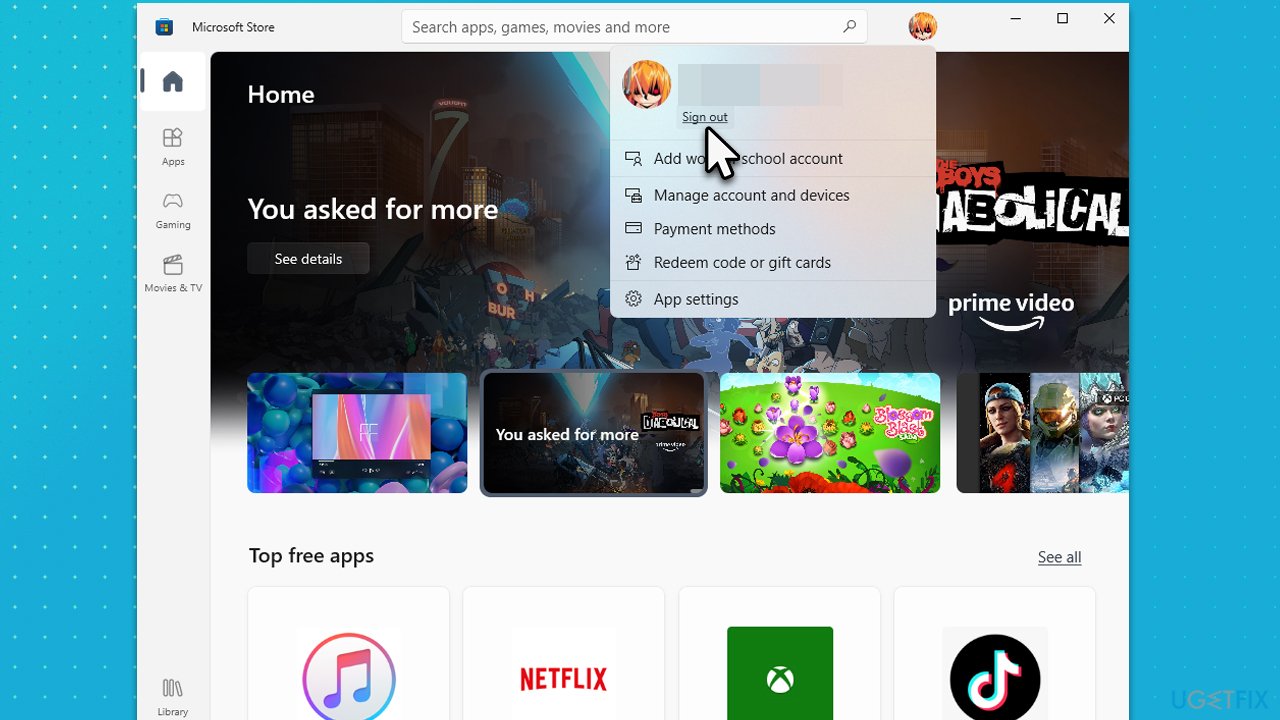
- Launch Microsoft Store.
- Click on your Profile picture and click Sign out.
- Restart your computer.
- Once back, open the Store again.
- Click on the user icon and select Sign in.
- Enter your username and password and see if the error is gone.
Solution 3. Reset Windows Store cache
Cached files might sometimes become corrupted or bugged. Resetting them might be helpful when dealing with 0x00000000 Store error.
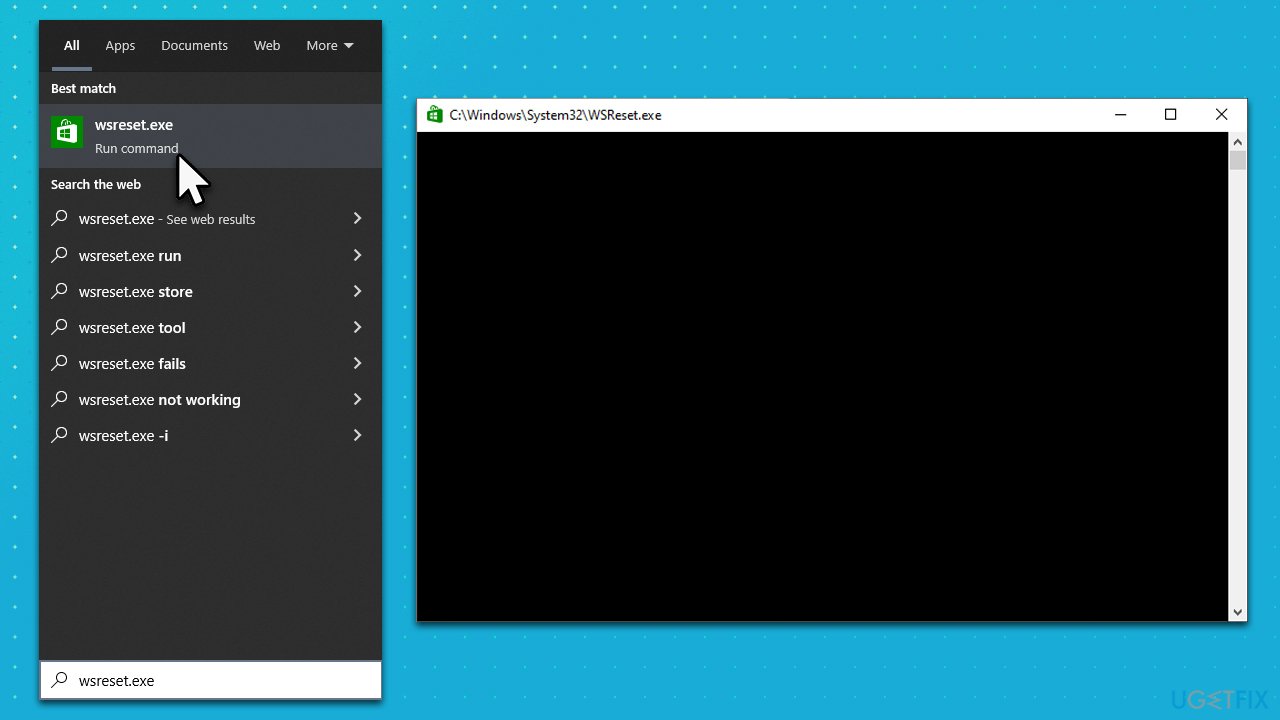
- In Windows search, type wsreset and press Enter.
- Wait till a black window shows up - do not close it.
- As soon as it closes, the store should be reset and will reopen.
- Try updating or downloading apps again.
Solution 4. Repair or reset the app
If the previous method was not helpful, repairing or resetting the app itself could be useful.
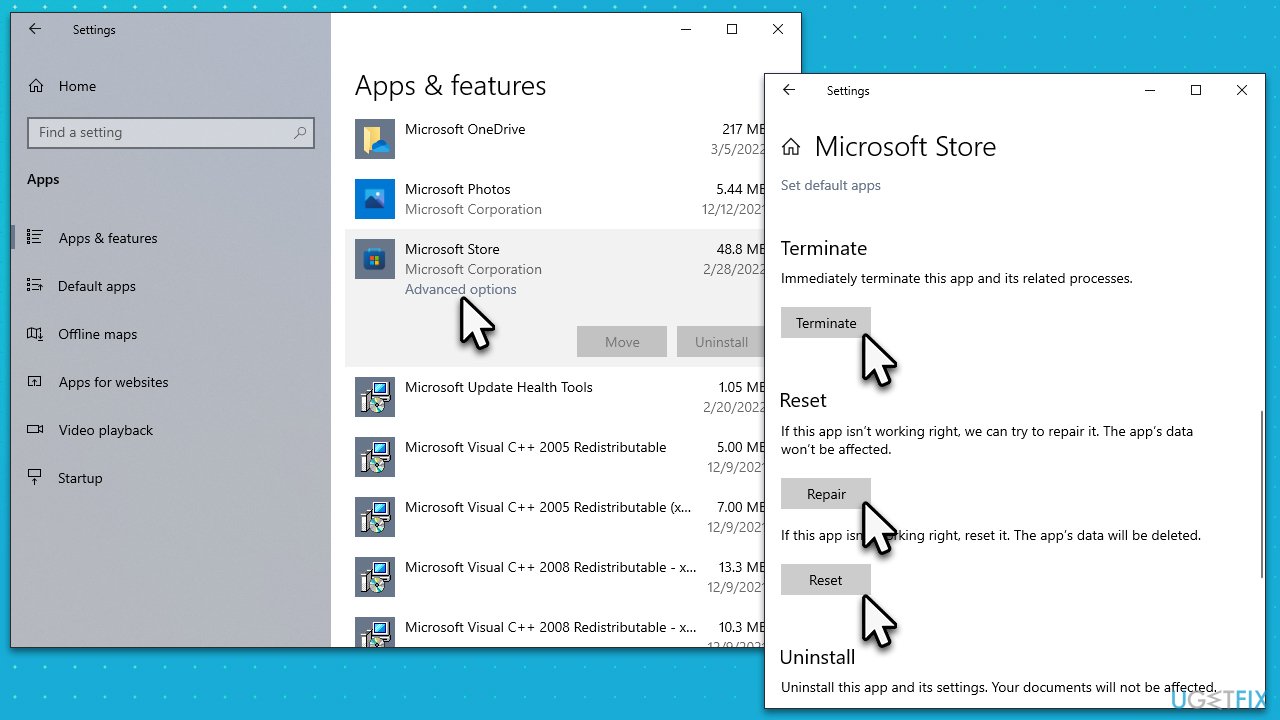
- Right-click on Start and pick Apps & Features.
- Scroll down to locate Microsoft Store and click Advanced options.
- Click Terminate and Repair.
- If that does not help, try the Reset option instead.
Solution 5. Repair damaged system files
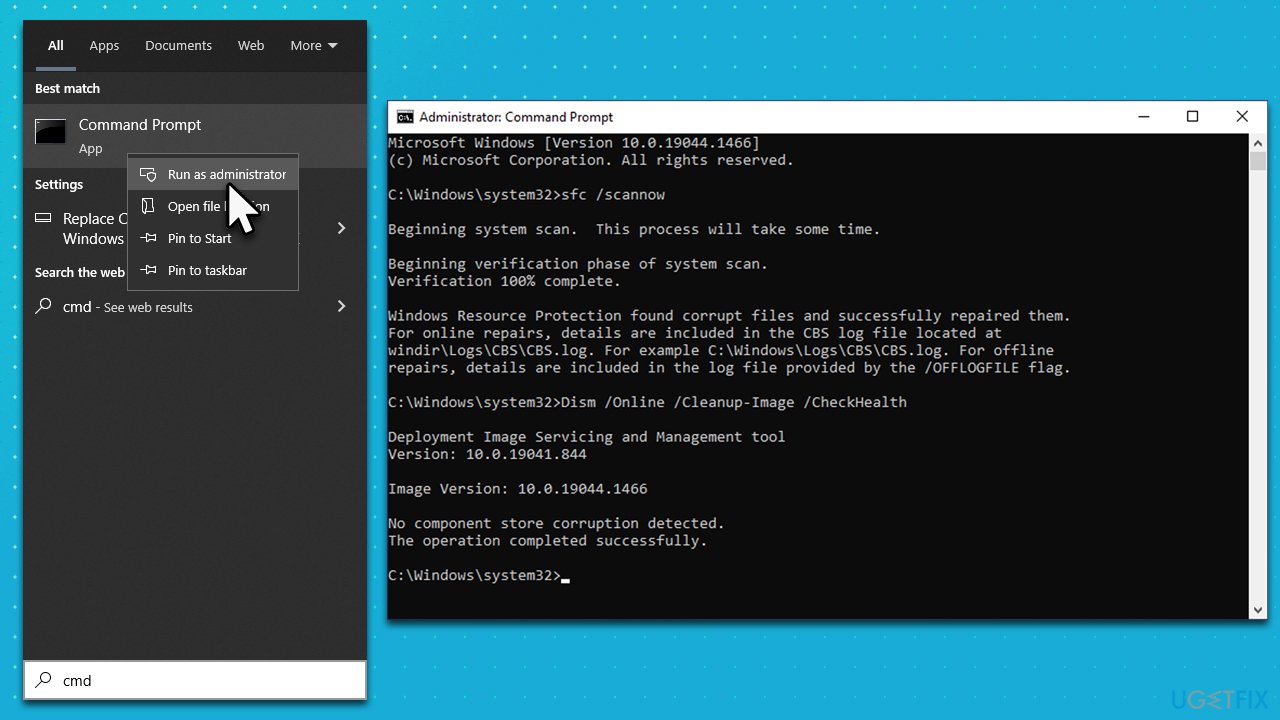
- Type cmd in Windows search.
- Right-click on the Command Prompt result and select Run as administrator.
- User Account Control (UAC) window will ask whether you want to allow changes to your computer - click Yes.
- Next, copy and paste the following commands, pressing Enter after each:
sfc /scannow
How to fix windows error 0x800701e1 run sfc scan
DISM /Online /Cleanup-Image /CheckHealth
DISM /Online /Cleanup-Image /ScanHealth
DISM /Online /Cleanup-Image /RestoreHealth - Restart your system after each of these commands is executed.
Solution 6. Reinstall the Store
- Make sure your Microsoft Store is closed and not running in the background.
- Right-click on Start and select PowerShell (Admin).
- Paste the following command and press Enter:
Get-AppXPackage *Microsoft.WindowsStore* | Foreach {Add-AppxPackage -DisableDevelopmentMode -Register “$($_.InstallLocation)\AppXManifest.xml”} - Close Powershell.
Solution 7. Change ownership of the Repository Packages
Insufficient permissions might result in Windows Store errors. Try using the Registry Editor to address this, although make sure you backup your registry before proceeding.
- Type in regedit in Windows search and hit Enter.
- When UAC shows up, click Yes.
- In the Registry Editor, navigate to the following location:
HKEY_CURRENT_USER\SOFTWARE\Classes\Local Settings\Software\Microsoft\Windows\CurrentVersion\AppModel\Repository\Packages - Right-click on the Packages folder on the left side of the window and select Permissions.
- At the bottom-right of the window, click Advanced.
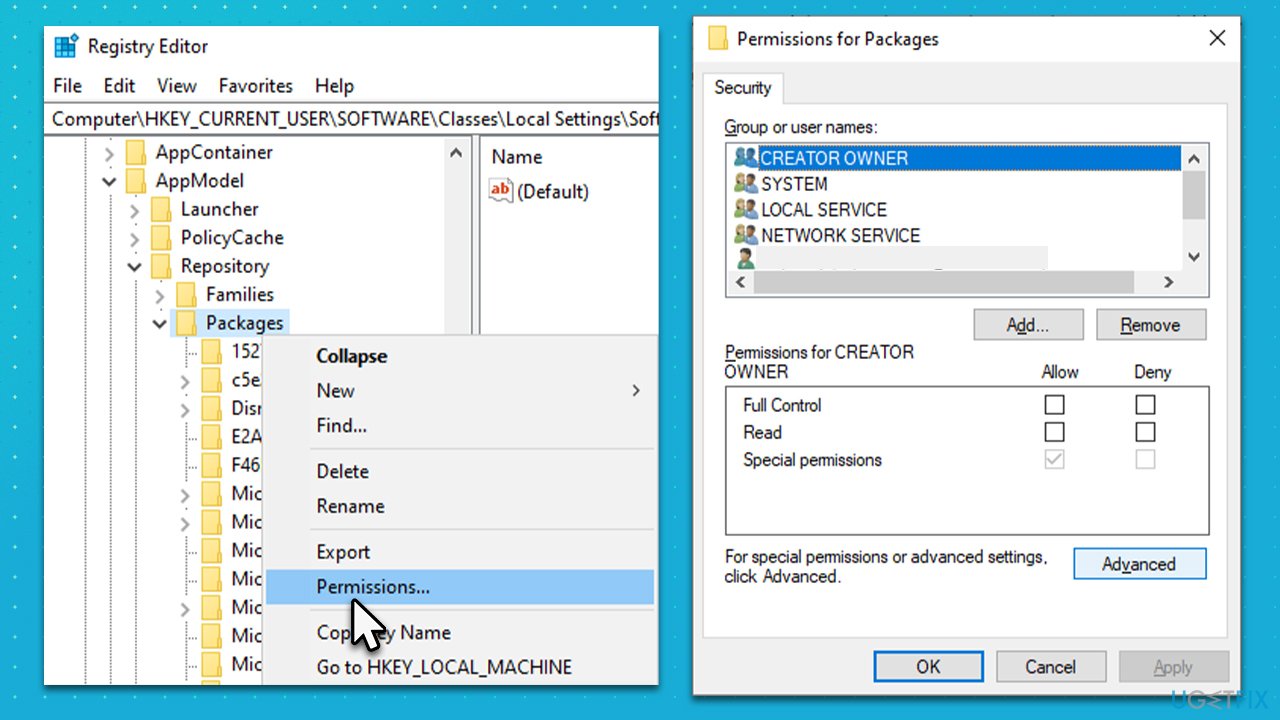
- If the Owner is System, skip this method. If it is set to something else, you need to change it to System.
- Under Owner, click Change.
- Type in System in the field, click Check Names, and click OK.
- Restart your PC.
Bottom line
To fix the 0x00000000 error, users can try clearing the Microsoft Store cache, ensuring their Windows is up to date, and checking for any conflicting software. If these solutions do not resolve the issue, consider resetting the Microsoft Store or contacting support for further assistance.
Frequently asked questions
Start by running the Windows Store Apps Troubleshooter, which can automatically detect and fix issues related to the Microsoft Store.
Yes, resetting the Microsoft Store can often resolve error 0x00000000; you can do this by going to Settings > Apps > Apps & features, selecting Microsoft Store, and clicking on 'Advanced options' to find the reset option.
Absolutely, keeping your Windows 10 or Windows 11 updated can fix various bugs and glitches, including issues with the Microsoft Store.




Report an issue
What's wrong with this guide? We review every report and update or remove content.
Report received — thank you. We'll review and fix it.
You need a free account to submit a report.
Be the first to comment