How to fix
Microsoft Store error 0x00000191
on Windows
Resolve Microsoft Store error 0x00000191 on Windows 10 and 11 quickly with our expert-tested solutions. Fixed in minutes!

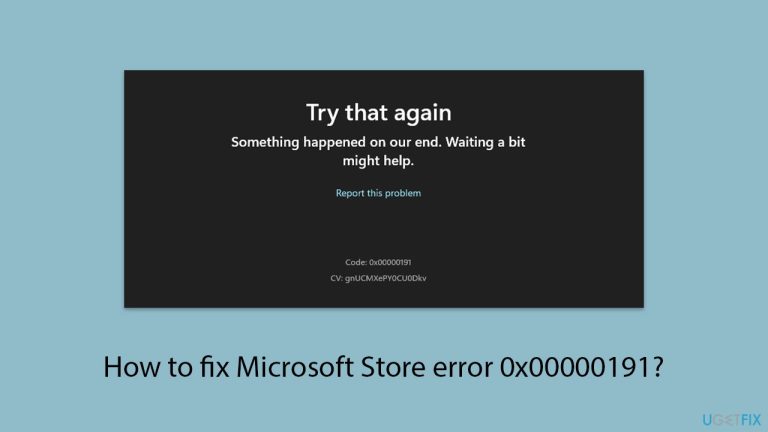
What causes How to fix Microsoft Store error 0x00000191?
- Corrupted store files
- Unstable internet connection
- Issues with Windows updates
- Conflicting applications
- Cache problems
Repairs Windows system files, removes malware, and restores a clean OS state — without reinstalling.
Hello there, I have been getting this error for a while now - it reads: "Try that again. Something happened on our end. Waiting a bit might help. Code 0x00000191." What does this mean, and can it be fixed, or should I just keep waiting?
Microsoft Store is a built-in app that offers great convenience to users. It allows not only the updating of existing applications but also the discovery and installation of new ones. This functionality is beneficial as it eliminates the need to visit third-party websites to download software, thereby minimizing the risk of malware and other potential threats.
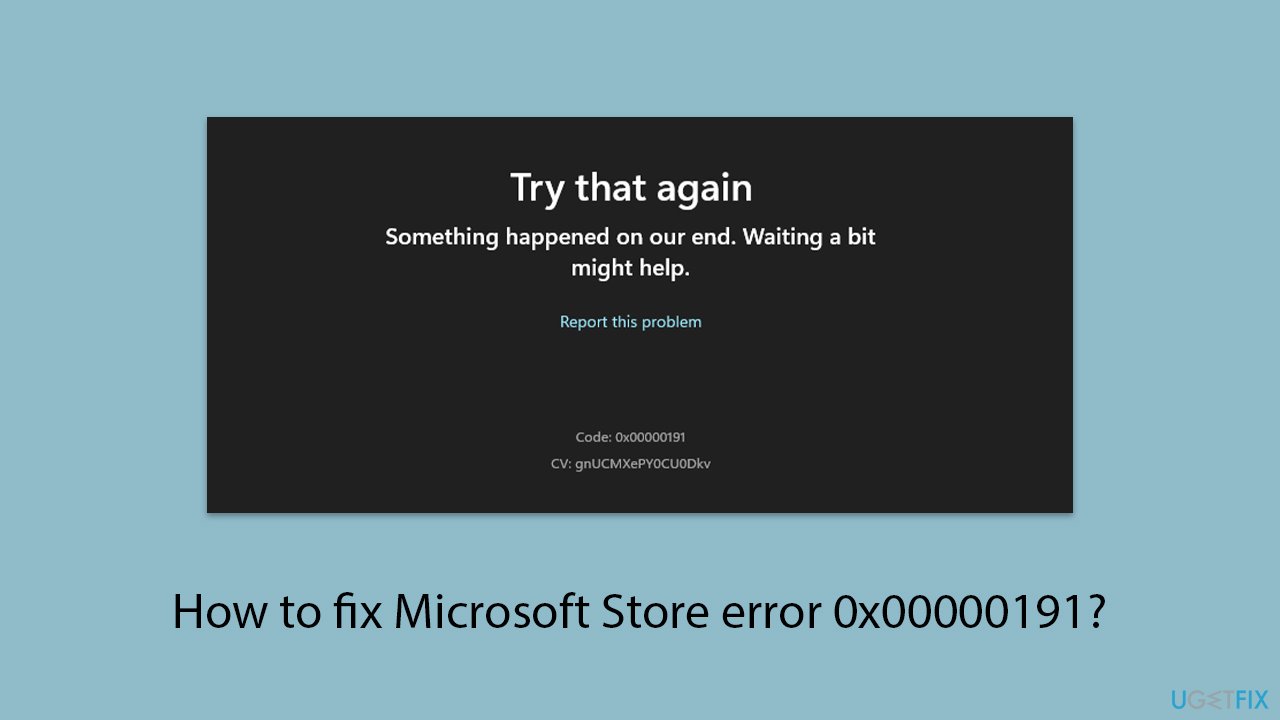
However, encountering errors in the Microsoft Store is not uncommon, and error code 0x00000191 is one that users might face when trying to download new apps or update existing ones. The error message displayed by Windows is rather vague and simply states:
Try that again. Something happened on our end. Waiting a bit might help. Code 0x00000191
Most users follow this suggestion by restarting their device and attempting to download or update it again. Unfortunately, this doesn’t resolve the issue for many, leading them to search for ways to fix the 0x00000191 error code in the Microsoft Store.
This problem can impact various apps - from productivity tools to popular video games like Minecraft. This can be particularly troublesome for users, especially when these apps are essential for tasks such as remote work.
There are numerous potential causes for this error, ranging from corrupted store files to an unstable internet connection. Therefore, several methods exist to address this issue, and we provide a range of solutions below.
Please try each one to see which resolves the problem for you. If you want to try a much more efficient solution for your Windows problems, you can always rely on [d1] repair utility.
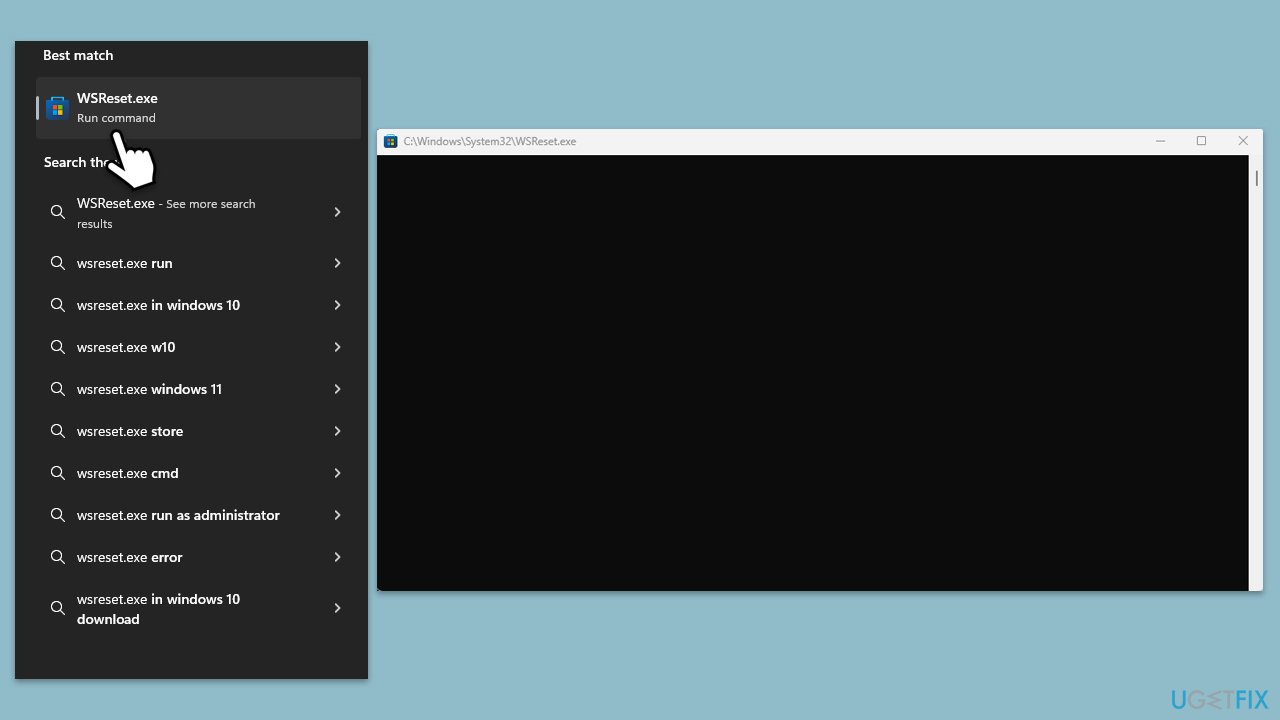
Fix 1. Reset Microsoft Store cache
Start with resetting Microsoft Store cache, which is a common reason for errors like 0x00000191.
- In Windows search, type wsreset.exe and press Enter.
- Wait till a black window shows up – do not close it.
- Once it's gone, Microsoft Store should restart.
- Try using the Store again.
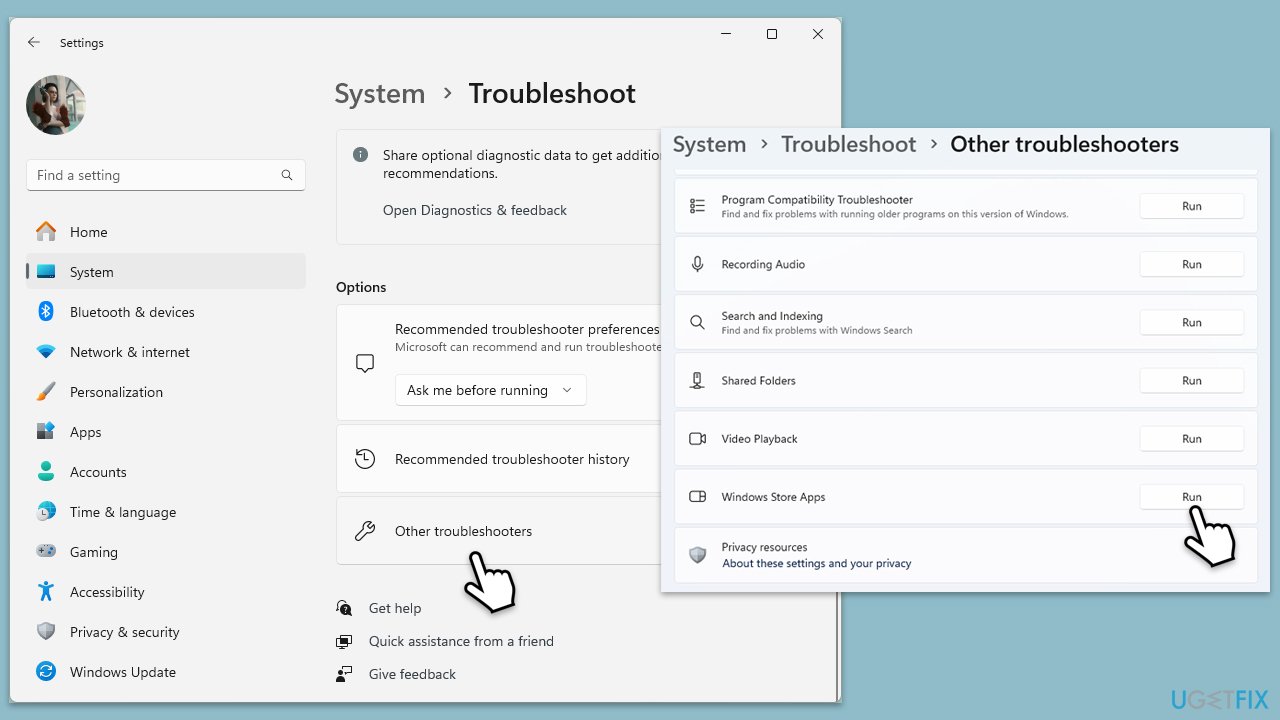
Fix 2. Run Windows Store apps troubleshooter
- Type Troubleshoot in Windows search and hit Enter.
- Click Additional troubleshooters/Other troubleshooters.
- Scroll down to find Windows store apps and select it.
- Click Run the troubleshooter/Run.
- Wait till the process is finished and apply the fixes, then try updating again.
Fix 3. Enable administrator via Command Prompt
- Type cmd in Windows search.
- Right-click on Command Prompt and select Run as administrator.
- When User Account Control (UAC) asks you if you want to allow changes, click Yes.
- In the Command Prompt window, type the following and press Enter:
net user administrator /active:yes - Close the Command Prompt window.
- Log out of your current account.
- Log in to the Administrator account that now appears on the welcome screen.
Fix 4. Check services
Certain services need to be working in order for the Microsoft Store to operate successfully.
- Type Services in Windows search and hit Enter.
- Locate Windows Update, Windows Installer, Storage Service, and Windows Firewall in the list.
- Right-click on each and select Properties.
- Set the Startup type to Automatic - select it from the drop-down menu.
- Click Start if the service is not running.
- Click Apply and OK.
Fix 5. Repair or reset the Microsoft Store
- Right-click on Start and select Apps & Features/Installed apps.
- Scroll down to find Microsoft Store and click Advanced options or go to Settings > System > System Components > Advanced options.
- Scroll down again and click Terminate and Repair.
- If that does not work, try using Reset.
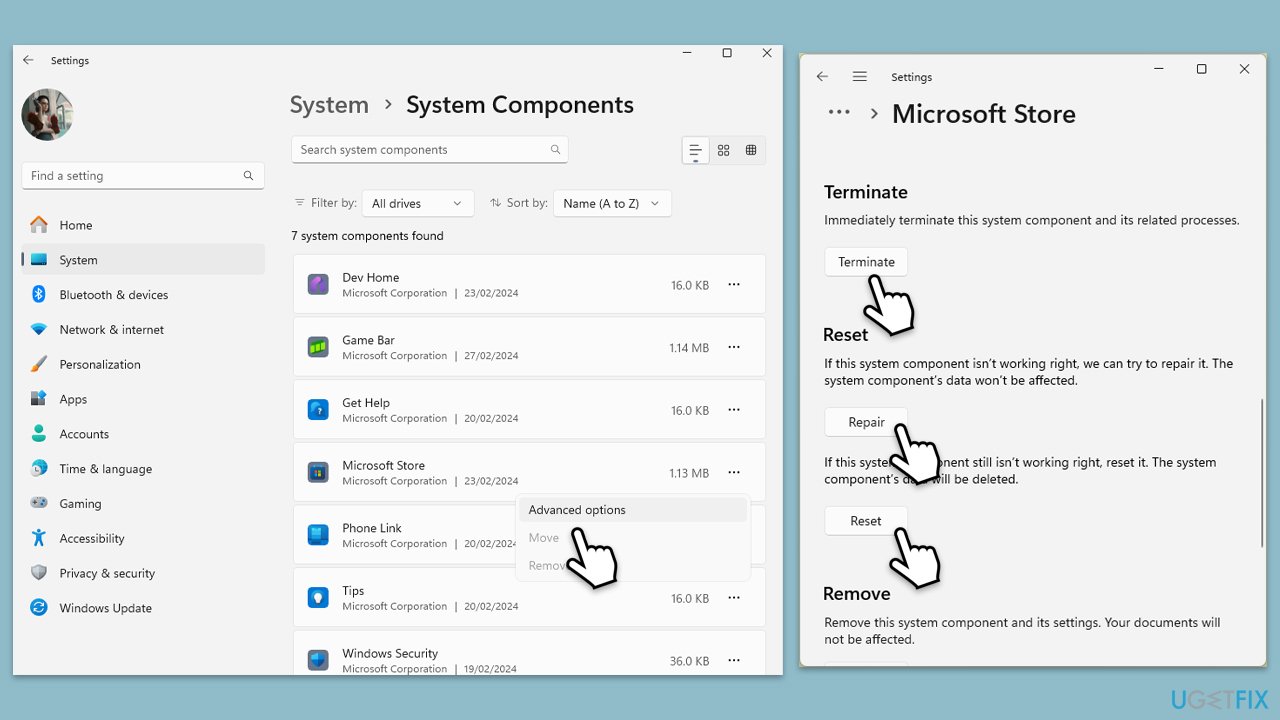
Fix 6. Re-register all Microsoft Store apps
- Type PowerShell in Windows search.
- Right-click on PowerShell and select Run as administrator.
- When UAC shows up, click Yes.
- Type in the following and press Enter:
ren %localappdata%\Packages\Microsoft.WindowsStore_8wekyb3d8bbwe\LocalState cache.old - Then type the following and press Enter:
powershell -ExecutionPolicy Unrestricted
Get-AppXPackage -AllUsers | Foreach {Add-AppxPackage -DisableDevelopmentMode -Register "$($_.InstallLocation)\AppXManifest.xml"} - Restart your device.
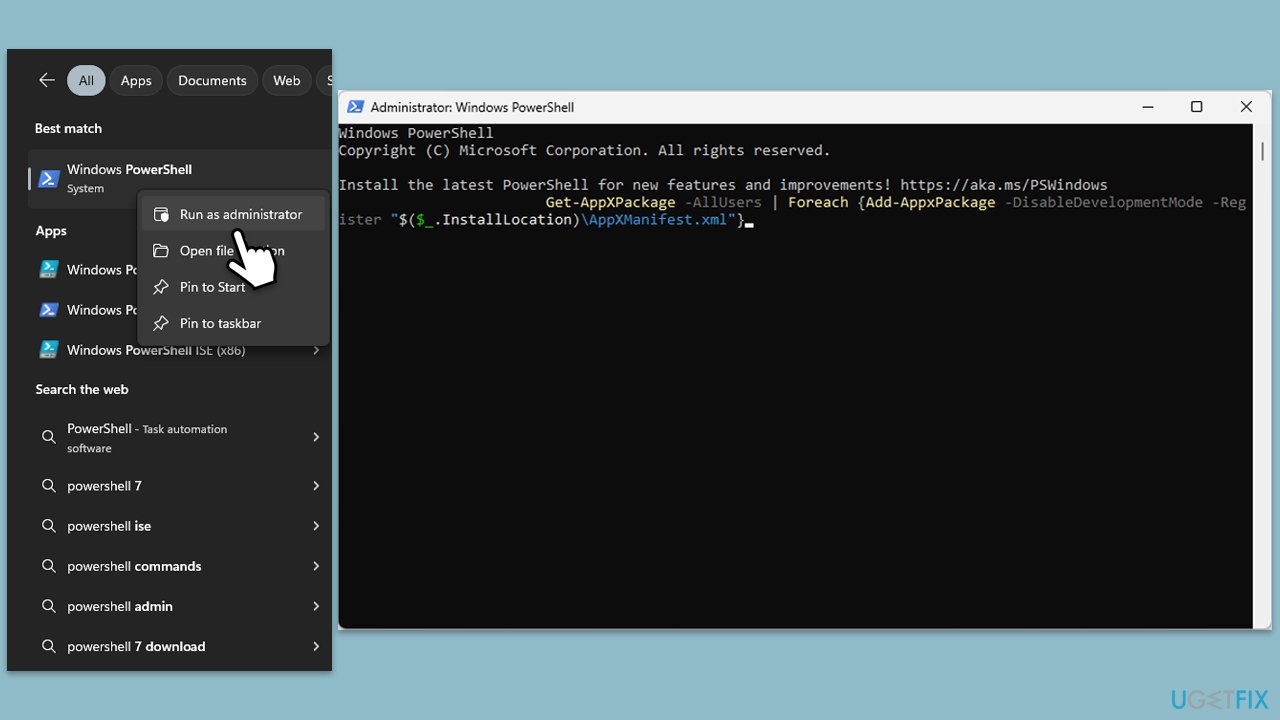
Fix 7. Reinstall Microsoft Store via PowerShell
- Open PowerShell as administrator.
- Type the following command and press Enter:
Get-AppxPackage WindowsStore | Remove-AppxPackage - Then use the following command to reinstall the Store:
Get-AppxPackage -allusers WindowsStore | Foreach {Add-AppxPackage -DisableDevelopmentMode -Register "$($_.InstallLocation)\AppXManifest.xml"} - Restart your computer.
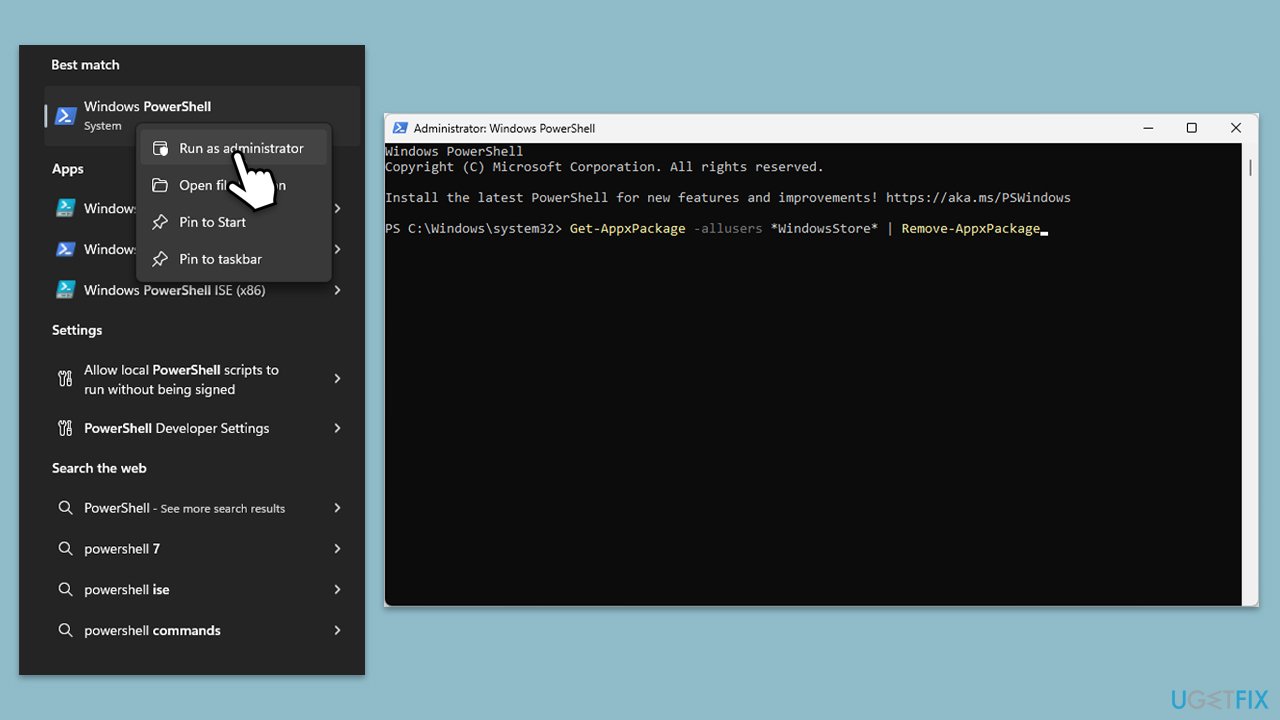
Fix 8. Repair corrupted files
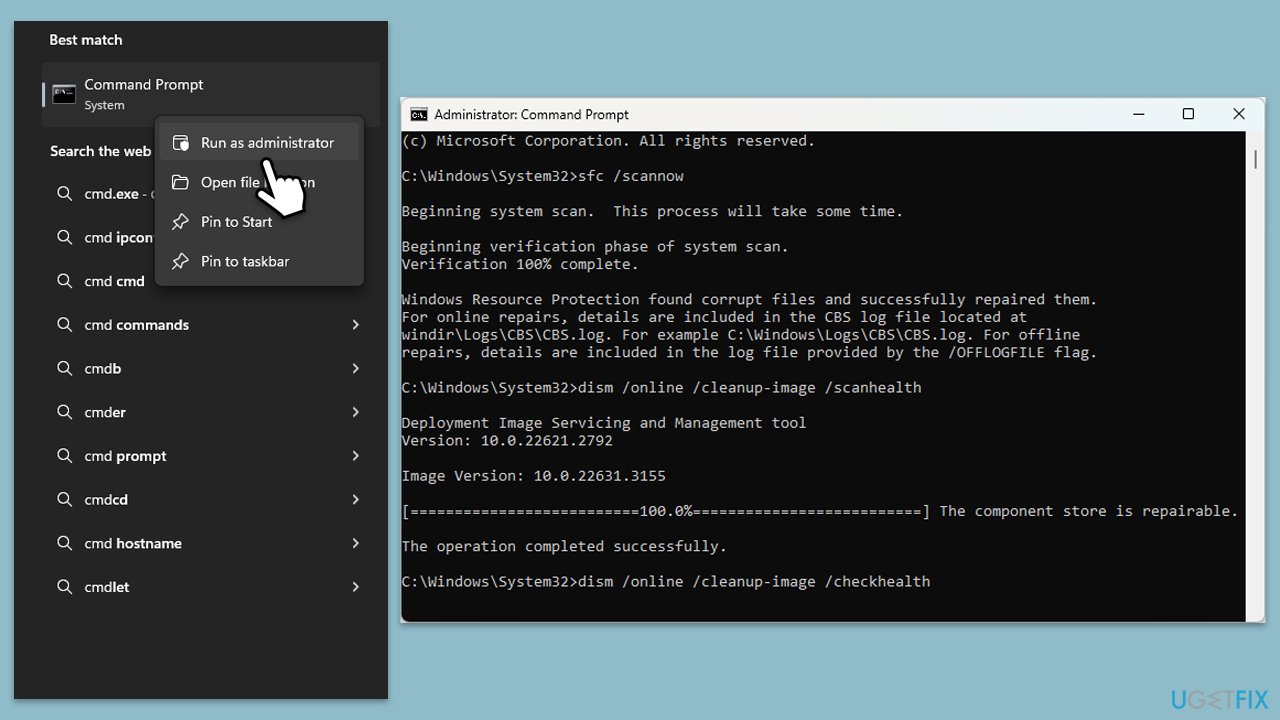
If the issues with the Store are related to corrupted system files,
- Open Command Prompt as administrator.
- Paste the following command into the new window:
sfc /scannow - Press Enter and wait till the scan is finished
- Once done, run this set of commands, pressing Enter each time:
DISM /Online /Cleanup-Image /CheckHealth
DISM /Online /Cleanup-Image /ScanHealth
DISM Online /Cleanup-Image /RestoreHealth /Source:C:\RepairSource\Windows /LimitAccess - Restart your computer.
Bottom line
To fix the Microsoft Store error 0x00000191, you can try resetting the Microsoft Store cache, checking your internet connection, or ensuring your Windows is up to date. If these solutions do not resolve the issue, consider using a repair utility for further assistance.
Frequently asked questions
The error 0x00000191 typically indicates a problem with the Microsoft Store application or its connection to the Windows Update service. It may also suggest issues with your internet connection or system files.
To reset the Microsoft Store, open the Settings app, go to Apps, find Microsoft Store, click on it, and select Advanced options, then choose the Reset option. This will clear the app's data and potentially resolve the error.
Yes, you can run the System File Checker tool by opening Command Prompt as an administrator and typing 'sfc /scannow'. This will scan and repair any corrupted system files that could be affecting the Microsoft Store.




Report an issue
What's wrong with this guide? We review every report and update or remove content.
Report received — thank you. We'll review and fix it.
You need a free account to submit a report.
Be the first to comment