How to fix
Microsoft Store error 0x00000193
on Windows
Resolve Microsoft Store error 0x00000193 in Windows 10 or 11 effortlessly with our expert-tested solutions. Fixes that work, hassle-free!


What causes How to fix Microsoft Store error 0x00000193 in Windows?
- Glitch from Microsoft's side
- Server-side issues
- Corrupted Microsoft Store cache
- Missing system files
- Outdated store installations
- Network configuration issues
Repairs Windows system files, removes malware, and restores a clean OS state — without reinstalling.
Hey, could you help me with the 0x00000193 error in the Microsoft Store? I can open Store with no problems but when I try to install a new app I always get this error.
Microsoft Store is an application that is necessary to all users in order to download and update their software on Windows. Similar to other applications, though, it also develops certain problems. Among the common issues faced by its users is the Microsoft Store error 0x00000193. It generally occurs when an application is to be accessed or downloaded from the store and should include a message stating that access is denied or the request has been blocked.
There are a bunch of reasons which may lead to the appearance of error 0x00000193. Among these, the most common cause is some kind of glitch from Microsoft's side. In fact, server-side issues might prevent the proper functionality of the store and cause the error. This may be because of Microsoft servers or connectivity issues between your system and the store.
On the user side, the error can be triggered by a corrupted Microsoft Store cache or missing system files necessary for the store to operate smoothly. Outdated store installations, problems with your internet connection, or a misconfigured network (such as proxy or VPN settings) can also contribute to the occurrence of this error.
When error 0x00000193 occurs, you'll typically see a message indicating that the request to load the Microsoft Store or perform a download has been blocked. This problem tends to arise when you attempt to access apps or install updates, but the store fails to load the requested content. Users have reported seeing this error both intermittently and consistently, often due to problems with network settings, outdated system components, or issues on the Microsoft server side.
Aside from Microsoft-side server glitches, common underlying issues include:
- Corrupted or outdated Microsoft Store cache and installation files.
- Missing or improperly running Windows services required for the store to function.
- Network configuration issues, such as those involving proxy servers or VPNs.
- Corrupted system files that affect the normal operation of the store.
To fix the 0x00000193 error, you should follow detailed troubleshooting steps, such as clearing the store cache or resetting the app. These and several other methods will be provided below the article.
For a simpler and automated solution, consider using [d1] PC repair tool, which can help identify and resolve underlying Windows issues, ensuring that your system and the Microsoft Store run smoothly.
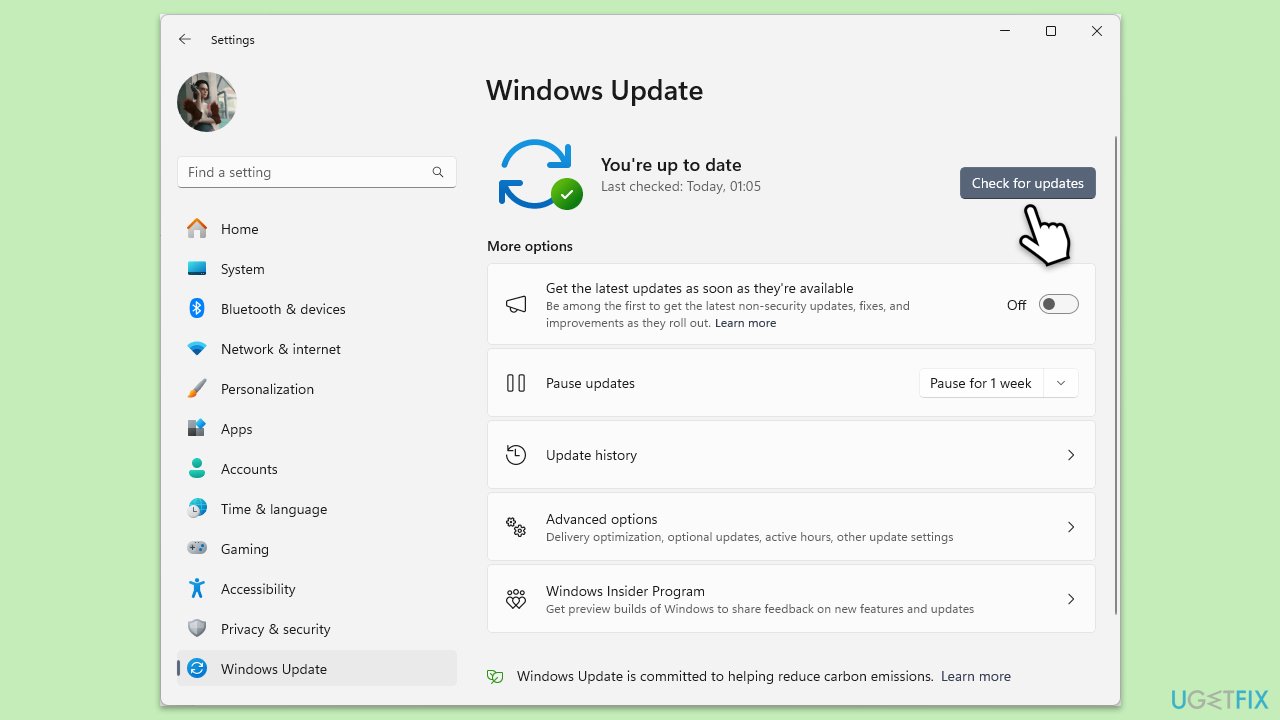
Fix 1. Update Windows
- Type Updates in Windows search and hit Enter.
- In the new window, click Check for updates and wait till everything is installed.
- Make sure you also install any available optional updates.
- When done, reboot your system to apply updates.
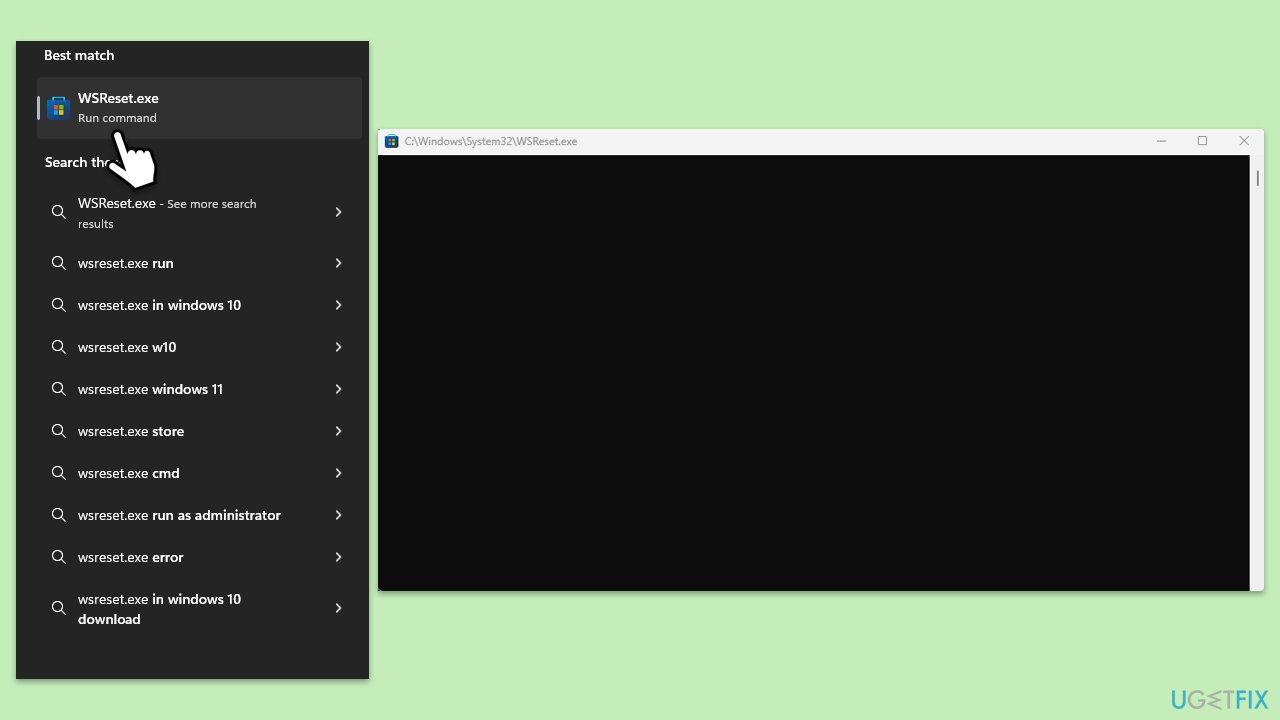
Fix 2. Clear Microsoft Store cache
- Type wsreset.exe in the Windows search bar and press Enter.
- Wait till a black window shows up – do not close it.
- Once it's gone, Microsoft Store should restart.
- Try using the Store again.
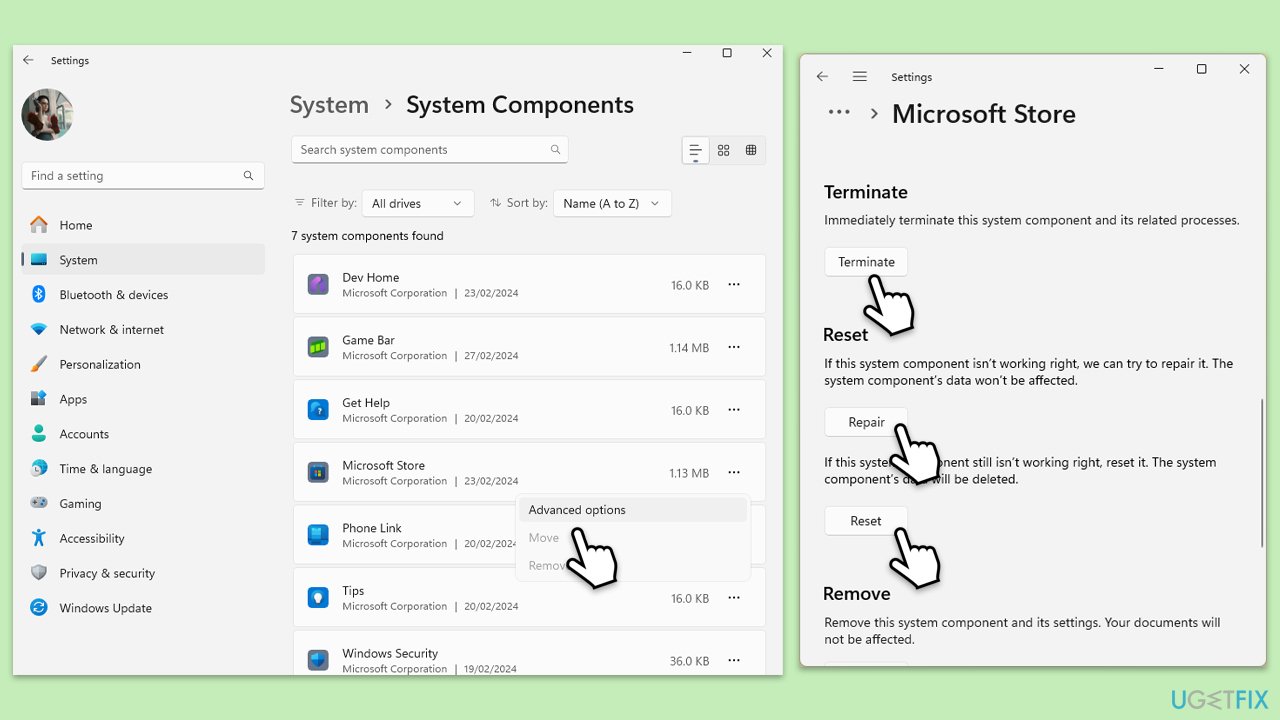
Fix 3. Repair or reset Microsoft Store app
- Right-click on Start and select Apps & Features/Installed apps.
- Scroll down to find Microsoft Store and click Advanced options or go to Settings > System > System Components > Advanced options.
- Scroll down again and click Terminate and Repair.
- If that does not work, try using Reset.
Fix 4. Run the troubleshooters
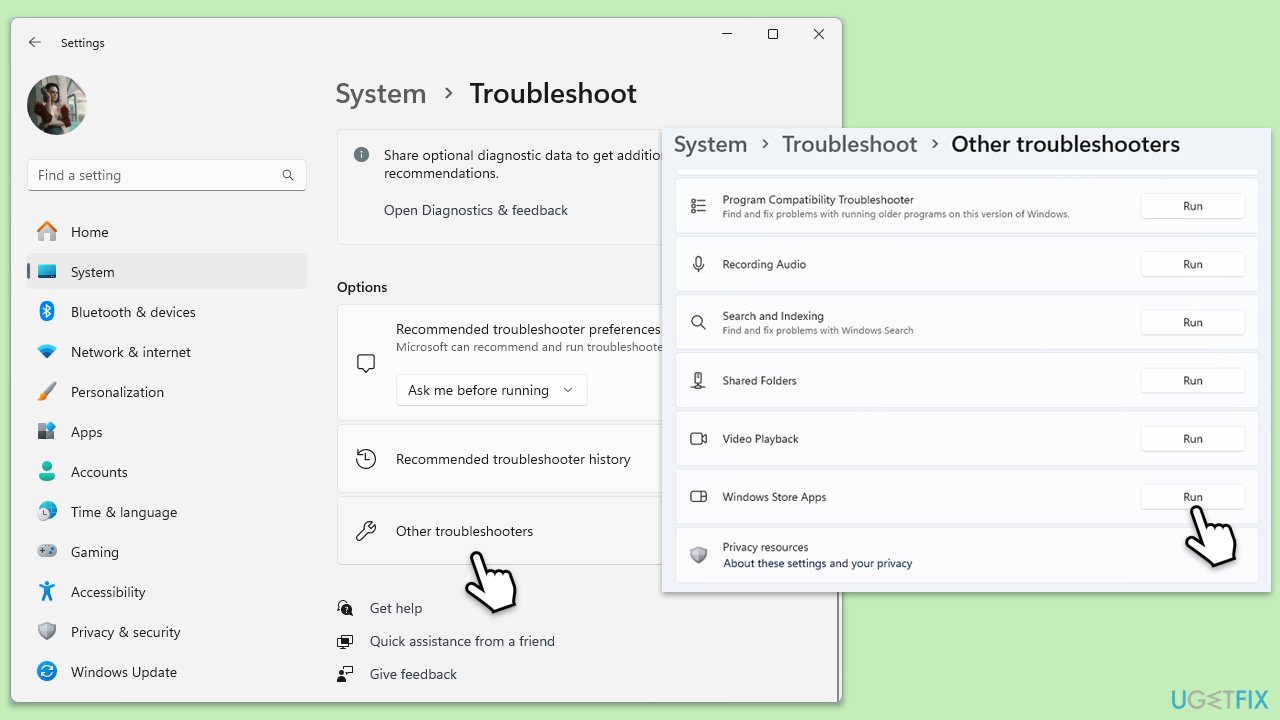
Windows 11
- Type Troubleshoot in Windows search and hit Enter.
- Click Additional troubleshooters/Other troubleshooters.
- Scroll down to find Windows store apps and select it.
- Click Run the troubleshooter/Run.
- Wait till the process is finished and apply the fixes.
- Repeat with Network & Internet troubleshooter.
Windows 10
- Right-click on Start and pick Settings.
- Go to Network & Internet section.
- On the right side, find the Advanced network settings section.
- Click Network troubleshooter and wait.
- The fixes should be automatically applied.
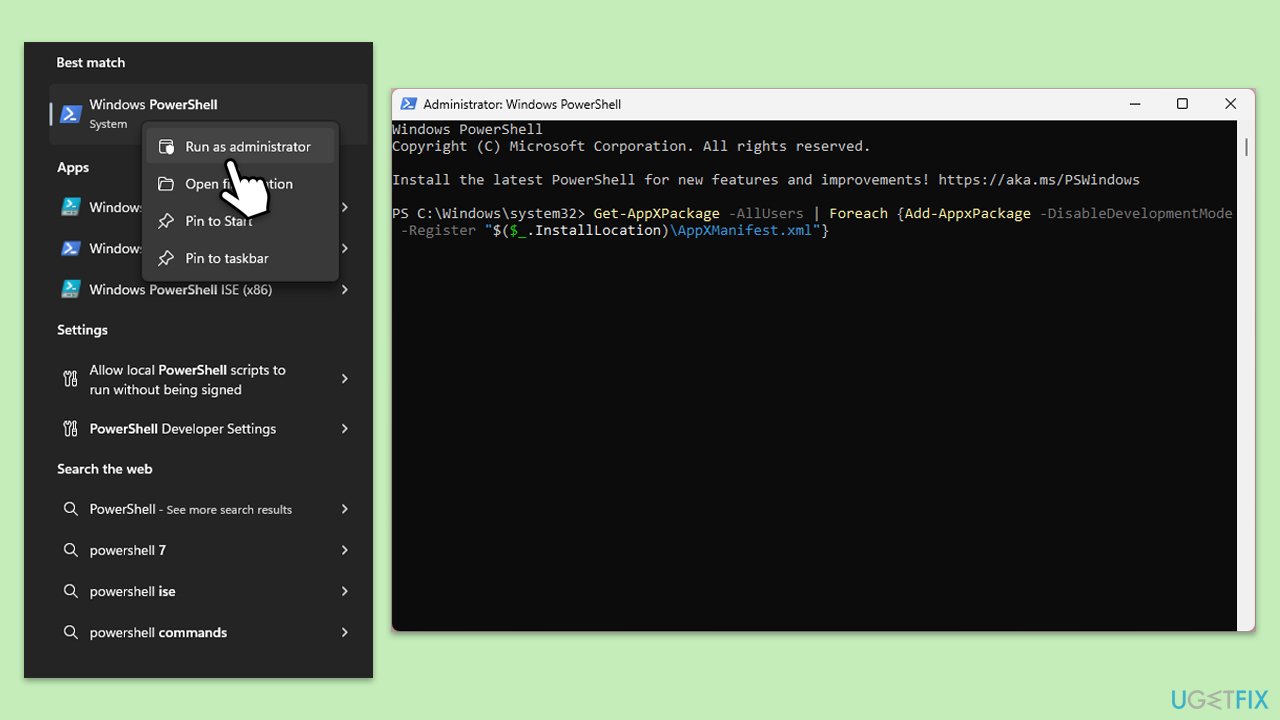
Fix 5. Re-register Microsoft Store
- Make sure your Microsoft Store is closed and not running in the background.
- Right-click on Start and select PowerShell (Admin)/Terminal (Admin).
- When UAC shows up, click Yes.
- Paste the following command and press Enter:
Get-AppXPackage *Microsoft.WindowsStore* | Foreach {Add-AppxPackage -DisableDevelopmentMode -Register “$($_.InstallLocation)\AppXManifest.xml”} - Close Powershell.
Fix 6. Check and start required services
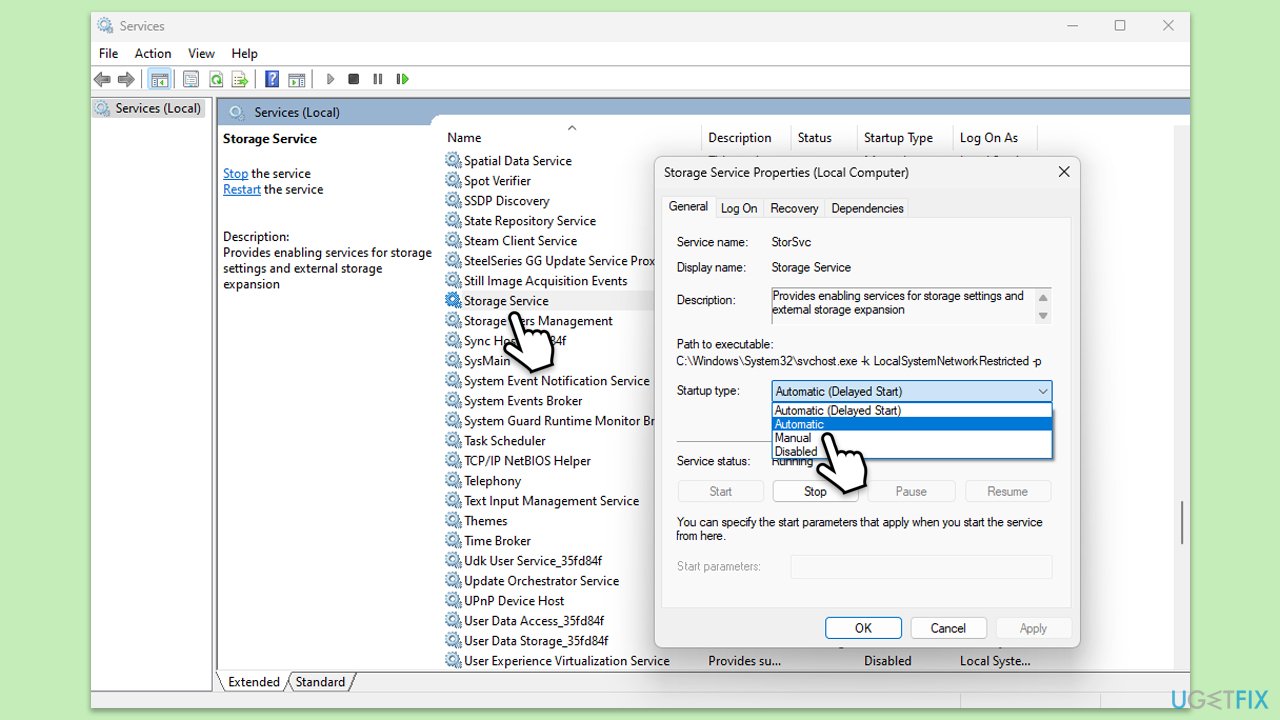
- Type Services in Windows search and hit Enter.
- Locate Windows Update, Windows Installer, Storage Service, Windows License Manager, Background Intelligent Transfer Service, and Windows Firewall in the list.
- Right-click on each and select Properties.
- Set the Startup type to Automatic - select it from the drop-down menu.
- Click Start if the service is not running.
- Click Apply and OK.
Fix 7. Repair corrupted system files
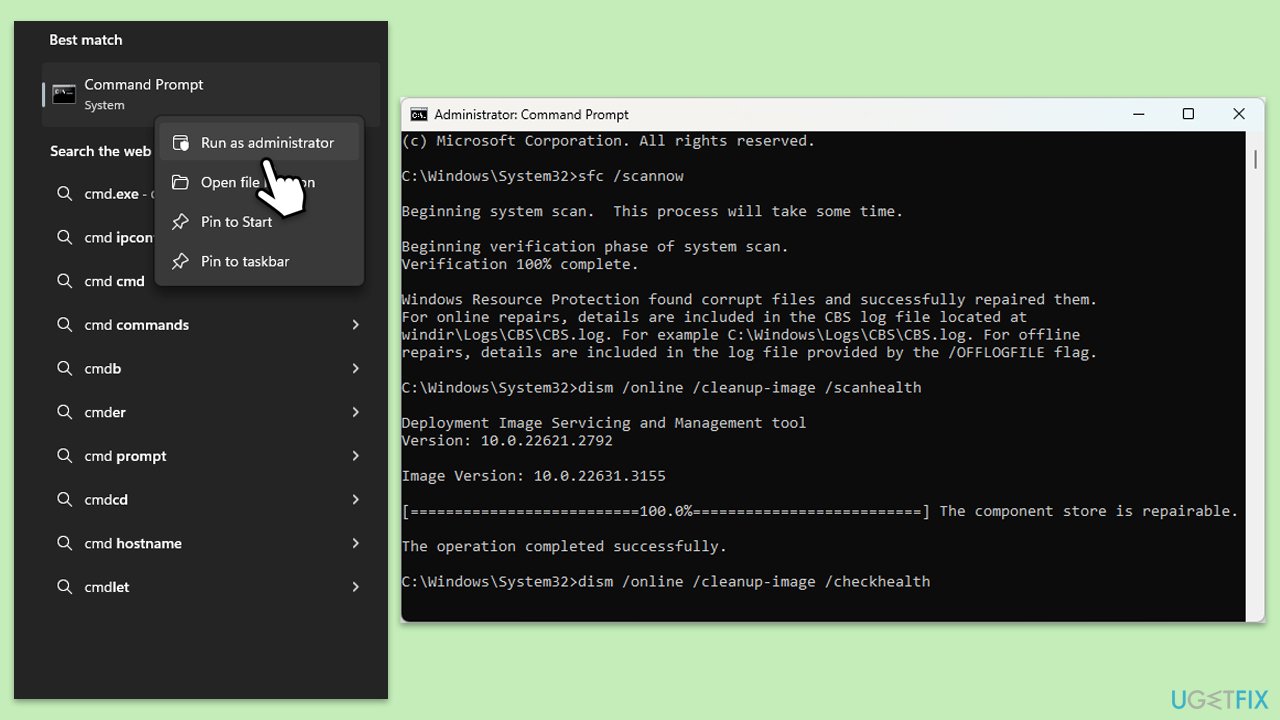
- Type cmd in Windows search.
- Right-click on Command Prompt and select Run as administrator.
- When User Account Control window shows up, click Yes.
- Paste the following command into the new window:
sfc /scannow - Press Enter and wait till the scan is executed.
- As soon as the scan finishes, Windows will report whether integrity violations were found and if they could be fixed. Regardless of the outcome, use these commands next, pressing Enter after each:
DISM /Online /Cleanup-Image /CheckHealth
DISM /Online /Cleanup-Image /ScanHealth
DISM /Online /Cleanup-Image /RestoreHealth - (Note: if you get an error executing this last command, add /Source:C:\RepairSource\Windows /LimitAccess to it and try again).
- Close down the Command Prompt and restart your computer.
Bottom line
To fix the 0x00000193 error, you can try clearing the Microsoft Store cache, checking your internet connection, or resetting network settings. If these solutions do not resolve the issue, consider reinstalling the Microsoft Store or checking for Windows updates.
Frequently asked questions
You can start by running the Windows Store Apps troubleshooter and then resetting the Microsoft Store cache using the 'wsreset' command in the Run dialog.
Yes, ensuring that your Windows 11 is up to date can resolve compatibility issues that may be causing the error.
Reinstalling the Microsoft Store is not directly possible, but you can use PowerShell commands to reinstall Microsoft Store components and potentially fix the error.




Report an issue
What's wrong with this guide? We review every report and update or remove content.
Report received — thank you. We'll review and fix it.
You need a free account to submit a report.
Be the first to comment