How to fix
Microsoft Store error 0x000001f4
on Windows
Resolve Microsoft Store error 0x000001f4 on Windows 10 or 11 easily and regain access to your apps. Expert-tested solutions await!

What causes How to fix Microsoft Store error 0x000001f4?
- Corrupt Microsoft Store cache
- Issues with Windows Update service
- Pending system updates
- Problems with specific game downloads
- Interference from third-party applications
Repairs Windows system files, removes malware, and restores a clean OS state — without reinstalling.
Hello. When I try to download apps from the Microsoft Store on Windows, I receive the 0x000001f4 error. Is there a way to fix this?
The Microsoft Store is an official digital marketplace where Windows users can find, download, and update applications, games, and other software. It provides users with an easy way to access a wide variety of digital content. The error code 0x000001f4 occurs when users attempt to access the Microsoft Store on their Windows devices.
This problem is most commonly encountered when attempting to download a specific game, such as GTA, but it may also occur with other games or apps. This error can have a number of consequences for users. It may prevent users from accessing the Microsoft Store entirely, preventing them from downloading or updating games and applications.
This can be aggravating, especially if users are looking to buy or play a specific game. There are several possible solutions for resolving the error. These solutions could include troubleshooting steps like resetting the Microsoft Store cache, checking for system updates, making sure the Windows Update service is running, or even performing a clean boot.
In this guide, you will find 5 steps that should help you fix Microsoft Store error 0x000001f4. Keep in mind, that the manual troubleshooting process can be lengthy. You can also use a maintenance tool like [d1] that can fix most system errors, BSODs,[ref en-1] corrupted files, and registry[ref en-2] issues. Otherwise, follow the step-by-step instructions below.
Solution 1. Run Microsoft Store Apps Troubleshooter
- Open the Start menu.
- Click the gear-shaped icon to launch the Settings app.
- In the Settings app, click on the System tab.
- Click on Troubleshoot.
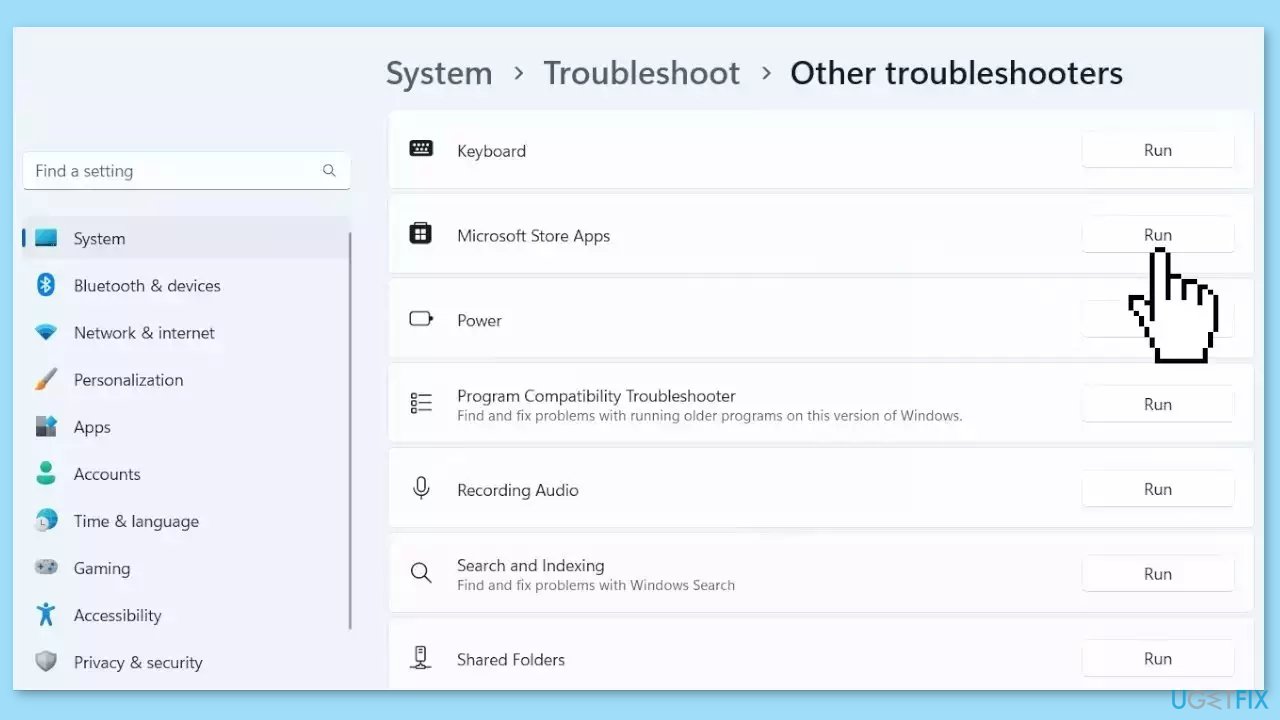
- Select Other troubleshooters.
- Look for Microsoft Store Apps and click the Run button next to it.
- Follow the on-screen prompts to run the troubleshooter.
Solution 2. Reset Store Cache
Like most applications, Microsoft Store creates and stores cache data to enhance performance. However, if this cache becomes corrupt, you may experience various issues.
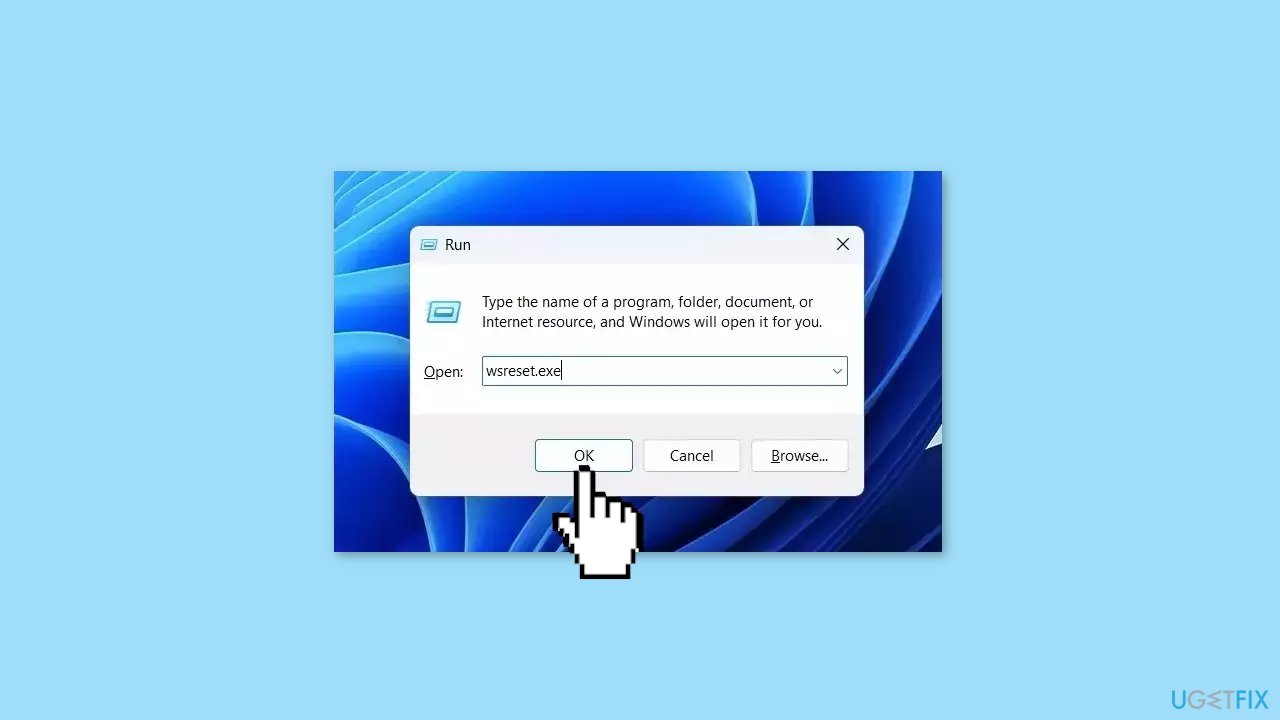
- Open the Run dialog box by pressing the Windows key + R.
- If the hotkeys don't work, you can use any other method to open the Run dialog box.
- In the search bar of the Run dialog box, type wsreset.exe.
- Click OK.
- A blank Command Prompt window will appear for a few seconds.
- Once the cache is cleared, Windows will close the Command Prompt window and automatically launch the Microsoft Store app.
Solution 3. Enable Metered Connection
- Click the network icon located in the bottom right corner of the screen.
- Select your network connection from the available options.
- Click on your network connection to access its settings.
- Enable the Set as metered connection feature.
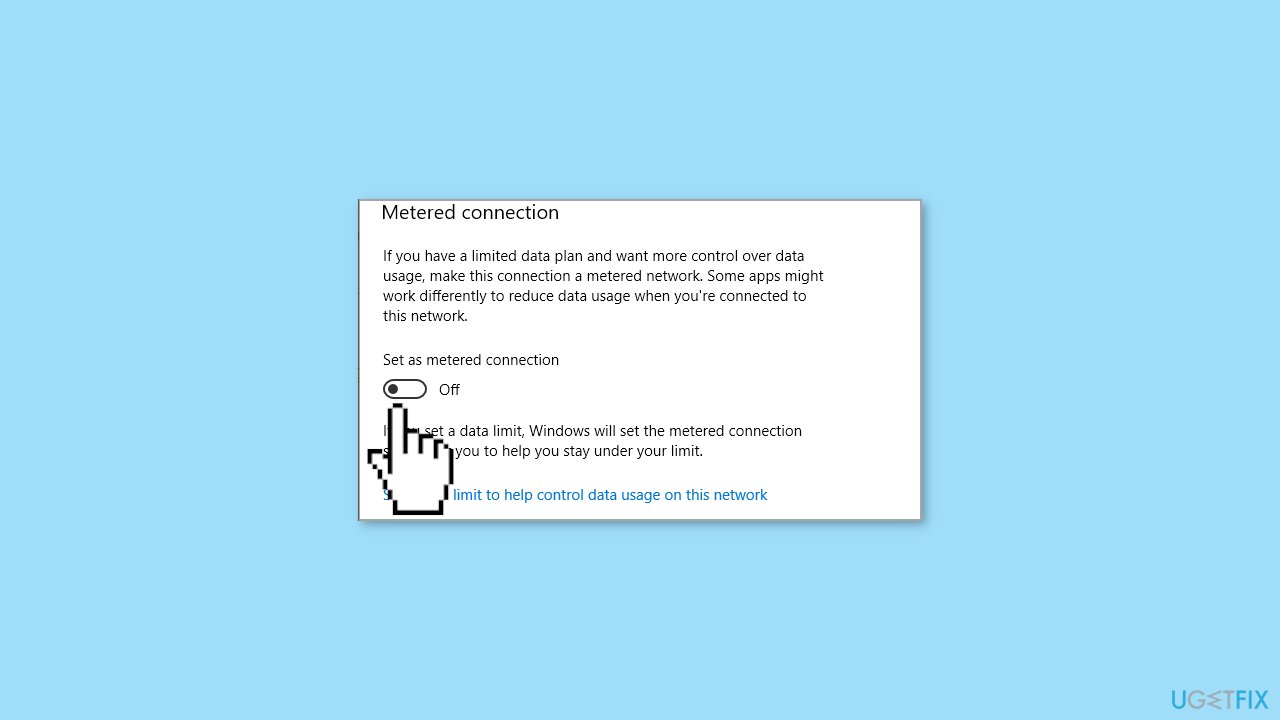
- Wait for a few moments to ensure the changes take effect.
- Disable the Set as metered connection feature to revert back to the original settings.
Solution 4. Re-register the Microsoft Store
- Press the Windows key + X on your keyboard.
- From the menu that appears, choose PowerShell (Admin) to open PowerShell with administrative privileges.
- In the PowerShell window, enter the following command:
Get-AppXPackage WindowsStore -AllUsers | Foreach {Add-AppxPackage -DisableDevelopmentMode -Register "$($_.InstallLocation)\AppXManifest.xml"}
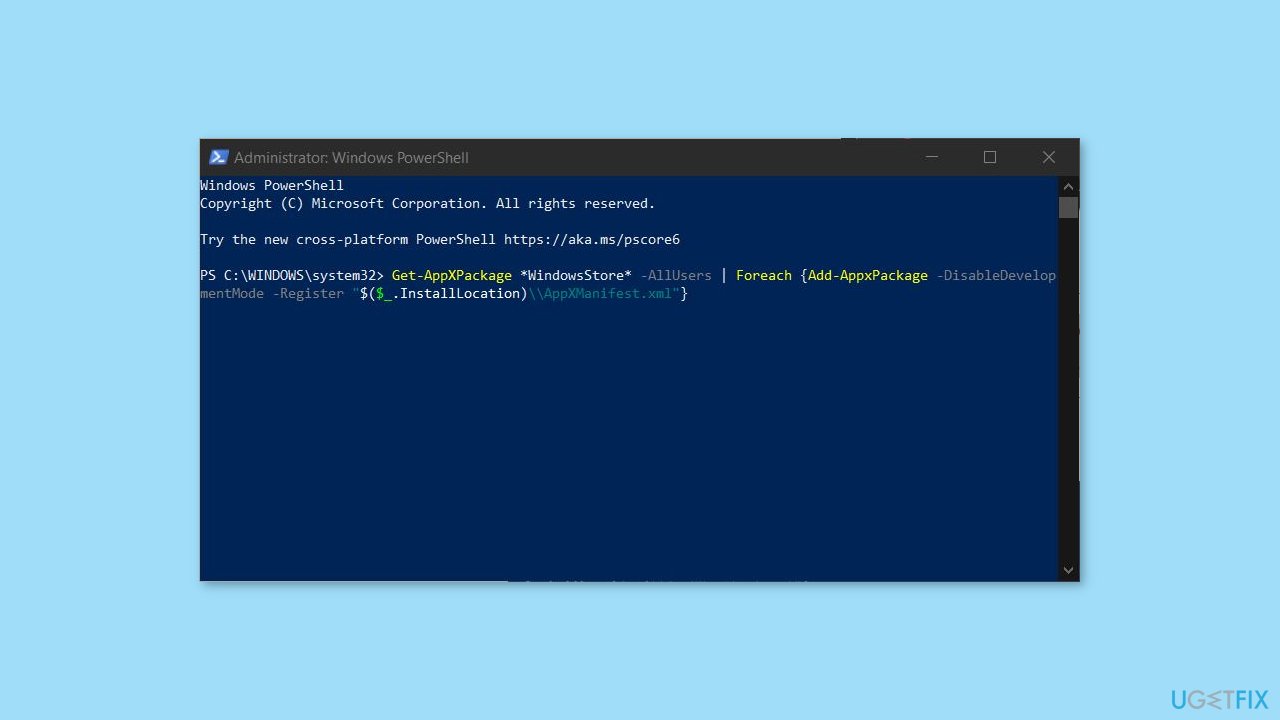
- Wait for the command to execute and complete the necessary operations.
- Close the PowerShell window.
- Restart your PC to ensure the changes take effect.
Solution 5. Repair or Reset the Microsoft Store
- Right-click on Start and pick Apps & Features.
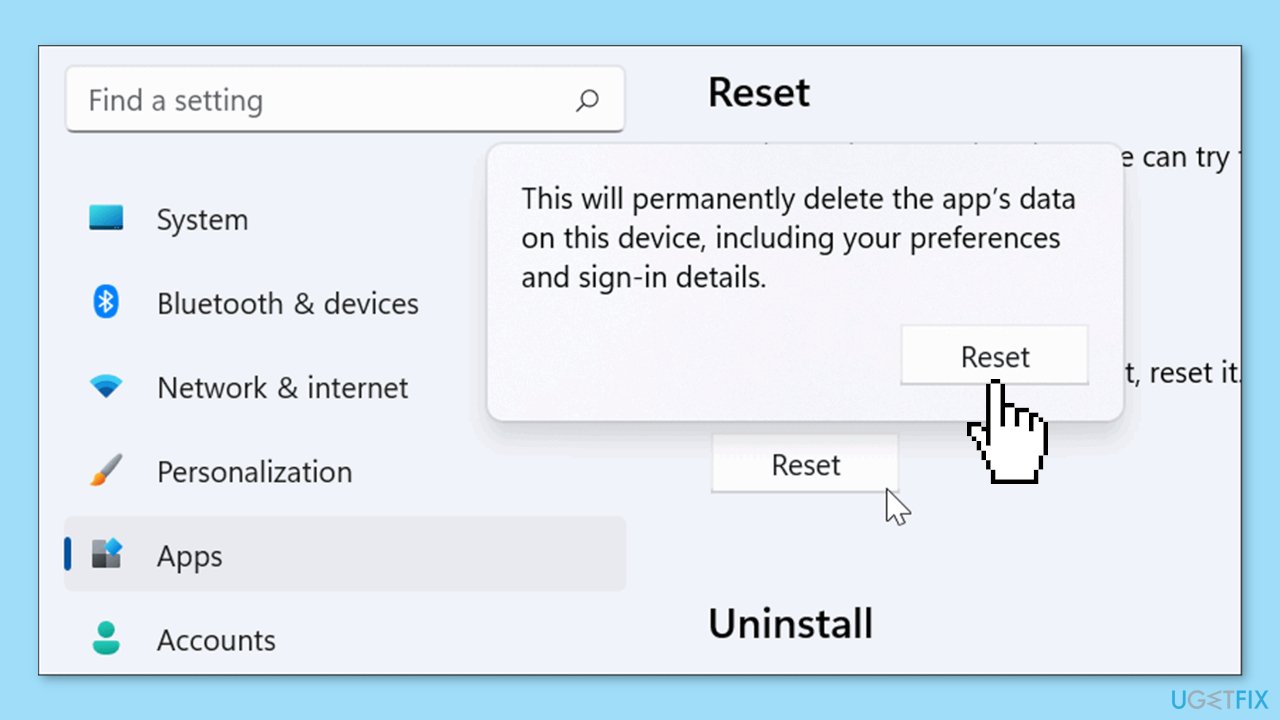
- Scroll down to locate Microsoft Store and click Advanced options.
- Click Terminate and Repair.
- If that does not help, try the Reset option instead.
Bottom line
To fix Microsoft Store error 0x000001f4, you can run the Microsoft Store Apps Troubleshooter, reset the store cache, check for system updates, and ensure the Windows Update service is running. If these steps do not resolve the issue, consider using a maintenance tool to fix system errors.
Frequently asked questions
You can try resetting the Microsoft Store cache by running the command 'wsreset.exe' in the Run dialog. Additionally, ensure that your Windows 10 is fully updated as updates can resolve many issues.
Yes, running the Windows Store Apps Troubleshooter can identify and fix problems related to Microsoft Store errors, including 0x000001f4. You can find this tool in the Settings under Update & Security > Troubleshoot.
Reinstalling the Microsoft Store can help fix error 0x000001f4; you can do this using PowerShell commands. Make sure to run PowerShell as an administrator for the command to execute properly.




Report an issue
What's wrong with this guide? We review every report and update or remove content.
Report received — thank you. We'll review and fix it.
You need a free account to submit a report.
Be the first to comment