
How to fix Microsoft Store error 0x8007000A?

Prefer to fix it yourself? The manual steps follow.
- 8methods
- 5 minutes to 1 hour
- Medium
Applies to Windows 11 and Windows 10; Microsoft Store and apps installed from it, such as Photos, Snipping Tool and games
8 methods in this guide
I'm encountering a 0x8007000A error when I try to update apps in Microsoft Store. How can I fix it?
Error 0x8007000A stops Microsoft Store from installing or updating apps. It is Windows error 10, "The environment is incorrect", and reports from users tie it to the Windows user account more than to the app. Reset the Store first, then test the install from a second account.
0x8007000A is Windows system error 10, ERROR_BAD_ENVIRONMENT: "The environment is incorrect." Restart, run wsreset.exe and Repair Microsoft Store (Fix 1). If the error stays, create a test account and install the app there (Fix 2). If it installs, your user profile is at fault: check TEMP and TMP, re-register the Store, or move to the new account. If it fails there too, repair Windows.
| Error | 0x8007000A, the Windows system error 10 ERROR_BAD_ENVIRONMENT: "The environment is incorrect." |
|---|---|
| Where it appears | In Microsoft Store when you install or update an app (users report it with Photos, Screenshots and sketches and games such as Sea of Thieves), shown as Code: 0x8007000A. In bad cases Get-AppxPackage in PowerShell fails with it too. |
| Main cause | Something is wrong in the setting the Store installer runs in. User reports point to the Windows user profile: the same app installs from a new account on the same PC. |
| Fastest fix | Restart, wsreset.exe and Repair for the Store (Fix 1). The decisive test is a second account (Fix 2). |
| Also written as | 0x8007000A, 0x8007000a, 0X8007000A, the mistyped 0x800700a, Win32 error 10 (hex 0xA). |
| Affects | Windows 11 and Windows 10. Windows 10 left Microsoft support on 14 October 2025; the fixes still work on it. |
| Microsoft's status | A general Windows error code, not a listed Store bug. No update is named as its fix. |
| Not the same as | 0x8007000B (error 11, a program in the wrong format) and 0x8007000D (error 13, "The data is invalid."). |
| Time to fix | 5 minutes for Fix 1, 10 minutes for the account test, up to an hour for a new profile or a repair install. |
Facts checked on 15 October 2026. Steps written for Windows 11 (25H2 and 26H2) and Windows 10 22H2.
What error 0x8007000A means
Codes that start with 0x8007 carry a normal Windows system error inside them. The last four digits, 000A, are hexadecimal for 10. Microsoft's list of system error codes names error 10 ERROR_BAD_ENVIRONMENT and describes it in four words: "The environment is incorrect."
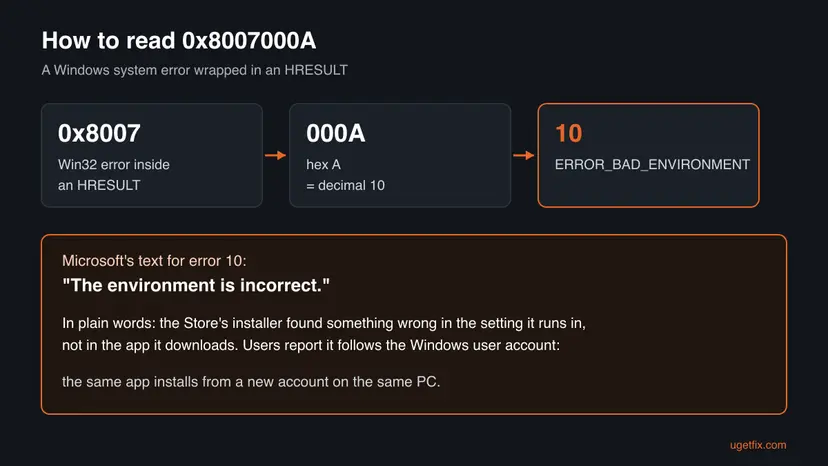
So the code does not say the app is broken or the download failed. It says the installer found the setting it works in to be wrong. Microsoft does not document which part of that setting the Store checks, and we could not confirm it. User reports on Microsoft Q&A do show where it lives. In one case every install failed with Code: 0x8007000A, while the same app installed fine from a new local account. The error ended once Windows built a fresh profile for the main account.
- What users see
- An install or update in Microsoft Store that stops with Code: 0x8007000A. Users name the Photos app, Screenshots and sketches, Windows app updates and Sea of Thieves.
- The bad sign
- If
Get-AppxPackagein PowerShell fails with the same code, the problem is deeper than the Store: the app system cannot read your account's app list. Skip to Fix 2. - What it is not
- Not a network error and not a licence problem. One user changed the network to a phone hotspot and the region to United States, and the error stayed.
Why 0x8007000A appears: the causes, ranked
Most often the Store's cache or app state is damaged, and a reset clears it. Less often the problem is your Windows user profile: its settings, folders or app registrations. Rarely the Windows installation itself is damaged. A second account tells the last two apart in ten minutes.
| Cause | How often | How to tell | Fix |
|---|---|---|---|
| The Store's cache or settings are damaged, or an update waits for a restart. | Most often | The Store opens and browses fine, only installs fail. | Fix 1 |
| Something in your user profile is wrong. | Often | The same app installs from a new account on the same PC. | Fix 2, then Fixes 3, 4 and 6 |
| The TEMP or TMP variable of your account points to a folder that is gone. | Unconfirmed | echo %TEMP% shows a path that does not open. | Fix 3 |
| Microsoft Store is not registered right for your account. | Sometimes | Store updates fail while other apps work. | Fix 4 |
| A program from another company interferes with installs. | Sometimes | The error goes away in a clean boot. | Fix 5 |
| Damaged Windows system files or update components. | Rarely | The error also appears in the new account. | Fixes 7 and 8 |
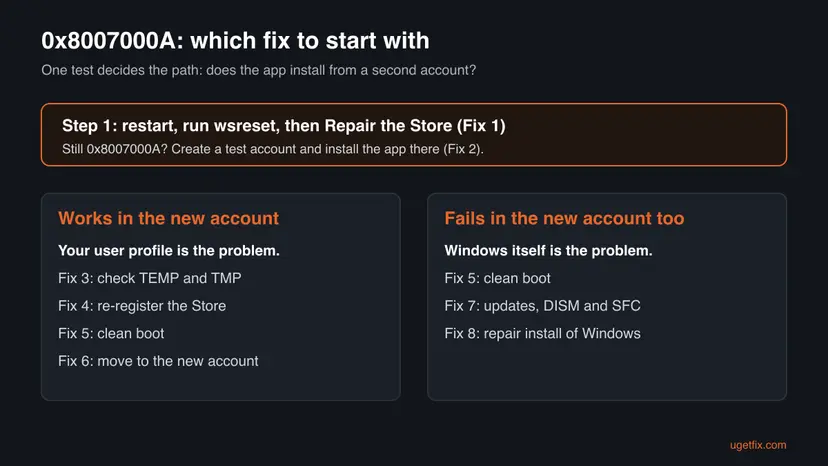
How to fix error 0x8007000A in Microsoft Store
Fix 1 takes five minutes and is the first thing to try. Fix 2 is a test, not a repair, and decides the rest: if the app installs from a new account, Fixes 3, 4 and 6 repair your profile. If it fails there too, Fixes 5, 7 and 8 repair Windows.
| What you see or have | Start with |
|---|---|
| The error came after updates, or you have not reset the Store yet. | Fix 1 |
| Fix 1 did not help. | Fix 2, the account test |
| The app installs from the new account. | Fix 3, then Fix 4, then Fix 6 |
Get-AppxPackage fails with 0x8007000A in your account. | Fix 2, then Fix 6 |
| The app fails in the new account too. | Fix 5, then Fix 7, then Fix 8 |
Fix 1. Restart, clear the Store cache and repair Microsoft Store
5 minutesLow riskEveryone, first. Most of all when installs fail but the Store itself opens and browses.
A damaged Store cache or an update that waits for a restart leaves the installer in a bad state. A full restart, wsreset and Repair put the Store back to a clean state without touching your apps or purchases.
Restart the PC with Start > Power > Restart, not Shut down: with fast startup on, Shut down does not start Windows fresh. Then clear and repair the Store.
- Clear the Store cache. Press Windows + R, type wsreset.exe and select OK. A blank Command Prompt window opens; after a short while it closes and Microsoft Store opens by itself.

After wsreset, the Store opens and loads again. Screenshot: Windows 11 26H2. - Open System components. If the problem stays, select Start > Settings > System > System components. Next to Microsoft Store, select the three dots and Advanced options. If Microsoft Store is not listed there, look for it in Settings > Apps > Installed apps.
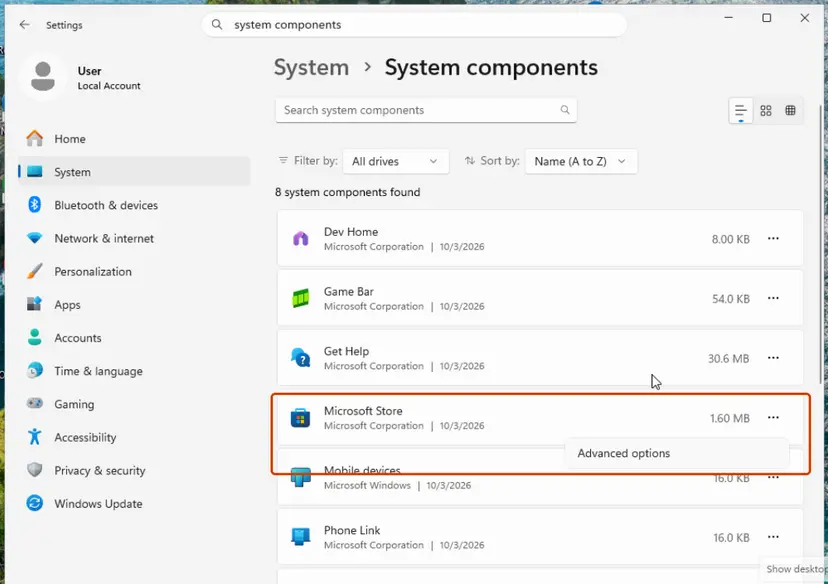
Microsoft Store is listed under System components. Screenshot: Windows 11 26H2. - Repair first. Scroll to Reset and select Repair. Repair keeps the app's data. Open the Store and check whether it works.
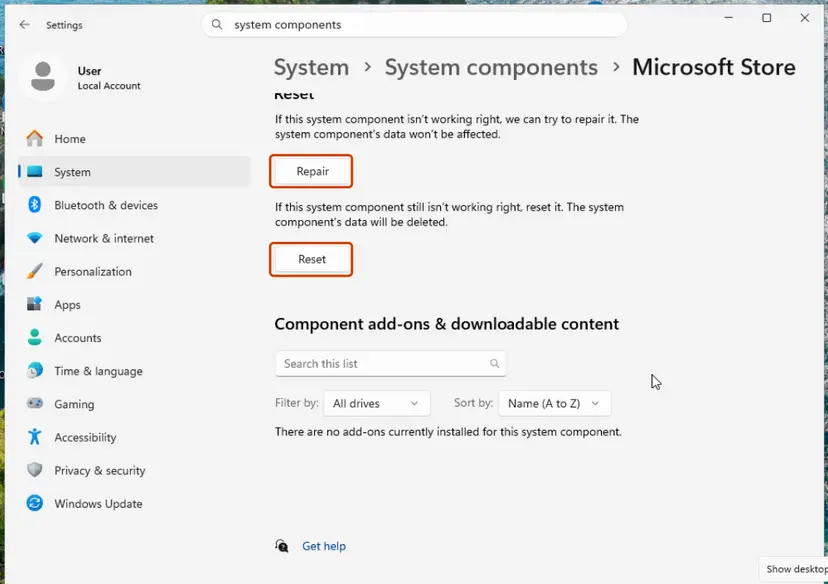
Repair keeps the app's data; Reset deletes it. Screenshot: Windows 11 26H2. - Reset if Repair did not help. Select Reset and confirm. This deletes the Store app's data on this PC; your purchases stay in your Microsoft account. Open the Store and sign in again.
These steps were written for Windows 11 26H2 (build 26300). The full page with the other versions and what each result means: Reset the Microsoft Store
On Windows 11 the Store is under Settings > System > System components. On Windows 10 it is under Settings > Apps > Apps & features > Microsoft Store > Advanced options. You can also run the Windows Store Apps troubleshooter in Settings > System > Troubleshoot > Other troubleshooters; it finds cache and registration problems, but in the Q&A case above it did not clear this code.
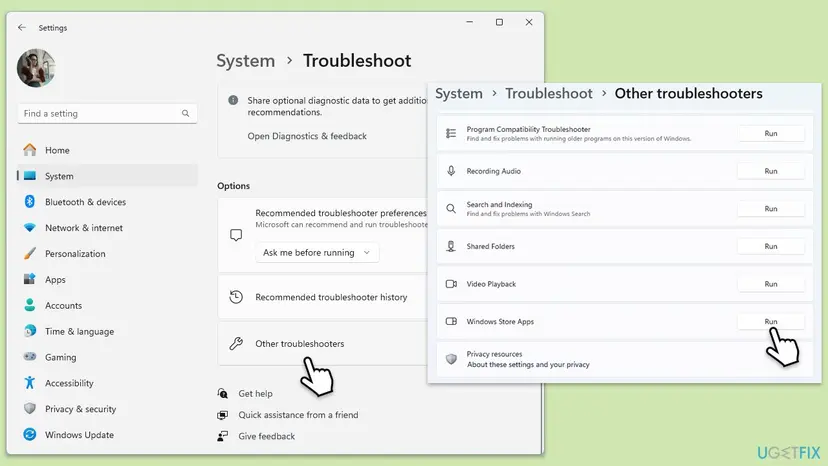
It worked if: After wsreset the Store opens by itself. After Repair, the app installs or updates without the code.
If not: If the code comes back, run the account test in Fix 2.
Fix 2. Test the install from a new local account
10 minutesNo riskFix 1 did not help, or Get-AppxPackage fails with the same code.
Error 10 says the setting is wrong, and the setting is mostly your user profile. A new account starts with a clean profile, so the result tells you whether to repair your profile or Windows itself.
- Open Other users. Open Settings > Accounts > Other users. You can also press Windows key + R and run the command below.
ms-settings:otherusers - Add an account. Next to Add other user, select Add account.
- Skip the Microsoft account. Select I don't have this person's sign-in information.
- Choose a local account. Select Add a user without a Microsoft account.
- Name the account. Type a user name and, if you want one, a password. If you set a password, Windows also asks for answers to security questions. Select Next.
- Make it an administrator (optional). Back in Other users, select the new account, then Change account type next to Account options. Choose Administrator and select OK. For testing a problem, a standard account is usually enough.
- Sign in to the new account. Open Start, select your account picture and choose the new account. The first sign-in takes a few minutes while Windows sets up the profile.
These steps were written for Windows 11 24H2, 25H2 and 26H2. The full page with the other versions and what each result means: Create a new user account to test a problem
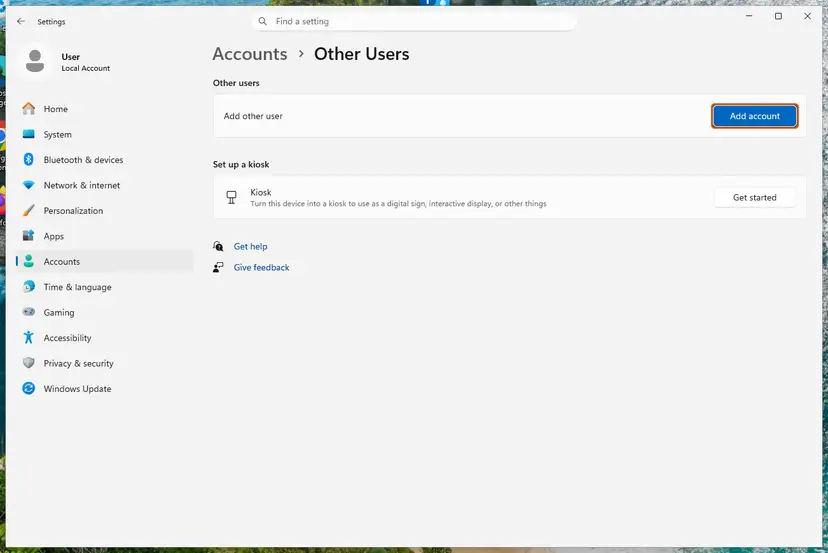
- Sign in to the new account and wait until the desktop is ready.
- Open Microsoft Store. You can install free apps without signing in; for a paid app or game, sign in with your Microsoft account inside the Store only.
- Install the app that failed, or a small free app.
- Write down the result, then sign out and back in to your own account.
Installs fine in the new account: your profile is the problem, go to Fix 3. Fails with 0x8007000A there too: Windows is the problem, go to Fix 5.
It worked if: The app installs in the new account, or fails with the same code. Both results are useful.
If not: If you cannot create an account, for example on a work PC, ask the administrator, then try Fix 4 and Fix 7.
Fix 3. Check the TEMP and TMP variables of your account
5 minutesLow riskThe app installed from the new account but not from yours.
TEMP and TMP are part of your account's environment, the thing error 10 names, and installers write there. Microsoft does not confirm them as the cause of this code, but a wrong path is quick to find and to fix.
- Press Win + R, type
cmdand press Enter. - Type
echo %TEMP%and press Enter, thenecho %TMP%. Both normally showC:\Users\<your name>\AppData\Local\Temp. - Type
dir "%TEMP%"and press Enter. If Windows says it cannot find the path, the folder is gone. - Press Win + R, paste
rundll32 sysdm.cpl,EditEnvironmentVariablesand press Enter. - Under User variables, select TEMP, then Edit, and set the value to
%USERPROFILE%\AppData\Local\Temp. Do the same for TMP. - Select OK twice, restart the PC and try the install again.
If both variables already show the normal path and the folder exists, leave them as they are and go to Fix 4. Do not change the System variables at the bottom of the window.
It worked if: dir "%TEMP%" lists files, and after the restart the Store installs the app.
If not: If the paths were already right or the error stays, re-register the Store with Fix 4.
Fix 4. Re-register Microsoft Store for your account with PowerShell
5 minutesLow riskThe account test pointed at your profile, and Get-AppxPackage still works in your account.
The Store's registration is stored per account. Registering it again from its own install folder renews that part of your profile without downloading anything.
- Close Microsoft Store.
- Select Start, type PowerShell and select Windows PowerShell. Open it the normal way, not as administrator, so the Store is registered to your own account.
- Paste the first command below and press Enter. If it shows Name
Microsoft.WindowsStoreand an InstallLocation, go on. If it fails with 0x8007000A, stop here and use Fix 6. - Paste the three lines of the second command and press Enter. No red text means it worked.
- Restart the PC and try the install again.
PowerShell: check that the Store package is there
Get-AppxPackage -Name '*WindowsStore*'PowerShell: register the Store again for your account
$InstallLocation = Get-AppxPackage -Name '*WindowsStore*' | Select-Object -ExpandProperty InstallLocation
$ManifestPath = $InstallLocation + '\Appxmanifest.xml'
Add-AppxPackage -Path $ManifestPath -Register -DisableDevelopmentMode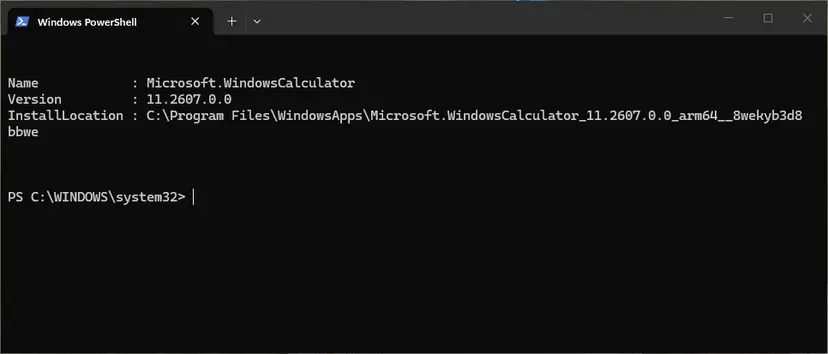
The same steps for any one app, with pictures: How to re-register Microsoft Store apps with PowerShell
It worked if: PowerShell returns to the prompt without red text, and the Store installs the app.
If not: If the code stays, test for interfering programs with Fix 5, then move to a new profile with Fix 6.
Fix 5. Start Windows in a clean boot and install again
15 minutesLow riskFixes 1 to 4 did not help, in your account or in the new one.
A clean boot starts Windows without services and startup apps from other companies. If the install works then, one of them changes the setting the Store installer runs in. A Microsoft Q&A advisor suggested this test for 0x8007000A.
- Open System Configuration. Select Search on the taskbar, type msconfig and select System Configuration from the results.
- Hide Microsoft services. On the Services tab, select the Hide all Microsoft services check box. Only services from other companies stay in the list.

With Hide all Microsoft services ticked, only third-party services stay in the list. Screenshot: Windows 11 26H2. - Disable the remaining services. Select Disable all, then select Apply.
- Open Task Manager. On the Startup tab of System Configuration, select Open Task Manager.

The Startup tab only links to Task Manager. Screenshot: Windows 11 26H2. - Disable the startup apps. On the Startup apps tab in Task Manager, select each item whose status is Enabled and select Disable. Write down or take a screenshot of the items you disable: you need the list to turn them back on.

Select an app, then Disable. Screenshot: Windows 11 26H2. - Confirm the changes. Close Task Manager. On the Startup tab of System Configuration, select OK.
- Restart and test. Restart the PC. Windows now starts in a clean boot environment: try again the thing that failed (run the app, install the update, uninstall the program).
These steps were written for Windows 11 25H2 and 26H2. The full page with the other versions and what each result means: How to perform a clean boot in Windows
When the test is done, turn the services and startup apps back on in the same two places. If the install worked in the clean boot, turn them on in small groups until the error returns: the last group holds the program to update or remove.
It worked if: The app installs in the clean boot, and you find the program that blocks it.
If not: If it fails in the clean boot too, a program is not the cause. Use Fix 6 when only your account fails, Fix 7 when every account fails.
Fix 6. Move to a new user profile and keep your files
30 to 60 minutesRead the warningThe app installs from the new account but never from yours, or Get-AppxPackage fails with 0x8007000A in your account.
When the profile itself is damaged, no single setting brings it back. In the Microsoft Q&A case, SFC, DISM, wsreset and the troubleshooter failed, and the error ended only when Windows built a fresh profile for the account.
Files in your old profile (Desktop, Documents, Pictures, Downloads) are only copied, not moved, if you follow these steps. Make a backup anyway before you start: Back up your files (Windows Backup, File History, Time Machine). Keep the old account until everything works in the new one.
- Sign in to the test account from Fix 2, or create one now. In Settings > Accounts > Other users, select it, then Change account type and choose Administrator.
- Sign in to the new account. To use your Microsoft account there, open Settings > Accounts > Your info and select Sign in with a Microsoft account instead. First remove that Microsoft account from the old Windows account, as Windows lets one Microsoft account sign in to only one account per PC.
- Open File Explorer and go to
C:\Users\<old account name>. Allow access when Windows asks. - Copy the folders you need (Desktop, Documents, Pictures, Videos, Music, Downloads) into the same folders of the new account. If your files are in OneDrive, sign in to OneDrive instead.
- Install your Store apps again from Library in Microsoft Store.
- After a week without problems, remove the old account in Settings > Accounts > Other users > Remove.
The reader on Microsoft Q&A renamed the old user folder so Windows rebuilt it on the next sign in. That also needs a change in the registry and can lock you out of the account, so the copy method above is the safer way to the same result.
It worked if: Microsoft Store installs and updates apps in the new account, and your files are in place.
If not: If the new account fails too, the problem is Windows: use Fix 7.
Fix 7. Install updates and repair Windows system files
20 to 40 minutesLow riskThe app fails with 0x8007000A in every account, also in a clean boot.
When every account fails, the damage is in Windows itself: the files and components the Store installer uses. Windows Update brings newer copies, DISM fetches good files and SFC puts them back.
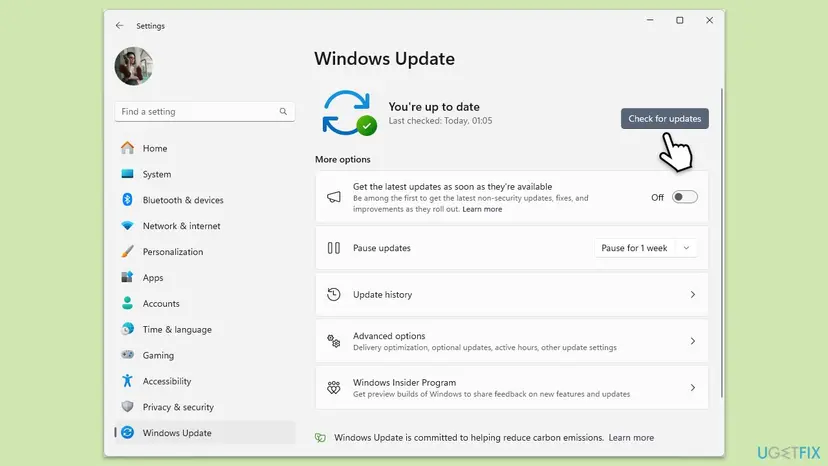
Open Settings > Windows Update (Windows 10: Settings > Update & Security > Windows Update), select Check for updates, install everything offered and restart.
- Open an elevated command window. Right-click Start and select Terminal (Admin), or type cmd in the search box, right-click Command Prompt and select Run as administrator. Select Yes when Windows asks for permission.

Search for cmd and choose Run as administrator. Screenshot: Windows 11 26H2. - Run DISM first. Type the command below and press Enter. DISM downloads clean copies of damaged components from Windows Update, so it can take several minutes. Wait until it says The operation completed successfully.
DISM.exe /Online /Cleanup-Image /RestoreHealth
DISM /RestoreHealth running. Screenshot: Windows 11 26H2. - Run System File Checker. In the same window, type the command below and press Enter. Do not close the window until the verification reaches 100%.
sfc /scannow
sfc /scannow at 100%. Screenshot: Windows 11 26H2. - Read the result and restart. Compare the last message with the table below this guide, then restart the PC so that repaired files are loaded.

The result line tells you what SFC did. Screenshot: Windows 11 26H2.
These steps were written for Windows 11 24H2 and 25H2. The full page with the other versions and what each result means: Run DISM and SFC to repair Windows system files
It worked if: SFC reports that it repaired files or found no integrity violations. After a restart the Store installs the app.
If not: If SFC cannot repair some files or the error stays in every account, use Fix 8.
Fix 8. Reinstall Windows over itself and keep your files
1 hour or moreRead the warningLast, when the error appears in every account and Fixes 5 and 7 failed.
A repair install puts a fresh copy of Windows, the Store and the app system under your existing files and programs. It replaces the parts that the other fixes cannot repair.
Your files, apps and most settings normally stay, but a failed setup can leave Windows in a bad state. Copy important files to an external drive or the cloud before you start: Back up your files (Windows Backup, File History, Time Machine)
- Open Recovery in Settings. Open Settings > System > Recovery. Next to Fix problems using Windows Update, select Reinstall now. This keeps your apps, files and settings.

Fix problems using Windows Update reinstalls the current version and keeps apps, files and settings. Screenshot: Windows 11 26H2. - Start the reinstall. Choose whether the PC may restart on its own 15 minutes after the installation, then select OK.
- Wait and restart. Windows Update downloads and installs a repair copy of your current Windows version. Keep the PC plugged in and online, and restart it when asked.
- If that did not help: Reset PC. Back in Settings > System > Recovery, next to Reset this PC, select Reset PC. This keeps your personal files but removes installed apps and settings.
- Choose Keep my files. Select Keep my files. Do not select Remove everything.
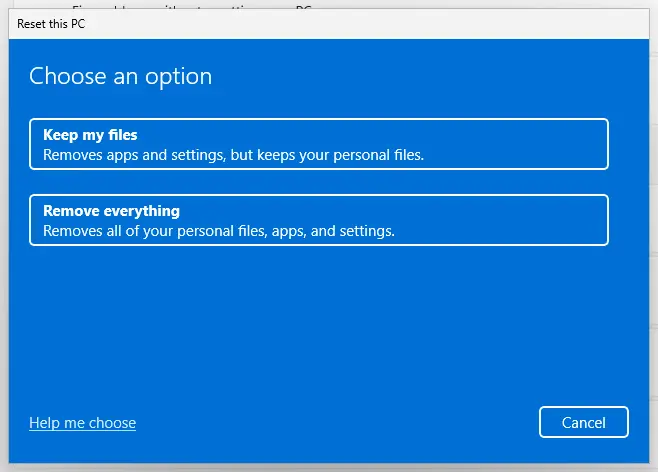
Keep my files removes apps and settings but keeps personal files. Screenshot: Windows 11 26H2. - Choose where Windows comes from. Select Cloud download to download a fresh copy of Windows, or Local reinstall to use the files already on the PC (faster, but may not include the latest updates).
- Reset. Review the summary and select Reset. The PC restarts several times.
These steps were written for Windows 11 22H2 and later. The full page with the other versions and what each result means: Reinstall Windows without losing files
One reader reported that the repair install itself stopped with 0x8007000A, and that even a clean reinstall from USB did not end it, while a fresh profile did. So if the account test in Fix 2 pointed at your profile, use Fix 6 before this one.
It worked if: Windows starts with your files and apps in place, and Microsoft Store installs apps again.
If not: If the error comes back right after the repair install, read the event log in the next section and contact Microsoft Support.
If 0x8007000A is still there
The code says only that the setting was wrong. The step that failed is written in the Windows event log for app installs, with the package name and a more exact code.
- Right-click Start and select Event Viewer.
- Open Applications and Services Logs > Microsoft > Windows > AppXDeployment-Server > Microsoft-Windows-AppXDeploymentServer/Operational.
- Select Filter Current Log, tick Error and select OK.
- Open the errors from the time of the failed install. Write down the package name, the error code and the text.
- What to send to Microsoft Support: those log lines, your Windows version from Settings > System > About, the result of the account test (Fix 2) and the fixes you tried.
- A work or school PC: the organization may limit the Store or app installs by policy. Ask the administrator before you change anything.
- When it is not software: this code does not point to hardware. If Windows also crashes or files get damaged, check the disk with Check a disk for errors (chkdsk).
How to keep 0x8007000A from coming back
The error follows a damaged setting, most often in the user profile. These habits keep the profile and the Store in a clean state, and make a move to a new profile painless if it ever comes to that.
- Restart with Restart after Windows or Store updates.
- Keep your files in OneDrive or a regular backup.
- Keep a second administrator account on the PC for tests.
- Repair the Store before you change anything else.
- Move the AppData or Temp folders by hand or with tweak tools.
- Change the TEMP and TMP variables to another drive.
- Remove Microsoft Store or built-in apps with debloat scripts.
- Delete or rename a user folder without a backup.
Frequently asked questions
What does error code 0x8007000A mean?
It is Windows system error 10, ERROR_BAD_ENVIRONMENT, which Microsoft describes as "The environment is incorrect." In Microsoft Store it means the installer found the setting it runs in to be wrong, not that the app is broken. User reports tie it to the Windows user profile. Reset the Store first (Fix 1), then test the install from a new account (Fix 2).
Why does the app install from another account but not from mine?
Because the problem lives in your user profile, not in Windows or the app. Each account has its own folders, settings and app registrations. In the Microsoft Q&A case on this code, the same apps installed from a new local account, and the error ended only when Windows built a fresh profile for the main account. Check TEMP and TMP (Fix 3) and re-register the Store (Fix 4) first. If they do not help, move to a new profile (Fix 6).
Will a clean reinstall of Windows fix 0x8007000A?
Not for sure. One reader on Microsoft Q&A reinstalled Windows from a USB drive and still got the error, then fixed it with a fresh user profile. A repair install (Fix 8) keeps your files and replaces Windows, so it helps when every account fails. When only your account fails, a new profile (Fix 6) is faster and targets the real problem.
Is 0x800700a the same error?
Yes, 0x800700a is the same code typed with one zero missing. The full code always has eight digits after 0x: 0x8007000A. Uppercase and lowercase letters mean the same, so 0x8007000a and 0X8007000A are the same error too. Do not confuse it with 0x8007000B (error 11) or 0x8007000D (error 13, "The data is invalid."), which have other causes.
Does the network or region cause 0x8007000A?
Rarely, if ever. On Microsoft Q&A an advisor suggested a phone hotspot and the region United States, and neither helped the reader. A network fault usually shows its own codes, such as 0x80072EFD. If browsing in the Store works and only installs fail, the network is fine, so start with Fix 1 and the account test in Fix 2.
La app no me sale después del error. ¿Qué hago?
This page is in English, but the fixes work on a Spanish Windows. If the app does not appear after 0x8007000A, the install stopped before the app was registered. Reset the Store (Fix 1), then install the app again from Library in Microsoft Store. If the code comes back, test the install from a new account (Fix 2), which shows whether your profile or Windows is at fault.
Should I turn off my antivirus to fix 0x8007000A?
No, not as a fix. One reader turned it off and the error stayed. A clean boot (Fix 5) is the safer test: it starts Windows without services and startup apps from other companies, while Microsoft Defender keeps running. If you want to test a third party antivirus alone, pause it for one install and turn it back on at once: Turn off Microsoft Defender protection for a moment.
Will I lose my apps or purchases?
No. Your purchases are tied to your Microsoft account, not to the PC, and you can install them again from Library. A Store Repair keeps everything; a Store Reset only signs you out of the Store. A new profile (Fix 6) needs your Store apps installed again and your files copied over, so back up first and keep the old account until the new one works.
Can winget or PowerShell install the app when the Store fails?
Usually not. winget and PowerShell use the same app install system as the Store, so they stop at the same setting. One reader saw Get-AppxPackage fail with 0x8007000A too, and winget removed itself. That is a strong sign the user profile is damaged: run the account test in Fix 2 and, if it confirms, move to a new profile with Fix 6.
Sources
- Microsoft Learn: System Error Codes (0-499), ERROR_BAD_ENVIRONMENT 10 (0xA), ERROR_BAD_FORMAT 11 and ERROR_INVALID_DATA 13 (learn.microsoft.com)
- Microsoft Q&A: Microsoft Store error 0X8007000A whenever trying to install anything (user report, works in a new account, fixed by a fresh profile) (learn.microsoft.com)
- Microsoft Q&A: Error 0x8007000A (user report, Store app updates fail on Windows 11) (learn.microsoft.com)
Did this fix work?
One click, no account. It tells the next reader which guides are worth their time.
Questions and experiences: fix Microsoft Store error 0x8007000A
Still broken, or found a fix we did not cover? Ask here: members and our editors answer. Reading is open; writing needs a free account.
…