How to fix
Microsoft Store error 0x80070057
on Windows
Resolve the Microsoft Store error 0x80070057 on Windows 10 or 11 with expert-tested solutions. Get back to downloading apps in minutes!


What causes How to fix Microsoft Store error 0x80070057?
- Corrupted Microsoft Store cache
- Issues with the Microsoft Store app
- Outdated Windows version
- Registry errors
- Problems with system files
Repairs Windows system files, removes malware, and restores a clean OS state — without reinstalling.
Hello. When I try to install any app from the Microsoft Store I get the 0x80070057 error. Is there a way to fix it?
The Microsoft Store is a Windows app store created by Microsoft. It is a useful tool that enables users to easily discover, download, and install a wide variety of apps, such as games, productivity tools, and entertainment apps. Because the Microsoft Store is integrated with the Windows operating system, users can discover and install new apps without having to search for them on the web.
Error 0x80070057 is a common problem with the Microsoft Store in Windows. This error usually prevents users from downloading apps from the store and can be caused by a variety of factors. Depending on the underlying cause of the problem, there are several possible solutions to the error 0x80070057.
Clearing the Microsoft Store cache, resetting the Microsoft Store app, and updating Windows to the latest version are all possible options. Other choices include editing the registry and running various Windows troubleshooters.
While these solutions may work for some users, they may not work for all, and there may be other underlying issues causing the error. In some cases, contacting Microsoft support for further assistance may be necessary. This guide will walk you through 6 steps that should help you resolve Microsoft Store error 0x80070057.
Keep in mind that the manual troubleshooting process can be lengthy. If you want to avoid it, you can use a maintenance tool like [d1] that can fix most system errors, BSODs,[ref en-1] corrupted files, registry[ref en-2] issues, or clear cookies and cache[ref en-3] automatically. Otherwise, follow the step-by-step instructions below.
Solution 1. Run the Microsoft Store Apps Troubleshooter
- Open the Start menu.
- Click the gear-shaped icon to launch the Settings app.
- In the Settings app, click on the System tab.
- Click on Troubleshoot.
- Select Other troubleshooters.
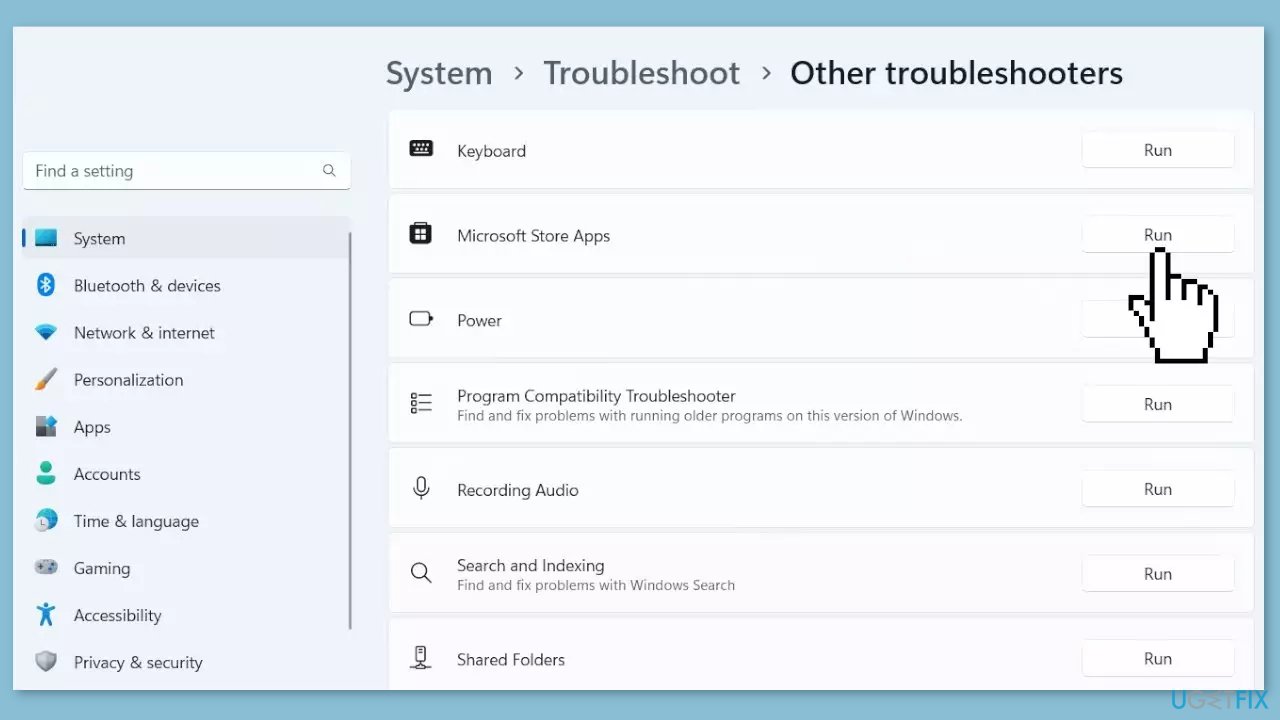
- Look for Microsoft Store Apps and click the Run button next to it.
- Follow the on-screen prompts to run the troubleshooter.
Solution 2. Clear the Store Cache
Like most applications, Microsoft Store creates and stores cache data to enhance performance. However, if this cache becomes corrupt, you may experience various issues.
- Open the Run dialog box by pressing the Windows key + R.
- If the hotkeys don't work, you can use any other method to open the Run dialog box.
- In the search bar of the Run dialog box, type wsreset.exe.
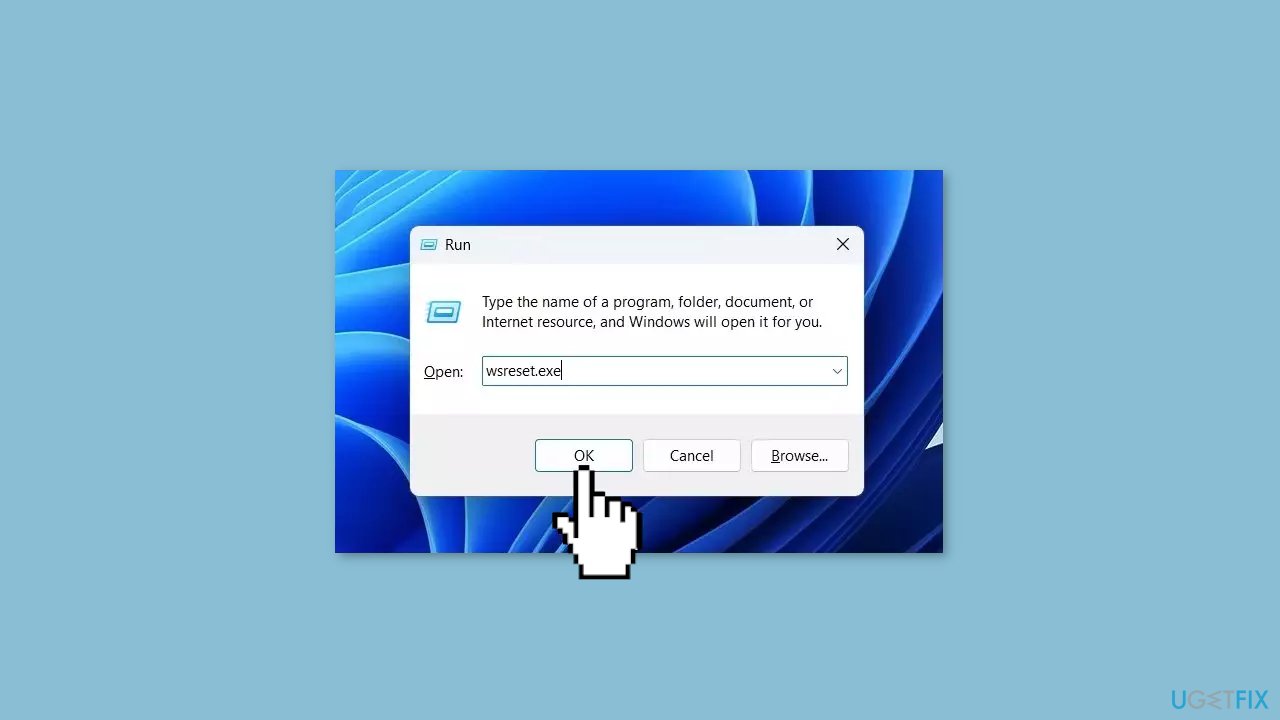
- Click OK.
- A blank Command Prompt window will appear for a few seconds.
- Once the cache is cleared, Windows will close the Command Prompt window and automatically launch the Microsoft Store app.
Solution 3. Re-register the Store
- Press the Windows key to open the Start Menu.
- Type Windows PowerShell in the search bar.
- Choose Run as administrator from the right pane.
- In the elevated PowerShell window, type the following command:
Get-AppXPackage *WindowsStore* -AllUsers | Foreach {Add-AppxPackage -DisableDevelopmentMode -Register “$($_.InstallLocation)\AppXManifest.xml”}
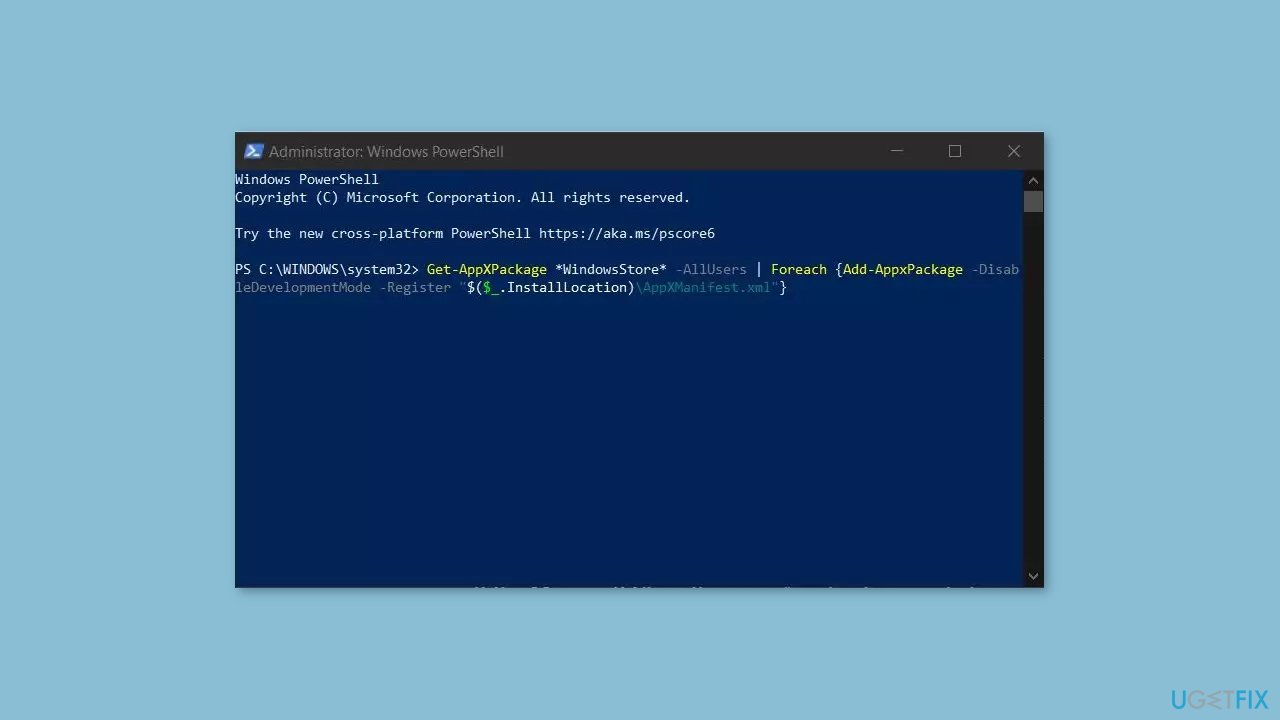
- Press Enter to run the command.
- Wait for the process to complete.
- Close the PowerShell window.
- Check if the Microsoft Store app is working properly now.
Solution 4. Rename the Cache Folder
- Open the Task Manager by pressing the Ctrl + Shift + Esc keys.
- Look for the services Store and Store Broker in the Task Manager.
- Click on the services and select the Finish task option.
- Press the Windows key + R to open the Run dialog box.
- Type in the address C: Users AppData Local Packages winstore_cw5n1h2txyewy LocalState in the Run dialog box. Replace the account name field with the name of the account.
- In the LocalState folder, locate the folder named Cache.
- Rename the Cache folder to CacheOld.
- Test and see if the issue is resolved.
Solution 5. Clear the SoftwareDistribution Folder
The SoftwareDistribution folder is a crucial part of the Windows update process, as it stores temporary files that are necessary for installing new updates. However, if the folder's contents become corrupt, it can result in various problems, including the issue you're currently experiencing.
- Press the Windows key + E to open File Explorer.
- Open the drive where you have installed the OS. For most users, this is the C drive.
- Navigate to the Windows folder.
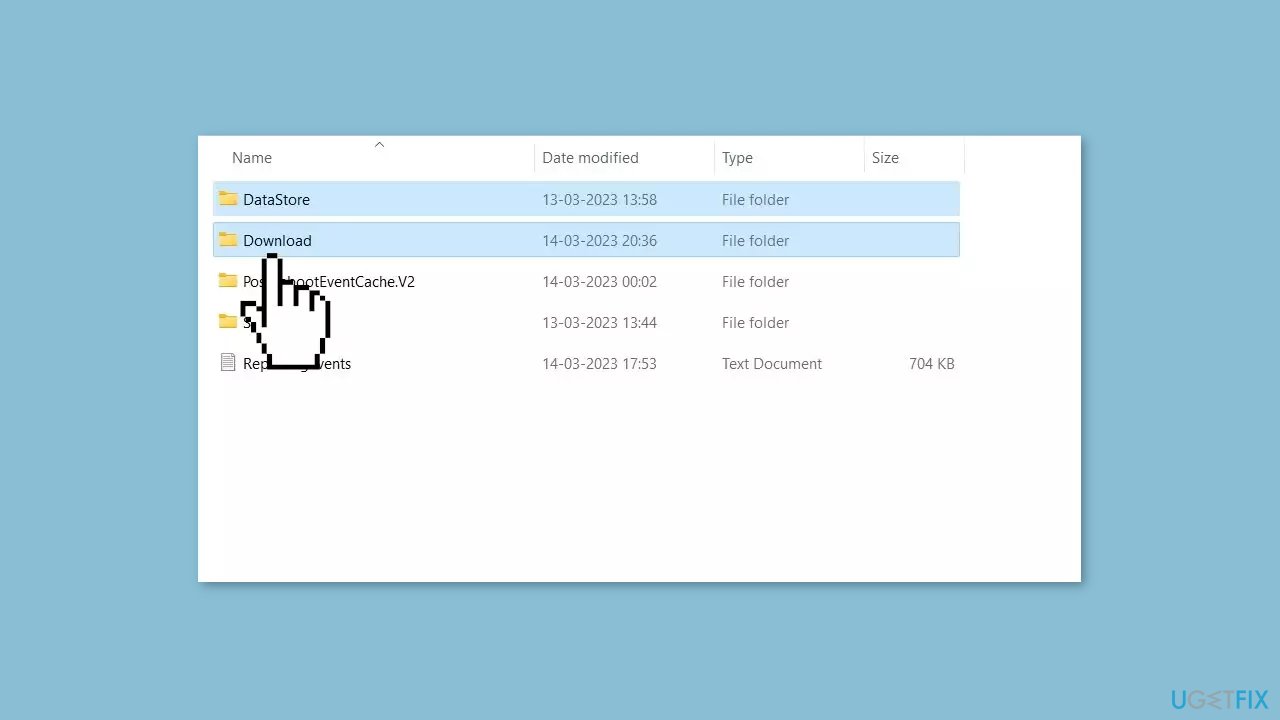
- Open the SoftwareDistribution folder.
- Select the DataStore folder and delete it permanently.
- Select the Download folder and delete it permanently.
- Restart your computer.
- Check if the problem you were experiencing has been fixed.
Solution 6. Reset Windows
If none of the previous solutions resolve the issue, consider resetting Windows. Keep in mind that this is a time-consuming process, as the Windows reset will remove all your apps and require reinstallation.
- Press the Windows key + I to open Windows Settings.
- Press on Update & security.
- Click on Recovery in the left pane.
- In the right pane, click on Reset PC next to Reset this PC.
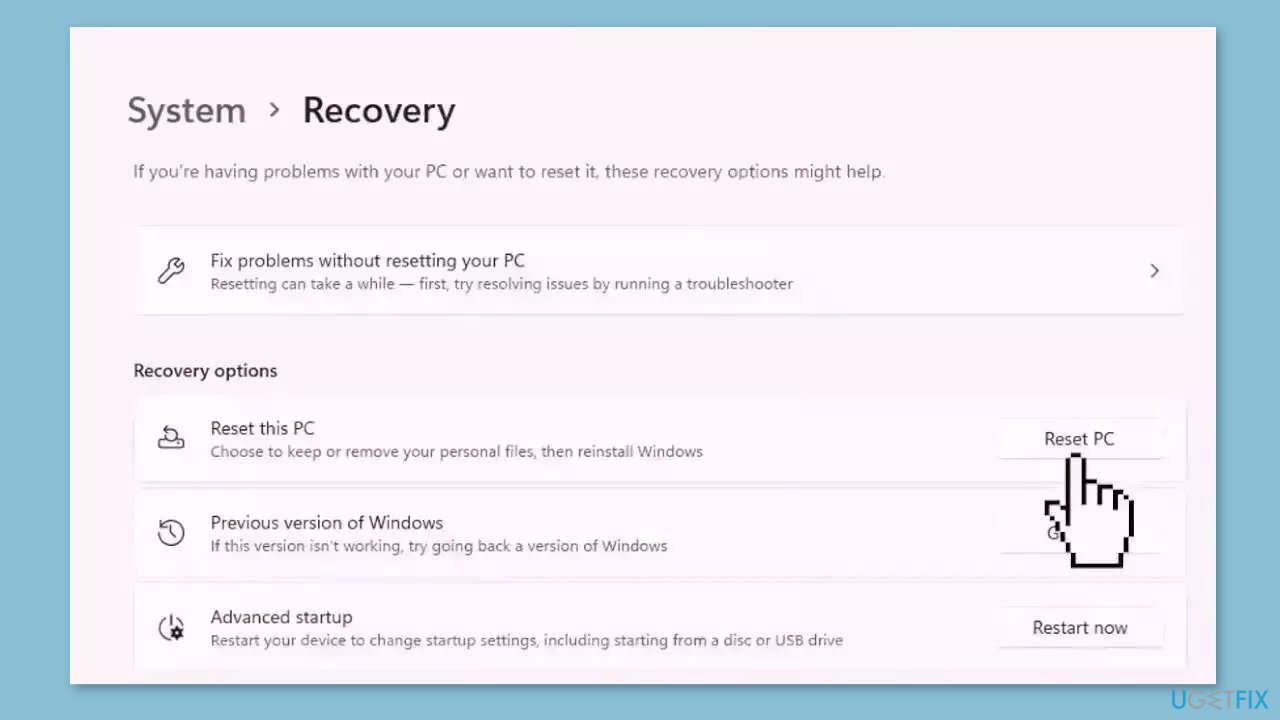
- Click on either Keep my files (if you want the computer to be reset without losing any of the user data stored on it) or Remove everything (if you want the computer to be reset and any and all user data stored on it to be deleted.
- If presented with a warning, simply click on Next.
- When prompted to do so, click on Reset.
Bottom line
To fix Microsoft Store error 0x80070057, you can run the Microsoft Store Apps Troubleshooter, clear the Store cache, reset the Microsoft Store app, and update Windows to the latest version. If these solutions do not resolve the issue, consider contacting Microsoft support for further assistance.
Frequently asked questions
The error 0x80070057 typically indicates an issue with invalid parameters or configuration settings within the Microsoft Store. This can occur due to corrupted cache or misconfigured system files.
To clear the Microsoft Store cache, press Win + R, type 'wsreset.exe', and hit Enter. This command will reset the cache and may resolve the error on Windows 10 or Windows 11.
If clearing the cache doesn't work, try running the Windows Store Apps troubleshooter from Settings > Update & Security > Troubleshoot. Additionally, consider resetting or reinstalling the Microsoft Store app.




Report an issue
What's wrong with this guide? We review every report and update or remove content.
Report received — thank you. We'll review and fix it.
You need a free account to submit a report.
Be the first to comment