How to fix
Microsoft Store error 0x80070426
on Windows
Resolve Microsoft Store error 0x80070426 on Windows 10 or 11 effortlessly. Get expert-tested solutions to fix it in minutes!


What causes How to fix Microsoft Store error 0x80070426?
- Issues with the Microsoft Store itself
- Bugs in the program
- Problems arising from faulty app files
- Corrupted user account files
- Interference with the store's regular operations
Repairs Windows system files, removes malware, and restores a clean OS state — without reinstalling.
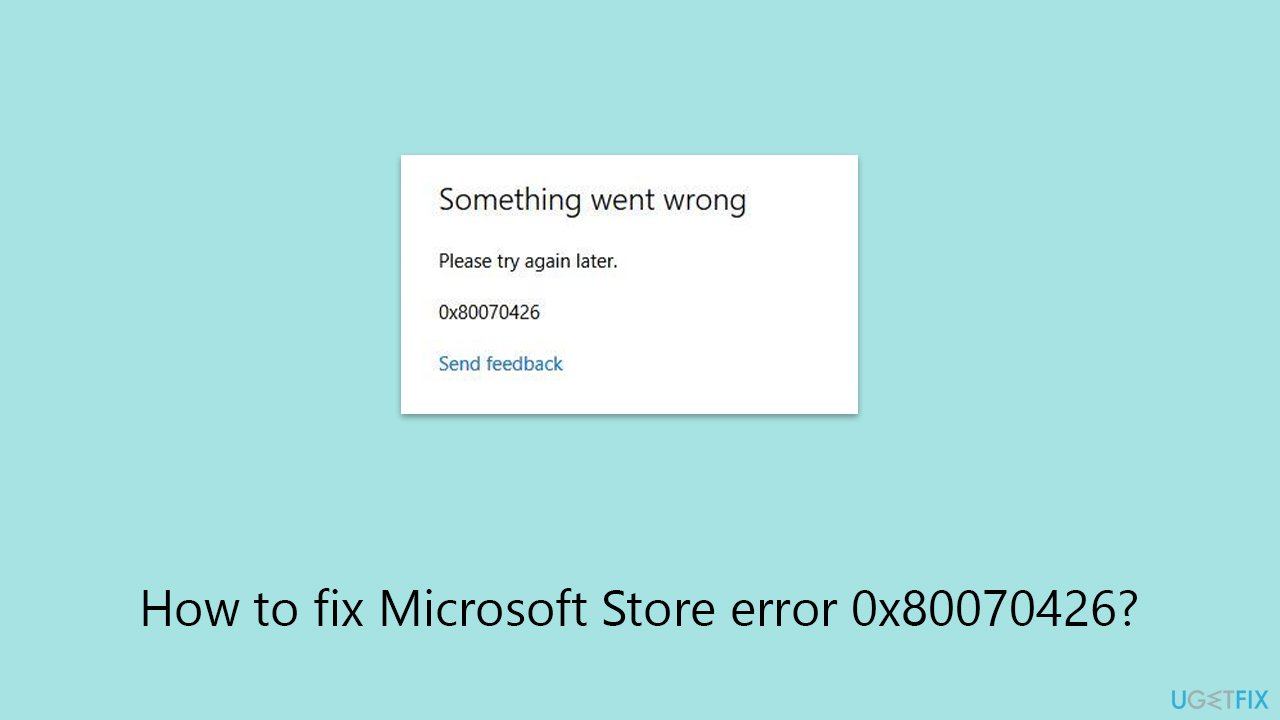
Hi. My computer works fine, but recently, I've been getting a 0x80070426 error in the Microsoft Store, which prevents me from using it (I can't update or install new apps). Any idea what's going on?
One essential part of the Windows operating system is the Microsoft Store, which serves as a central destination for downloading and updating a vast array of applications. However, like any complex software system, it is not immune to issues. The Microsoft Store error code 0x80070426 is one problem that users may encounter - it significantly reduces the operation of the Microsoft Store, making it impossible to update or download new apps.
The 0x80070426 error might have several causes. It is frequently linked to issues with the Microsoft Store itself, including bugs in the program or problems arising from faulty app files and caches. These issues may interfere with the store's regular operations, which could result in an error.
User account files that have been corrupted could potentially be a factor. In order to offer individualized services, the Microsoft Store depends on user account information; therefore, any errors or damage in these files may hinder the store's ability to operate.
Recognizing that this problem's potential solutions vary based on its underlying cause is crucial. If internal Microsoft Store issues or corrupted files are the cause of the issue, resetting the application or clearing the cache can be helpful. But, you might need to consider creating a new user profile or correcting an existing one if the problem is connected to a corrupted user account.
In more serious cases if these solutions don't work to resolve the 0x80070426 error, reinstalling Windows with the Media Creation Tool can be a viable option. By updating the operating system using this way, you can fix any underlying issues that may be generating the error without deleting your files.
For a quick remedy, a PC repair program [d1] can be a smart choice, especially if the error's precise cause is unknown. The Microsoft Store error 0x80070426 may be resolved by this type of software automatically detecting and resolving underlying Windows issues, saving time and effort during troubleshooting.
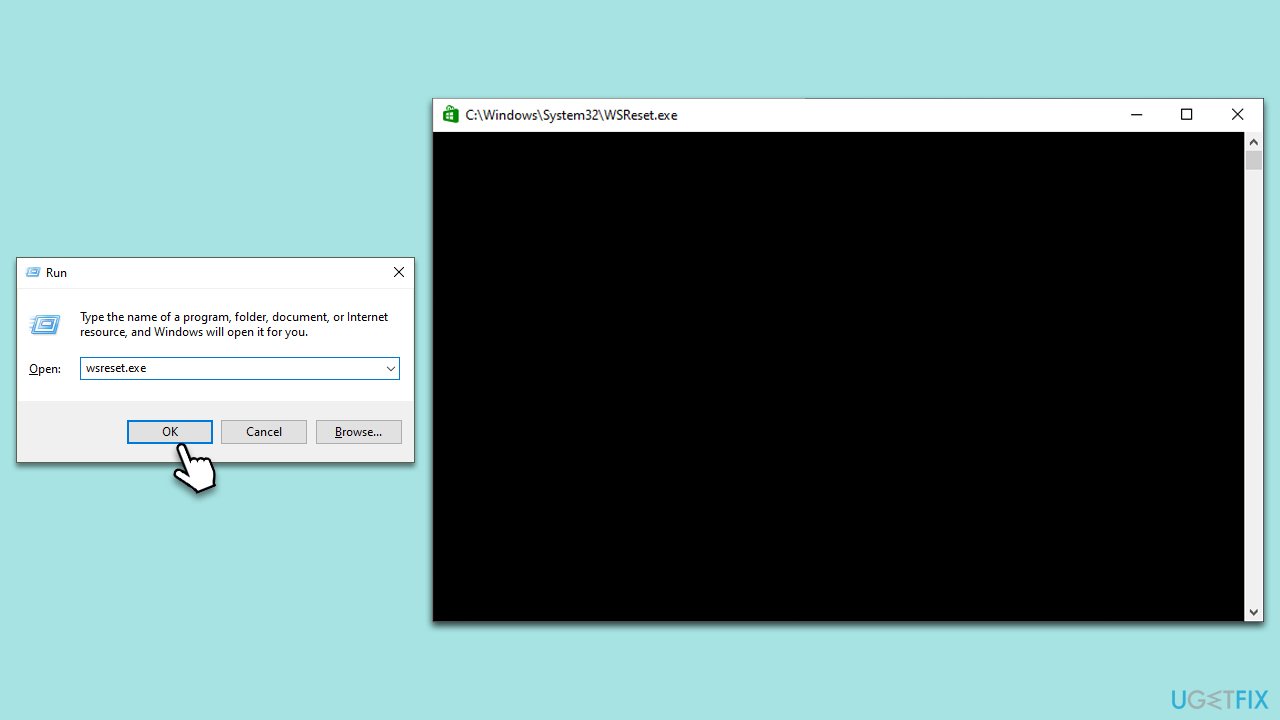
Fix 1. Clear Microsoft Store cache
Clearing the Microsoft Store cache can resolve issues caused by outdated or corrupted cache files, which may prevent the app from functioning properly. This process refreshes the app's data, potentially fixing error 0x80070426.
- Press the Windows key + R on your keyboard to open the Run dialog box.
- In the dialog box, type wsreset.exe and then hit Enter or click OK.
- A blank Command Prompt window will open (do not close it), and after about ten seconds, the window will close, and the Microsoft Store will open automatically.
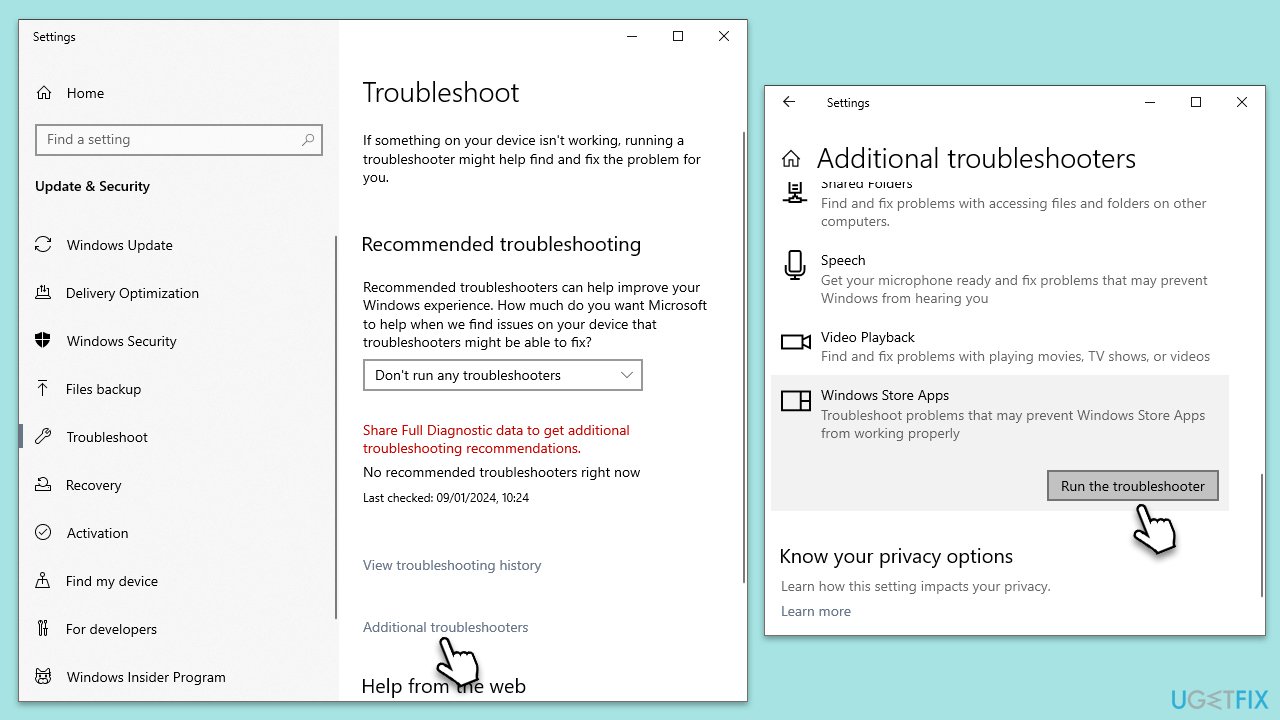
Fix 2. Run Windows Store apps troubleshooter
The Windows Store Apps troubleshooter can automatically detect and fix common problems with the Microsoft Store and its applications. This tool checks for issues and applies fixes where possible.
- Type Troubleshoot in Windows search and hit Enter.
- Click Additional troubleshooters/Other troubleshooters.
- Scroll down to find Windows store apps and select it.
- Click Run the troubleshooter/Run.
- Wait till the process is finished and apply the fixes, then try using Store again.
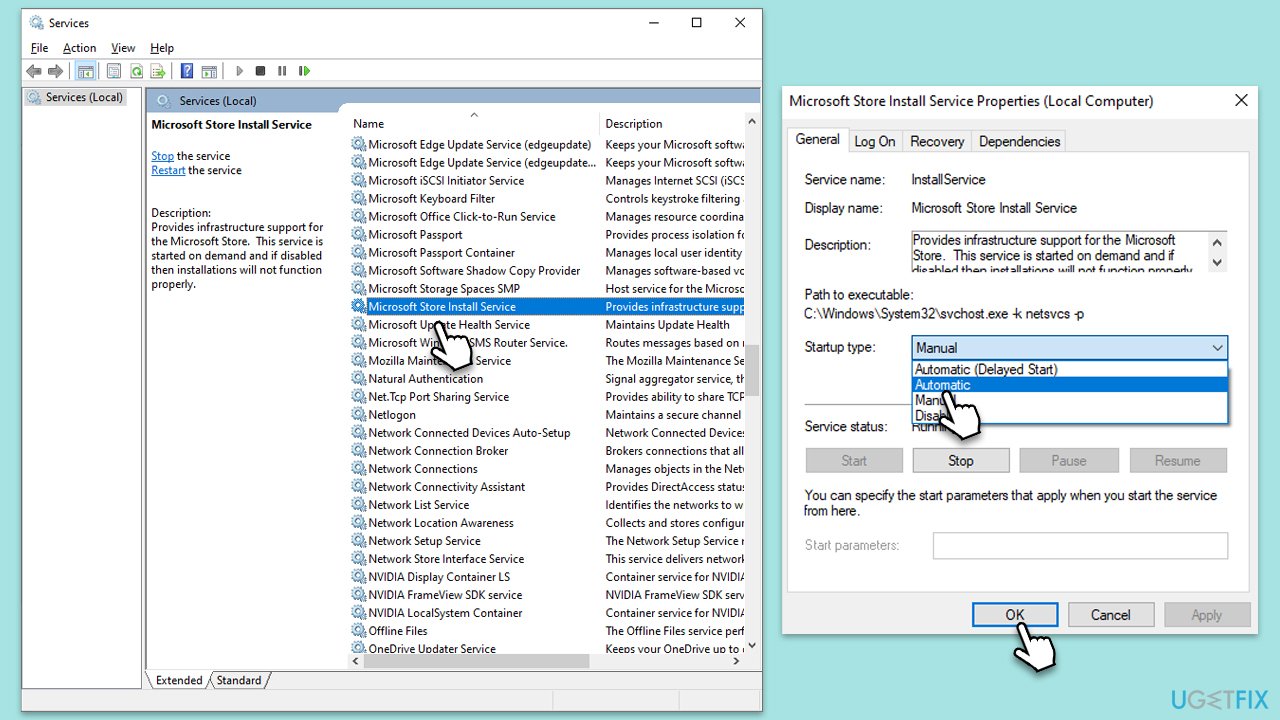
Fix 3. Check the Microsoft Store Installer service
The Microsoft Store Installer service is essential for installing, updating, and uninstalling store apps. Ensuring this service is running can resolve issues related to app management.
- Type Services in Windows search and press Enter.
- Locate Microsoft Store Install Service.
- If it is already running, right-click and select Restart.
- if the service is not running, double-click it, and pick Automatic under the Startup type from the drop-down menu.
- Click Start, Apply, and OK.
Fix 4. Check for corrupted files
SFC and DISM tools can repair Windows system files and the Windows image. Running these tools can fix underlying system issues that might cause Microsoft Store errors.
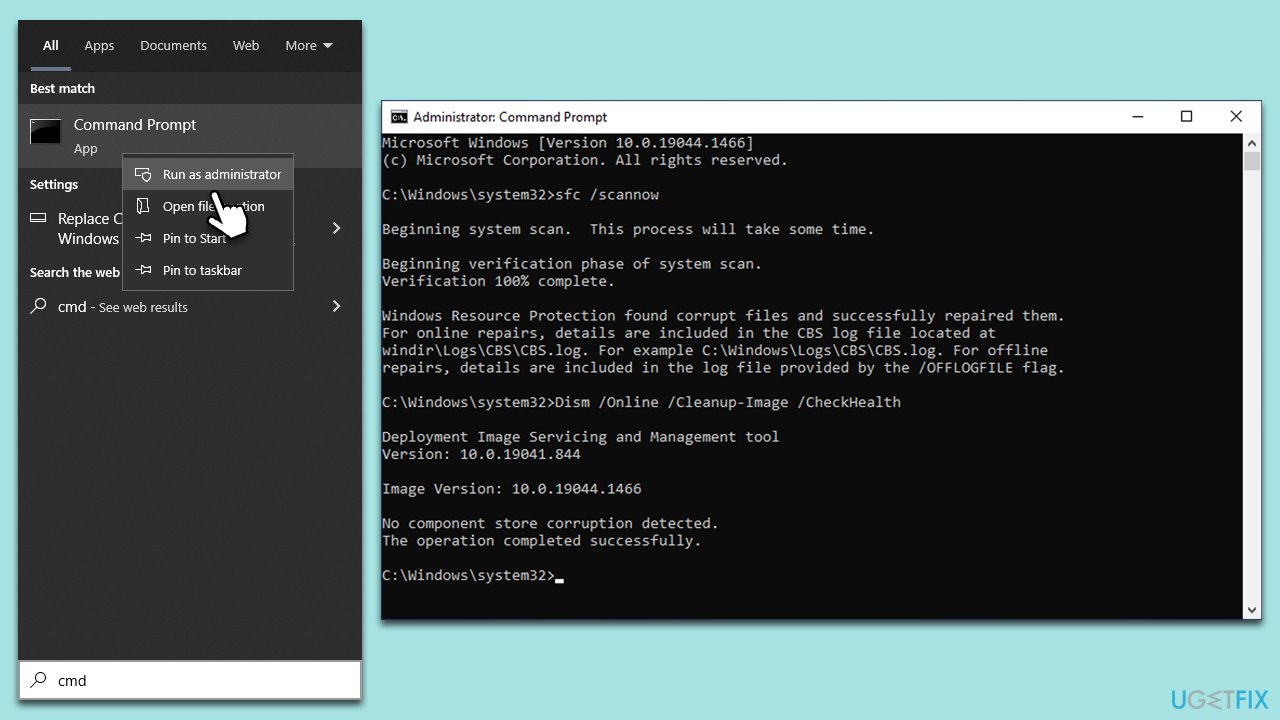
- To run an elevated Command Prompt, type in cmd in Windows search.
- Right-click the Command Prompt result and pick Run as administrator.
- User Account Control will ask whether you want to allow changes - click Yes.
- Type this command and press Enter:
sfc /scannow - Wait for the scan to finish.
- Then, use the following commands, pressing Enter after each:
Dism /Online /Cleanup-Image /CheckHealth
Dism /Online /Cleanup-Image /ScanHealth
Dism /Online /Cleanup-Image /RestoreHealth - Reboot your system.
Fix 5. Enable administrator via Command Prompt
Enabling the built-in administrator account can help troubleshoot permission issues that might affect the Microsoft Store. Use this account to run the store and see if the error persists.
- Open Command Prompt as administrator.
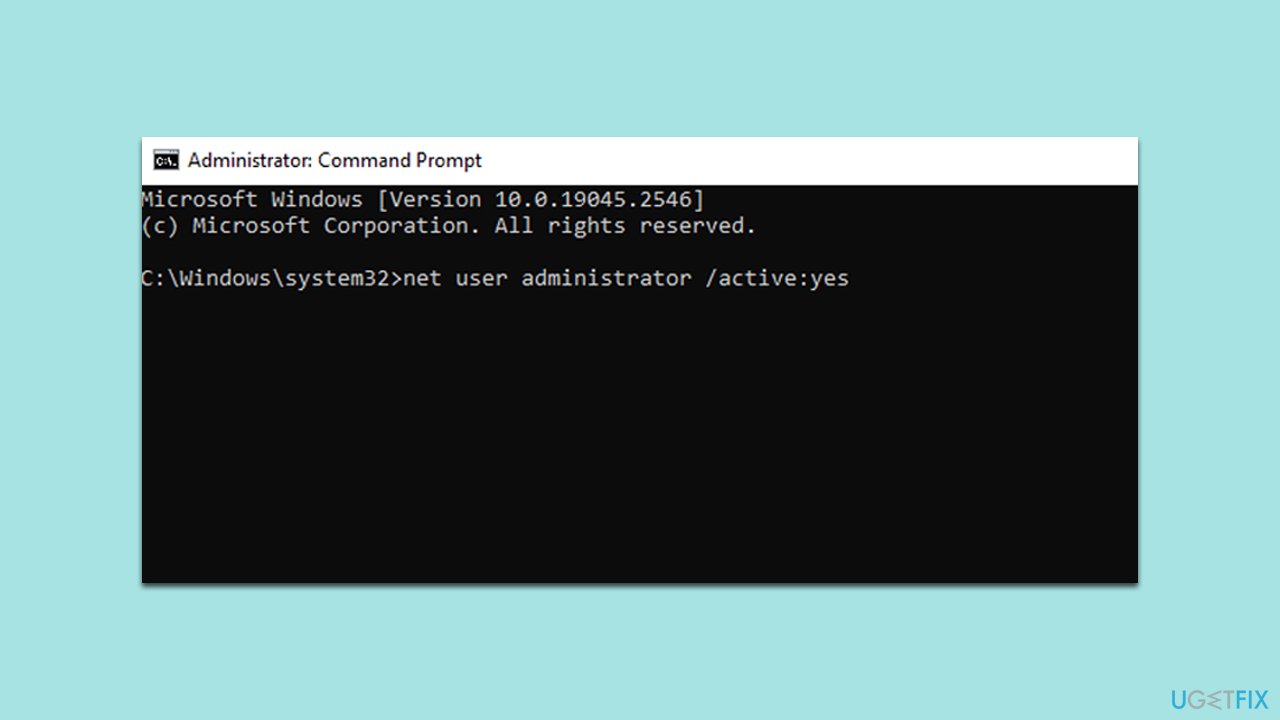
- In the Command Prompt window, type the following and press Enter:
net user administrator /active:yes - Close the Command Prompt window.
- Log out of your current account.
- Log in to the Administrator account that now appears on the welcome screen.
Fix 6. Create a new User account
Sometimes, user accounts can get corrupted. Creating a new one can remediate this issue.
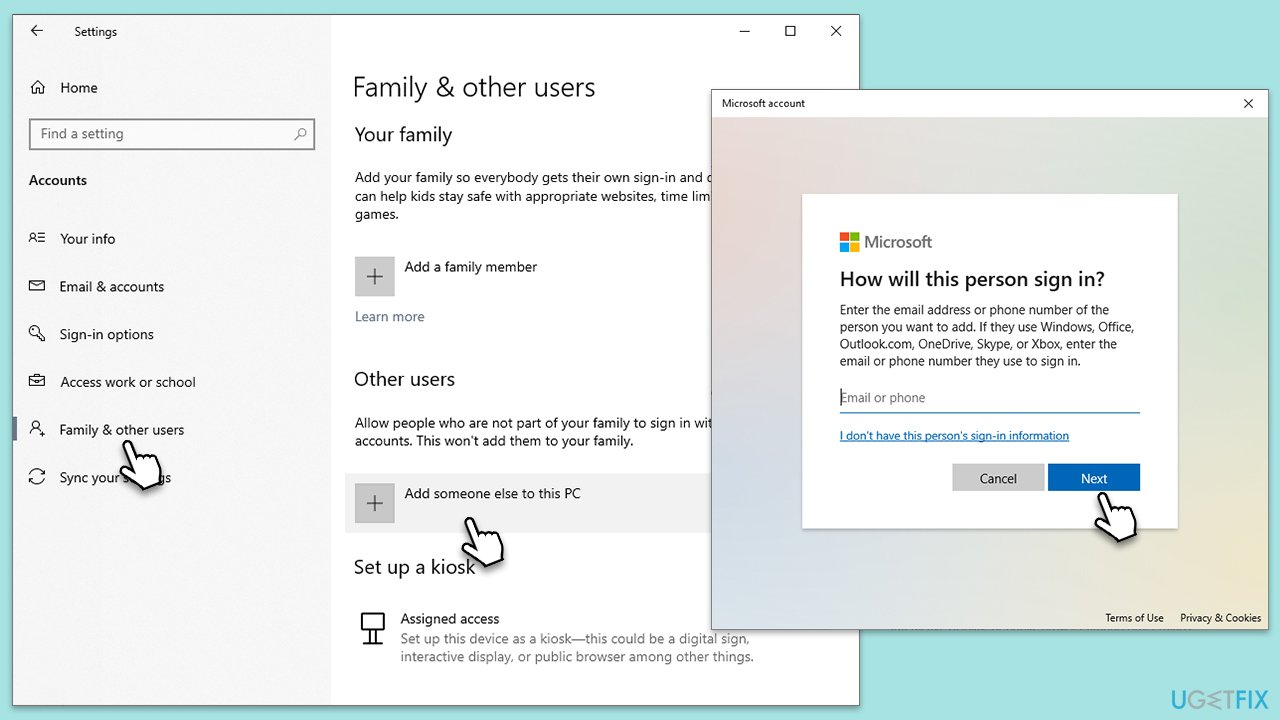
- Right-click on Start and pick Settings.
- Go to the Accounts section.
- Select Family & other users on the left.
- Under Other users, click Add someone else to this PC.
- Select I don't have this person's sign-in information > Add a user without a Microsoft account.
- Enter the required information and click Next.
- Restart your device once done.
- Log out from the current account and log into the new account.
Fix 7. Use Media Creation Tool to repair-install Windows
This can fix deep-rooted system issues affecting the Microsoft Store.
- Visit the official Microsoft website and download Windows 10 installation media (Windows 11 version)
- Double-click the installer and select Yes when UAC shows up
- Agree to terms
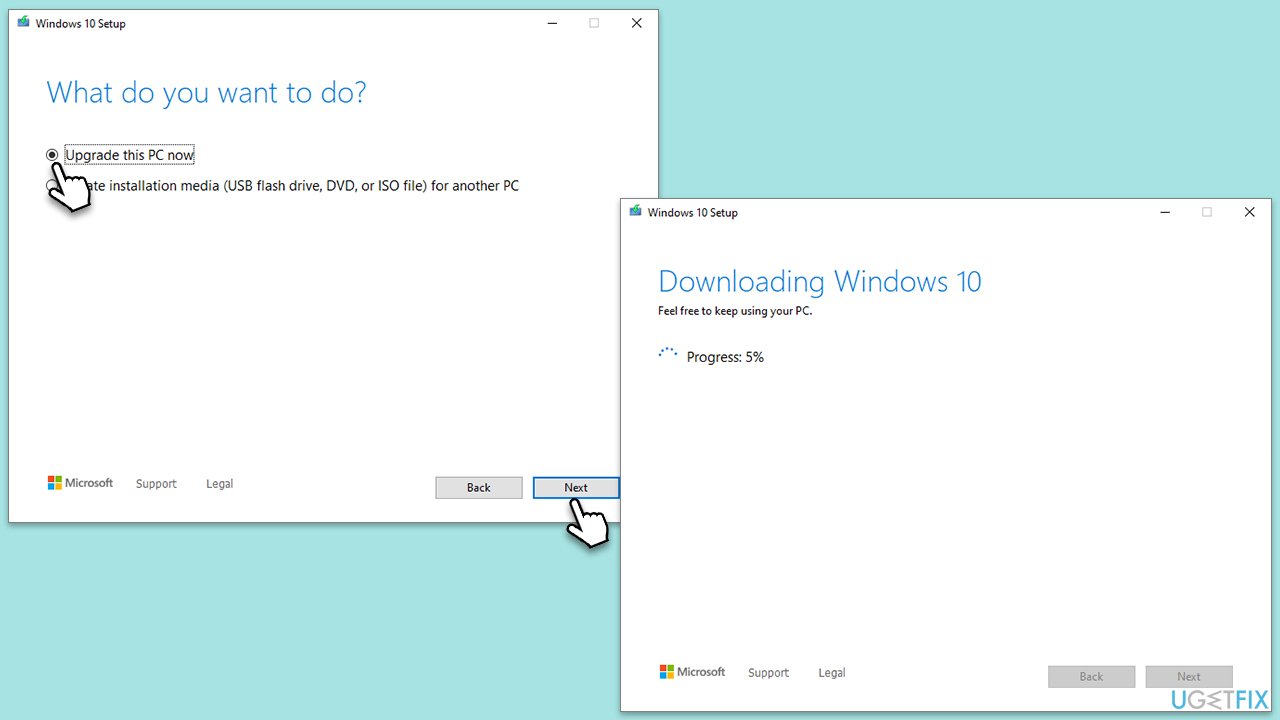
- Select Upgrade this PC now and select Next
- Windows will now download all the necessary files – it might take awhile
- Agree to terms once again and click Next
- Before installing, make sure that you are happy with your choices (otherwise, you can click Change what to keep option)
- Click Install to begin the upgrade process.
Bottom line
To fix the 0x80070426 error, you can try resetting the Microsoft Store application, clearing the cache, or creating a new user profile. If these solutions do not resolve the issue, consider reinstalling Windows using the Media Creation Tool or using a PC repair program.
Frequently asked questions
The error 0x80070426 typically occurs due to issues with your Microsoft account or problems with the Windows Store cache. Ensuring your account is properly linked and resetting the cache can help resolve this issue.
To reset the Microsoft Store cache, press Win + R, type 'wsreset.exe', and hit Enter. This will clear the cache and may resolve the error.
Yes, you can try signing out and signing back into your Microsoft account, or running the Windows Store Apps troubleshooter to fix the error without reinstalling the OS.




Report an issue
What's wrong with this guide? We review every report and update or remove content.
Report received — thank you. We'll review and fix it.
You need a free account to submit a report.
Be the first to comment