How to fix
Microsoft Store error 0x80070496
on Windows
Resolve Microsoft Store error 0x80070496 on Windows 10 and 11 easily with our expert-tested solutions. Get back to shopping in minutes!

What causes How to fix Microsoft Store error 0x80070496 in Windows?
- Misconfigured system files
- Outdated components of the Microsoft Store
- Permission conflicts across Windows
- Network restrictions
- Corrupted Windows Update components
Repairs Windows system files, removes malware, and restores a clean OS state — without reinstalling.
Hey, I'm unable to update a few apps via Microsoft Store. Photos is one of the apps, and I can also not use it either. The error code shown is 0x80070496. Help me, please.
Boasted as a central feature in Windows, the Microsoft Store has provided a secure platform from which users can download and update apps. It is not completely free of errors, though, which hinder the installation process for various apps or may slow down the smooth updating process.
Error code 0x80070496 is one of those, appearing every time any user tries to update or download an application from the Store, often because of stuck downloads or failed installations.
The causes of the error 0x80070496, according to users, include misconfigured system files, outdated components of the Microsoft Store, or permission conflicts across Windows. Sometimes, it is the network restrictions or corrupted Windows Update components that impede proper Store functionality.
This is an annoying issue because it stops the necessary updates for apps and leaves users without access to freshly added features or security improvements.
Possible resolutions to fix error code 0x80070496 involve resetting the Microsoft Store and cleaning cache files; it also includes checking proper functionality of the components involved in Windows Update.
Checking system permissions and system network configuration reset are other probable solutions. A trustful repair tool [d1] can further help trace back system conflicts from where the normal functionality of the Microsoft Store was disrupted, for users who want an automated solution.
Fix 1. Reset Microsoft Store cache
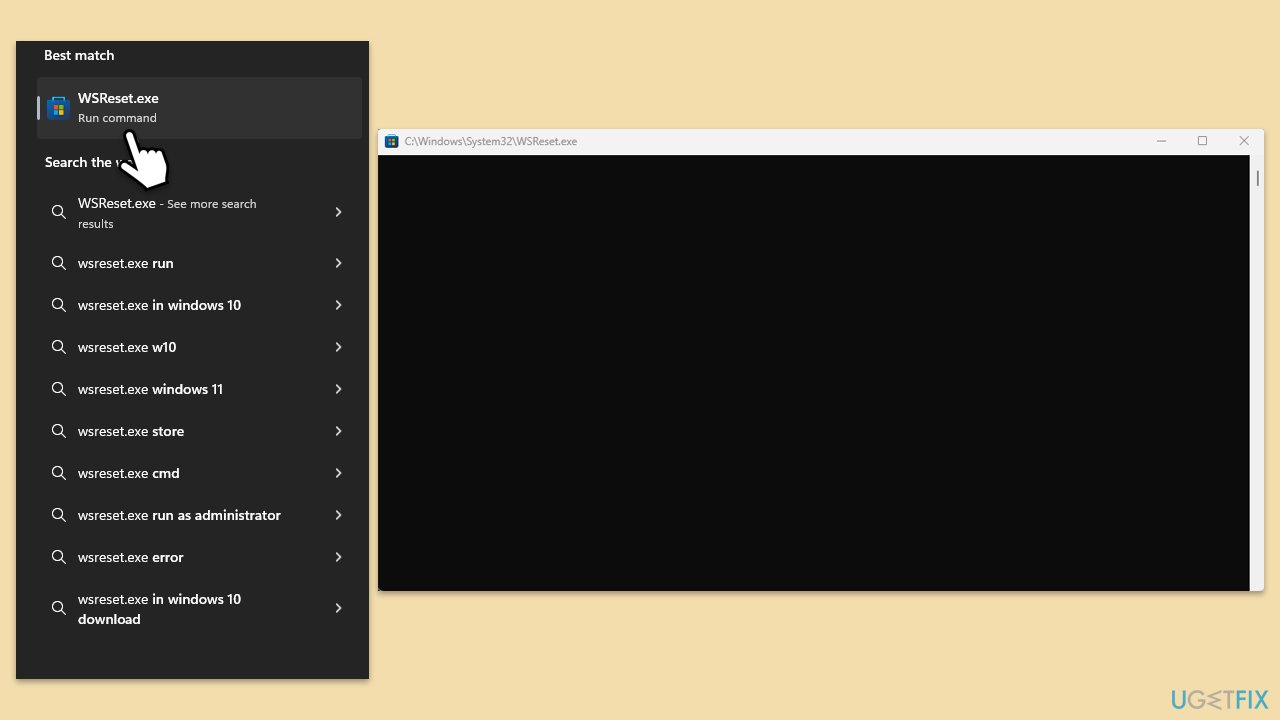
- In Windows search, type wsreset.exe and press Enter.
- Wait till a black window shows up – do not close it.
- Once it's gone, Microsoft Store should restart.
- Try using the Store again.
Fix 2. Repair corrupted system files
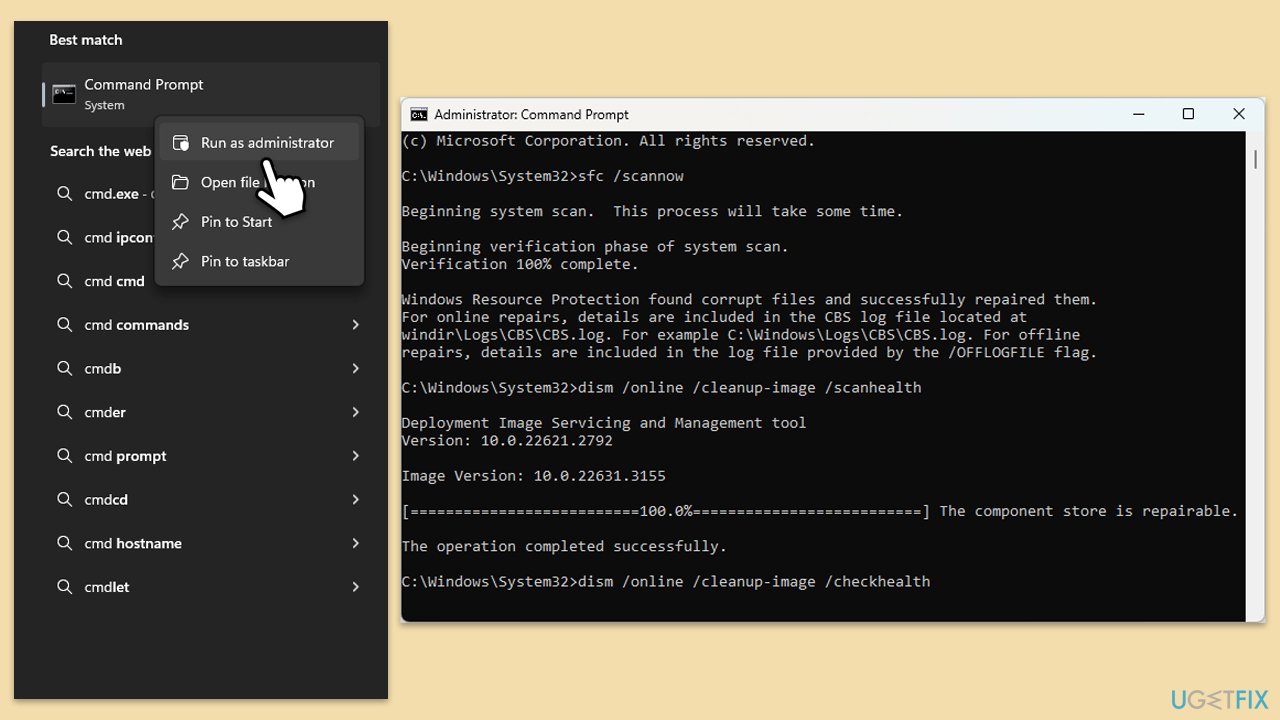
- Type cmd in Windows search box.
- Right-click on Command Prompt and select Run as administrator.
- The User Account Control window will ask whether you allow changes - click Yes.
- Copy and paste the following command, pressing Enter after:
sfc /scannow - Wait till the scan is finished. If Windows finds system file integrity violations, it will attempt to fix them. After this, use the set of the following commands, pressing Enter each time:
DISM /Online /Cleanup-Image /CheckHealth
DISM /Online /Cleanup-Image /ScanHealth
DISM /Online /Cleanup-Image /RestoreHealth - (Note: if you get an error executing this last command, add /Source:C:\RepairSource\Windows /LimitAccess to it and try again).
- Close down the Command Prompt and restart your system.
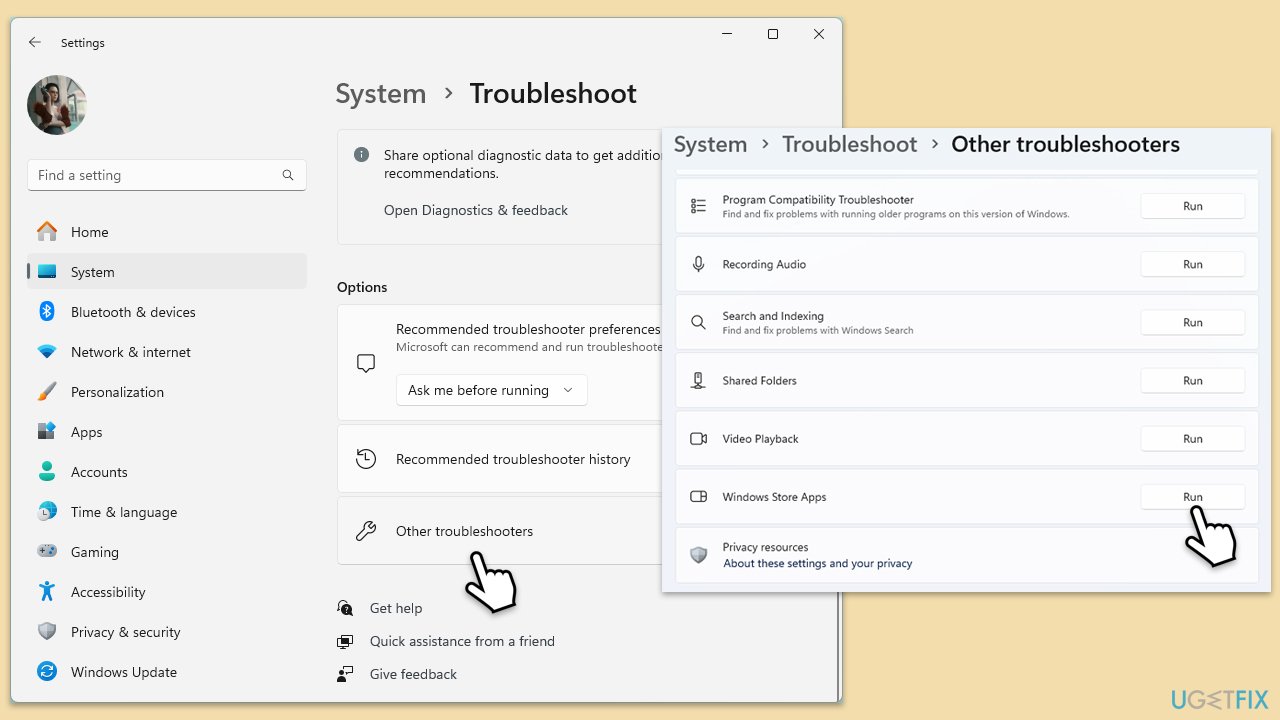
Fix 3. Run Windows Store apps troubleshooter
- Type Troubleshoot in Windows search and hit Enter.
- Click Additional troubleshooters/Other troubleshooters.
- Scroll down to find Windows store apps and select it.
- Click Run the troubleshooter/Run.
- Wait till the process is finished and apply the fixes.
Fix 4. Check relevant services
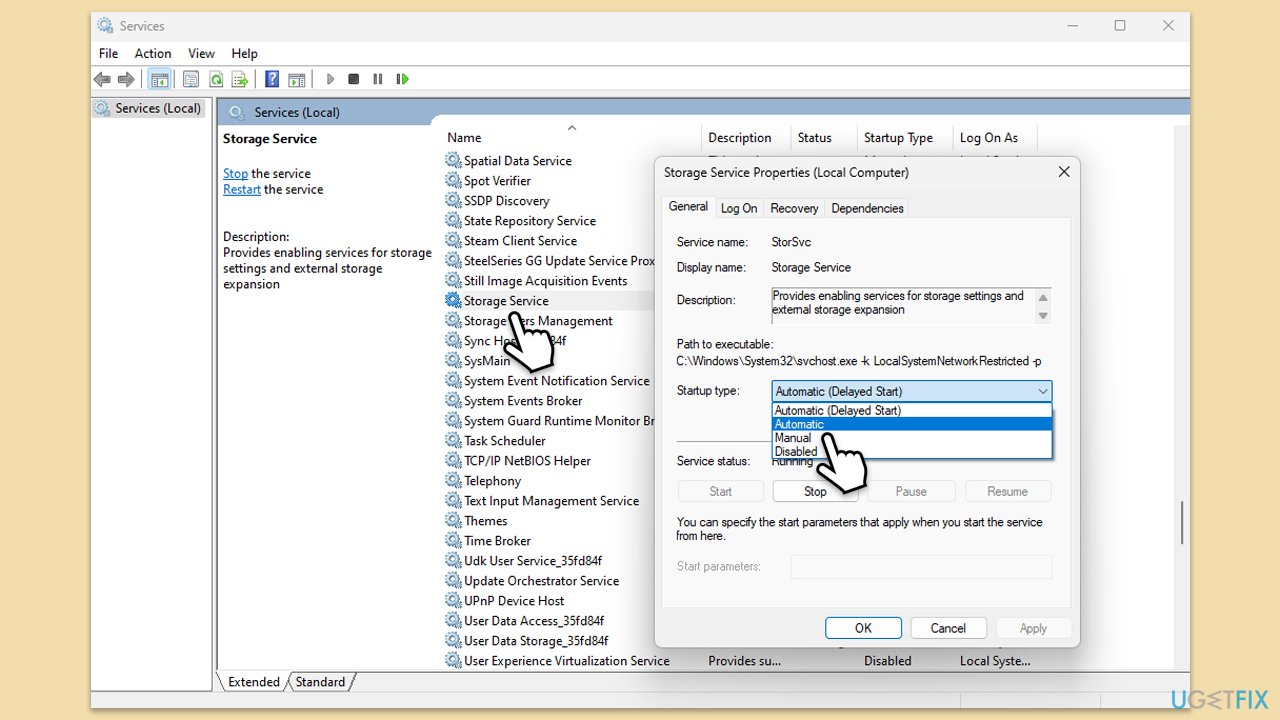
- Type Services in Windows search and hit Enter.
- Locate Windows Update, Windows Installer, Storage Service, and Windows Firewall in the list.
- Right-click on each and select Properties.
- Set the Startup type to Automatic - select it from the drop-down menu.
- Click Start if the service is not running.
- Click Apply and OK.
Fix 5. Reset Windows update components
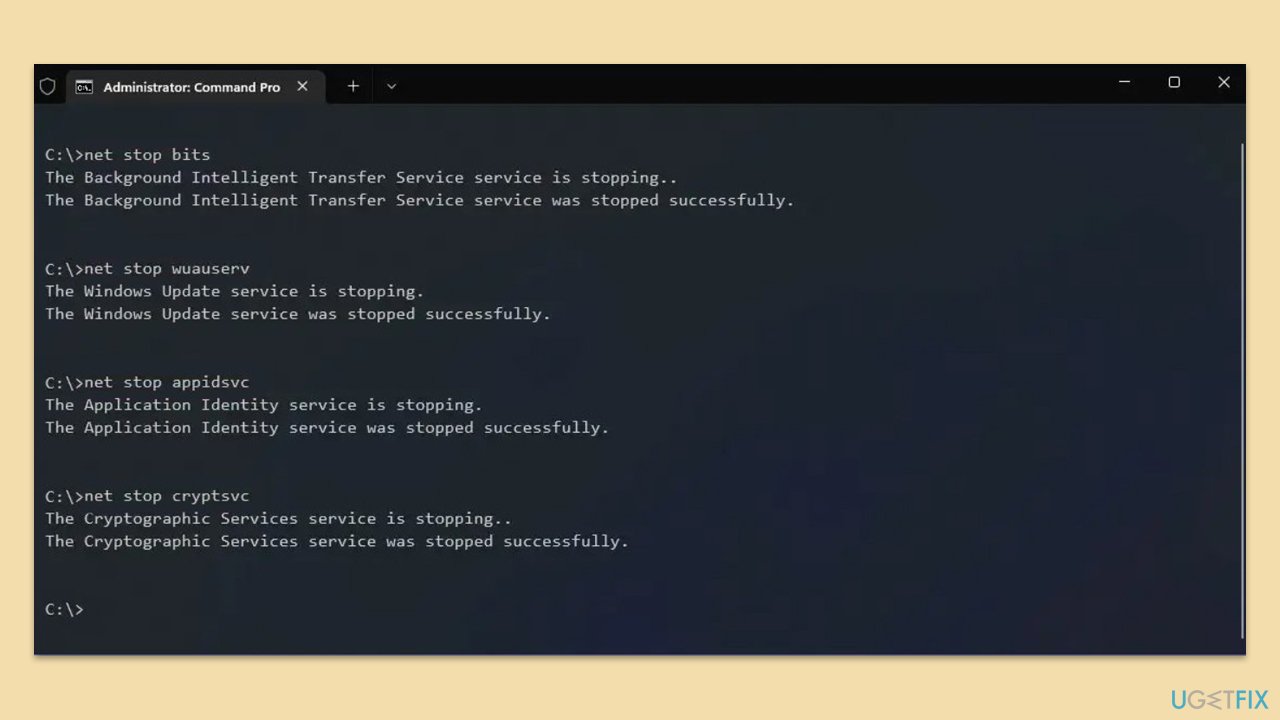
- Open Command Prompt as administrator.
- In the new window, use the following commands, pressing Enter after each:
net stop bits
net stop wuauserv
net stop appidsvc
net stop cryptsvc
Del “%ALLUSERSPROFILE%\Application Data\Microsoft\Network\Downloader\*.*”
rmdir %systemroot%\SoftwareDistribution /S /Q
rmdir %systemroot%\system32\catroot2 /S /Q
regsvr32.exe /s atl.dll
regsvr32.exe /s urlmon.dll
regsvr32.exe /s mshtml.dll
netsh winsock reset
netsh winsock reset proxy
net start bits
net start wuauserv
net start appidsvc
net start cryptsvc - Restart your computer.
Fix 6. Repair or reset the Microsoft Store
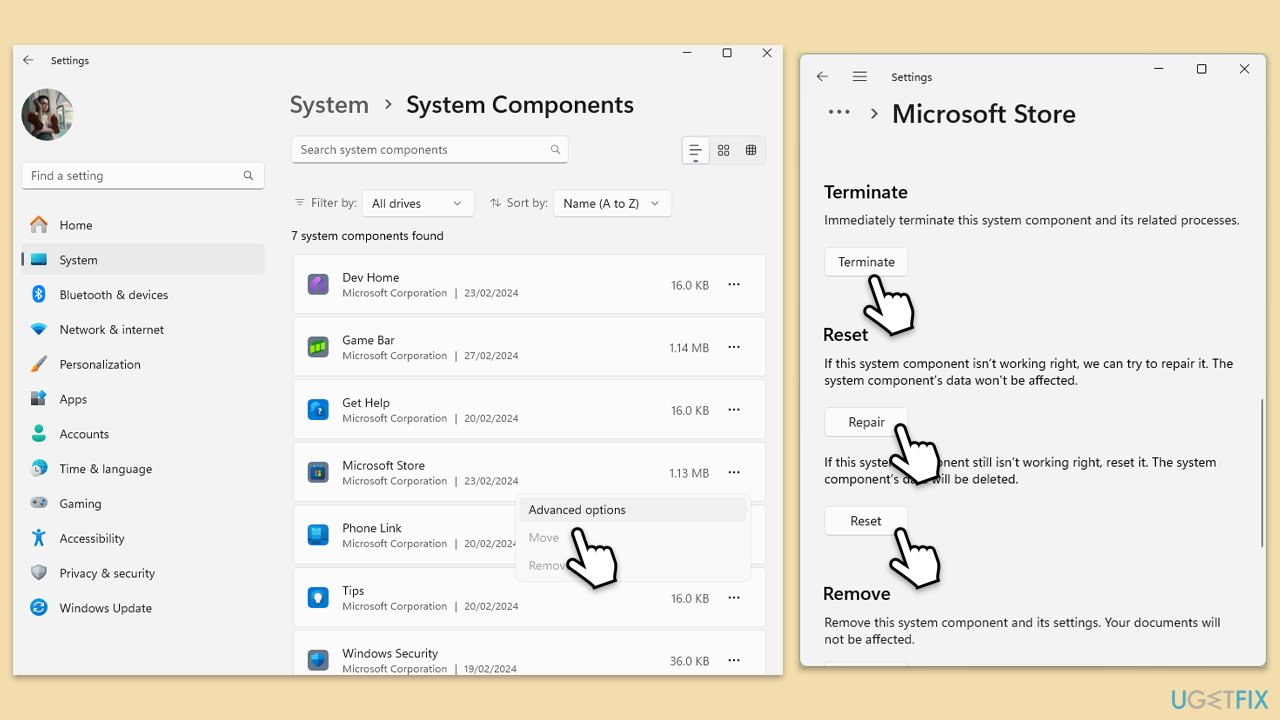
- Right-click on Start and select Apps & Features/Installed apps.
- Scroll down to find Microsoft Store and click Advanced options or go to Settings > System > System Components > Advanced options.
- Scroll down again and click Terminate and Repair.
- If that does not work, try using Reset.
Fix 7. Re-register Microsoft Store
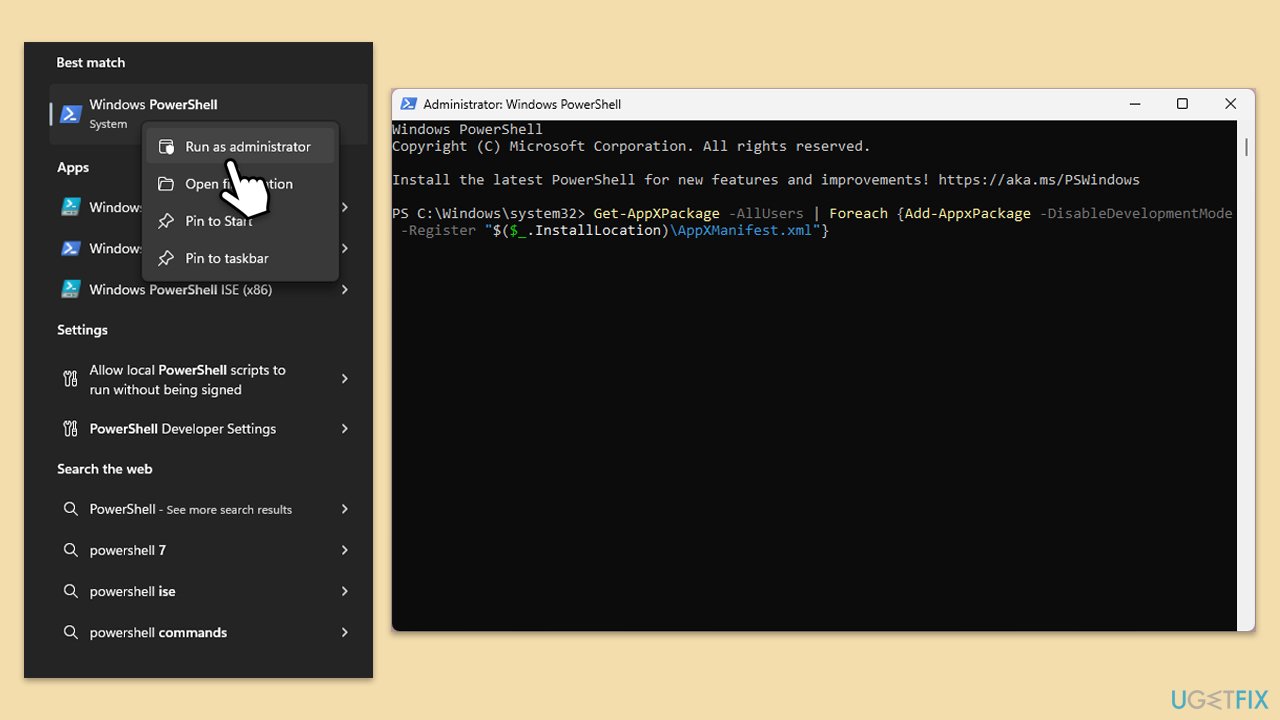
- Type PowerShell in Windows search.
- Right-click on PowerShell and select Run as administrator.
- When UAC shows up, click Yes.
- Type in the following and press Enter:
ren %localappdata%\Packages\Microsoft.WindowsStore_8wekyb3d8bbwe\LocalState cache.old - Then type the following and press Enter:
powershell -ExecutionPolicy Unrestricted
Get-AppXPackage -AllUsers | Foreach {Add-AppxPackage -DisableDevelopmentMode -Register "$($_.InstallLocation)\AppXManifest.xml"} - Restart your system.
Fix 8. Reinstall Microsoft Store via PowerShell
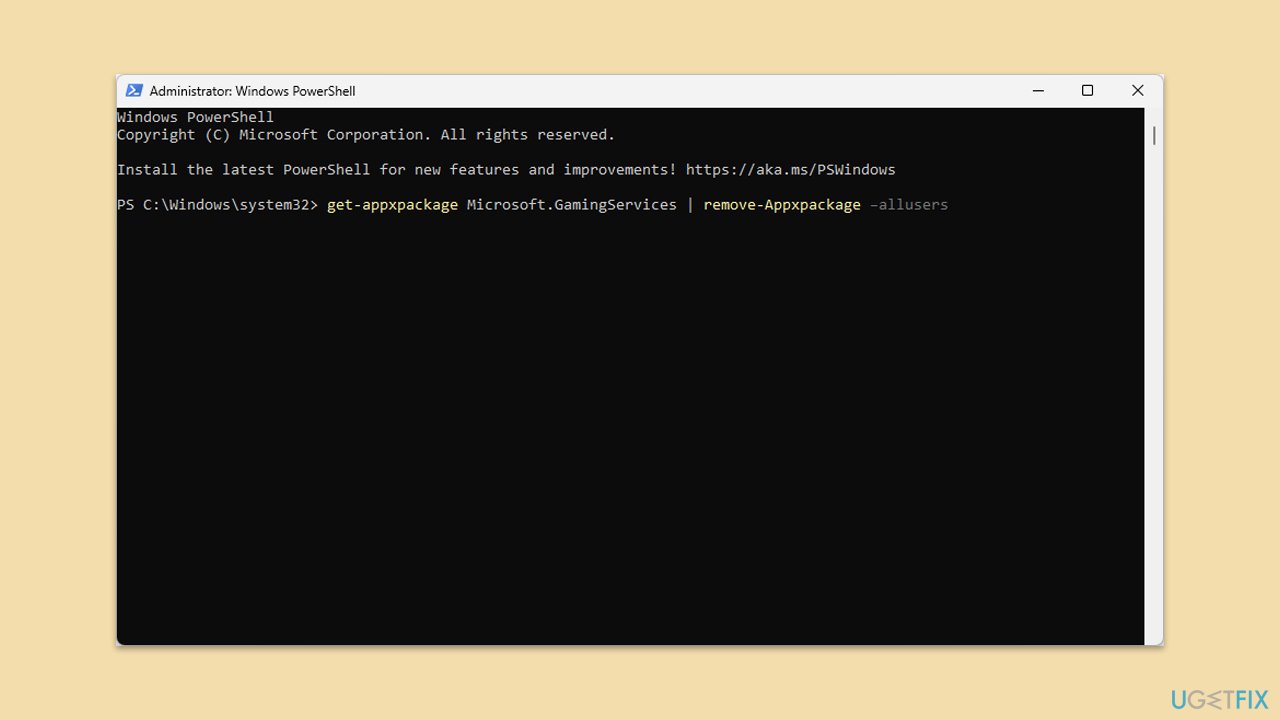
- Open PowerShell as administrator.
- Type the following command and press Enter:
Get-AppxPackage WindowsStore | Remove-AppxPackage - Then use the following command to reinstall the Store:
Get-AppxPackage -allusers WindowsStore | Foreach {Add-AppxPackage -DisableDevelopmentMode -Register "$($_.InstallLocation)\AppXManifest.xml"} - Restart your computer.
Bottom line
To fix error code 0x80070496, you can reset the Microsoft Store cache and repair corrupted system files. If these solutions do not resolve the issue, consider using a trustful repair tool to trace back system conflicts.
Frequently asked questions
This error typically occurs due to issues with the Windows Store cache, network problems, or corrupted system files affecting the Microsoft Store functionality.
You can reset the Microsoft Store cache by pressing Win + R to open the Run dialog, typing 'wsreset.exe', and hitting Enter; this will clear the cache and may resolve the error.
Yes, you can run the 'sfc /scannow' command in Command Prompt as an administrator to repair system files that might be causing the error.




Report an issue
What's wrong with this guide? We review every report and update or remove content.
Report received — thank you. We'll review and fix it.
You need a free account to submit a report.
Be the first to comment