How to fix
Microsoft Store error 0x8007064a
on Windows
Resolve Microsoft Store error 0x8007064a on Windows 10 and 11 effortlessly. Our expert-tested solutions will get your store working in minutes.

What causes How to fix Microsoft Store error 0x8007064a?
- Unstable Internet connection
- Corrupted system files
- Incorrect ownership settings of update components
- Bugged store cache
Repairs Windows system files, removes malware, and restores a clean OS state — without reinstalling.
Hello, whenever I try to install apps via Microsoft Store, I receive an error 0x8007064a. Is there anything that could be done to solve this? Answers would be appreciated.
Microsoft Store, otherwise known as Windows Store, has been extremely well-received since its implementation with Windows 8.[ref en-3] Since then, users have been able to download, update, or uninstall plenty of approved applications without having to resort to third-party sources, which increases the credibility and security of the applications.
Unfortunately, users might sometimes experience errors when trying to use Microsoft Store - 0x8007064a was reported as one of the reasons why users can't successfully interact with the app. While the problem gets resolved automatically after some time passes for some users, it remains there for others, even if they try fixing it.
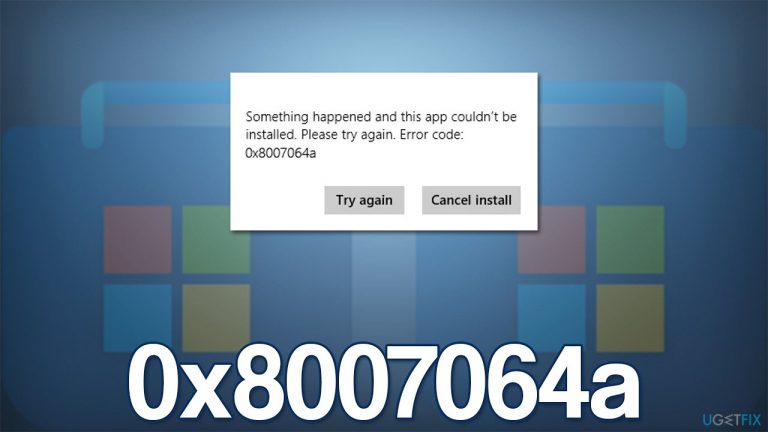
The error message does not bring any light on the 0x8007064a error, as it only provides a generic text:
Something happened and this app couldn't be installed. Please try again.
Trying again doesn't really work in most cases. Users also tried restarting their machines to no avail. There could be plenty of reasons why the update fails, including unstable internet connection, corrupted system files, incorrect ownership settings of certain update components, bugged store cache, and more.
Below we provide several different methods to help you fix the 0x8007064a error - try them one by one and see if at least one of them helps you to solve the situation. We also would advise running a scan with [d1] PC repair utility that can easily find the damaged OS sectors and fix them automatically, resolving BSODs,[ref en-1] errors, crashes, registry[ref en-2] corruption, and other common Windows issues.
Method 1. Run Windows Store Apps troubleshooter
We recommend our users start with the built-in troubleshooter, which might point to the real problem.
- Type Troubleshoot in Windows search and press Enter
- Click Additional troubleshooters if you can't see them listed
- Scroll down to find Windows Store Apps
- Click and select Run the troubleshooter
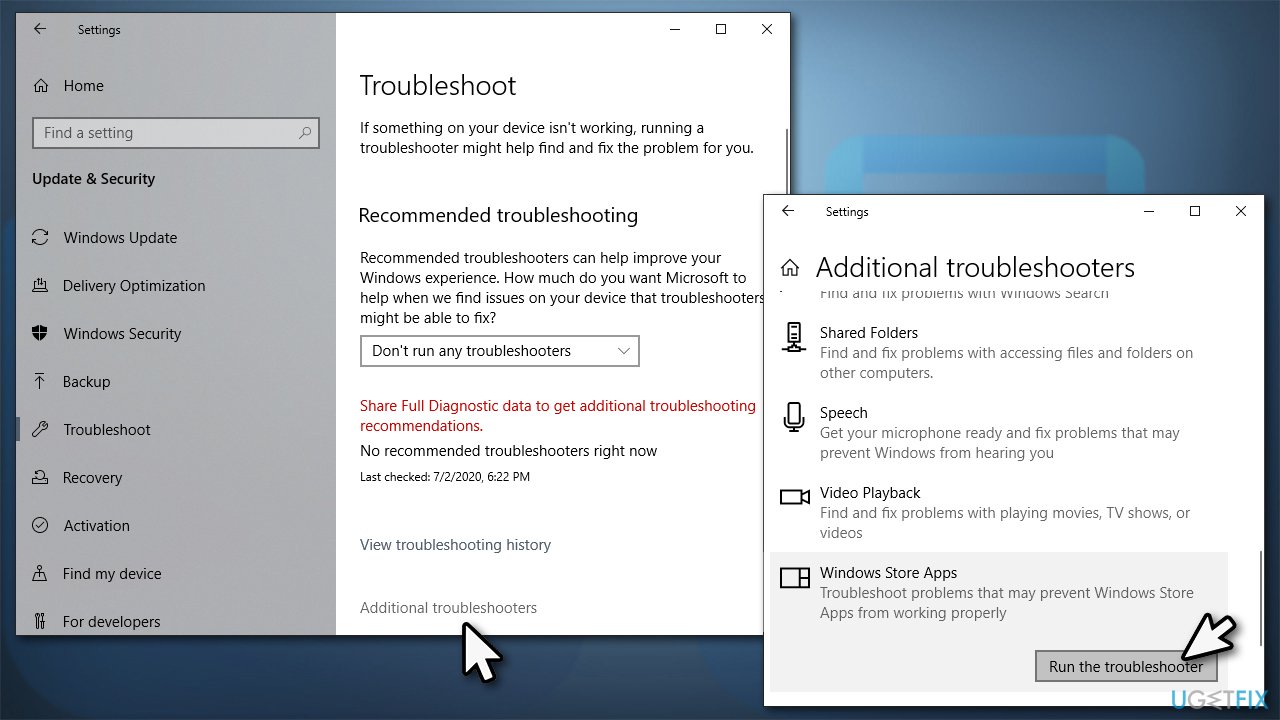
How to fix microsoft store error 0x8007064a run the troubleshooter - Wait for the scan to finish, apply the suggested fixes and restart your device.
Method 2. Run SFC and DISM
System file corruption could be one of the main reasons for Windows Store errors. Try fixing them as follows:
- To run elevated Command Prompt, type in cmd in Windows search
- Right-click the Command Prompt result and pick Run as administrator
- When User Account Control shows up, click Yes
- Type this command and press Enter:
sfc /scannow - Wait for the scan to finish
- As soon as the scan finishes, Windows will report whether integrity violations were found and if they could be fixed. Regardless of the outcome, use these commands next, pressing Enter after each:
Dism /Online /Cleanup-Image /CheckHealth
Dism /Online /Cleanup-Image /ScanHealth
Dism /Online /Cleanup-Image /RestoreHealth - Restart your PC.
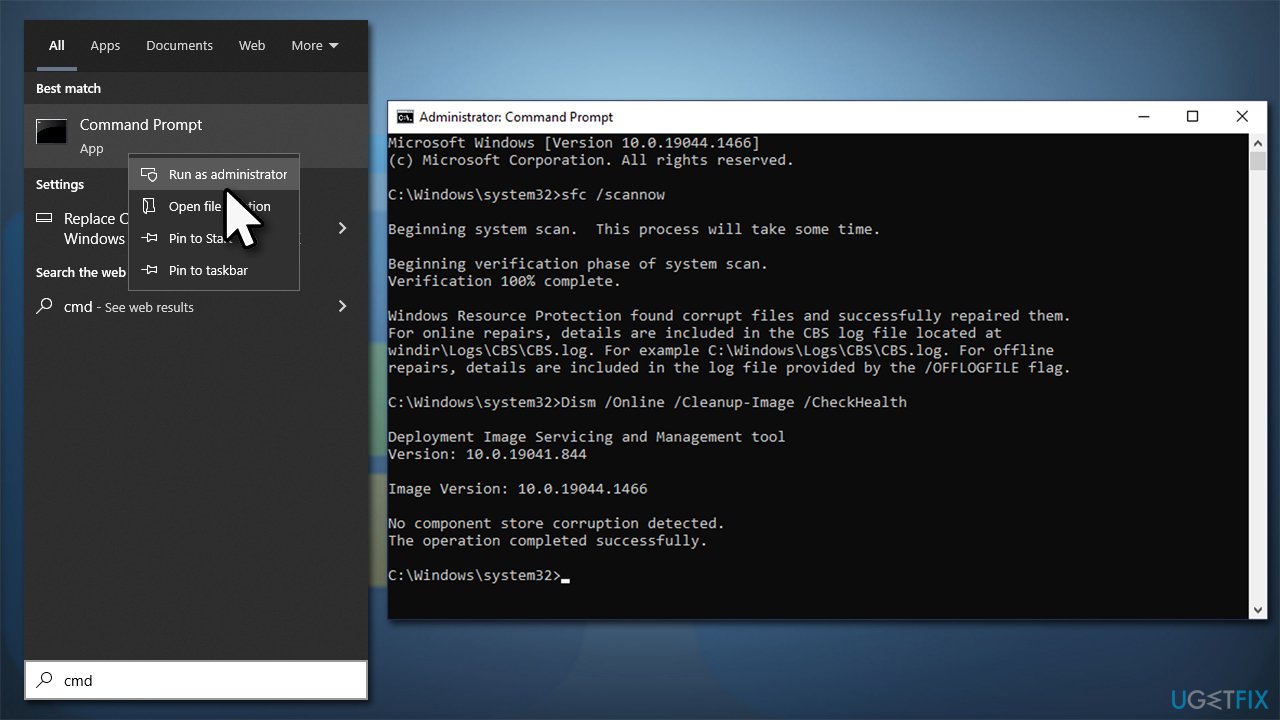
How to fix microsoft store error 0x8007064a run sfc dism
Method 3. Register Windows update files
- Open Command Prompt as administrator as explained above
- Copy and paste the following commands and press Enter after each of them:
cd /d %windir%\\system32
regsvr32.exe atl.dll
regsvr32.exe urlmon.dll
regsvr32.exe mshtml.dll
regsvr32.exe shdocvw.dll
regsvr32.exe browseui.dll
regsvr32.exe jscript.dll
regsvr32.exe vbscript.dll
regsvr32.exe scrrun.dll
regsvr32.exe msxml.dll
regsvr32.exe msxml3.dll
regsvr32.exe msxml6.dll
regsvr32.exe actxprxy.dll
regsvr32.exe softpub.dll
regsvr32.exe wintrust.dll
regsvr32.exe dssenh.dll
regsvr32.exe rsaenh.dll
regsvr32.exe gpkcsp.dll
regsvr32.exe sccbase.dll
regsvr32.exe slbcsp.dll
regsvr32.exe cryptdlg.dll
regsvr32.exe oleaut32.dll
regsvr32.exe ole32.dll
regsvr32.exe shell32.dll
regsvr32.exe initpki.dll
regsvr32.exe wuapi.dll
regsvr32.exe wuaueng.dll
regsvr32.exe wuaueng1.dll
regsvr32.exe wucltui.dll
regsvr32.exe wups.dll
regsvr32.exe wups2.dll
regsvr32.exe wuweb.dll
regsvr32.exe qmgr.dll
regsvr32.exe qmgrprxy.dll
regsvr32.exe wucltux.dll
regsvr32.exe muweb.dll
regsvr32.exe wuwebv.dll - Restart your device.
Method 4. Reset Windows Store cache
- In Windows search, type wsreset, and press Enter
- Wait till a black window shows up – do not close it
- Once it's gone, Microsoft Store should restart
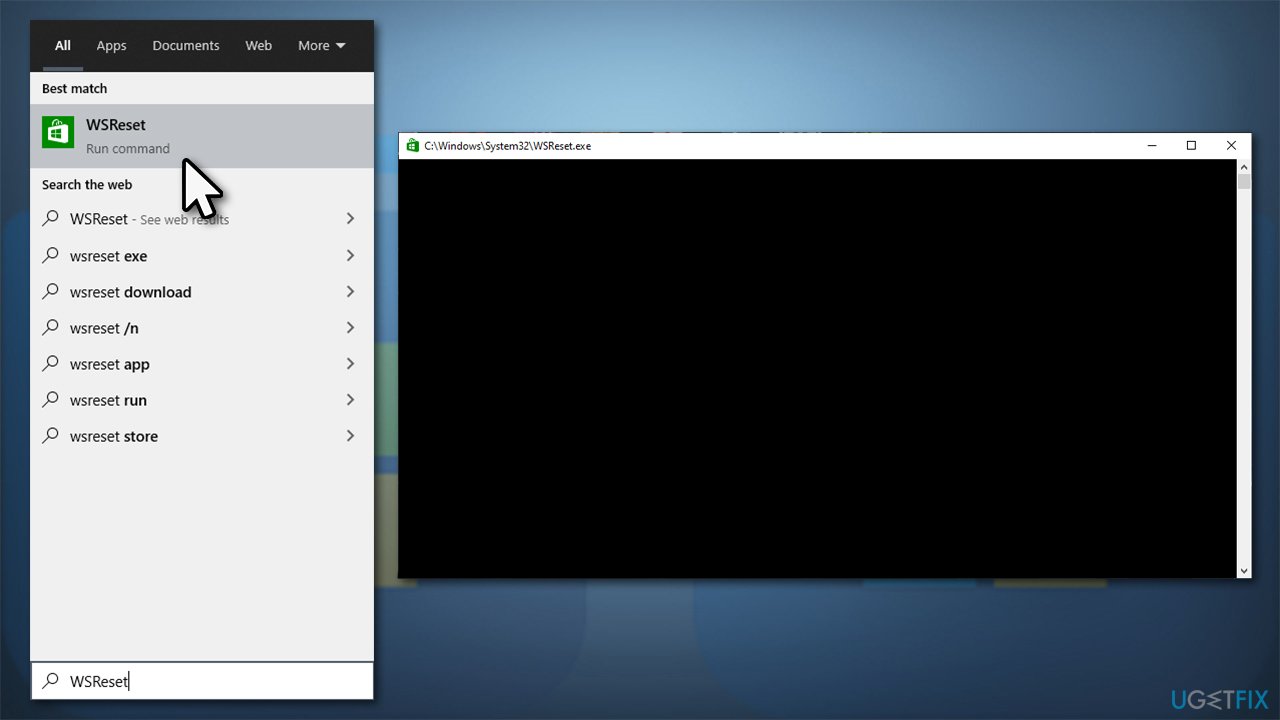
How to fix microsoft store error 0x8007064a run wsreset - Try installing the app once again.
Method 5. Repair and/or Reset Microsoft Store
If the above method does not work, you can try performing app repair or reset.
- Right-click on Start and pick Apps & Features
- Scroll down to locate Microsoft Store and click Advanced options
- Click Terminate and Repair
- If that does not help, try the Reset option instead.
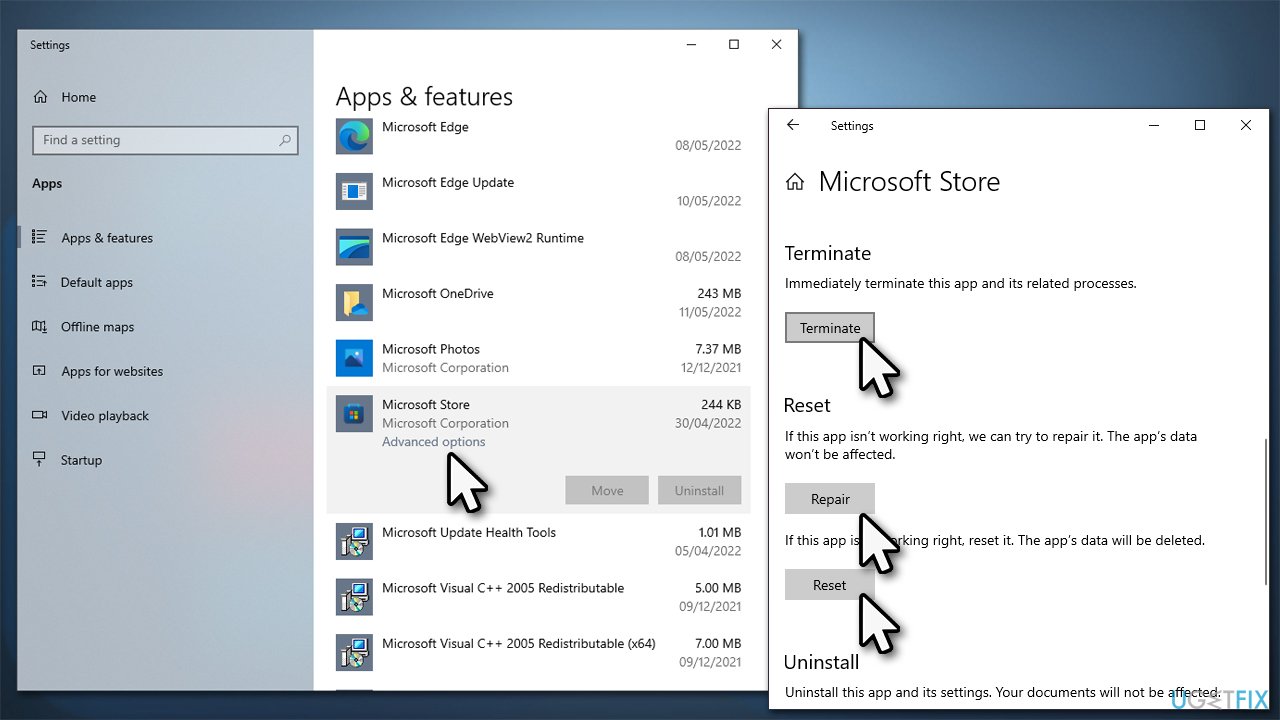
How to fix microsoft store error 0x8007064a reset ms store
Method 6. Change ownership of the Repository Packages
- Type in regedit in Windows search and hit Enter
- When UAC shows up, click Yes
- In the Registry Editor, navigate to the following location:
HKEY_CURRENT_USER\\SOFTWARE\\Classes\\Local Settings\\Software\\Microsoft\\Windows\\CurrentVersion\\AppModel\\Repository\\Packages - Right-click on the Packages folder on the left side of the window and select Permissions
- At the bottom-right of the window, click Advanced
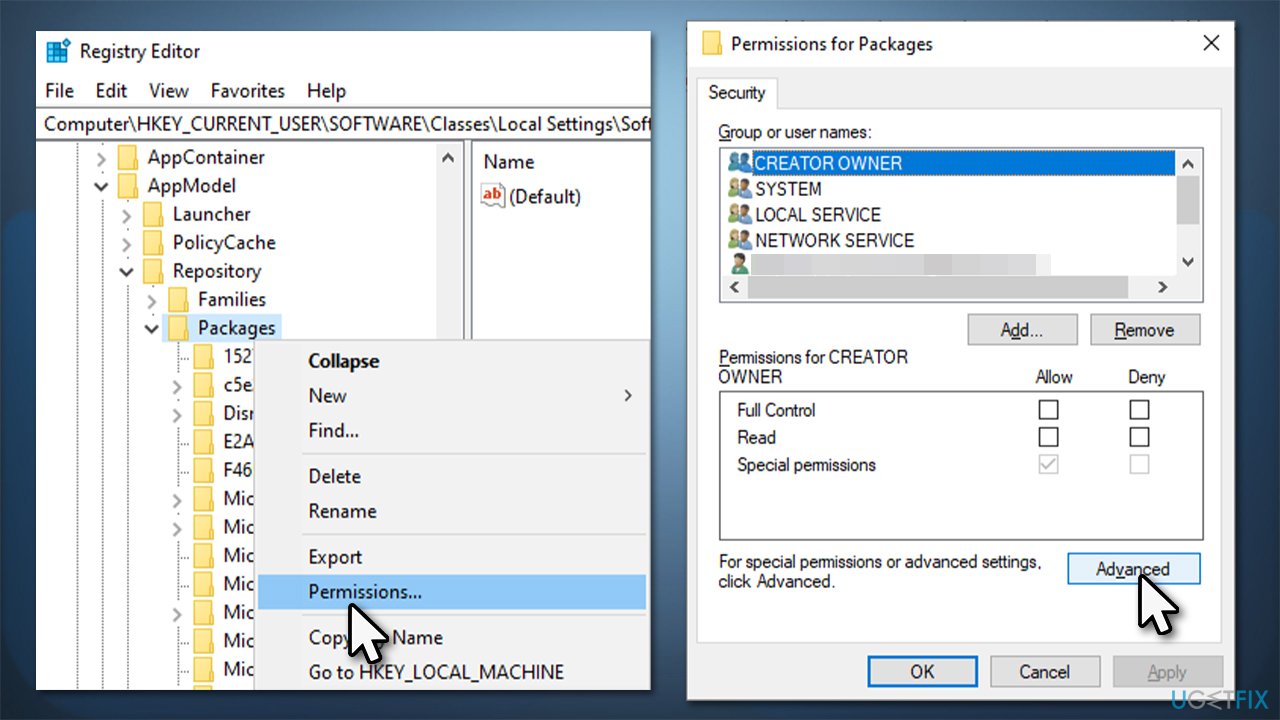
How to fix microsoft store error 0x8007064a open registry editor - If the Owner is System, skip this method. If it is set to something else, you need to change it to System
- Click Change (under Owner)
- Type in System in the field, click Check Names, and click OK
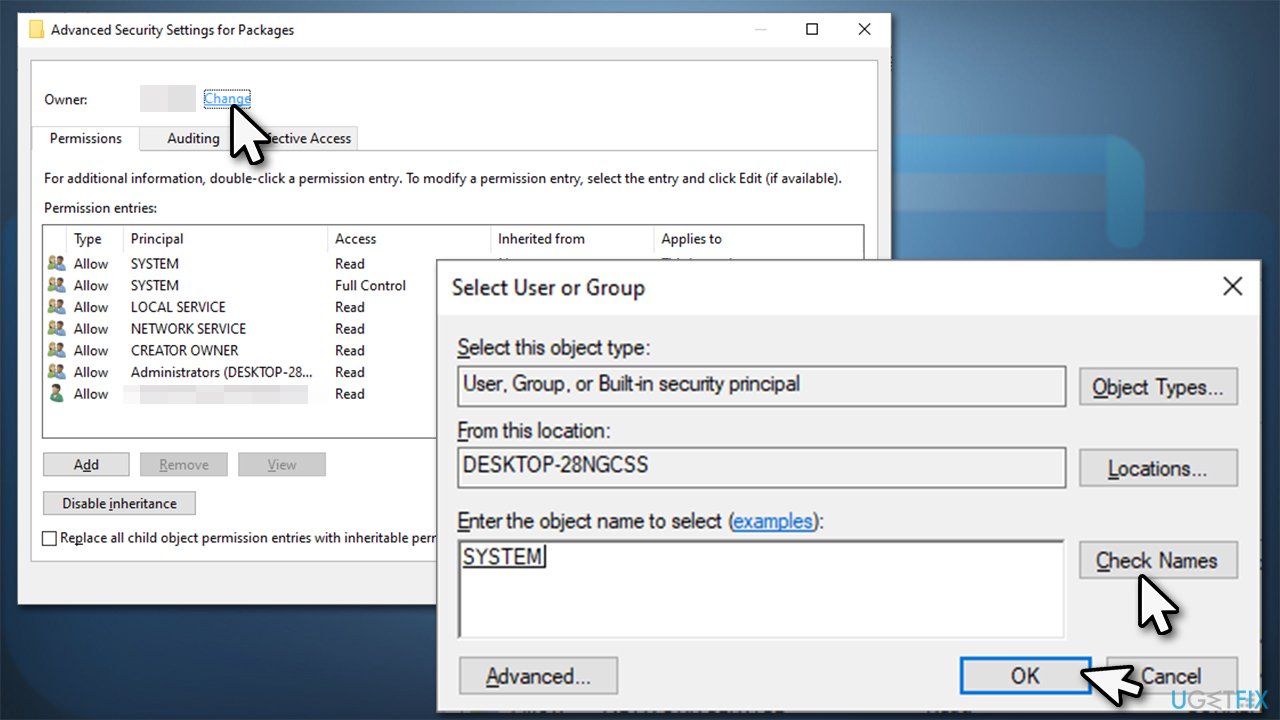
How to fix microsoft store error 0x8007064a change ownership - Restart your computer.
Method 7. Reset your internet connection
If your internet connection is unstable, it might result in a 0x8007064a error. Resetting it might help.
- Open Command Prompt as administrator
- Copy and paste the following commands, pressing Enter after each:
ipconfig /flushdns
ipconfig /registerdns
ipconfig /release
ipconfig /renew
netsh winsock reset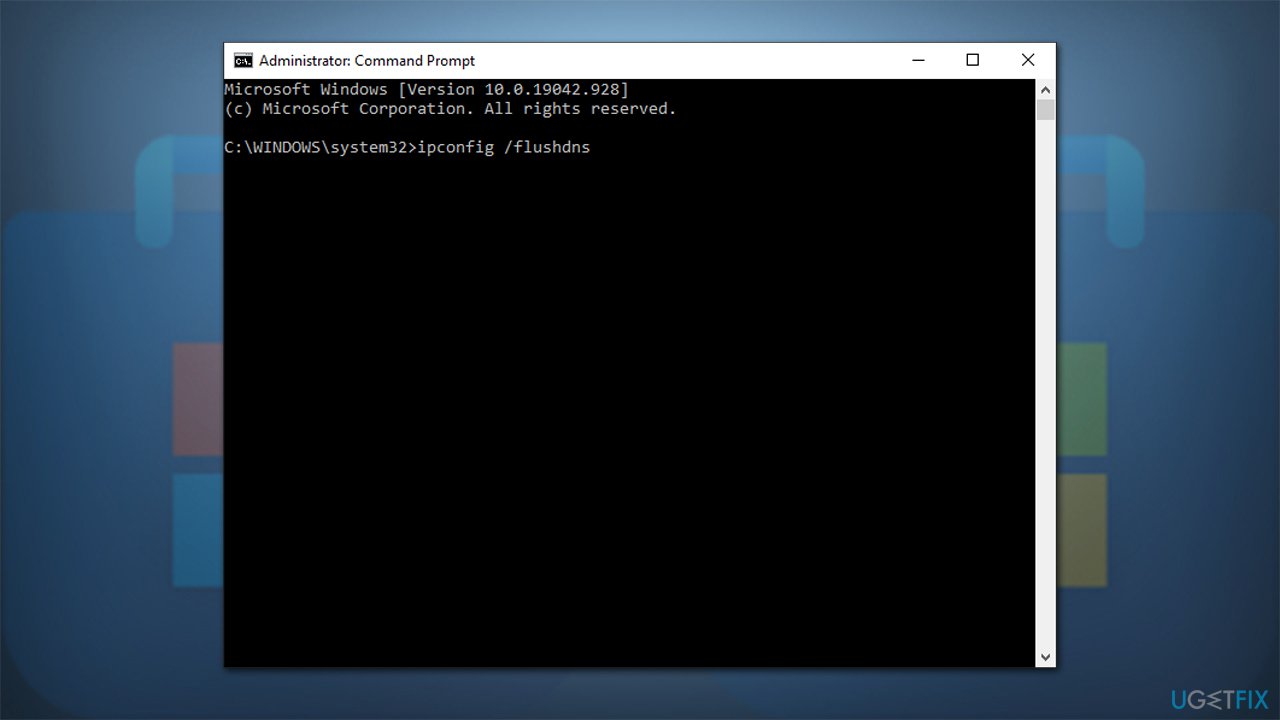
How to fix microsoft store error 0x8007064a reset internet connection - Restart your PC.
Bottom line
To fix the Microsoft Store error 0x8007064a, you can start by running the Windows Store Apps troubleshooter and then proceed to run SFC and DISM commands to repair system files. If these methods do not resolve the issue, consider using a PC repair utility to identify and fix damaged OS sectors.
Frequently asked questions
This error typically indicates that there is an issue with the Microsoft Store app or its components, preventing users from downloading or updating apps. It can be caused by corrupted files or misconfigured settings.
To reset the Microsoft Store, go to Settings > Apps > Apps & features, locate Microsoft Store, click on it, and select 'Advanced options.' From there, click on 'Reset' to restore the app to its default state.
Yes, you can open Command Prompt as an administrator and run the commands 'wsreset.exe' to reset the Store cache or 'sfc /scannow' to repair system files, which may help resolve the error.




Report an issue
What's wrong with this guide? We review every report and update or remove content.
Report received — thank you. We'll review and fix it.
You need a free account to submit a report.
Be the first to comment