How to fix
Microsoft Store error 0x800706D9
on Windows
Resolve Microsoft Store error 0x800706D9 on Windows 10 or 11 effortlessly. Get quick solutions and expert-tested tips for a smooth experience!

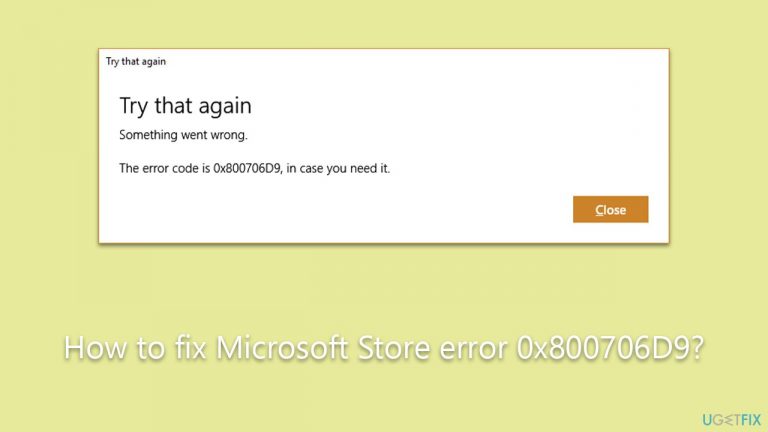
What causes How to fix Microsoft Store error 0x800706D9?
- Disabling or malfunctioning background services
- Corrupted store cache
- Improperly configured Windows Firewall
- Accumulation of temporary files
Repairs Windows system files, removes malware, and restores a clean OS state — without reinstalling.
Whenever I attempt to download an app on Microsoft Store, I receive the 0x800706D9 error. The same goes for when I try to update installed apps. Any idea what is going wrong?
Microsoft Store, introduced by Microsoft in October 2012 as Windows Store, represents a major shift in software distribution for the Windows operating system. This digital distribution platform was designed to offer various applications – be they games, productivity tools, or entertainment apps – directly to Windows users.
The store's seamless integration with Windows 10 and Windows 11 provided users with the convenience of easily downloading and updating apps without venturing to different websites or using physical media. However, as integral as the Microsoft Store has become in the modern Windows experience, it is not immune to occasional issues. One such problem is the error code 0x800706D9.
Although 0x800706D9 is a recognizable error within the Microsoft Store's array of issues, pinpointing a singular cause can be challenging due to its multifaceted nature. A frequently overlooked but potential reason is the disabling or malfunctioning of specific background services essential for the Microsoft Store's operation.
When these services aren't running as intended, it can hinder the store's connectivity, manifesting as the 0x800706D9 error. Another contributor can be a corrupted store cache. As temporary files and cache data accumulate, they can sometimes become corrupted, leading to errors like 0x800706D9 when accessing the store.
Moreover, while it's not always the primary culprit, the status of the Windows Firewall can play a role in the emergence of the 0x800706D9 error. The Microsoft Store relies on the firewall for certain communications and secure connections. A deactivated or improperly configured firewall might occasionally trigger this error.

If you find yourself facing the 0x800706D9 error, multiple approaches can be taken. Begin by checking and enabling any necessary background services. Clearing the Microsoft Store's cache can also be an effective solution. And though it may not always be the main cause, it's prudent to ensure your Windows Firewall is active and properly set up.
For those seeking a more comprehensive solution, employing a [d1] PC repair software can offer an all-encompassing remedy for this and other system-related issues.
Fix 1. Reset Microsoft Store cache
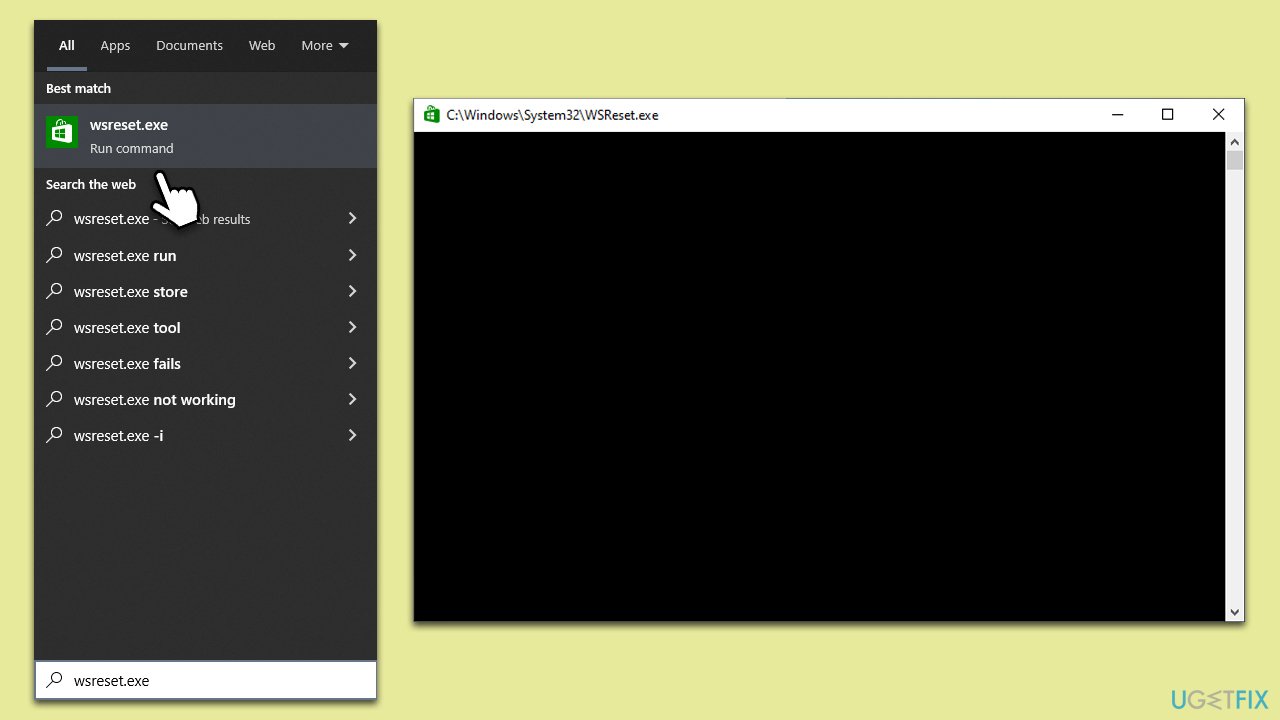
Microsoft Store, like many other applications, accumulates temporary files over time. These files can sometimes become corrupted and result in errors like 0x800706D9. Clearing the cache can resolve these issues by removing potentially problematic files.
- In Windows search, type wsreset.exe and press Enter
- Wait till a black window shows up – do not close it
- Once it's gone, Microsoft Store should restart
- Try using the Store again.
Fix 2. Run Windows Store apps and Network troubleshooters
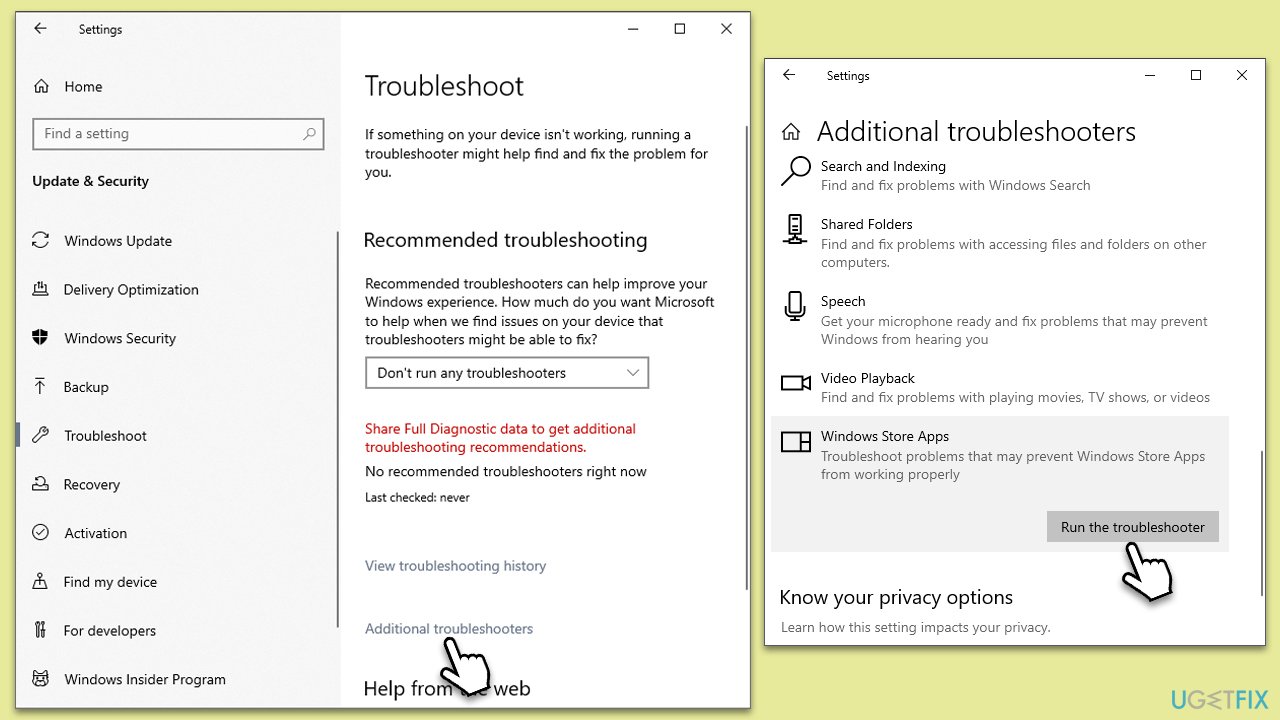
Windows has built-in troubleshooters designed to diagnose and resolve common problems with apps and networks. Using these can help address any underlying issues causing the error.
- Type Troubleshoot in Windows search and hit Enter.
- Click Additional troubleshooters/Other troubleshooters.
- Scroll down to find Windows store apps and select it.
- Click Run the troubleshooter/Run.
- Wait till the process is finished and apply the fixes, then try updating again.
To run a network troubleshooter, follow these steps:
- Right-click on Start and pick Settings.
- Go to Network & Internet section.
- On the right side, find the Advanced network settings section.
- Click Network troubleshooter and wait.
- The fixes should be automatically applied.
Fix 3. Perform SFC and DISM scans
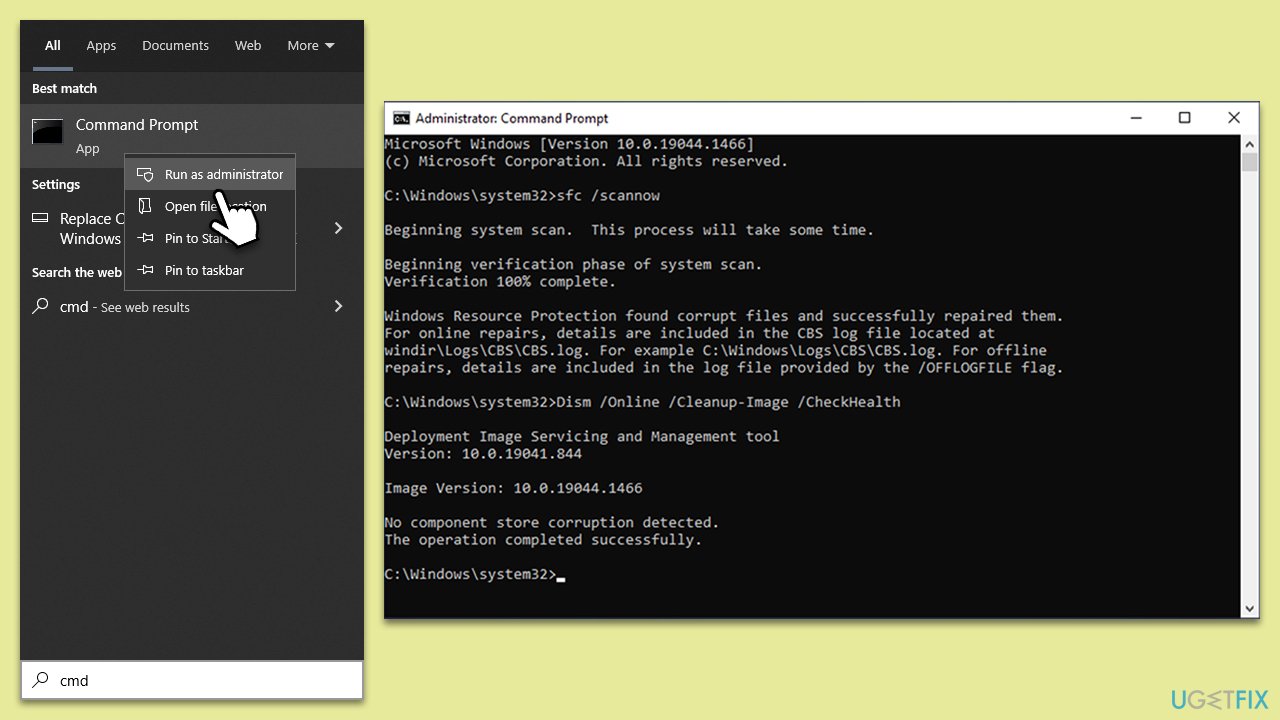
These tools scan and repair corrupted system files that could be causing errors. Running them can ensure system integrity.
- Type in cmd in Windows search.
- Right-click the Command Prompt result and pick Run as administrator.
- User Account Control will ask whether you want to allow changes - click Yes.
- Type this command and press Enter:
sfc /scannow - Wait for the scan to finish.
- Then, use the following commands, pressing Enter after each:
Dism /Online /Cleanup-Image /CheckHealth
Dism /Online /Cleanup-Image /ScanHealth
Dism /Online /Cleanup-Image /RestoreHealth - Restart your computer.
Fix 4. Set relevant services to Automatic startup
Ensuring these services start automatically can help prevent potential conflicts with the Microsoft Store.
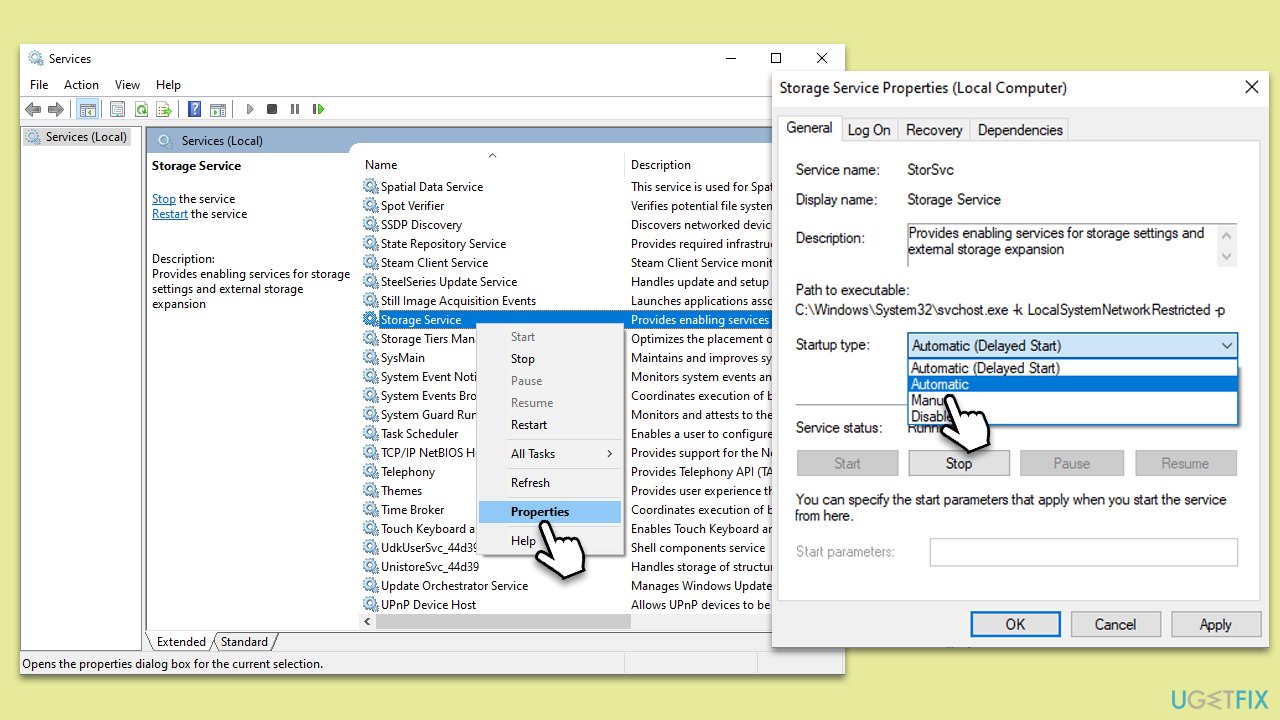
- Press Win + R and type services.msc.
- Locate Windows Update, Storage Service, and Windows Firewall in the list.
- Right-click on each and select Properties.
- Set the Startup type to Automatic - select it from the drop-down menu.
- Click Start if the service is not running.
- Click Apply and OK.
Fix 5. Enable Windows Firewall
An active firewall ensures secure communication for the Microsoft Store.
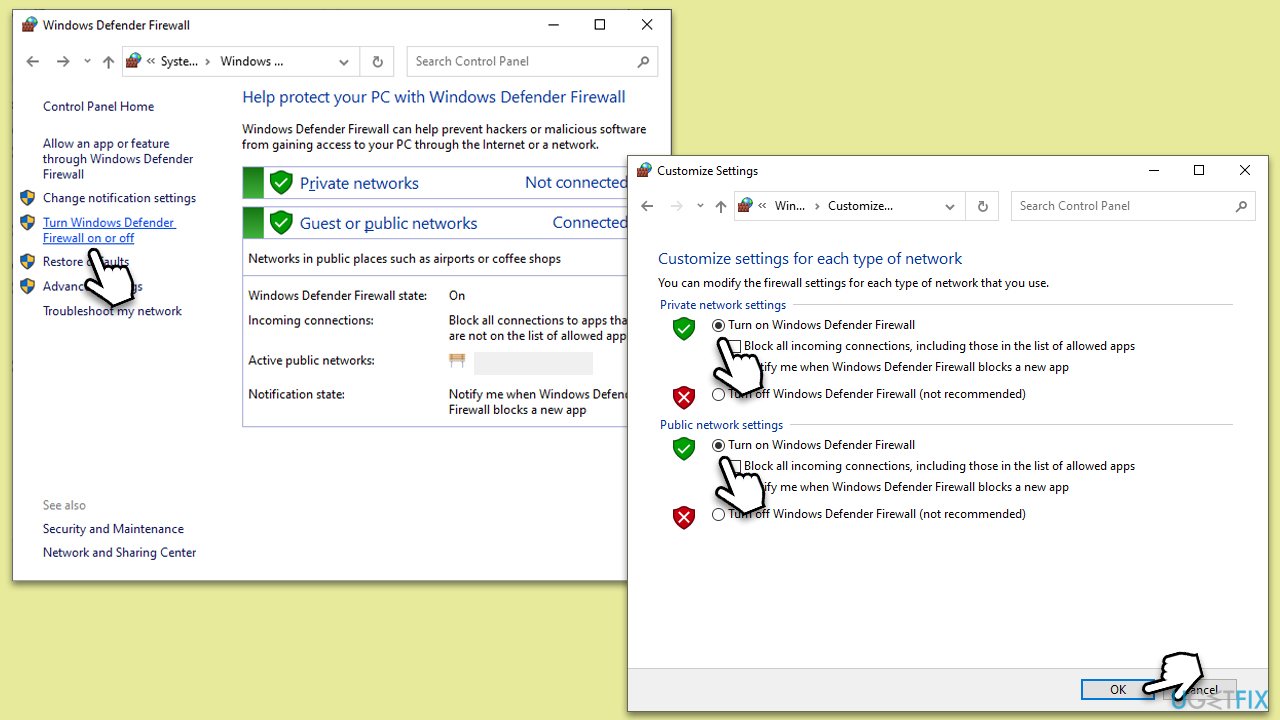
- Type Control Panel in Windows search and press Enter.
- Navigate to System and Security then Windows Defender Firewall.
- Click Turn Windows Defender Firewall on or off.
- Ensure it's turned on for both private and public networks.
Fix 6. Install all Windows updates
Keeping the system updated can resolve known issues and improve stability.
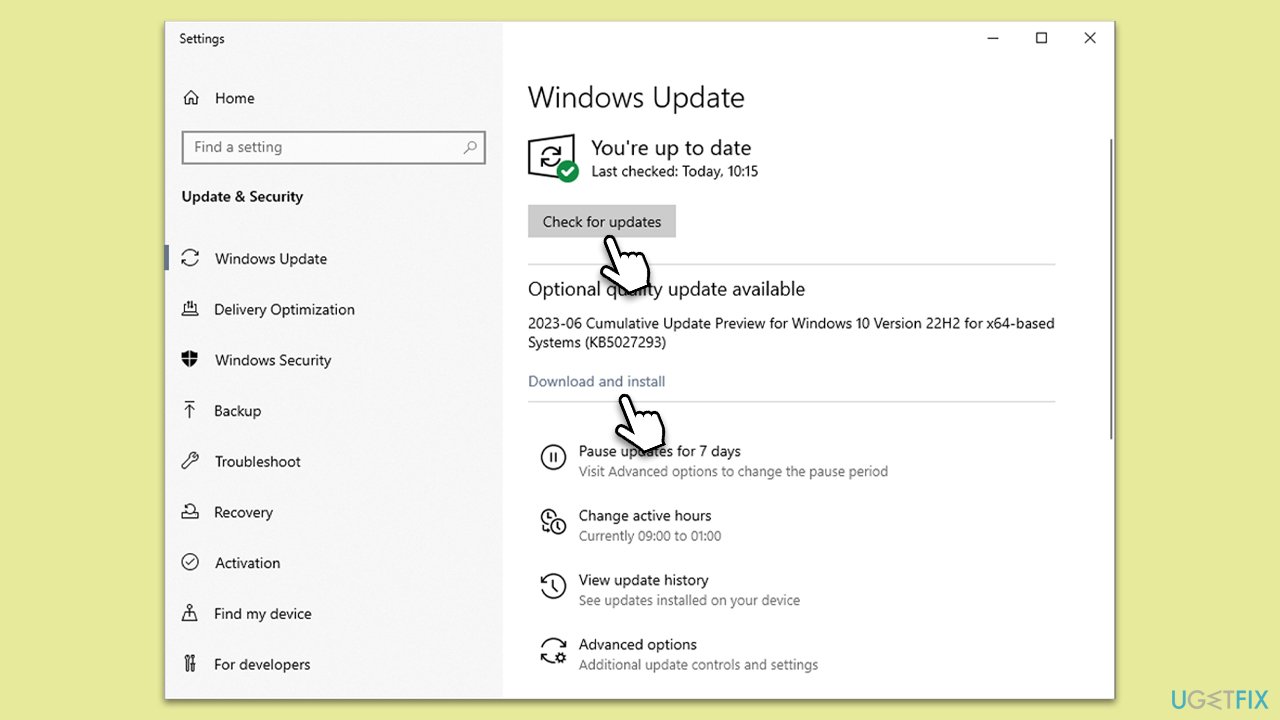
- Type Updates in Windows search and press Enter.
- Here, click Check for updates.
- Wait till Windows downloads and installs all the files.
- If optional updates are available, install them as well.
- Reboot your device.
Fix 7. Repair or reset the Microsoft Store
If the Store itself has issues, repairing or resetting it can restore its functionality.
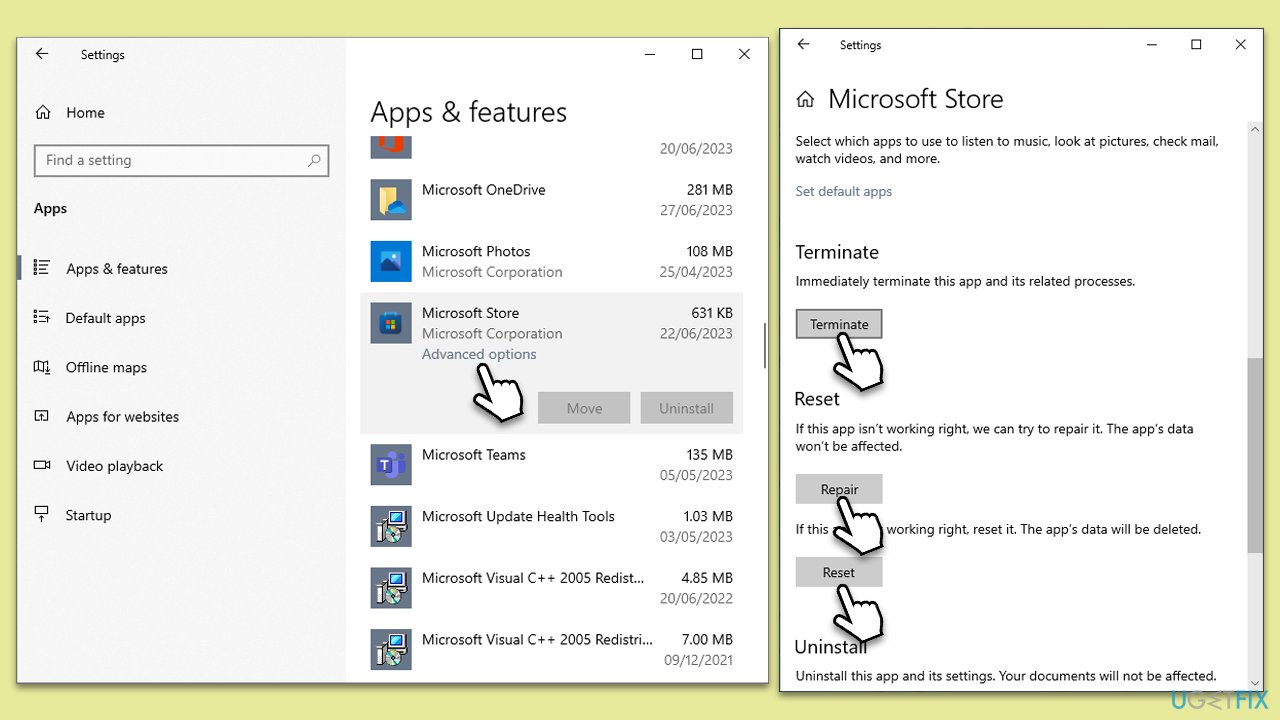
- Right-click on Start and select Apps & Features.
- Scroll down to find Microsoft Store and click Advanced options.
- Scroll down again and click Terminate and Repair.
- If that does not work, try using Reset.
Fix 8. Reset Windows update components
This can help resolve any issues with the update process which might affect the Store.
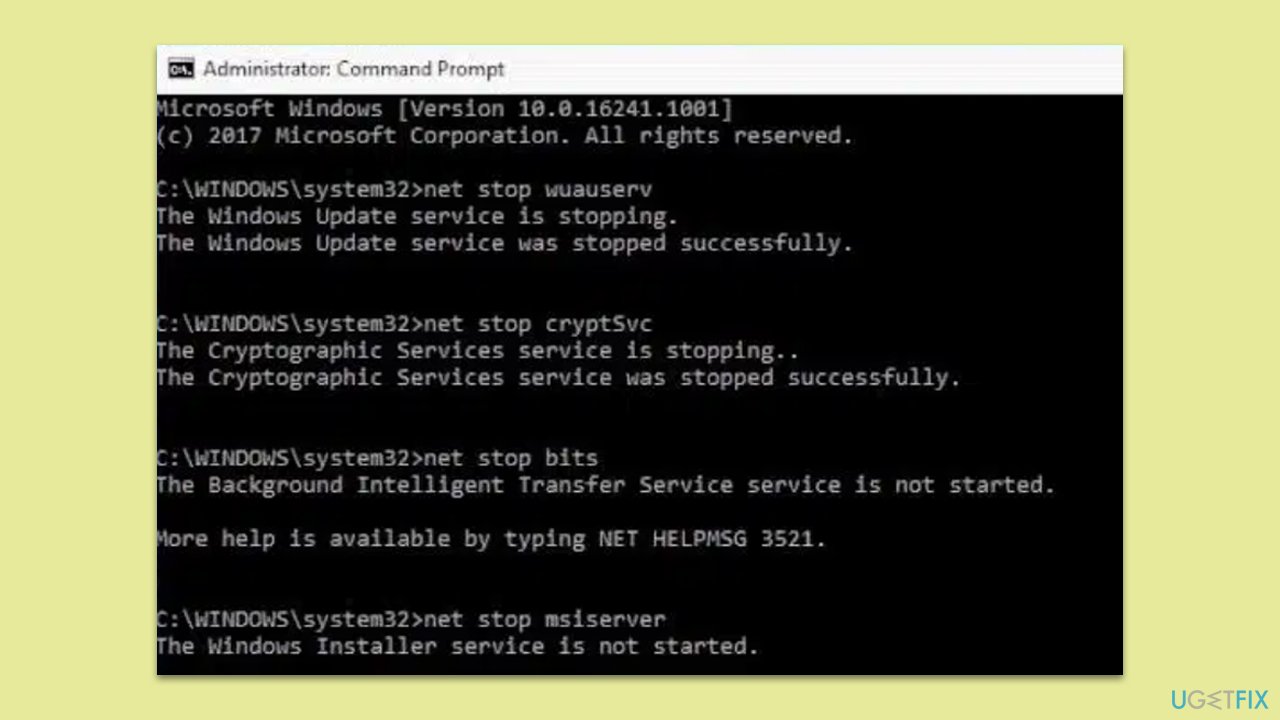
- Open Command Prompt as administrator.
- Stop the BITS, Crybptographic, MSI Installer, and Windows Update services by typing the following commands and pressing Enter after each:
- net stop wuauserv
- net stop cryptSvc
- net stop bits
- net stop msiserver
- Rename the SoftwareDistribution and Catroot2 folders with these commands:
- ren C:\Windows\SoftwareDistribution SoftwareDistribution.old
- ren C:\Windows\System32\catroot2 catroot2.old
- Restart the services stopped earlier with these commands:
- net start wuauserv
- net start cryptSvc
- net start bits
- net start msiserver.
Bottom line
To fix the 0x800706D9 error, check and enable necessary background services, clear the Microsoft Store's cache, and ensure that your Windows Firewall is active and properly configured. If these solutions do not resolve the issue, consider seeking further assistance or exploring additional troubleshooting methods.
Frequently asked questions
This error typically occurs due to issues with the Windows Update service, corrupted system files, or problems with the Microsoft Store cache.
You can reset the Microsoft Store by opening the Settings app, navigating to Apps > Apps & features, finding Microsoft Store, selecting Advanced options, and clicking on the Reset button.
Yes, you can run the System File Checker tool by opening Command Prompt as an administrator and typing 'sfc /scannow' to repair any corrupted system files that may be causing the error.




Report an issue
What's wrong with this guide? We review every report and update or remove content.
Report received — thank you. We'll review and fix it.
You need a free account to submit a report.
Be the first to comment