How to fix
Microsoft Store error 0x80072EE4
on Windows
Resolve Microsoft Store error 0x80072EE4 on Windows 10 or 11 quickly and effectively. Expert-tested solutions ensure a smooth experience, fixed in minutes.


What causes How to fix Microsoft Store error 0x80072EE4?
- Communication problems between the user's device and the Microsoft Store servers
- Network configurations
- Internet connection issues
- Corrupted system files or registry entries
- Unstable network conditions
- Faulty Windows updates
Repairs Windows system files, removes malware, and restores a clean OS state — without reinstalling.
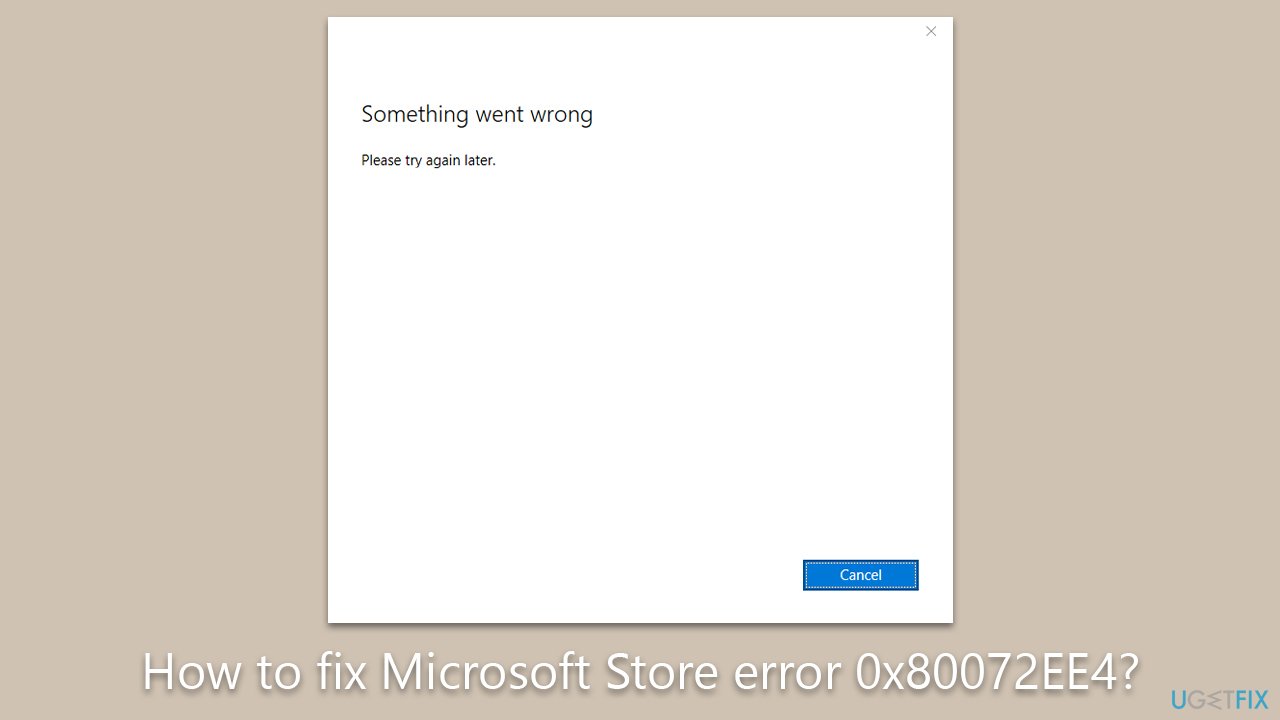
I'm encountering a recurring issue while trying to install applications from the Windows Store. Each attempt is met with the same error message: "Something happened and this app could not be installed," followed by the error code 0x80072EE4. Any assistance in resolving this issue would be appreciated.
With its rich array of applications, the Microsoft Store is a fundamental component of the Windows operating system. It offers a convenient and centralized way for users to explore, download, and update diverse applications, contributing to an enhanced user experience. However, like any software, it can occasionally run into issues. One such problem that has been plaguing some users is the Microsoft Store error 0x80072EE4.
This error typically manifests when users attempt to download or update applications through the Microsoft Store. In most cases, the root of the issue is attributed to communication problems between the user's device and the Microsoft Store servers. This could be due to network configurations, internet connection issues, server-side problems, or a possible intrusion of third-party software that impedes the connection. In some instances, it might result from corrupted system files or registry entries that interfere with the normal functioning of the Microsoft Store.
Furthermore, some users might be unable to install or update apps due to this 0x80072EE4 error. This can be a significant issue, particularly when the affected app is crucial for productivity or entertainment. The error can result from various causes, including unstable network conditions, faulty Windows updates, or problems with the app's cache. In essence, it creates a barrier between the user's device and the necessary resources to install or update the chosen apps.
Resolving this error could involve various troubleshooting steps, such as adjusting network settings, clearing the Microsoft Store cache, or manually resetting the store application. These potential solutions aim to restore the proper connection between the Microsoft Store and its servers, thus resolving the error and allowing normal operation to resume. However, it's essential to note that the appropriate solution may vary depending on the specific cause of the issue in each individual case.
Detailed steps for these possible solutions will be provided below this article, ensuring users have the necessary guidance to resolve the Microsoft Store error 0x80072EE4 and return to their regular app download and update activities.
Finally, it's worth mentioning the potential utility of using [d1] PC repair software. This tool can effectively address and fix corrupted system files or registry entries that might contribute to the error 0x80072EE4, among other common Windows issues.
Solution 1. Run Network Troubleshooter
If the problem is caused by network issues, troubleshooting your network connection can help. This process will identify and automatically rectify any network-related problems.
- Right-click on Start and pick Settings.
- Go to Network & Internet section.
- On the right side, find the Advanced network settings section.
- Click Network troubleshooter, specify the problem, and wait till the scan is finished.
- When done, apply all the recommendations.

Solution 2. Clear Microsoft Store cache
Sometimes, outdated or corrupted cache data can cause this error. Clearing the Microsoft Store cache can resolve the issue.
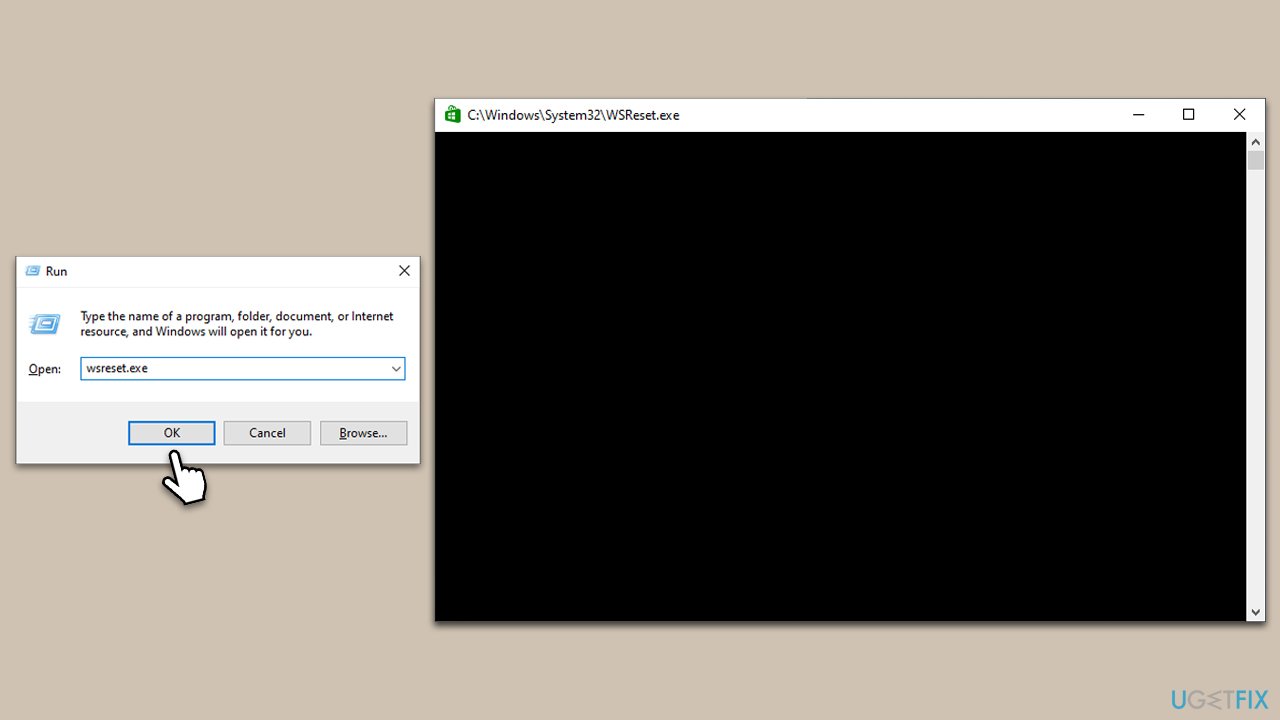
- Press Windows key + R to open the Run dialog.
- Type wsreset.exe and press Enter.
- Wait for the process to complete, and the Microsoft Store will automatically open.
Solution 3. Set the correct date and time
Incorrect date and time settings may cause a communication problem between your computer and the Microsoft server, leading to the error.
- Right-click on the time display at the bottom right of your screen and select Adjust date/time.
- Toggle on the options Set time automatically and Set time zone automatically.
- Restart your computer and check if the error persists.

Solution 4. Run Windows Store apps troubleshooter
- Type Troubleshoot in Windows search and hit Enter.
- Click Additional troubleshooters/Other troubleshooters.
- Scroll down to find Windows store apps and select it.
- Click Run the troubleshooter/Run.
- Wait till the process is finished and apply the fixes, then try updating again.

Solution 5. Reset Microsoft Store
If the Microsoft Store itself is causing the issue, resetting it might solve the problem.
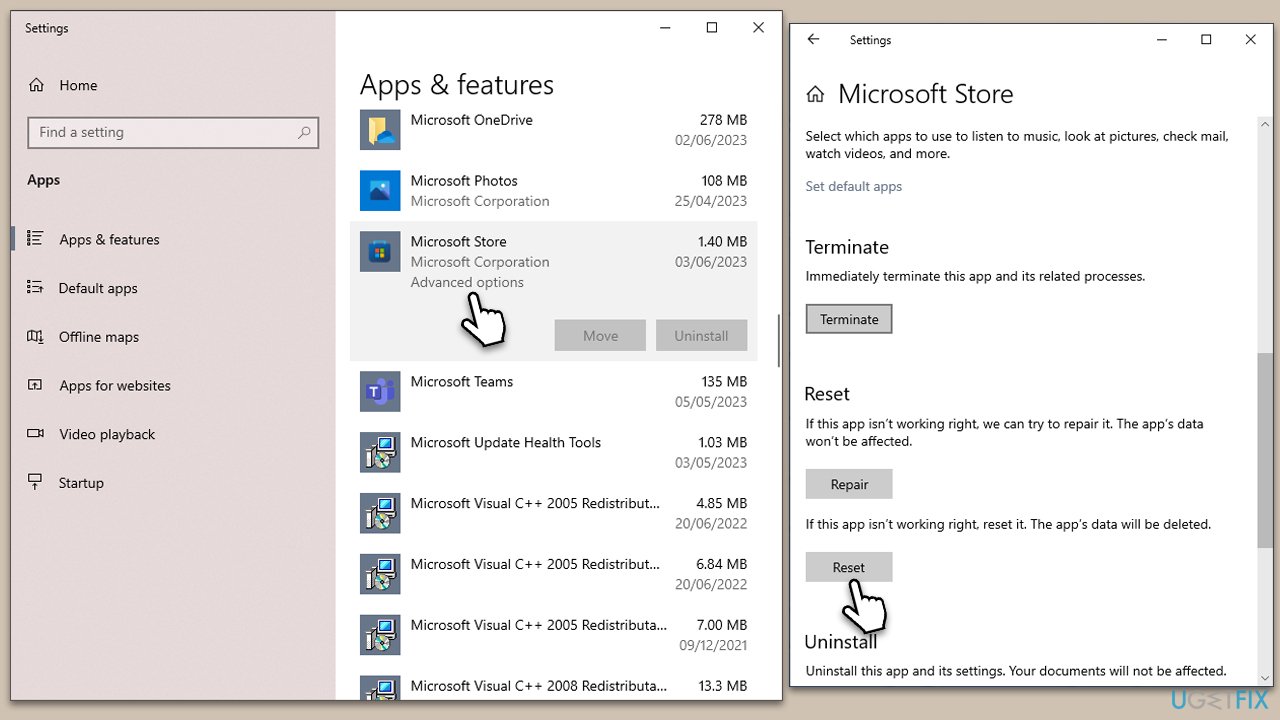
- Right-click on the Start button and pick Apps and Features.
- Search for Microsoft Store in the list, click on it, and then click Advanced options.
- Scroll down and click Reset.
- A warning will appear - click Reset again.
Solution 6. Re-register all apps
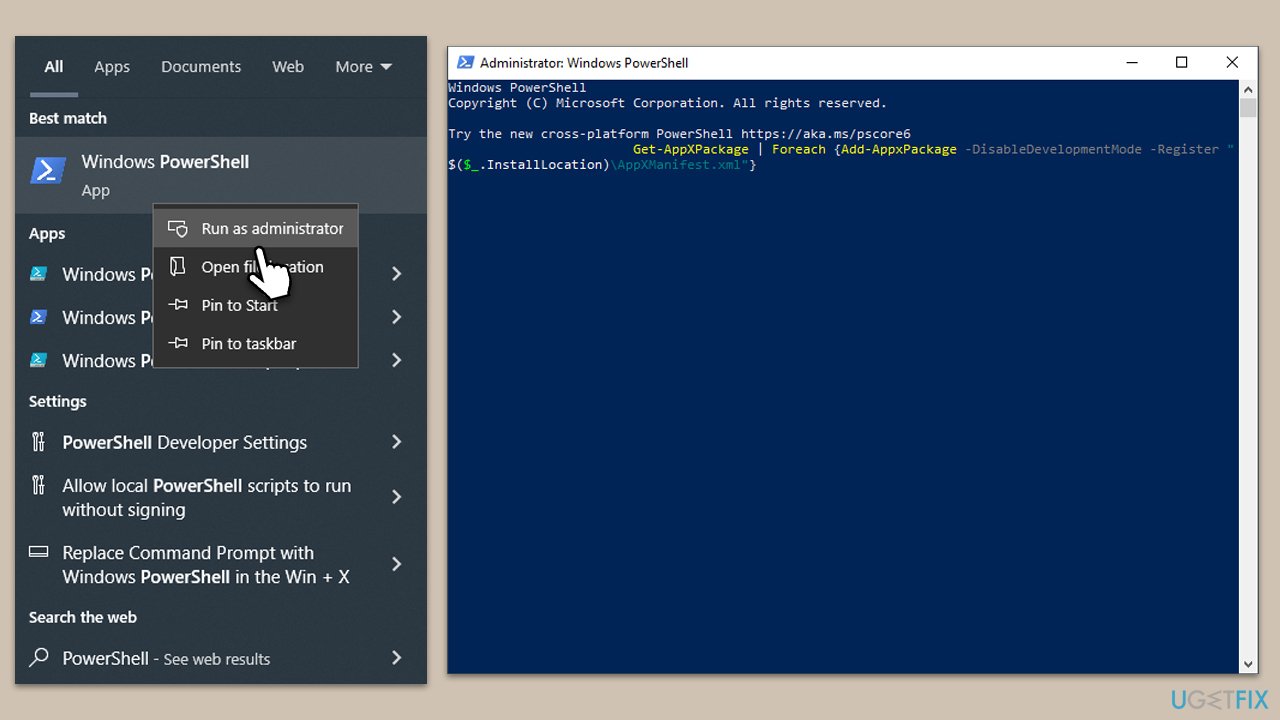
- Type PowerShell in Windows search.
- Right-click on the result and select Run as administrator.
- When UAC shows up, click Yes.
- Copy and paste the following command and press Enter:
Get-AppXPackage | Foreach {Add-AppxPackage -DisableDevelopmentMode -Register "$($_.InstallLocation)\AppXManifest.xml"} - Close down PowerShell and restart your computer.
Solution 7. Reinstall Microsoft Store
You can try reinstalling Microsoft Store as follows:
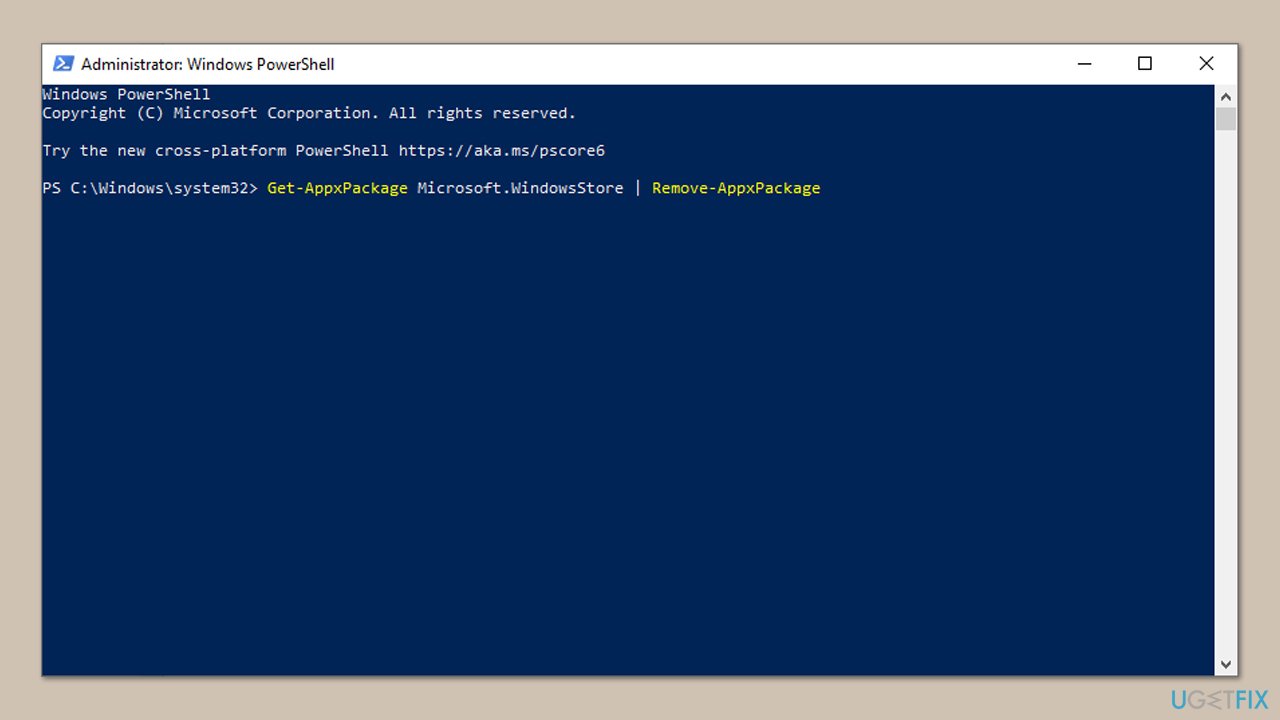
- Power PowerShell as administrator again.
- In the new window, copy and paste the following command, pressing Enter after:
Get-AppxPackage Microsoft.WindowsStore | Remove-AppxPackage - With the next command, you can install the Store:
Add-AppxPackage -register "C:\Program Files\WindowsApps\Microsoft.WindowsStore*\AppxManifest.xml" -DisableDevelopmentMode - Press Enter and close down PowerShell.
Bottom line
To resolve the Microsoft Store error 0x80072EE4, users can try adjusting network settings, clearing the Microsoft Store cache, or manually resetting the store application. These steps aim to restore the connection between the Microsoft Store and its servers. If none of these solutions work, further investigation into the specific cause may be necessary.
Frequently asked questions
The error code 0x80072EE4 indicates a problem with your internet connection or issues with the Microsoft Store's server. It often occurs when the system cannot reach the necessary online services.
To fix the 0x80072EE4 error, check your internet connection, and then run the Windows Store Apps troubleshooter available in the Settings under Update & Security.
Yes, resetting the Microsoft Store can help resolve the error 0x80072EE4; you can do this by going to Settings, selecting Apps, finding Microsoft Store, and clicking on 'Advanced options' to reset it.




Report an issue
What's wrong with this guide? We review every report and update or remove content.
Report received — thank you. We'll review and fix it.
You need a free account to submit a report.
Be the first to comment