How to fix
Microsoft Store error 0x80072F17
on Windows
Resolve Microsoft Store error 0x80072F17 on Windows 10 and 11 with our proven solutions. Expert-tested tips to get you back on track, fixed in minutes!

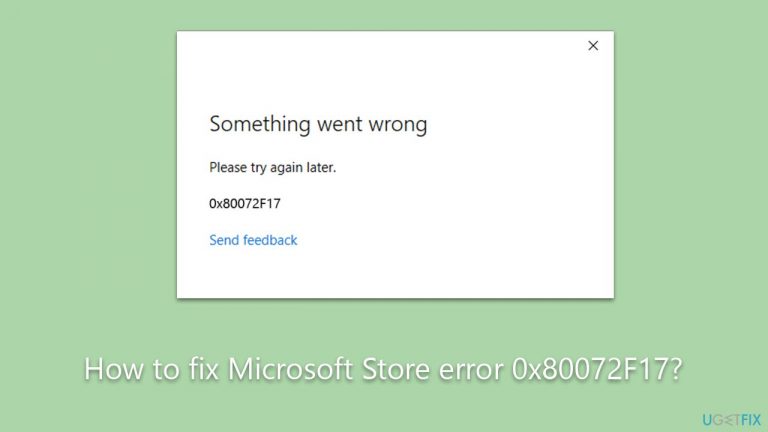
What causes How to fix Microsoft Store error 0x80072F17?
- Network issues
- System file corruption
- Misconfigured firewall
- Communication problems with Microsoft servers
Repairs Windows system files, removes malware, and restores a clean OS state — without reinstalling.
Hi, I keep getting the 0x80072F17 error in Microsoft Store. Any idea on how do I resolve this?
Microsoft Store serves as a one-stop destination for Windows users seeking to extend their system's functionalities through a myriad of apps and games. Its convenience is unparalleled, allowing users to browse, purchase, and download an extensive range of applications, from productivity software to lifestyle apps, all available at the click of a button.
It simplifies the process of enhancing a Windows system, unifying various apps under one roof, streamlining updates, and ensuring a uniform user experience across different platforms. However, despite its exceptional ease and convenience, Microsoft Store is not immune to occasional hiccups and technical glitches that can frustrate users.
One such occasional technical glitch is error 0x80072F17. This error, albeit less common, has managed to perplex a sizeable portion of the Microsoft Store user base. It typically rears its head when users attempt to update existing apps or install new ones. The problem is often met with confusion and frustration, as it disrupts the seamless experience users have come to associate with the Microsoft Store.
Error 0x80072F17 generally points toward an issue with the synchronization of license properties. In simple terms, it's usually related to communication problems between your system and the Microsoft servers, which in turn prevent the verification of licensing properties for a given app. This could be the result of a variety of factors, including network issues, system file corruption, or a misconfigured firewall blocking the necessary communication.
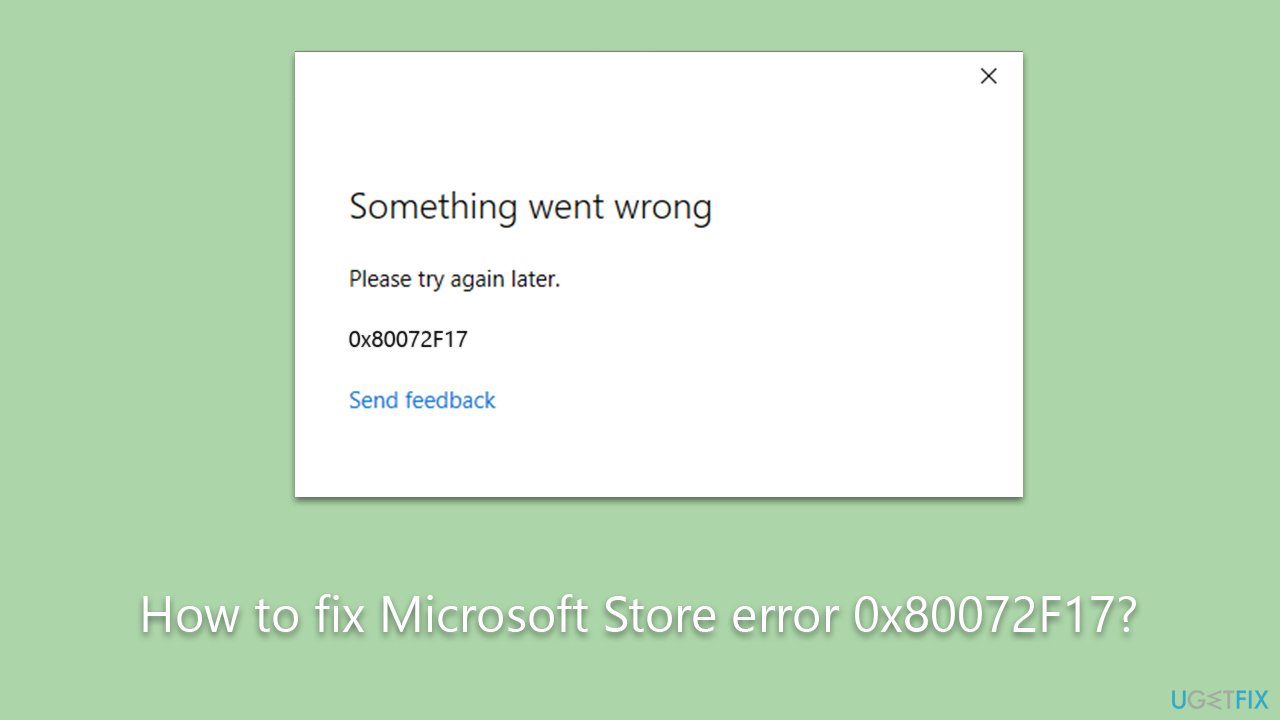
Fixing error 0x80072F17 may seem daunting, but there are several possible solutions available. The approach can range from simple troubleshooting steps like resetting the Microsoft Store, running relevant troubleshooters, or performing a network reset, to more complex fixes like using Windows Powershell to re-register the store app or adjusting firewall settings.
One potential solution to swiftly rectify this issue involves the use of specialized PC repair tools. The [d1] PC repair tool, for instance, can prove instrumental in resolving error 0x80072F17, alongside a host of other common PC issues. It performs a comprehensive system scan to detect and rectify errors, ultimately restoring the optimal functionality of your PC and its apps, including the Microsoft Store.
Fix 1. Run Network troubleshooter
The network troubleshooter is an automated tool built into Windows that detects and resolves network issues. Error 0x80072F17 could arise due to network connectivity problems, making this tool potentially useful.
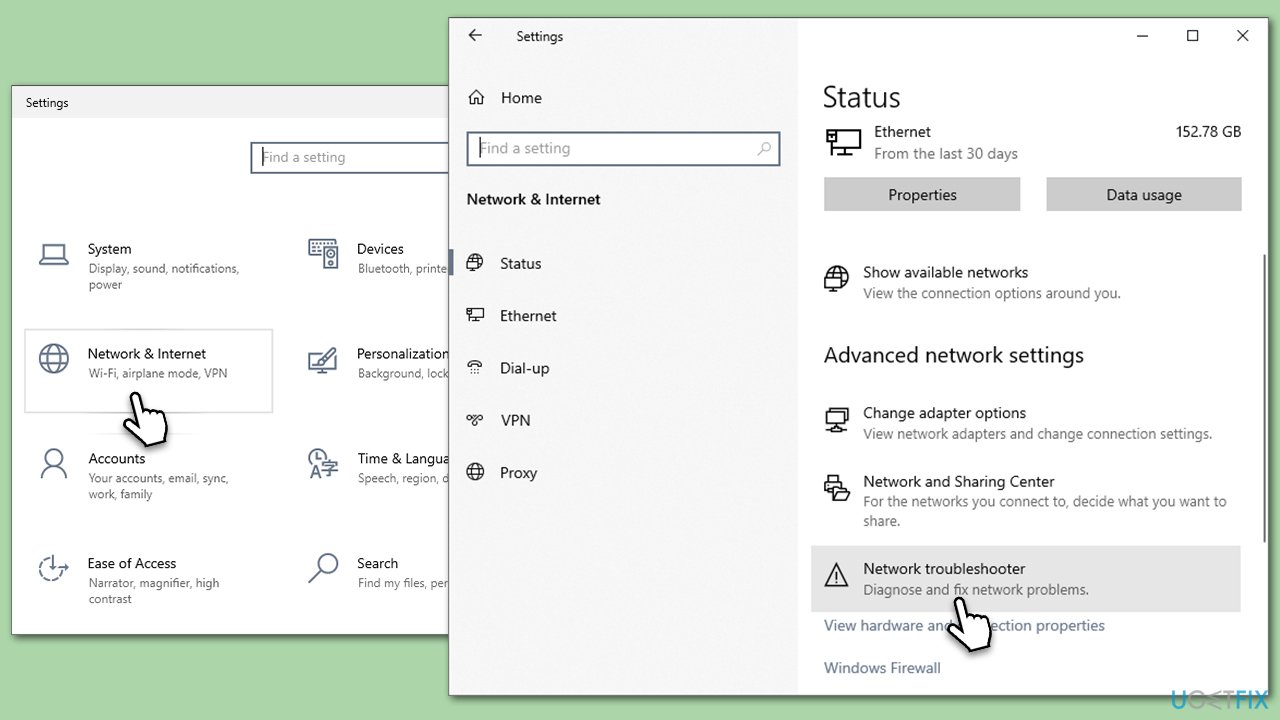
- Right-click on Start and pick Settings.
- Go to Network & Internet section.
- On the right side, find the Advanced network settings section.
- Click Network troubleshooter, specify the problem, and wait till the scan is finished.
- When done, apply all the recommendations.
Fix 2. Run Windows Store apps troubleshooter
Windows has a built-in troubleshooter for Store apps. This tool scans for issues and implements automatic fixes, potentially resolving issues related to Microsoft Store.
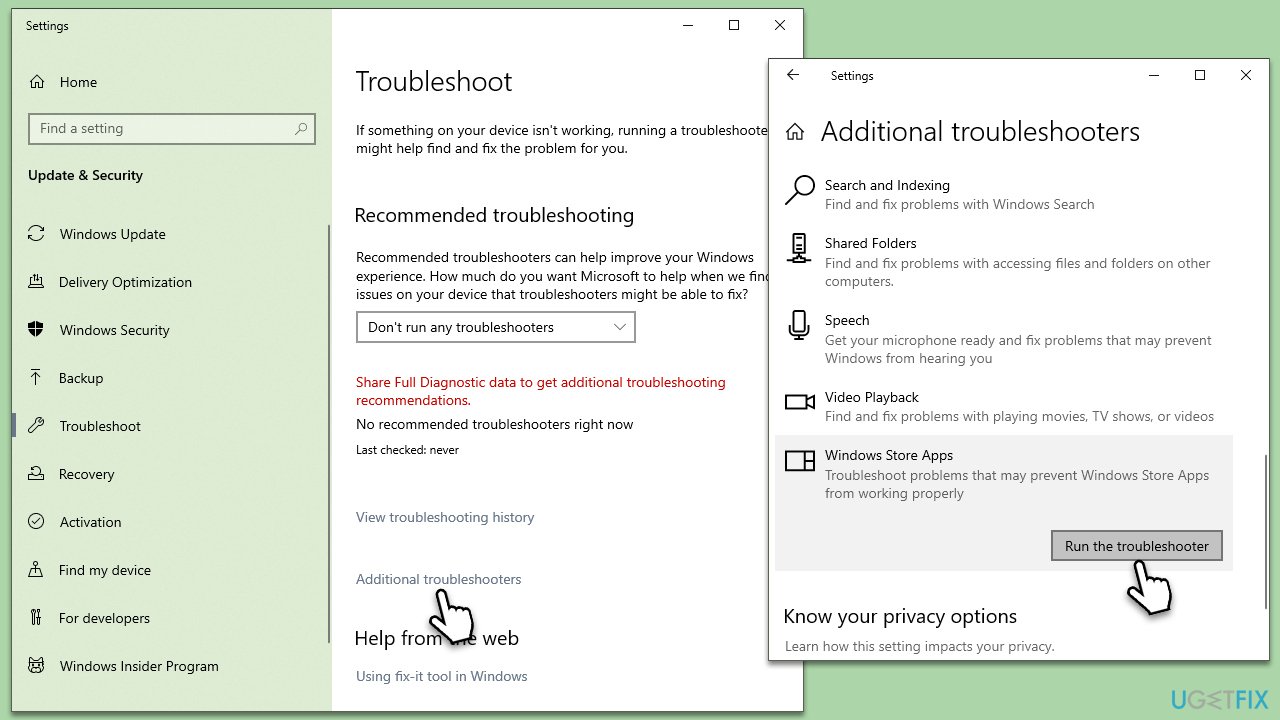
- Type Troubleshoot in Windows search and hit Enter.
- Click Additional troubleshooters/Other troubleshooters.
- Scroll down to find Windows store apps and select it.
- Click Run the troubleshooter/Run.
- Wait till the process is finished and apply the fixes, then try updating again.
Fix 3. Run SFC and DISM
System File Checker (SFC) and Deployment Image Servicing and Management (DISM) are tools that can detect and repair corrupted system files, which might be causing the error.
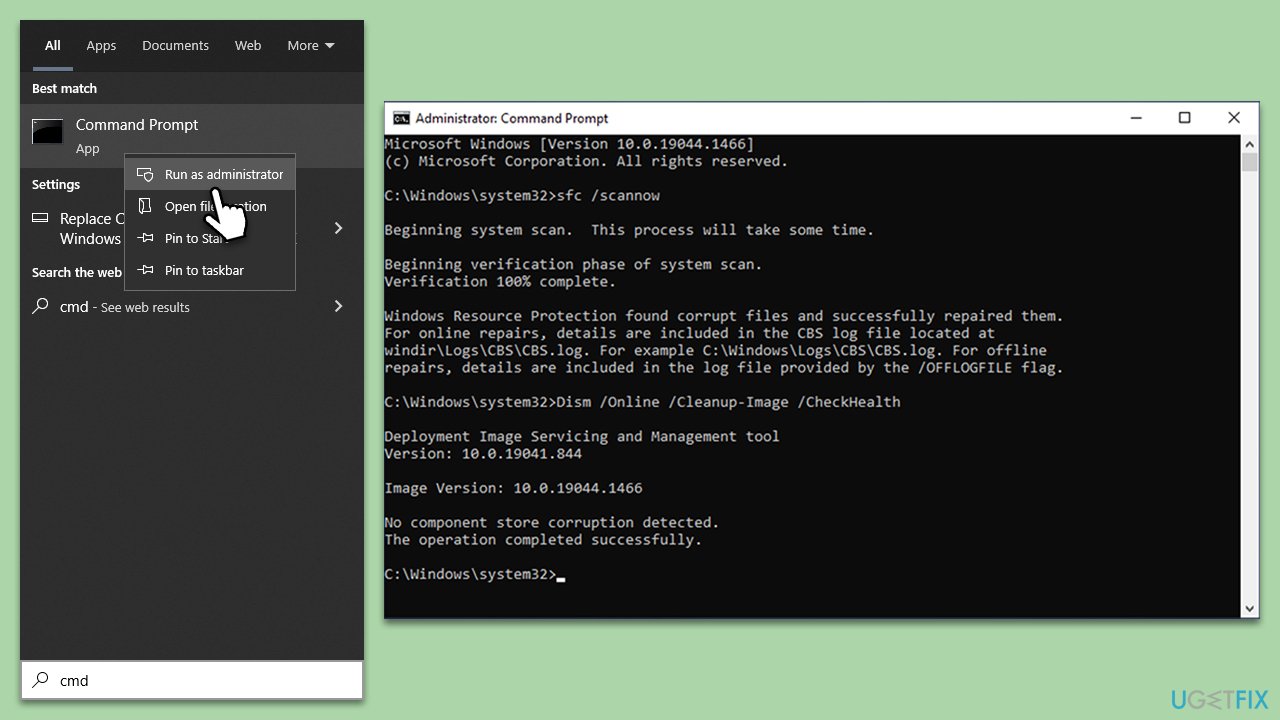
- To run an elevated Command Prompt, type in cmd in Windows search.
- Right-click the Command Prompt result and pick Run as administrator.
- User Account Control will ask whether you want to allow changes - click Yes.
- Type this command and press Enter:
sfc /scannow - Wait for the scan to finish.
- Then, use the following commands, pressing Enter after each:
Dism /Online /Cleanup-Image /CheckHealth
Dism /Online /Cleanup-Image /ScanHealth
Dism /Online /Cleanup-Image /RestoreHealth - Reboot your device.
Fix 4. Temporarily disable third-party security software
Disabling third-party security software is a common troubleshooting step when resolving many software-related issues, including those related to Microsoft Store. These security programs, while critical for protecting your computer from threats, can occasionally interfere with the normal operations of other software or network communications.
Similarly, turning off your firewall or VPN temporarily can be a part of the solution. Firewalls and VPNs regulate internet traffic and, in some cases, may inadvertently block or disrupt the necessary connections for Microsoft Store, causing errors such as 0x80072F17.
Fix 5. Reset Microsoft Store cache
Resetting the Microsoft Store cache can often resolve issues related to the store's operation. Here are the steps to do it:
- Press the Windows key + R on your keyboard to open the Run dialog box.
- In the dialog box, type wsreset.exe and then hit Enter or click OK.
- A blank Command Prompt window will open (do not close it), and after about ten seconds, the window will close, and the Microsoft Store will open automatically.
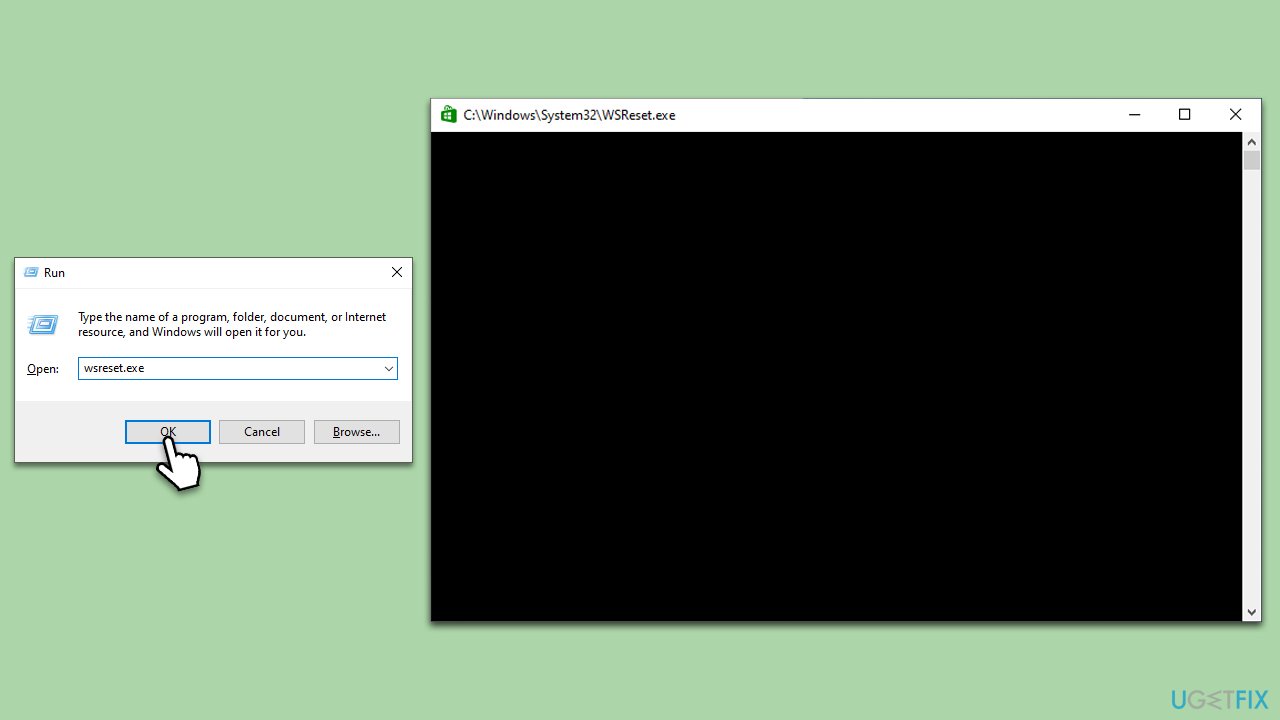
This process clears the Microsoft Store's cache and can help fix any issues you're experiencing.
Fix 6. Repair or reset Microsoft Store
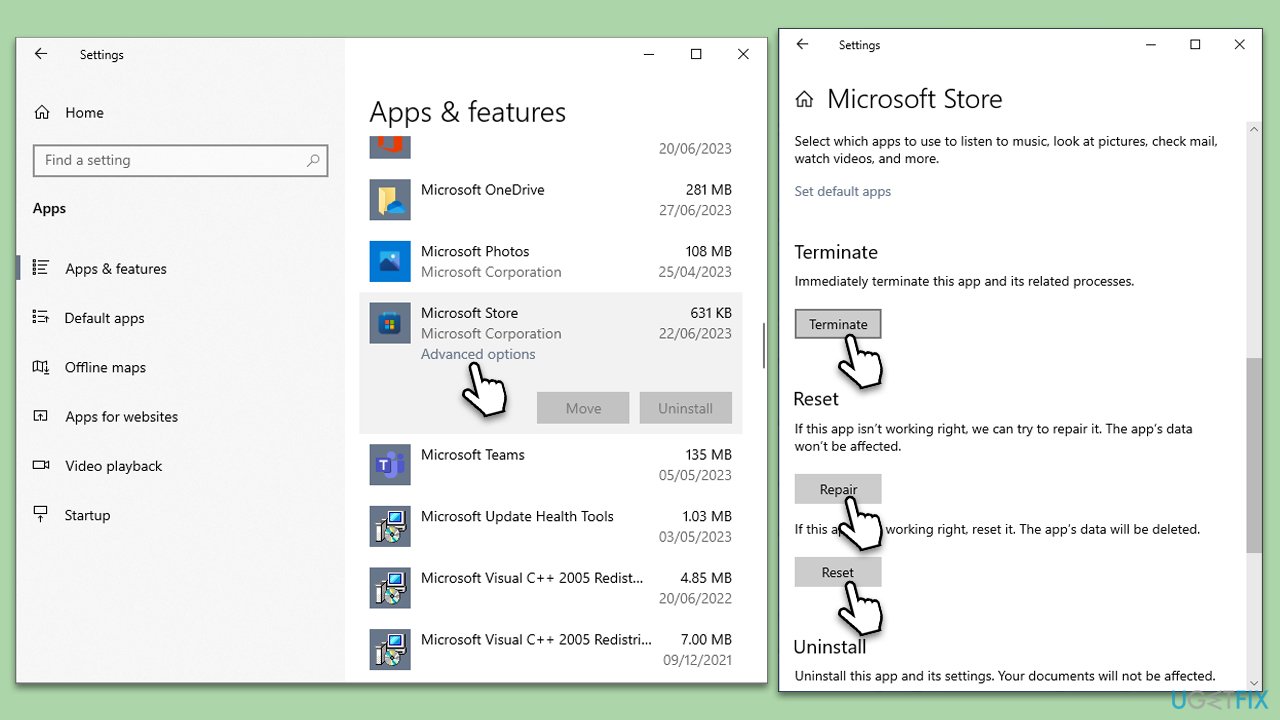
- Right-click on Start and select Apps & Features.
- Scroll down to find Microsoft Store and click Advanced options.
- Scroll down again and click Terminate and Repair.
- If that does not work, try using Reset.
Fix 7. Re-register all Store apps
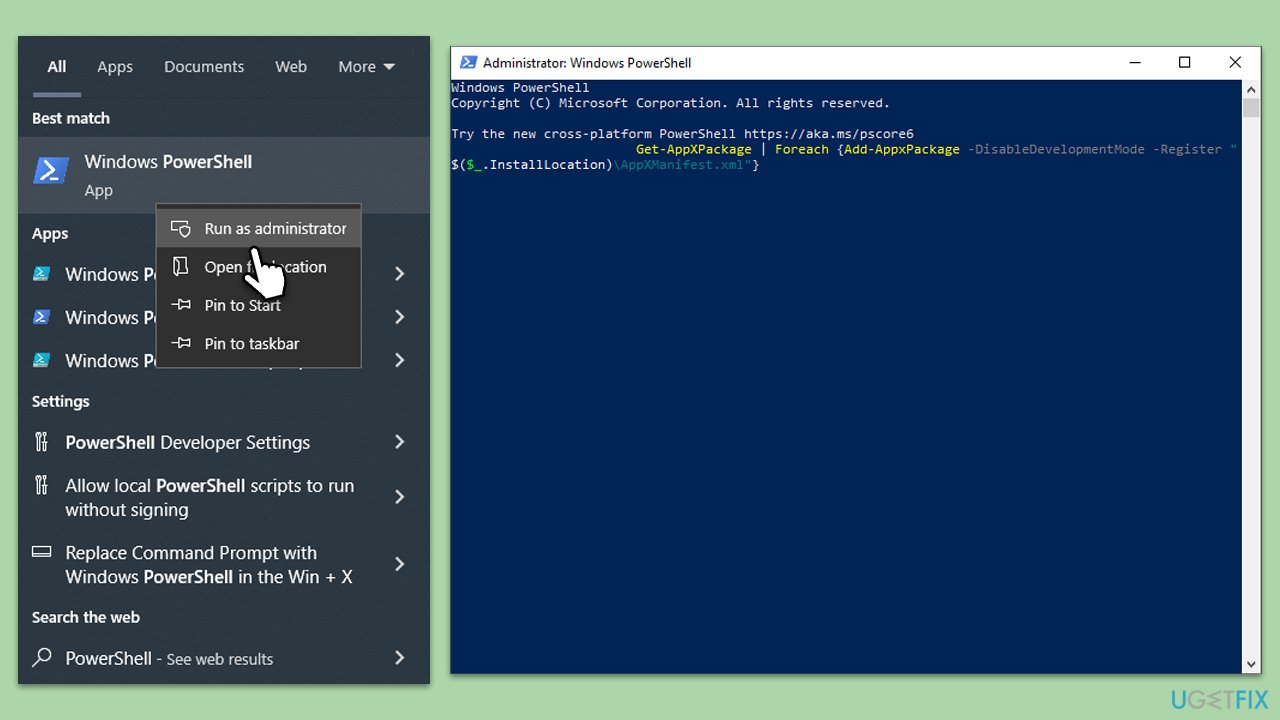
- Type PowerShell in Windows search.
- Right-click on the result and select Run as administrator.
- When UAC shows up, click Yes.
- Copy and paste the following command, pressing Enter after each:
Get-AppXPackage | Foreach {Add-AppxPackage -DisableDevelopmentMode -Register "$($_.InstallLocation)\AppXManifest.xml"} - Close down PowerShell and restart your system.
Bottom line
To fix error 0x80072F17, you can try resetting the Microsoft Store, running troubleshooters, performing a network reset, or using Windows Powershell to re-register the store app. If these solutions do not resolve the issue, consider using specialized PC repair tools to address the problem.
Frequently asked questions
The error 0x80072F17 typically signifies issues related to network connectivity or problems with the Microsoft Store's connection to the server. It can also be caused by incorrect date and time settings on your device.
To fix the error, start by checking your internet connection, then ensure your date and time settings are correct. You may also try resetting the Microsoft Store cache by running the command 'wsreset' in the Run dialog.
Yes, you can resolve this error by updating Windows to the latest version and checking for any pending Microsoft Store updates. Additionally, consider running the Windows Store Apps troubleshooter found in the Settings app.




Report an issue
What's wrong with this guide? We review every report and update or remove content.
Report received — thank you. We'll review and fix it.
You need a free account to submit a report.
Be the first to comment