How to fix
Microsoft Store error 0x80073CFB
on Windows
Resolve Microsoft Store error 0x80073CFB on Windows 10 or 11 effortlessly. Get quick fixes and expert-tested solutions for a smoother experience.


What causes How to fix Microsoft Store error 0x80073CFB?
- Leftover files from a previous installation of the app
- Previous installation of the app was removed before
- Issues with Microsoft-based games
- Corrupted installation files
- Underlying issues affecting Windows
Repairs Windows system files, removes malware, and restores a clean OS state — without reinstalling.
Hello, I have been trying to download and install Forza Horizon 5 from Microsoft Store, but I receive an error 0x80073CFB every time I try it. Any advice on fixing it would be appreciated.
Microsoft Store, previously known as Windows Store, is a built-in application[ref en-1] that comes along with the operating system. Thanks to it, users can conveniently download, update, and uninstall applications as they please, all without the risk of them being corrupted or insecure. Microsoft only puts trustworthy third-party apps into its store, even though it has been a good source for its games and programs.
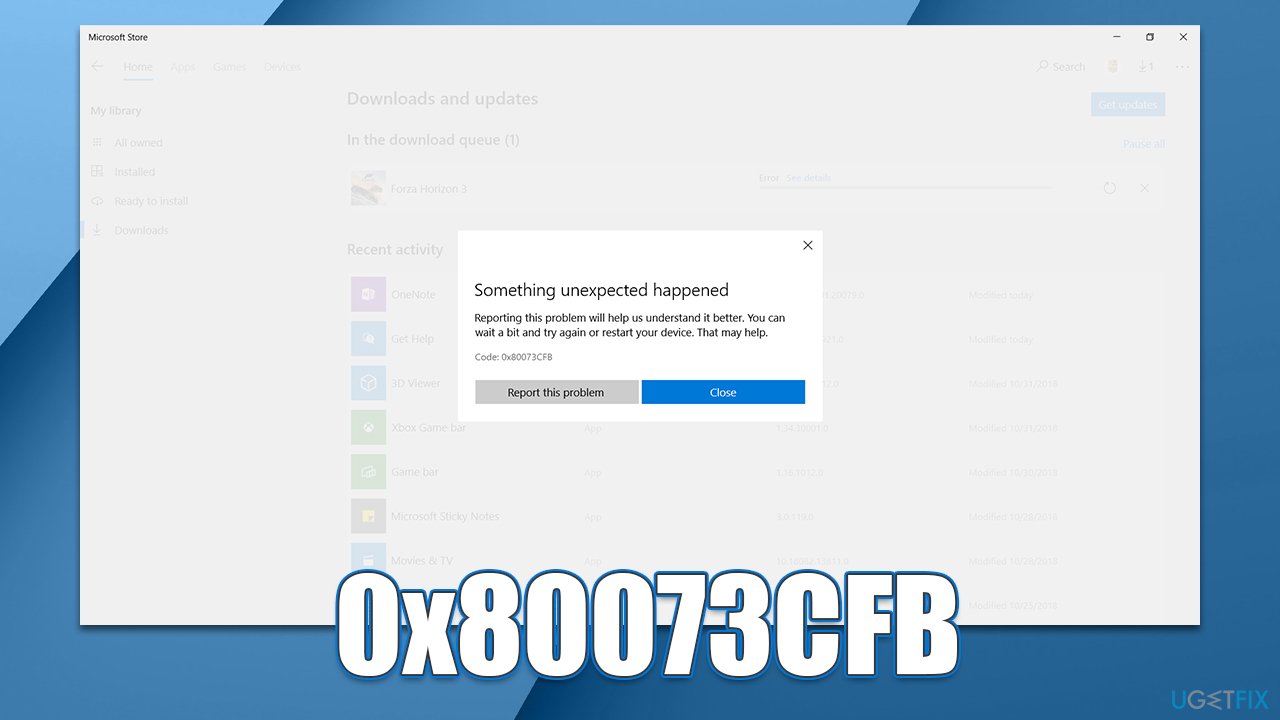
Unfortunately, users sometimes run into problems when trying to download or install an app. In this case, we are talking about Microsoft Store error 0x80073CFB, which occurs whenever users are trying to install a game or an app. Here's the full message that people might encounter at that point:
Something unexpected happened
Reporting this problem will help us understand it better. You wait a bit and try again or restart your device. That may help.
Code: 0x80073CFB
Reporting the issue does not immediately solve it, and users also said that restarting the device does not help either. This is because the root cause of the error lies in leftover files from a previous installation of the app.
Typically, 0x80073CFB occurs to users who have already installed the said app and then got rid of it before. Whenever they try to reinstall it, it always comes up with the same error. In most cases, the issue is encountered whenever users try to download Microsoft-based games such as the Forza Horizon series, Minecraft, or similar.
Luckily, there are several ways you can fix this problem, and we provide all of them below. Before you proceed, we recommend you run a scan with [d1] PC repair and maintenance solution - it is a perfect tool that can clean your computer from leftover files, which is the reason for the 0x80073CFB error occurring in the first place. Likewise, it can fix any underlying issues that could be affecting Windows; it can later be useful when solving Blue Screens,[ref en-2] crashes, corrupted registries,[ref en-3] and more.
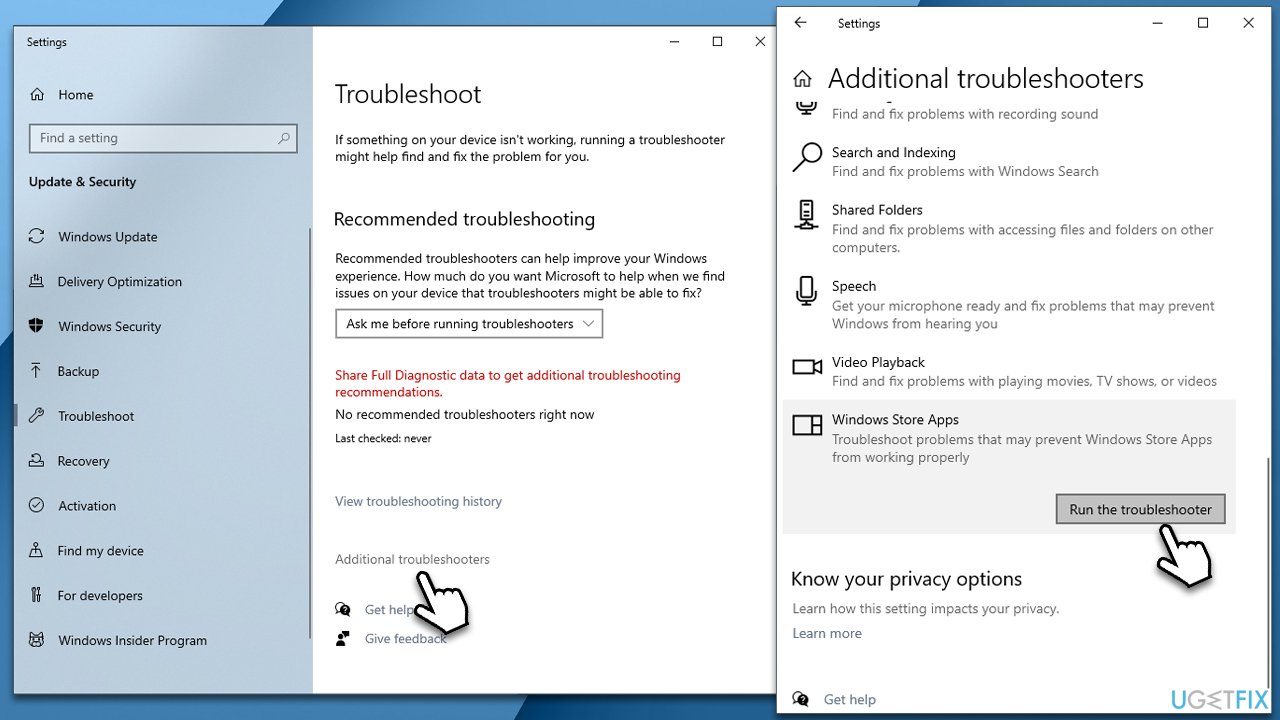
1. Start from Windows Store Apps Troubleshooter
We recommend first running a troubleshooter to exclude any direct issues with Windows Store Apps.
- Type Troubleshoot in Windows search and hit Enter
- Click Additional Troubleshooters
- Scroll down to find the Windows Store Apps entry
- Click it and select Run the troubleshooter
How to fix microsoft store error 0x80073cfb use troubleshooter - Once finished, apply all the suggested fixes.
2. Reset the Windows Store cache
If bugged Store cache is at fault, you can reset it by following these steps:
- In Windows search, type wsreset, and press Enter
- Wait till a black window shows up – do not close it
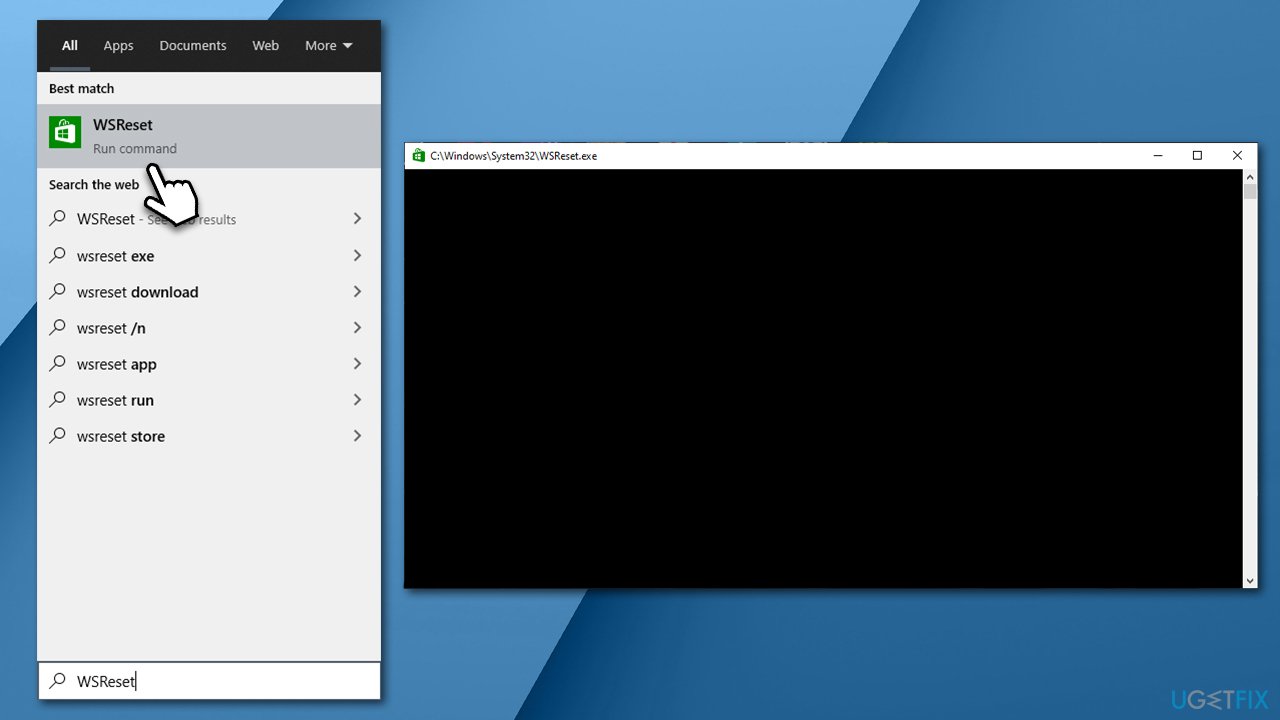
How to fix microsoft store error 0x80073cfb wun wsreset - Once it's gone, Microsoft Store should restart
- Try installing the app once again.
3. Run SFC and DISM
- Type cmd in Windows search
- Right-click on Command Prompt and select Run as administrator
- User Account Control should pop up – click Yes
- Type this command and press Enter:
sfc /scannow - Wait for the scan to finish
- As soon as the scan finishes, Windows will report whether integrity violations were found and if they could be fixed. Regardless of the outcome, use these commands next, pressing Enter after each:
Dism /Online /Cleanup-Image /CheckHealth
Dism /Online /Cleanup-Image /ScanHealth
Dism /Online /Cleanup-Image /RestoreHealth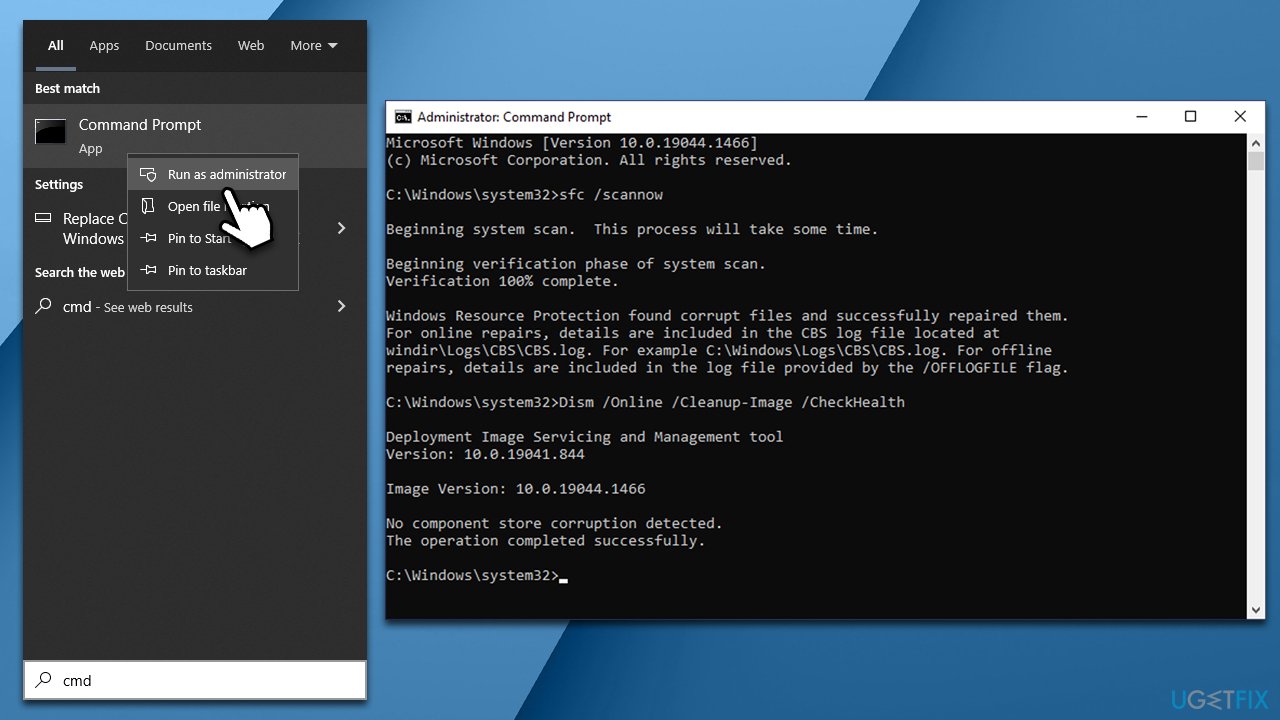
How to fix microsoft store error 0x80073cfb run sfc dism - Restart the PC once done.
4. Delete the app using PowerShell
You can attempt to delete leftover files via the elevated PowerShell.
- Right-click on Start and pick Windows PowerShell (Admin) or Windows Terminal (Admin) in Windows 11
- If UAC comes up, click Yes
- Type in the following command and press Enter:
Get-AppxPackage | Select Name, PackageFullName - Find the app name you want to remove
- Type in the following command (replace the APPNAME below with the real name of the app):
Get-AppxPackage APPNAME | Remove-AppxPackage - an example to remove Forza Horizon games would be Get-AppXPackage Microsoft.SunriseBaseGame | Remove-AppxPackage
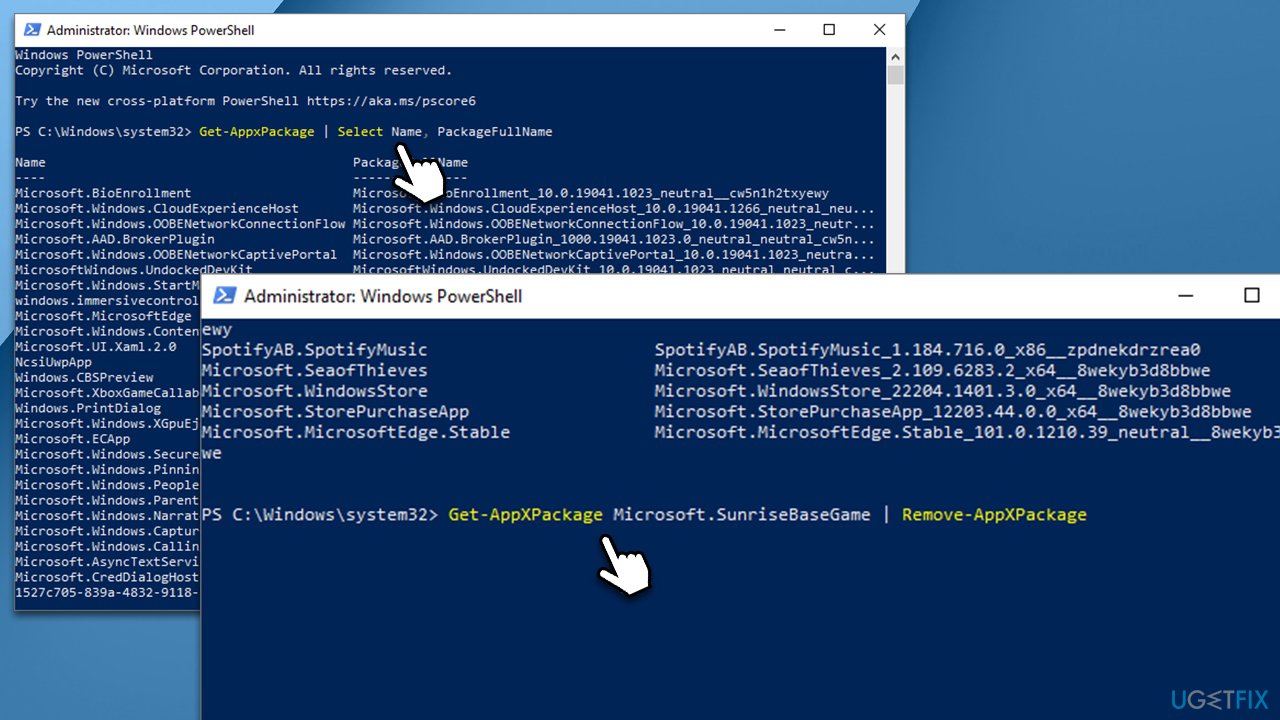
How to fix microsoft store error 0x80073cfb uninstall via powershell - Press Enter - the app should now be removed.
5. Delete the app files via the hidden Microsoft folder
Now, this step might take a while to complete, so make sure you follow it correctly. MicrosoftApps folder is well hidden to prevent unsolicited tampering, and all the elevated rights are given to Trustedinstaller. In order to access this folder, you should first take ownership of it.
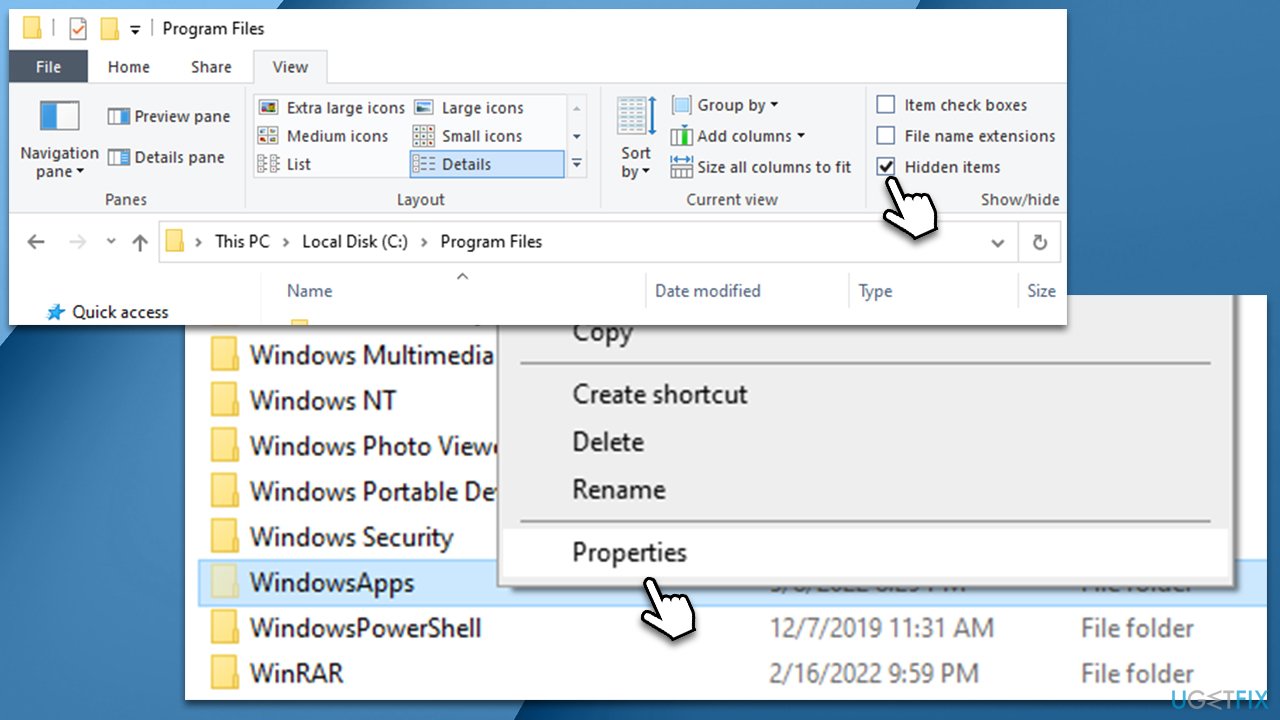
- Press Win + E to open File Explorer
- Go to the View tab at the top
- Tick the Hidden items checkbox
- Next, navigate to the following location (note that this can differ if you installed the OS on a different disk):
C:\\Program Files - At the bottom of the list, you should see the WindowsApps folder - you won't be able to access it
- Right-click on the WindowsApps folder and select Properties
How to fix microsoft store error 0x80073cfb hidden items - Go to the Security tab and pick Advanced
- Under Owner, click the Change button
- Into the new window, type in your account name (your email of Microsoft account) and click Check Names
- Once the account name is visible, click OK
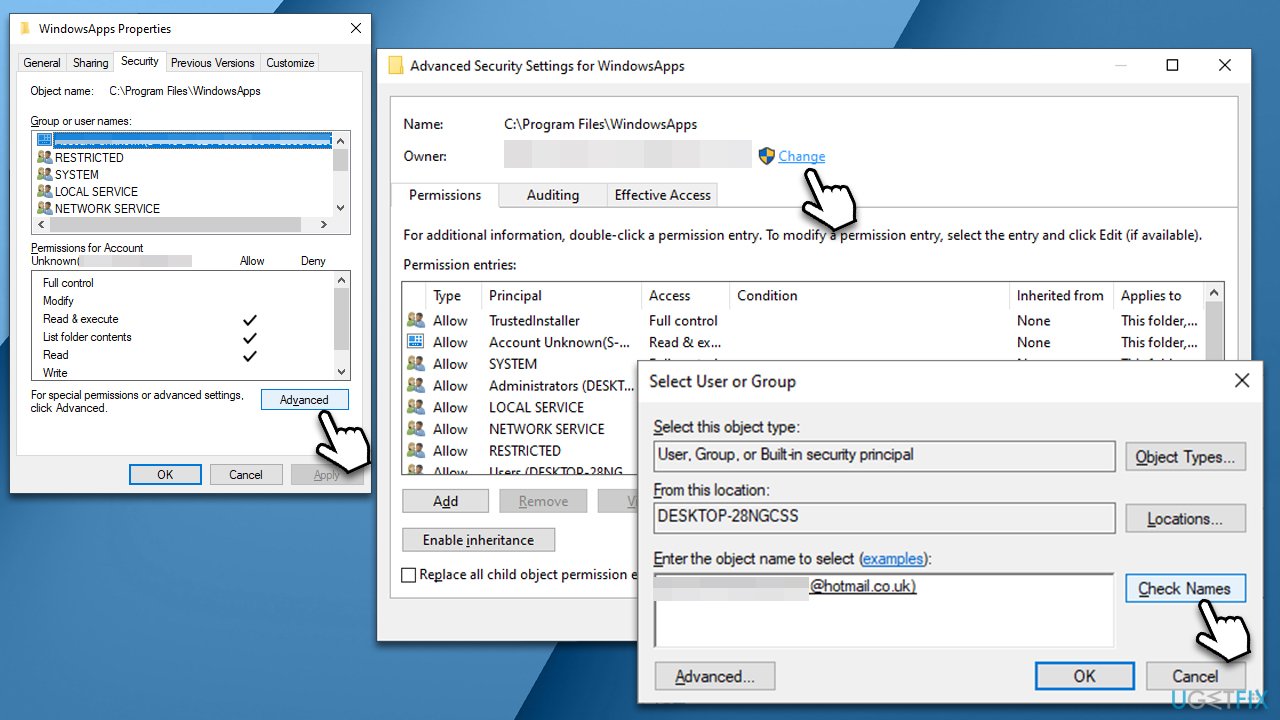
How to fix microsoft store error 0x80073cfb change permissions - Mark the Replace owner on subcontainers and objects checkbox and click OK.
You now should be able to access the WindowsApps folder. Your next task is to find and delete the files of a game or app that is causing you the error. When found, simply delete all the related folders and try installing the app once again via the Microsoft Store - the error should not come up anymore.
Bottom line
To fix the Microsoft Store error 0x80073CFB, you can run a scan with a PC repair and maintenance solution to clean leftover files, or try reinstalling the app after ensuring all previous files are removed. If these solutions do not work, consider seeking further assistance or troubleshooting steps.
Frequently asked questions
This error typically occurs due to corrupted cache files, issues with Windows Update components, or problems with app permissions in Windows 10 or Windows 11.
You can clear the Microsoft Store cache by pressing Windows + R, typing 'wsreset.exe', and hitting Enter. This will reset the cache without affecting your installed apps.
The Windows Update Troubleshooter can help identify and fix issues with Windows Update components, which may be causing the Microsoft Store error 0x80073CFB on Windows 10 or Windows 11.




Report an issue
What's wrong with this guide? We review every report and update or remove content.
Report received — thank you. We'll review and fix it.
You need a free account to submit a report.
Be the first to comment