How to fix
Microsoft Store error 0x80073D04
on Windows
Resolve Microsoft Store error 0x80073D04 on Windows 10 or 11 effortlessly. Get back to downloading apps with expert-tested solutions!

What causes How to fix Microsoft Store error 0x80073D04?
- Corrupted store cache
- Conflicts in system files
- Problems with Windows Update components
- Issues during the reset procedure
Repairs Windows system files, removes malware, and restores a clean OS state — without reinstalling.
Hello, so I have an issue where Microsoft Store completely fails to start completely. I have tried running Powershell commands but I receive an error 0x80073D04. Waiting does not help either. Please help.
Microsoft Store is an important part of the Windows operating system that serves as an official marketplace for apps and games. It is critical not just in providing a wide range of software, but also in ensuring that programs are maintained up to date. These updates are critical because they frequently include patches for security vulnerabilities, functionality upgrades, and overall user experience improvements. Having a properly operating Microsoft Store is therefore critical for preserving your Windows device's security and performance.
However, it is not unusual for people to experience problems when the Microsoft Store fails to load or start properly. This issue might be especially aggravating because it prevents access to programs and updates. One frequent technique for resolving these problems is to reset the Microsoft Store using particular PowerShell commands. Unfortunately, this procedure can occasionally result in an error code 0x80073D04, which happens during the reset procedure and is difficult to remedy.
The 0x80073D04 error can occur for a variety of causes, including a corrupted store cache, conflicts in system files, or problems with Windows Update components. If you encounter this problem, there are various alternatives to explore. Running the Windows Store Apps troubleshooter can be an ideal spot to begin as it can automatically uncover and fix certain basic Microsoft Store issues.
Another alternative is to rename the store cache folder, which can be useful if the 0x80073D04 error is caused by cache damage. Manually resetting the Microsoft Store through its settings, or resetting the Store cache with command-line tools, are both viable techniques. These actions are intended to refresh the Store's functions and eliminate any temporary errors.
If none of these solutions work, you may want to try utilizing a PC repair tool [d1]. It was designed to quickly diagnose and resolve fundamental problems in the Windows operating system itself.
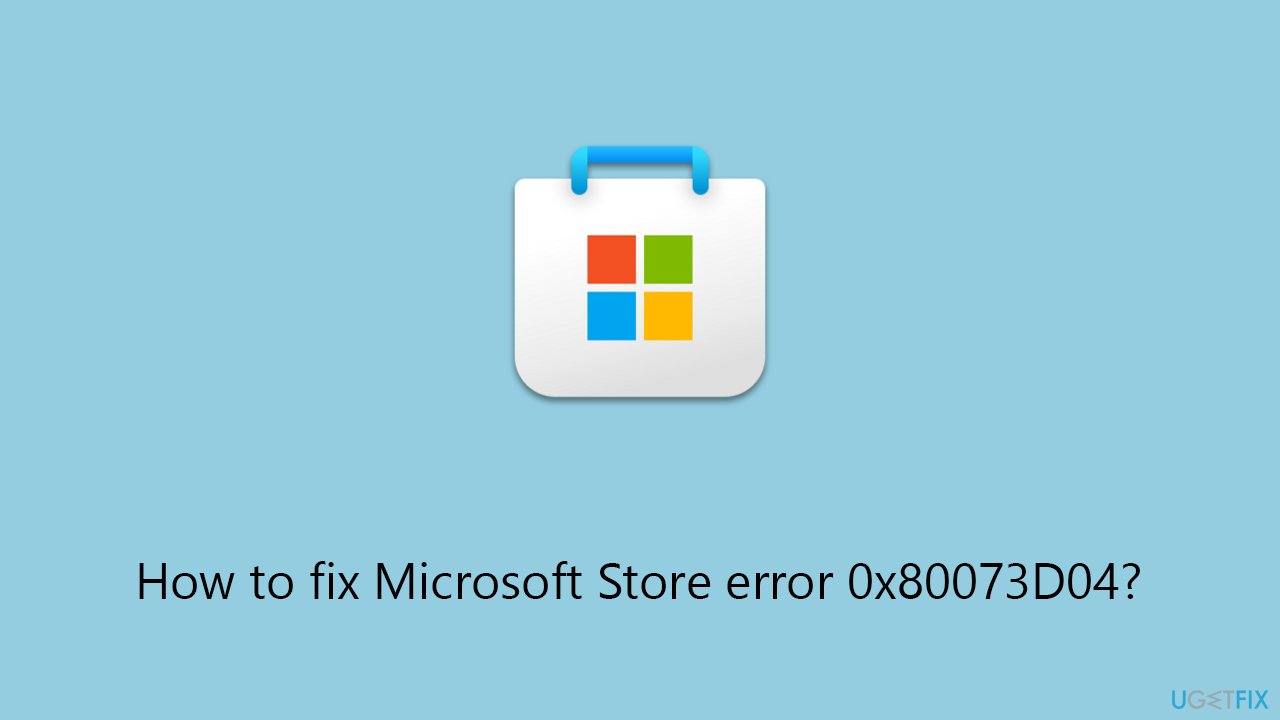
Fix 1. Run Windows Store apps troubleshooter
Windows Store Apps Troubleshooter is a built-in Windows software that detects and resolves problems with the Microsoft Store and associated applications. It examines the system for certain issues and makes improvements or proposes solutions to ensure the Store and its apps run smoothly.
- Type troubleshoot in Windows search and hit Enter.
- Click Additional troubleshooters/Other troubleshooters.
- Find Windows Store Apps.
- Click on it, and select Run the troubleshooter/Run.
- Wait for the scan to be completed and apply the suggested fixes.
- You can also try running the Windows update troubleshooter.
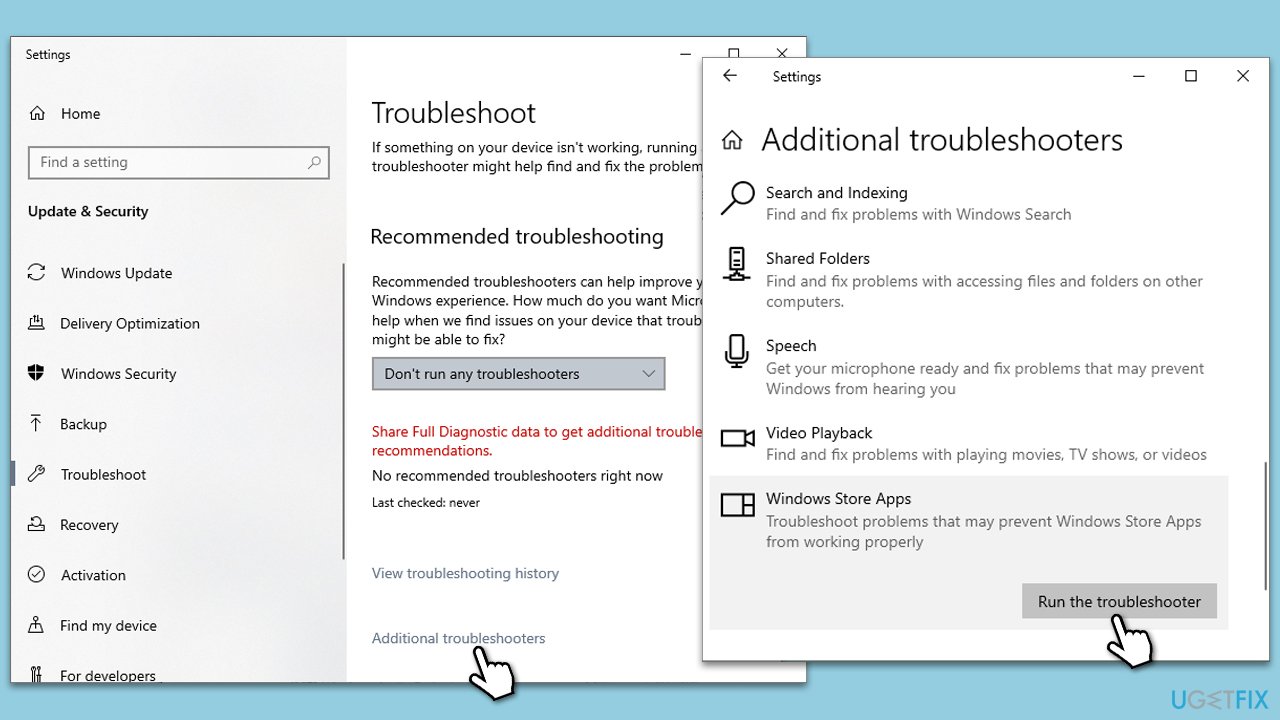
Fix 2. Reset Windows Store cache
Clearing the Windows Store cache removes temporary files that may be interfering with the store's operation. This procedure can fix a variety of issues, including the inability to launch the store or download apps.
- In Windows search, type wsreset.exe and press Enter.
- Wait till a black window shows up – do not close it.
- Once it's gone, Microsoft Store should restart.
- Try using the Store again.
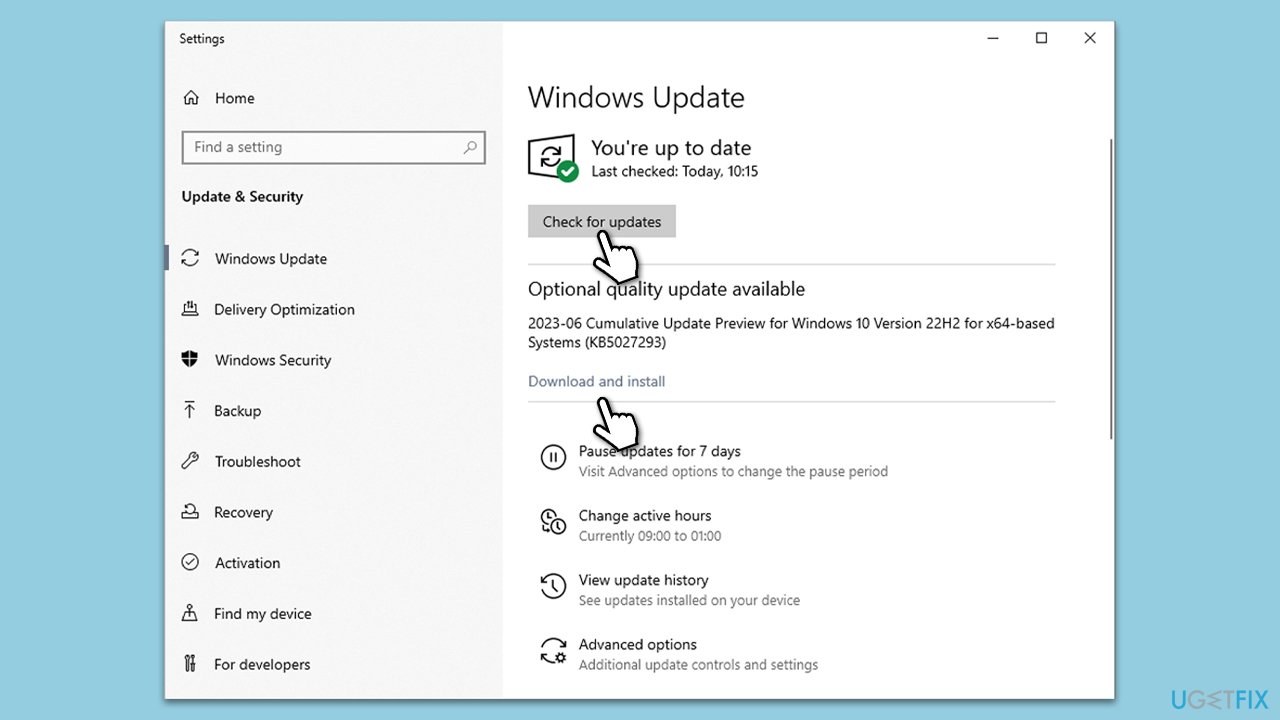
Fix 3. Install all Windows updates
Keeping your Windows operating system up to date ensures that you have the latest security patches, bug fixes, and enhancements. This can also resolve issues related to the Microsoft Store by updating its components and dependencies.
- Type Updates in Windows search and press Enter.
- Here, click Check for updates.
- Wait till Windows downloads and installs all the files.
- If optional updates are available, install them as well.
- Reboot your device.
Fix 4. Reset Windows Store via Settings
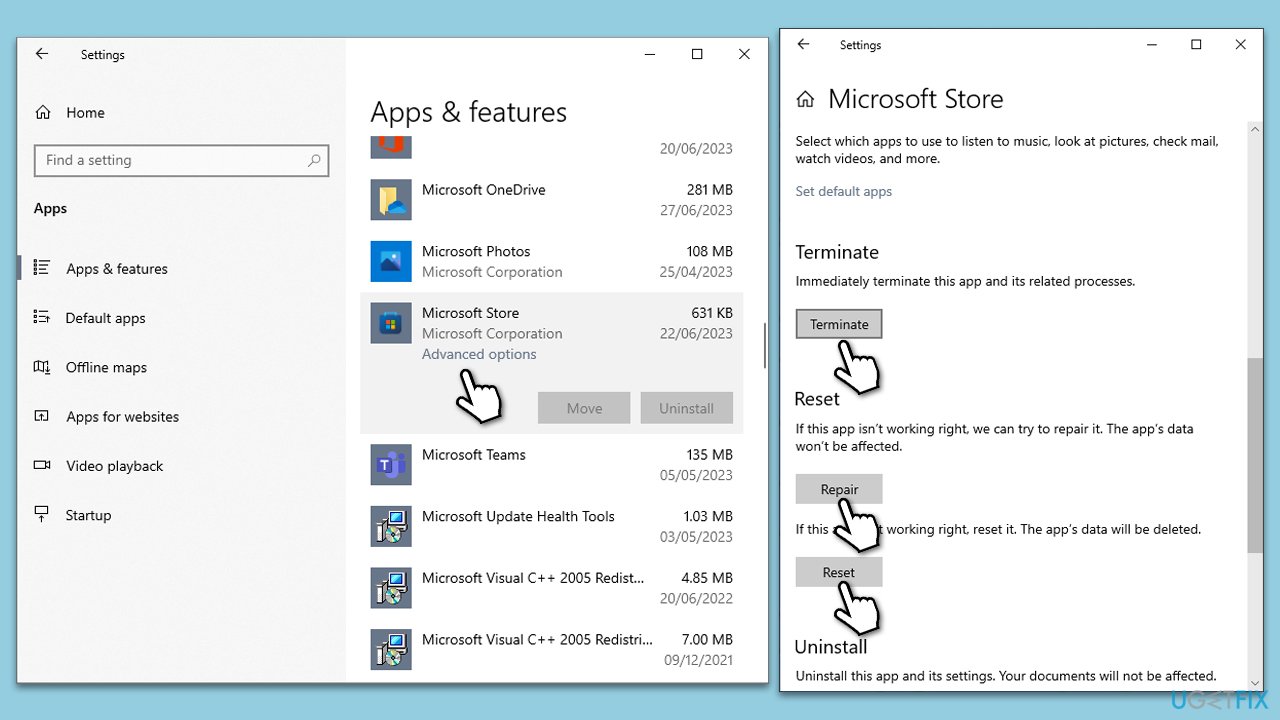
Resetting the Microsoft Store through the Settings app reinstalls the app and clears its data, which may resolve problems caused by corrupted files or settings.
- Right-click on Start and select Apps & Features.
- Scroll down to find Microsoft Store and click Advanced options.
- Scroll down again and click Terminate and Repair.
- If that does not work, try using Reset.
Fix 5. Perform Check Disk
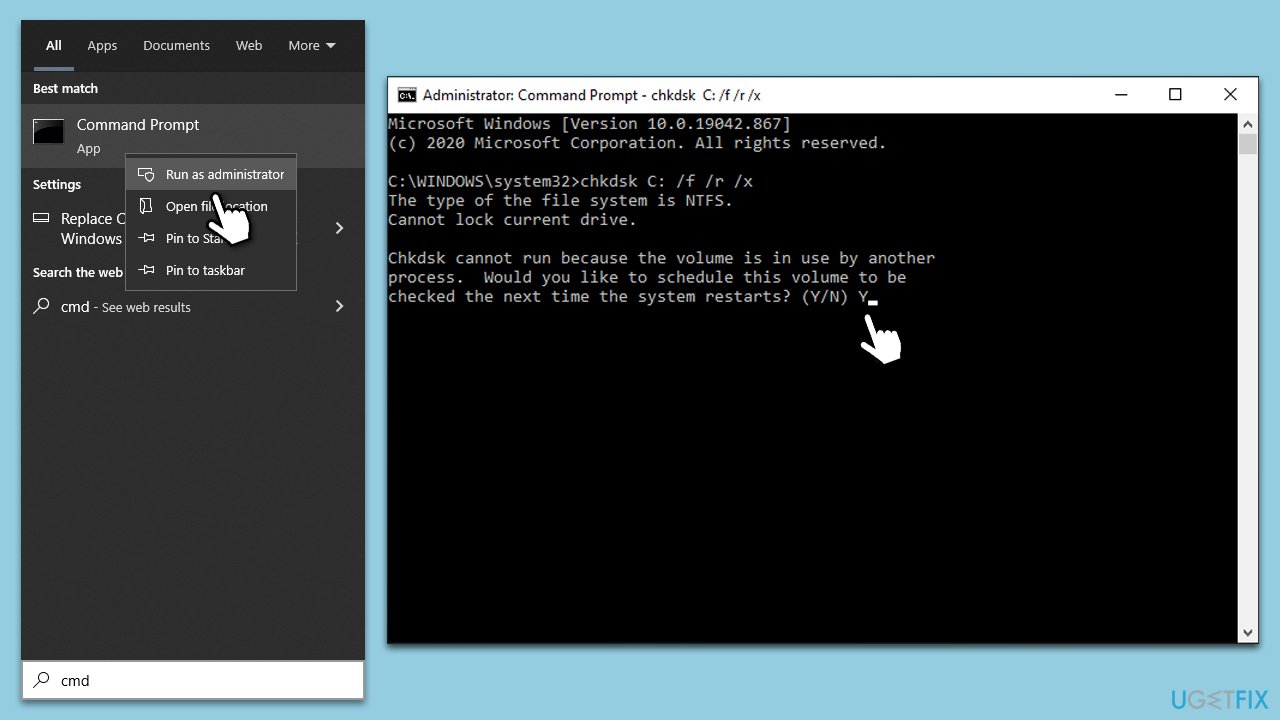
Some users managed to fix the 0x80073D04 error because they repaired corrupted sectors in their drives. To do so, you can run the check disk command:
- Type cmd in Windows search.
- Right-click and select Run as administrator.
- When UAC shows up, click Yes.
- In the new window, type in the following command and press Enter after:
chkdsk c: /f
(Note: use chkdsk c: /f /r /x command if you are using SSD as your primary partition) - If you receive an error, type in Y, close down Command Prompt and restart your system.
- Wait until the scan is finished - you can find the results in the Event Viewer.
Fix 6. Rename Cache folder and re-register the app
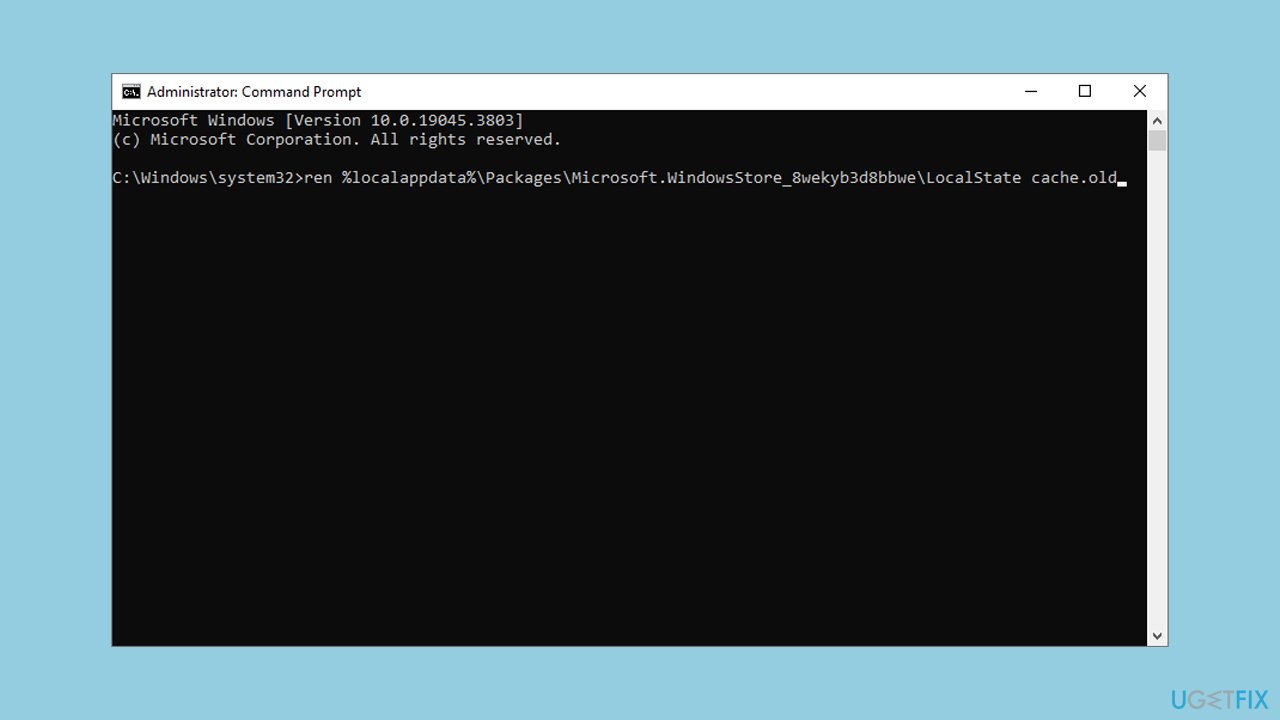
Renaming the Cache folder and re-registering the Microsoft Store app can resolve issues related to corrupted cache data. This process resets the Store's cache system and reinitializes the app's registration.
- Open Command Prompt as an administrator.
- Type in the following and press Enter:
ren %localappdata%\Packages\Microsoft.WindowsStore_8wekyb3d8bbwe\LocalState cache.old - Then type the following and press Enter:
powershell -ExecutionPolicy Unrestricted
Get-AppXPackage -AllUsers | Foreach {Add-AppxPackage -DisableDevelopmentMode -Register "$($_.InstallLocation)\AppXManifest.xml"} - Restart your PC.
Fix 7. Use Media Creation Tool to repair-install Windows
Media Creation Tool can be used to restore a Windows installation, which reinstalls the operating system while retaining your personal information, preferences, and installed apps. This can eliminate deeper Windows system issues that may be compromising the Microsoft Store.
Create Windows ISO
- Download Windows 11 Installation media from the official Microsoft website. [Windows 10 version]
- Double-click the MediaCreationTool.exe file to launch it.
- When UAC shows up, click Yes.
- Accept license terms.
- Select Language and Edition (make sure it matches the one you have currently installed) or simply mark the Use the recommended options for this PC and click Next).
- Select the ISO file and click Next.
- Pick the location for your ISO file and wait till all the needed files are downloaded, then click Finish.
Repair-install Windows
- Go to the location of your ISO file, right-click, and select Mount.
- Run the setup.exe file.
- You will be asked whether you want to update Windows to the latest version - pick Not right now and click Next.
- Accept Terms and Windows will make several checks to ensure everything is fine.
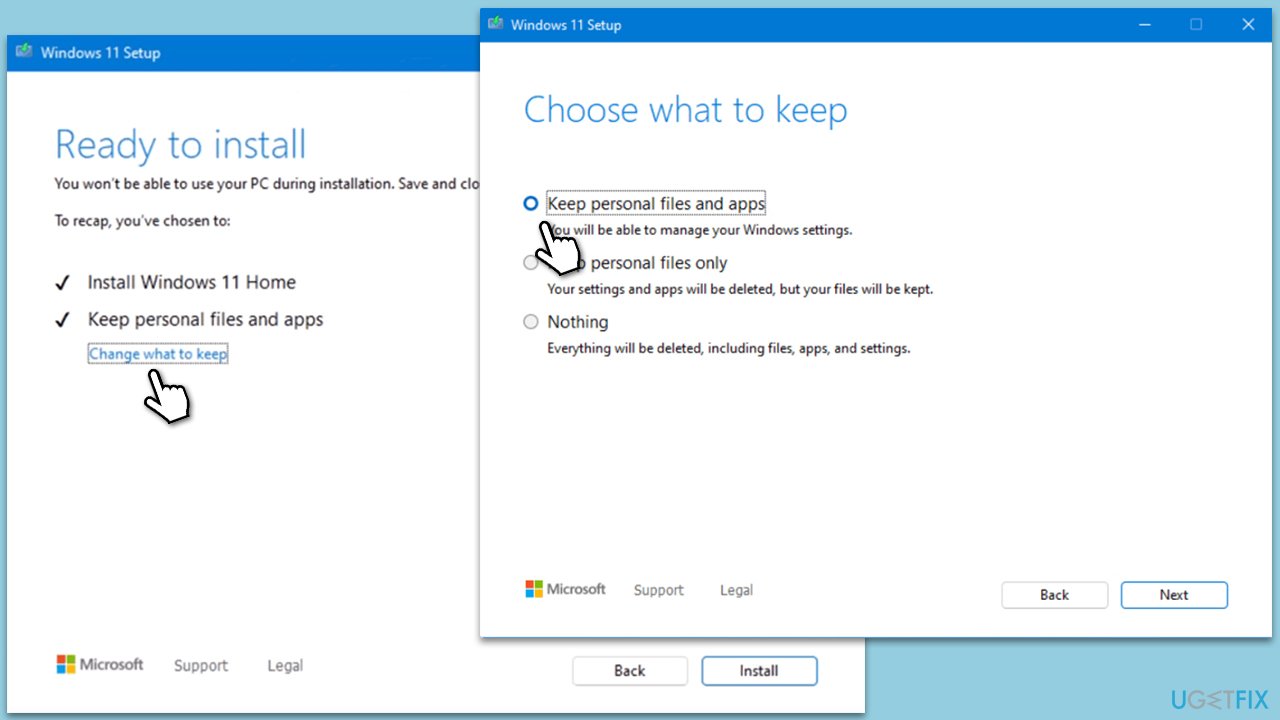
- Click Change what to keep.
- Here, you have several options: Keep your files and apps, Keep files only, or Keep nothing - choose what suits you the best. Click Next.
- Finally, click Install to begin the installation process.
Bottom line
To fix the Microsoft Store error 0x80073D04, you can start by running the Windows Store Apps troubleshooter, renaming the store cache folder, or manually resetting the Microsoft Store through its settings. If these solutions do not resolve the issue, consider utilizing a PC repair tool to diagnose and fix underlying problems in the Windows operating system.




Report an issue
What's wrong with this guide? We review every report and update or remove content.
Report received — thank you. We'll review and fix it.
You need a free account to submit a report.
Be the first to comment