How to fix
Microsoft Store error 0x80073D0E
on Windows
Resolve Microsoft Store error 0x80073D0E on Windows 10 or 11 easily with our proven solutions. Expert-tested tips to fix it in minutes!

What causes How to fix Microsoft Store error 0x80073D0E?
- Corrupted Store cache
- Lack of sufficient storage
- Conflicts with third-party software
- Issues with app installation or updates
Repairs Windows system files, removes malware, and restores a clean OS state — without reinstalling.
How can I resolve the Microsoft Store error 0x80073D0E that keeps appearing when I try to download or update apps on my Windows computer?
Microsoft Store is a digital distribution platform developed by Microsoft for its Windows operating system. This unified storefront for apps, games, and other content simplifies the experience for Windows users. However, like most software applications, the Microsoft Store can sometimes present errors. One such issue that stands out is the error code 0x80073D0E.
This specific error, while alarming, serves as a beacon highlighting an underlying problem - a problem that prevents the app from being installed or updated correctly. It becomes all the more vexing for those who rely heavily on the store for their daily digital needs and are suddenly halted by the 0x80073D0E error.
There are several reasons behind the 0x80073D0E error's appearance. A notable cause is the corrupted Store cache. Microsoft Store, in its bid to deliver efficient and quick services, heavily depends on cached data. But, like anything, if this cache becomes tainted or corrupted, it can malfunction, leading to this issue.
Another plausible reason is the lack of sufficient storage. If your device is running low on space, it won't be a surprise to be greeted by the 0x80073D0E error, as apps find it challenging to secure their spot. Moreover, the vast world of software isn't devoid of conflicts. Sometimes, an unsuspecting third-party software or another app may become an unintended adversary, conflicting with the Microsoft Store and producing the 0x80073D0E error.

However, encountering the 0x80073D0E error shouldn’t cause undue stress. Solutions and troubleshooting steps exist to tackle its root causes, which will be elaborated on below.
It's worth emphasizing that for this error and other potential PC-related hiccups, deploying a [d1] PC repair tool can prove to be a game-changer, offering respite and smooth operations.
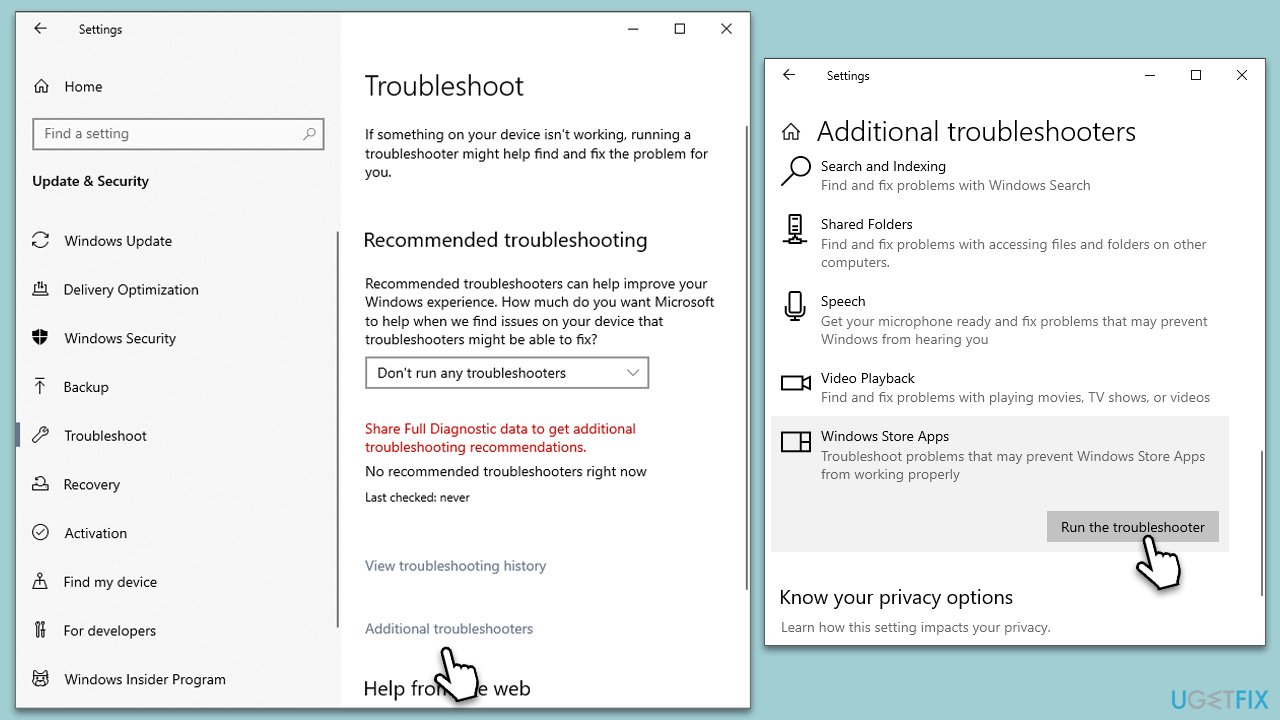
Fix 1. Run Windows Store Apps troubleshooter
The Windows Store Apps troubleshooter is an in-built utility in the Windows operating system. It's designed to identify and fix common problems with Microsoft Store apps without the need for user intervention.
- Type troubleshoot into the Windows search bar, then press Enter.
- In the options that appear, select Additional troubleshooters or Other troubleshooters (depending on your Windows version).
- Scroll through the list until you locate Windows Store Apps, then click on Run the troubleshooter/Run.
- Wait as the process runs to completion, then apply any recommended changes to resolve the issue.
Fix 2. Perform Disk Cleanup
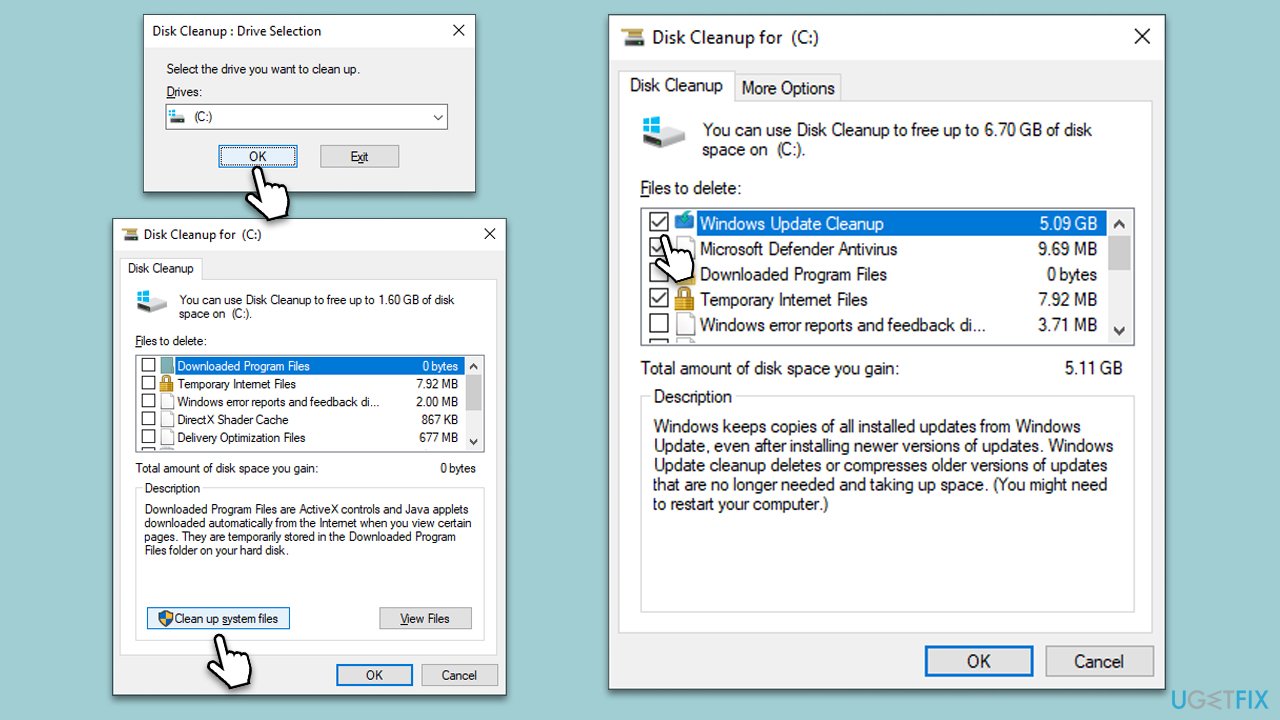
Disk Cleanup is a utility that helps clear temporary and unnecessary files from your system, freeing up space and potentially resolving app-related issues.
- In Windows search, type Disk Cleanup. Press Enter to open the Disk Cleanup utility.
- In the Disk Cleanup window, click Clean up system files.
- Select the drive again and click OK.
- In the list of files that can be cleaned up, select the largest portions of data, such as Temporary Internet Files, Windows Update, Temporary Files, and others.
- Click OK to begin the cleanup process.
Fix 3. Clear Microsoft Store cache
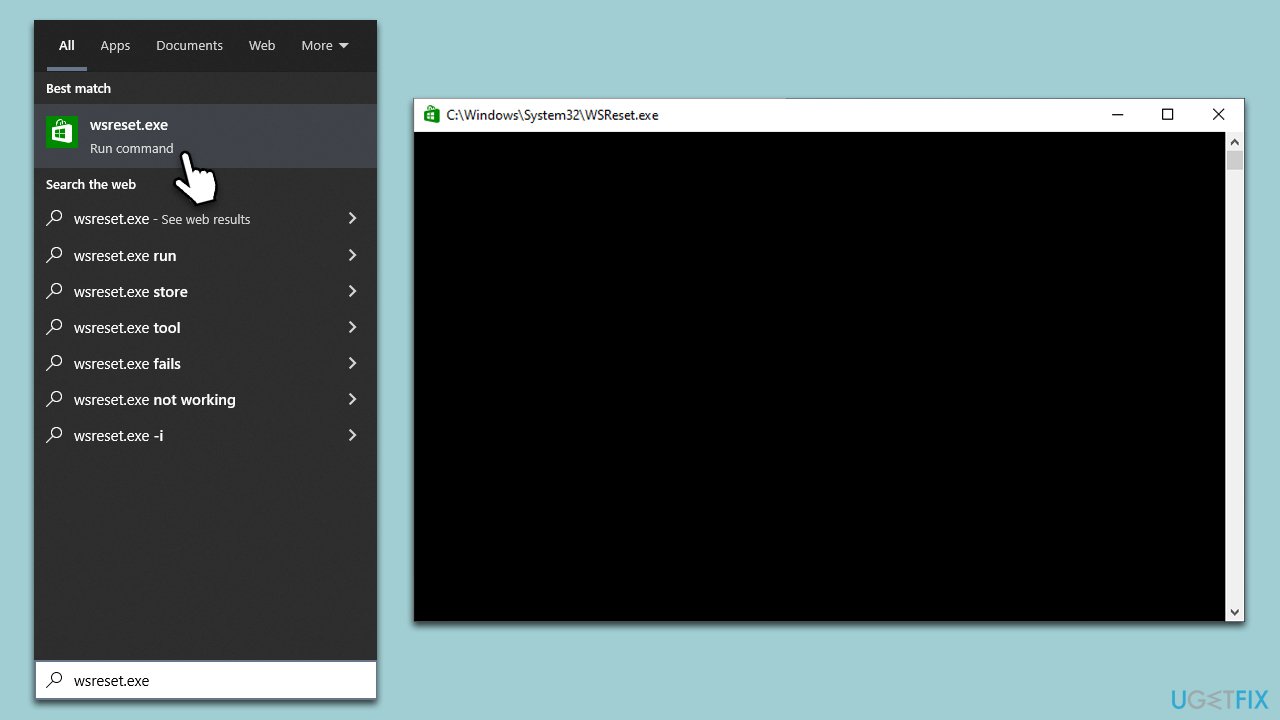
The cache is where the Microsoft Store stores temporary data. If it becomes corrupted, it might lead to errors. Clearing the cache can resolve these issues.
- In Windows search, type wsreset.exe and press Enter.
- Wait till a black window shows up – do not interact with it or close it.
- Once it's gone, Microsoft Store should restart.
- Try downloading apps once again.
Fix 4. Repair or reset Microsoft Store
If the Microsoft Store itself is malfunctioning, you can repair or reset it.
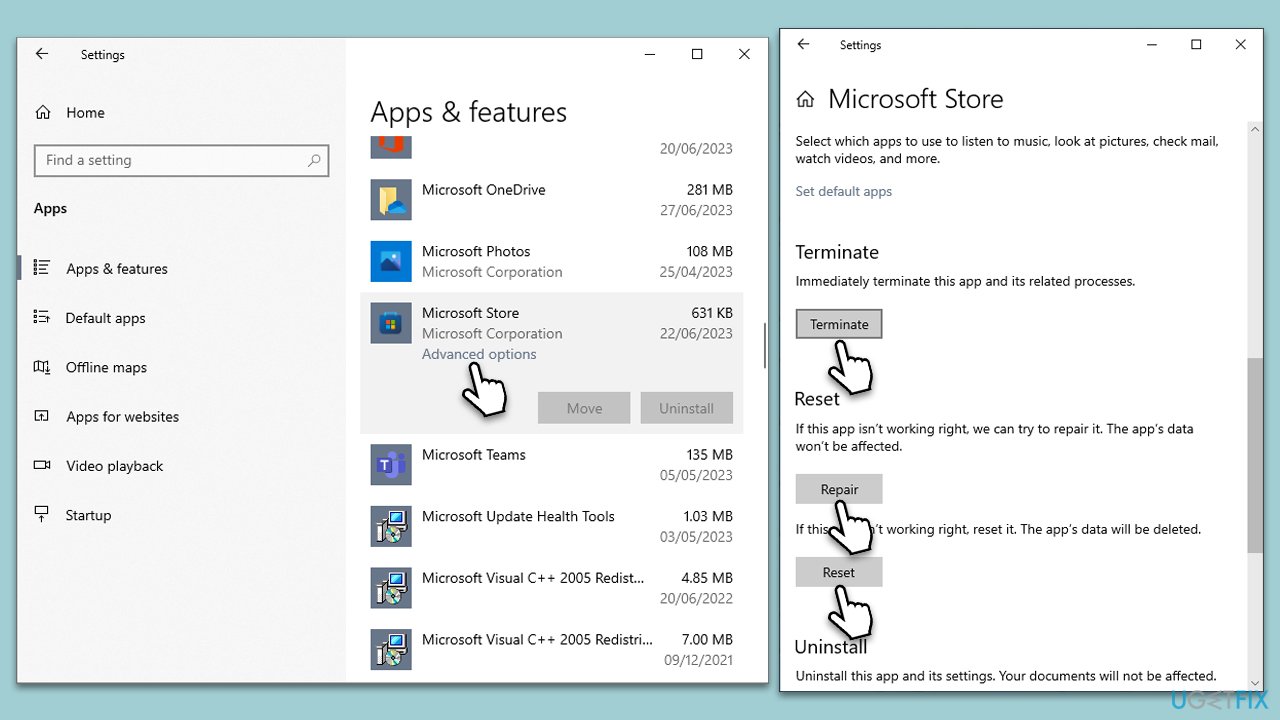
- Right-click on Start and select Apps & Features.
- Scroll down to find Microsoft Store and click Advanced options.
- Scroll down again and click Terminate and Repair.
- If that did not work, try using Reset.
Fix 5. Run SFC and DISM scans
These scans check for and repair corrupted system files which could be causing errors.
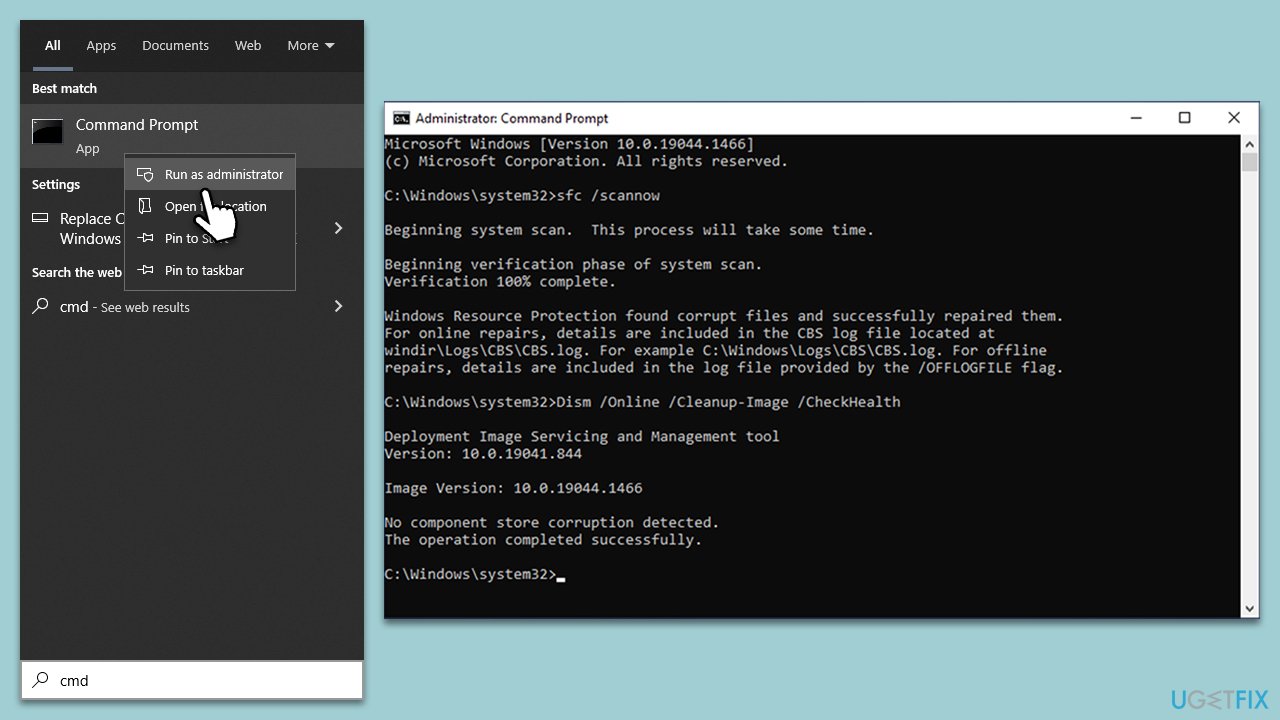
- Type cmd in Windows search.
- Right-click on Command Prompt and select Run as administrator.
- User Account Control should pop up – click Yes.
- Type this command and press Enter:
sfc /scannow - Wait for the scan to finish.
- As soon as the scan finishes, Windows will report whether integrity violations were found and if they could be fixed. Regardless of the outcome, use these commands next, pressing Enter after each:
Dism /Online /Cleanup-Image /CheckHealth
Dism /Online /Cleanup-Image /ScanHealth
Dism /Online /Cleanup-Image /RestoreHealth - Close down the Command Prompt and restart your device.
Fix 6. (Re)start BITS abd Microsoft Store Install Services
Certain services are essential for the proper functioning of the Microsoft Store.
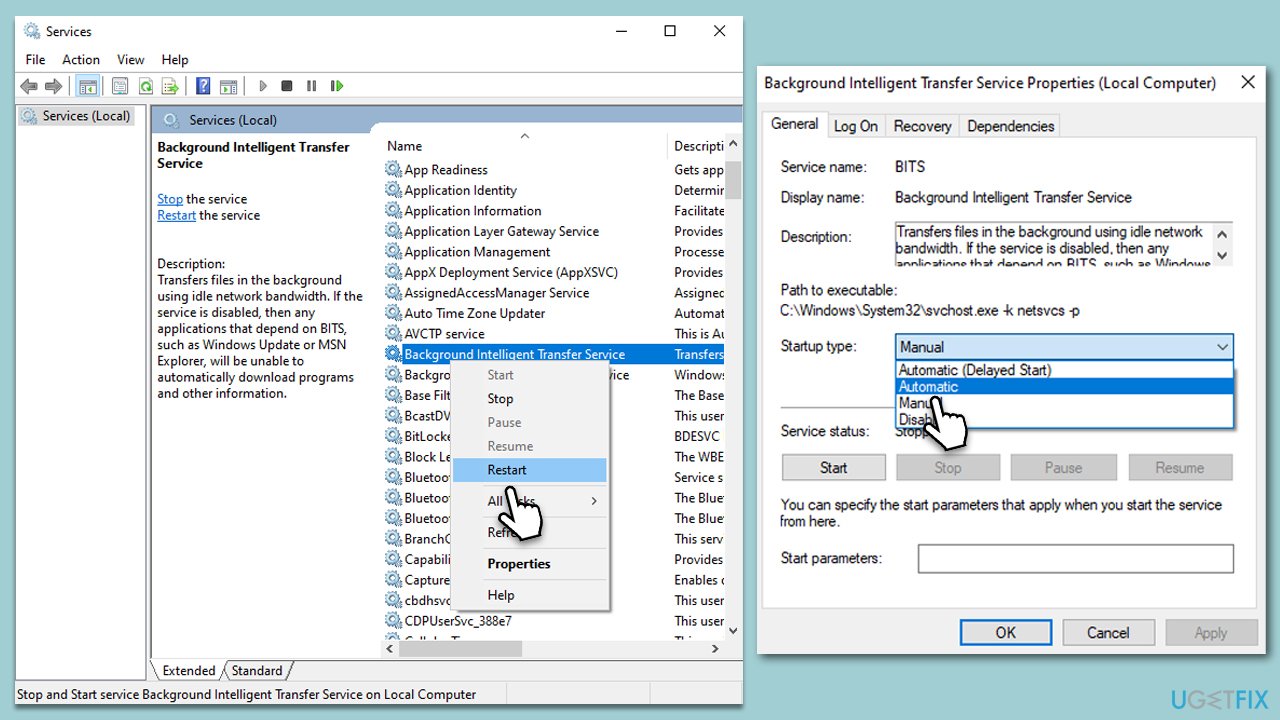
- Type Services in Windows search and press Enter.
- Locate Background Intelligent Transfer Service (BITS).
- If it is already running, right-click and select Restart.
- if the service is not running, double-click it, and pick Automatic under the Startup type from the drop-down menu.
- Click Start, Apply, and OK.
- Repeat the process with Microsoft Store Install Service.
Fix 7. Reinstall Microsoft Store
As a last resort, you can reinstall the Microsoft Store.
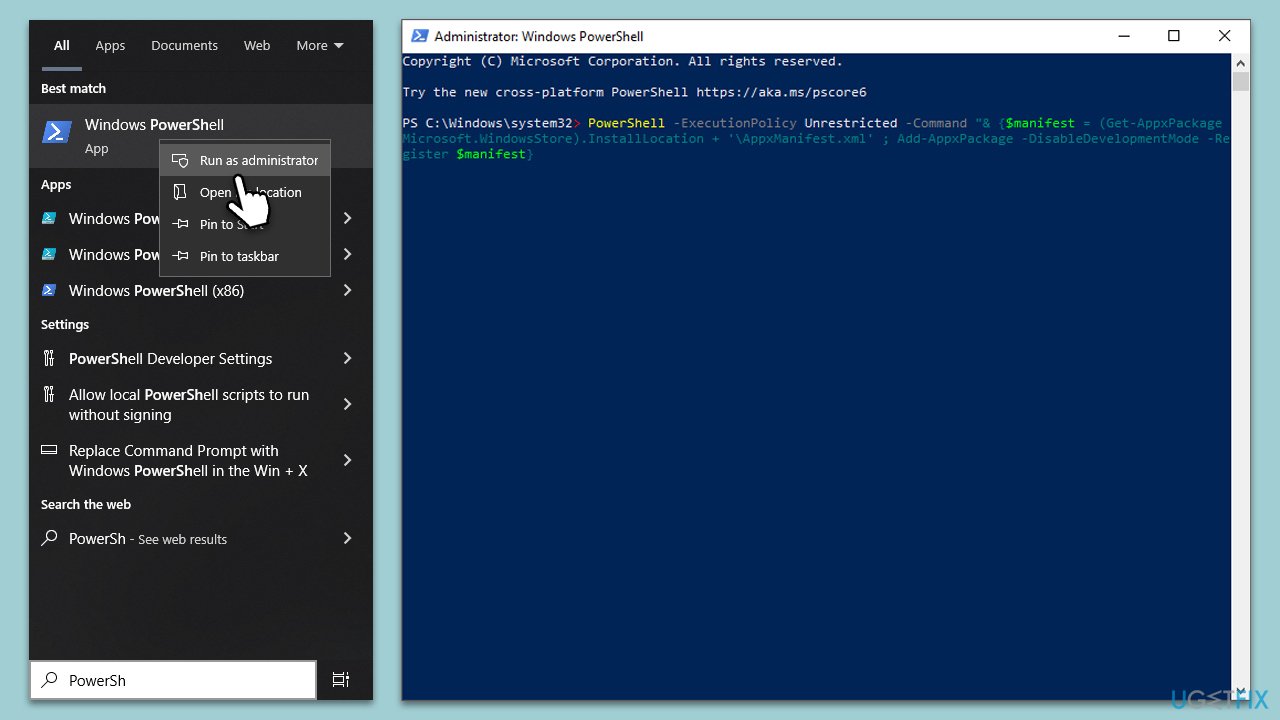
- Type PowerShell in Windows search.
- Right-click on the PowerShell result and select Run as administrator.
- When UAC shows up, click Yes.
- Copy and paste the following command and press Enter:
Get-AppXPackage | Foreach {Add-AppxPackage -DisableDevelopmentMode -Register "$($_.InstallLocation)\AppXManifest.xml"} - Close down PowerShell and restart your system to see if the error is resolved.
Bottom line
To resolve the Microsoft Store error 0x80073D0E, you can run the Windows Store Apps troubleshooter, clear the Store cache, free up storage space, and check for software conflicts. If these solutions do not work, consider using a PC repair tool for further assistance.
Frequently asked questions
The error 0x80073D0E typically indicates that there is a problem with the Microsoft Store app installation or its components. This can prevent you from downloading or updating apps.
You can reset the Microsoft Store by going to Settings > Apps > Apps & features, selecting Microsoft Store, and clicking on 'Advanced options' to find the 'Reset' button.
Yes, you can open Command Prompt as an administrator and run the command 'wsreset.exe' to reset the Microsoft Store cache, which may resolve the error.




Report an issue
What's wrong with this guide? We review every report and update or remove content.
Report received — thank you. We'll review and fix it.
You need a free account to submit a report.
Be the first to comment