How to fix
Microsoft Store error 0x80131509
on Windows
Resolve the Microsoft Store error 0x80131509 on Windows 10 and 11 quickly with our expert-tested solutions. Fix it in minutes!

What causes How to fix Microsoft Store error 0x80131509?
- Communication issues between the Microsoft Store and the user's system
- Corrupted files affecting installation
- Registry issues causing conflicts
- Cookies and cache interfering with the download process
Repairs Windows system files, removes malware, and restores a clean OS state — without reinstalling.
Hello. I tried to install the Xbox app on my Windows PC through the Microsoft Store but I got the 0x80131509 error code. What should I do?
The Microsoft Store serves as a digital distribution platform for various applications, games, and software developed by Microsoft and third-party developers. Users may find, download, and manage their Windows program collection from one central location. The Xbox app, which is well-liked by players for managing game material, interacting with friends, and accessing Xbox Live services, is one of the apps that can be found on the Microsoft Store.
Users have reported encountering the error code 0x80131509 when attempting to install the Xbox app and others through the Microsoft Store or trying to update Minecraft and other programs. Users may find this issue unpleasant because it interferes with their expectation of a flawless program download and installation process. The specific nature of the error code indicates a problem in the communication or connection between the Microsoft Store and the user's system.
Users may be greatly impacted by this problem, particularly those who depend on the Xbox app for social media and gaming. Users can lose access to crucial gaming features, friendships, and effective management of their gaming stuff. The Xbox app's failure to install because of error 0x80131509 may impair users' ability to fully utilize the application's capabilities and reduce their overall gaming experience.
While encountering this error can be frustrating, there are potential solutions that users can explore to resolve the issue and successfully install the Xbox app from the Microsoft Store. In this guide, you will find 6 steps that should help fix the issue. You can also run a maintenance tool like [d1] that can fix most system errors, BSODs,[ref en-1] corrupted files, registry[ref en-2] issues, or clear cookies and cache[ref en-3] automatically. Otherwise, follow the step-by-step instructions provided below.
Solution 1. Run the Microsoft Store Apps Troubleshooter
- Open the Start menu.
- Click the gear-shaped icon to launch the Settings app.
- In the Settings app, click on the System tab.
- Click on Troubleshoot.
- Select Other troubleshooters.
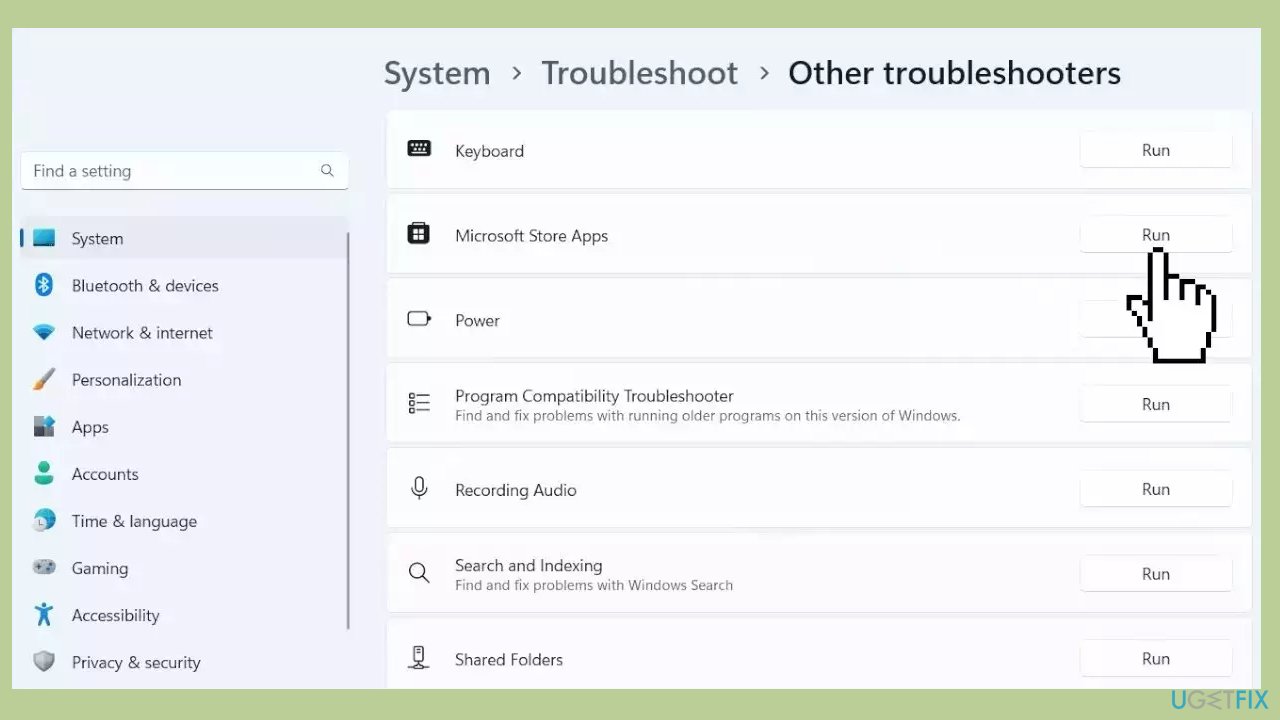
- Look for Microsoft Store Apps and click the Run button next to it.
- Follow the on-screen prompts to run the troubleshooter.
Solution 2. Clear the Microsoft Store Cache
Like most applications, Microsoft Store creates and stores cache data to enhance performance. However, if this cache becomes corrupt, you may experience various issues.
- Open the Run dialog box by pressing the Windows key + R.
- If the hotkeys don't work, you can use any other method to open the Run dialog box.
- In the search bar of the Run dialog box, type wsreset.exe.

- Click OK.
- A blank Command Prompt window will appear for a few seconds.
- Once the cache is cleared, Windows will close the Command Prompt window and automatically launch the Microsoft Store app.
Solution 3. Check Date and Time Settings
- Right-click on the clock icon and select Adjust date and time.
- In the Date & time window, check if your date and time are set correctly.
- If they are not set correctly, turn off the option to Set time automatically.
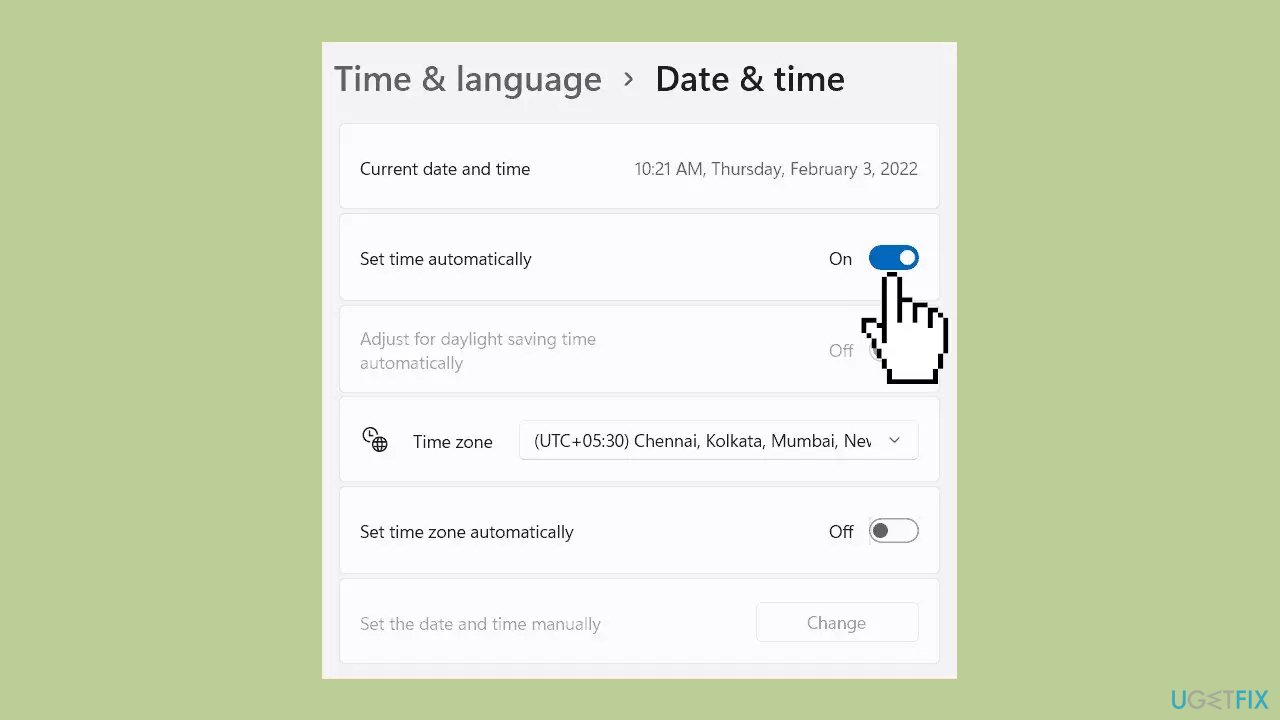
- Click on Change next to Set the date and time manually.
- Set the appropriate date and time.
- Click on Change to save the changes.
Solution 4. Disable VPN and Proxy
- Press the Windows key + I to open Windows Settings.
- Move to the Network & internet tab from the left pane.
- Select the Proxy option.
- Switch off the Automatically detect settings toggle.
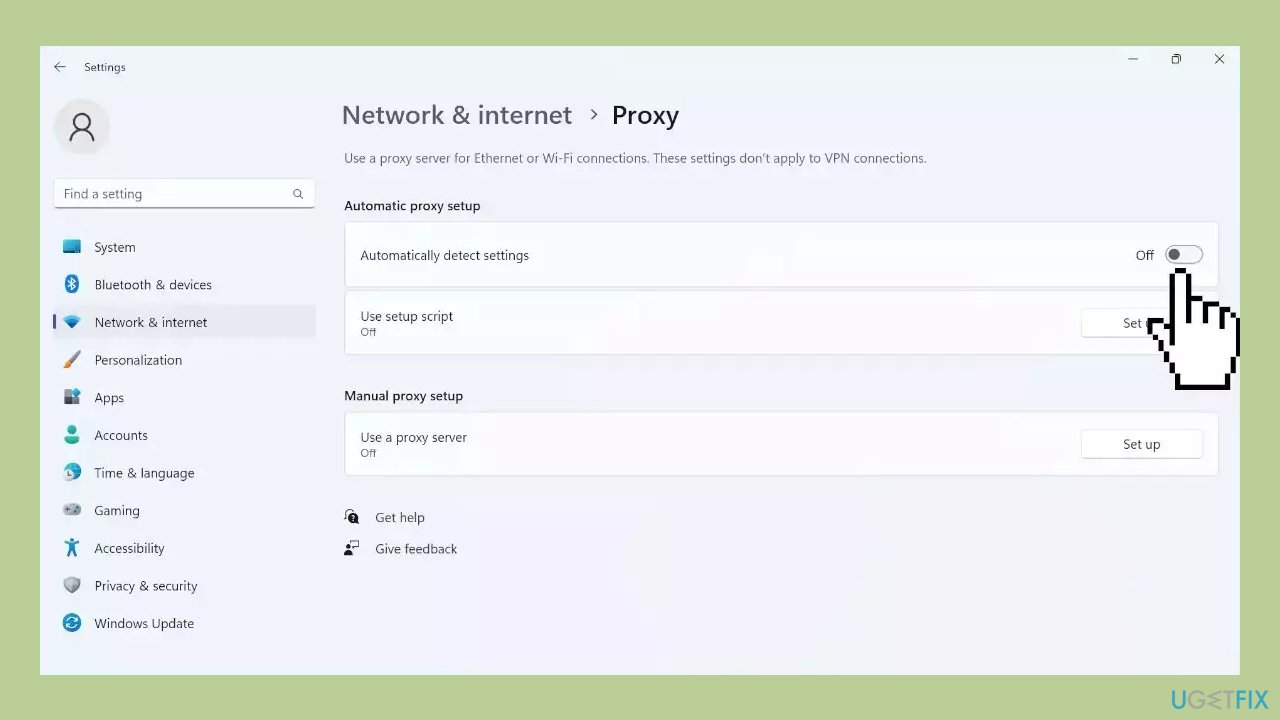
- Click on the Set up button under the Manual proxy setup section.
- Make sure the Use a proxy server toggle is Off.
- Check if the error is fixed.
Solution 5. Reset the Microsoft Store App
- Right-click on Start and select Settings.
- In the Settings window, click on Apps.
- Click on Installed apps in the right pane.
- Scroll down to find Microsoft Store and click on the three dots.
- Select Advanced options from the menu list.
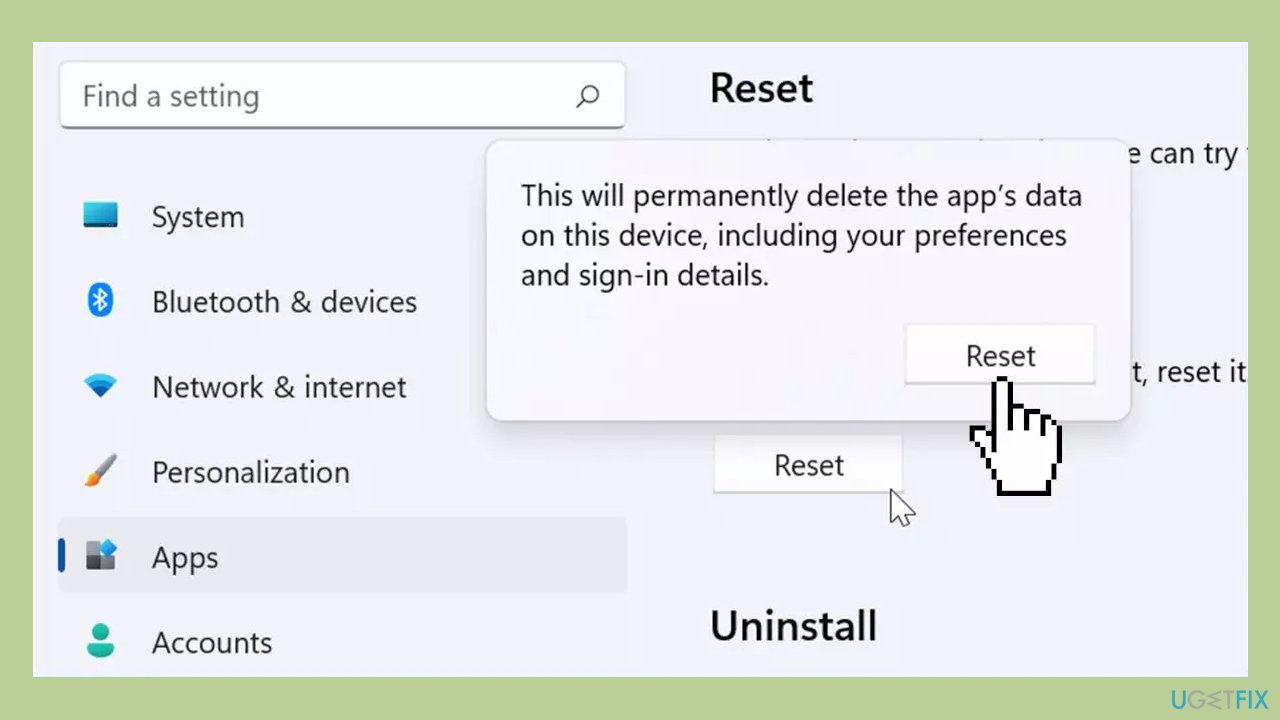
- Click on the Reset button under the Reset section. A confirmation popup will appear.
- Click Reset again to confirm the action and wait for the process to finish.
Solution 6. Reinstall the Microsoft Store App
- Open the Windows PowerShell app with administrator privileges using the Windows Search function.
- To uninstall the Microsoft Store, use the below command:
Get-AppxPackage -allusers WindowsStore | Remove-AppxPackage
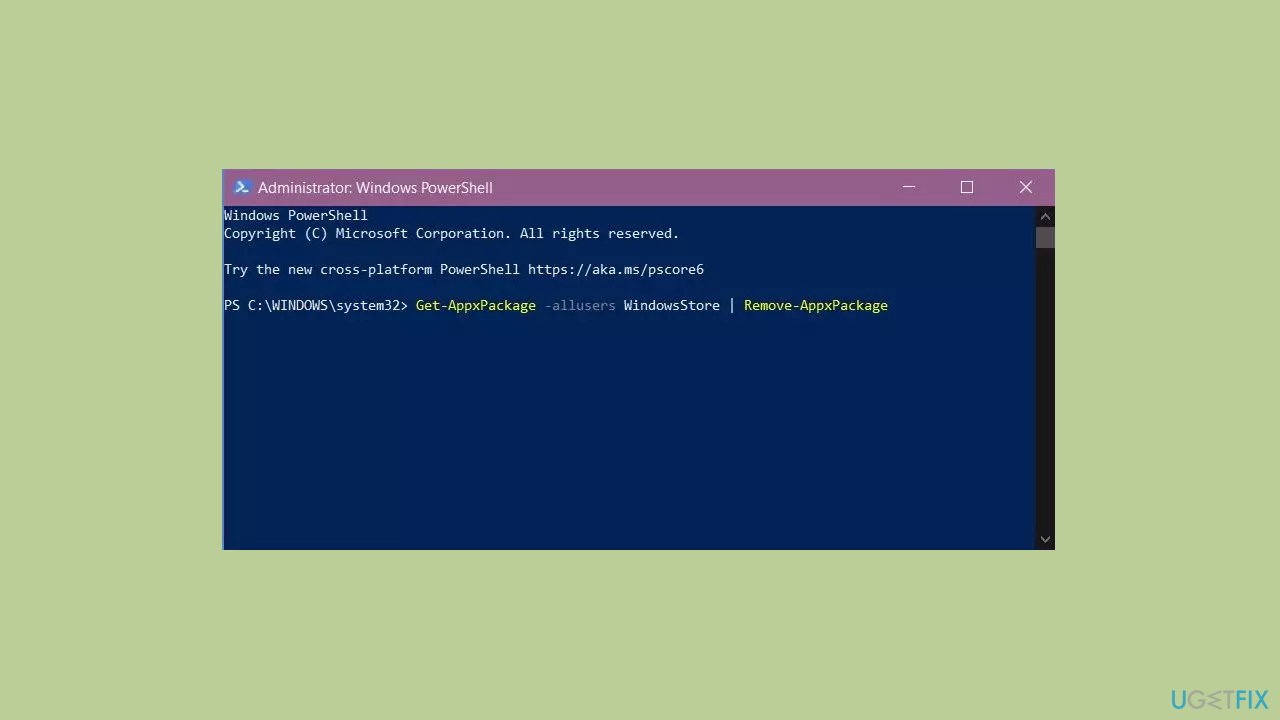
- After that, reinstall the Microsoft Store using the following command:
Get-AppxPackage -allusers Microsoft.WindowsStore | Foreach {Add-AppxPackage -DisableDevelopmentMode -Register “$($_.InstallLocation)\AppXManifest.xml”}
- Reboot your PC.
Bottom line
To fix the Microsoft Store error 0x80131509, users can run the Microsoft Store Apps Troubleshooter, which helps identify and resolve issues. If the problem persists, consider using a maintenance tool to address system errors or follow additional troubleshooting steps outlined in the guide.
Frequently asked questions
This error typically occurs due to corrupted cache files, issues with Windows Update, or problems with your Microsoft account settings. It's important to check these areas to resolve the error.
You can clear the cache by pressing Windows + R, typing 'wsreset.exe', and hitting Enter. This will reset the Microsoft Store cache without affecting your installed apps.
If resetting does not work, try running the Windows Update troubleshooter or reinstalling the Microsoft Store app via PowerShell commands to fix the issue.




Report an issue
What's wrong with this guide? We review every report and update or remove content.
Report received — thank you. We'll review and fix it.
You need a free account to submit a report.
Be the first to comment