How to fix
Microsoft Store error 0x803F800A
on Windows
Resolve Microsoft Store error 0x803F800A on Windows 10 or 11 swiftly with expert-tested solutions and screenshots to guide you every step of the way.

What causes How to fix Microsoft Store error 0x803F800A in Windows?
- Corrupted system files
- App's bugged caches
- Temporary bugs in Microsoft Store
- Issues related to the operating system version
- Network connectivity problems
Repairs Windows system files, removes malware, and restores a clean OS state — without reinstalling.
Hello. Whenever I try to download an application from Microsoft Store, it says there was an error, and I can't download it. The error code mentioned is 0x803F800A. I am running Windows 10 version 21H2, if that helps.
Microsoft Store, previously known as Windows Store, is a digital marketplace that hosts thousands of apps in its arsenal, allowing users to access it at any time. Users can access the Store directly from their computer without having to visit any third-party websites, which makes it extremely convenient and secure, as all the applications undergo excessive security checks before being put in there.
Overall, security experts recommend always picking official sources rather than third-party ones, as the latter might push potentially unwanted or even malicious programs via bundlers.
Despite being one of the most useful assets since the Windows 8 release, Microsoft Store has flaws as well. One of the most common complaints is that it sometimes fails to work, and users are faced with errors such as 0x803F800A - an issue that many users have been reporting for several years now.
People might encounter Windows errors under different circumstances. As evident, the Microsoft Store errors occur when users try to download a new app or update an existing one. The 0x803F800A error was seen on all operating system versions, including the latest Windows 11.
The error message users receive is rather generic, and there's not much information provided about why the issue occurred or how to resolve it. This is not surprising, as Microsoft can't provide immediate fixes due to multiple factors that could influence the error's occurrence, and it varies from machine to machine.
In most cases, the errors in Microsoft Store occur due to a simple bug[ref en-3] that should go away in a short amount of time. If it doesn't, there are several methods to initiate the change and return back to normal operation. Corrupted system files, app's bugged caches, and similar issues could be related to the problem - we provide solutions for all of them below.
Before proceeding with 0x803F800A error fixes, we recommend you perform a scan with a powerful PC repair tool [d1], which can automatically find and replace damaged system components. Thanks to its unique technology, it replaces damaged sectors with brand new ones, consequently fixing the most common Windows issues, including Blue Screen[ref en-2] errors, random reboots, DLL[ref en-1] errors, registry issues, and much more.
Solution 1. Run the troubleshooter
As it is common in our articles, we recommend starting with the built-in Windows feature - a troubleshooter. While it may not always work and fix the 0x803F800A error, it might point you in the right direction.
- Type Troubleshoot in Windows search and press Enter
- On the right side, click Additional troubleshooters
- Scroll down to find the Windows Store Apps entry
- Select it and click Run the troubleshooter
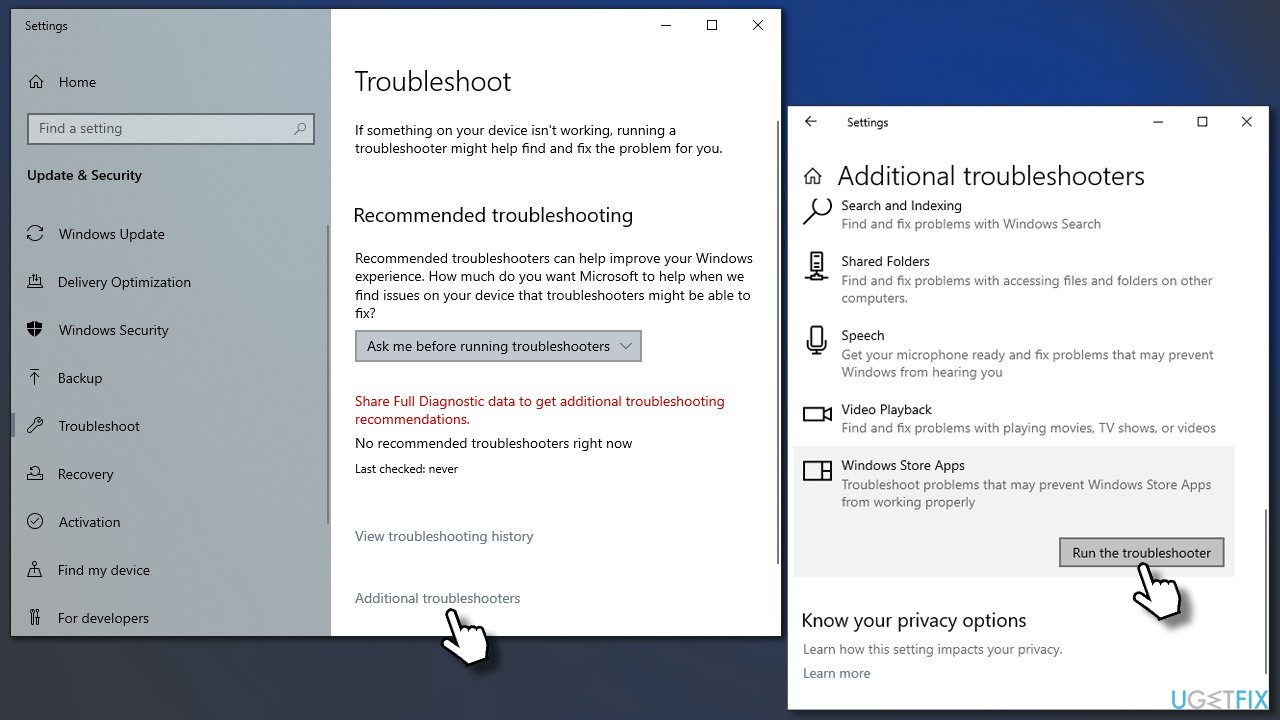
How to fix microsoft store error 0x803f800a in windows run troubleshooter - Wait till the scan is finished and then apply the suggested fixes.
Solution 2. Try logging out and in the Microsoft Store
Sometimes the issue lies within bugged account data. You might want to try logging out and then back in, and see if that helps.
- Launch Microsoft Store
- Click on your Profile picture and click Sign out
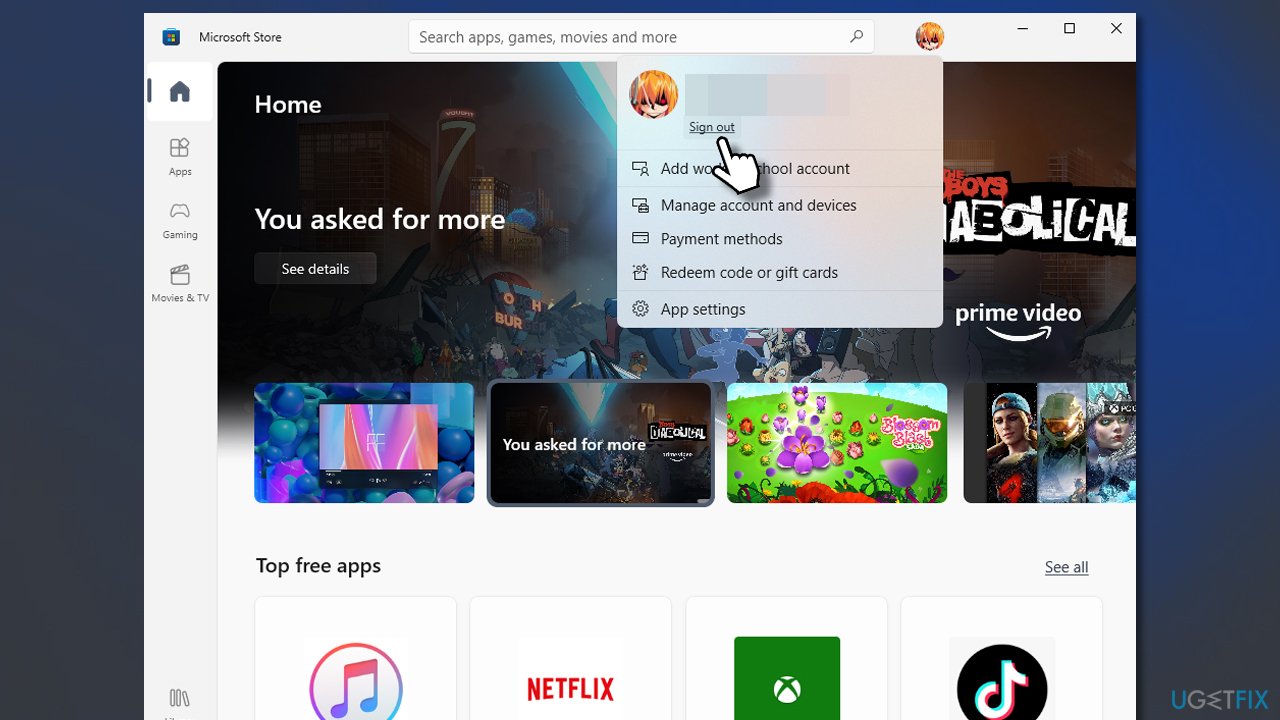
How to fix microsoft store error 0x803f800a in windows relog - Restart your computer
- Once back, open the Store again
- Click on the user icon and select Sign in
- Enter username and password and see if that solved the problem.
Solution 3. Reset Microsoft Store cache
- In Windows search, type wsreset.exe and press Enter
- Wait till a black window shows up – do not close it
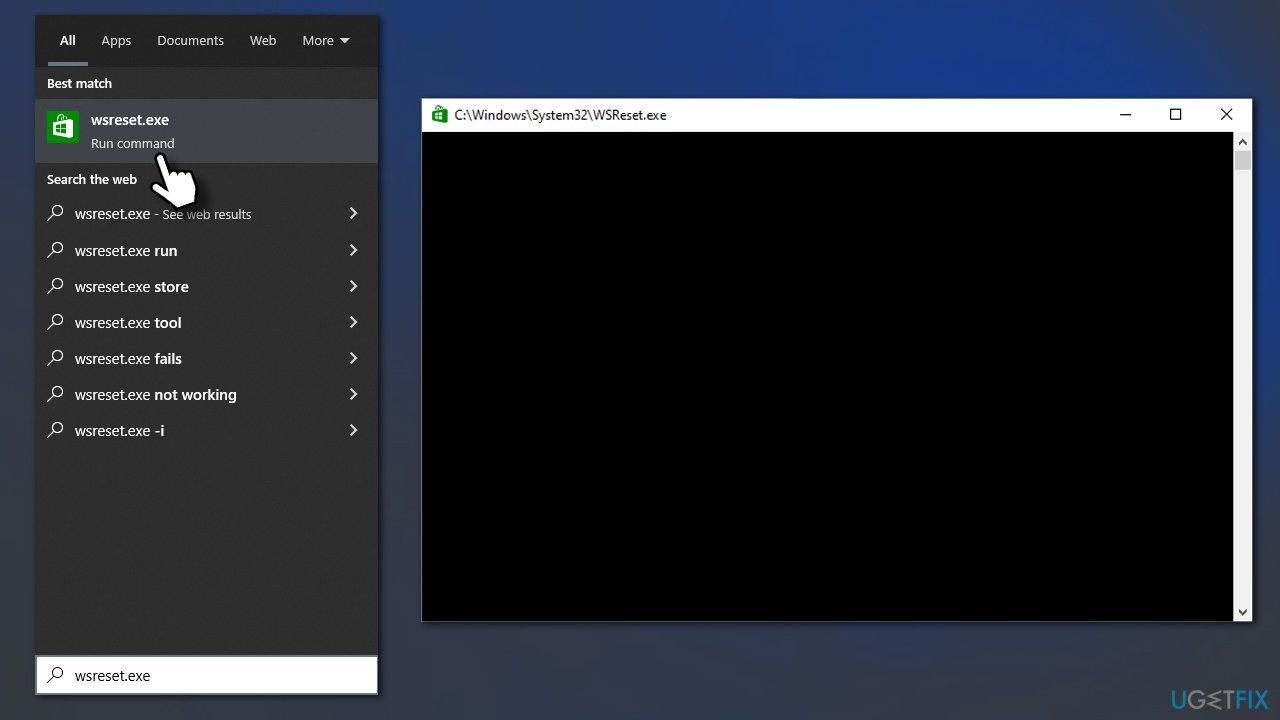
How to fix microsoft store error 0x803f800a in windows reset store cache - Once it's gone Microsoft Store should startup
- Try using the store again.
Solution 4. Run SFC and DISM
If the corrupted files are the reason for Store failures, running SFC and DISM scans could fix the problem.
- Type cmd in Windows search
- Right-click on Command Prompt and select Run as administrator
- When User Account Control shows up, click Yes
- Paste the following command and press Enter:
sfc /scannow - Wait till the scan is finished and run the following commands, pressing Enter each time:
dism /online /cleanup-image /checkhealth
dism /online /cleanup-image /scanhealth
dism /online /cleanup-image /restorehealth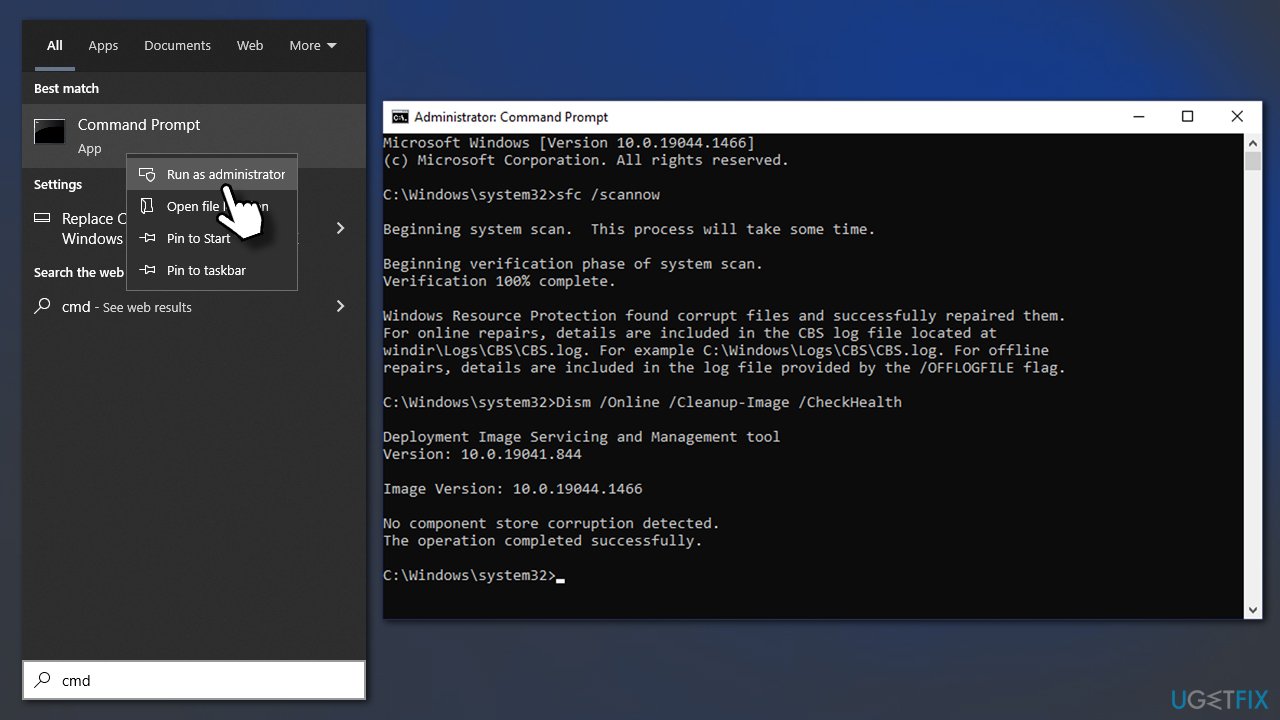
How to fix microsoft store error 0x803f800a in windows sfc dism - Restart your device.
Solution 5. Install all the pending updates
Make sure that all the apps and the operating system have all the available (pending) updates installed.
- Open Microsoft Store
- Go to Library
- At the top-right corner, click Get updates
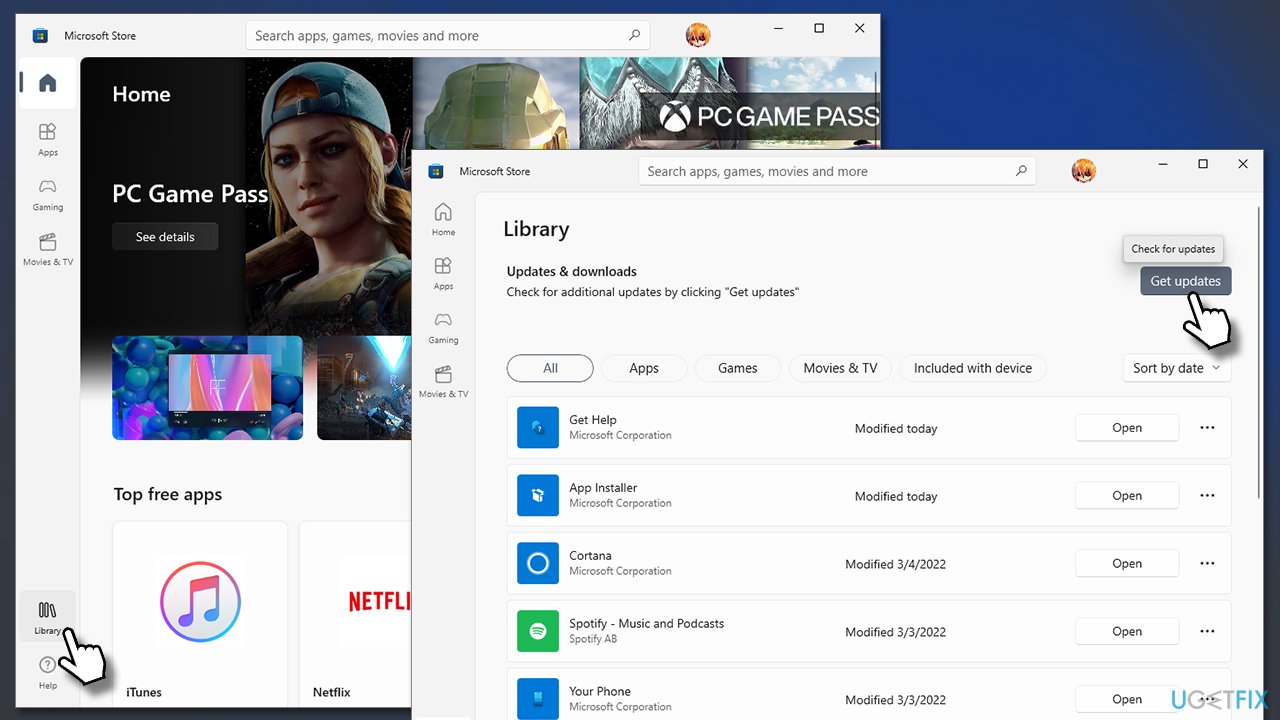
How to fix microsoft store error 0x803f800a in windows install all updates - Wait till all the updates are applied
- Next, type in Updates in Windows search and press Enter
- Select Check for updates and wait till everything is installed
- If there are optional updates available - install them too
- Restart your system.
Solution 6. Repair and/or Reset Microsoft store
- Right-click on Start and pick Apps & Features
- Scroll down to locate Microsoft Store and click Advanced options
- Click Terminate and Repair
- If that does not help, try the Reset option instead.
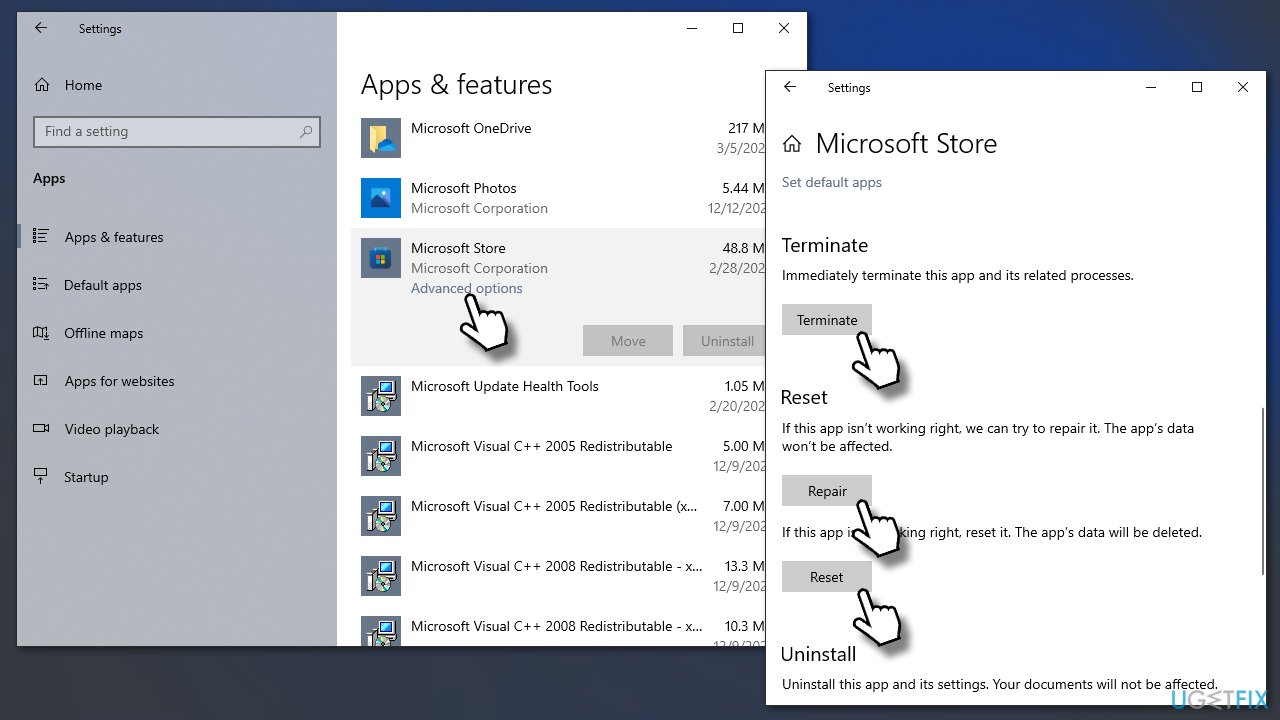
How to fix microsoft store error 0x803f800a in windows reset or repair
Solution 7. Reinstall Microsoft Store app through Powershell
If the above method does not help, you should reinstall MS Store. You can't uninstall it in a regular way, however, so you will have to employ Powershell for the job.
- Make sure your Microsoft Store is closed and not running in the background
- Right-click on Start and select PowerShell (Admin)
- Paste the following command and press Enter:
Get-AppXPackage *Microsoft.WindowsStore* | Foreach {Add-AppxPackage -DisableDevelopmentMode -Register “$($_.InstallLocation)\\AppXManifest.xml”} - Close Powershell.
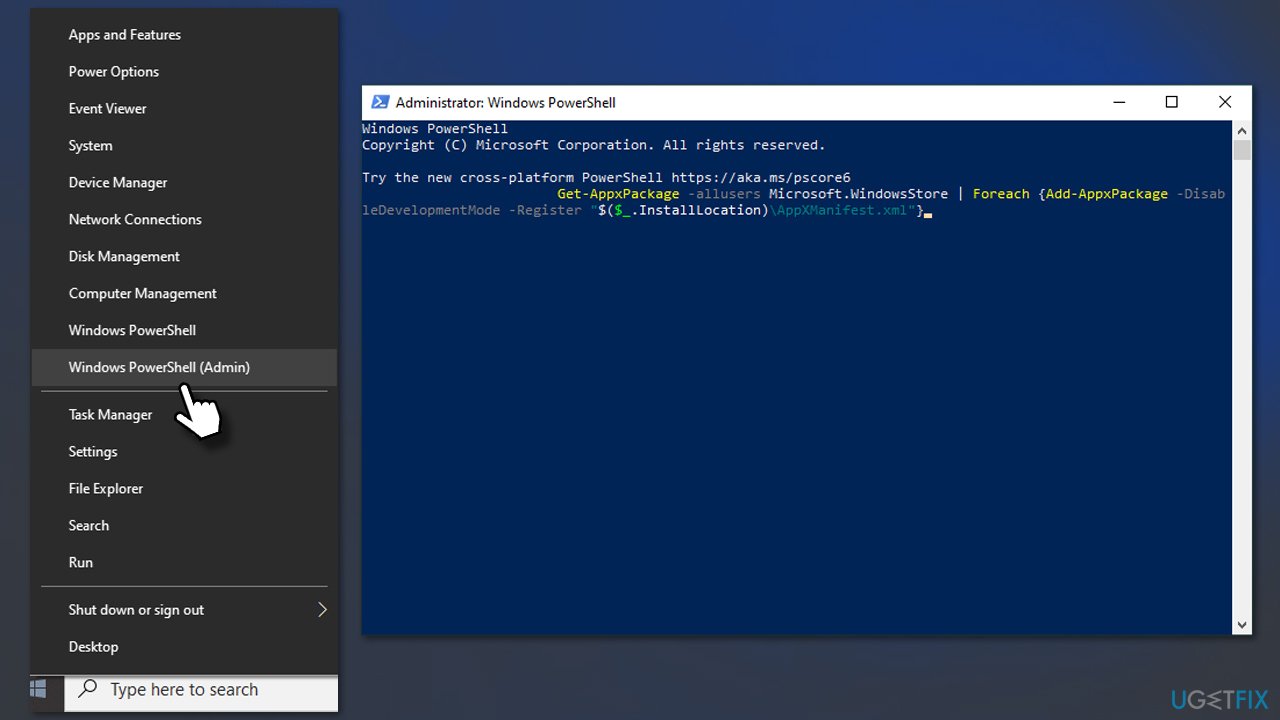
How to fix microsoft store error 0x803f800a in windows reinstall store
Bottom line
To fix the 0x803F800A error, users can try clearing the Microsoft Store cache, resetting the Store app, checking for Windows updates, and ensuring a stable internet connection. If none of these solutions work, further investigation into system files or contacting Microsoft support may be necessary.
Frequently asked questions
This error typically occurs due to network connectivity issues, corrupted cache, or problems with the Microsoft Store app itself.
You can clear the cache by pressing Win + R, typing 'wsreset.exe', and hitting Enter, which will reset the Microsoft Store without changing your account settings.
In Windows 11, you can also try checking for updates in Settings > Windows Update, or running the Windows Store Apps troubleshooter to automatically detect and fix issues.




Report an issue
What's wrong with this guide? We review every report and update or remove content.
Report received — thank you. We'll review and fix it.
You need a free account to submit a report.
Be the first to comment