How to fix
Microsoft Store error 0x8086000c
on Windows
Resolve Microsoft Store error 0x8086000c on Windows 10/11 effortlessly. Get expert-tested solutions for a seamless app experience! Fixed in minutes.


What causes How to fix Microsoft Store error 0x8086000c in Windows?
- Invalid Microsoft Store cache
- Server or connectivity problems
- Corrupted system files
- Interference from third-party programs
- Unsupported operating system
Repairs Windows system files, removes malware, and restores a clean OS state — without reinstalling.
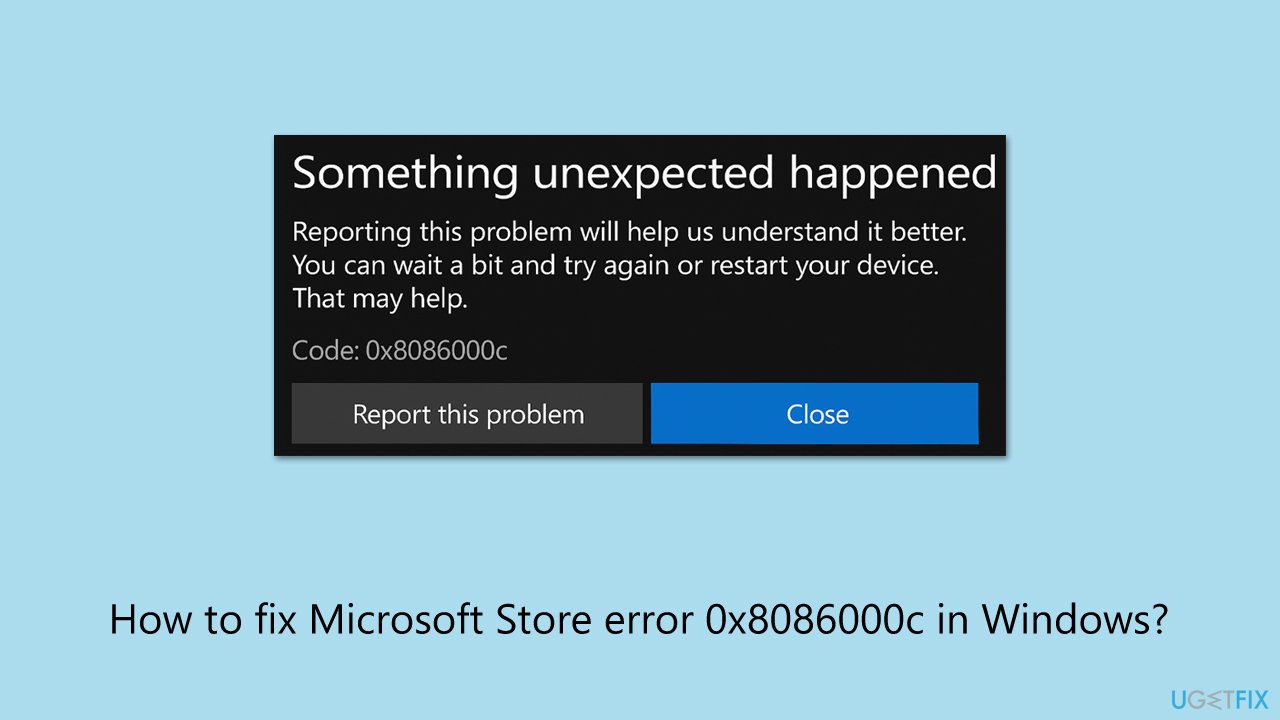
I keep getting a strange error every single time I try to download any apps from Microsoft Store. The message says "Something happened and your purchase cannot be completed. Error code 0x8086000c". I don't understand this because I am not purchasing anything, I'm just trying to download VLC app, which is free.
Windows error code 0x8086000c is a bothersome issue that is most frequently reported when attempting to install or update applications through the Microsoft Store, typically on Windows 10 or Windows 11 operating systems. The error shows a message such as "Something unexpected happened," signaling failure in the installation of an application or its update. This can no doubt hinder users from employing those nescessary apps for work or entertainment purposes.
Although less reported, the 0x8086000c error Windows displays is shared with other Microsoft Store errors that users encounter when they are having issues downloading applications on other versions of Windows.
There are numerous possible underlying reasons for this error, so it is necessary to address them in an organized manner. The app installation might be interrupted by an invalid Microsoft Store cache, but clearing it with a simple command helps correct the problem. Server or connectivity problems with the Microsoft Store may also result in this fix 0x8086000c error, and this is usually corrected by simply checking a solid internet connection or signing out and back into the Store.
Besides, corrupted system files can cause disruptions to the functioning of the Store, and running tools like SFC and DISM can repair such files to allow for seamless installments. Third-party programs, such as antivirus software, can complicate the Store's functions, thus temporarily disabling such programs can prove useful, while an unsupported operating system of Windows can be updated to align with the Store's latest requirements.
The following are eight repairs to fix the error code 0x8086000c. Alternatively, we recommend using [d1], a PC repair application that can automatically repair installation issues, file corruption, and other problems that might be causing the 0x8086000c error Windows.
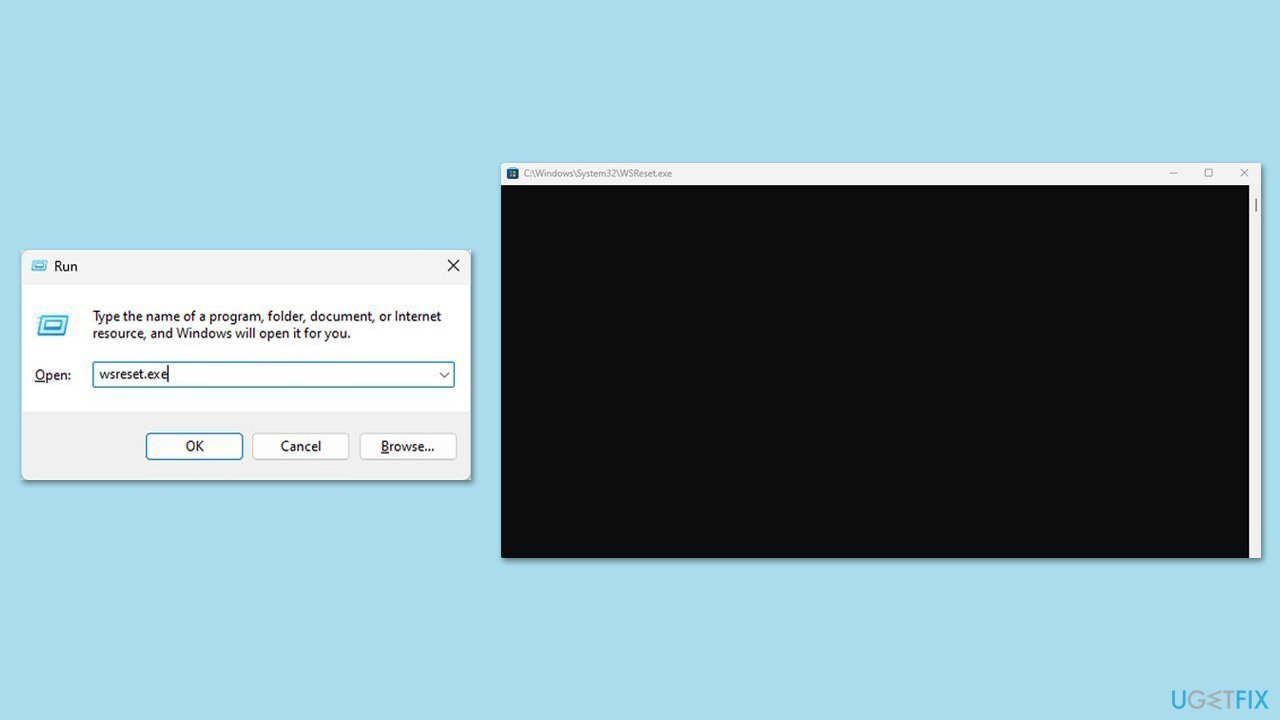
Fix 1. Clear Microsoft Store cache
Corrupted cache files can accumulate over time in the Microsoft Store, leading to installation failures like the 0x8086000c error, and clearing them forces the Store to rebuild its data
- Press the Win + R on your keyboard to open the Run dialog box.
- In the dialog box, type wsreset.exe and then hit Enter or click OK.
- A blank Command Prompt window will open (do not close it), and after about ten seconds, the window will close, and the Microsoft Store will open automatically.
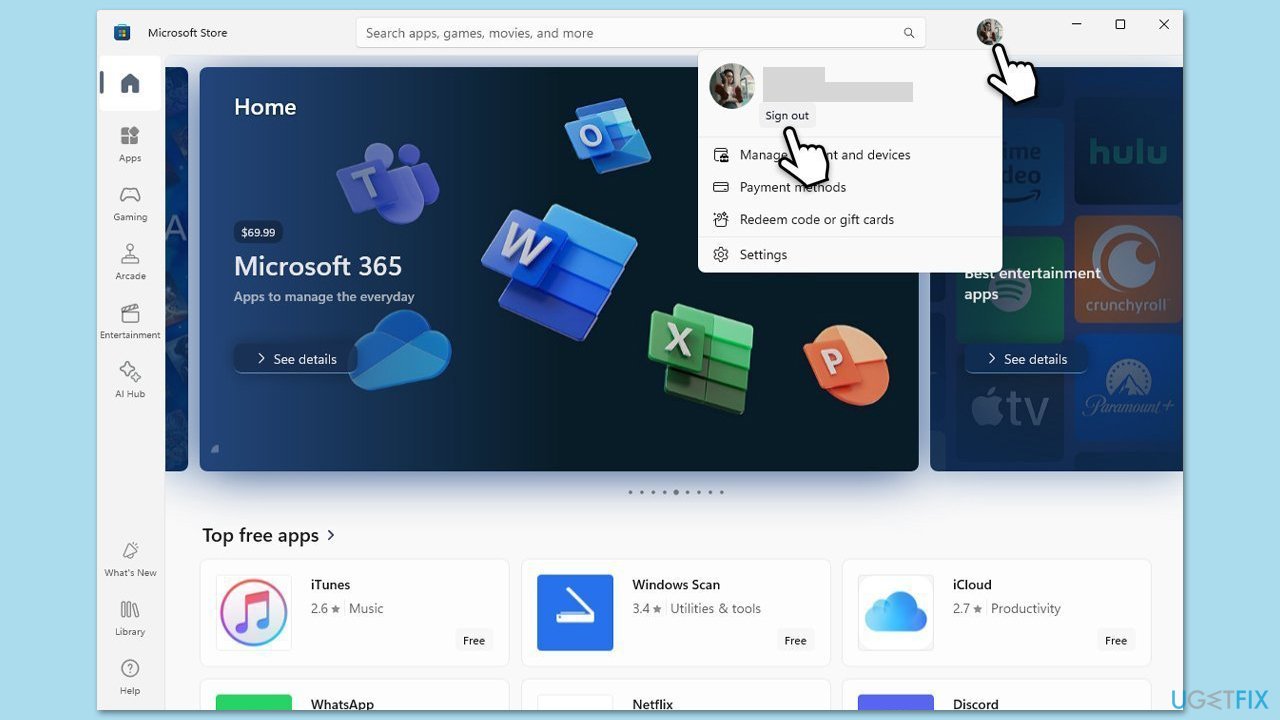
Fix 2. Sign out and sign back into Microsoft Store
Sometimes the Microsoft Store fails to sync properly with your account credentials, which can disrupt app installations, so signing out and back in refreshes the authentication process and might fix the error.
- Launch Microsoft Store.
- Click on your Profile picture and click Sign out.
- Restart your computer.
- Sign back in again with your account credentials.
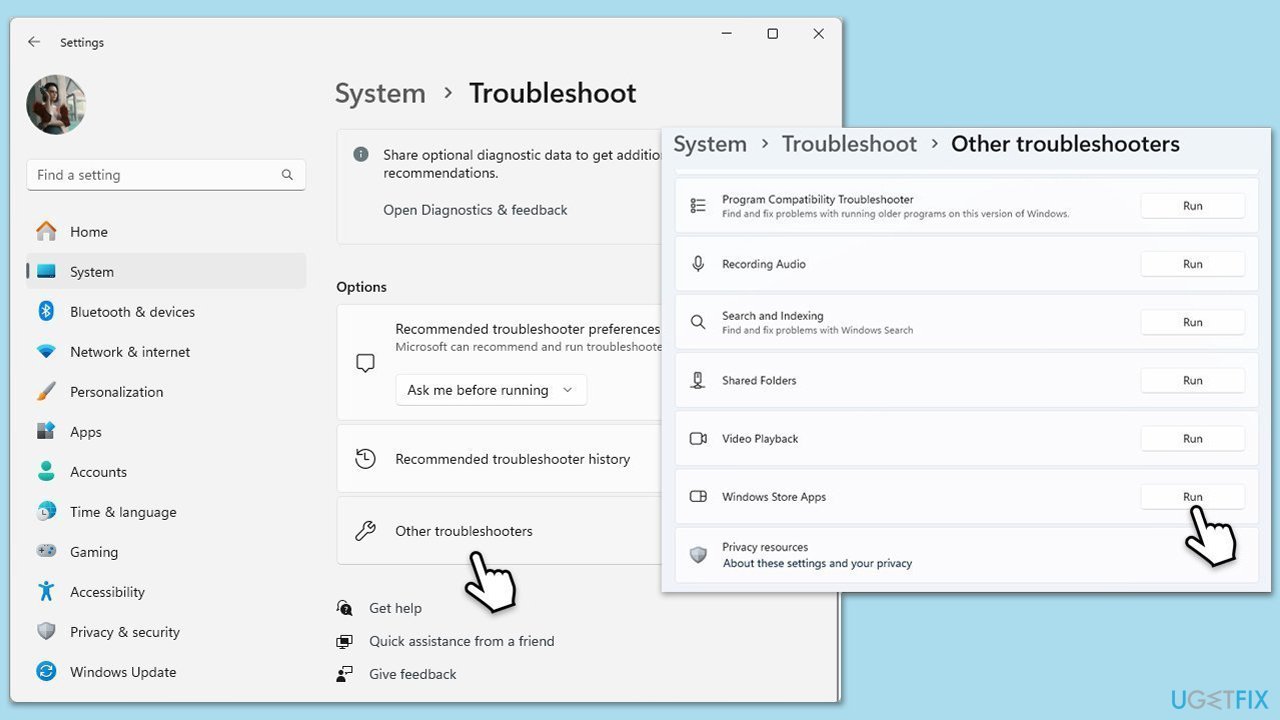
Fix 3. Run Microsoft Store troubleshooter
Microsoft Store troubleshooter is designed to identify and resolve specific problems with app downloads, such as misconfigured settings or broken services.
- Type Troubleshoot in Windows search and hit Enter.
- Click Additional troubleshooters/Other troubleshooters.
- Scroll down to find Windows store apps and select it.
- Click Run the troubleshooter/Run.
- Wait till the process is finished and apply the fixes, then try using Store again.
Fix 4. Update Windows
An outdated Windows version can cause compatibility issues with the Store.
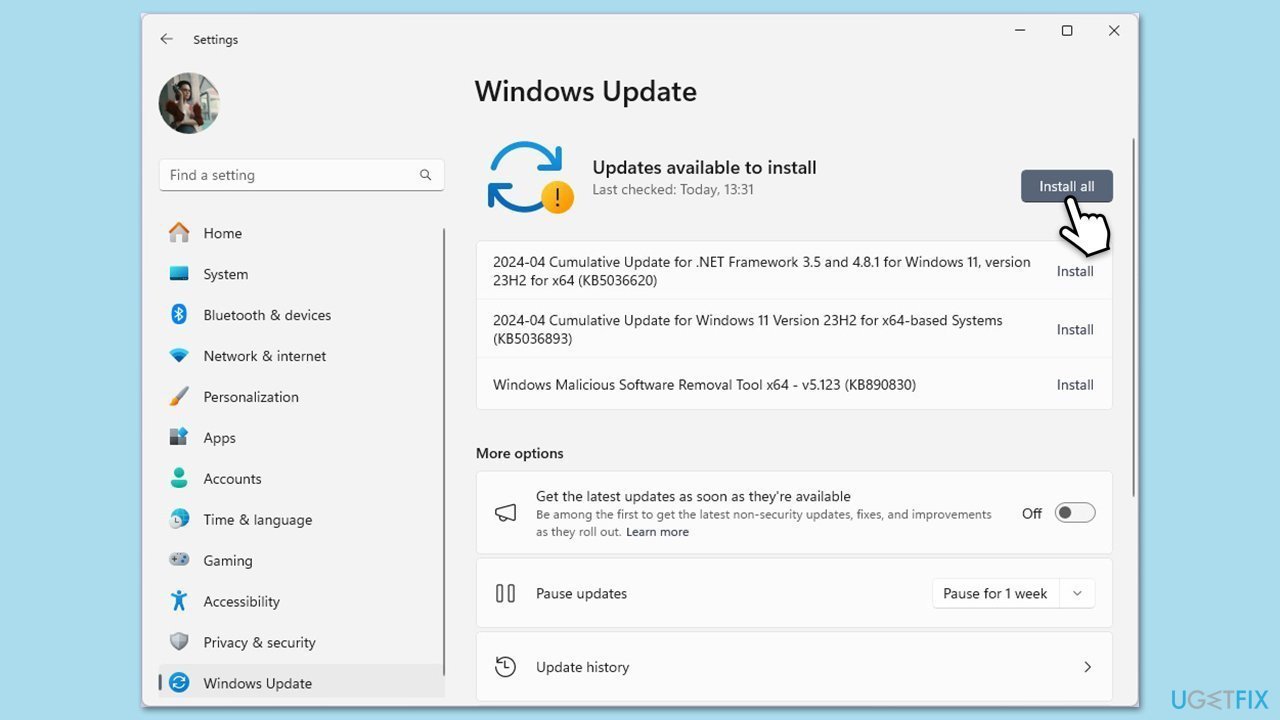
- Type Updates in Windows search and hit Enter.
- In the Windows update window, click Check for updates or Install all if pending.
- Ensure you also install all the optional updates.
- Once all the files are installed, reboot your system to implement changes.
Fix 5. Repair corrupted system files
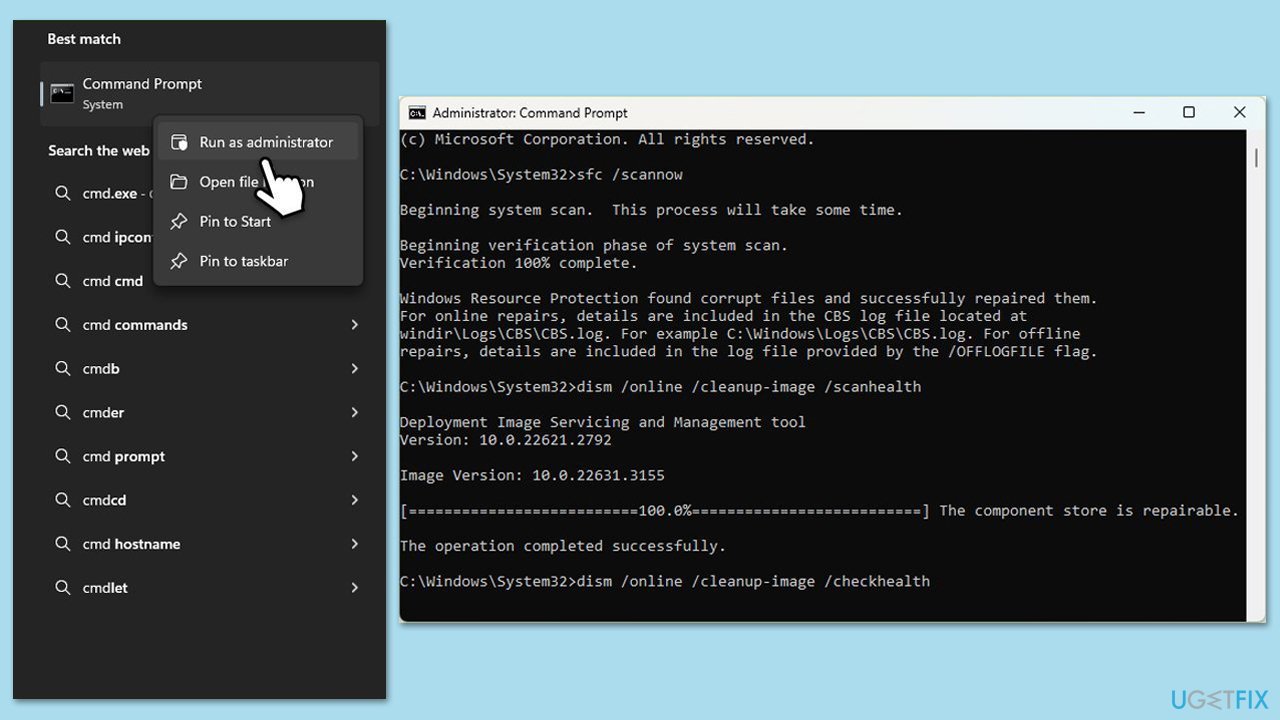
System file corruption can interfere with the Microsoft Store’s ability to process app installations, and using SFC and DISM scans can detect and restore damaged files.
- Type cmd in Windows search bar.
- Right-click on Command Prompt and pick Run as administrator.
- The User Account Control window will ask whether you allow changes - click Yes.
- Copy and paste the following command, pressing Enter after:
sfc /scannow - Wait till the scan is finished. If Windows finds system file integrity violations, it will attempt to fix them. After this, use the set of the following commands, pressing Enter each time:
DISM /Online /Cleanup-Image /CheckHealth
DISM /Online /Cleanup-Image /ScanHealth
DISM /Online /Cleanup-Image /RestoreHealth - (Note: if you get an error executing this last command, add /Source:C:\RepairSource\Windows /LimitAccess to it and try again).
- Close down the Command Prompt and restart your system.
Fix 6. Try running Clean Boot
Third-party software like anti-malware could inerfere with app downloads or updates. You can determine which software is the problem by booting your PC in Clean Boot state.
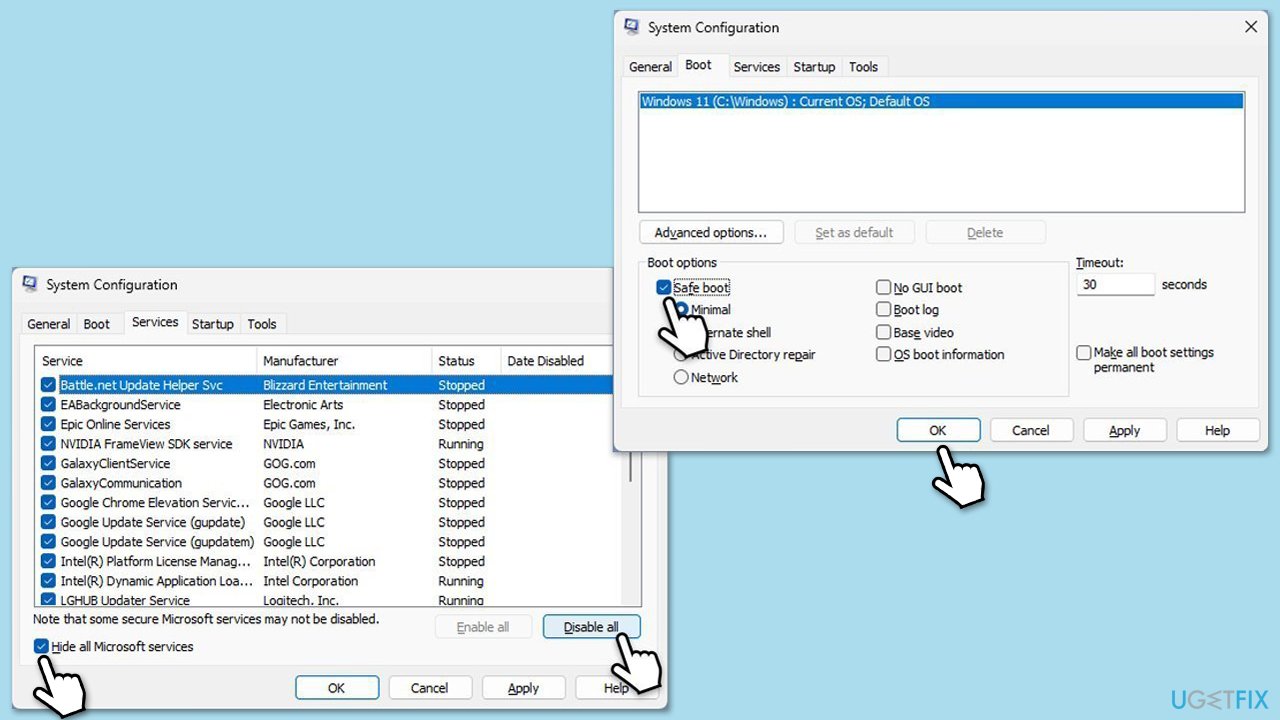
- Type msconfig inWindows Search and press Enter to open the System Configuration window.
- Click on the Services tab and check the Hide all Microsoft Services box.
- Click Disable all to disable non-Microsoft services, then click the Startup tab.
- Open the Task Manager, disable all startup items, and close the Task Manager.
- Go to the Boot tab and mark the Safe boot option.
- Click OK on the System Configuration window and restart your computer.
- If everything works fine, you should enable half of the processes and repeat the process. Keep doing this until you find the culprit. Update or uninstall conflicting software.
Fix 7. Reset Microsoft Store
Resetting the Microsoft Store removes all its settings and data, effectively starting fresh, which can eliminate persistent glitches or corrupted configurations that are causing the 0x8086000c error during app installations.
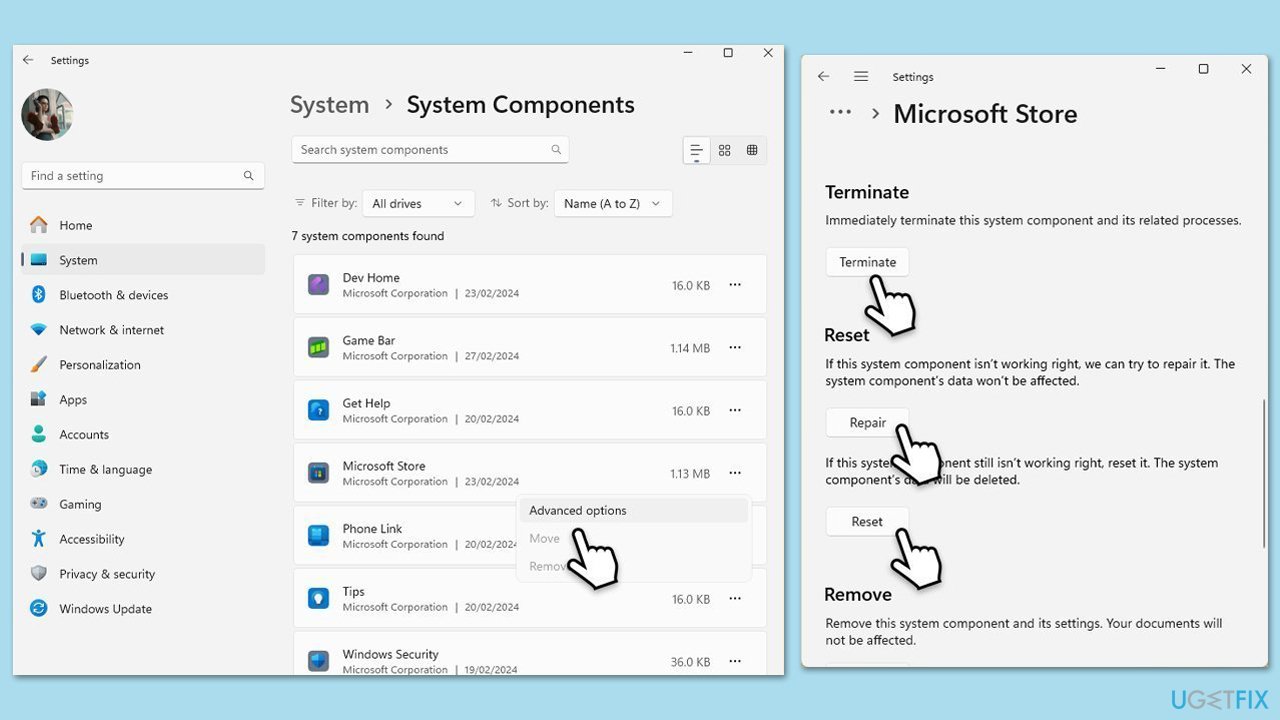
- Right-click on Start and select Apps & Features/Installed apps.
- Scroll down to find Microsoft Store and click Advanced options or go to Settings > System > System Components > Advanced options.
- Scroll down again and click Terminate and Repair.
- If that does not work, try using Reset.
Fix 8. Re-register Microsoft Store
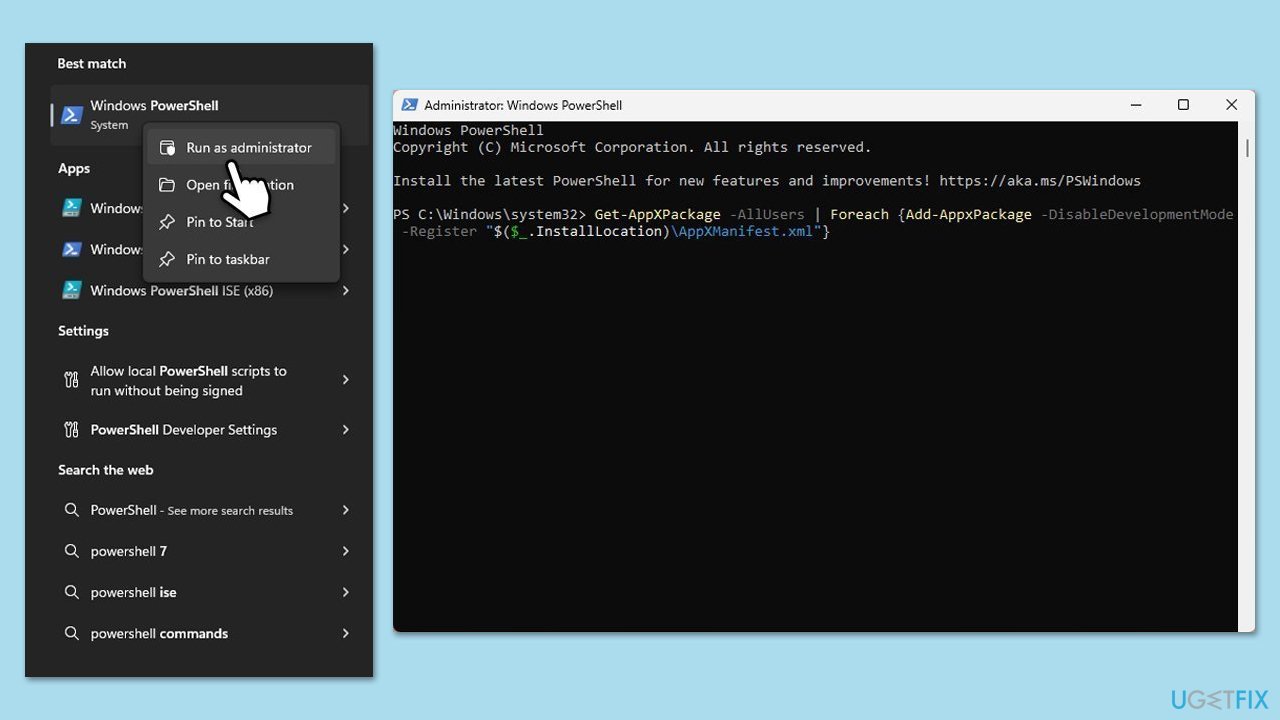
If the Microsoft Store’s registration in Windows becomes corrupted, it can fail to install apps properly, and re-registering it through PowerShell rebuilds its core components.
- Type PowerShell in Windows search.
- Right-click on PowerShell and select Run as administrator.
- When UAC shows up, click Yes.
- Type in the following and press Enter:
ren %localappdata%\Packages\Microsoft.WindowsStore_8wekyb3d8bbwe\LocalState cache.old - Then type the following and press Enter:
powershell -ExecutionPolicy Unrestricted
Get-AppXPackage -AllUsers | Foreach {Add-AppxPackage -DisableDevelopmentMode -Register "$($_.InstallLocation)\AppXManifest.xml"} - Restart your system.
Bottom line
To fix the Microsoft Store error 0x8086000c, you can clear the Microsoft Store cache, check your internet connection, run SFC and DISM tools, and temporarily disable any third-party antivirus software. If your operating system is outdated, consider updating it to meet the Store's requirements. If none of these solutions work, consider using a PC repair application to address the issue.
Frequently asked questions
This error is typically caused by issues related to corrupted cache files, problems with Windows Update, or incorrect system settings affecting the Microsoft Store.
You can clear the Microsoft Store cache by pressing Win + R, typing 'wsreset.exe', and hitting Enter, which will reset the cache and may resolve the error.
Yes, you can repair the Microsoft Store by going to Settings > Apps > Apps & features, finding Microsoft Store, clicking on Advanced options, and selecting the Repair option.




Report an issue
What's wrong with this guide? We review every report and update or remove content.
Report received — thank you. We'll review and fix it.
You need a free account to submit a report.
Be the first to comment