How to fix
Microsoft Store error 0x8A150006
on Windows
Resolve Microsoft Store error 0x8A150006 on Windows 10 or 11 with our expert tips. Get back to downloading apps quickly and easily—fixed in minutes!

What causes How to fix Microsoft Store error 0x8A150006?
- Need for Administrator privileges
- Corrupted Windows Store files
- Incorrect date and time settings
- Issues with the current user account
- Outdated Windows version
Repairs Windows system files, removes malware, and restores a clean OS state — without reinstalling.
Hello. I tried to install different apps from the Microsoft Store but I receive the 0x8A150006 error and a message saying that I need Administrator privileges. How do I fix this?
Microsoft Store provides a digital distribution platform for people to download apps, making it very convenient. With the built-in app for Windows, users can install and update their programs in one place, rather than having to search through unsafe sources online.[ref en-1]
However, some users are experiencing difficulty installing programs from the Microsoft Store. The 0x8A150006 error code appears, and a message is displayed stating that administrator privileges are required to install specific programs. No matter how many times people try, installing new apps becomes impossible with this error.
Although we don't know the precise reason, there are a couple of possibilities for why the Windows Store might not be working. Maybe you need to create a new local account with administrator privileges, reset the store, or change your date and time settings. In this guide, you will find 7 steps that should help you fix Microsoft Store error 0x8A150006.
Sometimes manual troubleshooting can be a lengthy process so you can also use a maintenance tool like [d1] to scan your machine. This powerful software can fix most system errors, BSODs,[ref en-2] corrupted files, and registry[ref en-3] issues. Otherwise, follow the step-by-step instructions below.
Method 1. Run the Store Apps Troubleshooter
- Type Troubleshoot in Windows search and press Enter
- Click Additional troubleshooters if you can't see them listed
- Scroll down to find Windows Store Apps
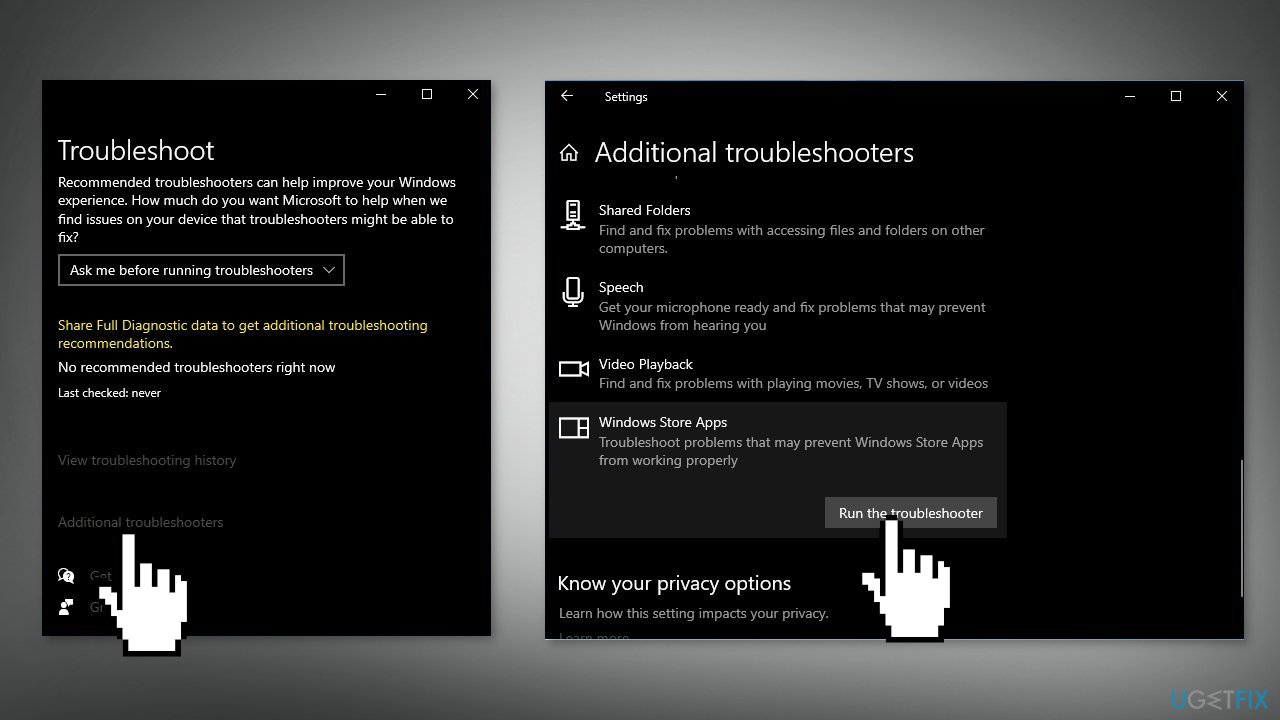
- Click and select Run the troubleshooter
Method 2. Update Windows
- Press the Windows key to open the Start menu
- Type Check For Updates
- Click on Check for Updates
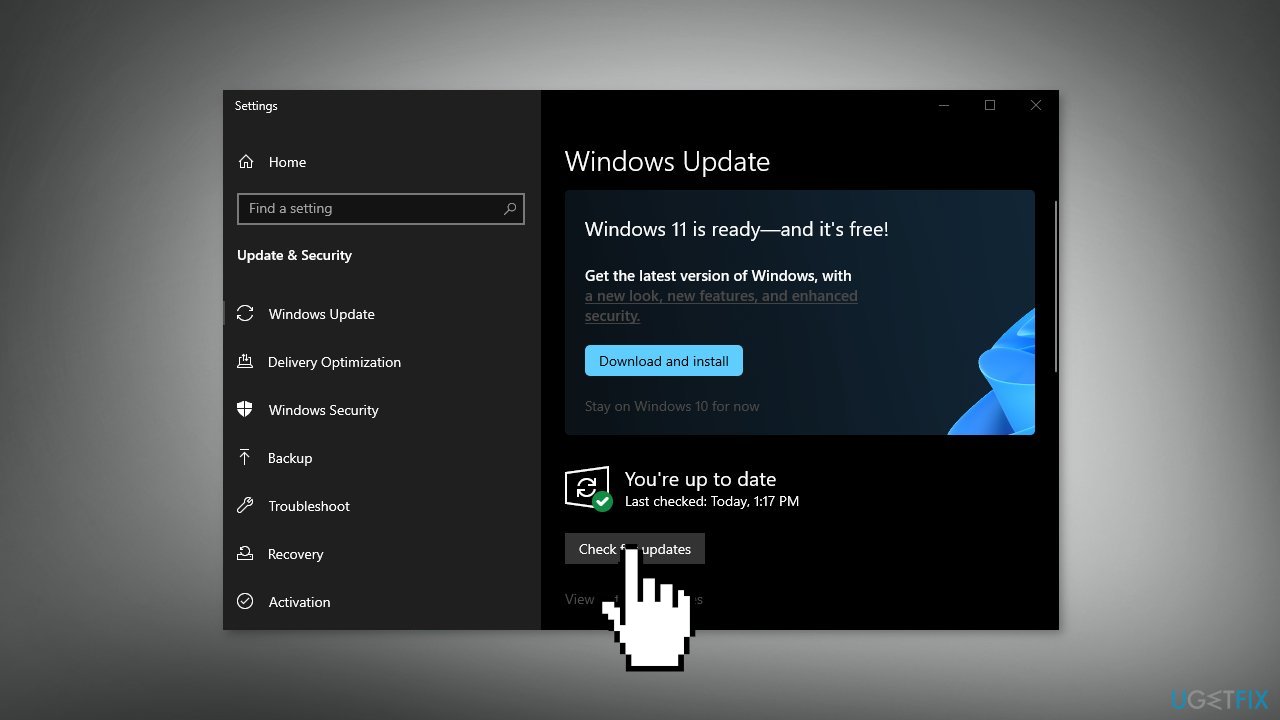
- Install any available recommended updates
Method 3. Create a new Local Account
- Open the Start menu, click the user icon, and then select Change account settings
- On the Settings dialog box, click Family & other users in the left pane
- Then, click Add someone else to this PC under Other users on the right
- Do not enter an email or phone number on the How will this person sign in screen. Instead, click the I don’t have this person’s sign-in information link
- Click the Add a user without a Microsoft account link at the bottom of the Microsoft account dialog box
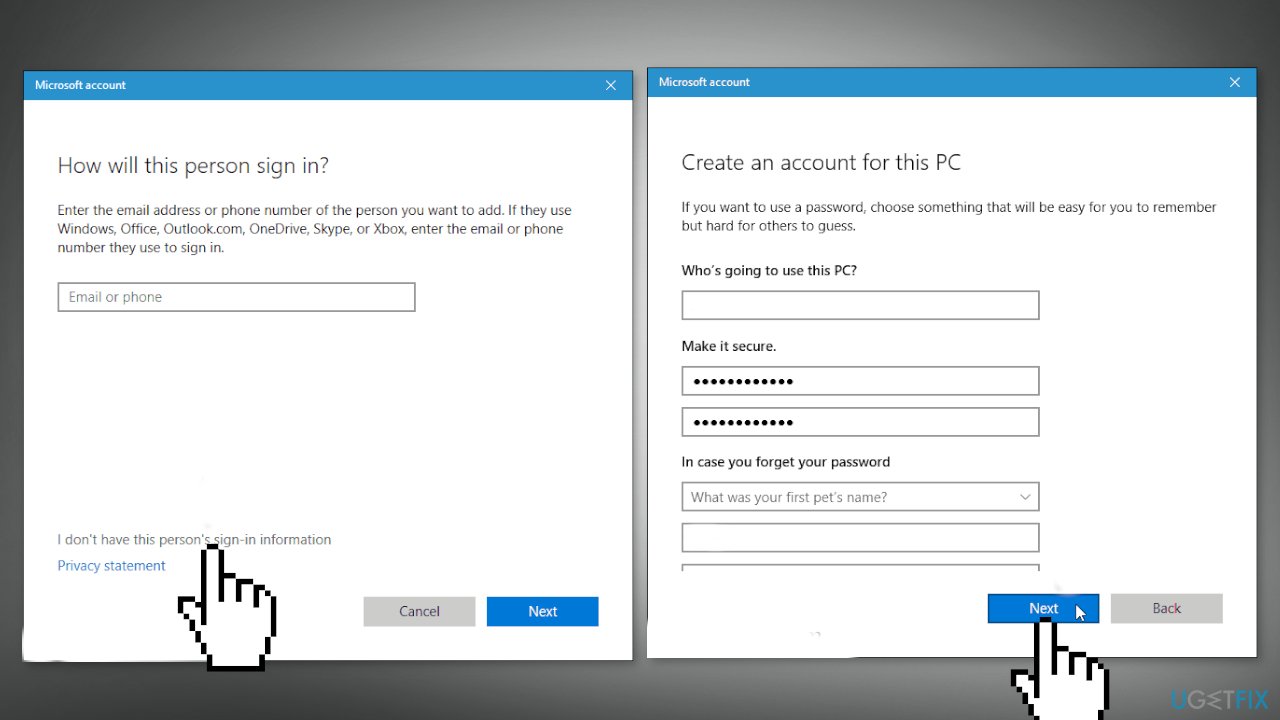
- Enter the user’s name under Who’s going to use this PC and type the password twice under Make it secure
- Select three security questions and enter answers for them under In case you forget your password
- Then, click Next. Microsoft creates a new local account
- Log in to the newly created account
- open the Start menu and click PC Settings
- Click Accounts on the Settings screen and then click Family & other users under Accounts in the left pane
- Click on the Standard account name and click Change account type
- Select Administrator from the Account type drop-down list and click OK
- See if the issue is corrected
Method 4. Adjust Date and Time Settings
- Open Settings and click on Time & Language
- Click on Date & time
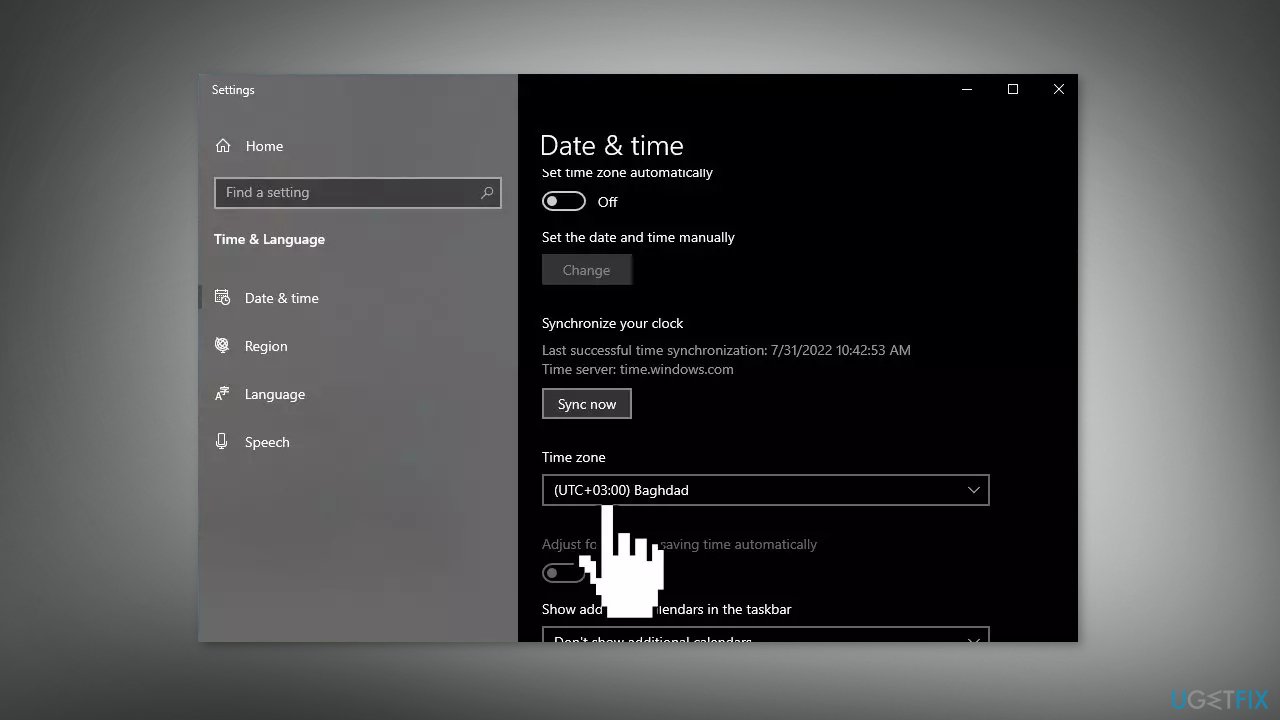
- Turn off the Set time zone automatically toggle switch
- Use the Time zone drop-down menu and select the correct zone setting
Method 5. Reset Microsoft Store
- Open the Windows Powershell from the search bar by typing powershell
- Right-click on the search result and select Run as Administrator
- If a UAC opens, hit Yes to provide your consent
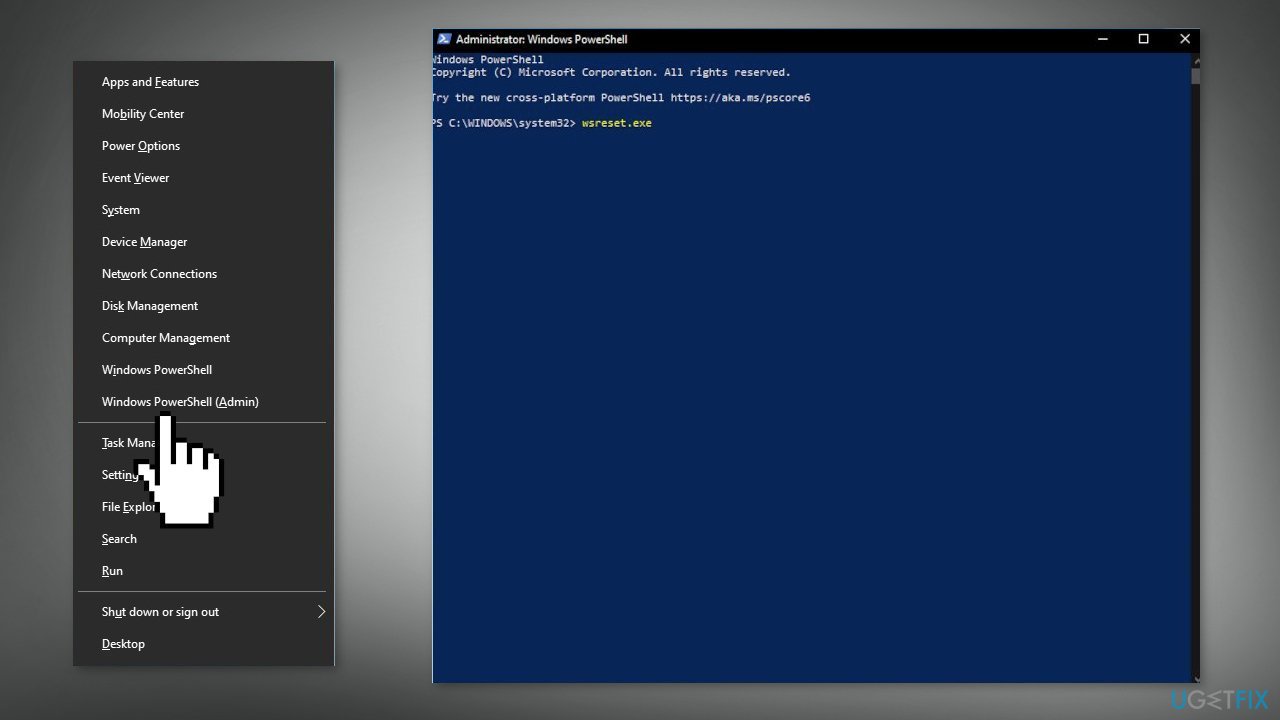
- Type WSReset.exe and hit Enter
Method 6. Re-register All Store Apps
- Press Windows + X keys
- Click Windows PowerShell (Admin)
- Type the following command and hit Enter:
Get-AppXPackage -AllUsers | Foreach {Add-AppxPackage -DisableDevelopmentMode -Register "$($_.InstallLocation)\AppXManifest.xml"}
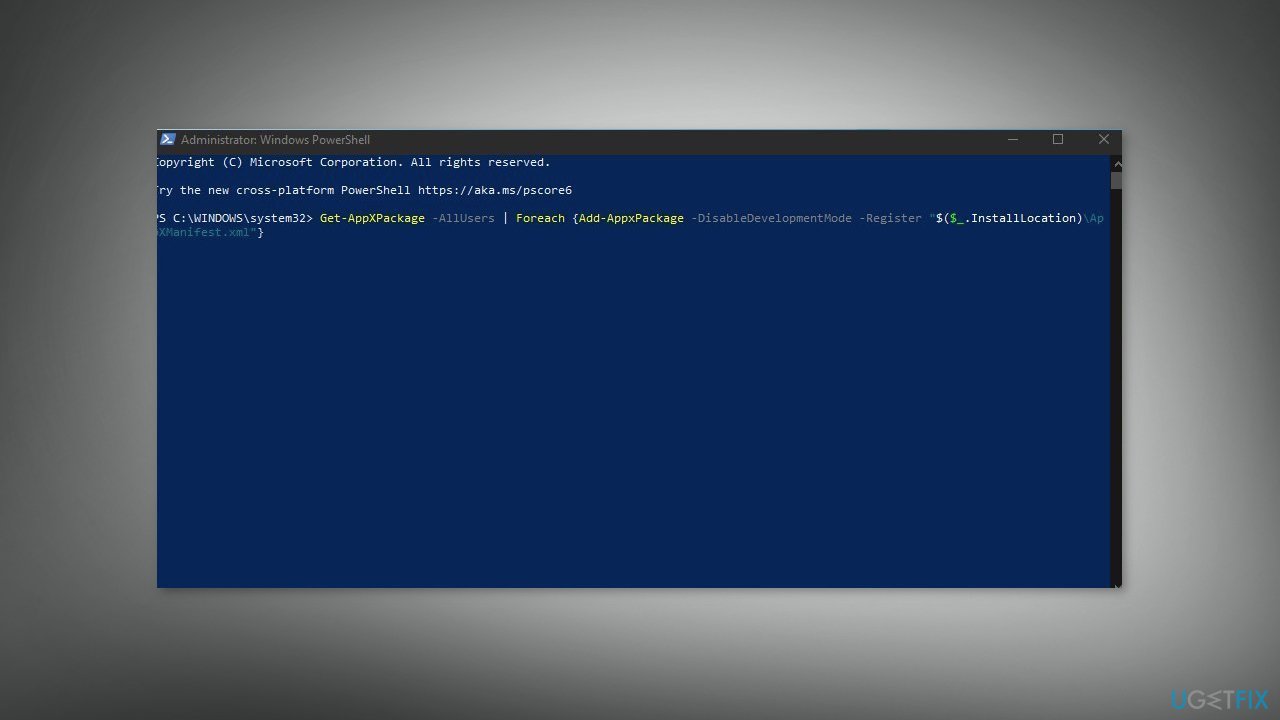
- Restart your PC
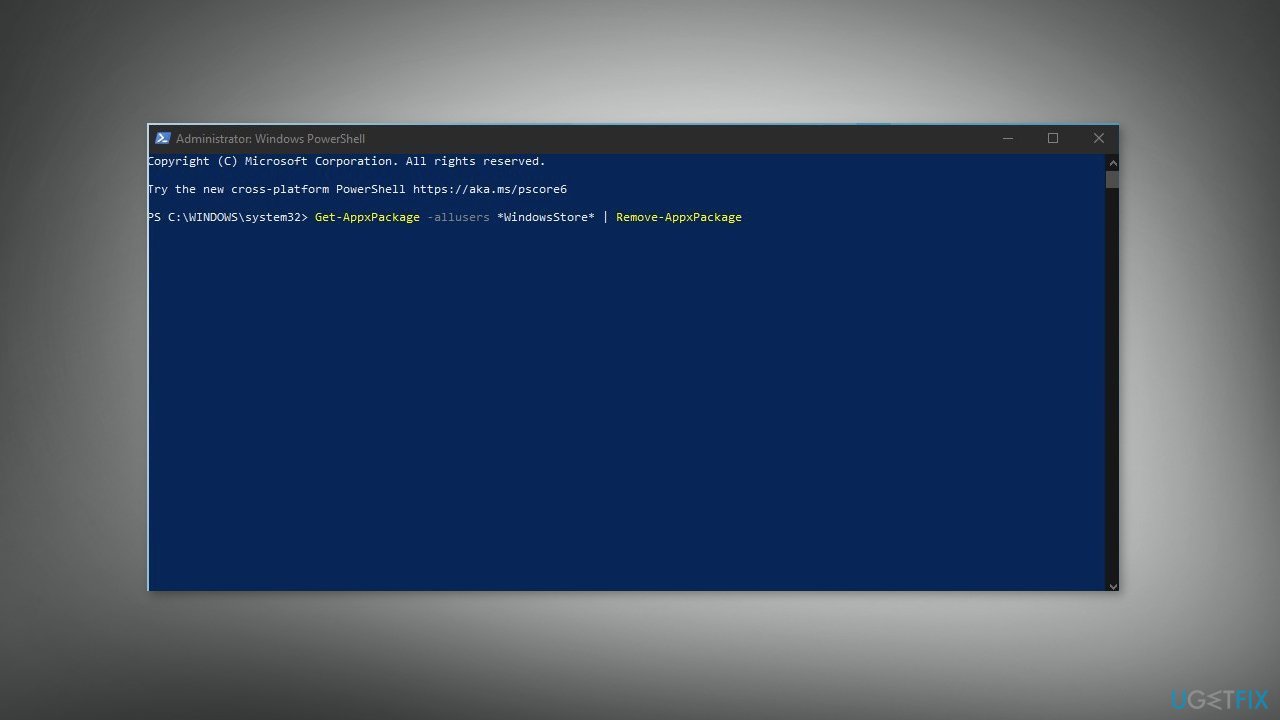
Method 7. Reinstall Microsoft Store
- Press Windows + X keys
- Click Windows PowerShell (Admin)
- At the prompt, type the following commands and hit Enter:
Get-AppxPackage -allusers *WindowsStore* | Remove-AppxPackage
Get-AppxPackage -allusers *WindowsStore* | Foreach {Add-AppxPackage -DisableDevelopmentMode -Register “$($_.InstallLocation)\AppXManifest.xml”}
Bottom line
To fix the Microsoft Store error 0x8A150006, you can run the Store Apps Troubleshooter, update Windows, or create a new local account with administrator privileges. If these methods do not resolve the issue, consider using a maintenance tool to scan for system errors.
Frequently asked questions
The error 0x8A150006 typically indicates a problem with app updates or installations in the Microsoft Store, often due to connectivity issues or corrupted cache files.
To clear the Microsoft Store cache on Windows 10 or Windows 11, press Win + R, type 'wsreset.exe', and hit Enter; this will reset the Store without changing your account settings.
Yes, ensure that your Windows 10 or Windows 11 system has the correct date and time settings, and verify that you are connected to a stable internet connection.




Report an issue
What's wrong with this guide? We review every report and update or remove content.
Report received — thank you. We'll review and fix it.
You need a free account to submit a report.
Be the first to comment