How to fix
Microsoft Store error 0xc0EA0002
on Windows
Quickly resolve Microsoft Store error 0xc0EA0002 on Windows 10 and 11 with our expert-tested solutions. Get back to downloading apps in minutes!

What causes How to fix Microsoft Store error 0xc0EA0002 in Windows?
- Corrupted Store cache files
- Misconfigured system services
- Network issues
- Outdated system components
- Regional settings mismatches
Repairs Windows system files, removes malware, and restores a clean OS state — without reinstalling.
I’ve been trying to download apps from the Microsoft Store on my Windows 11 laptop, but I keep getting an error code 0xc0EA0002. Sometimes the download starts but then stops with a message saying Something unexpected happened, and other times the Store just freezes. Help please.
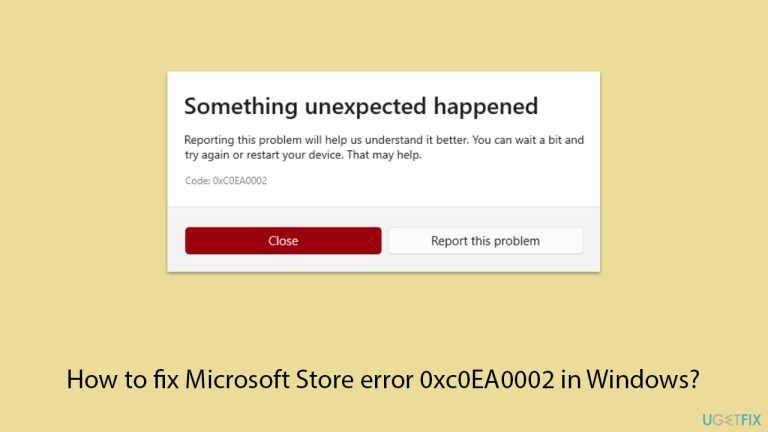
Microsoft Store is the default app store on Windows from where users can download updates, games, and apps securely from trusted sources. The Store, which runs on both Windows 10 and Windows 11, works seamlessly due to a blend of system services, internet connectivity, and local caches. When something goes wrong, users may be presented with an error code, like 0xc0EA0002, which means that the Store cannot process a request or complete downloads.
When attempting to install or update apps, this specific error code, 0xc0EA0002, frequently shows up along with ambiguous messages like "Something unexpected happened" or "Try that again." Others experience the Store app becoming unresponsive and refusing to load content, while others experience downloads starting but stalling indefinitely.
The root causes for the 0xc0EA0002 error can vary widely: corrupted Store cache files might confuse the app’s operations, while misconfigured system services (like Windows Update) could block necessary background processes. Network issues, such as unstable connections or proxy conflicts, are also frequent culprits, as are outdated system components or regional settings mismatches that disrupt Store authentication.
Thankfully, several troubleshooting steps can resolve this issue, depending on what’s triggering it. Clearing the Store cache often fixes problems tied to corrupted data, while re-registering the app can reset its core files. Checking network settings or running built-in repair tools might address connectivity or system file issues.
Detailed fixes are outlined below to guide you through the process. For a quicker solution, we recommend using [d1], a PC repair app that automatically tackles system file corruption, service errors, and other Windows issues that could be behind the 0xc0EA0002 error.
Fix 1. Reset Microsoft Store cache
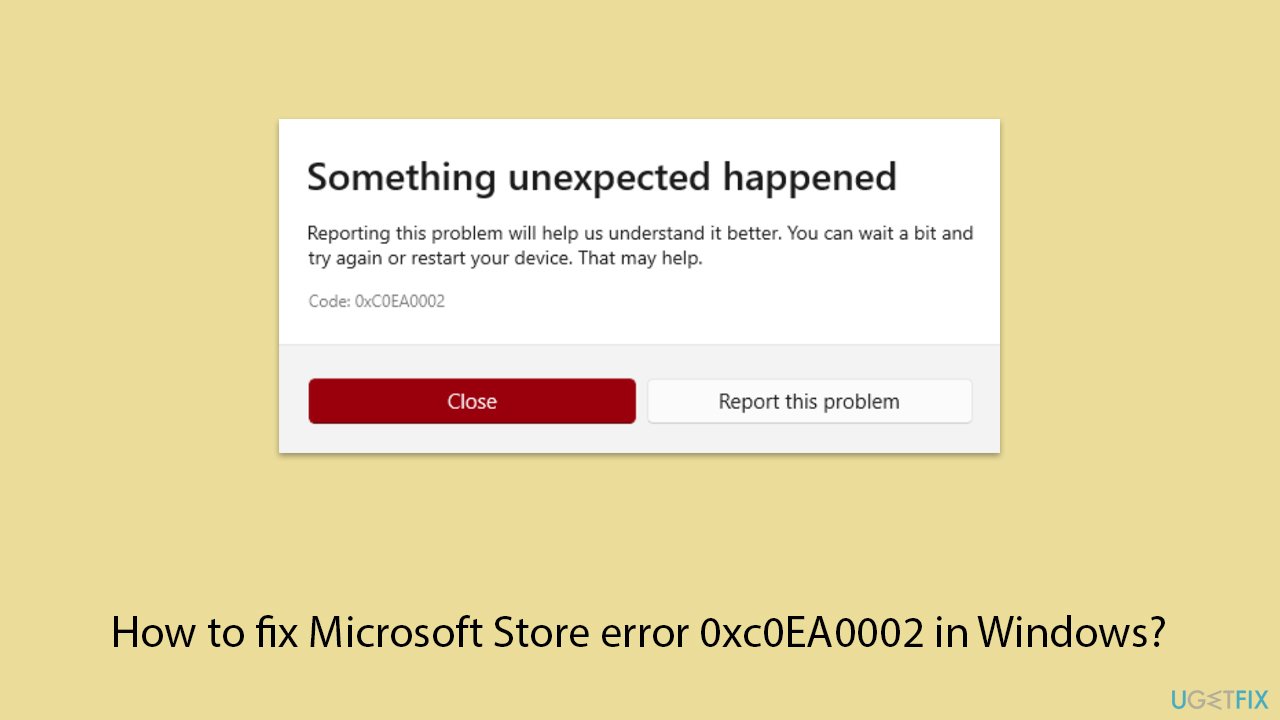
Over time, the Store’s cache can become cluttered or corrupted, leading to errors during downloads or updates. Resetting it clears out problematic data and forces the app to rebuild its temporary files.
- Type wsreset.exe in Windows search and press Enter.
- Wait for a blank Command Prompt window to appear and close automatically (this may take a moment).
- Restart your computer when the process finishes.
- Open the Microsoft Store and try downloading an app again.
Fix 2. Repair corrupted files
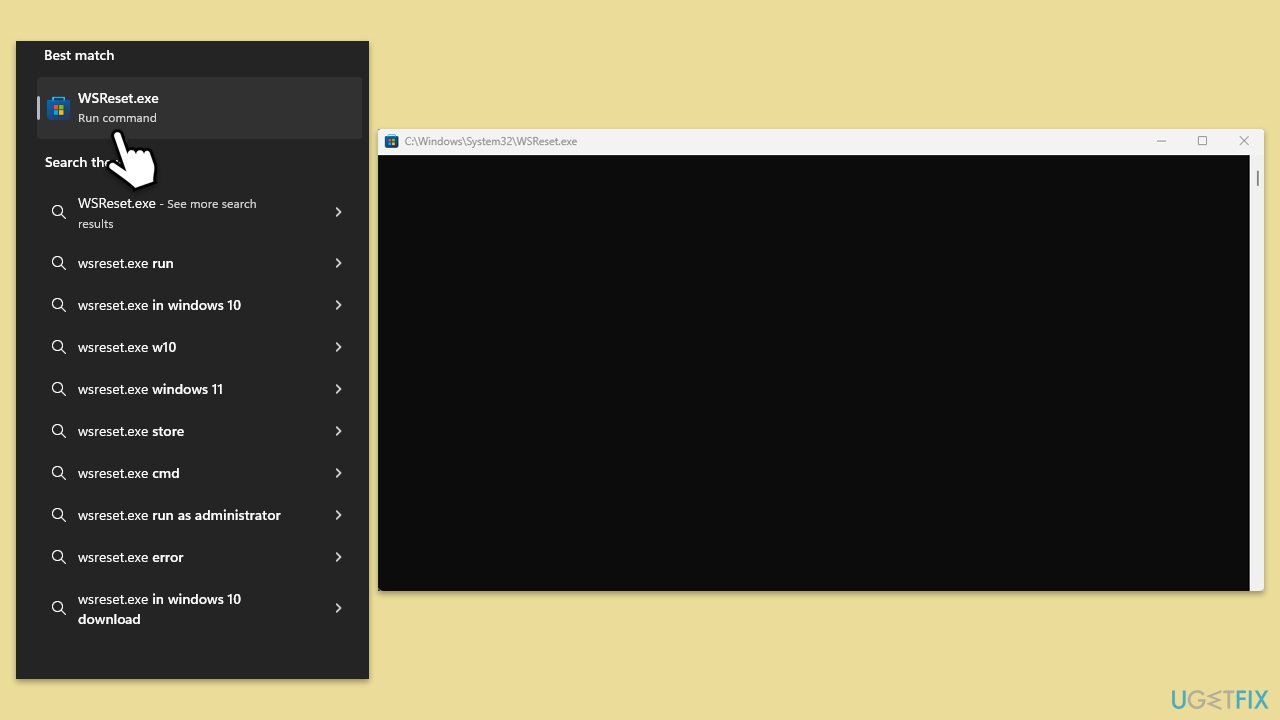
By executing commands through an elevated Command Prompt, you can repair corrupted system files.
- Type cmd in Windows search.
- Right-click on Command Prompt and pick Run as administrator.
- The User Account Control window will ask whether you want to allow changes - click Yes.
- In the Command Prompt window, paste the following command and hit Enter:
sfc /scannow - Once the scan is complete, use the following commands and press Enter after each:
Dism /Online /Cleanup-Image /CheckHealth
Dism /Online /Cleanup-Image /ScanHealth
Dism /Online /Cleanup-Image /RestoreHealth - (Note: if you get an error executing this last command, add /Source:C:\RepairSource\Windows /LimitAccess to it and try again).
- Restart your device.
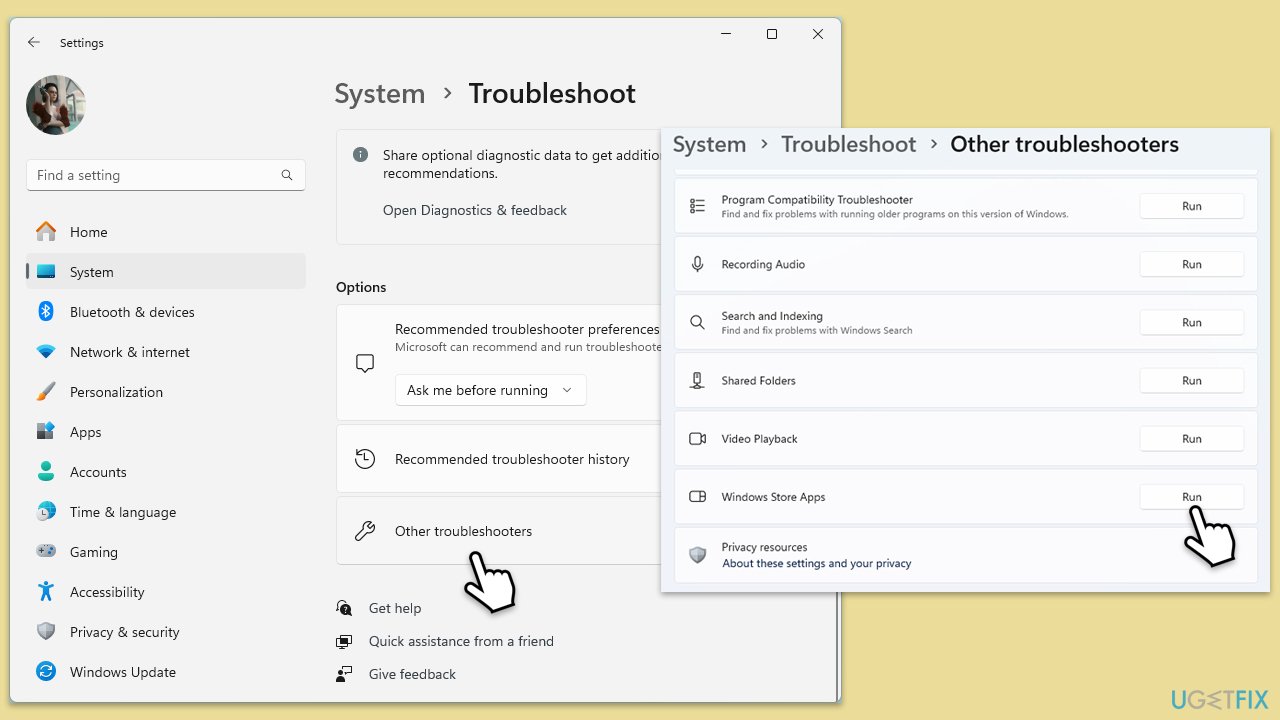
Fix 3. Run the Windows Store Apps troubleshooter
Built-in troubleshooters can detect and fix common problems with Microsoft Store and its apps, such as service issues or configuration errors that cause download failures.
- Type Troubleshoot in Windows search and press Enter.
- On the right side of the window, click Additional troubleshooters/Other troubleshooters.
- Scroll down and select Windows update.
- Click Run the troubleshooter/Run.
- Wait for the troubleshooter to finish.
- Restart your system once done.
Fix 4. Check date, time, and region settings
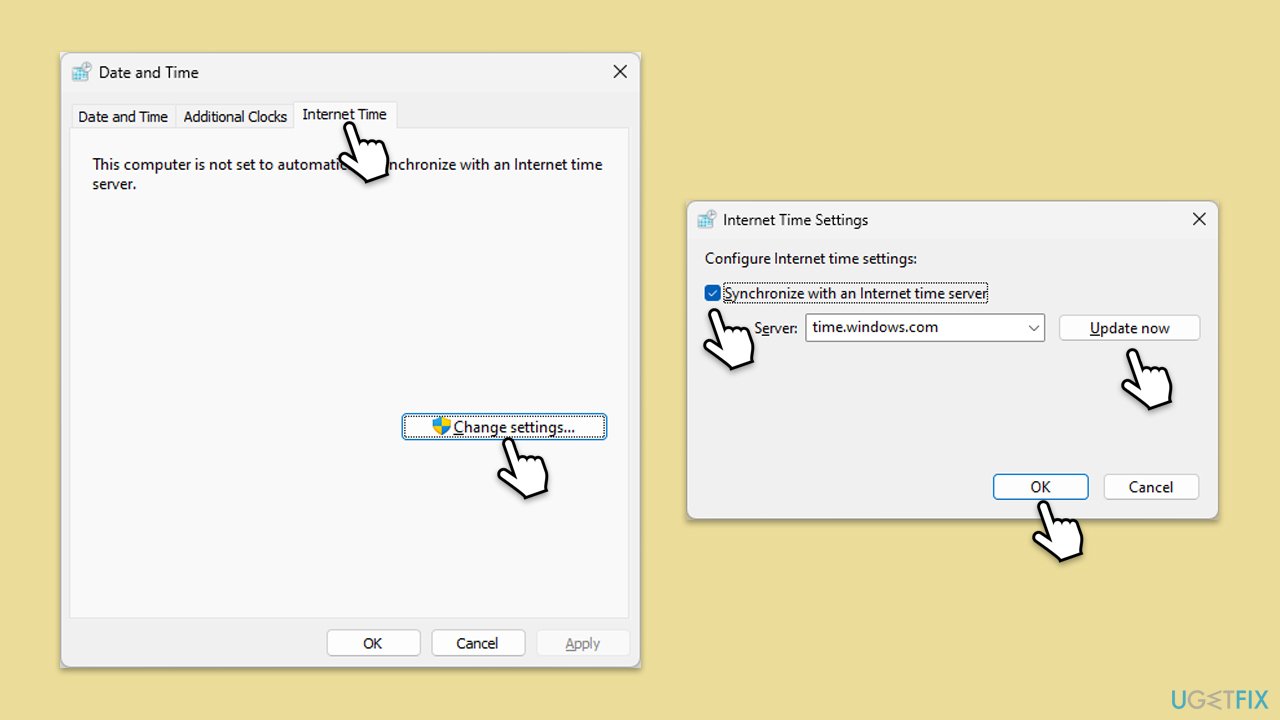
Incorrect system settings can disrupt Microsoft Store authentication, leading to errors when connecting to its servers. Ensuring these are accurate aligns your PC with the Store’s requirements.
- Type in Control Panel in Windows search and press Enter.
- Go to Clock and Region and click on Date and Time.
- Pick the Internet Time tab and select Change Settings.
- Make sure that the Synchronize with an Internet time server box is ticked.
- Click Update now and OK.
Fix 5. Repair or reset Microsoft Store
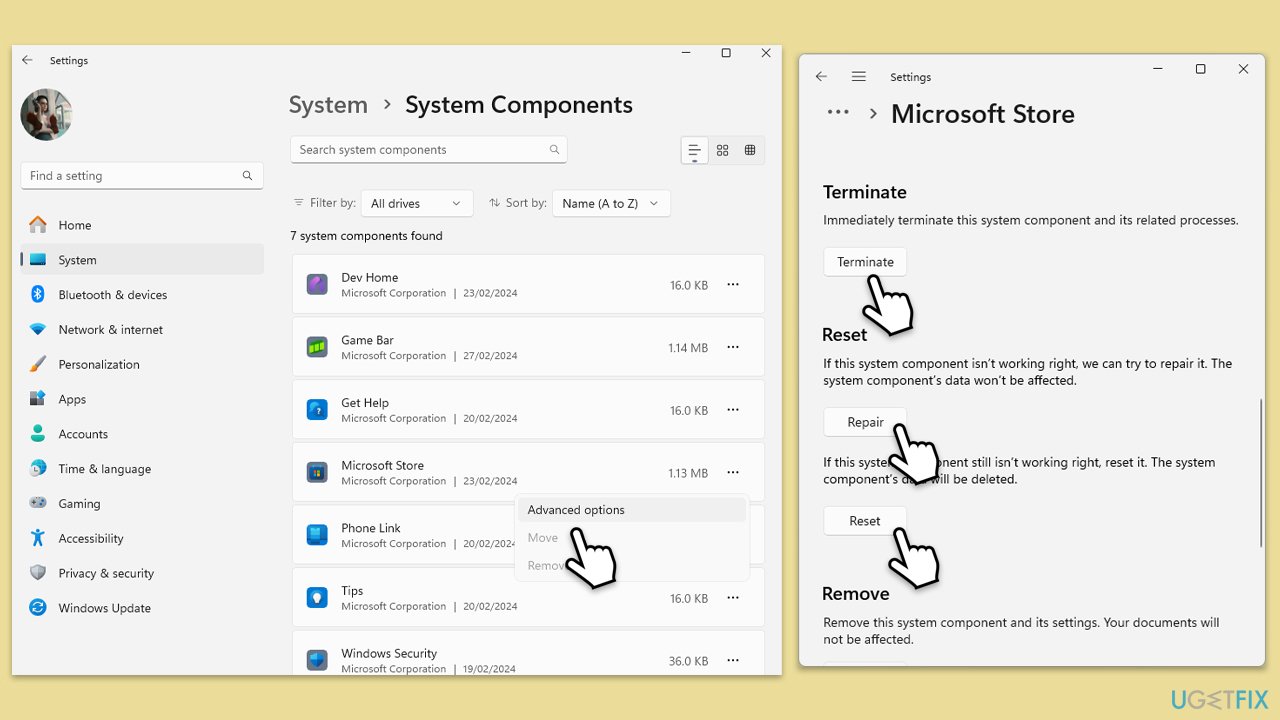
Persistent issues might stem from deeper corruption within the Store app itself, which a repair or reset can address by restoring it to a working state while keeping other data intact.
- Right-click on Start and select Apps & Features/Installed apps.
- Scroll down to find Microsoft Store and click Advanced options or go to Settings > System > System Components > Advanced options.
- Scroll down again and click Terminate and Repair.
- If that does not work, try using Reset.
Fix 6. Check services
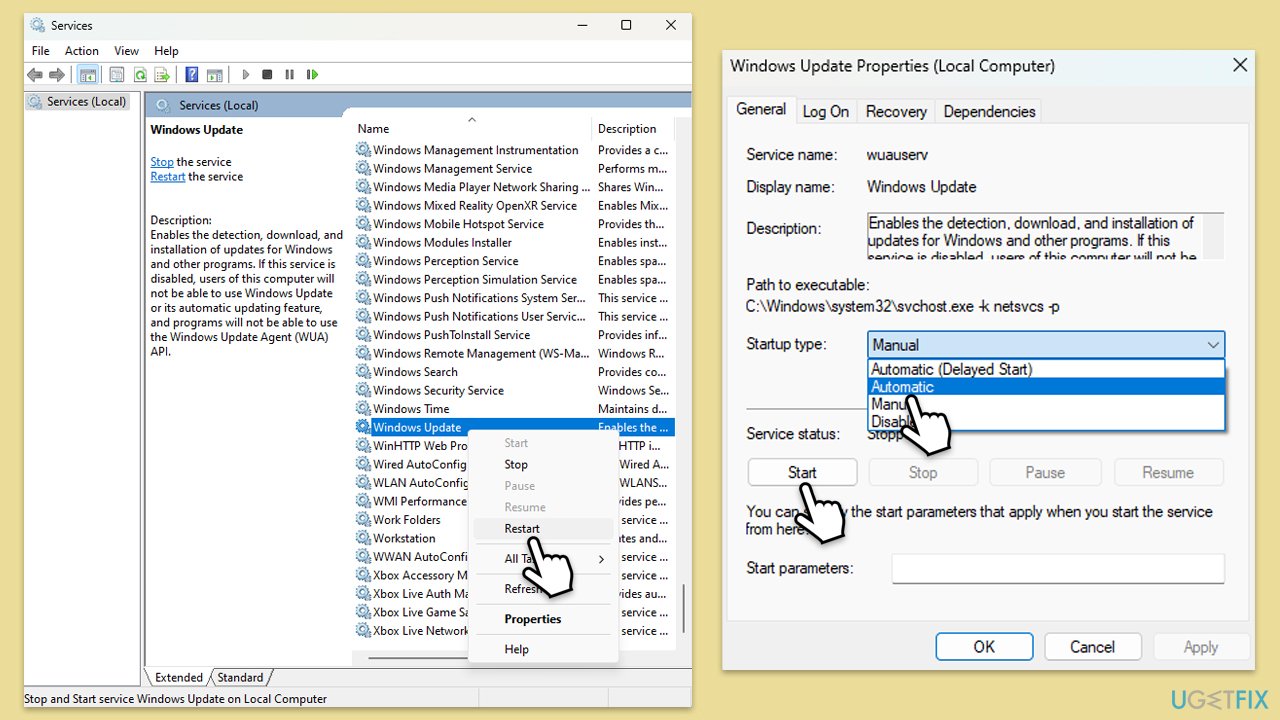
For the Microsoft Store to function properly, a few services must be operational.
- Type Services in Windows search and hit Enter.
- Locate Windows Update, Windows Installer, Storage Service, and Windows Firewall in the list.
- Right-click on each and select Restart.
- If it's not running, double-click the service to open Properties.
- Set the Startup type to Automatic - select it from the drop-down menu.
- Click Start if the service is not running.
- Click Apply and OK.
Fix 7. Re-register Microsoft Store
If the Store’s installation files are damaged or misconfigured, it might fail to function properly, triggering errors like 0xc0EA0002. Re-registering it reinstalls the app’s core components without affecting your data.
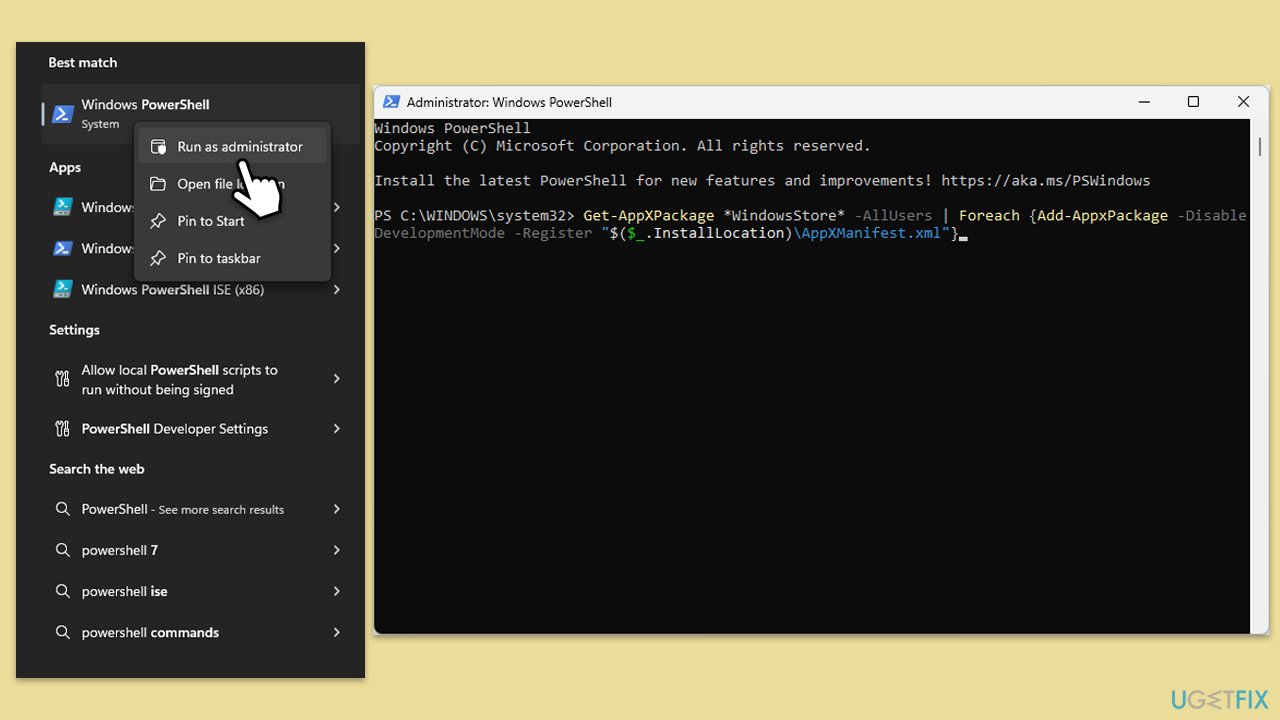
- Type PowerShell in Windows search.
- Right-click on the result and select Run as administrator.
- When UAC shows up, click Yes.
- Use the following command and press Enter:
Get-AppXPackage *WindowsStore* -AllUsers | Foreach {Add-AppxPackage -DisableDevelopmentMode -Register "$($_.InstallLocation)\AppXManifest.xml"} - When done, restart your computer.
Bottom line
To fix the Microsoft Store error 0xc0EA0002, you can try resetting the Store cache, re-registering the app, checking network settings, or running built-in repair tools. If these steps do not resolve the issue, consider using a PC repair app for further assistance.
Frequently asked questions
Try resetting the Microsoft Store cache by pressing Win + R, typing 'wsreset.exe', and hitting Enter. This can help resolve the issue without affecting your installed apps.
Yes, ensure your Windows 11 is up to date by going to Settings > Update & Security > Windows Update, and clicking 'Check for updates'. This might resolve compatibility issues with the Microsoft Store.
You can try running the Windows Store Apps troubleshooter found in Settings > Update & Security > Troubleshoot > Additional troubleshooters, which can automatically identify and fix issues related to the Microsoft Store.




Report an issue
What's wrong with this guide? We review every report and update or remove content.
Report received — thank you. We'll review and fix it.
You need a free account to submit a report.
Be the first to comment