How to fix
Microsoft Store error code 0x000001F6
on Windows
Resolve Microsoft Store error code 0x000001F6 on Windows 10 or 11 quickly and easily. Trust our expert-tested methods for seamless app access.

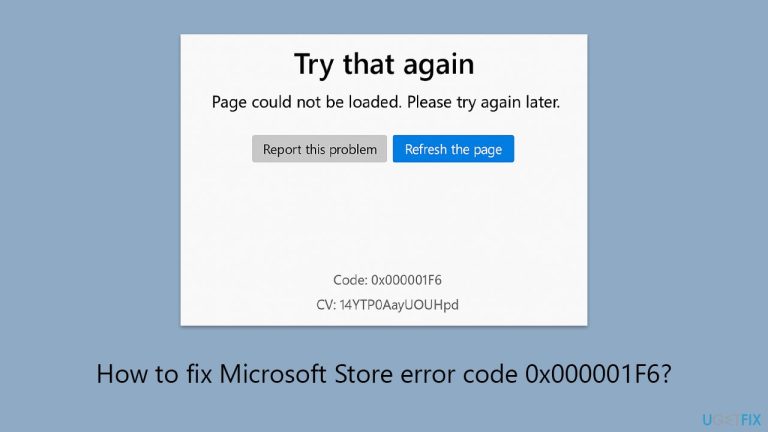
What causes How to fix Microsoft Store error code 0x000001F6?
- Stale or corrupted Microsoft Store app cache
- Synchronization issues between the computer and Microsoft account
- Lost or corrupted system files
- Software conflicts triggered by past updates or disk failure
Repairs Windows system files, removes malware, and restores a clean OS state — without reinstalling.
I can’t open Microsoft Store anymore. Every time I try, it just shows a message with error code 0x000001F6 and says something went wrong. I haven’t changed anything on my PC recently, and my internet is working fine. How do I fix this?
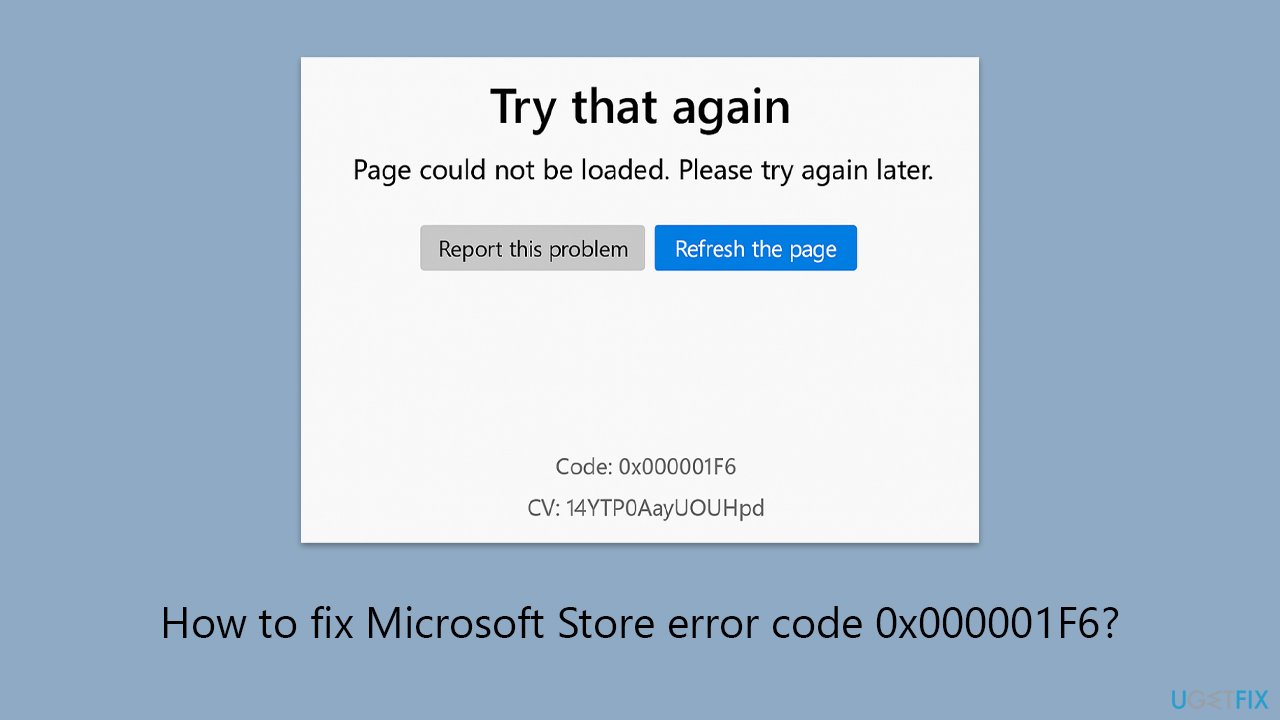
When Microsoft Store is not working as it should, it can interfere with basic things like downloading apps or installing updated software. Some of the errors one is likely to experience include the error code 0x000001F6 in Microsoft Store. The problem typically occurs with a message stating that something on Microsoft's end went wrong, and users cannot even access the store.
Although the message can state that there is a server issue, in most instances, the issue has local origins within the system. For instance, the Microsoft Store app cache becomes stale or corrupted over time, and this leads to connectivity problems as well as service issues like 0x000001F6. Synchronization issues between your computer and your Microsoft account may also be the underlying cause.
In some other cases, the problem might be attributed to system files that are lost or corrupted and interrupt the functioning of the Microsoft Store. They might have been triggered by a past update, disk failure, or some other software conflict. Whatever the specific cause, the error is annoying and can be persistent if not addressed frontally.
Fortunately, there are some ways to fix the Microsoft Store error 0x000001F6. Clearing app cache, re-signing into your Microsoft account, or fixing corrupted system files are normally enough to fix it. Manual instructions for these and other repairs will be provided below. If the issue persists, a PC repair tool like [d1] will fix deeper issues in your system automatically and give a full check.
Fix 1. Clear Microsoft Store cache
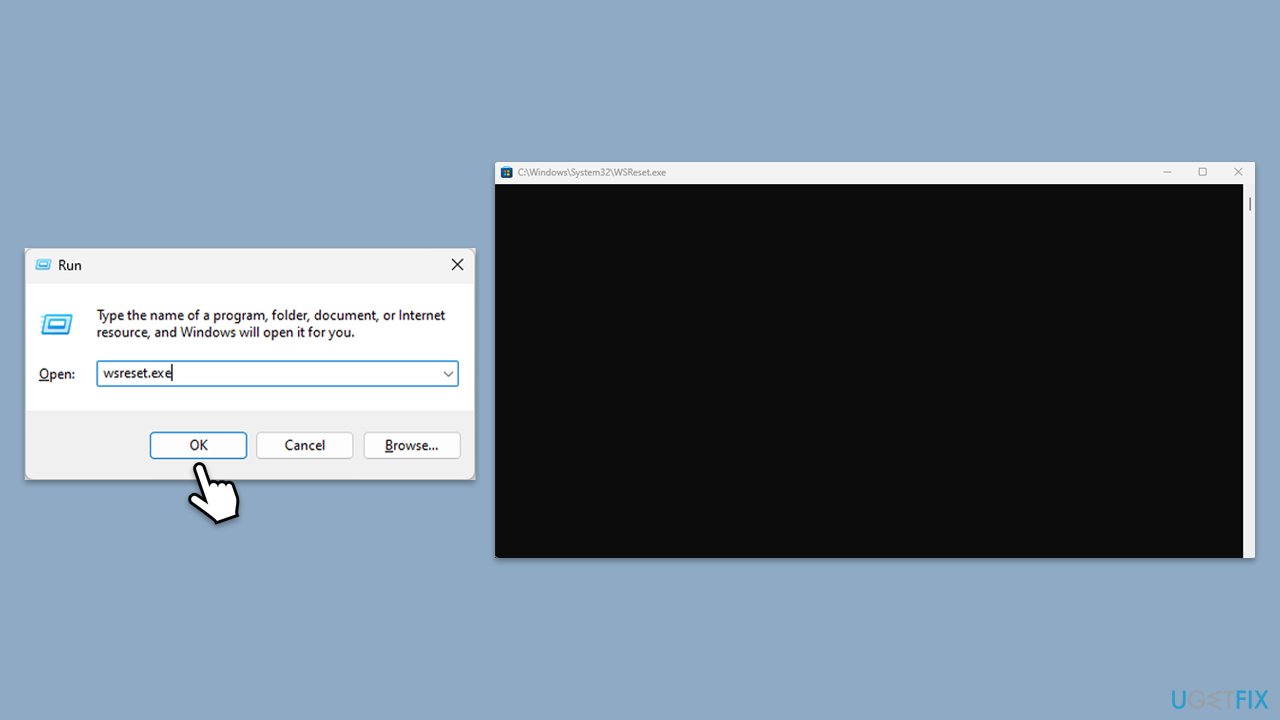
The Store cache can become corrupted, leading to loading or communication errors with the server. Resetting the cache clears out stored data and refreshes the app’s configuration.
- Press Win + R, type wsreset.exe, and press Enter.
- Wait till a black window shows up – do not close it.
- Once it's gone, Microsoft Store should restart.
- Open the Microsoft Store and try installing the app again.
Fix 2. Sign out and back into Microsoft account
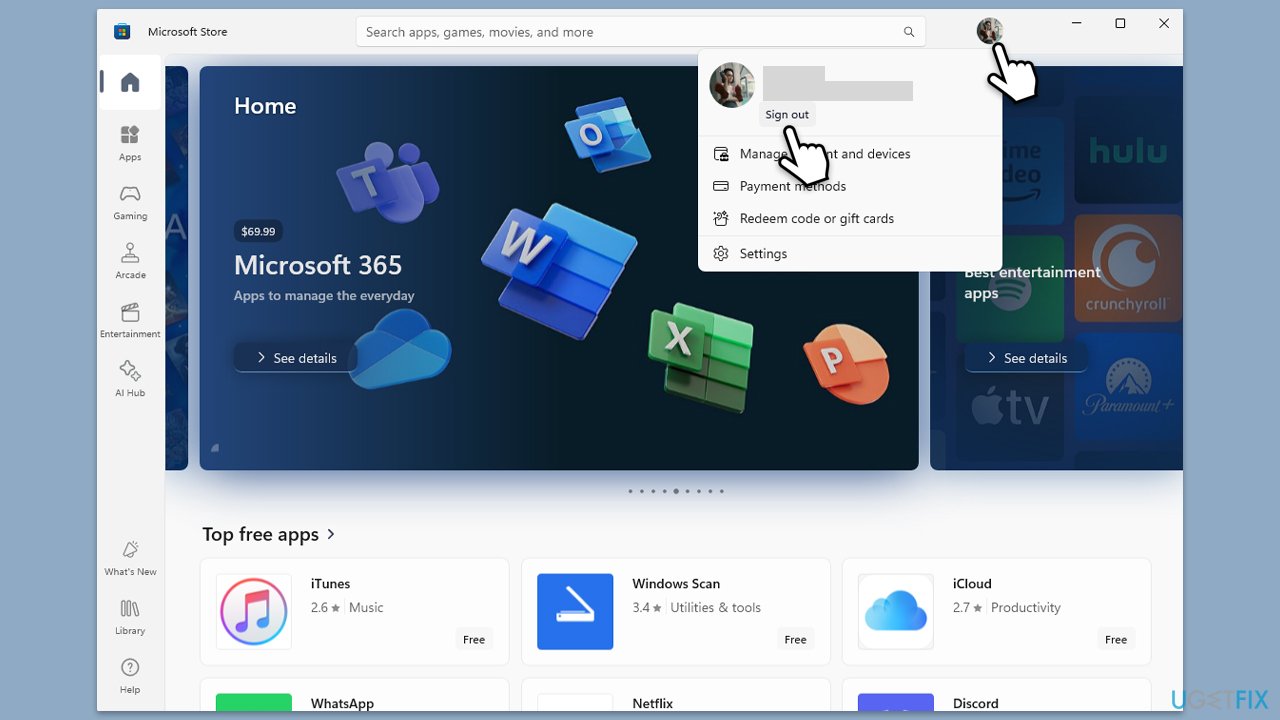
If your Microsoft account is not syncing correctly, it can cause access problems and trigger error 0x000001F6. Re-authenticating the account helps restore proper function.
- Launch Microsoft Store.
- Click on your Profile picture and click Sign out.
- Restart your computer.
- Sign back in again with your account credentials.
Fix 3. Run the Windows Store Apps troubleshooter
Windows includes a built-in tool that scans for and fixes issues with apps downloaded from the Store, including permission conflicts and service interruptions.
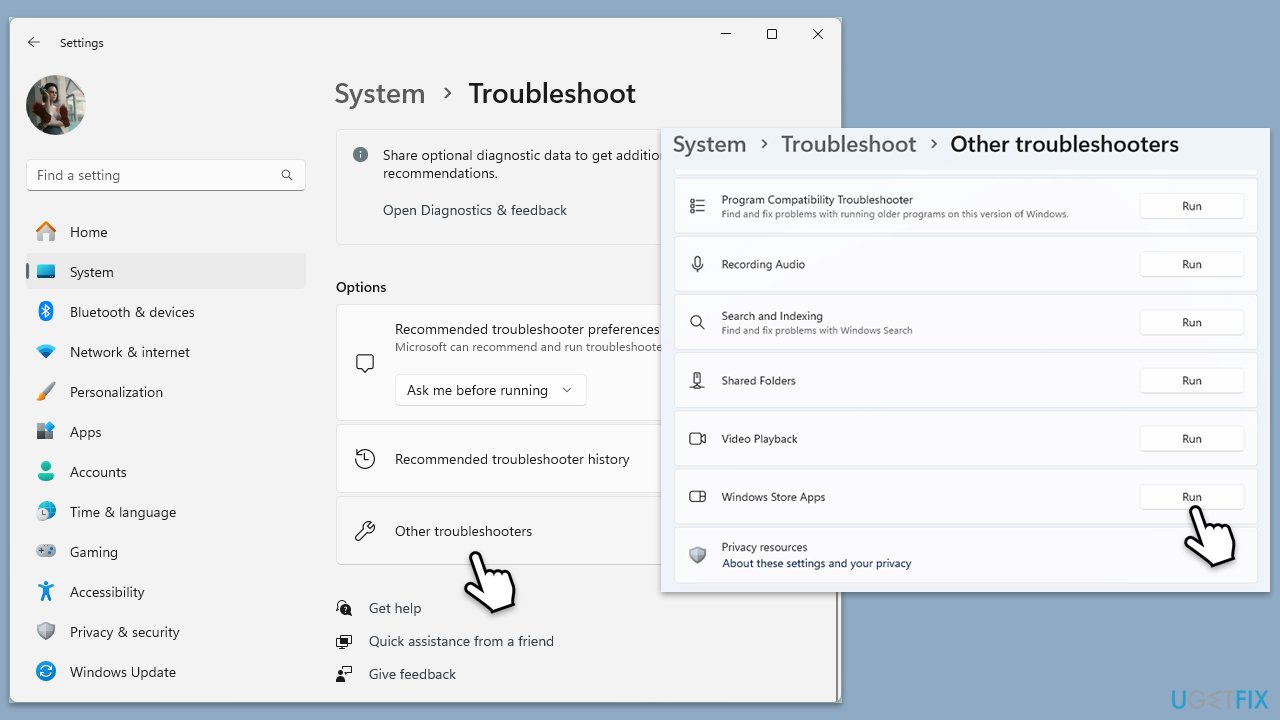
- In Windows search, type in troubleshoot and press Enter (you can also go to Start > Settings > System > Troubleshoot).
- Pick Other troubleshooters (in Windows 10, pick Additional troubleshooters).
- Scroll down to locate the Windows Store Apps and click Run.
- Wait until the scan is finished, and apply the changes.
Fix 4. Repair or reset Microsoft Store
If the app itself is broken or improperly configured, repairing or resetting it can resolve functionality problems.
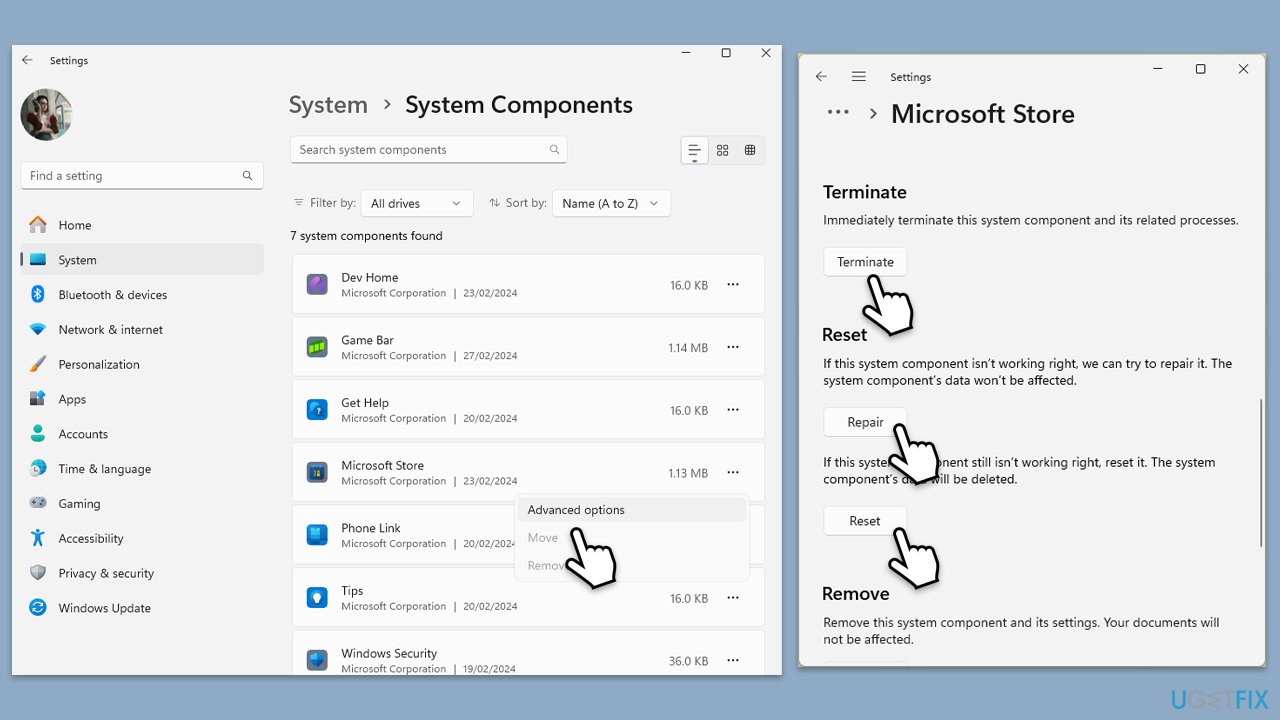
- Right-click on Start and select Apps & Features/Installed apps.
- Scroll down to find Microsoft Store and click Advanced options or go to Settings > System > System Components > Advanced options.
- Scroll down again and click Terminate and Repair.
- If that does not work, try using Reset.
Fix 5. Check for Windows updates
Installing the latest Windows updates can patch bugs and restore compatibility with Microsoft services like the Store.
- Type Updates and press Enter.
- In the new window, click Install all (if pending) or Check for updates.
- Wait till all the files are downloaded and installed.
- If optional updates are available, install them as well.
- Restart your device when done.
Fix 6. Run System File Checker and DISM
Corrupted or missing system files can affect Store functionality. These tools scan and replace damaged components.
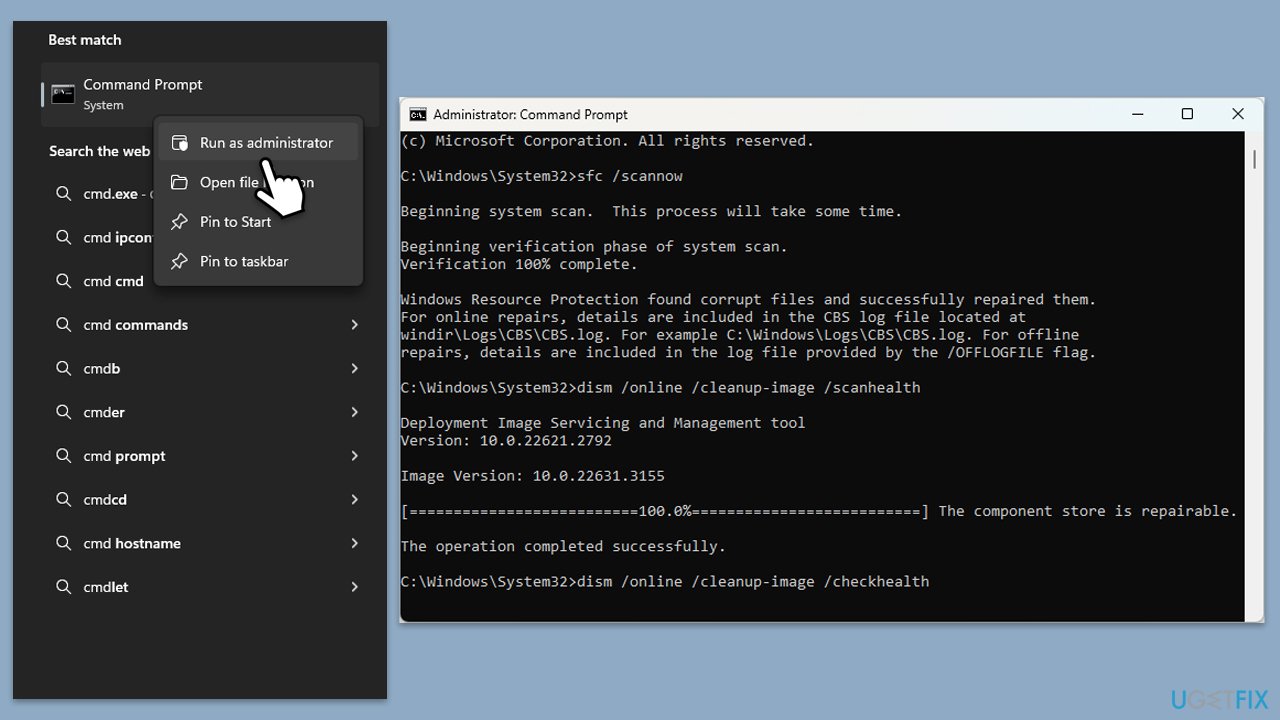
- Type cmd in Windows search.
- Right-click on the Command Prompt result and select Run as administrator.
- When User Account Control shows up, click Yes.
- Paste the following command into the new window:
sfc /scannow - Press Enter and wait till the scan is finished
- Once done, run this set of commands, pressing Enter each time:
DISM /Online /Cleanup-Image /CheckHealth
DISM /Online /Cleanup-Image /ScanHealth
DISM Online /Cleanup-Image /RestoreHealth /Source:C:\RepairSource\Windows /LimitAccess - Restart your computer.
Fix 7. Reregister Microsoft Store
If essential Store components are not registered correctly with the system, the app may stop functioning or return error 0x000001F6. Reregistering helps restore those core connections.
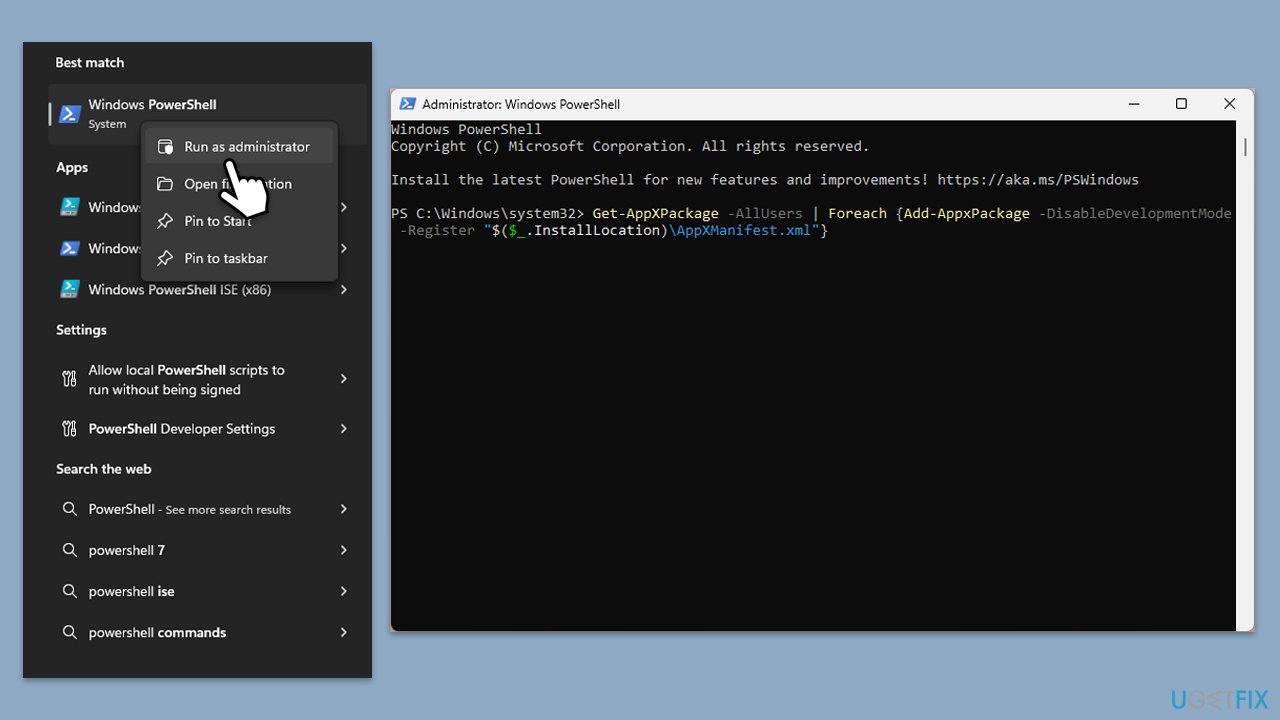
- Type PowerShell in Windows search.
- Right-click on PowerShell and select Run as administrator.
- When UAC shows up, click Yes.
- Copy and paste the following command, pressing Enter after each:
Get-AppXPackage | Foreach {Add-AppxPackage -DisableDevelopmentMode -Register "$($_.InstallLocation)\AppXManifest.xml"} - Close down PowerShell and restart your computer.
Fix 8. Reinstall the Store
If all else fails, reinstalling Microsoft Store completely can help eliminate deep-seated issues caused by corruption or misconfiguration.
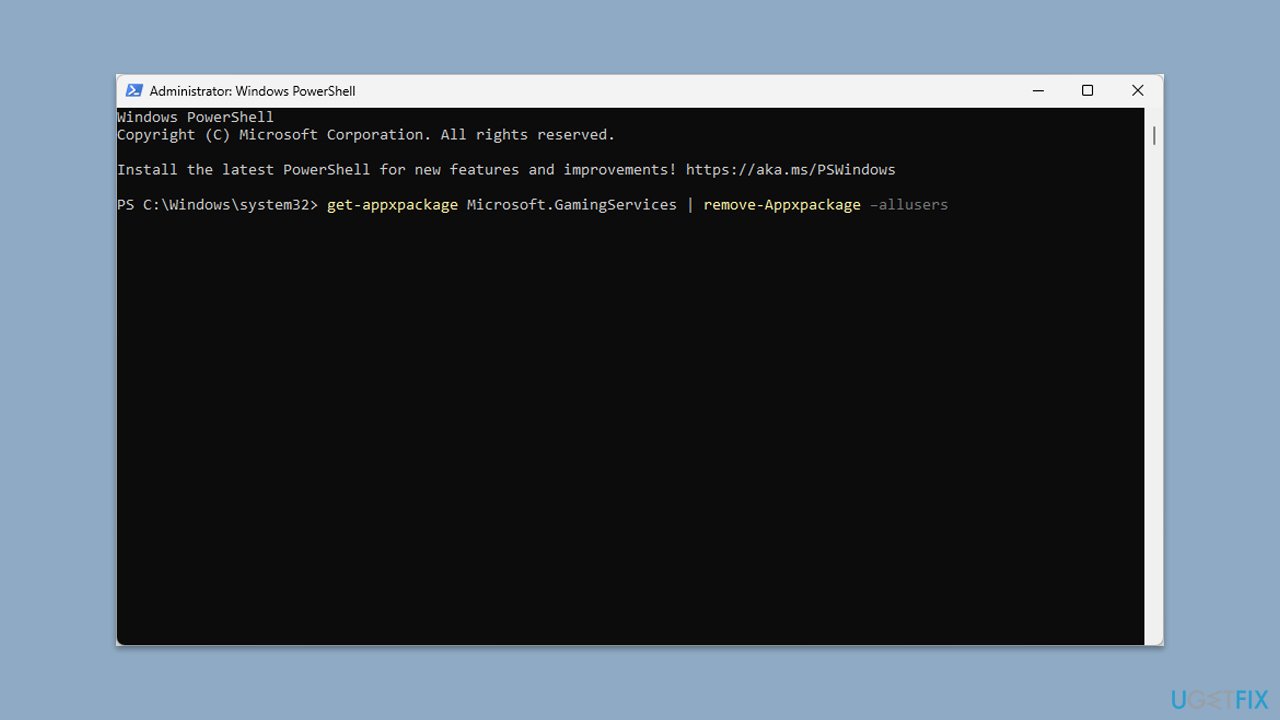
- Open PowerShell as administrator.
- Type the following command and press Enter:
Get-AppxPackage WindowsStore | Remove-AppxPackage - Then use the following command to reinstall the Store:
Get-AppxPackage -allusers WindowsStore | Foreach {Add-AppxPackage -DisableDevelopmentMode -Register "$($_.InstallLocation)\AppXManifest.xml"} - Restart your system.
Bottom line
To fix the Microsoft Store error code 0x000001F6, you can clear the Microsoft Store cache, re-sign into your Microsoft account, or repair corrupted system files. If these solutions do not resolve the issue, consider using a PC repair tool to automatically fix deeper system problems.
Frequently asked questions
This error typically indicates a problem with the Microsoft Store app or its connection to the Windows Update service, affecting app downloads and updates.
You can reset the Microsoft Store by opening the Run dialog with Win + R, then typing 'wsreset.exe' and pressing Enter, which will clear the cache.
Yes, ensure that your Windows 10 or Windows 11 is fully updated by going to Settings > Update & Security > Windows Update and checking for updates, as this can resolve compatibility issues.
5 comments

It's also worth considering that the persistence of the 0x000001F6 error can be symptomatic of underlying system integrity issues beyond just cache corruption or account synchronization. For instance, I encountered a similar scenario in a recent consultancy where multiple systems were affected after a faulty Windows update led to corrupted system files. In such cases, leveraging the Deployment Imaging Service and Management Tool (DISM) followed by a System File Checker (SFC) scan often provided a more holistic remediation approach. This highlights that, when dealing with persistent application errors, a thorough examination of system health may be warranted. Have any users here experienced similar outcomes with these tools?

Agree, particularly if there's a history of problematic updates. Checking for corrupted files via DISM and SFC is sound advice. Be sure to verify the integrity of the Windows component store first; it can save time.
Leave a reply




The underlying causes of the 0x000001F6 error in the Microsoft Store, as you noted, can vary significantly. While clearing the app cache and re-signing into the Microsoft account are appropriate first steps, it’s worth mentioning that this error may also stem from deeper issues, such as corrupted system files or recent updates that inadvertently disrupt store functionality. If these initial fixes fail, a more thorough examination of the integrity of system files using the `sfc /scannow` command from an elevated Command Prompt could yield insights. Additionally, verifying the status of related services, such as the Windows Update and Windows Store services, might provide further clues. Context matters here—if the issue persists, one should investigate the logs for any pertinent error messages that could guide remediation efforts.
Sure, technically, you can run the `sfc /scannow` command—but let’s be real here. Every update they push is just another chance for them to break something and collect more "telemetry" (read: spyware). You might fix the error, but what’s next? More issues down the line because they “improved” something? Just another reason to keep an eye on those logs and think about alternatives. Wake up — this is by design!
Sure, technically you're right about those steps, Marcus. But let's be real here — messing with system files and services is just playing into their “let’s keep you dependent on Windows” game. I mean, they want you to think these errors are just random glitches, but wake up — it's by design! Instead of chasing these rabbit holes, why not just try a privacy-focused alternative? Just sayin'.