How to fix
Microsoft Store error “Pardon the interruption”
on Windows
Resolve the Microsoft Store "Pardon the interruption" error on Windows 10/11 quickly and easily with our expert-tested solutions. Fixed in minutes!


What causes How to fix Microsoft Store error “Pardon the interruption” in Windows?
- Issue with connecting to Microsoft's servers
- Corrupted cache
- Outdated system files
- Microsoft Store app needs an update
- Misconfigurations or network-related issues
- Proxy settings or VPNs interfering with connection
Repairs Windows system files, removes malware, and restores a clean OS state — without reinstalling.
So I opened Microsoft Store this morning since I wanted to download a new app; instead of that being the case, I got the message saying "Pardon the interruption" and that I should update the app before using it. When I click "Update now," it gives me another error "Well this is embarrassing," and nothing happens.
The Microsoft Store error "Pardon the interruption" is one of those common errors that prevents users from downloading or updating apps. This message usually pops up if there is an issue with the Store in terms of connecting to Microsoft's servers. This can be quite frustrating because it halts the functionality of the Store.
Users frequently encounter this error after Windows updates or due to corrupted cache or outdated system files. In some cases, it occurs when the Microsoft Store app itself needs an update, but the system is unable to apply the update due to misconfigurations or network-related issues. Additionally, issues with proxy settings, VPNs, or incorrect date and time settings can prevent the Store from establishing a secure connection.
To fix the "Pardon the interruption" error, users can clear the Microsoft Store cache, check for system and Store updates, or disable any active VPN or proxy settings that might interfere with the connection. For more persistent cases, reinstalling the Microsoft Store via PowerShell or resetting the app to its default state may help resolve the problem.
For those looking for a more automated solution, a trusted [d1] repair tool can help detect and fix underlying system issues that may be contributing to this error, ensuring smooth access to the Microsoft Store again.

Fix 1. Clear Microsoft Store cache
Clearing the cache can resolve many issues that lead to the "Pardon the interruption" error by removing corrupted or outdated files that are blocking the app's functionality.
- Type WSReset.exe in the Windows search bar and press Enter.
- Wait till a black pop-up window shows up – do not close it.
- The pop-up window will close soon, and the Windows Store should reopen.

Fix 2. Check date and time settings
Incorrect date and time settings can interfere with the Microsoft Store's ability to connect to the servers. Setting these to automatic can help resolve the issue.
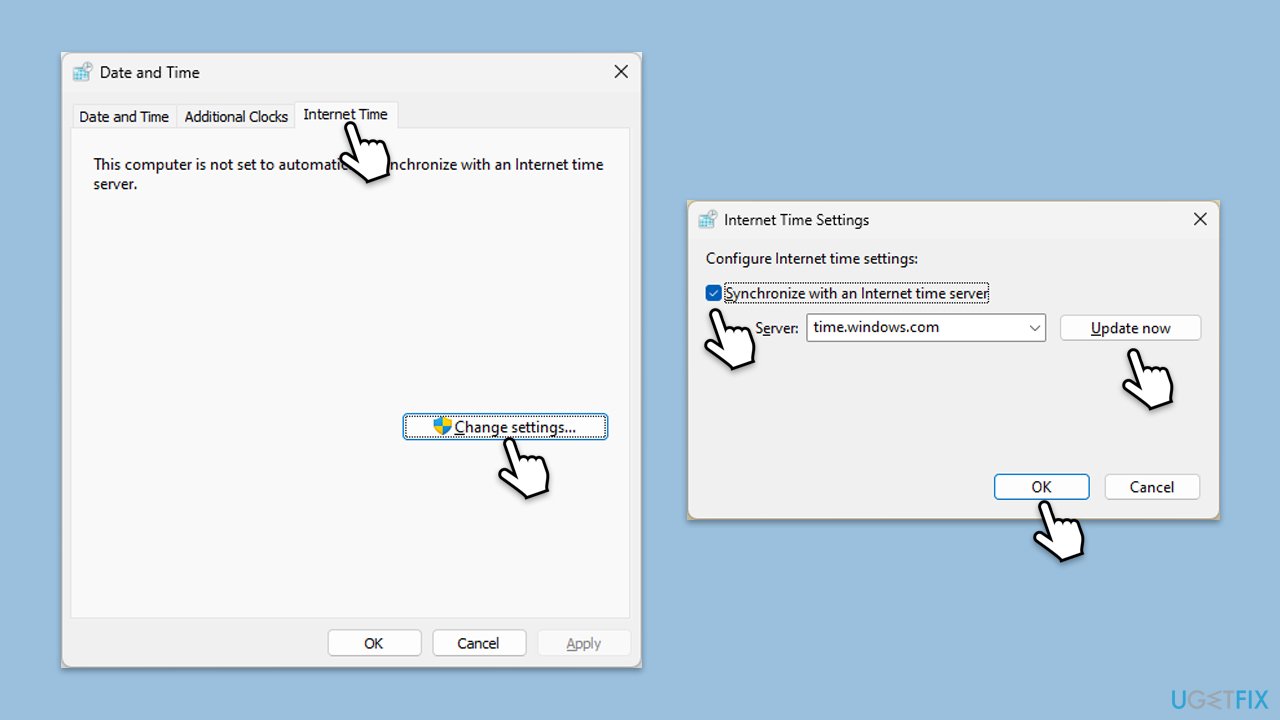
- Type in Control Panel in Windows search and press Enter.
- Go to Clock and Region and click on Date and Time.
- Pick the Internet Time tab and select Change Settings.
- Make sure that the Synchronize with an Internet time server box is ticked.
- Click Update now and OK.
Fix 3. Try Clean Boot
First of all, if you are using any third-party tools like anti-malware, VPN, or Firewall, try temporarily disabling them. To find out if there is some other software interfering with Store's functions, access Clean Boot:
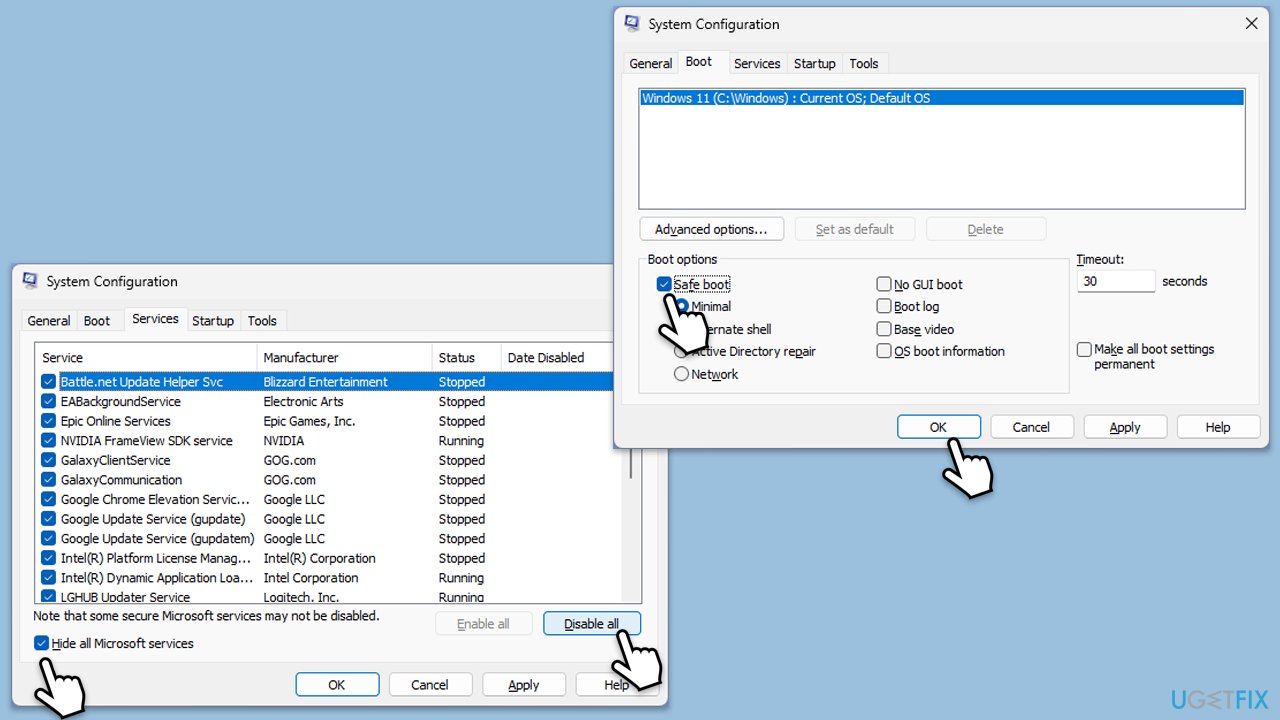
- Type msconfig inWindows Search and press Enter to open the System Configuration window.
- Click on the Services tab and check the Hide all Microsoft Services box.
- Click Disable all to disable non-Microsoft services, then click the Startup tab.
- Open the Task Manager, disable all startup items, and close the Task Manager.
- Go to the Boot tab and mark the Safe boot option.
- Click OK on the System Configuration window and restart your computer.
- If the problem does not exist, third-party software is at fault. To determine which app is causing it try enabling half of the available programs, restarting, and checking if the the problem is still there. Continue till you find the conflicting software and either update or uninstall it.
Fix 4. Update Windows
Outdated system files can lead to Microsoft Store issues, including the "Pardon the interruption" error. Installing the latest Windows updates may resolve the problem.
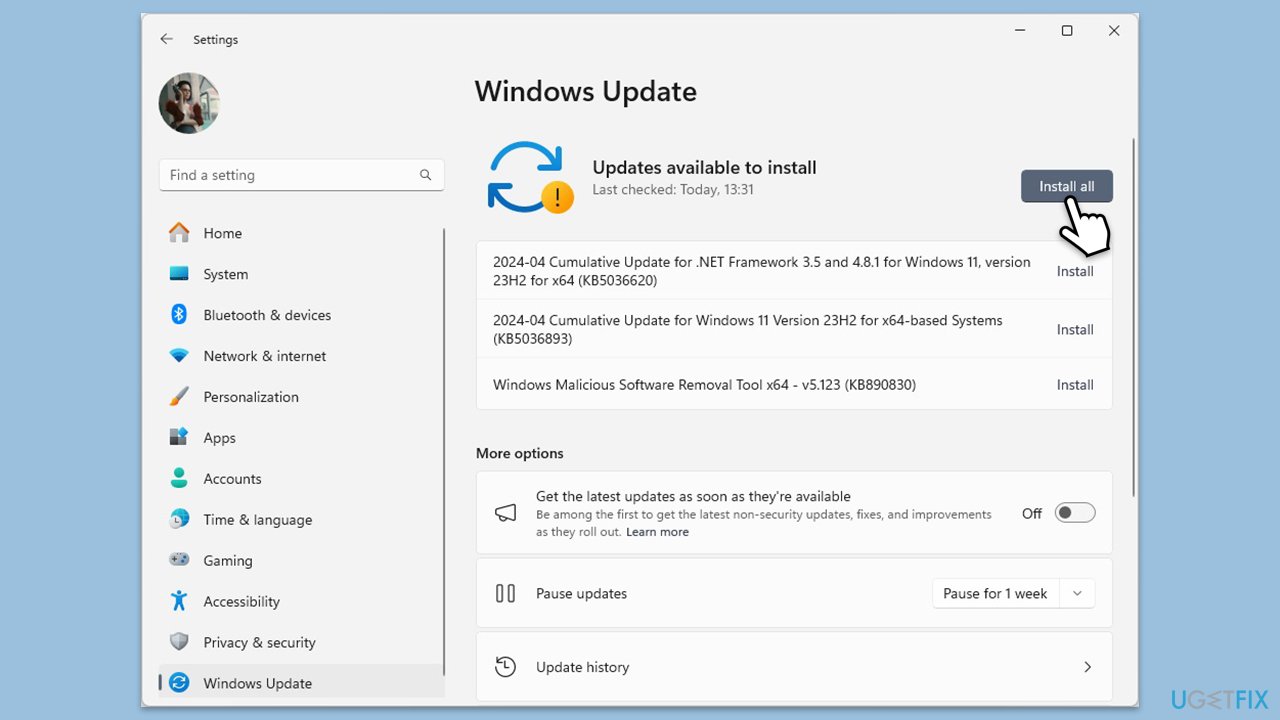
- Type Updates in Windows search and press Enter.
- In this window, click Check for updates or Install all if pending.
- If optional updates are available, install them too.
- When everything is installed, restart your system.
Fix 5. Repair or reset the Microsoft Store
Repairing the app or resetting it to its default state can resolve corrupted settings or files that may be causing the error.
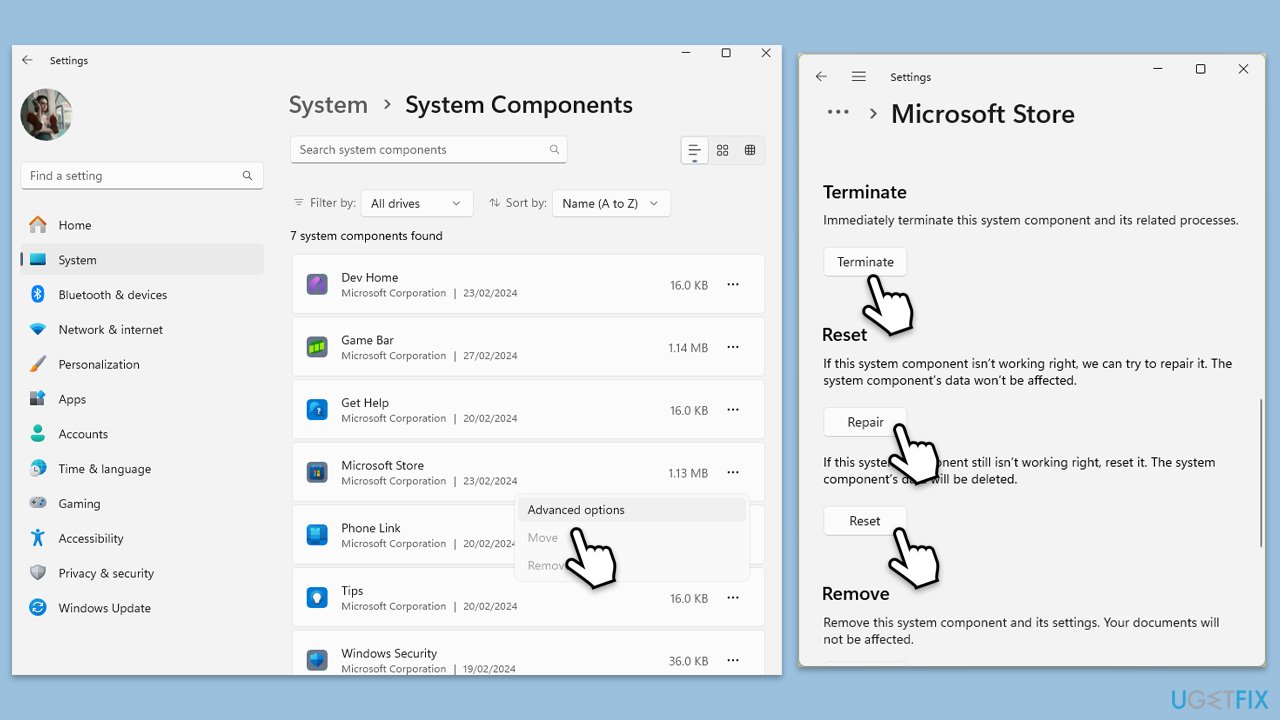
- Right-click on Start and select Apps & Features/Installed apps.
- Scroll down to find Microsoft Store and click Advanced options or go to Settings > System > System Components > Advanced options.
- Scroll down again and click Terminate and Repair.
- If that does not work, try using Reset.
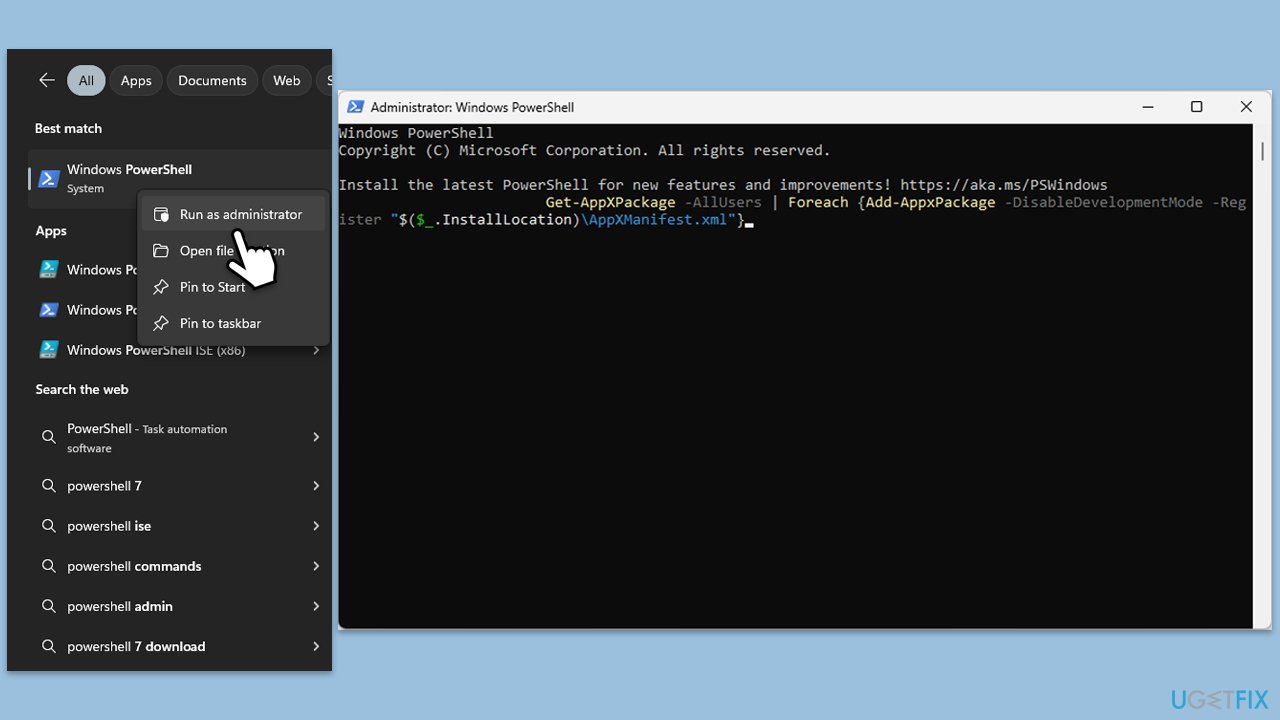
Fix 6. Re-register the Microsoft Store via PowerShell
Re-registering the Microsoft Store through PowerShell can fix deep-rooted issues by reinstalling the app’s core components.
- Type PowerShell in Windows search.
- Right-click on PowerShell and select Run as administrator.
- When UAC shows up, click Yes.
- Type in the following and press Enter:
ren %localappdata%\Packages\Microsoft.WindowsStore_8wekyb3d8bbwe\LocalState cache.old - Then type the following and press Enter:
powershell -ExecutionPolicy Unrestricted
Get-AppXPackage -AllUsers | Foreach {Add-AppxPackage -DisableDevelopmentMode -Register "$($_.InstallLocation)\AppXManifest.xml"} - Restart your computer.
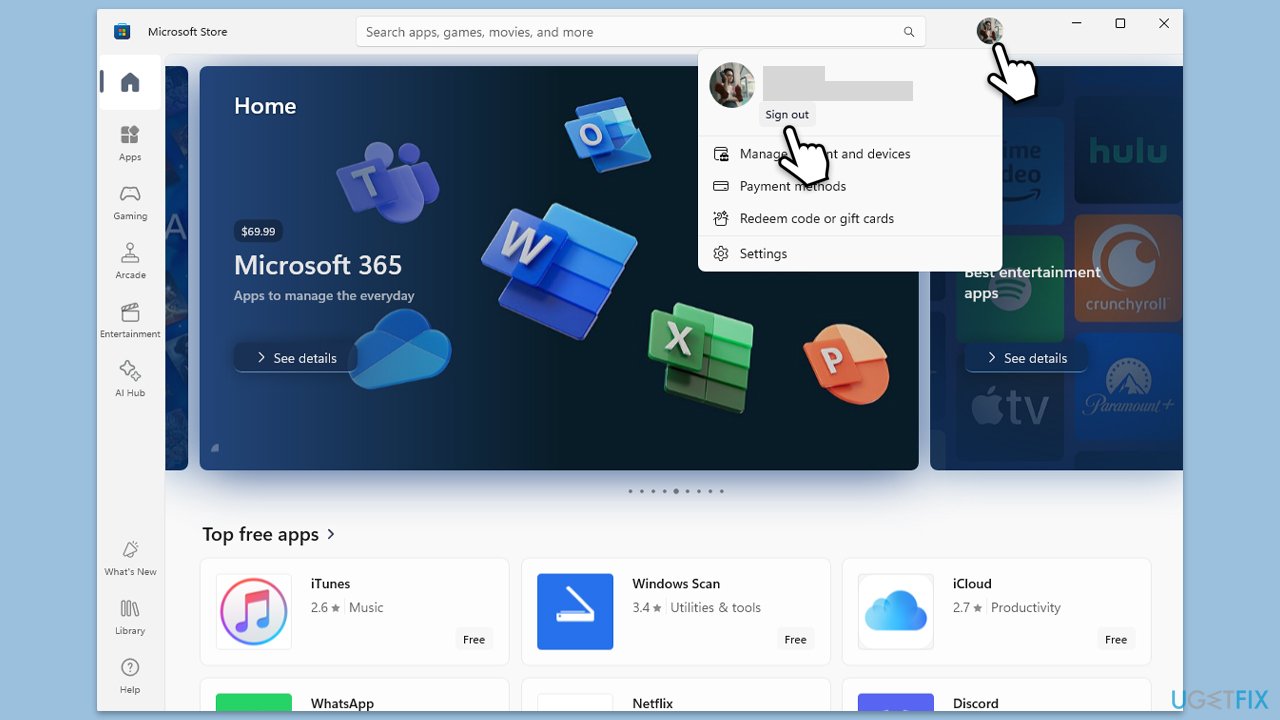
Fix 7. Sign out and back in with your Microsoft account
Refreshing your Microsoft account can reset credentials that might be causing the "Pardon the interruption" error.
- Launch Microsoft Store.
- Click on your Profile picture and click Sign out.
- Restart your computer.
- Sign back in again with your account credentials (make sure you are using the same account everywhere).
Bottom line
To fix the 'Pardon the interruption' error, users can clear the Microsoft Store cache, check for system and Store updates, or disable any active VPN or proxy settings. If these solutions do not resolve the issue, consider reinstalling the Microsoft Store via PowerShell or using a trusted repair tool to detect and fix underlying system issues.
Frequently asked questions
This error can occur due to issues with the Microsoft Store cache, network connectivity problems, or corrupted system files.
You can clear the Microsoft Store cache by pressing Win + R, typing 'wsreset.exe', and then pressing Enter to execute the command.
Yes, you can reset the Microsoft Store by going to Settings > Apps > Apps & features, selecting Microsoft Store, clicking on Advanced options, and then choosing the Reset option.




Report an issue
What's wrong with this guide? We review every report and update or remove content.
Report received — thank you. We'll review and fix it.
You need a free account to submit a report.
Be the first to comment