How to fix
Microsoft Store “Install” button missing
on Windows
Resolve the "Install" button missing issue in Microsoft Store on Windows 10 and 11. Quick fixes and expert tips — zero traces left.

What causes How to fix Microsoft Store “Install” button missing in Windows?
- Cache issues in the Microsoft Store
- Outdated Windows version
- Incorrect system settings
- User permissions problems
- Corrupted files
Repairs Windows system files, removes malware, and restores a clean OS state — without reinstalling.
Hello. I wanted to download a couple of apps from the Microsoft Store but the "Install" button is missing. How can I get it back?
The absence of the Microsoft Store's "Install" button in Windows can be a frustrating issue for users who rely on this platform to download and install applications. Users can find ease and security at the Microsoft Store, which has established itself as a reliable source for a variety of software. It offers access to a wide range of possibilities, from productivity tools to amusement programs like Among Us or Minecraft, thanks to its large library of over 800,000 apps. The absence of the Install button, however, interferes with this smooth experience and may have serious consequences for users.
This problem primarily impacts users by restricting their ability to purchase new software and updates. For example, folks who need important productivity software for work or school may discover that they are unable to access critical resources, which will affect their productivity. The inability to play their favorite games or get the most recent upgrades and features may also displease gamers who prefer games like Among Us or Minecraft.
Additionally, this problem may cause confusion and annoyance, especially among less tech-savvy individuals. It might be intimidating to navigate through many settings and troubleshooting techniques, which may discourage some users from trying to fix the issue themselves.
Users may look for remedies to this problem, which can entail actions like clearing the cache in the Microsoft Store, updating Windows, or changing system settings. Some technical knowledge may be needed to complete these procedures, thus not all users will feel confident doing so. As a result, the problem with the missing "Install" button makes using the Store more difficult and has an impact on users' ability to download software.
In this guide, you will find 5 steps that should help you fix Microsoft Store "Install" button missing in Windows. You can also run a maintenance tool like [d1] that can fix most system errors, BSODs,[ref en-1] corrupted files, registry[ref en-2] issues, or clear cookies and cache.[ref en-3] Otherwise, follow the step-by-step instructions below.

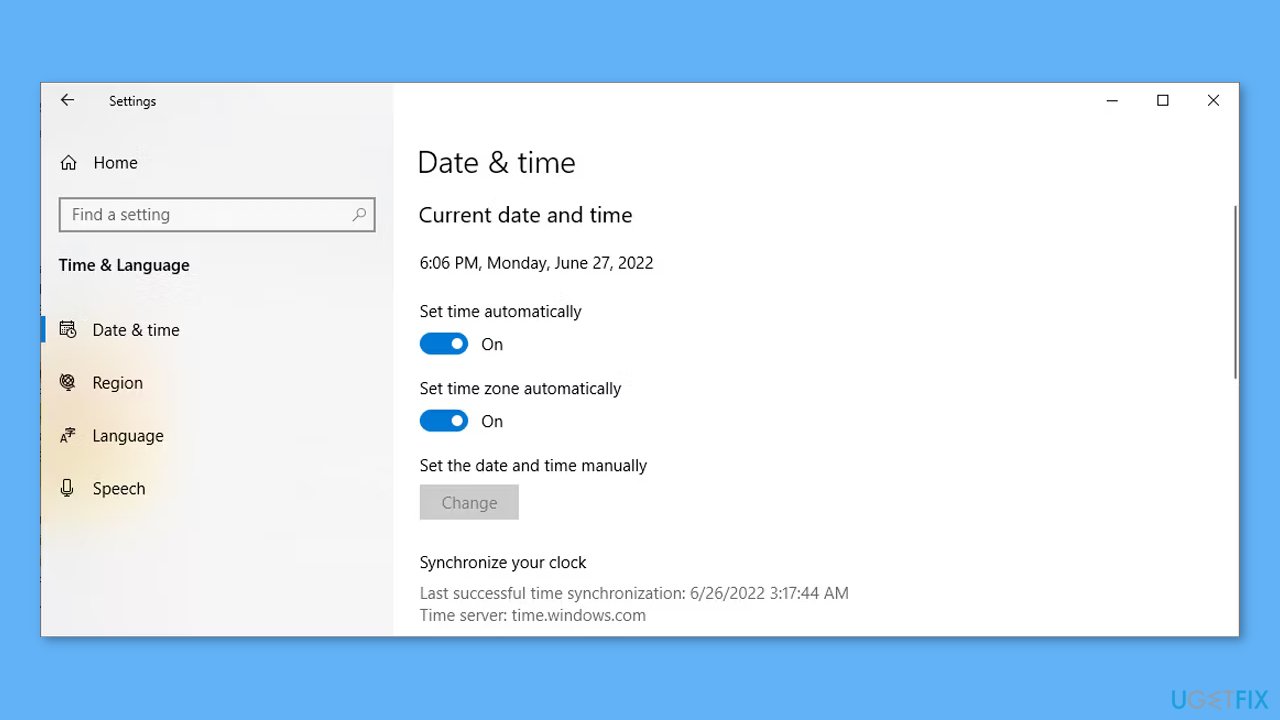
Solution 1. Check the Time and Date
- Press the Windows key + I to access the Settings menu.
- Go to Time & Language.
- Turn on the toggle for Set time automatically and Set time zone automatically.
- Relaunch Microsoft Store and verify if the Install button is now visible.
Solution 2. Reconnect Microsoft Account
You can attempt a speedy solution by reconnecting your Microsoft account. Follow these steps:
- In the Microsoft Store, click the Profile icon and choose Log out.
- Next, open Task Manager and terminate any store-related processes.
- Finally, reopen Microsoft Store and log in with your credentials.
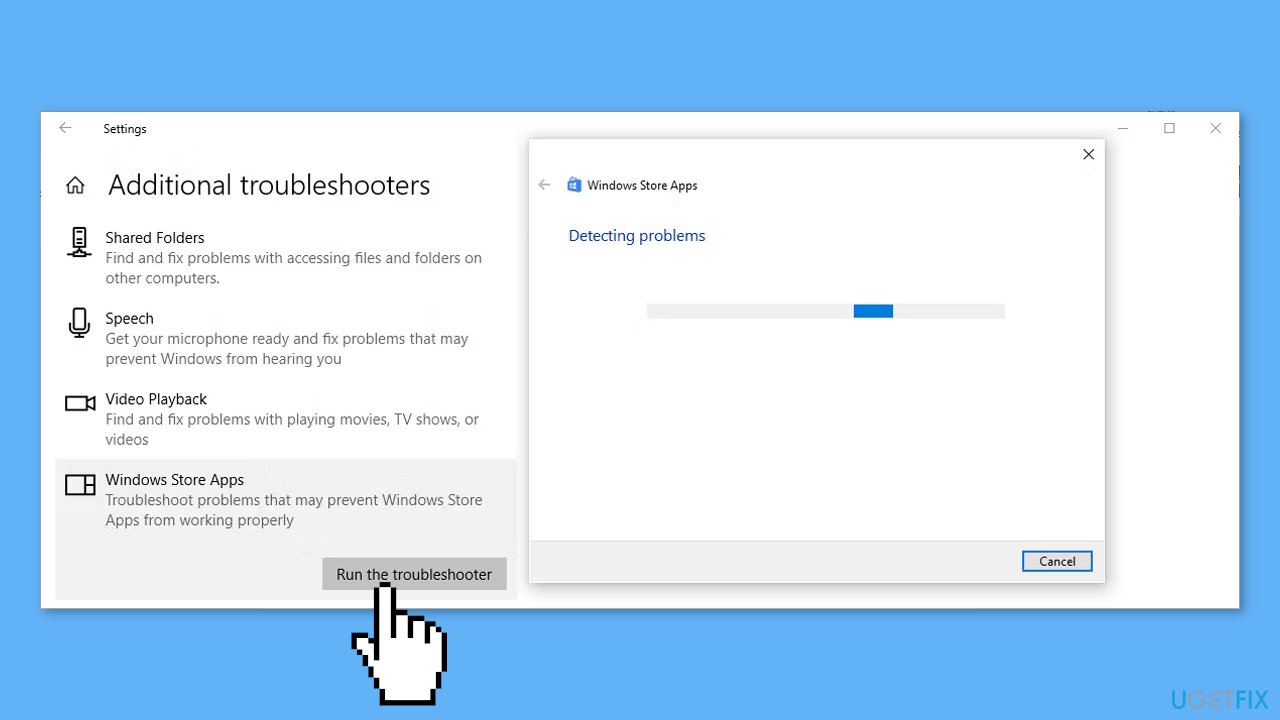
Solution 3. Run the Windows Store Troubleshooter
- Right-click the Start button and select Settings.
- Navigate to Update & Security > Troubleshoot > Additional troubleshooters.
- Scroll down to the bottom of the window and click Windows Store Apps > Run the troubleshooters.
Solution 4. Restart the Microsoft Store Service
- Press the Windows key + R to open the Run dialog.
- Type services.msc and press Enter.
- Locate and open Microsoft Store Install Services.
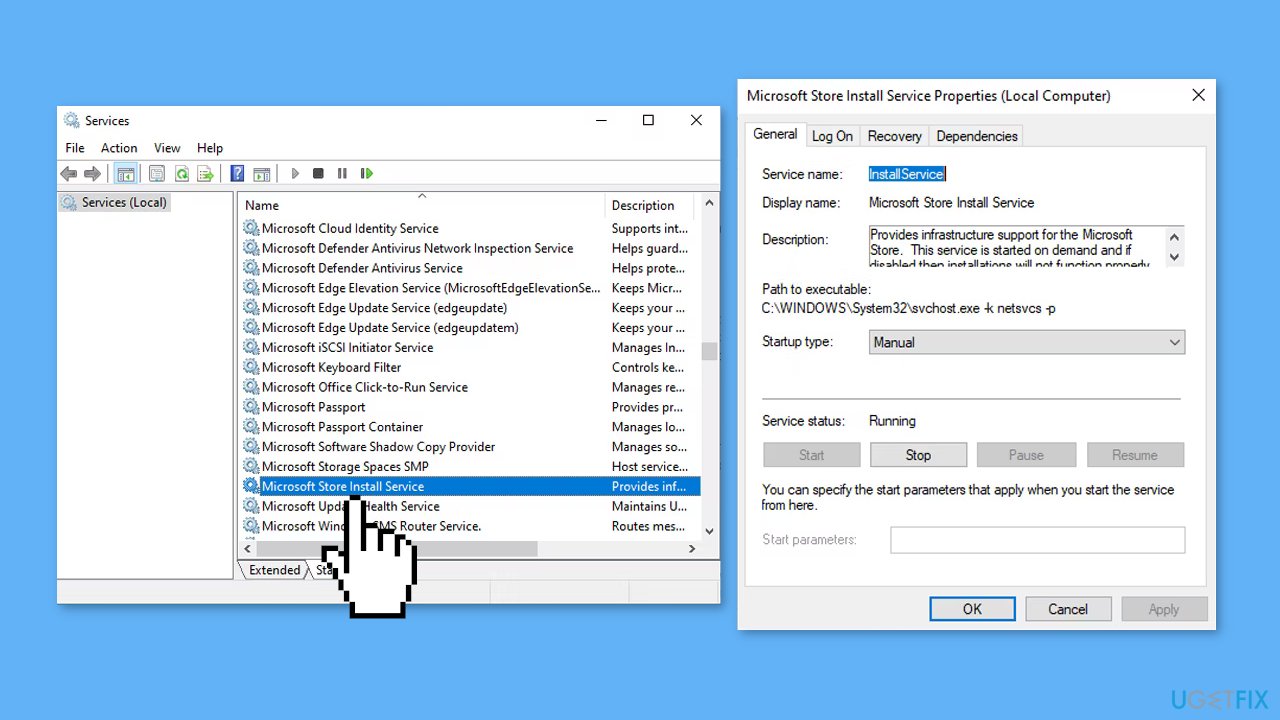
- If the service is already running, click Stop, and then click Start to restart it.
- Restart your computer.
- Check if the Install button is now available.
Solution 5. Reset the Microsoft Store
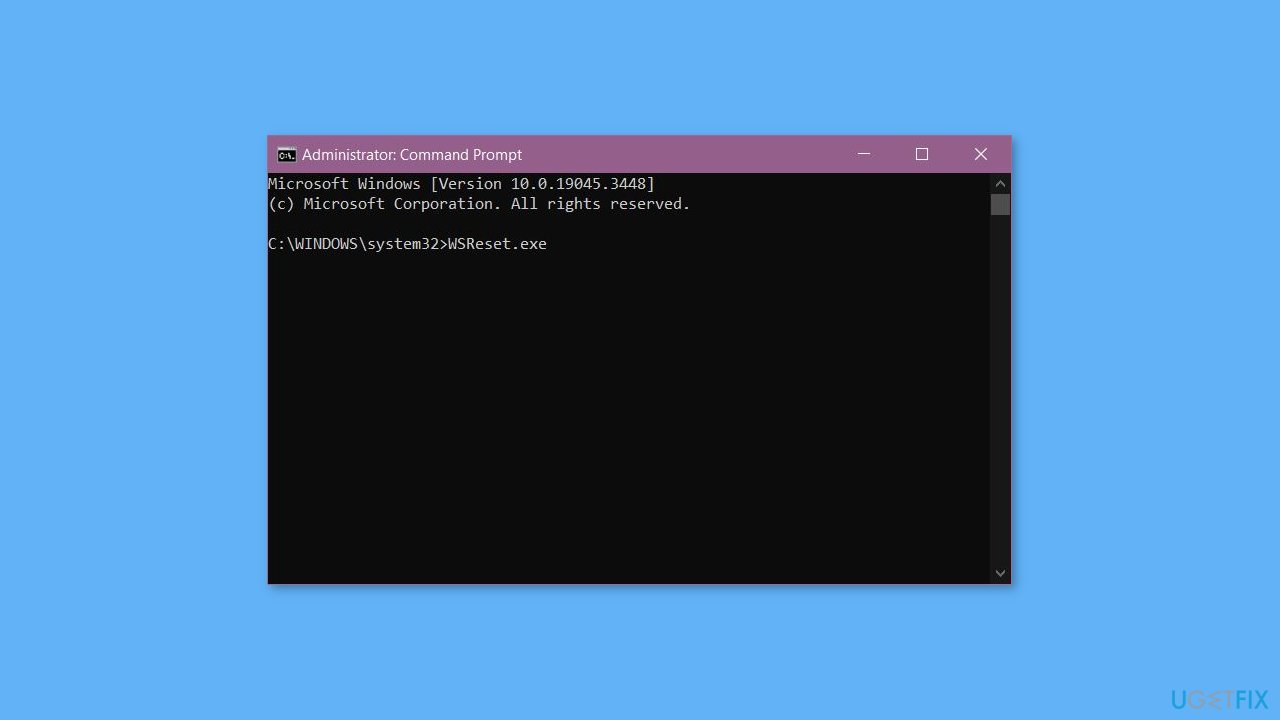
- Launch Command Prompt with administrative rights.
- Type the WSReset.exe command line.
- Press Enter to execute the command and reset the app, removing cache data.
Bottom line
To fix the missing 'Install' button in the Microsoft Store, you can try clearing the cache, updating Windows, or adjusting system settings. If these steps do not resolve the issue, consider using a maintenance tool to fix system errors.
Frequently asked questions
Try resetting the Microsoft Store app by going to Settings > Apps > Apps & features, selecting Microsoft Store, and clicking on 'Advanced options' to reset it. If that doesn’t work, check for Windows updates and install any available updates.
Ensure that your Windows 11 is up to date by checking for updates in Settings > Windows Update. If the issue persists, clear the Microsoft Store cache by running 'wsreset' in the Run dialog.
Yes, incorrect date and time settings can affect the Microsoft Store functionality, so ensure your system clock is correct. Additionally, check if your Microsoft account is properly signed in and has the necessary permissions.




Report an issue
What's wrong with this guide? We review every report and update or remove content.
Report received — thank you. We'll review and fix it.
You need a free account to submit a report.
Be the first to comment